Offre spéciale de novembre - 5 % DE RÉDUCTION SUR TOUT LE SITE !
Utilisez le code :
Valable jusqu'au 30 nov.
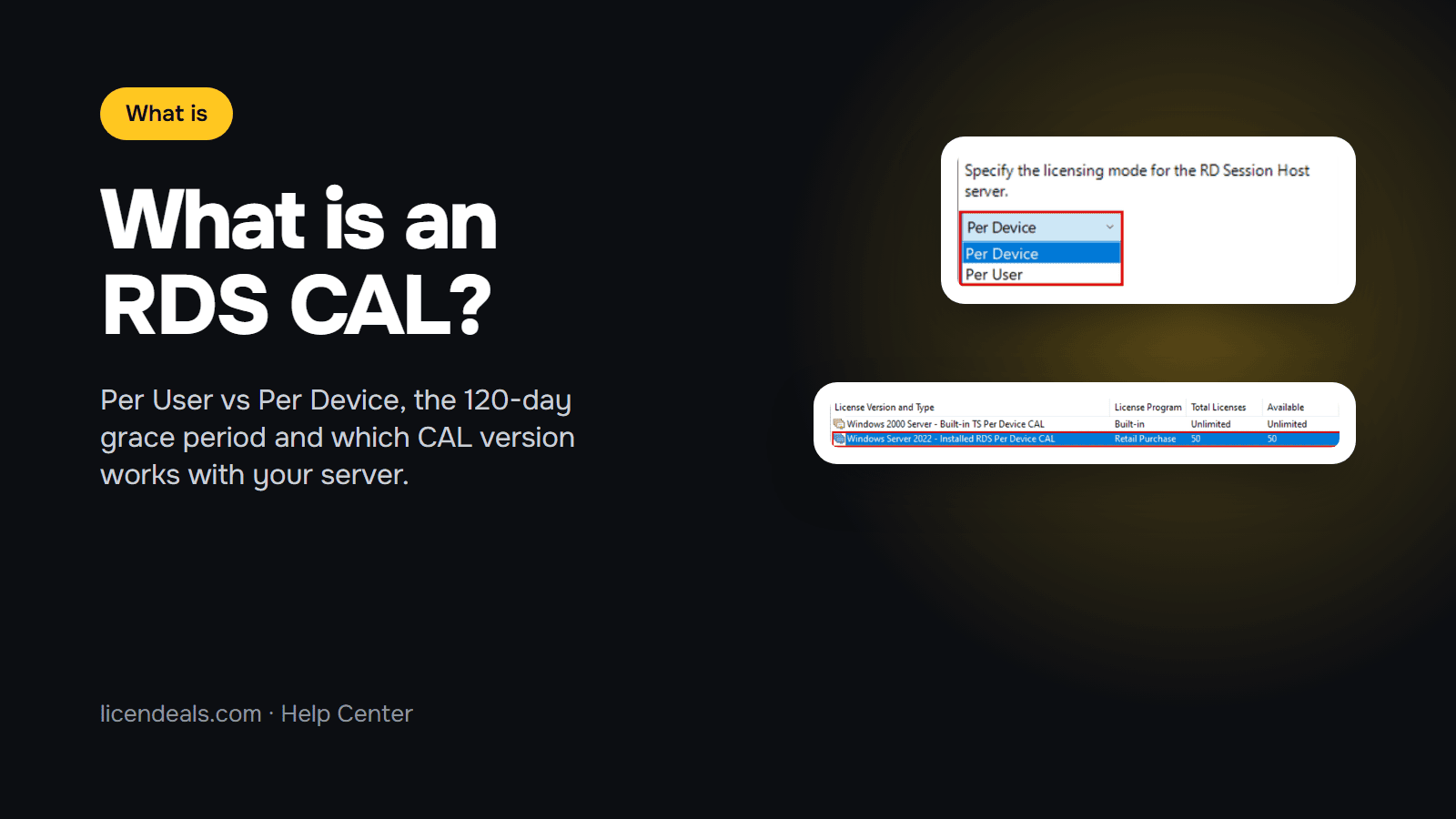
What is an RDS CAL? An RDS CAL (Remote Desktop Services client access license) is the license that lets a user or a device connect to a Remote Desktop Session Host, the Windows Server that runs remote desktops and RemoteApp programs. According to Microsoft, each user and device that connects to a session host needs one. Below we explain how RDS CALs work, the two types, the 120-day grace period and which CAL version works with which server, with screenshots from our own Windows Server 2022 test server.
IMPORTANT: an RDS CAL is not a product key that you type on each computer. You install your CALs once on a Remote Desktop license server, and the server hands them out to the users or devices that connect. The CAL type you buy (Per User or Per Device) must match the licensing mode you set on the session host.
Microsoft describes three pieces that work together:
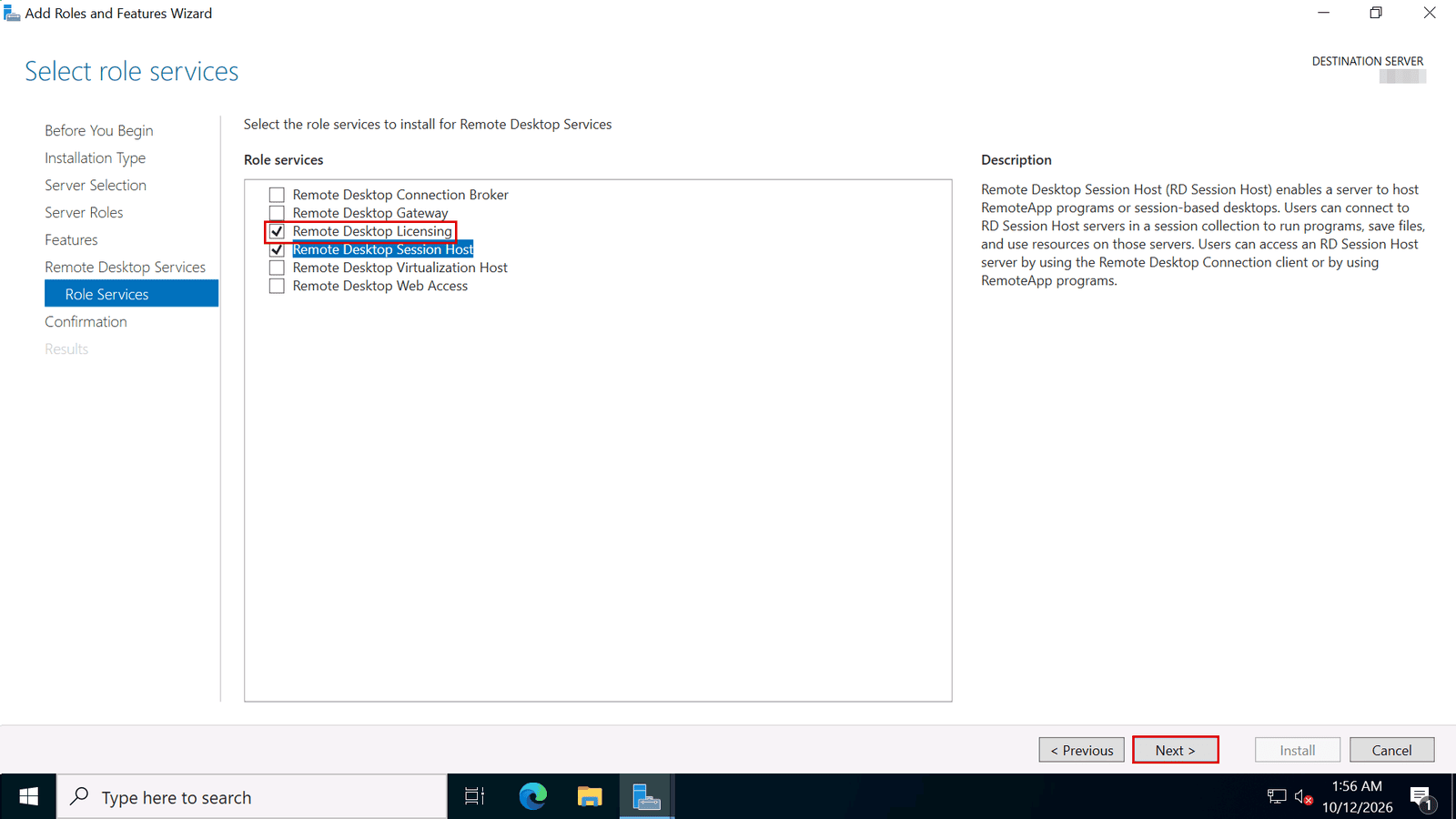
The first two are role services of Remote Desktop Services in Windows Server. On our test server we installed Remote Desktop Licensing and Remote Desktop Session Host on the same machine.
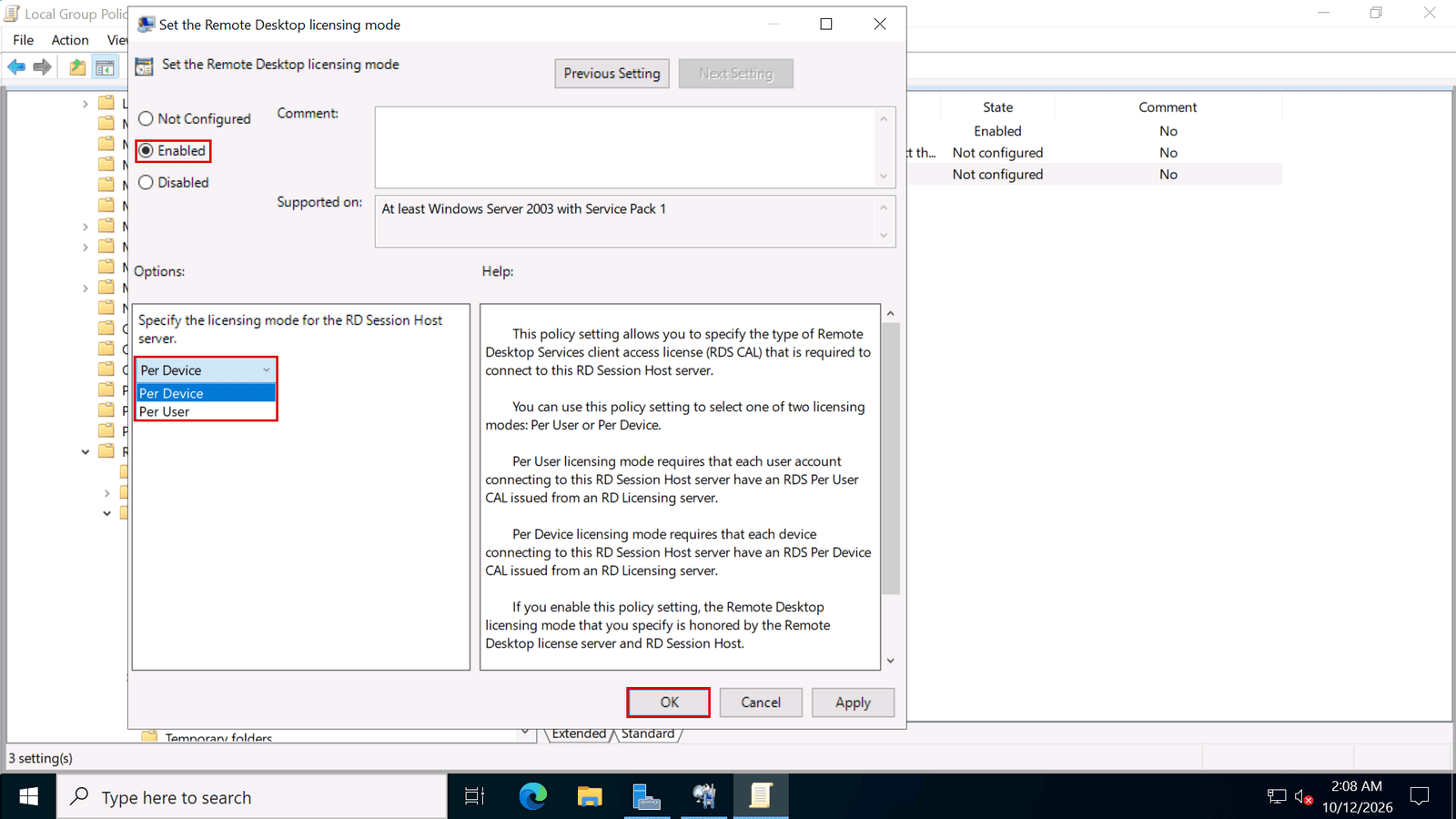
There are two kinds of RDS CAL, and you choose the matching licensing mode in the policy Set the Remote Desktop licensing mode on the session host. The policy's own help text says Per User mode requires an RDS Per User CAL for each user account, and Per Device mode requires an RDS Per Device CAL for each device.
Not sure which one you need? Read our comparison Windows Server RDS CALs: User CALs vs Device CALs.
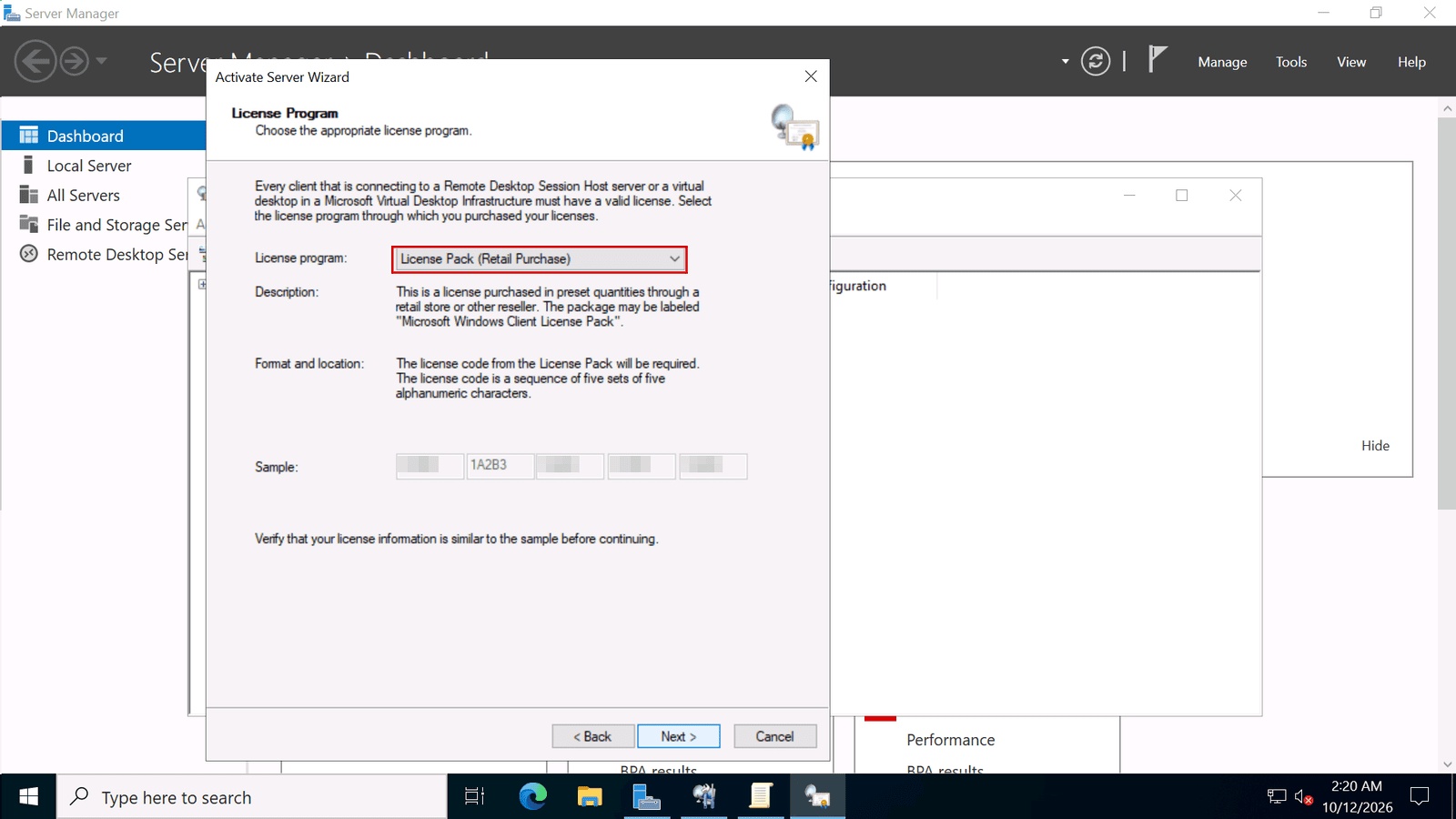
3.1 Before it can issue CALs, the license server must be activated with the Activate Server Wizard. On the License Program page you choose how you bought your CALs. The wizard explains that every client connecting to a Remote Desktop Session Host server must have a valid license. Our CALs use License Pack (Retail Purchase), with a license code of five sets of five characters.
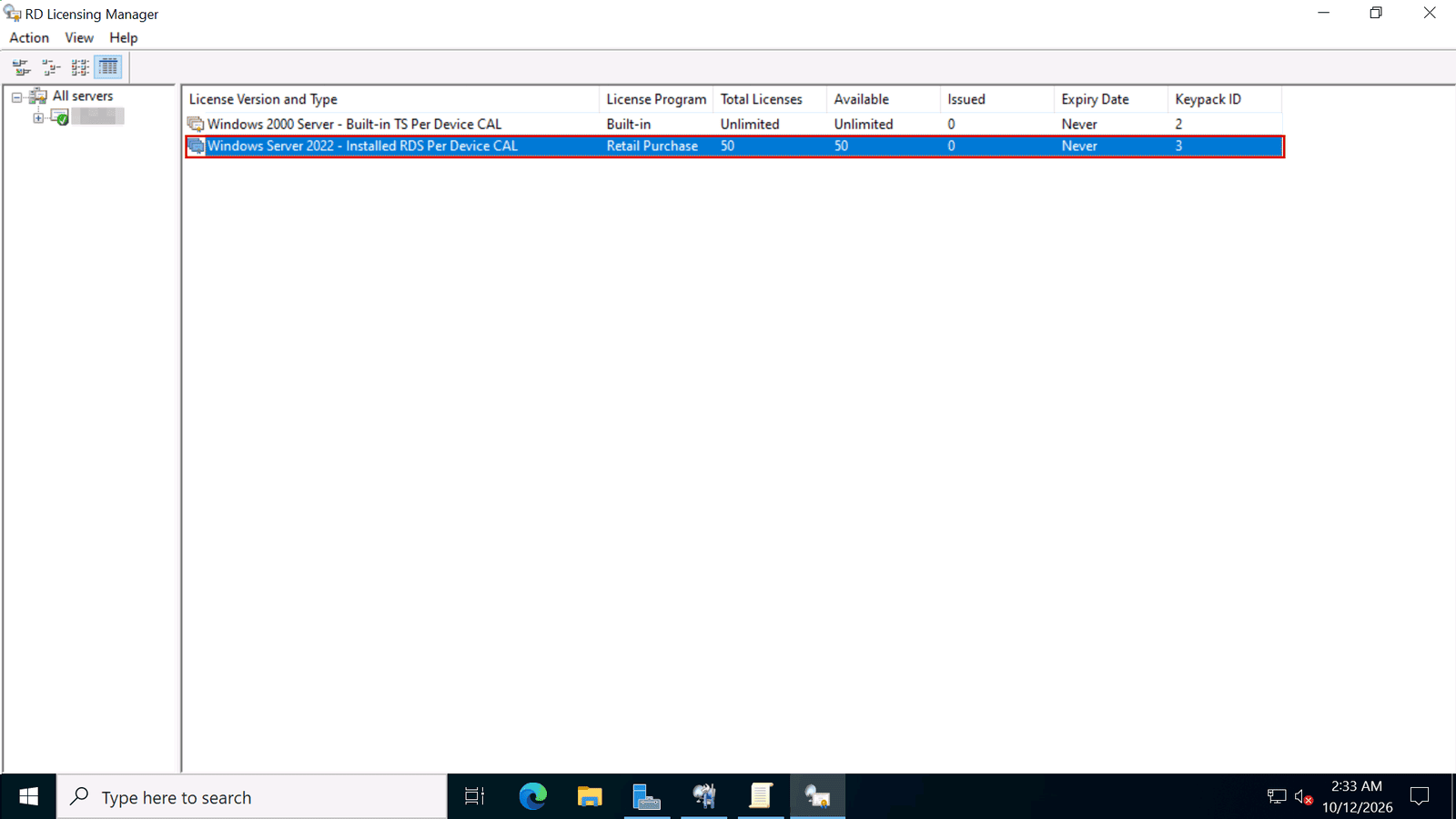
3.2 When the CALs are installed, you can see them in RD Licensing Manager. On our test server it shows the Windows Server 2022 RDS Per Device CALs, with 50 total, 50 available and none issued yet.
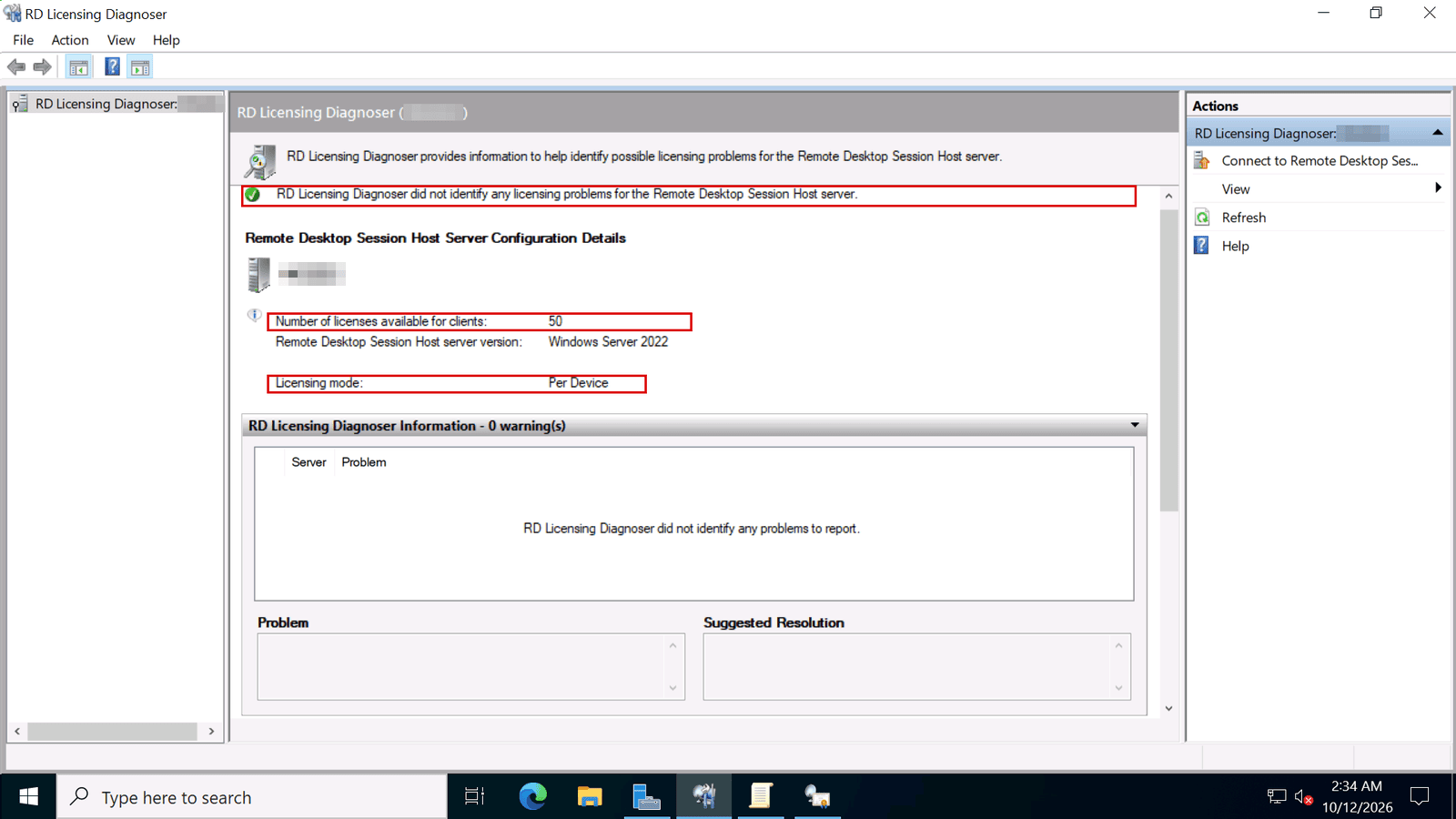
3.3 RD Licensing Diagnoser checks the whole setup. On our test server, with the CALs installed and the licensing mode set to Per Device, it found no licensing problems.
Every screen of the setup, step by step, is in our guide How to Install RDS CALs on Windows Server 2022 and 2025.
According to Microsoft, there is a licensing grace period of 120 days during which no license server is required. When it ends, each user or device needs an RDS CAL issued by a license server. If the grace period runs out and the session host has no license server, Windows can show errors such as "No Remote Desktop License Servers Available". Our post Fix: No Remote Desktop License Servers Available shows how to fix it.
Microsoft gives two rules, and both matter when you buy:
| RDS CAL version | Session hosts it works on | License servers it installs on |
|---|---|---|
| Windows Server 2025 | 2025, 2022, 2019, 2016 | 2025 |
| Windows Server 2022 | 2022, 2019, 2016 | 2025, 2022 |
| Windows Server 2019 | 2019, 2016 | 2025, 2022, 2019 |
| Windows Server 2016 | 2016 | 2025, 2022, 2019, 2016 |
In short: buy CALs for the newest Windows Server version your session hosts run, and install them on a license server of that version or later.
Our RDS CALs come in packs of 50, as User CALs or Device CALs, for Windows Server 2016, 2019, 2022 and 2025. The license type is CAL. Your license code stays hidden until you click Get my license, so reveal it when your license server is ready and you can install the CALs right away. If a license doesn't work, tell us within 24 hours of revealing it and we will replace it right away.
{n} de {l} a acheté
{n} a acheté
Quelqu'un de {l} a acheté
Quelqu'un a acheté
À l'instant
Il y a 1 minute
Il y a 2 minutes
Il y a 1 heure
Il y a 2 heures
Il y a 1 jour
Il y a 2 jours
Fermer


 Windows
 Office pour PC
 Office pour Mac
 Windows Server
 SQL Server
 Applications Office
 Visual Studio


