Offerta speciale di novembre - 5% DI SCONTO SU TUTTO IL SITO!
Usa il codice:
Valido fino al 30 nov.
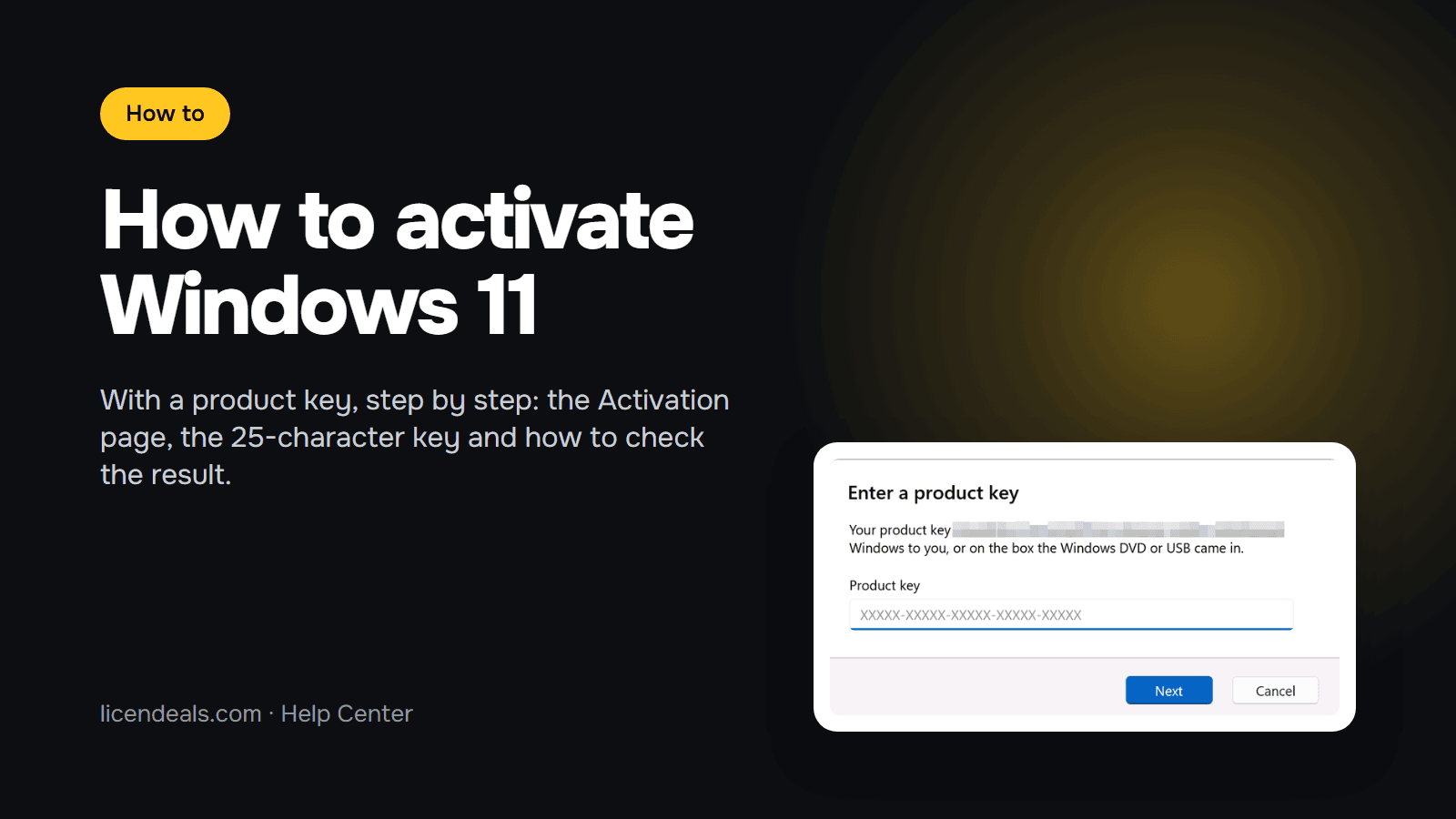
How to activate Windows 11 with a product key: open Settings, go to System, then Activation, select Change product key and type your 25-character key. Windows checks it online and, if it's valid, activates Windows. This guide shows every step with screenshots from our own Windows 11 Pro test computer, how to check the result and what to do if the key doesn't work.
IMPORTANT: the screenshots are from our Windows 11 Pro test computer (October 12, 2026). We activated it with a MAK Volume License for our guides, and some parts of the screenshots are blurred or covered. Microsoft's Activate Windows page describes the same path in Settings for any 25-character product key, so the steps below are the same when you enter a RETAIL key. If you have a MAK key, follow our MAK guide instead (linked in section 3).
1.1 Have your 25-character product key ready. Microsoft describes it as "a 25-character code used to activate Windows", in the format XXXXX-XXXXX-XXXXX-XXXXX-XXXXX. If you bought it from us, select Get my license in your order to see it.
1.2 Check that the key matches your edition. A Windows 11 Pro key activates Windows 11 Pro, and a Windows 11 Home key activates Windows 11 Home. Your edition is at the top of the Activation page (step 2.2). If you have Windows 11 Home and a Windows 11 Pro key, follow How to Upgrade Windows 11 Home to Pro (Step by Step) instead.
1.3 Make sure the computer is connected to the internet: activation with a product key happens online. Windows may ask you to confirm your choice.
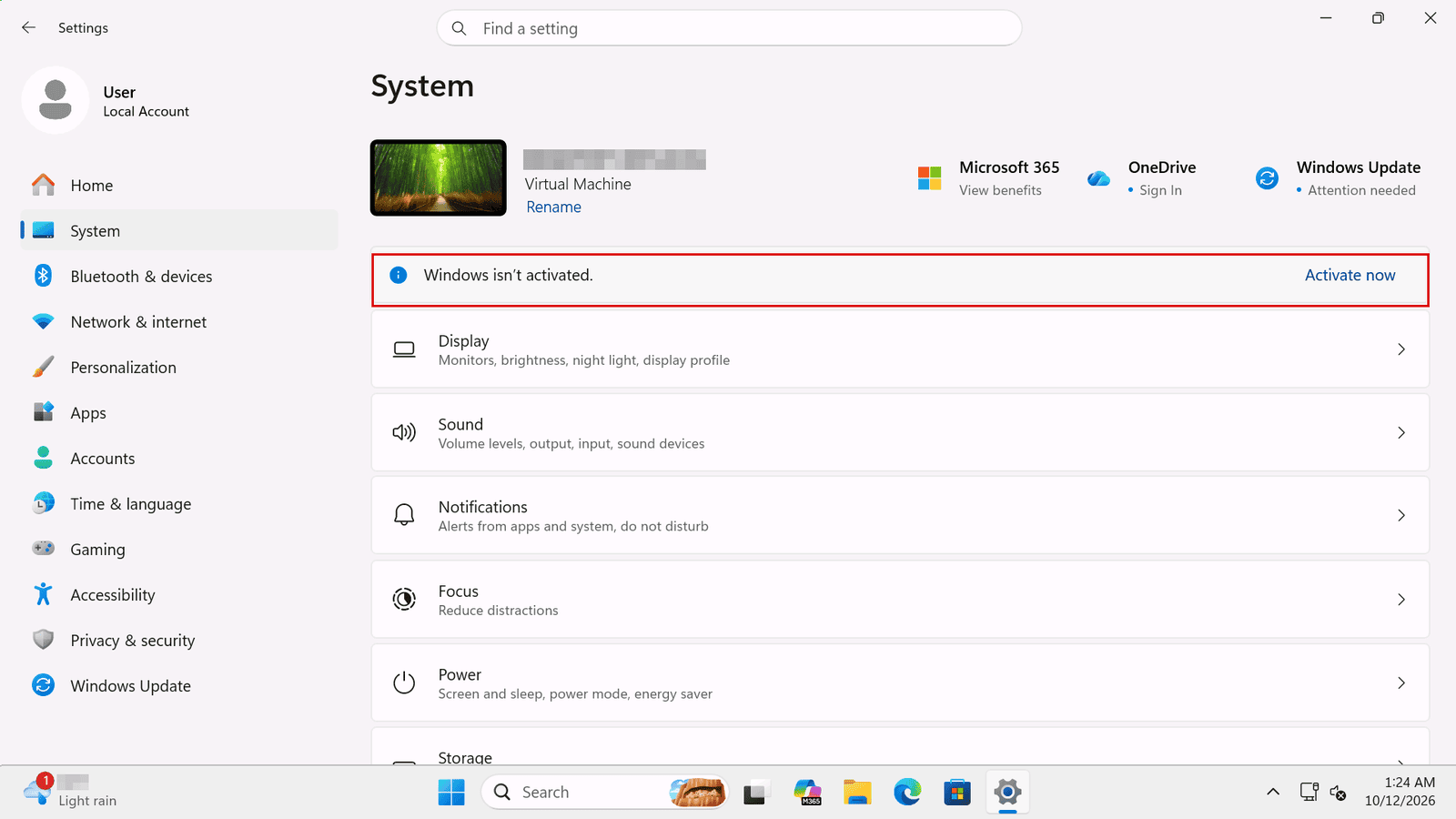
2.1 When Windows 11 is not activated, Settings shows it on the System page, with an Activate now link. You can select it, or go to the next step.
2.2 Select Start, then Settings, System, Activation. At the top you see your edition (here, Windows 11 Pro) and the activation state (here, Not active).
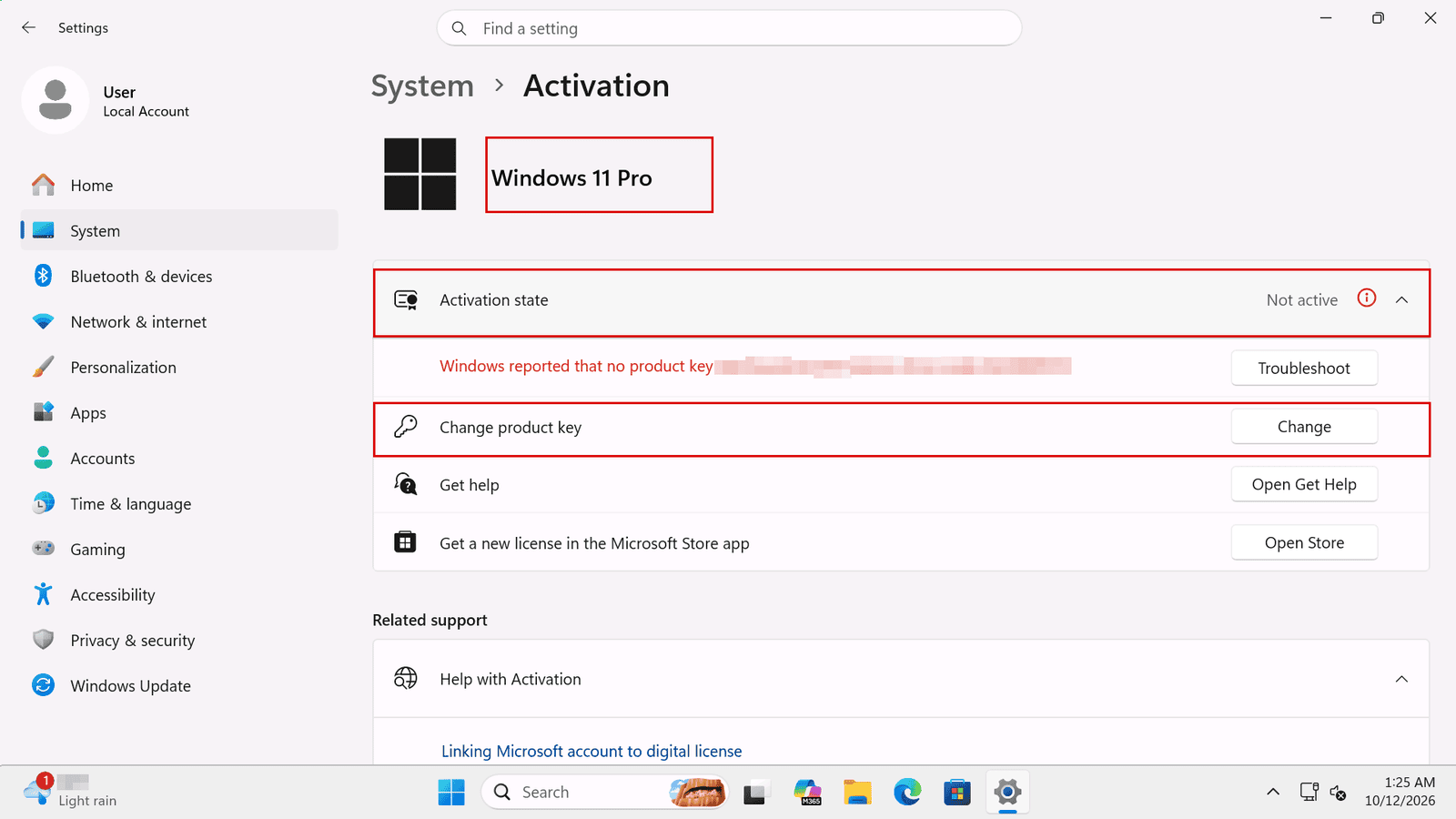
3.1 Next to Change product key, select Change.
3.2 In the Enter a product key window, type your 25-character key. Select Next.
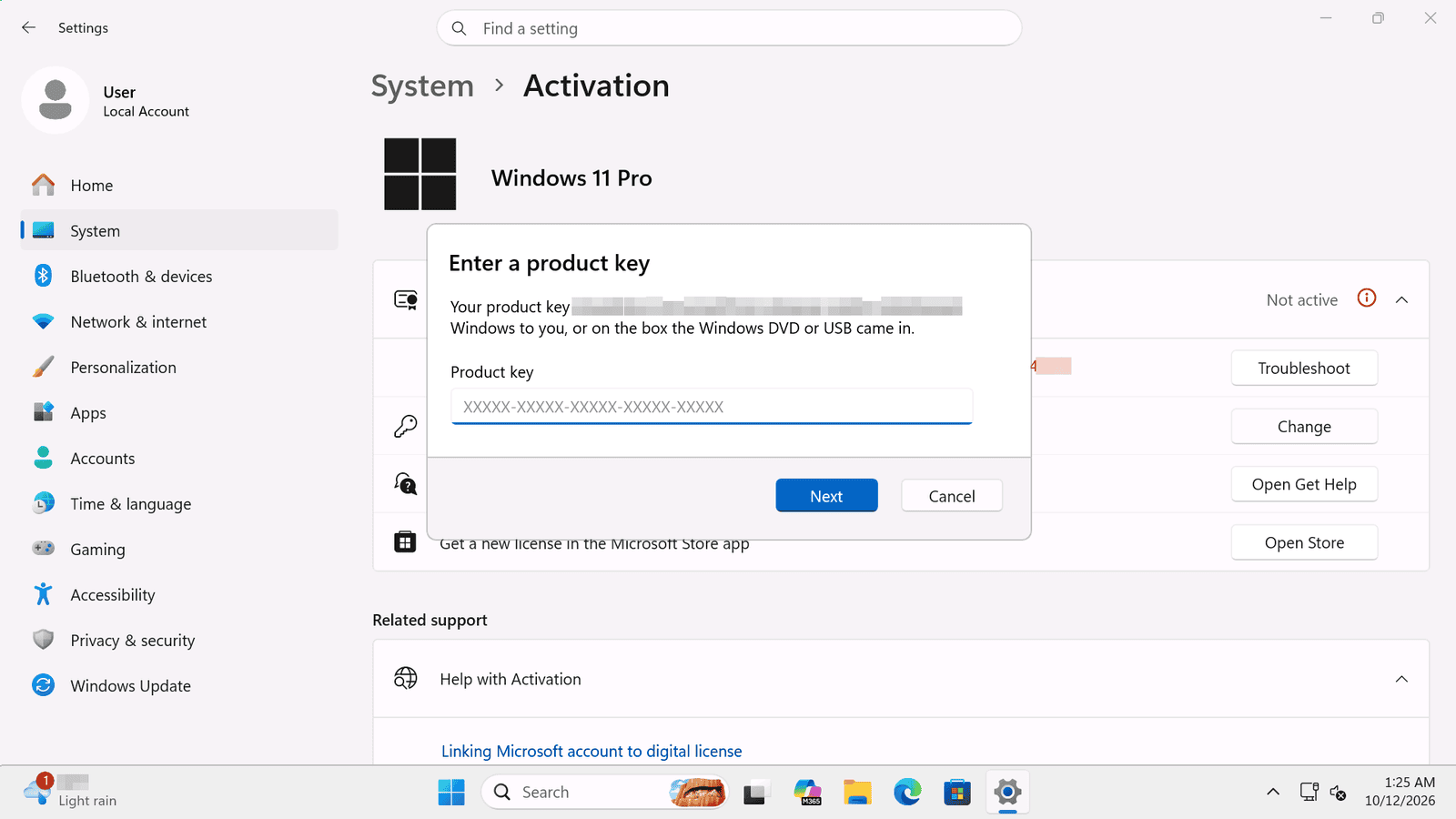
3.3 Windows checks the key online. On our test computer, Windows then asked us to confirm and we selected Activate. If Windows asks you to confirm, follow the prompt on screen and wait for the result.
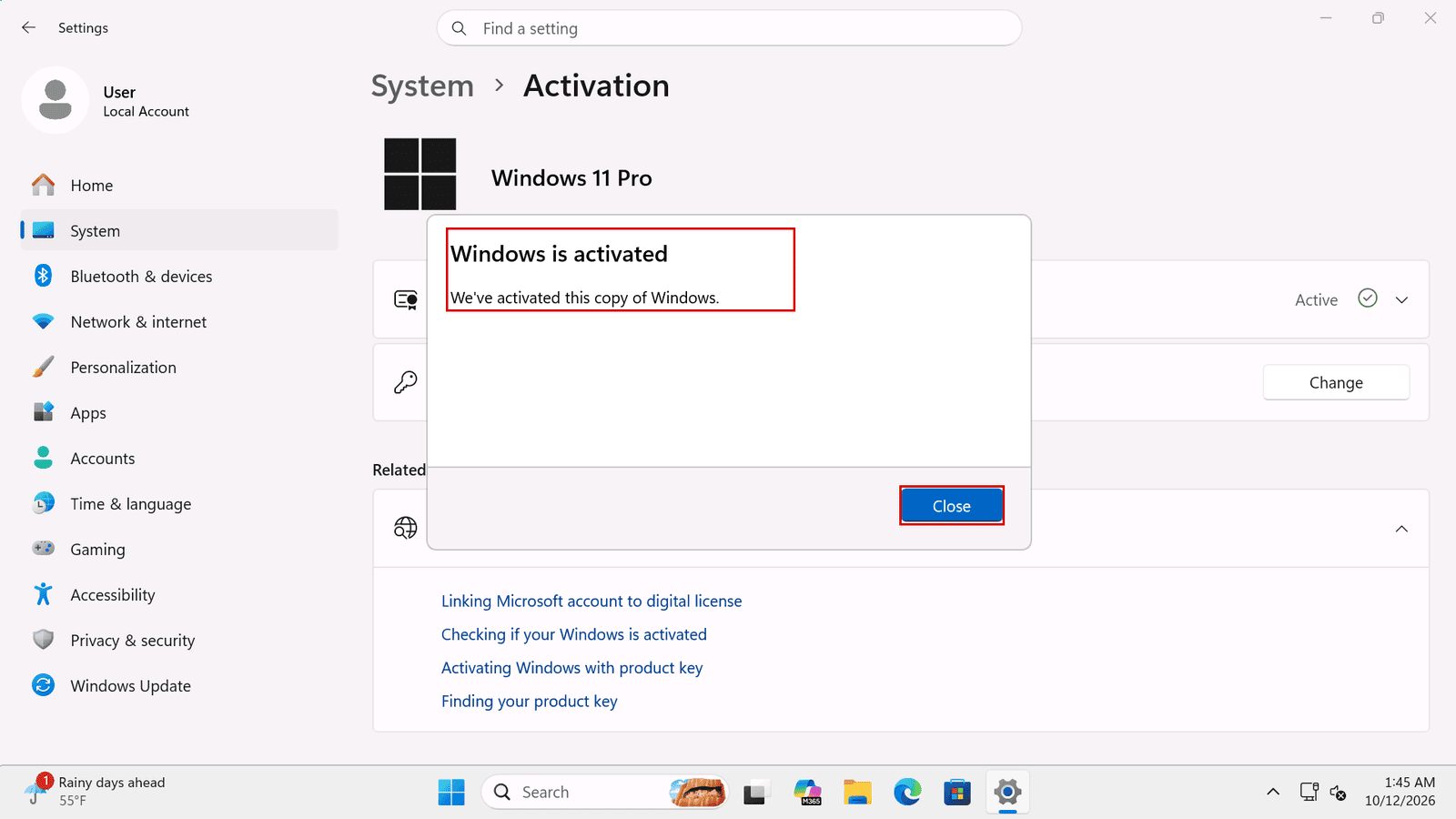
3.4 When the key is accepted, Windows shows Windows is activated, "We've activated this copy of Windows." Select Close.
If you bought a MAK Volume License, use How to Activate Windows 11 Pro with a MAK Volume License. For Windows 10, see How to Activate Windows 10 with a Product Key (Step by Step).
Back on the Activation page, the activation state now says Active. This is what it looked like on our test computer.
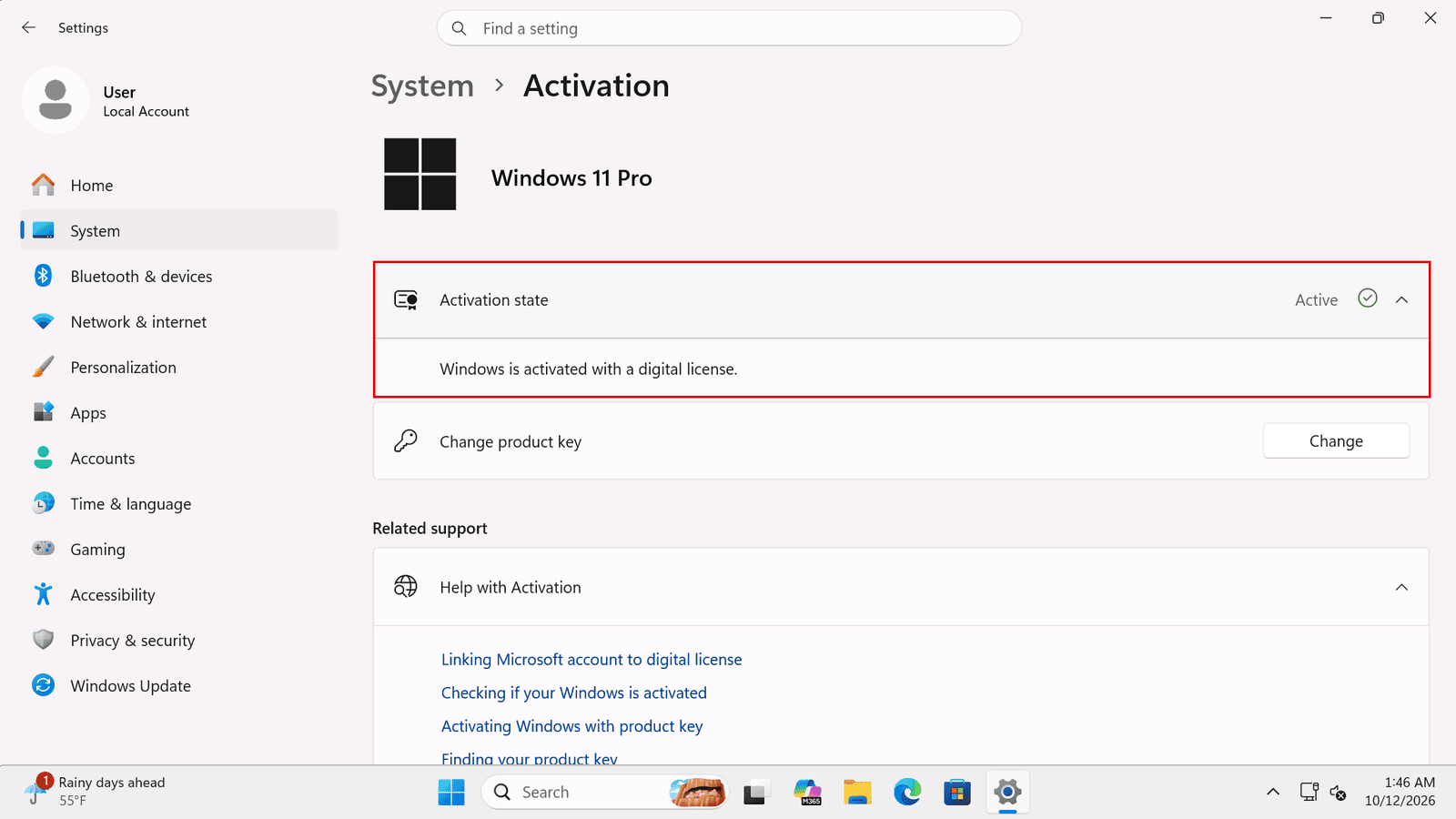
When you expand Activation state, Windows may say "Windows is activated with a digital license", even if you entered a product key. Microsoft explains that a digital license is given to your device based on the valid product key you entered. To see more details, such as the license channel, read How to Check Your Windows Activation Status and License Type.
5.1 Read the error code on the Activation page, under Activation state, and check the key again: one wrong character is enough for Windows to reject it.
5.2 Look up your code:
5.3 If you bought the license from us: if a license doesn't work, tell us within 24 hours of revealing it and we will replace it right away. MAK Volume Licenses have 30 days instead of 24 hours. Your statutory rights are not affected. Tell us the error code or send a screenshot, and your order number. The full rules are on our warranty page.
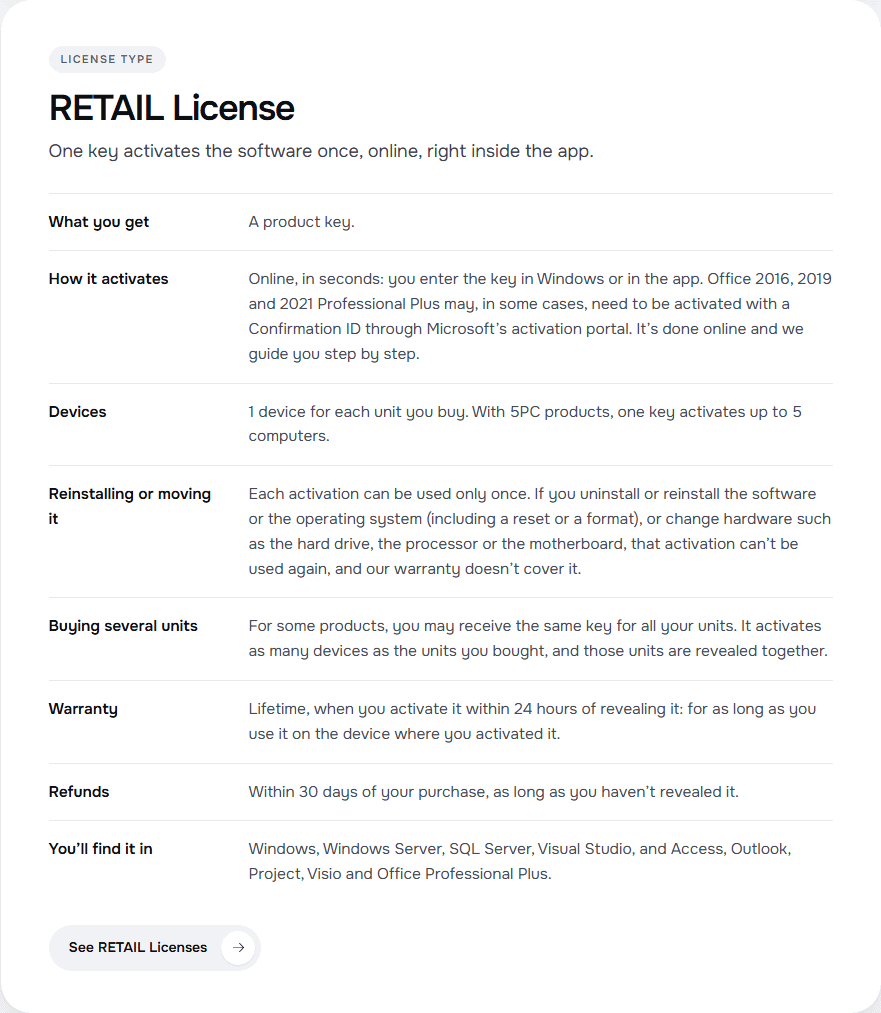
Before you enter the key, decide on which computer you will use it. Our license types page explains what each type allows; for example, a RETAIL License activates the software once, online, one device for each unit you buy.
To see all the types side by side, read OEM vs RETAIL vs BIND vs CID: Which License Should You Buy? and see the rules of each type on our license types page. To avoid the most common problems, read 7 Mistakes That Make Windows or Office Activation Fail (and How to Avoid Them).
{n} da {l} ha acquistato
{n} ha acquistato
Qualcuno da {l} ha acquistato
Qualcuno ha acquistato
Proprio ora
1 minuto fa
2 minuti fa
1 ora fa
2 ore fa
1 giorno fa
2 giorni fa
Chiudi


 Windows
 Office per PC
 Office per Mac
 Windows Server
 SQL Server
 App di Office
 Visual Studio

