September Special Offer - 5% OFF SITEWIDE!
Use code:
IMPORTANT: To ensure a successful installation of the lifetime version of Office, we recommend that you uninstall any previously installed versions of Office on your computer, including Office 365, as it may cause conflicts during installation. Please follow the steps in this guide
IMPORTANT: For this process, you won't need to make any actual phone calls. The entire procedure will be carried out through Microsoft's official self-service website.
Download Office 2024 Professional Plus x32/64 - English
Download Office 2024 Professional Plus x32/64 - Spanish
Download Office 2024 Professional Plus x32/64 - French
Download Office 2024 Professional Plus x32/64 - Italian
Download Office 2024 Professional Plus x32/64 - German
Download Office 2024 Professional Plus x32/64 - Portuguese
2.1 Right-click on the downloaded file and select “Run as administrator”; the system will automatically begin the installation.

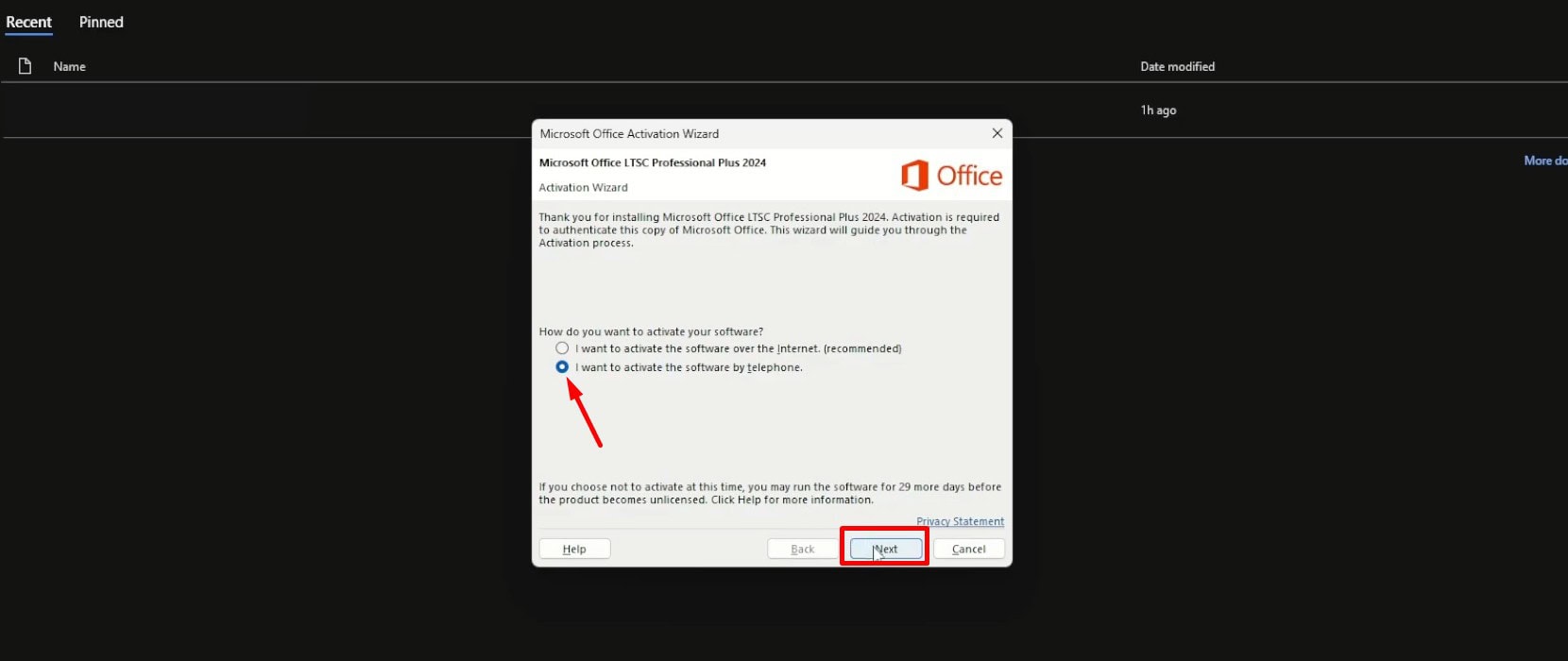
3.1 Open any application in your new Office suite (for example, Word or Excel). When it launches, the activation window will appear. Select the option that says “I want to activate the software by telephone” and click Next.
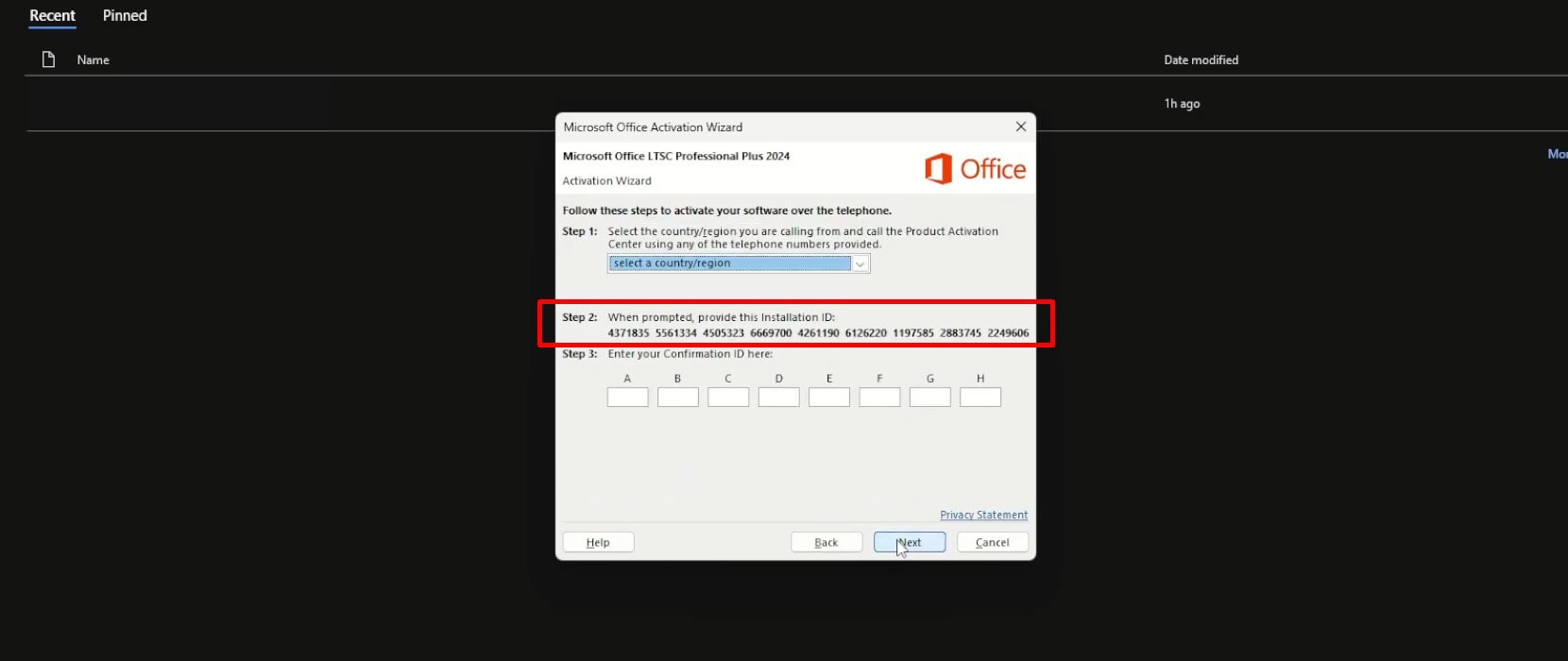
3.2 A new window will appear on your screen displaying your Installation ID. This is a 63-digit code (divided into several blocks) that is essential for the activation process.
3.3 From your browser, go to the official Microsoft activation website by clicking HERE. Once the page loads, click the “Let's get started” button and complete the security verification.

3.4 Click “Proceed to sign in.” You'll be redirected to the Microsoft sign-in page. Enter your email address and password, or use quick sign-in if you're already signed in on that device.
3.5 Once you're there, click the “Activate a Microsoft product” button. Then, from the list of options, select “Microsoft Office.”

3.6 The system will ask you for details about your software.

3.7 You will be taken to a new screen where you will see blank fields. Here, you must enter the 63-digit code (Installation ID) that we obtained in Step 2. After entering it correctly, click “Submit.”
IMPORTANT: If the system asks how many devices this product is installed on, enter the number corresponding to your license.

3.8 The website will automatically generate a new code called a Confirmation ID. Copy it or write it down carefully.

3.9 Finally, return to the Office activation window you left open on your computer, enter this Confirmation ID in the corresponding fields (blocks A through H), and click “Next.”

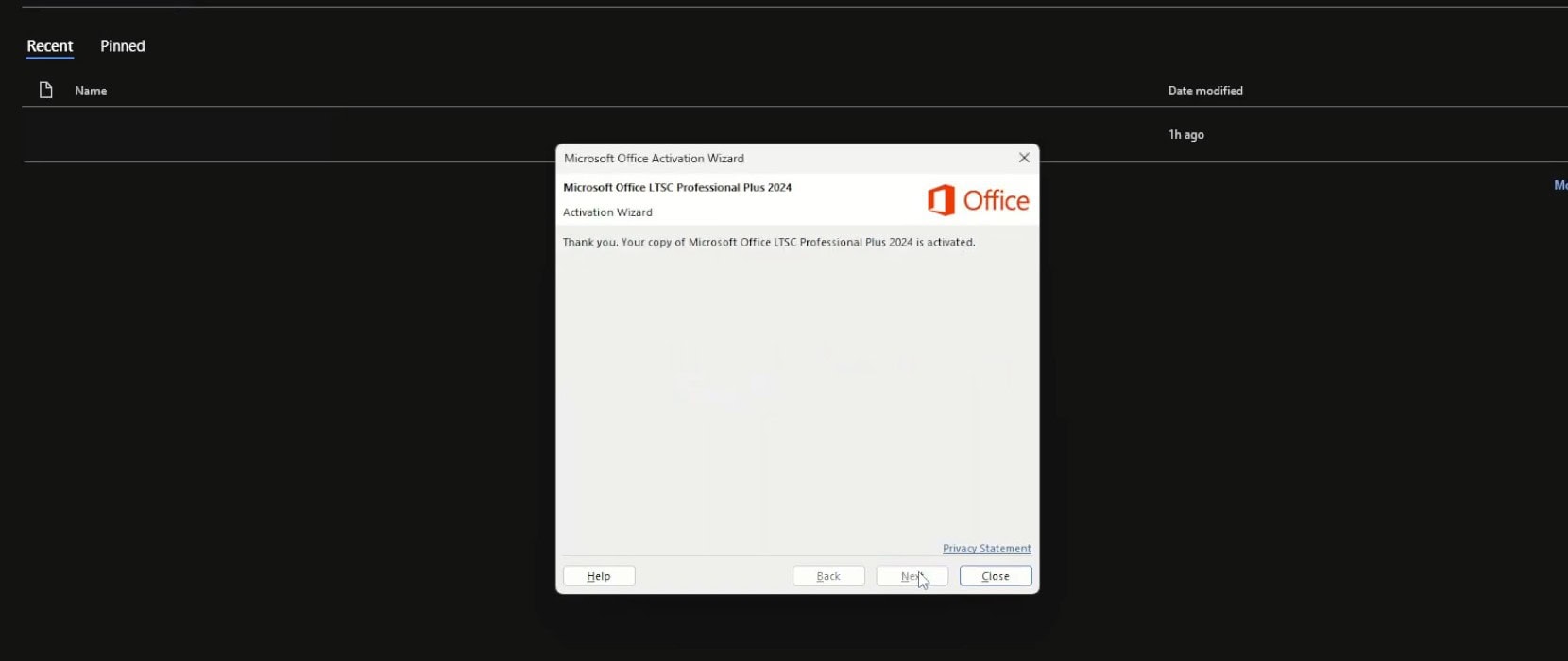
All done! You'll see a message confirming that your Office Professional Plus 2024 LTSC has been successfully activated and is now ready to use without restrictions.

No account yet?
Create an Account


 Windows
 Office for PC
 Office for Mac
 Windows Server
 SQL Server
 Office Apps
 Visual Studio
