November Special Offer - 5% OFF SITEWIDE!
Use code:
Valid until Nov 30
All the help you need in one place: step-by-step activation and installation guides.
Install your software, fix an error, compare editions or understand your license: pick a topic.
Not sure what the error is called? Pick what you see or what you want to do, and we will point you to the right place.
Seen a code such as 0xC004F050 or 30015-4? Find it below to learn what it means and what to try first.
Windows does not accept the key you entered, usually because of a typo, a character changed when pasting, or a key that belongs to a different Windows product.
Message us if the code stays after retyping the key. If a license doesn't work, tell us within 24 hours of revealing it and we will replace it right away.
Our guides: How to Upgrade Windows 11 Home to Pro, How to Activate Windows 11, How to Activate Windows 10
The key is invalid or belongs to a different version of Windows than the one installed.
Message us if version and edition match your order and the code stays. If a license doesn't work, tell us within 24 hours of revealing it and we will replace it right away.
Our guides: How to Activate Windows 11, How to Activate Windows 10, License types
The key belongs to a different edition than the one installed, for example a Pro key on a PC running Home.
Message us if you installed the wrong edition or are unsure which one you need.
Our guides: How to Upgrade Windows 11 Home to Pro, License types
Microsoft's servers refuse the key: in Windows, usually because it has already been used on more devices than it allows; in Office, because the key has been blocked.
Message us if always, if the code appears. If a license doesn't work, tell us within 24 hours of revealing it and we will replace it right away (MAK Volume Licenses have 30 days instead of 24 hours).
Our guides: Office says Unlicensed Product or Product Activation Failed: How to Fix It, Warranty
The key has already been used on another device, or on more devices than its license allows.
Message us if you are sure the key was used on one PC only.
Our guides: License types, Warranty
A MAK can be activated only a limited number of times, and this one has reached its limit.
Message us if the count says you still have activations left. MAK Volume Licenses have 30 days instead of 24 hours to use all their activations or tell us about an error.
Our guides: License types, Request a quote, How to Install and Activate Office 2024 Professional Plus LTSC (MAK)
A Windows license is tied to the hardware, so a change such as a new motherboard can stop Windows from matching it.
Message us if you changed the motherboard, disk or processor, or you reinstalled Windows.
Our guides: Warranty, License types
Windows did not find a valid license to activate the device.
Message us if the key is typed correctly and the code stays.
Our guides: How to Activate Windows 11, How to Activate Windows 10
There is no internet connection, a firewall is blocking activation, or the activation server is temporarily unavailable.
Message us if it still fails on a different network.
Our guides: How to Activate Windows 11, How to Activate Windows 10
The date and time on the PC are wrong, or Windows can't reach the activation service.
Message us if the date is right and the code stays.
Our guides: How to Activate Windows 10, How to Activate Windows 11
The activation server or licensing service is temporarily unavailable, or Windows is already processing an activation request.
Message us if it keeps coming back after a few attempts on different occasions.
Our guides: How to Activate Windows 11, How to Activate Windows 10
It is a general failure; Microsoft's page gives no specific cause for it.
Message us if the troubleshooter doesn't solve it.
Our guides: How to Activate Windows 11, Warranty
Microsoft's activation server doesn't accept the Multiple Activation Key (MAK) you entered, so it can't activate this PC with it.
Message us if the code stays with the right key. If a license doesn't work, tell us within 24 hours of revealing it and we will replace it right away (MAK Volume Licenses have 30 days instead of 24 hours).
Our guides: License types
Windows is set up to activate with a company activation server, called KMS, and can't find one on your network. At home or in a small office there is no such server, so Windows shows this code until you enter the product key from your order.
Message us if the code stays after entering your key. If a license doesn't work, tell us within 24 hours of revealing it and we will replace it right away (MAK Volume Licenses have 30 days instead of 24 hours).
Our guides: How to Activate Windows 11, How to Activate Windows 10, License types
There is no product key installed on this computer, so Windows has nothing to activate with.
Message us if Windows doesn't accept the key from your order. If a license doesn't work, tell us within 24 hours of revealing it and we will replace it right away (MAK Volume Licenses have 30 days instead of 24 hours).
Our guides: How to Activate Windows 11, How to Install Windows Server 2019, License types
Microsoft's activation server says the Multiple Activation Key (MAK) you entered isn't valid. Microsoft's first advice is to enter the key again, in case a character was typed wrong.
Message us if the code stays with the key typed correctly. If a license doesn't work, tell us within 24 hours of revealing it and we will replace it right away (MAK Volume Licenses have 30 days instead of 24 hours).
Our guides: License types, How to Install Windows Server 2019
Windows reports that the product key is blocked: Microsoft's activation service no longer accepts it, so retyping the same key won't activate Windows. According to Microsoft, the fix is to install a new product key and activate again.
Message us if always, if the code appears. If a license doesn't work, tell us within 24 hours of revealing it and we will replace it right away (MAK Volume Licenses have 30 days instead of 24 hours).
Our guides: How to Activate Windows 11, How to Install Windows Server 2022 and Activate It with a Product Key, Warranty
Windows did not find a valid license to activate the device.
Message us if the key is typed correctly and the code stays.
Our guides: How to Activate Windows 11, How to Activate Windows 10
Activation needs administrator permissions that the app or the window you used does not have.
Message us if the error began right after a Windows update. Microsoft's fix for that case edits the Windows registry, so please let us help before trying it.
Our guides: Office says Unlicensed Product or Product Activation Failed: How to Fix It
Microsoft lists it for Office activation failing on a PC upgraded to Windows 10 and not fully updated; the page does not name a single root cause.
Message us if it still fails after updating Windows.
Our guides: Office says Unlicensed Product or Product Activation Failed: How to Fix It
Volume editions of Office (Office LTSC 2024, Office LTSC 2021, Office 2019 and Office 2016, Professional Plus or Standard) come with a generic key that looks for a company activation server, called KMS. At home or in a small office there is no such server, so Office shows this code until you enter the product key from your order.
Message us if the code stays after entering your key. If a license doesn't work, tell us within 24 hours of revealing it and we will replace it right away.
Our guides: How to Install and Activate Office 2024 Professional Plus LTSC (MAK), Office Says "Unlicensed Product" or "Product Activation Failed"
The activation data you entered doesn't have the right format. Usually a digit of the Confirmation ID was typed wrong, or the Confirmation ID was made for a different Installation ID.
Message us if a new Confirmation ID isn't accepted either. If a license doesn't work, tell us within 24 hours of revealing it and we will replace it right away.
Our guides: Installation ID Extractor, How to Install and Activate Office 2024 Professional Plus LTSC via CID, How to Install and Activate Office 2021 Professional Plus via CID
Microsoft shows this code on office.com/setup when the key has a typo or belongs to a different product, such as a Windows key or a volume license key. That page is for Office linked to a Microsoft account, like a BIND License.
Message us if the key from your license page still isn't accepted. If a license doesn't work, tell us within 24 hours of revealing it and we will replace it right away (MAK Volume Licenses have 30 days instead of 24 hours).
Our guides: License types, How to Install and Activate Office 2024 Professional Plus LTSC via CID, How to Install and Activate Office 2024 Professional Plus LTSC (MAK)
Office 365 (Microsoft 365 Apps) shows We are unable to connect right now, with 0xCAA70007 or 0xCAA80000, when it can't reach Microsoft's servers to activate. According to Microsoft, an old version of Windows or Office, a proxy or a firewall, the network settings or old saved Office credentials can cause it.
Message us if Office still can't connect after these steps. If a license doesn't work, tell us within 24 hours of revealing it and we will replace it right away.
Our guides: All How to guides, Warranty
When you open Word, Excel or another Office app on a Mac, it shows Unknown Error 0x0 or License Not Found. Microsoft lists it as a known issue of Microsoft 365 and Office for Mac, and says that updating Office fixes it.
Message us if the message stays after updating Office. If a license doesn't work, tell us within 24 hours of revealing it and we will replace it right away.
Our guides: All How to guides, License types
When you activate Office on a Mac, it shows The system requires that you sign on to a valid account. The error code is: 0xD000000C. According to Microsoft, it can happen when you signed in to the Mac with a network account, such as an Open Directory account: then Office can't save your sign-in in the keychain, because it is read-only.
Message us if Office still asks you to sign in after these steps. If a license doesn't work, tell us within 24 hours of revealing it and we will replace it right away.
Our guides: All How to guides, License types
When you activate Office on a Mac, it shows An unknown error has occurred. The error code is 0xD0001043. According to Microsoft, it is a server issue.
Message us if the error stays after these steps. If a license doesn't work, tell us within 24 hours of revealing it and we will replace it right away.
Our guides: All How to guides, License types
When you activate Office on a Mac, it shows error 0xD000001C. According to Microsoft, your Mac's name contains invalid characters when it is sent to the activation server.
Message us if the error stays after changing the name. If a license doesn't work, tell us within 24 hours of revealing it and we will replace it right away.
Our guides: All How to guides, License types
Microsoft describes it as usually a driver error.
Message us if setup rolls back again.
Our guides: Installing Windows 11: Step-by-Step Instructions
The drive does not have enough free space for setup.
Message us if you have plenty of space and the code stays.
Our guides: Installing Windows 11: Step-by-Step Instructions
An installed app is not compatible with the new Windows and stops setup.
Message us if setup doesn't say which app is the problem.
Our guides: Installing Windows 11: Step-by-Step Instructions
The PC could not connect to the Windows Update servers, or the System Reserved partition is too full.
Message us if you suspect the partition. We will guide you before you touch it.
Our guides: Installing Windows 11: Step-by-Step Instructions
Microsoft says the PC may not meet the minimum requirements for the version you are installing.
Message us if you are not sure whether your PC meets the list.
Our guides: How to Install Windows 11 Without TPM 2.0 and UEFI
A background process or security program interfered with setup.
Message us if it fails again after both steps.
Our guides: Installing Windows 11: Step-by-Step Instructions
Setup reports a missing file; Microsoft's advice is to remove the disks that Windows is not being installed on.
Message us if only one disk is connected and it still fails.
Our guides: Installing Windows 11: Step-by-Step Instructions
Windows Update or a standalone update file (.msu) fails with 0x800F0831 (CBS_E_STORE_CORRUPTION). According to Microsoft, the Windows component store is damaged: a package the update needs is missing, or it isn't fully applied to the registry.
Message us if the update still fails or you don't want to run these commands yourself. If a license doesn't work, tell us within 24 hours of revealing it and we will replace it right away (MAK Volume Licenses have 30 days instead of 24 hours).
Our guides: All How to guides, Warranty
Windows Update fails with 0x80070422. According to Microsoft, this happens when the Windows Update service isn't running or isn't set to start on its own.
Message us if the error comes back after these steps. If a license doesn't work, tell us within 24 hours of revealing it and we will replace it right away (MAK Volume Licenses have 30 days instead of 24 hours).
Our guides: All How to guides, Warranty
Windows Update stops with 0x800F081F or 0x80073712. According to Microsoft, system files that the update needs are missing or damaged, which Microsoft calls component store corruption.
Message us if the update still fails or you don't want to run these commands yourself. If a license doesn't work, tell us within 24 hours of revealing it and we will replace it right away (MAK Volume Licenses have 30 days instead of 24 hours).
Our guides: All How to guides, Warranty
Windows Update stops with 0x80070570. According to Microsoft, Windows can't read the files it needs to install the update. The downloaded update files may be damaged, the component store may be damaged, the disk may have errors, or security software may be getting in the way.
Message us if the update still fails or you don't want to run these commands yourself. If a license doesn't work, tell us within 24 hours of revealing it and we will replace it right away (MAK Volume Licenses have 30 days instead of 24 hours).
Our guides: All How to guides, Warranty
Windows Update stops with 0x80072EE2, 0x80072EFD or 0x80072EFE. According to Microsoft, the PC couldn't connect to the update servers in time because of a network problem, often a firewall or a proxy that blocks them.
Message us if the error comes back after these steps. If a license doesn't work, tell us within 24 hours of revealing it and we will replace it right away (MAK Volume Licenses have 30 days instead of 24 hours).
Our guides: All How to guides, Warranty
The upgrade to a new version of Windows stops with 0xC1900107. According to Microsoft, a cleanup from a previous installation attempt is still pending, and the PC must restart before the upgrade can continue.
Message us if the error comes back after these steps. If a license doesn't work, tell us within 24 hours of revealing it and we will replace it right away (MAK Volume Licenses have 30 days instead of 24 hours).
Our guides: Installing Windows 11: Step-by-Step Instructions
Windows Update stops with 0x80240034. According to Microsoft, the operation didn't complete because the download was interrupted.
Message us if the error comes back after these steps. If a license doesn't work, tell us within 24 hours of revealing it and we will replace it right away (MAK Volume Licenses have 30 days instead of 24 hours).
Our guides: All How to guides, Warranty
Your Windows account lacks the administrator permissions that the install needs.
Message us if you don't have an administrator account on that PC.
Our guides: How to Install and Activate Office 2024 Professional Plus LTSC via CID, How to Uninstall Microsoft Office on Windows, All How to guides
Microsoft ties these codes to a network connection problem or a drive running out of space.
Message us if it fails again with free space and a different network.
Our guides: How to Uninstall Microsoft Office on Windows, All How to guides
An earlier install, update or uninstall of Office was still running when you started this one.
Message us if it fails after a clean uninstall.
Our guides: How to Uninstall Microsoft Office on Windows, All How to guides
Microsoft's page gives no single cause; its fixes target interference from the connection, proxy, firewall or antivirus.
Message us if it fails after a restart and a clean uninstall.
Our guides: How to Uninstall Microsoft Office on Windows, All How to guides
Antivirus software, a firewall, proxy settings or the internet connection can stop the install.
Message us if it still fails on a different network.
Our guides: All How to guides, How to Uninstall Microsoft Office on Windows
Office shows "Something went wrong" with this code while it updates. Microsoft's first fix is to repair Office from Windows.
Message us if the update still fails after the Online Repair. Tell us before you uninstall an Office that is already activated: depending on your license type, reinstalling it may need a new activation.
Our guides: License types, All How to guides
Office shows an error that contains 30068 when it can't finish installing. According to Microsoft, a restart often fixes it; if not, the Microsoft Office Click-to-Run service may be turned off.
Message us if it fails after a clean uninstall. Tell us before you uninstall an Office that is already activated: depending on your license type, reinstalling it may need a new activation.
Our guides: License types, All How to guides
Antivirus software, a firewall, proxy settings or the internet connection can stop the install.
Message us if it still fails on a different network.
Our guides: All How to guides
Office shows an error that contains 30033 when it can't finish installing. Microsoft's fixes target a damaged or partial install and interference from the connection, firewall or antivirus.
Message us if it fails after a clean uninstall. Tell us before you uninstall an Office that is already activated: depending on your license type, reinstalling it may need a new activation.
Our guides: License types, All How to guides
Office shows an error that contains 30094 when it can't finish installing. Microsoft's fixes are to clear temporary files, repair Office, or remove it and install it again.
Message us if it fails after a clean uninstall. Tell us before you uninstall an Office that is already activated: depending on your license type, reinstalling it may need a new activation.
Our guides: License types, All How to guides
This message can appear at the last stage of the installation. According to Microsoft, Office has probably installed correctly.
Message us if the apps still don't appear after the repair.
Our guides: License types, All How to guides
According to Microsoft, these errors appear when your internet connection, antivirus software, firewall or proxy settings stop Office from installing over the internet.
Message us if it still fails on a different network.
Our guides: License types, All How to guides
Office shows an error that contains 30145 when it can't finish installing. Microsoft's fixes are to restart and install again, repair Office, or remove it and install it again.
Message us if it fails after a clean uninstall. Tell us before you uninstall an Office that is already activated: depending on your license type, reinstalling it may need a new activation.
Our guides: License types, All How to guides
Word, Excel, Outlook or another Office app shows The application was unable to start correctly (0xC0000142) and closes. Microsoft's fixes are to update Office, repair it, update Windows, check an Office service, and as a last step remove Office and install it again.
Message us if it fails after a clean uninstall. Tell us before you uninstall an Office that is already activated: depending on your license type, reinstalling it may need a new activation.
Our guides: License types, All How to guides
Windows didn't accept the key entered in the activation window. Microsoft gives two causes: the key wasn't valid as entered, or a known issue in Windows Server 2019 interfered with checking the key.
Message us if slmgr /ipk doesn't accept the key either. If a license doesn't work, tell us within 24 hours of revealing it and we will replace it right away (MAK Volume Licenses have 30 days instead of 24 hours).
Our guides: How to Install Windows Server 2019, License types
Your server is running the evaluation version of Windows Server, which installs from the evaluation media. An evaluation doesn't take the product key in Change product key or with slmgr /ipk: first you convert it to the full version with your key, using one DISM command.
Message us if DISM doesn't accept the key from your order. If a license doesn't work, tell us within 24 hours of revealing it and we will replace it right away (MAK Volume Licenses have 30 days instead of 24 hours).
Our guides: How to Install Windows Server 2022 and Activate It with a Product Key, License types
DISM shows Error: 1605 when the product key in the Set-Edition command doesn't match the edition you are converting to, for example a Datacenter key with /Set-Edition:ServerStandard, or a key for another version of Windows Server.
Message us if the error stays with the edition and the key matching. If a license doesn't work, tell us within 24 hours of revealing it and we will replace it right away (MAK Volume Licenses have 30 days instead of 24 hours).
Our guides: How to Install Windows Server 2022 and Activate It with a Product Key, License types
Windows Server shows 0x800F0906 when you add the .NET Framework 3.5 feature and the server can't download its files from Windows Update. According to Microsoft, a network, proxy or firewall problem, or a server that gets its updates from WSUS, can cause it. 0x800F0907 means a Group Policy setting doesn't let the server download those files from Windows Update.
Message us if the feature still doesn't install. If a license doesn't work, tell us within 24 hours of revealing it and we will replace it right away (MAK Volume Licenses have 30 days instead of 24 hours).
Our guides: How to install and activate Windows Server 2022, How to install Windows Server 2019
SQL Server setup shows 0x851A001A, Wait on the Database Engine recovery handle failed, when the Database Engine can't start. According to Microsoft, this happens when the system disk reports a sector size greater than 4 KB, which no version of SQL Server supports. It is common with NVMe drives on Windows 11, and it can also stop SQL Server from starting after an upgrade from Windows 10 to Windows 11. The SQL Server error log then shows error 5178 or 5179.
Message us if SQL Server still doesn't install after the restart. If a license doesn't work, tell us within 24 hours of revealing it and we will replace it right away.
Our guides: How to Install SQL Server 2022 and Enter Your Product Key, License types
SQL Server shows Login failed for user, error 18456, when it rejects a connection because the sign-in failed. According to Microsoft, common causes are a wrong user name or password, a login that doesn't exist on that server, or SQL Server Authentication used on a server set to Windows Authentication only. The message hides the reason on purpose: the SQL Server error log shows a State number that tells you why (for example, State 8 means the password is incorrect).
Message us if SQL Server setup doesn't accept the product key from your license page. If a license doesn't work, tell us within 24 hours of revealing it and we will replace it right away.
Our guides: How to Install SQL Server 2022 and Enter Your Product Key, License types
SQL Server shows A network-related or instance-specific error occurred while establishing a connection to SQL Server, with error 26 (Error Locating Server/Instance Specified) or error 40 (Could not open a connection to SQL Server). According to Microsoft, common causes are an instance that isn't running, a wrong server or instance name, TCP/IP turned off, or a firewall that blocks the port.
Message us if SQL Server setup doesn't accept the product key from your license page. If a license doesn't work, tell us within 24 hours of revealing it and we will replace it right away.
Our guides: How to Install SQL Server 2022 and Enter Your Product Key, License types
SQL Server shows Cannot open user default database. Login failed. (error 4064). According to Microsoft, the default database of that login isn't available (for example, it was removed or detached, it is offline, or it is in single-user mode), or the login has no user in that database, which often happens after a database is moved to another server.
Message us if SQL Server setup doesn't accept the product key from your license page. If a license doesn't work, tell us within 24 hours of revealing it and we will replace it right away.
Our guides: How to Install SQL Server 2022 and Enter Your Product Key, License types
The SQL Server or SQL Server Agent service doesn't start and Windows shows Error 1069: The service did not start due to a logon failure. According to Microsoft, there is a problem with the account the service signs in with: its password changed or is incorrect, the account is disabled or locked out, or it doesn't have the Log on as a service right.
Message us if SQL Server setup doesn't accept the product key from your license page. If a license doesn't work, tell us within 24 hours of revealing it and we will replace it right away.
Our guides: How to Install SQL Server 2022 and Enter Your Product Key, License types
SQL Server shows Login failed. The login is from an untrusted domain and cannot be used with Integrated authentication (error 18452). According to Microsoft, SQL Server can't validate the credentials: the server accepts Windows Authentication only and you used a SQL Server login, the SQL Server login doesn't exist, or Windows can't verify the Windows account, for example because it belongs to an untrusted domain.
Message us if SQL Server setup doesn't accept the product key from your license page. If a license doesn't work, tell us within 24 hours of revealing it and we will replace it right away.
Our guides: How to Install SQL Server 2022 and Enter Your Product Key, License types
SQL Server shows A connection was successfully established with the server, but then an error occurred during the login process, with No process is on the other end of the pipe (Microsoft SQL Server, Error: 233). According to Microsoft, SQL Server isn't listening on Shared Memory or Named Pipes.
Message us if SQL Server setup doesn't accept the product key from your license page. If a license doesn't work, tell us within 24 hours of revealing it and we will replace it right away.
Our guides: How to Install SQL Server 2022 and Enter Your Product Key, License types
SQL Server shows Unable to open the physical file, followed by an operating system error (error 5120). According to Microsoft, SQL Server couldn't open a database file, and the operating system error in the message points to the reason. You may see it together with errors 17204 or 17207.
Message us if SQL Server setup doesn't accept the product key from your license page. If a license doesn't work, tell us within 24 hours of revealing it and we will replace it right away.
Our guides: How to Install SQL Server 2022 and Enter Your Product Key, License types
Outlook for Windows shows 0x8004010F: Outlook data file cannot be accessed, or 0x8004010F: The operation failed. An object could not be found, when you send or receive email. Microsoft says the cause is a damaged Outlook profile, and that creating a new profile can fix it.
Message us if Outlook says it is unlicensed or asks you to activate it. If a license doesn't work, tell us within 24 hours of revealing it and we will replace it right away.
Our guides: All How to guides, License types
Outlook for Windows can't send or receive email and shows one of these codes, sometimes with a message such as The server could not be found, The connection to the server was interrupted, or Outlook is unable to connect to your outgoing (SMTP) e-mail server. Microsoft lists them together, with the same steps for all of them.
Message us if Outlook says it is unlicensed or asks you to activate it. If a license doesn't work, tell us within 24 hours of revealing it and we will replace it right away.
Our guides: All How to guides, License types
No code matches. Check the digits, or send us a screenshot of the full message on live chat or WhatsApp.
Codes and meanings come from Microsoft's own support pages. We explain them in plain language and tell you what to try first with your license.
Still stuck? Send us a screenshot of the full message and your order number on live chat or WhatsApp: we have 24/7 support. If a license doesn't work, tell us within 24 hours of revealing it and we will replace it right away (MAK Volume Licenses have 30 days instead of 24 hours). Your statutory rights are not affected.
Short answers about delivery, activation, warranty and license types.
Your license is delivered by email: right after your payment is confirmed, we email you a secure link to your license. Click "Get my license" in that email to see it, together with the download and the activation guide when your product has them. The email never contains the key itself.
Check your spam or promotions folder and make sure the address on your order is correct. You can also open your license from the order confirmation page, or from My account in the License Keys tab. If it still doesn't show up, message us on live chat or WhatsApp with your order number: we have 24/7 support.
Only reveal your license when you are ready to activate it. It stays saved until you click, whether that is today or months from now, and the activation period starts when you reveal it, not when you buy: 24 hours, or 30 days for MAK Volume Licenses. Once a license is revealed it can no longer be refunded.
No. On the license page you choose how many to reveal now, and each reveal has its own activation period. The ones you don't reveal stay saved and can still be returned within 30 days of purchase (BIND Licenses excepted). The exception is a key shared by several units: it is revealed whole, and the page tells you before you click.
It means the license you asked for is not in stock at that moment, and our team is assigning it to you. We email you as soon as it is assigned, and the page tells you how long it can take. When the email "Your license is ready" arrives, click "Get my license" in it to see your license.
Open the guide for your product in the How to section of our Help Center: each one explains the steps for that product and license type. Your product page also has a "How to activate" tab and, when available, a Download tab. A RETAIL, CID, BIND or MAK License is activated differently, so follow the guide that matches yours.
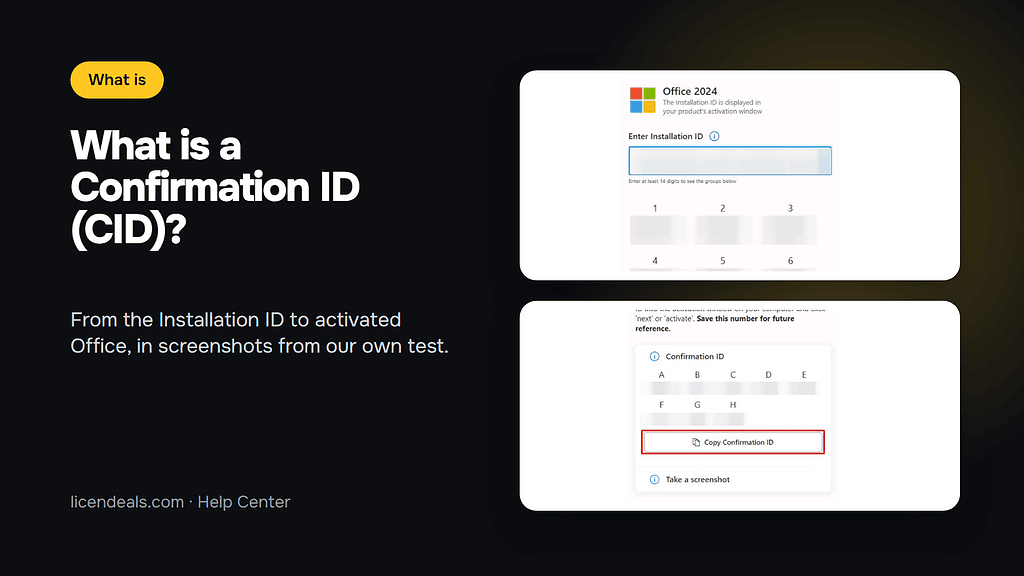
Some Office licenses, the CID Licenses and some RETAIL Licenses, finish activating with a Confirmation ID. In the Office activation window you choose the option Microsoft calls "I want to activate the software by telephone": that is only its name, no call is needed and everything is done online. Use our Installation ID Extractor to copy your Installation ID from a screenshot, then follow the activation guide of your product to get your Confirmation ID.
A Windows key only works with its own edition, so open Settings, System, About and compare it with your order. To go from Home to Pro, follow our two-step guide (Home Single Language is not supported).
Yes. We have 24/7 support: reach us on live chat or WhatsApp, or write to us by email. Send us a screenshot of what you see and your order number, and we will guide you step by step.
If a license doesn't work, tell us within 24 hours of revealing it and we will replace it right away. MAK Volume Licenses have 30 days instead of 24 hours. A license activated within that time is covered by our lifetime warranty, and accounts and subscriptions are covered for the full length of your plan. Your statutory rights are not affected.
You can ask for a full refund within 30 days of your purchase, as long as you haven't revealed the license. Once a license is revealed it can no longer be refunded, but if it doesn't work we replace it. BIND Licenses are the exception: they can't be cancelled or refunded, whether or not they have been revealed, unless the law of your country requires it. Your statutory rights are not affected.
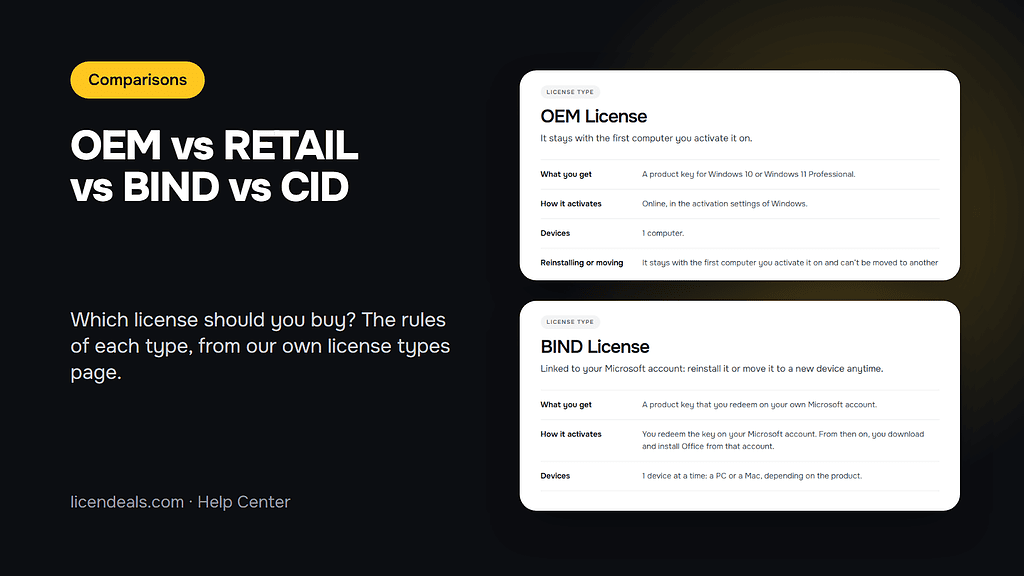
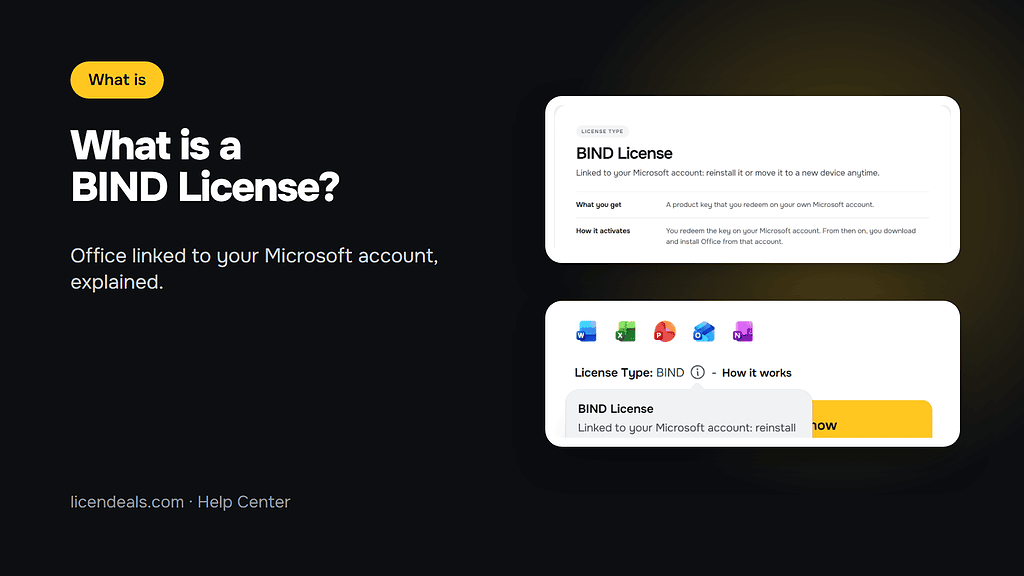
Not for RETAIL, CID or MAK Volume Licenses: reinstalling or changing hardware uses up that activation, and our warranty doesn't cover it. An OEM License stays with the first computer you activated it on. A BIND License can be reinstalled or moved to a new device for as long as you keep the Microsoft account you linked it to.
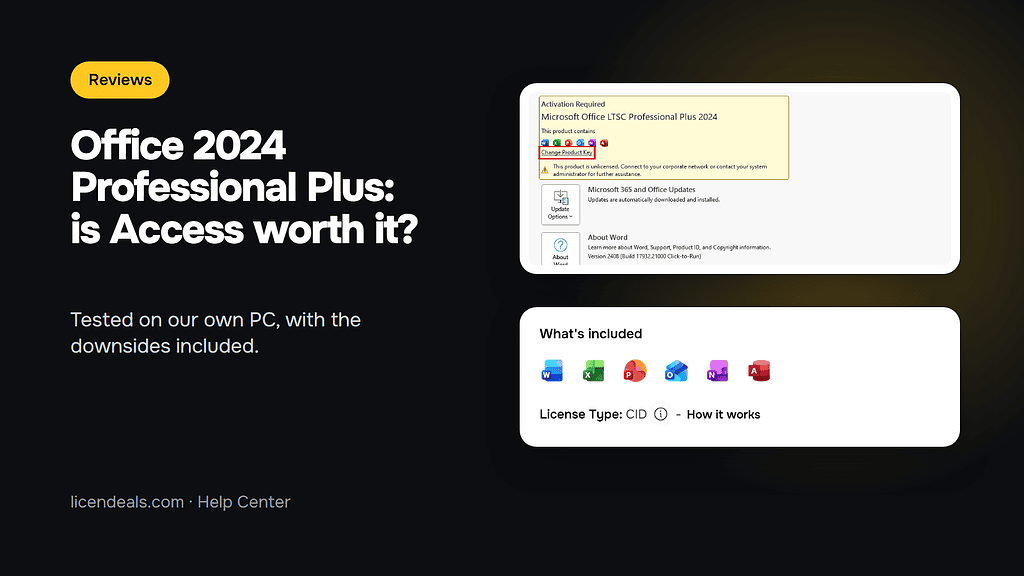
A RETAIL License activates once, online, right inside the app; an OEM License stays with the first computer; a CID License finishes with a Confirmation ID; a BIND License is linked to your Microsoft account; and a MAK Volume License is a volume key for businesses. Every product page shows its type, and our License types page explains each one in detail.
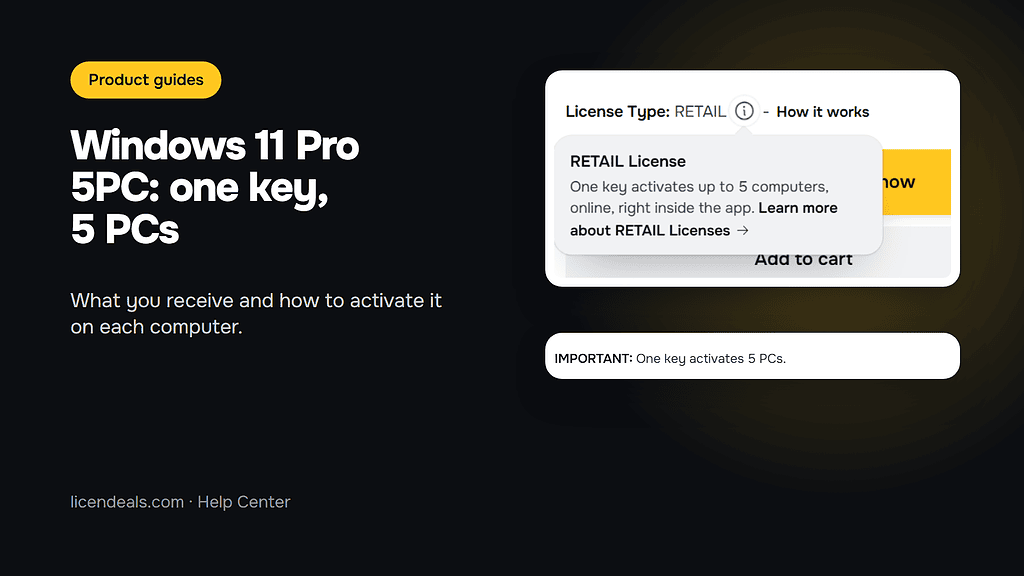
Normally one license activates one device. The 5PC products let one key activate up to 5 PCs, and a MAK Volume License activates one computer per activation you ordered. For some Windows and Office products, buying several units can give you the same key several times, and that key activates as many PCs as units you bought.
An Office 365 account comes as a username and a password, with no key. Sign in within 24 hours of requesting your details, change the password and keep it in a safe place: if you forget it, there is no way to access or recover the account. The email address of the account can't be changed.
Use the "Download invoice" button on your order confirmation page, in your order email or on your license page. Invoices are in US dollars, the currency we always charge in. If you can't find it, message us with your order number.
Yes. On the Request a quote page you build a formal quote in a few clicks and get the document right away, valid for 15 days, and you can accept and pay from it by card or cryptocurrency. A quote does not reserve licenses.
Cookies on licendeals.com
We use cookies to keep our store working and to improve it. You can accept or reject the optional ones.
Necessary cookies keep our store working. Optional cookies from Google Analytics, Google Ads and Meta (Facebook and Instagram) show us how our site is used and let us measure and personalise our ads. You can accept or reject them and change your choice later in Cookie settings. Our live chat (tawk.to) is not part of this choice: it runs on our pages whatever you choose, sets its own cookie and shows our team, as you browse, that you are here and which pages you view (how to object). See our Privacy Policy.
Opt-out request honoured: your browser sends a Global Privacy Control signal, so advertising cookies stay off.
{n} from {l} bought
{n} bought
Someone from {l} bought
Someone bought
Just now
1 minute ago
2 minutes ago
1 hour ago
2 hours ago
1 day ago
2 days ago
Close




 Windows
 Office for PC
 Office for Mac
 Windows Server
 SQL Server
 Office Apps
 Visual Studio
