Tips and Tricks

How to Check Your Windows Activation Status and License Type

How to check your Windows activation status and license type

How do you check your Windows activation status? Go to Start, Settings, System, Activation: the Activation state line says Active or Not active. That page doesn't tell you your license type, so below we also show the three slmgr commands that do, with real screenshots from our test computers, and what each result means for a RETAIL, OEM or MAK license.

IMPORTANT: the commands in this post only display information, and they don't change your activation. The results can include part of your product key, so check your screen before you send a screenshot to anyone.

1. Check your activation status in Settings

This is the quickest check and it's enough for most people.

1.1 Select Start, then Settings, System, Activation. On Windows 10, the path is Settings, Update and Security, Activation.

1.2 Look at the Activation state line and at the name of your edition at the top of the page.
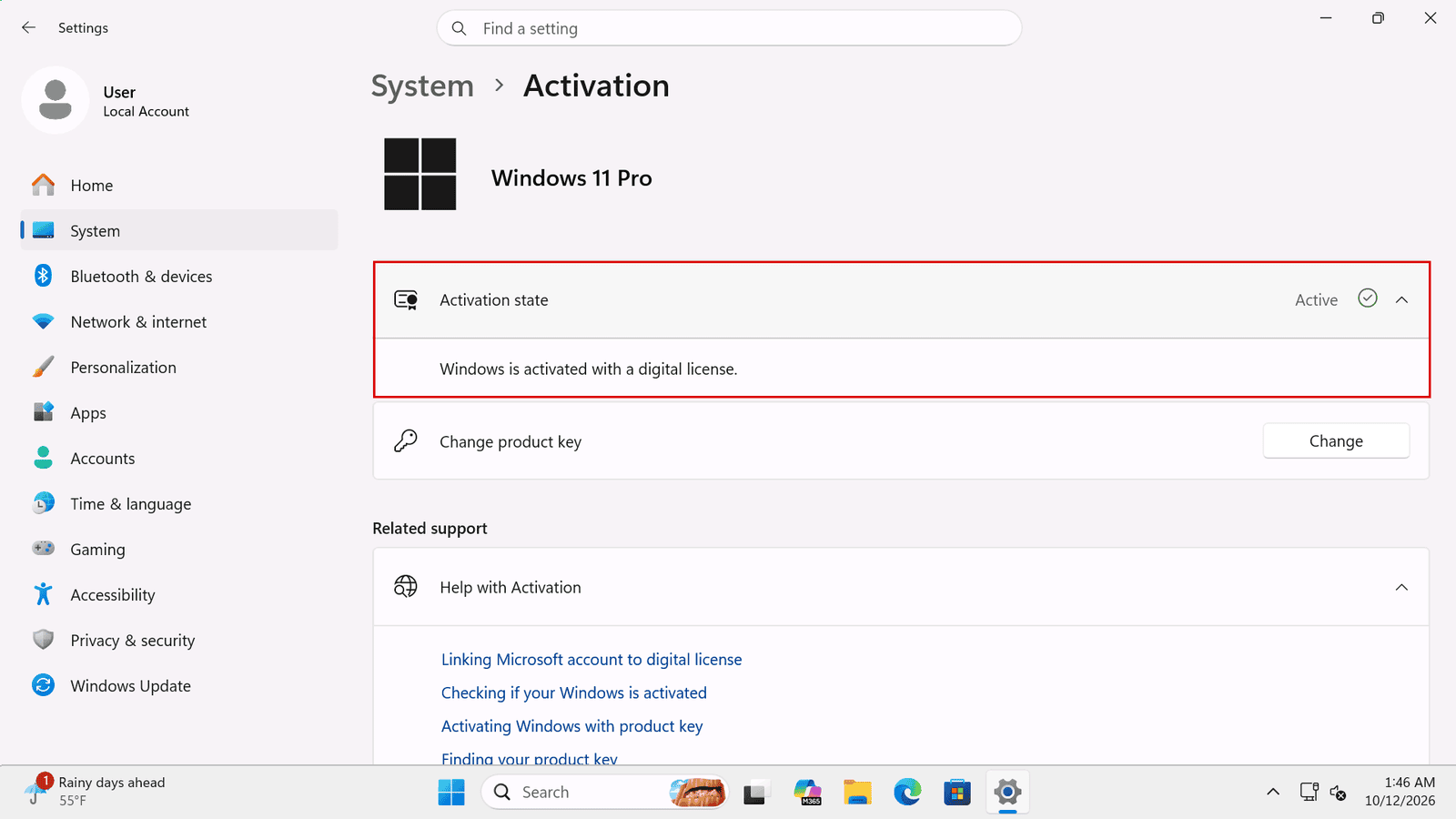
Windows 11 Settings, System, Activation: Windows 11 Pro with Activation state Active and the message Windows is activated with a digital license

This is how an activated computer looks. Now the same computer before we entered a key:
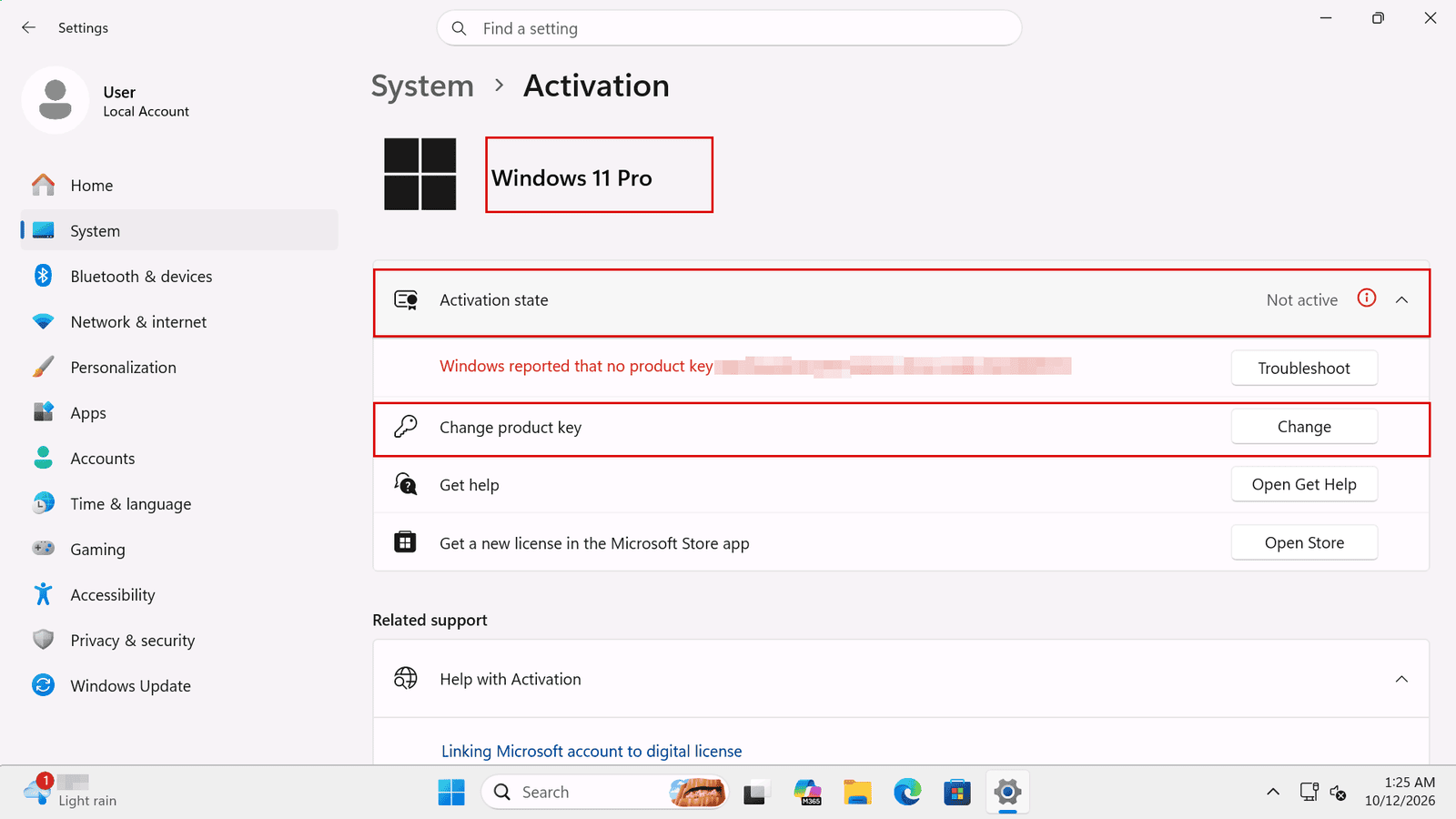
Windows 11 Settings, System, Activation: Activation state Not active, with a Change product key option and a Troubleshoot button

If you see Not active, Windows also shows a message with the reason, a Troubleshoot button and the Change product key option.

2. "Digital license" doesn't tell you what you bought

The screenshot above comes from a computer we activated with a MAK Volume License, and Windows still says "Windows is activated with a digital license". So that sentence alone doesn't tell you your license type. For that, you need the next command.

3. See your license type with slmgr /dli

3.1 Select Start, type cmd and open Command Prompt. Microsoft says this command doesn't require elevated privileges.

3.2 Type slmgr /dli and press Enter.

3.3 Wait a few seconds until the Windows Script Host window opens.
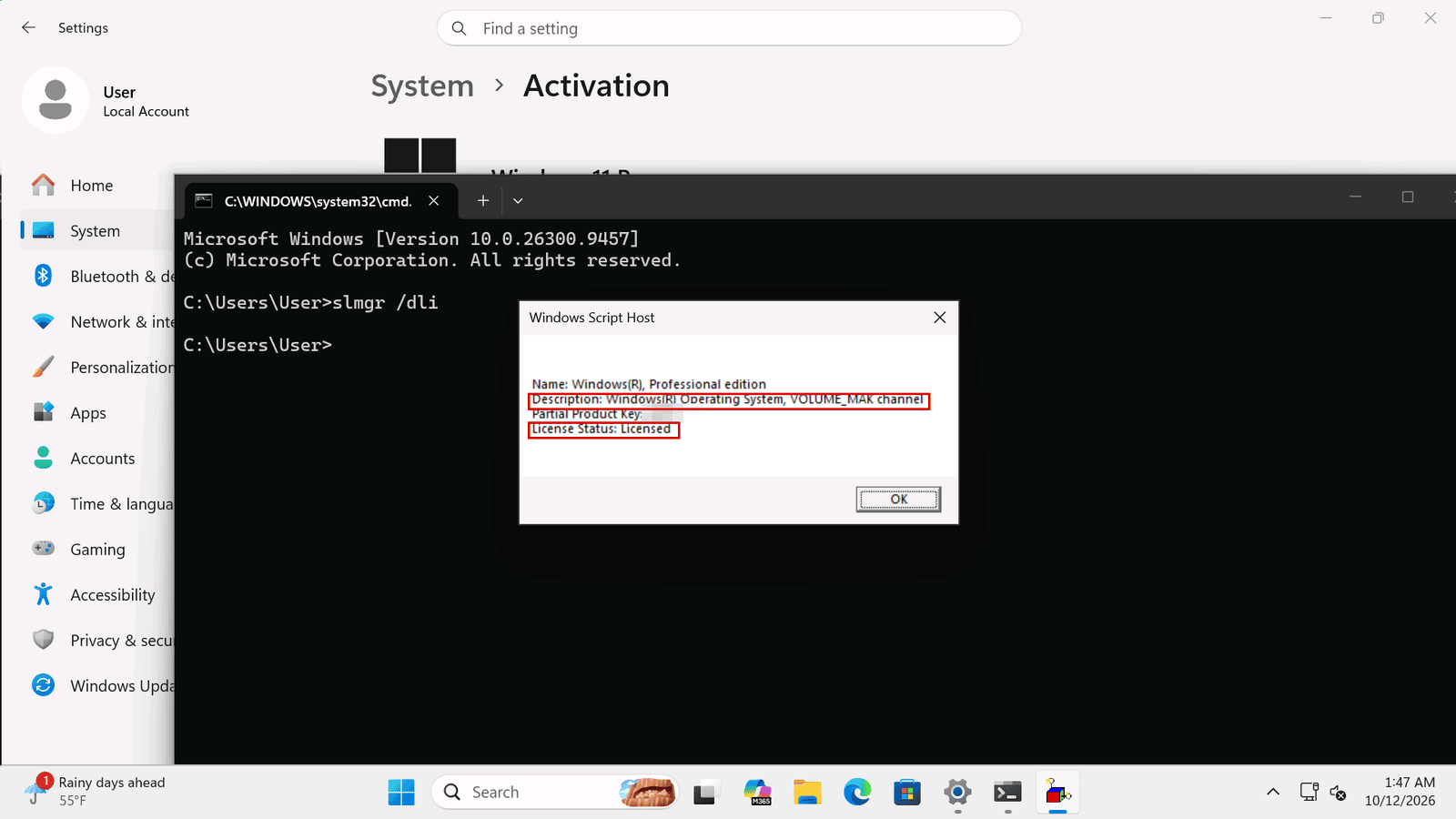
slmgr /dli on Windows 11 Pro: Windows Script Host window with the VOLUME_MAK channel and License Status Licensed, partial product key covered

These are the lines that matter:

  • Name: your Windows edition. Here, Professional.
  • Description: the license channel. Here, VOLUME_MAK.
  • Partial Product Key: the end of the key installed on the computer. We covered it in the screenshot. If you still have your key, you can compare the two.
  • License Status: here, Licensed.

4. What each channel means for your license

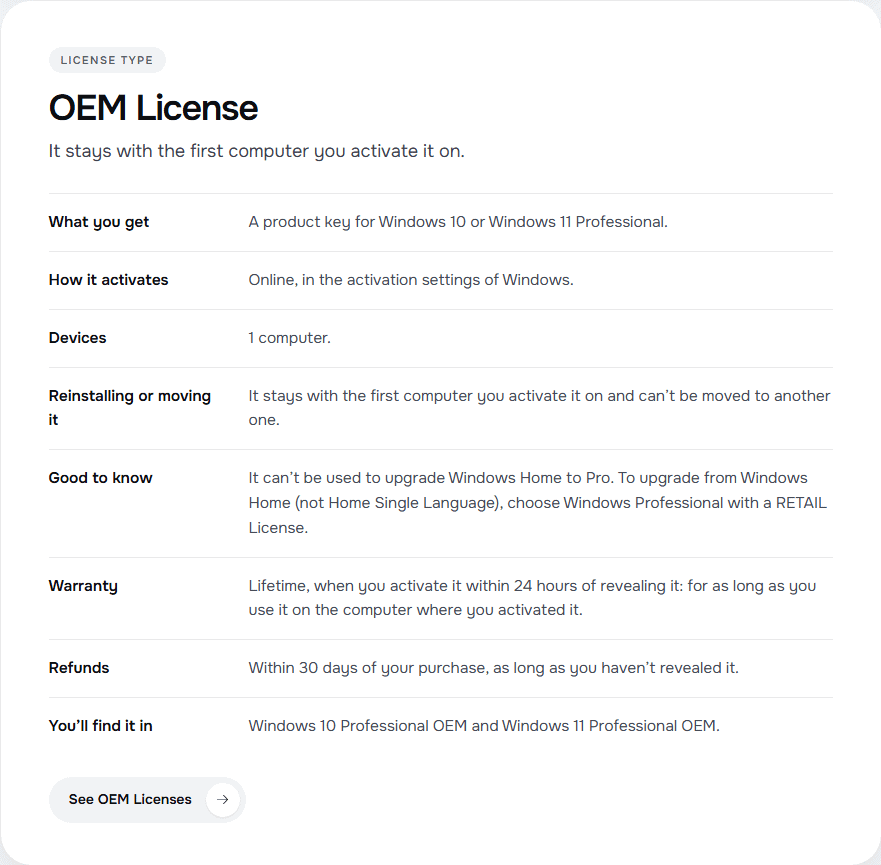
The rules below come from our license types page. They are the rules of our store, not Microsoft's.

  • VOLUME_MAK (tested by us): a MAK Volume License. One activation per device, up to the number you order.
  • TIMEBASED_EVAL (tested by us): an evaluation version with an expiry date, as you will see in section 6. It isn't a license you bought from us.
  • RETAIL (not tested for this post): a RETAIL License. Each activation can be used only once.
  • OEM (not tested for this post): an OEM License. It stays with the first computer you activate it on and can't be moved to another one.

To be clear about what we saw: our screenshots show VOLUME_MAK and TIMEBASED_EVAL. Microsoft's slmgr documentation doesn't list the channel names, and we haven't run the command on a RETAIL or OEM activation for this post, so we can't show you the exact wording for those two. Read the Description line in the same way and look for the name of the channel.
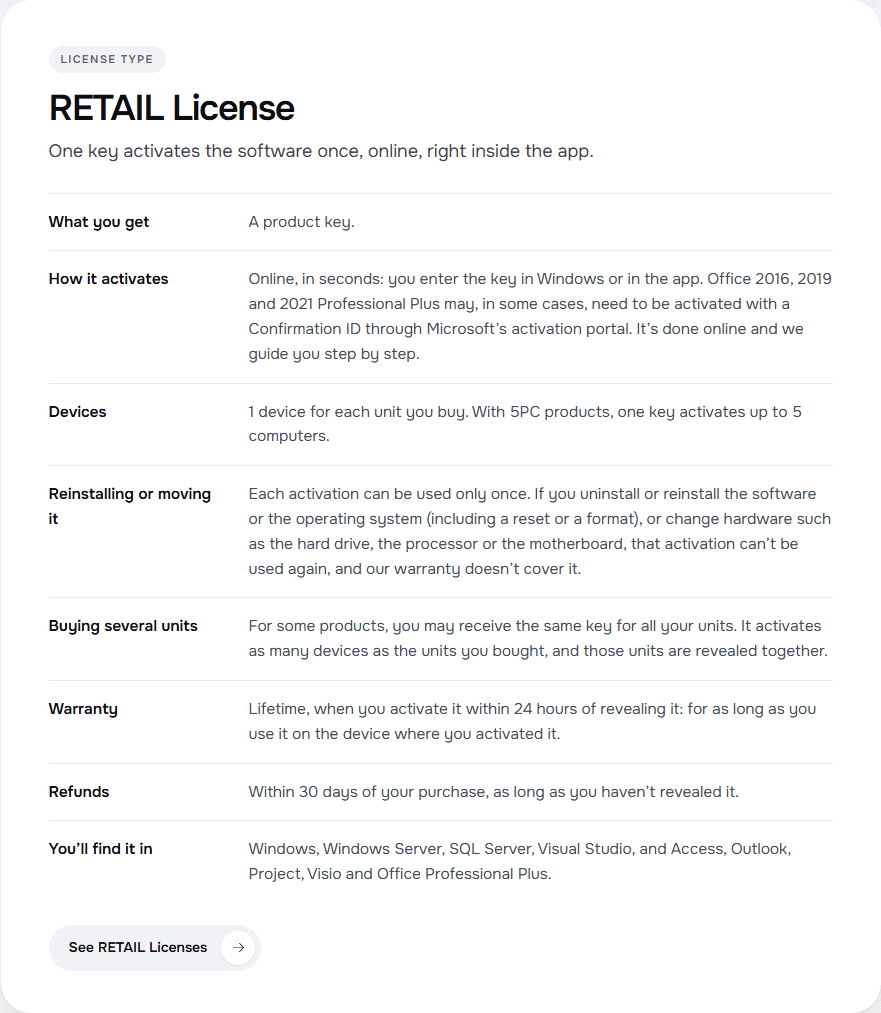
RETAIL License card on the Licendeals license types page: one key activates the software once, online, right inside the app

OEM License card on the Licendeals license types page: it stays with the first computer you activate it on

5. Check whether the activation expires with slmgr /xpr

In the same Command Prompt window, type slmgr /xpr and press Enter.
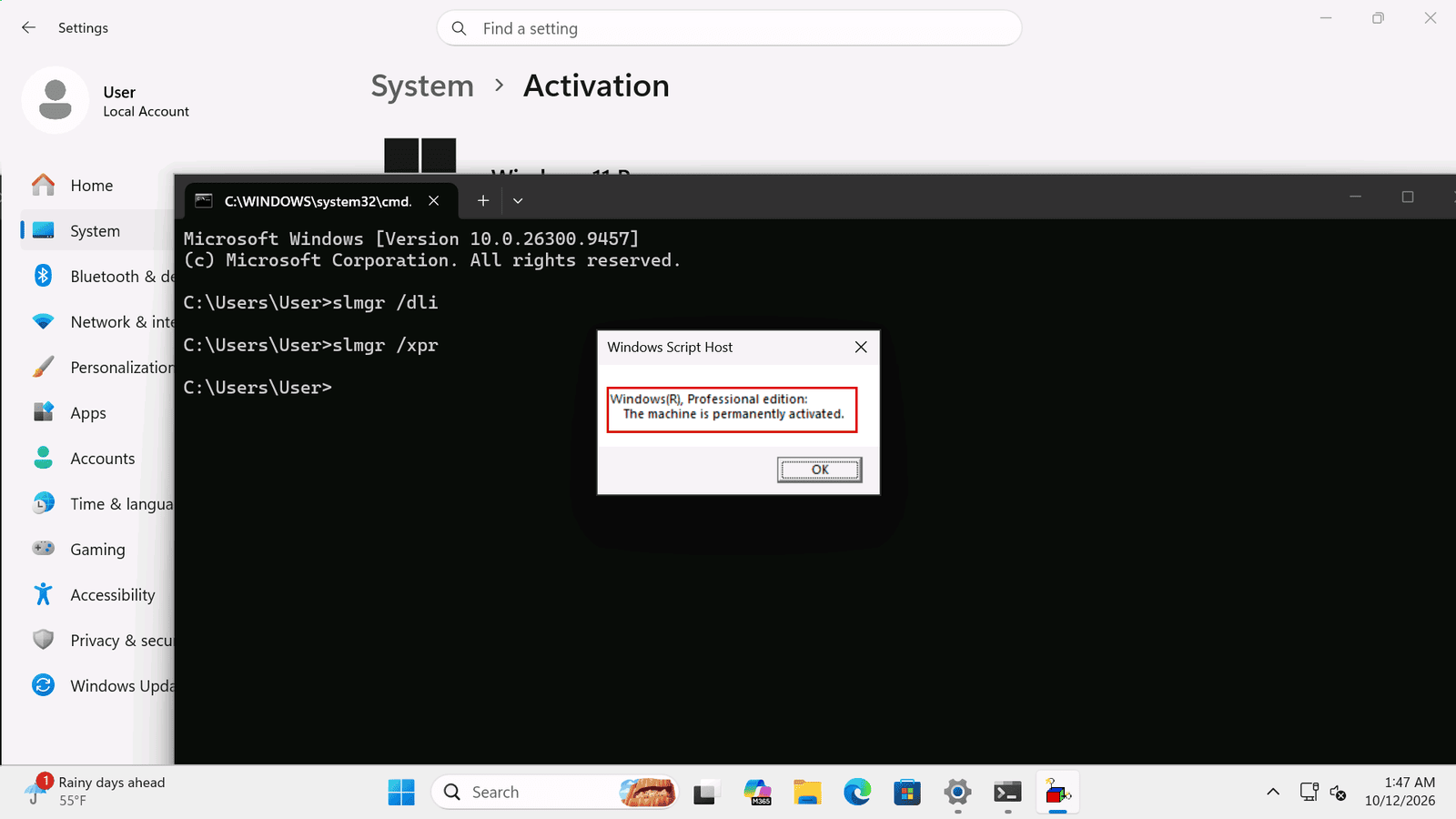
slmgr /xpr on Windows 11 Pro: Windows Script Host window saying The machine is permanently activated

On our MAK test computer, the answer was "The machine is permanently activated." Microsoft explains that this command is primarily useful for KMS clients, "because MAK and retail activation is perpetual."

That sentence is Windows talking about activation on that installation. It says nothing about warranty, and reinstalling or changing hardware can still affect your activation. Our license types page explains what happens with each type.

6. See every detail with slmgr /dlv

Type slmgr /dlv for the detailed version. Most people don't need it, but it's useful when the edition doesn't look right. This is what it showed on a Windows Server 2022 evaluation we installed for our guides, with the identifiers covered:
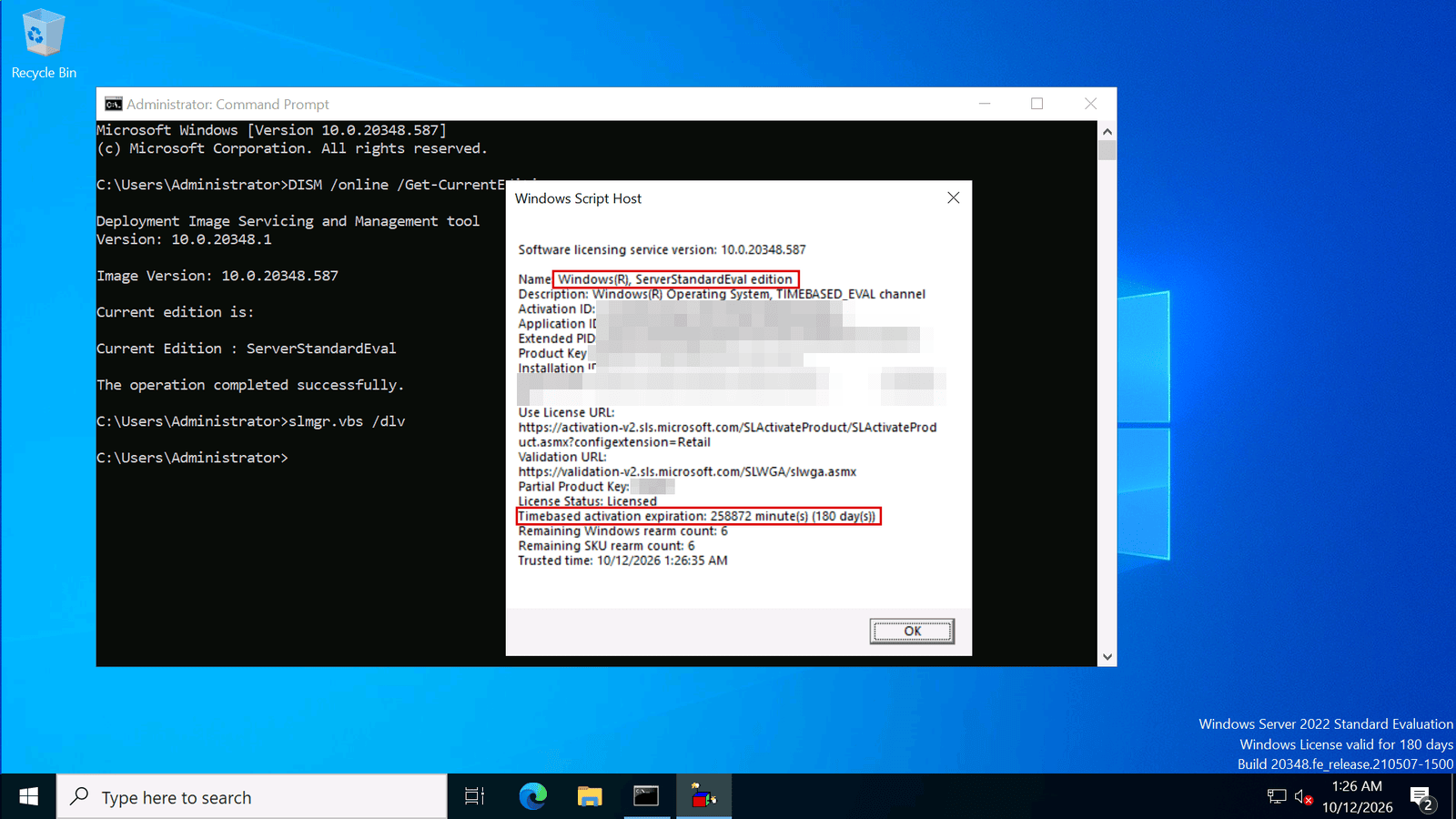
slmgr.vbs /dlv on Windows Server 2022 evaluation: ServerStandardEval edition, TIMEBASED_EVAL channel and 180 days left, identifiers covered

Look at Name and at the Timebased activation expiration line: ServerStandardEval, TIMEBASED_EVAL and 180 days left. That's how you can spot an evaluation version before it expires. If that's your case, follow our guide to convert a Windows Server evaluation to a full license.

Slmgr also has options that do change your activation, such as /ipk and /upk. Don't use them just to check your status.

7. What to do with the result

  • Active and the right edition: nothing else to do.
  • Not active and you have a key: enter it with Change product key. Our guides show every step for Windows 11 and Windows 10.
  • Not active and you bought your license from us: if a license doesn't work, tell us within 24 hours of revealing it and we will replace it right away. A MAK Volume License has 30 days instead of 24 hours.
  • You haven't revealed your license yet: read our checklist before you reveal first.

What this post doesn't cover: checking Office activation, which works differently, and activating Windows from the command line.

8. Frequently asked questions

How do I know if my Windows is activated?

Select Start, Settings, System, Activation. The Activation state line says Active or Not active.

How do I see if my Windows license is RETAIL, OEM or MAK?

Open Command Prompt, type slmgr /dli and read the Description line, which names the license channel. On our MAK test computer it says VOLUME_MAK.

Does running slmgr /dli change anything?

No. Microsoft describes /dli, /dlv and /xpr as options that display information.

Do I need to be an administrator?

Microsoft says these three options don't require elevated privileges.

What does "permanently activated" mean?

It's the answer slmgr /xpr gave on our MAK test computer: that activation has no expiry date on that installation. It isn't a warranty, and reinstalling or changing hardware can still affect your activation.

Why does Windows say "digital license" if I entered a product key?

We saw that message on a computer activated with a MAK key too. To see the license channel, use slmgr /dli.

Tested on: Windows 11 Pro, version 10.0.26300, activated with a MAK key, and Windows Server 2022 Standard evaluation, version 10.0.20348, both on 2026-10-12. RETAIL and OEM activations weren't tested for this post. Checked on: our license types page and Microsoft's guides Activate Windows and Slmgr.vbs options for obtaining volume activation information, read on 2026-11-01. Microsoft can change its guidance; check it if something looks different on your screen.

Still stuck? Send us what you see on the Activation page and our team can help, with 24/7 support. If you need a license, compare Windows 11 Professional and Windows 11 Professional OEM at Licendeals, or Windows 10 Professional and Windows 10 Professional OEM.