October Special Offer - 5% OFF SITEWIDE!
Use code:
Valid until Oct 31

Do you need to activate Windows 10 with a product key? The whole process takes a few minutes and happens inside Windows: you open the activation settings, type the 25-character key and let Windows check it online. This guide shows the exact path in Settings, a second method with two commands, the meaning of the most common error codes, and what changes depending on whether your key is a RETAIL License or an OEM License.
IMPORTANT: Check your edition before you start. A Windows 10 Professional key activates Windows 10 Professional. If your computer has Windows 10 Home, entering a Pro key starts an upgrade to Pro instead of a simple activation (our guide to upgrading Home to Pro, written for Windows 11, explains the two-step method).
IMPORTANT: Connect the computer to the internet and keep your product key at hand. It looks like this: XXXXX-XXXXX-XXXXX-XXXXX-XXXXX.
IMPORTANT: Microsoft ended support for Windows 10 on October 14, 2025. Windows 10 still starts and activates, but it no longer receives regular security updates from Microsoft. Think about this before you install it on a computer you use for work or banking.
1.1 Click the Start button and open Settings.
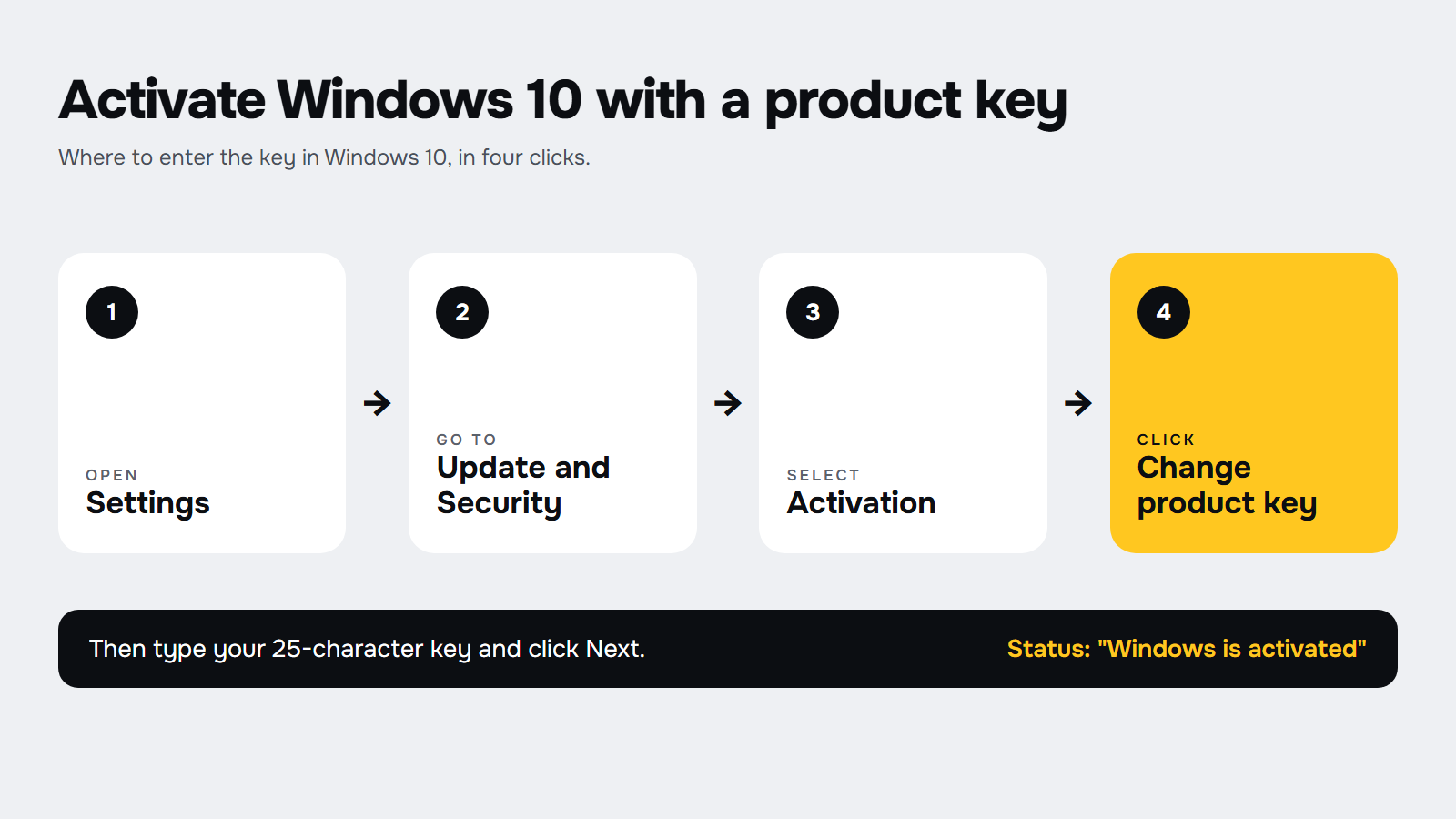
1.2 Go to Update and Security > Activation.
1.3 Look at the line "Edition" (for example, Windows 10 Pro) and at the activation status. Windows shows "Windows is activated" when it is done, or "Windows is not activated" when you still need a key.
1.4 Optional: for more detail, open the Command Prompt, type slmgr /dli and press Enter. A small window shows the edition and the license status. This command doesn't need administrator rights.
This is the main method and the one we recommend. It is also the way to change the product key in Windows 10 if you typed the wrong one or want to use a different one.
2.1 Open Settings > Update and Security > Activation.
2.2 Click Change product key.
2.3 Type the 25-character key from your order and click Next.
2.4 If Windows asks you to confirm, click Activate. Windows contacts the activation servers online and checks the key.
2.5 When it finishes, the Activation page shows "Windows is activated". If you changed the edition, Windows may restart first: don't turn the computer off.
Windows includes a script called slmgr that installs a key and activates Windows from the command line. Microsoft documents both options. Use it only if Settings doesn't let you enter the key.
3.1 Type "cmd" in the search box of the taskbar and click "Run as administrator". When Windows asks for permission, click "Yes".
3.2 Install the key. Type this command with your own key and press Enter:
slmgr /ipk XXXXX-XXXXX-XXXXX-XXXXX-XXXXX
3.3 Activate Windows online. Type this command and press Enter:
slmgr /ato
3.4 Windows shows a message with the result. Check the status again as in section 1. Microsoft recommends restarting the computer after installing a key, so the licensing service doesn't become unstable.
Windows 10 shows a code when activation fails. These are the ones you are most likely to see, with what Microsoft says about each:
If you are not sure what the code means, Microsoft also offers the Windows Activation troubleshooter in Settings, under Activation. Take a screenshot of the error and send it to us: we will review it with you.
We sell Windows 10 Professional with two license types. Both activate online, inside Windows, with the steps above. The difference is what you can do with them afterwards. You can read the full description of each type on our license types page.

For both types, each activation is valid once. If you reinstall Windows or change main parts such as the disk, the processor or the motherboard, that activation is not recovered, and you would need a new license. Plan it before you change hardware.
No account yet?
Create an Account




 Windows
 Office for PC
 Office for Mac
 Windows Server
 SQL Server
 Office Apps
 Visual Studio
