October Special Offer - 5% OFF SITEWIDE!
Use code:
Valid until Oct 31
Do you have Windows 11 Home and need the features of Windows 11 Pro, such as BitLocker, Remote Desktop or Hyper-V? You can upgrade Windows 11 Home to Pro in a few minutes with a Windows 11 Pro product key, without reinstalling Windows and without losing your files or apps. This guide shows every step with real screenshots, including the fix for the error that often appears when Windows Home doesn't accept the Pro key (0xC004F050). The same steps work to upgrade Windows 10 Home to Pro.
IMPORTANT: This guide is for Windows 11 Home and Windows 10 Home. It doesn't work for Windows 11 Home Single Language.
IMPORTANT: You need a Windows 11 Pro or Windows 10 Pro product key. If you don't have one yet, you can get a Windows 11 Pro key or a Windows 10 Pro key at Licendeals.
IMPORTANT: Your files, apps and settings stay exactly as they are. Even so, save your work and close all your apps before you start, because the computer restarts during the upgrade.
The usual way to upgrade is to type the Pro product key in Settings, but Windows 11 Home sometimes refuses to switch to Pro this way and shows "The product key you entered didn't work" or error 0xC004F050. In most cases your key isn't the problem: Windows Home just can't change the edition and activate it in one go.
The solution takes two steps:
2.1 Disconnect your computer from the internet: turn off Wi-Fi or unplug the network cable. Without internet, Windows changes the edition without trying to activate the generic key, which is what causes error 0xC004F050.
2.2 Open the activation settings. The fastest way is to type "activation" in the search box of the taskbar and select "Activation settings".

2.3 The Activation page shows your current edition, Windows 11 Home. Click "Activation state" to expand it (on some computers this section is called "Upgrade your edition of Windows") and then click the "Change" button next to "Change product key".

2.4 In the "Enter a product key" window, type the generic Windows Pro key and click "Next":
VK7JG-NPHTM-C97JM-9MPGT-3V66T

2.5 Windows asks you to confirm the upgrade to Windows 11 Pro. Click "Start".

2.6 Windows prepares the upgrade and restarts your computer by itself. It usually takes a few minutes; don't turn off your computer.

During the restart, Windows shows "Adding features" with the progress of the upgrade.

2.7 When your computer starts again, open the activation settings: they now show Windows 11 Pro. All your files and apps are still there.
3.1 Connect your computer to the internet again. If Windows Update has pending updates, install them and restart your computer first: otherwise, the activation may fail.
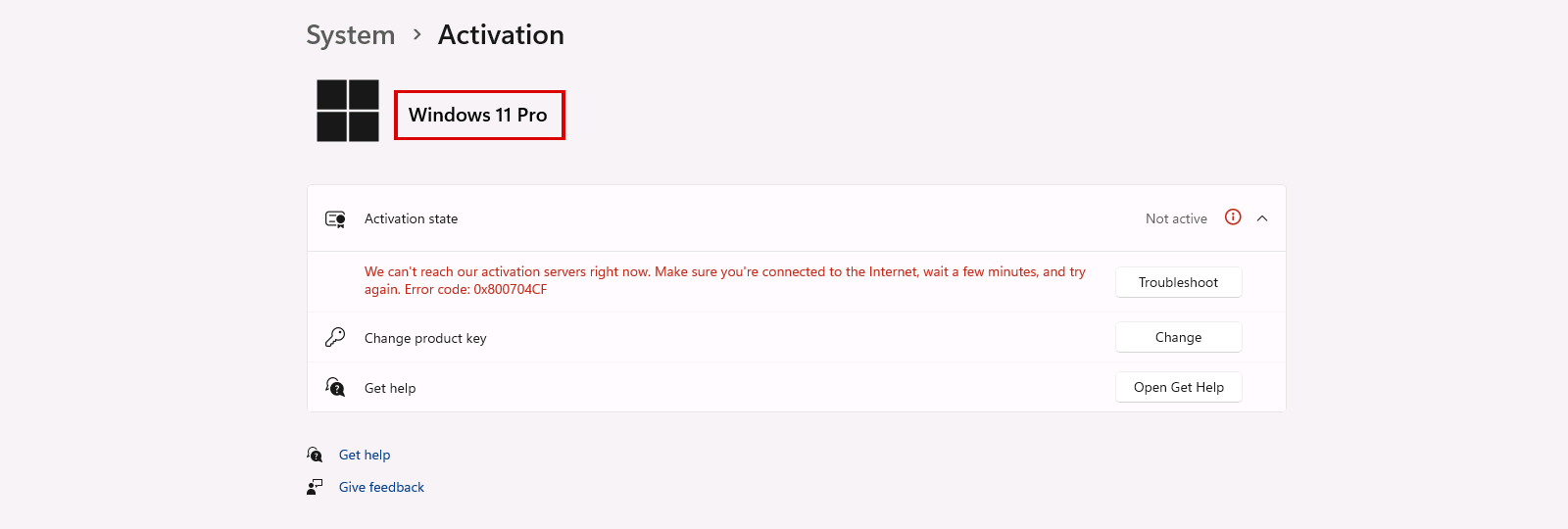
3.2 Open the activation settings again. The page now shows Windows 11 Pro with the activation state "Not active". Click the "Change" button next to "Change product key".

3.3 Type the 25-character product key from your order and click "Next". Then click "Activate".

3.4 All done! Windows shows the message "Windows is activated", and the Activation page shows the activation state "Active".

The steps are the same on Windows 10. Only the place of the activation settings changes: open Settings > Update and Security > Activation and click "Change product key". Use the same generic key in Step 2 and then your Windows 10 Pro key in Step 3.
If Step 2 shows an error, you can change the edition from the Command Prompt:
5.1 Keep your computer disconnected from the internet. Type "cmd" in the search box of the taskbar and click "Run as administrator". When Windows asks "Do you want to allow this app to make changes to your device?", click "Yes".

5.2 Type this command and press Enter:
changepk.exe /ProductKey VK7JG-NPHTM-C97JM-9MPGT-3V66T

5.3 Windows changes the edition to Pro and asks you to restart. After the restart, continue with Step 3 to activate it with your key.
No account yet?
Create an Account





 Windows
 Office for PC
 Office for Mac
 Windows Server
 SQL Server
 Office Apps
 Visual Studio
