License Type: RDS CAL RDS CAL LicenseRemote Desktop access for your team on Windows Server, 50 users or devices per pack. Learn more about RDS CAL Licenses
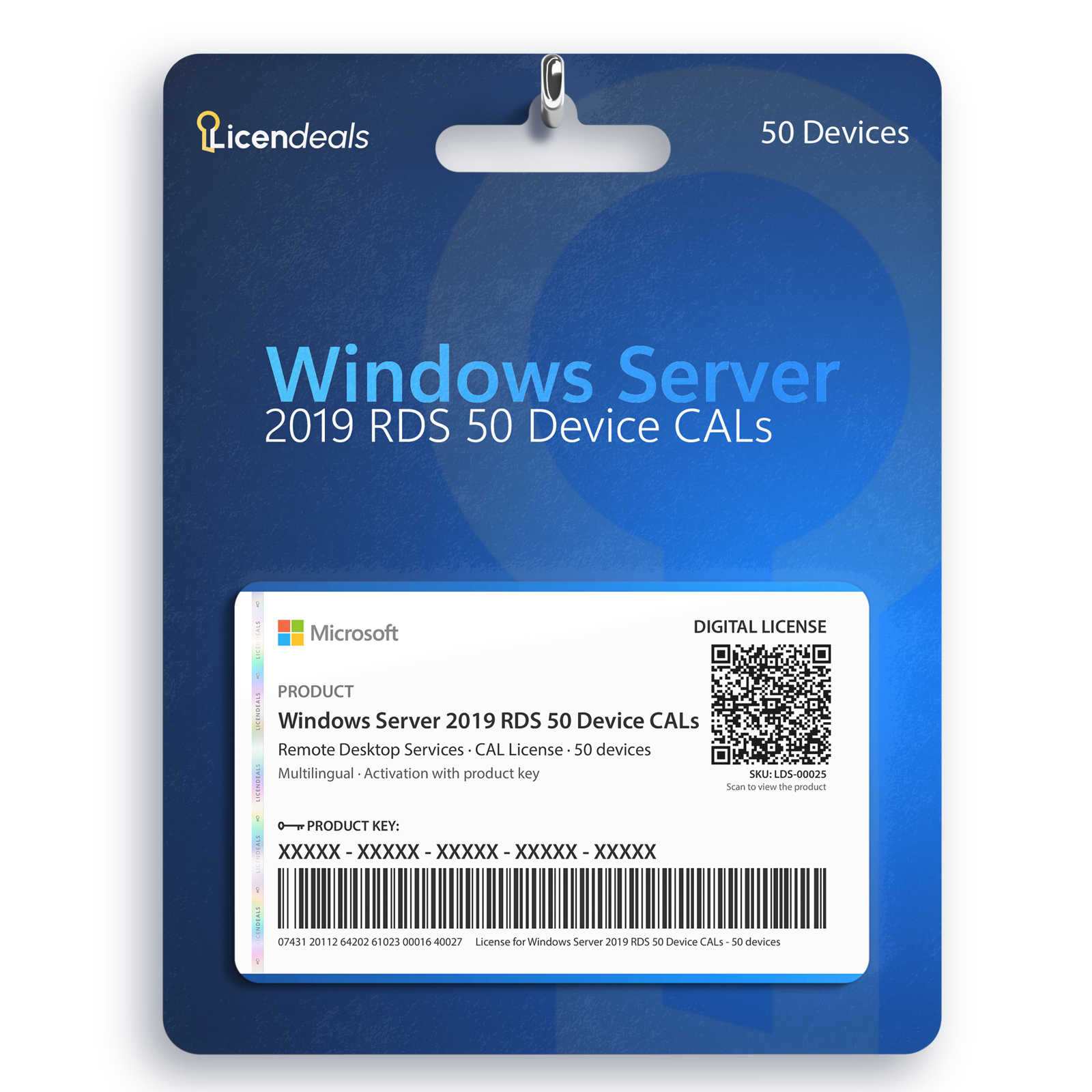
Windows Server 2019 RDS 50 Device CALs: a pack of 50 Remote Desktop Services client access licenses (RDS CALs) for Windows Server 2019, as Device CALs. Each one covers one device, whoever uses it.
Right after your payment is confirmed, we email you a secure link to your license, and your invoice comes with the order. Lifetime warranty on the server where you activate it. Only reveal your license when you are ready to install it.
What is an RDS CAL?
A Remote Desktop Services client access license (RDS CAL) lets a person or a device connect to a Remote Desktop session host running Windows Server. RDS CALs are separate products from Windows Server, sold in packs of 50. Microsoft’s licensing terms say which users and devices need an RDS CAL: check them for your setup.
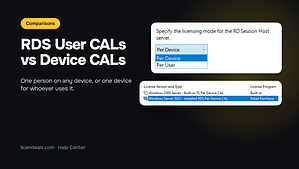
User CAL or Device CAL?
User CAL
Device CAL
Covers
One person, from any device
One device, whoever uses it
A good fit when
Each person has their own devices
Several people share the same computers, for example in shifts
Each pack has 50. Count the people (User CALs) or the devices (Device CALs) that will connect to your session hosts: for example, 120 people need three packs. Buying several packs? Request a quote.
Which Windows Server version does it work with?
An RDS CAL pack works with its own Windows Server version or an earlier one, never a later one.
Windows Server 2025 pack
Session hosts running 2025, 2022, 2019 and 2016
Windows Server 2022 pack
Session hosts running 2022, 2019 and 2016
Windows Server 2019 pack
Session hosts running 2019 and 2016
Windows Server 2016 pack
Session hosts running 2016
Source: Microsoft Learn, updated 2026-04-02; last reviewed: October 2026.
Questions about RDS CALs
Is the Windows Server 2019 RDS 50 Device CALs pack a Windows Server license?
No. RDS CALs are separate products from Windows Server, sold in packs of 50. The Windows Server edition you run them on is a separate product too: see Windows Server license keys.
What is the difference between User CALs and Device CALs?
A User CAL covers one person, from any device. A Device CAL covers one device, whoever uses it.
Do CALs for an earlier Windows Server version work on a later one?
No. A pack works with its own Windows Server version or an earlier one. A Windows Server 2022 pack, for example, works with 2022, 2019 and 2016 session hosts, but not with 2025.
How many packs do I need for 80 people?
Two packs of 50 User CALs cover 100 people. With Device CALs, count the devices that connect instead. Check Microsoft’s licensing terms for your setup.
RDS CALs don't have their own installer: you add them to your server. Install the Remote Desktop Licensing role, activate the license server and install your CALs in Remote Desktop Licensing Manager.
Your license server must run Windows Server 2019 or later.
Remote Desktop Services session hosts running Windows Server 2019 or earlier
License Server
Remote Desktop Licensing server running Windows Server 2019 or later
Brand
Microsoft
Format
Perpetual digital license
Updates
Not applicable to CALs (Windows Server 2019 gets security updates until January 9, 2029)
Platform
Windows Server 2019
License type
CAL
Compatibility
64-bit
Users supported
1 Admin user, 1 Server
Activation available in
Worldwide
Delivery
Delivered by email
Language
Available in all languages (it is possible to change language settings after installation; additional language packs are also available to be downloaded and installed separately)
Works on
Windows Server 2019 or earlier
Devices
1 Server
Warranty
Lifetime warranty on the Server where you activate it
5
Rated 5 out of 5
14 reviews
Rated 5 out of 5
14
Rated 4 out of 5
0
Rated 3 out of 5
0
Rated 2 out of 5
0
Rated 1 out of 5
0
14 reviews for Windows Server 2019 RDS 50 Device CALs
I had some concerns about installing my digital licenses, but the support team handled everything perfectly. They are professional, knowledgeable, and genuinely willing to help. I will definitely return for future purchases.
I was impressed by the efficiency, the purchase was fast, license delivery was instant, installation was simple, and customer support assisted promptly during the activation process.
The experience on this website was professional and efficient. The interface is intuitive, and the support team responds quickly, making the buying process stress free.
The user experience on this website is excellent. It is easy to navigate, the purchase process is smooth, and the support team is responsive and professional at all times.
Bought this from Licendeals? Review it from your order email or My Account. With an account, get 200 Choice Rewards points (US$2) when your review is published with a photo of the activated product, whatever your rating.
Right away: we email you a secure link to your license as soon as your payment is confirmed. It also appears in your account.
How long do I have to activate it?
There is no rush: your key waits safely until you reveal it, even months later. Once you reveal it, activate it within 24 hours. Activated in time, it's covered for life, for as long as you use it on the computer where you activated it. Warranty details
What if the key does not activate?
Write to us on chat or WhatsApp within 24 hours of revealing your key, and we'll replace it right away.
Can I get a refund?
Yes, within 30 days, as long as you haven't revealed the license. Once it's revealed, it can't be refunded, unless the law of your country requires it, so only reveal it when you're ready to activate it.
We use cookies to keep our store working and to improve it. You can accept or reject the optional ones.
Necessary cookies keep our store working. Optional cookies from Google Analytics, Google Ads and Meta (Facebook and Instagram) show us how our site is used and let us measure and personalise our ads. You can accept or reject them and change your choice later in Cookie settings. Our live chat (tawk.to) is not part of this choice: it runs on our pages whatever you choose, sets its own cookie and shows our team, as you browse, that you are here and which pages you view (how to object). See our Privacy Policy.
Opt-out request honoured: your browser sends a Global Privacy Control signal, so advertising cookies stay off.
Your choices have been saved.
approx.Prices in USDAbout this priceApproximate price, at the {source} rate of {date}.Totals are in US dollars (USD). If you pay in another currency or in crypto, the payment provider converts the total at its own rate and normally shows you the amount before you pay.CurrencyLanguageSearch languagesSearch currenciesNo resultsEuropean Central BankBanco de la República de ColombiaBanco Central de Costa Rica
 Genuine software, guaranteedDelivered by email, with 24/7 support.
 Remote Desktop Services









 Office for PC
 Office for Mac
 Windows Server
 SQL Server
 Office Apps
 Visual Studio

Carter Hopkins –
The best online store for digital licenses
Reply
Zoey Howard –
Great support and very professional service.
Reply
Kyle Benson –
I found exactly what I needed at a great price
Reply
Brent Collins –
Simply excellent. Easy purchase, easy install, and great communication.
Reply
Liam Hawkins –
I had some concerns about installing my digital licenses, but the support team handled everything perfectly. They are professional, knowledgeable, and genuinely willing to help. I will definitely return for future purchases.
Reply
Lucía Ferreira –
I was impressed by how efficiently everything was handled. The delivery was fast, and support offered very useful instructions.
Reply
Benjamin Taylor –
Buying a license has never been this convenient. I received all the details I needed, and setup was fast and effortless.
Reply
Carlos Diaz –
The website is clean and user-friendly, making checkout simple. Activation was effortless, and I had everything working in minutes.
Reply
Mariana Torres –
I was impressed by the efficiency, the purchase was fast, license delivery was instant, installation was simple, and customer support assisted promptly during the activation process.
Reply
Rebecca Owens –
The experience on this website was professional and efficient. The interface is intuitive, and the support team responds quickly, making the buying process stress free.
Reply
Sakura Hoshino –
The user experience on this website is excellent. It is easy to navigate, the purchase process is smooth, and the support team is responsive and professional at all times.
Reply
Leila Haddad –
I wasn’t sure how long activation would take. Support explained the timeline and followed up afterward. Their communication was excellent.
Reply
Robert King –
A warning about pending system updates appeared before activation. Support recommended completing the updates first and guided me through it.
Reply
Marta Nowak –
Extra spaces in my activation code caused an error message. Support quickly noticed the mistake and helped me correct it.
Reply