How to

How to Activate Office 2021 LTSC with a MAK Volume License

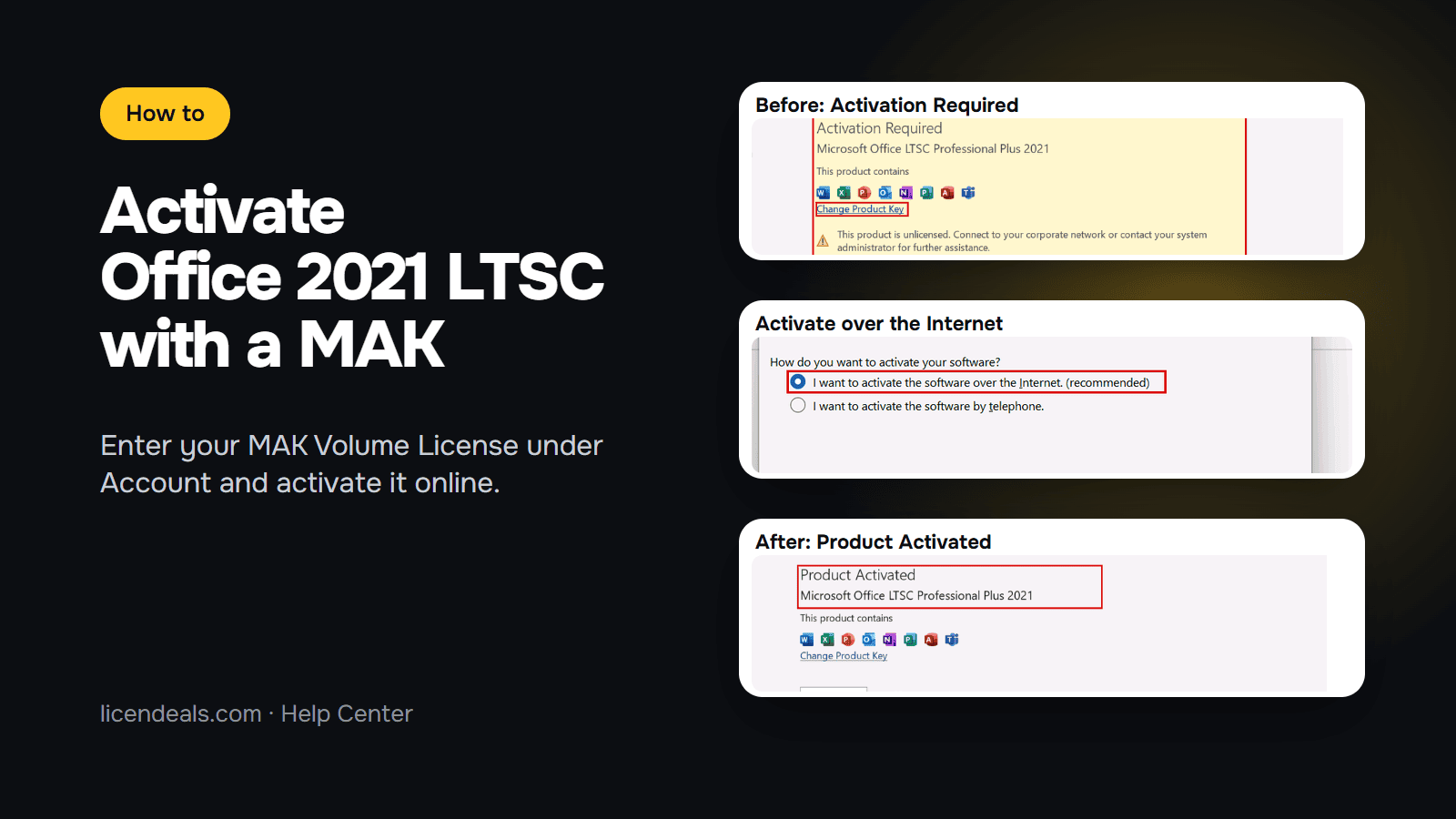
Three screenshots: Office Activation Required, the Activation Wizard and Product Activated in Word

To activate Office 2021 LTSC with a MAK key, you install Office, open Word, go to Account, click Change Product Key, enter your MAK Volume License and then activate Office online with the Activation Wizard. Below are the steps with screenshots from our own Windows 11 test computer, where we installed and activated Office LTSC Professional Plus 2021 with a MAK Volume License on October 12, 2026, and the video of the whole process.

This video is on YouTube (Google). Nothing loads from YouTube until you press play. By pressing play, you agree that YouTube uses cookies and receives your IP address. YouTube uses them to play the video and for its own purposes, such as counting views, security and ads. If you prefer not to, you can follow the written steps on this page instead. See our Privacy Policy and the Google Privacy Policy.

IMPORTANT: each activation of a MAK can be used only once. The computer must be connected to the internet while Office installs and activates. Plan your rollout before you reveal the key: you have 30 days from that moment to use all its activations.

1. Before you start

  • Windows 10 or 11: Microsoft says Office LTSC 2021 is supported on devices running Windows 10 or Windows 11. We tested it on Windows 11.
  • Internet: the installer downloads Office from Microsoft, and the activation is online.
  • The same key on every computer: a MAK is one key with the number of activations you ordered. You enter that same key on each computer, and each computer uses one activation.
  • Microsoft support: Office LTSC 2021 had five years of Mainstream Support and no Extended Support. Microsoft Lifecycle lists the end of that support as October 2026, so Microsoft no longer supports it. Our test was on October 12, 2026. If you need a version that Microsoft still supports, see Office 2024 below.

2. Open the Office installer

2.1 Download the Office installer from the Download tab of your product page. It is a disc image (.iso) file.

2.2 Open File Explorer, go to Downloads and double-click Office-2021-Professional-Plus-LTSC.
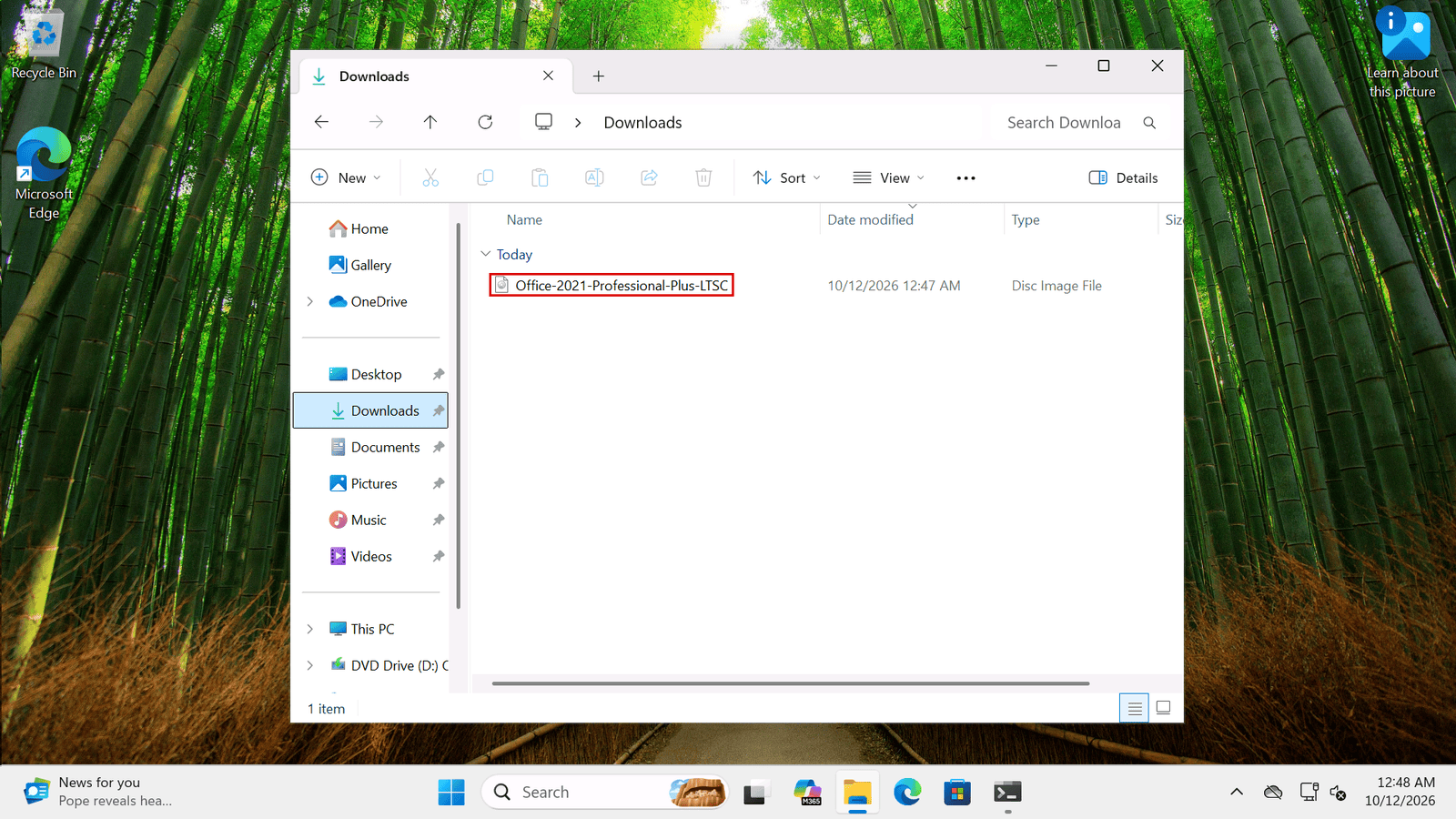
File Explorer, Downloads folder with the Office-2021-Professional-Plus-LTSC disc image file

2.3 If Windows asks whether you want to open this file, click Open. It opens as a DVD drive.
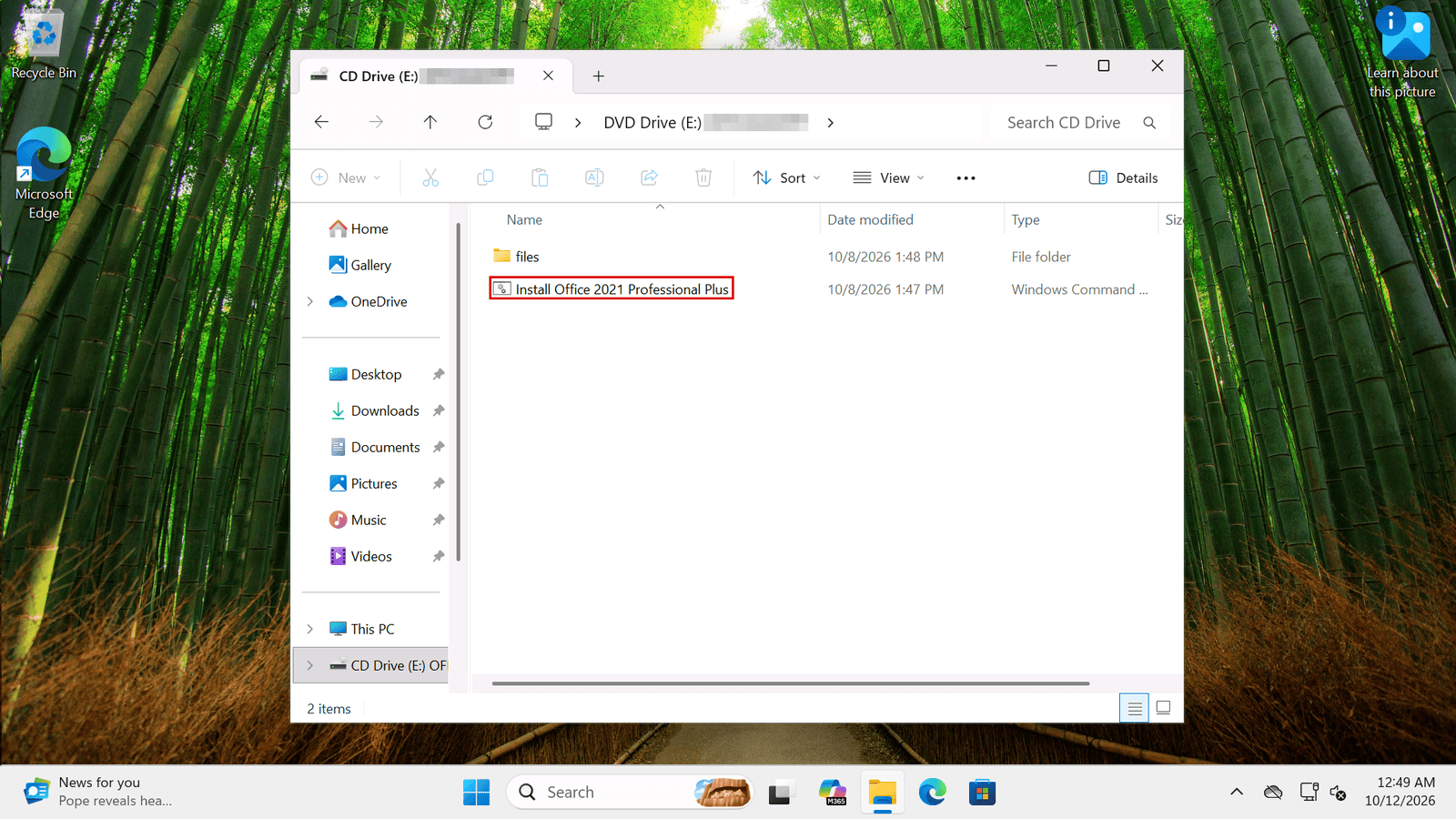
The Office disc image opened as a drive, with the Install Office 2021 Professional Plus file

3. Install Office 2021

3.1 Double-click Install Office 2021 Professional Plus.

3.2 If Windows says that the publisher could not be verified, click Run.
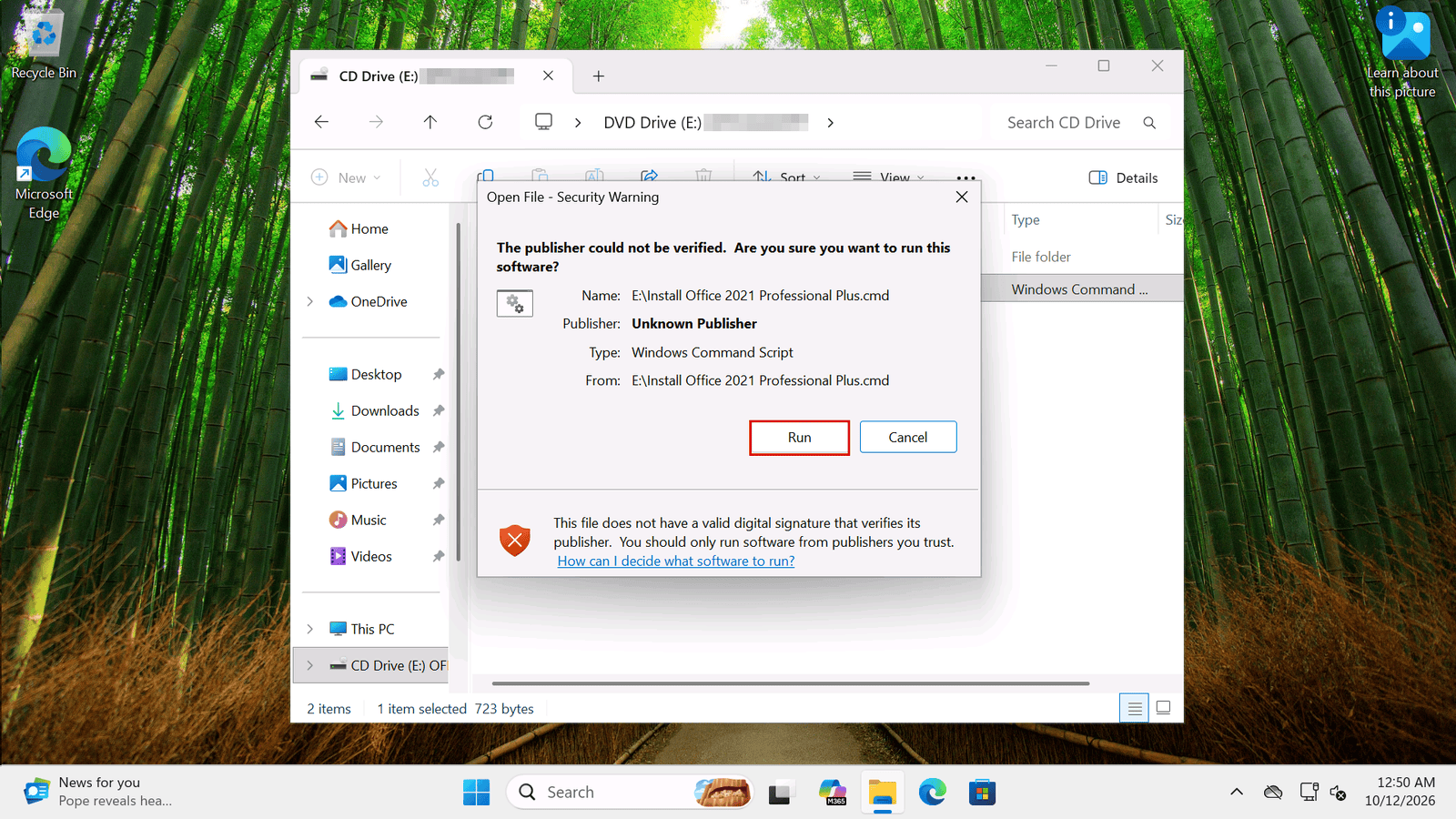
Open File - Security Warning: the publisher could not be verified, with the Run button

3.3 Windows asks for your permission. Click Yes. The verified publisher is Microsoft Corporation.
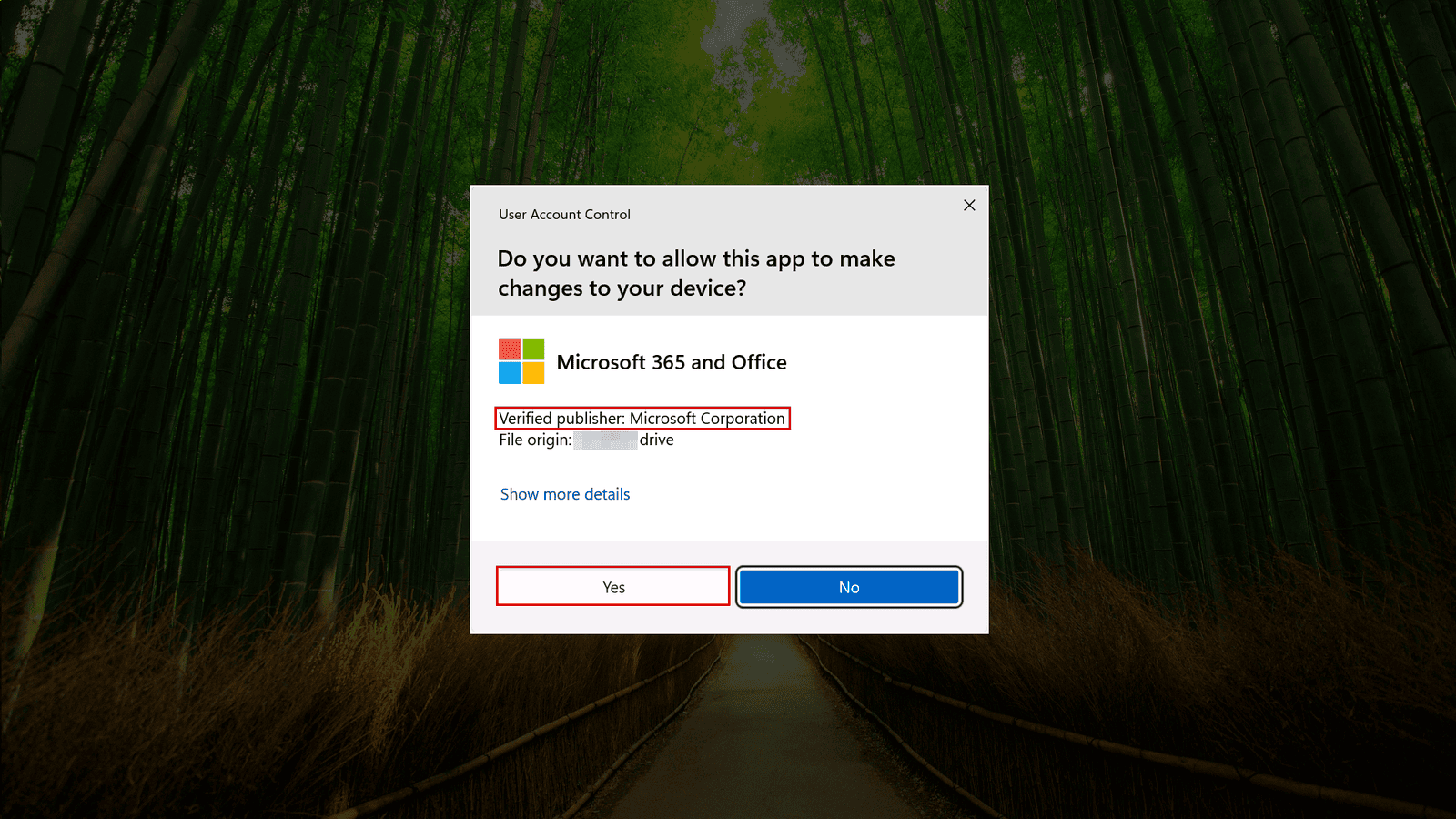
User Account Control for Microsoft 365 and Office, Verified publisher: Microsoft Corporation, Yes button

3.4 Office now downloads from Microsoft. Keep your computer connected to the internet: it can take several minutes. When you see You're all set! Office is installed now, click Close.
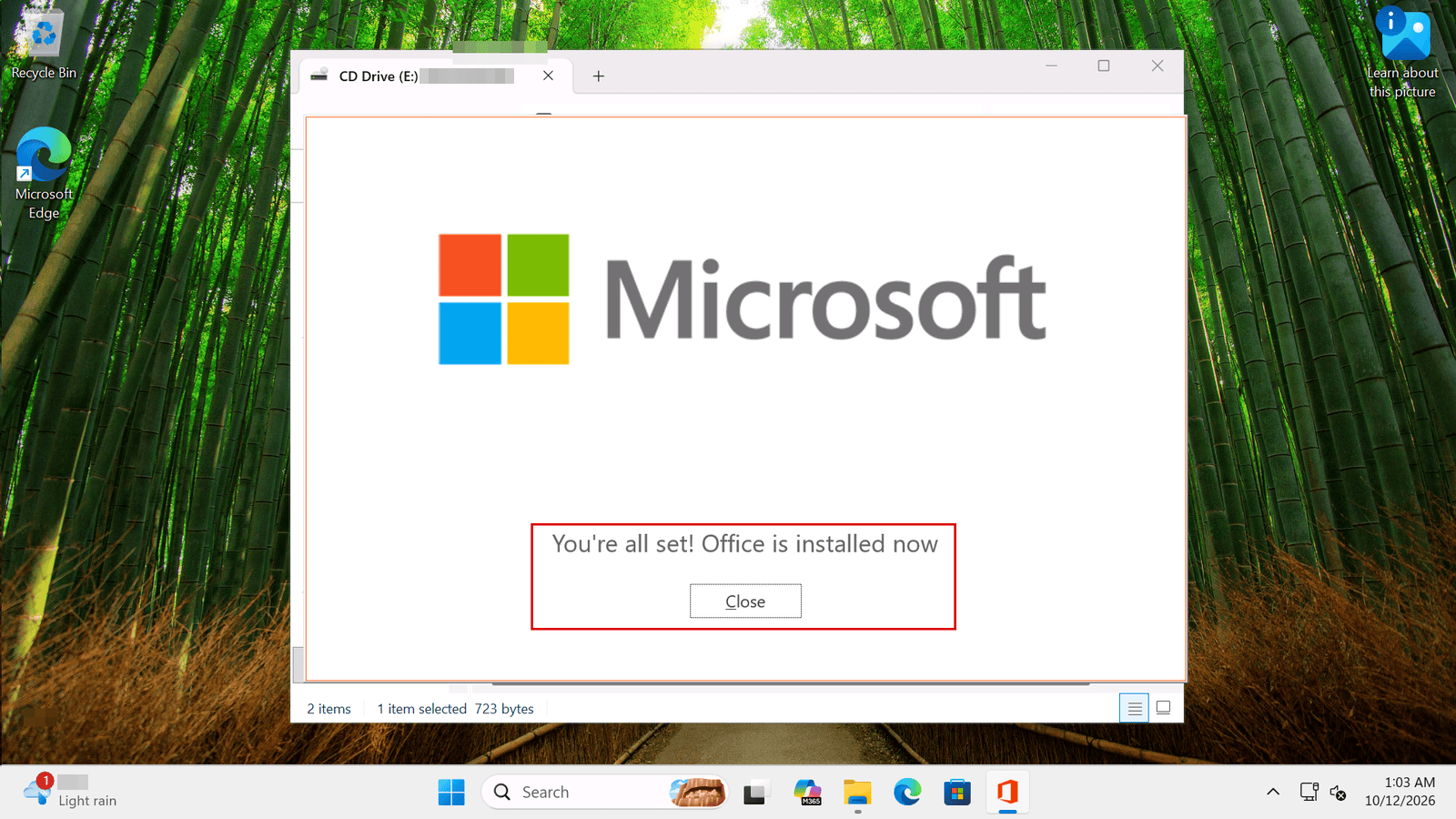
Office installer: You're all set! Office is installed now, with the Close button

4. Open Word and go to Account

4.1 Search for Word on the taskbar and open it. The first time, Word takes a few seconds to open. Click Accept to accept the license agreement and close the privacy message.

4.2 Click Account. Under Product Information you'll see Activation Required and Microsoft Office LTSC Professional Plus 2021. Click Change Product Key.
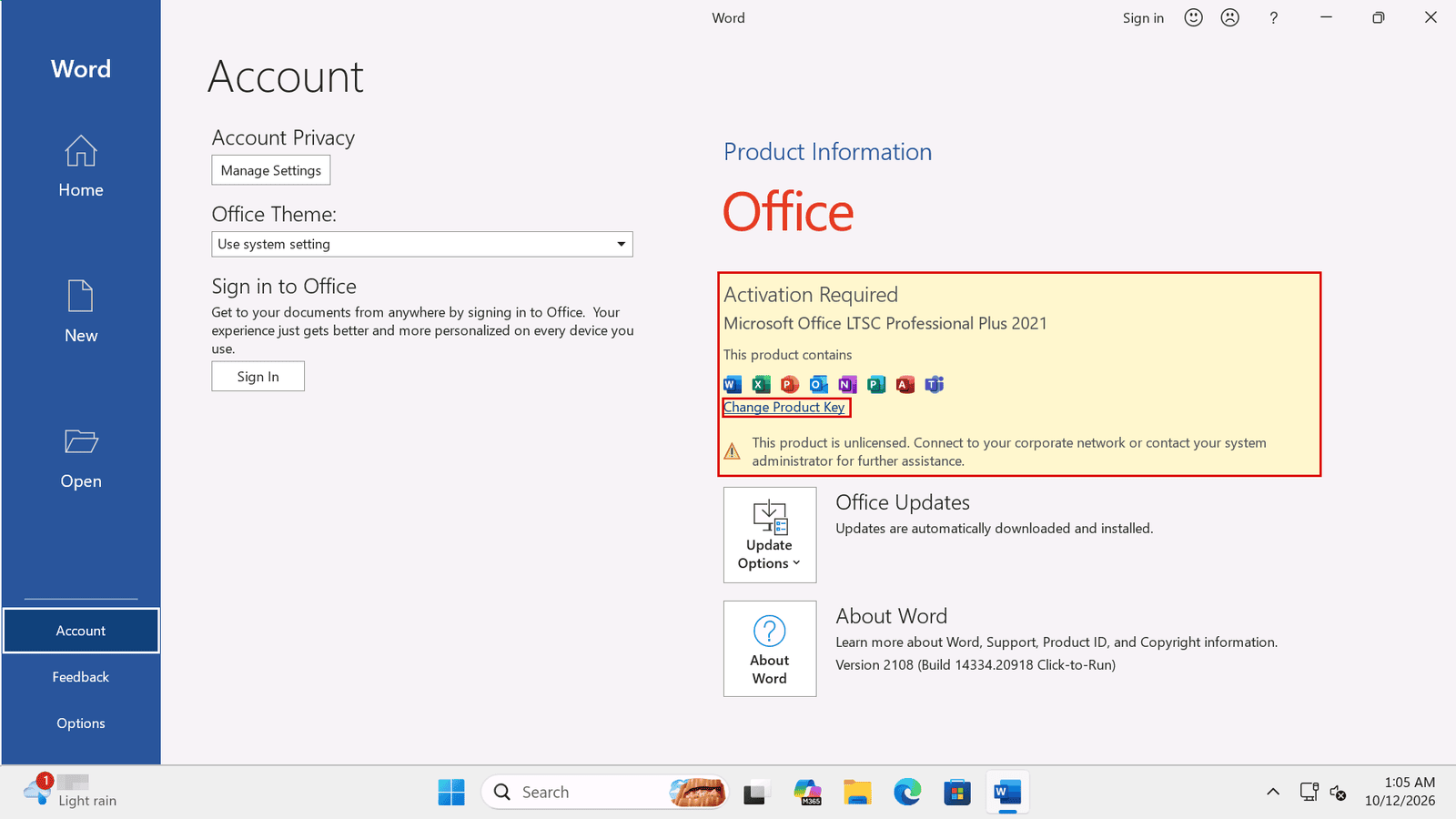
Word, Account: Activation Required, Microsoft Office LTSC Professional Plus 2021, Change Product Key

5. Enter your MAK Volume License

5.1 In Enter your product key, type or paste your MAK Volume License and click Activate Office.
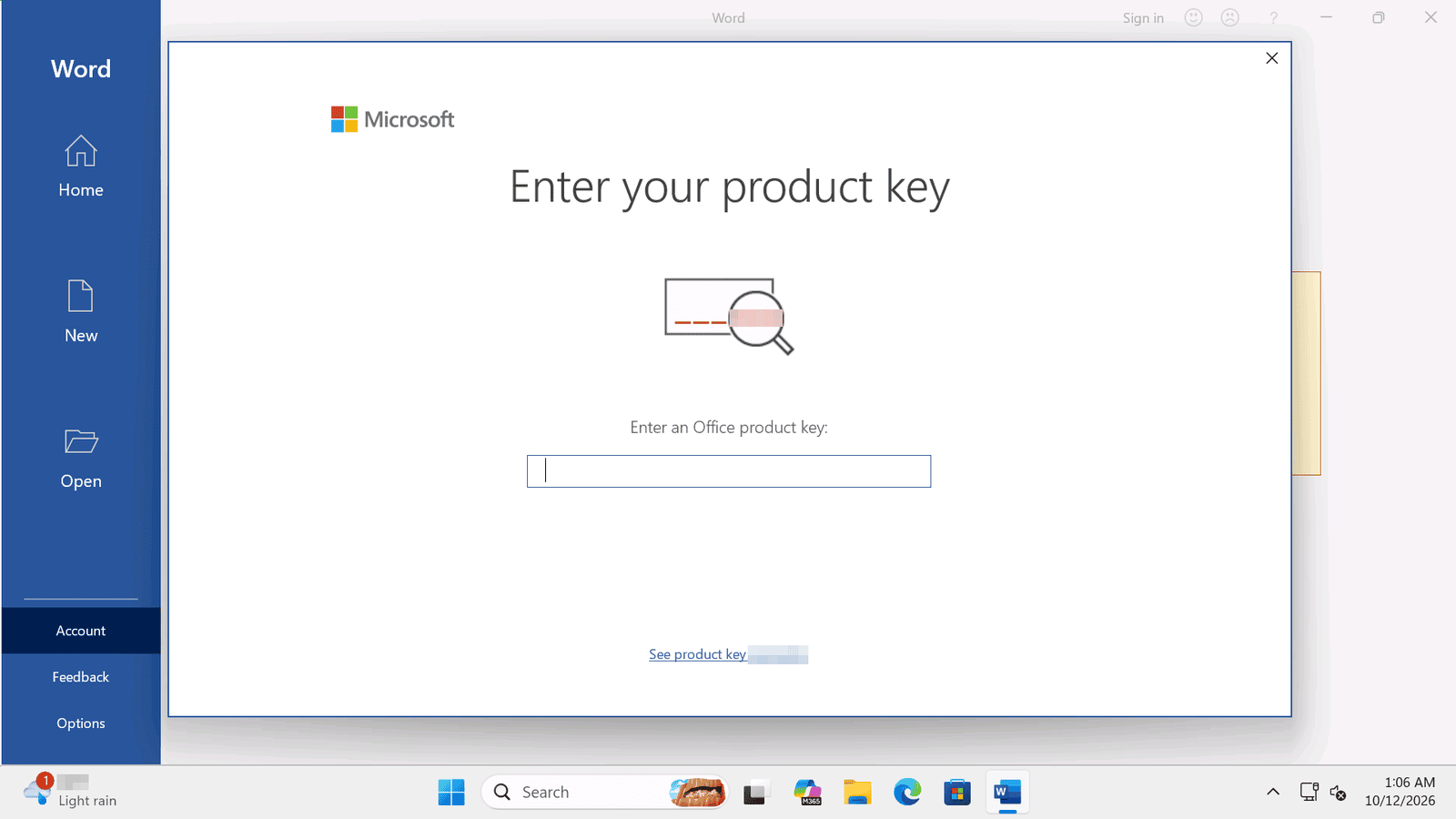
Office Enter your product key window with an empty product key box

5.2 Office saves your key. To finish, close Word.

6. Activate Office online

6.1 Open Word again from the Start menu. This time, the Microsoft Office Activation Wizard appears.

6.2 Choose I want to activate the software over the Internet. (recommended) and click Next.
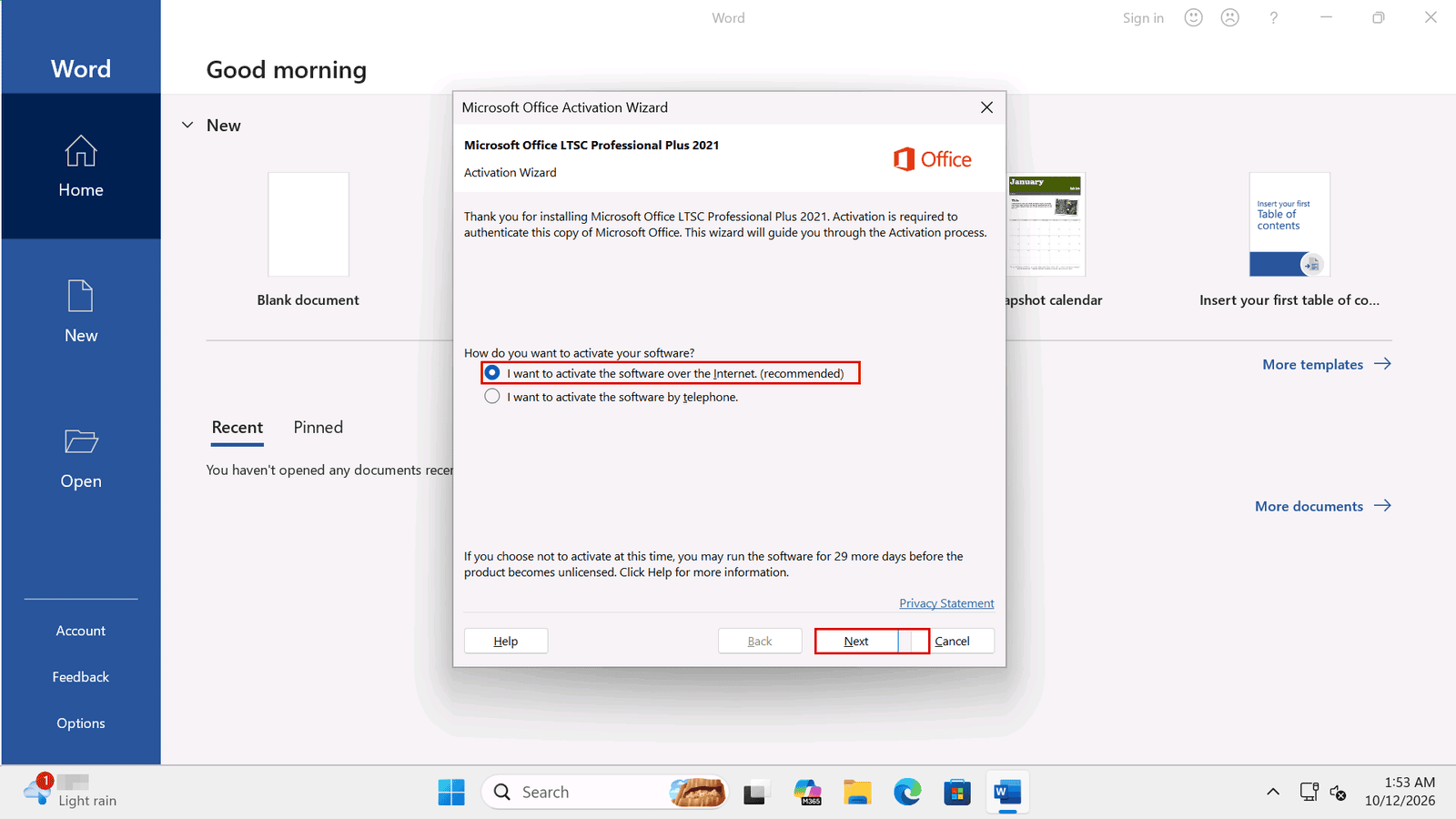
Microsoft Office Activation Wizard: I want to activate the software over the Internet, Next button

6.3 When you see Thank you. Your copy of Microsoft Office LTSC Professional Plus 2021 is activated., click Close.
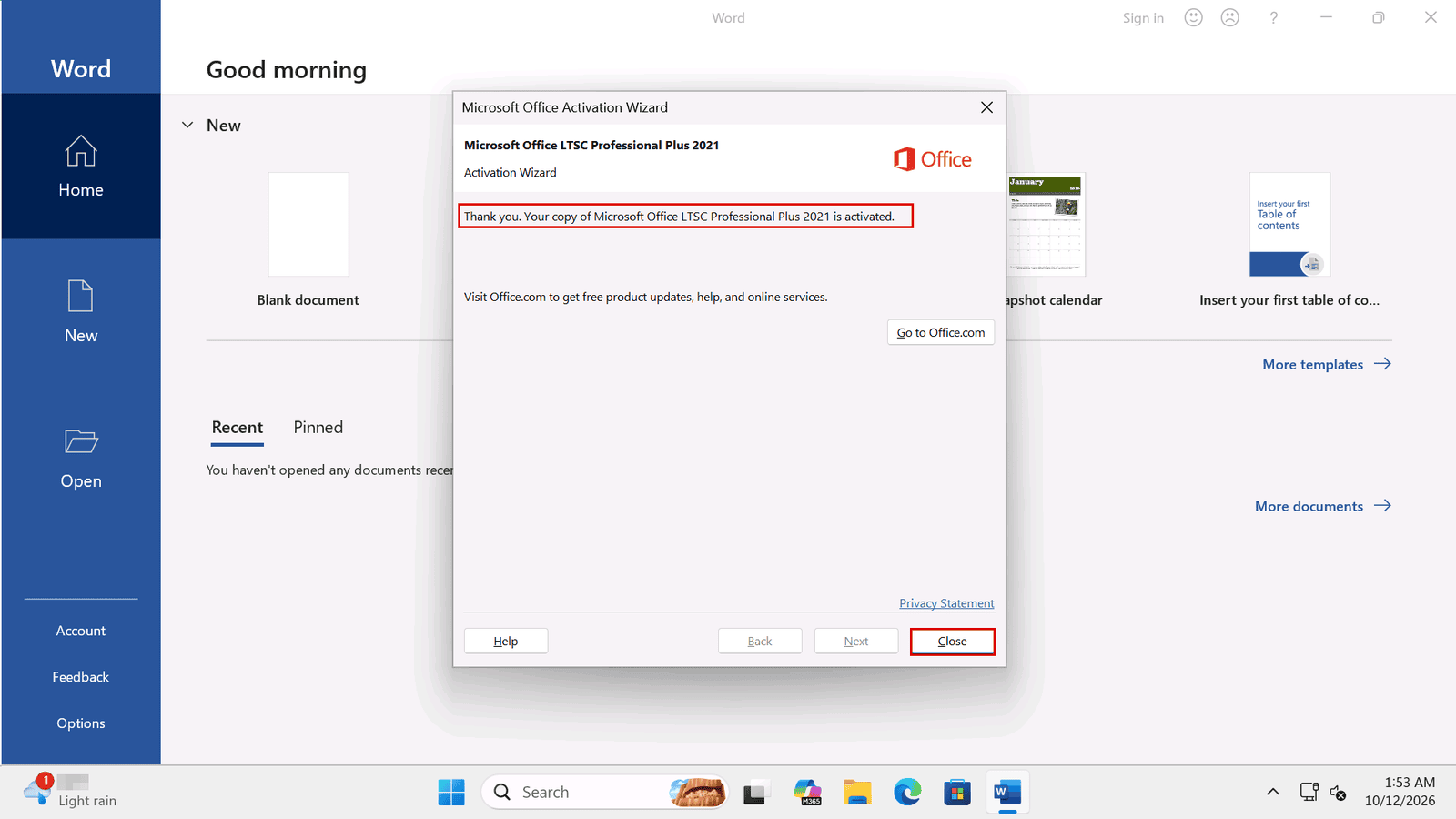
Activation Wizard: your copy of Microsoft Office LTSC Professional Plus 2021 is activated, Close button

7. Check that Office is activated

Go to File and then Account. Under Product Information you'll see Product Activated and Microsoft Office LTSC Professional Plus 2021. You're all done. To check it again later, read How to Check Your Office Activation Status and Edition.
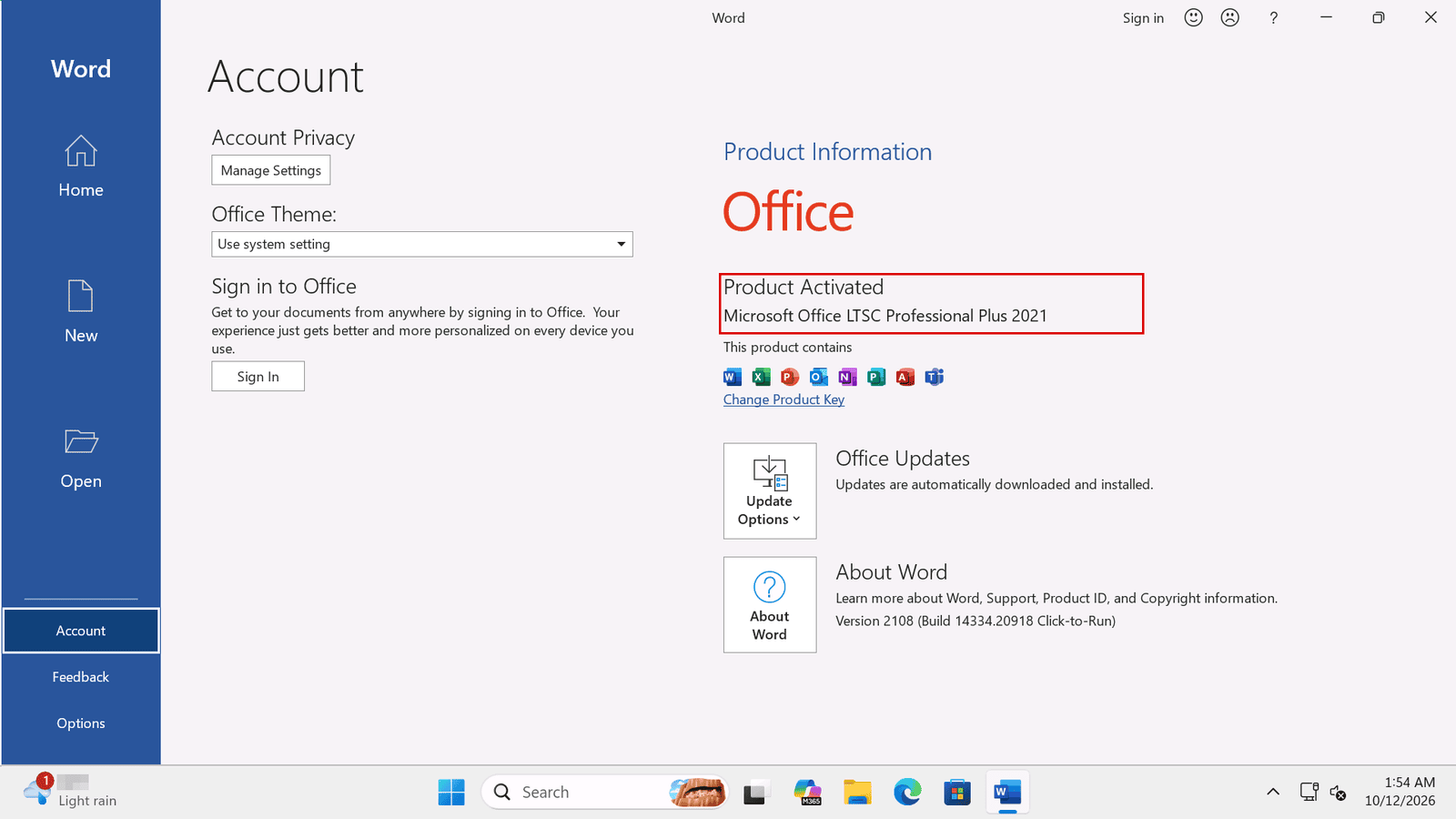
Word, Account: Product Activated, Microsoft Office LTSC Professional Plus 2021

8. Activating several computers

Repeat steps 2 to 7 on each computer, with the same key. Each computer uses one of the activations you ordered, up to the number on your order. Activate them all within 30 days of revealing the key.

9. If the activation fails

  • Check the key: copy the key from your license page and paste it, without spaces before or after.
  • Try another network: if Office can't activate online, switch to another network, for example your phone's hotspot, and try again.
  • Still not activating online? Office can also be activated with a Confirmation ID. The steps are in our guide How to Install and Activate Office 2021 Professional Plus via CID, and our team can help you.
  • Still not working? Contact us within the 30 days. Our team can help you, and if the key doesn't work, we will replace it right away.

10. The 30 days and reinstalling

These are the rules of every MAK Volume License at Licendeals, as they appear on our license types page:

  • 30 days to use it: MAK Volume Licenses have 30 days instead of 24 hours. From the moment you reveal the key, you have 30 days to use all its activations or, if it doesn't work, to tell us. If the key doesn't work, tell us within those 30 days and we will replace it right away.
  • Reinstalling or moving it: each activation can be used only once. If you uninstall or reinstall the software or the operating system (including a reset or a format), or change hardware such as the hard drive, the processor or the motherboard, activating again uses another of the activations you bought, and our warranty doesn't cover it.

Good to know: we only sell the Multiple Activation Key. It doesn't include access to Microsoft's Volume Licensing Service Center (VLSC). Learn more in What Is a MAK Volume License?

11. Frequently asked questions

How do I activate Office 2021 LTSC with a MAK key?

Install Office, open Word, go to Account and click Change Product Key. Enter your MAK Volume License and click Activate Office. Then close Word, open it again and, in the Activation Wizard, choose to activate the software over the Internet.

Do I use the same MAK key on every computer?

Yes. A MAK is one key with the number of activations you ordered. Each computer where you enter it uses one activation.

How do I know that Office is activated?

In Word, go to File and then Account. Under Product Information it says Product Activated.

Is Office 2021 LTSC still supported by Microsoft?

No longer. Office LTSC 2021 had five years of Mainstream Support and no Extended Support, and Microsoft Lifecycle lists the end of that support as October 2026. For a version that Microsoft still supports, see Office 2024 Professional Plus.

What happens if I reinstall Office or Windows?

Activating again uses another of the activations you bought, and our warranty doesn't cover it. Each activation can be used only once.

Checked on: our Windows 11 test computer with Office LTSC Professional Plus 2021 (October 12, 2026; we did not test Office 2021 Standard) and Microsoft's pages Overview of Office LTSC 2021 and Office LTSC 2021 in Microsoft Lifecycle, read on 2026-11-19. Microsoft can change Office; check it if something looks different on your screen.

Still stuck? Our team can help you activate Office 2021, with 24/7 support. Get your Office 2021 Professional Plus MAK license key or Office 2021 Standard MAK license key, choose the Office 2024 Professional Plus MAK license key with its step-by-step guide, or browse all MAK Volume Licenses at Licendeals.