November Special Offer - 5% OFF SITEWIDE!
Use code:
Valid until Nov 30
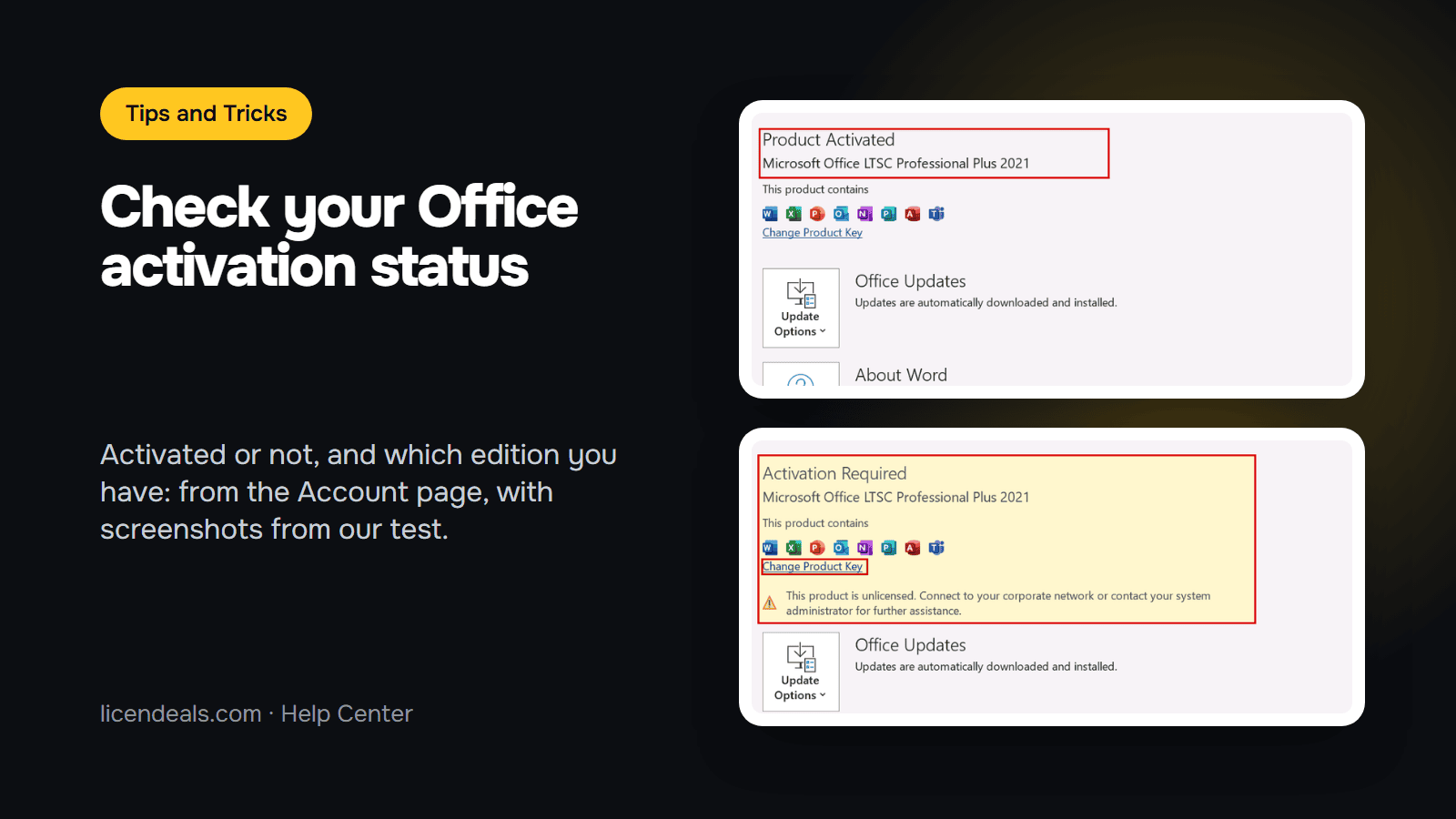
Not sure whether your copy of Office is activated, or which edition is installed? You can find both in under a minute, without typing any command. Open an Office app, go to the Account page and read the Product Information box. This guide shows what each screen looks like, so you can compare yours with ours.
TESTED ON: our test computer, October 2026. Microsoft Office LTSC Professional Plus 2021, activated with a MAK Volume License, and the same screen when it was not activated. Other Office versions and editions can look different, and Microsoft can change the screens.
1.1 Open Word, Excel or any other Office app. Click "File" in the top menu, then "Account" in the left menu. In the screens we tested, Account is also in the left menu of the start screen.
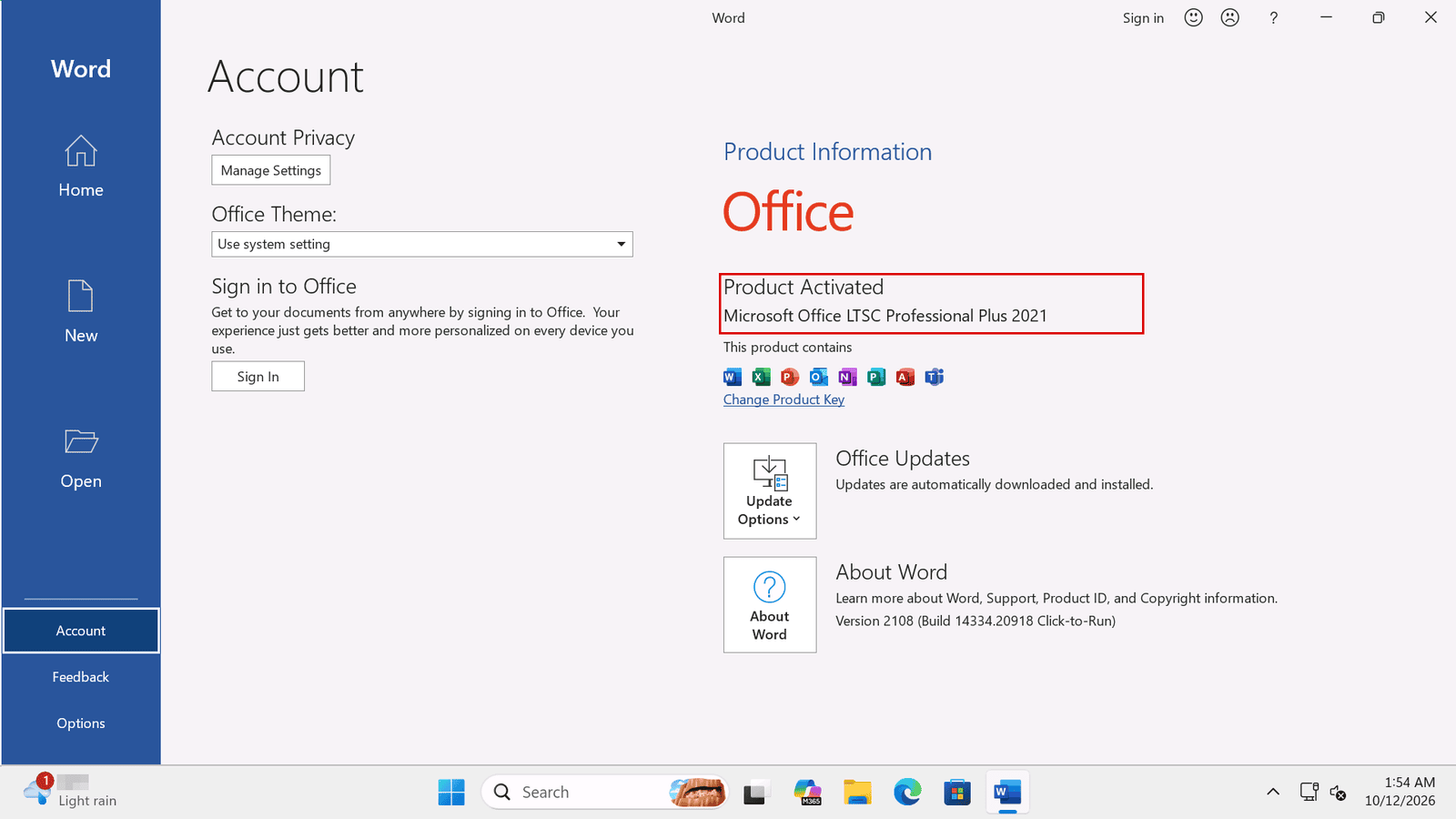
1.2 On the right side of the page, under "Product Information", you will see one of two boxes. Read the first line of that box: it tells you the status.
2.1 If Office is activated, the box says "Product Activated". The line below it is the name of your edition. In our test it reads "Microsoft Office LTSC Professional Plus 2021".
2.2 If Office is not activated, the box is yellow and says "Activation Required". The name of the edition is still shown, so you can see which product is installed. Under it, the warning says that the product is unlicensed.
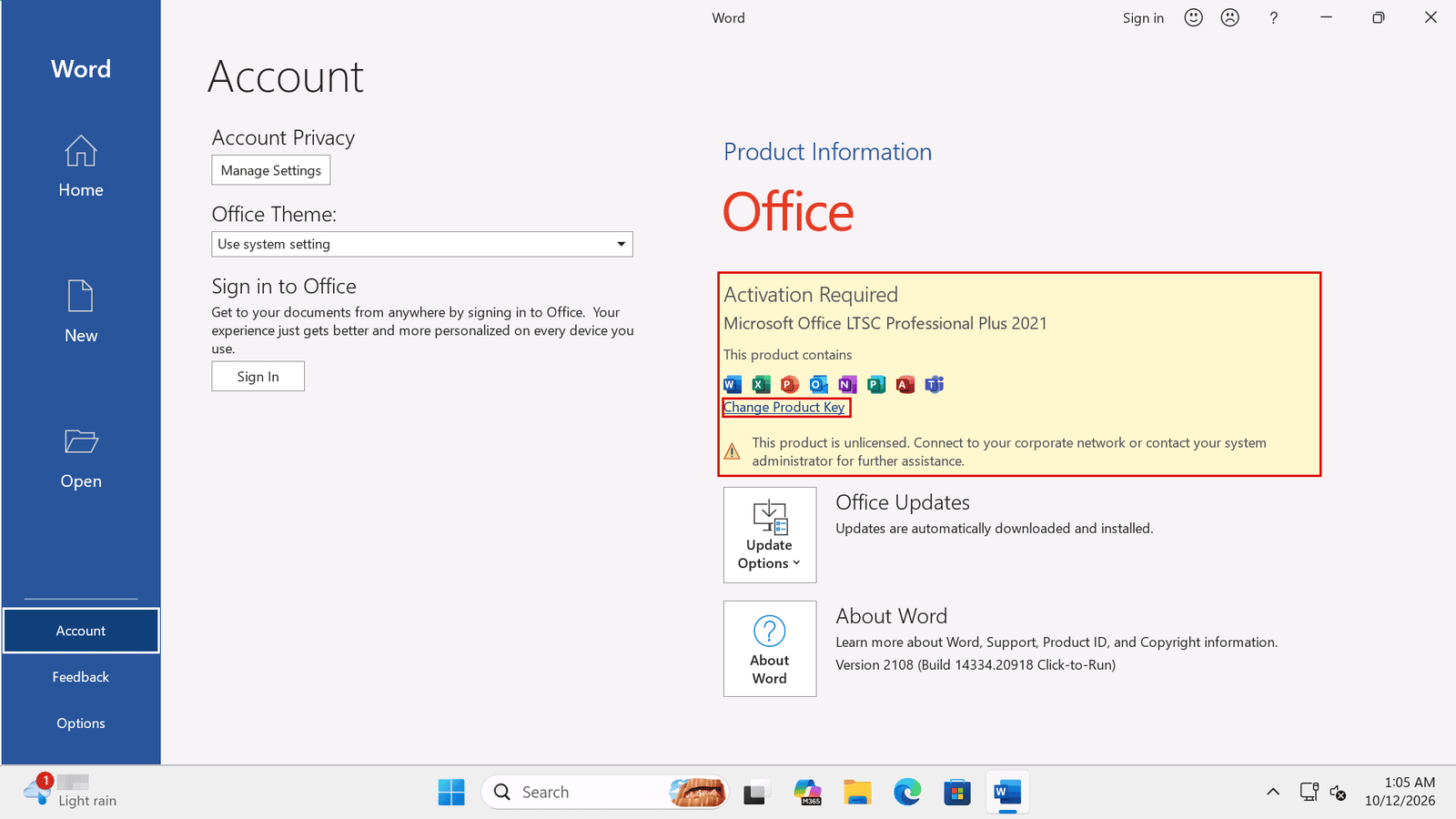
2.3 In both cases the box has a "Change Product Key" link. Use it if you have a key and need to enter it. Check first that the key is for the edition shown in the box, the one you bought.
3.1 The edition name is the one to compare with your order. If you bought Professional Plus, the box should show Professional Plus, not Standard or Home.
3.2 For the exact version and build, click "About Word" in the box on the right. In our test it showed "Version 2108 (Build 14334.20918 Click-to-Run)". The numbers change after each update, so they are useful only to compare two computers with the same update.
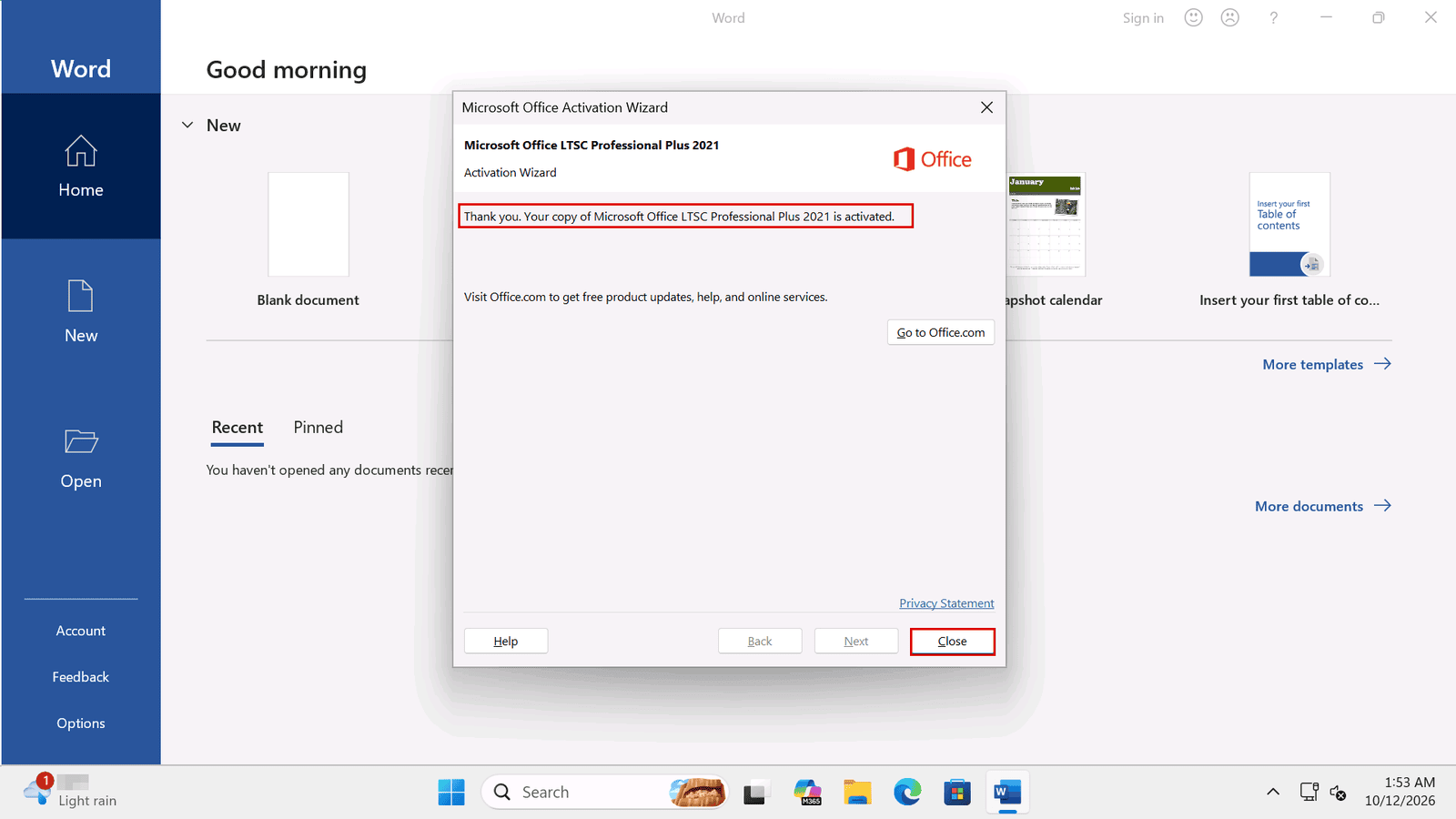
4.1 When you activate Office with a product key, the Activation Wizard shows a message at the end. In our test it said: "Thank you. Your copy of Microsoft Office LTSC Professional Plus 2021 is activated". Click "Close" to finish.
4.2 Then go back to the Account page. The box should now say "Product Activated".
Check the edition first. If the edition in the box is not the one you bought, compare it with your order before you enter the key. If the status is "Activation Required" after you entered your key, follow our guide on "Unlicensed Product" and "Product Activation Failed". For a CID License, see Office CID Activation: Confirmation ID Not Working?.
This guide does not cover command-line checks, because their output and their file paths change with the Office version and with the 32-bit or 64-bit install. If you need one, follow the instructions for your version from Microsoft.
{n} from {l} bought
{n} bought
Someone from {l} bought
Someone bought
Just now
1 minute ago
2 minutes ago
1 hour ago
2 hours ago
1 day ago
2 days ago
Close


 Windows
 Office for PC
 Office for Mac
 Windows Server
 SQL Server
 Office Apps
 Visual Studio

