November Special Offer - 5% OFF SITEWIDE!
Use code:
Valid until Nov 30

A Confirmation ID is the code that finishes the activation of Microsoft Office when you use a CID License. Office gives you one code, the Installation ID. You enter it on Microsoft's activation portal, and the portal gives you another code back, the Confirmation ID. You type that one into Office and the activation is done. This guide explains what each code is and how they work together, with screenshots from our own test.
TESTED ON: our test computer, October 2026. Microsoft Office LTSC Standard 2024, activated with a Confirmation ID through Microsoft's activation portal. We blurred the codes in every screenshot. The screens of other Office versions can look different.
Microsoft uses the same two names in its own tools. Its page on Office volume activation tools lists a command that "displays the Installation ID for offline activation" and another that "activates a product using a user-provided Confirmation ID". You don't need those commands: this guide uses the normal Office window.
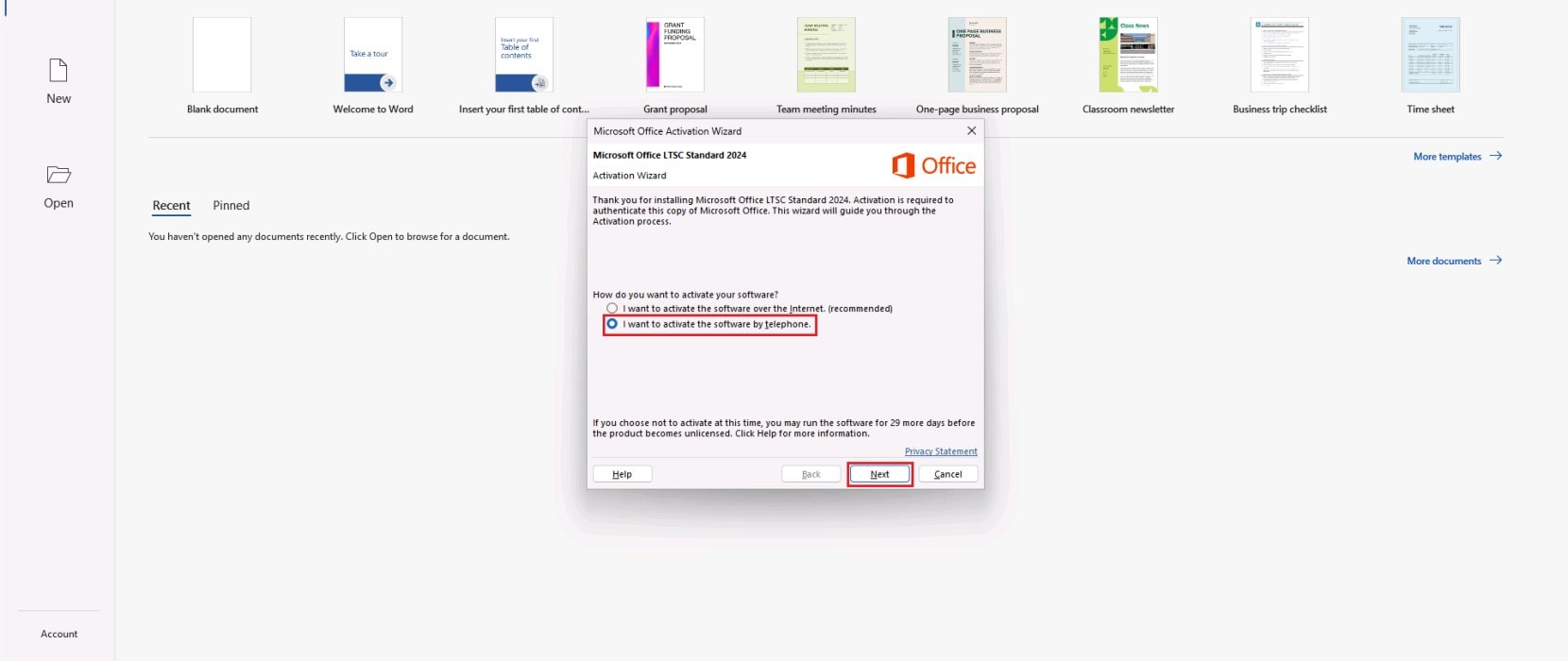
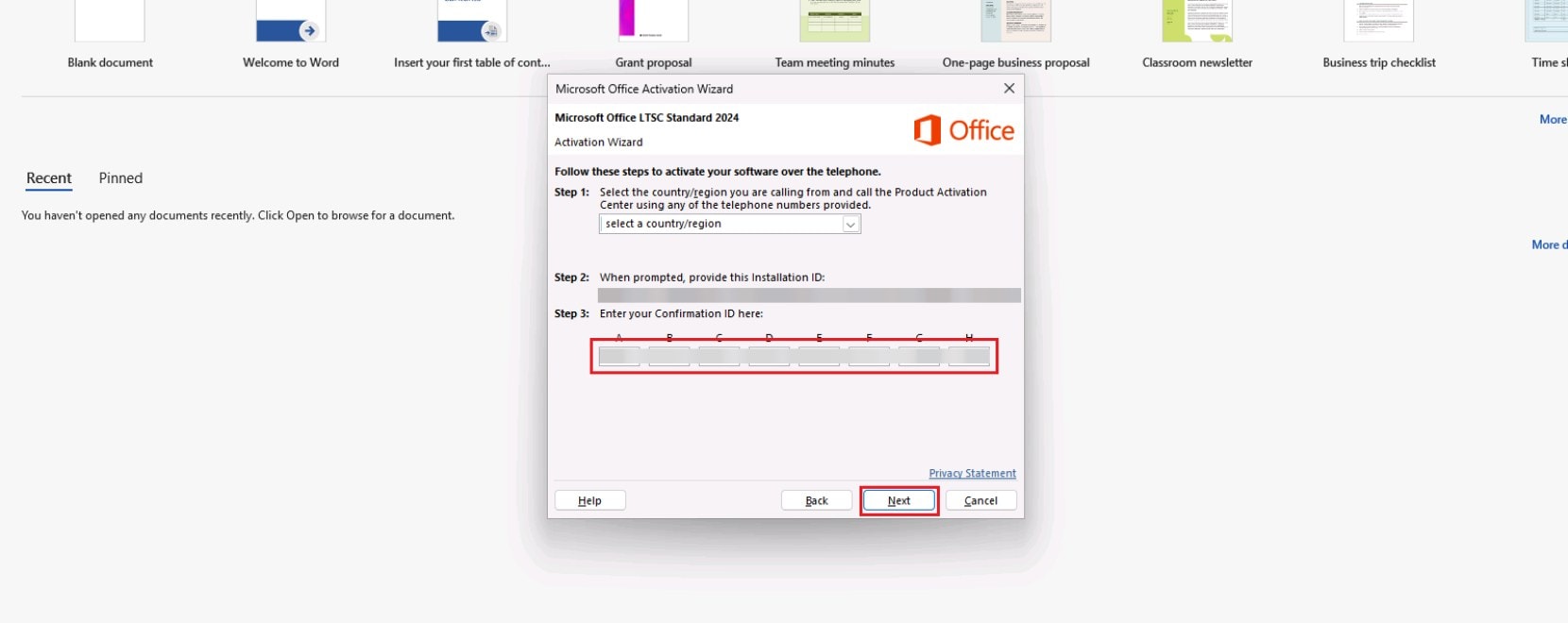
2.1 After you enter your product key, close Word and open it again. The Microsoft Office Activation Wizard will appear. Select the option that says "I want to activate the software by telephone" and click "Next". This is how Microsoft names activation with a Confirmation ID: you won't need to call anyone, everything is done online.
2.2 The window now shows your Installation ID under "Step 2", and the empty boxes for the Confirmation ID under "Step 3". You don't need to select a country. Keep this window open.
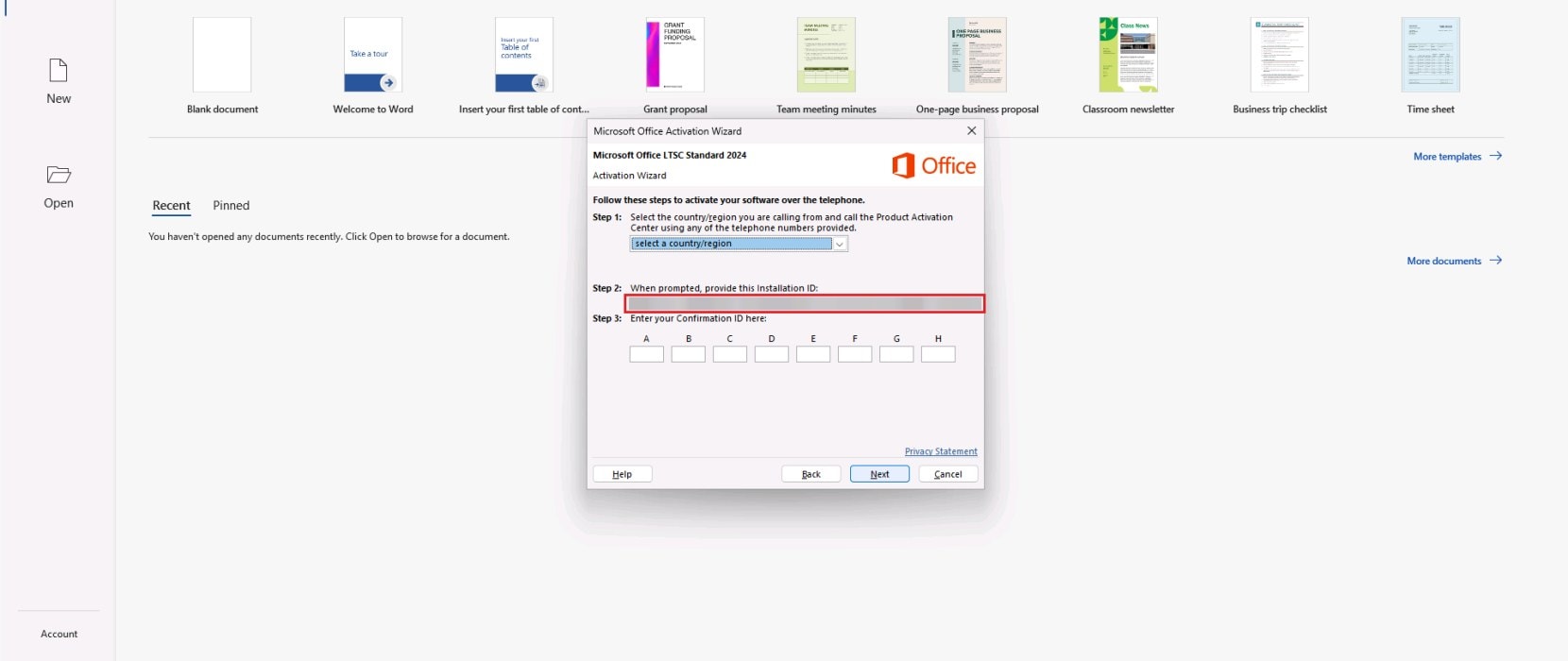
2.3 To copy the 63 digits without mistakes, you can take a screenshot of the window and open it in our Installation ID Extractor. It reads the digits from the image and lets you copy them all at once. Check that they match the ones in your activation window.

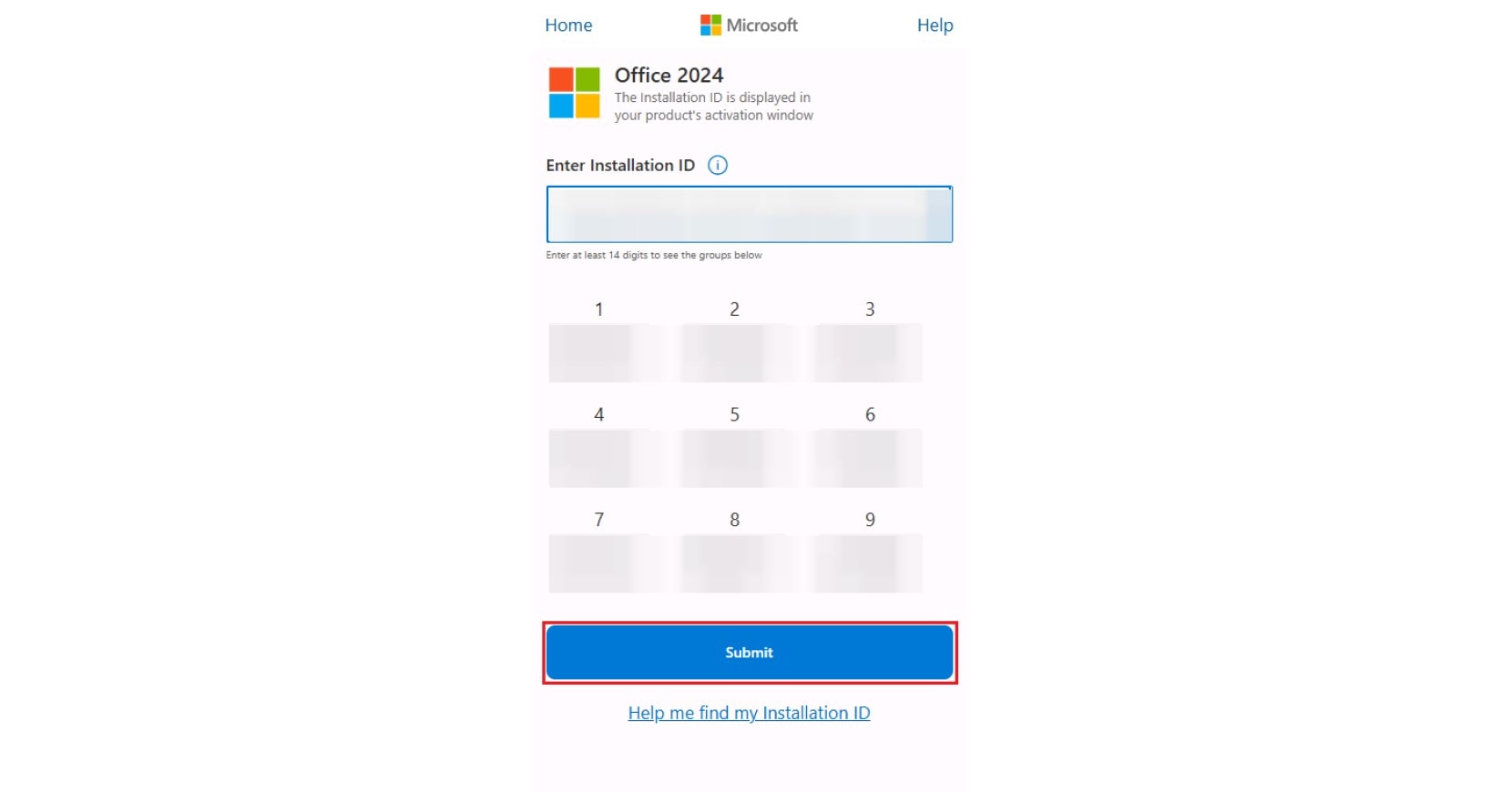
2.4 On Microsoft's activation portal, enter the Installation ID. The portal itself says "The Installation ID is displayed in your product's activation window", and it splits the code into 9 groups so that you can compare them. Then click "Submit". The portal asks you to sign in to a Microsoft account first, and if it asks how many computers have this copy installed, enter the number corresponding to your license.
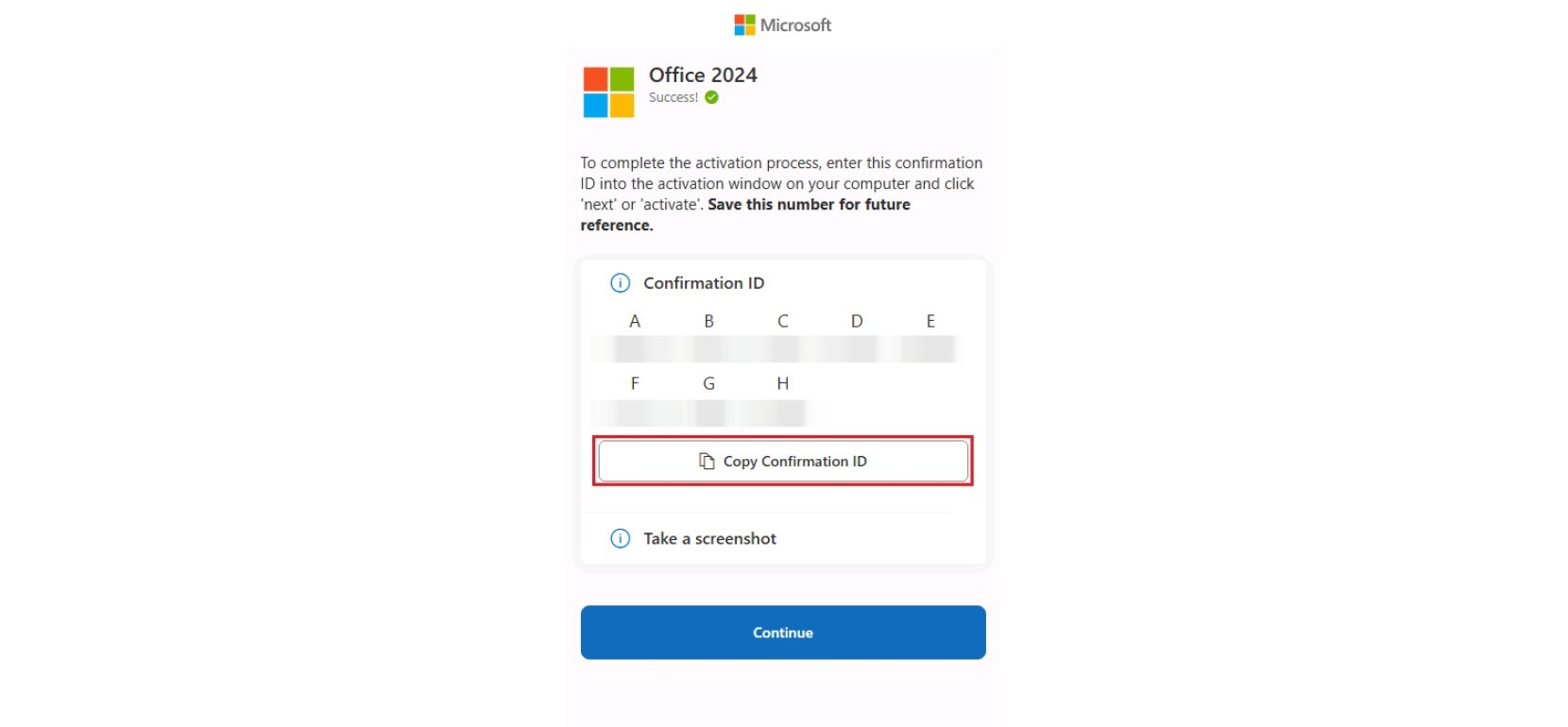
2.5 The portal now shows your Confirmation ID, in groups A to H, with a button to copy it.
2.6 Go back to the Office activation window you left open, enter the Confirmation ID in boxes A to H and click "Next".
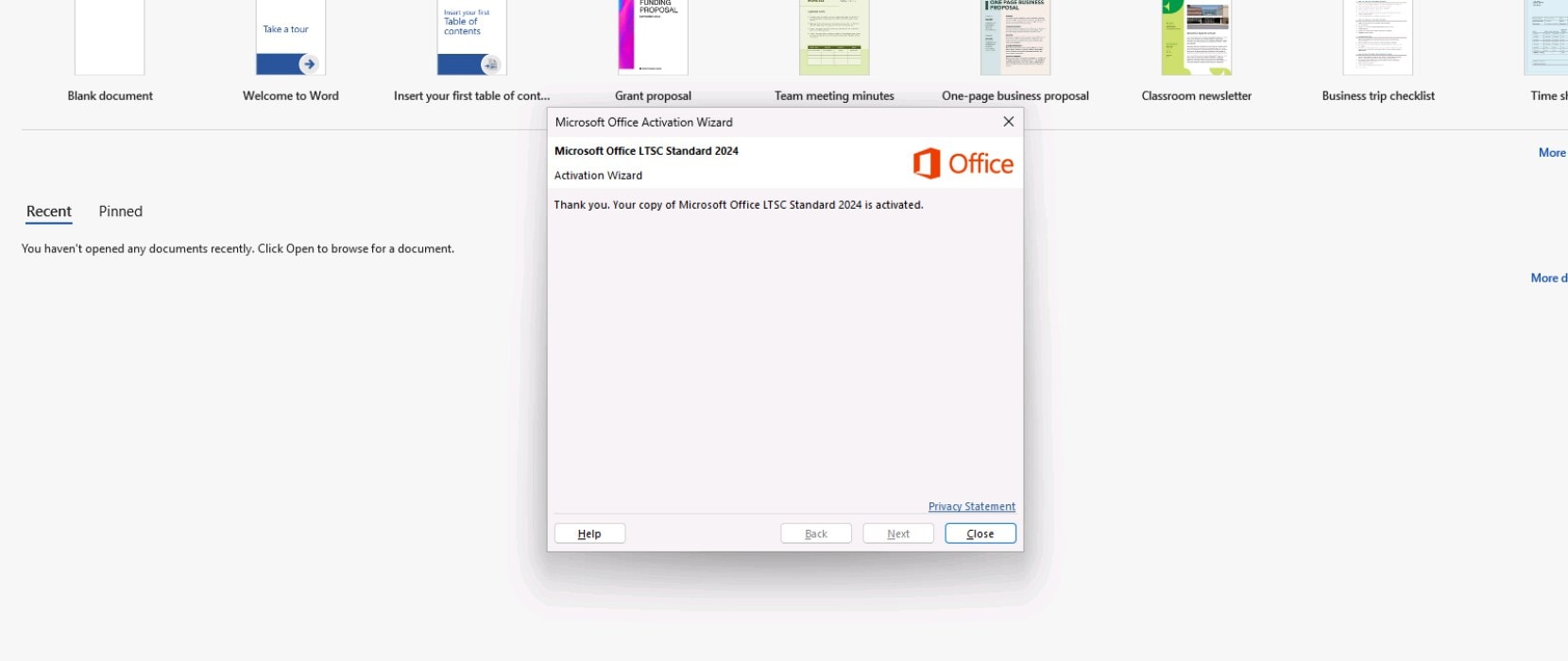
2.7 Office confirms the activation.
These steps are the idea. For every click, with the portal link and all the screenshots, follow the guide for your version: Office 2024 Professional Plus LTSC, Office 2024 Standard LTSC, Office 2021 Professional Plus, Office 2019 Professional Plus or Office 2016 Professional Plus.
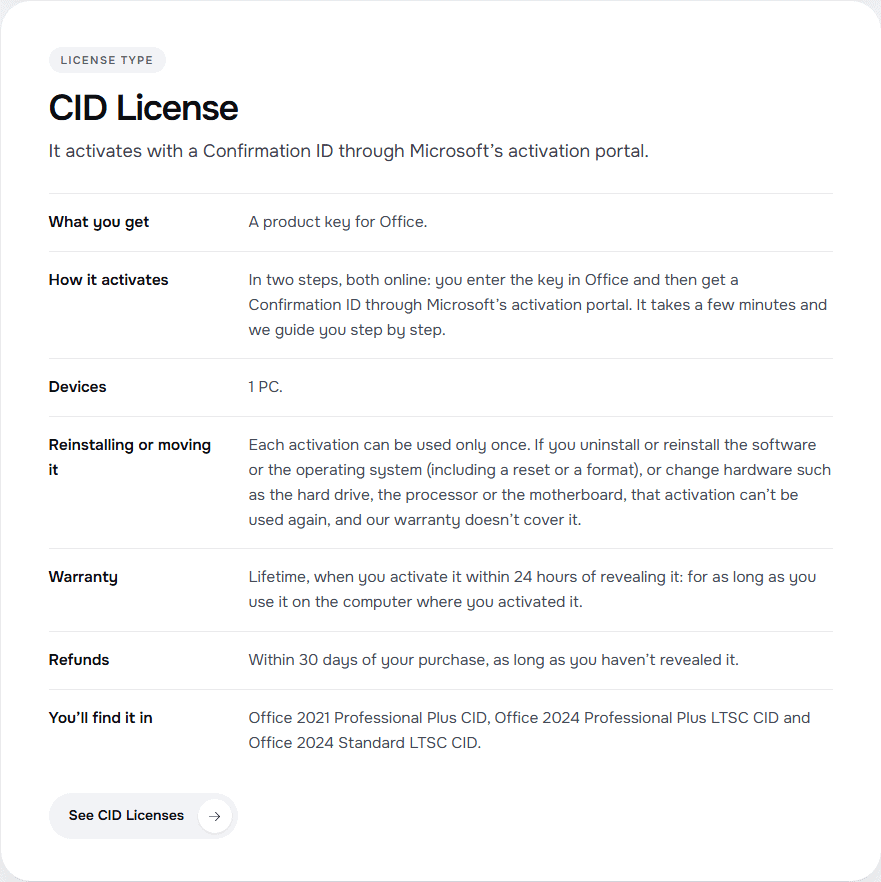
"CID" is the name of a license type in our store, and it comes from Confirmation ID. The rules below are the rules of our store, not Microsoft's:
Office 2016, 2019 and 2021 Professional Plus may, in some cases, need to be activated with a Confirmation ID through Microsoft’s activation portal, even though they are RETAIL Licenses. It’s done online, with the same two codes.
Before you reveal a license, our checklist tells you what to have ready.
The Microsoft pages we read don't explain how these codes are calculated, so we don't explain it either. We also tested only the version in the box above: the other guides have their own screenshots. If Office shows an activation error, start with our guide on "Unlicensed Product" and "Product Activation Failed".
{n} from {l} bought
{n} bought
Someone from {l} bought
Someone bought
Just now
1 minute ago
2 minutes ago
1 hour ago
2 hours ago
1 day ago
2 days ago
Close


 Windows
 Office for PC
 Office for Mac
 Windows Server
 SQL Server
 Office Apps
 Visual Studio

