November Special Offer - 5% OFF SITEWIDE!
Use code:
Valid until Nov 30
Download Office 2024 Professional Plus LTSC x64 - All languages
Office is installed in the same language as your Windows (in English if your language is not available). The installer downloads Office directly from Microsoft's servers, so keep your computer connected to the internet.
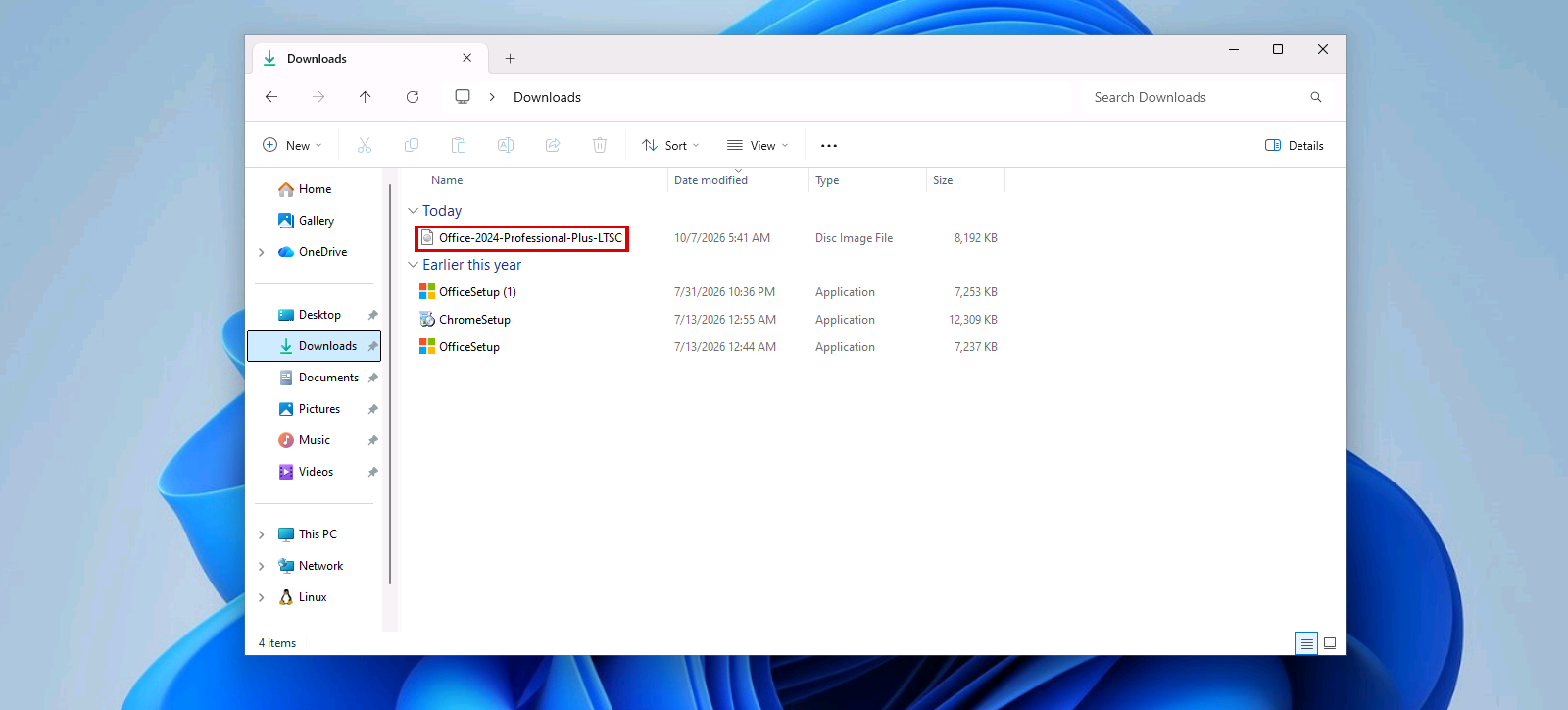
2.1 Install the software – Open your Downloads folder and double-click the downloaded file, Office-2024-Professional-Plus-LTSC.
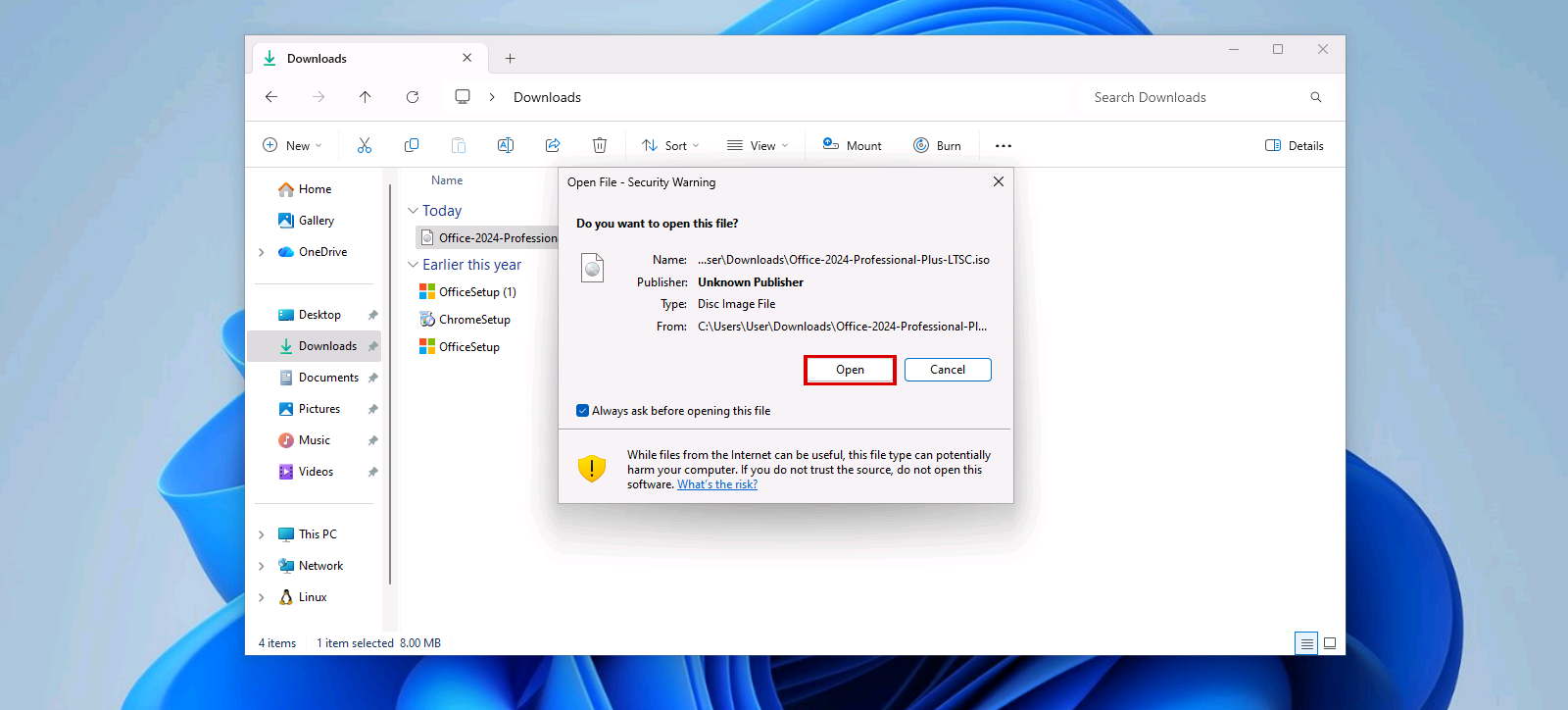
If Windows asks "Do you want to open this file?", click "Open".
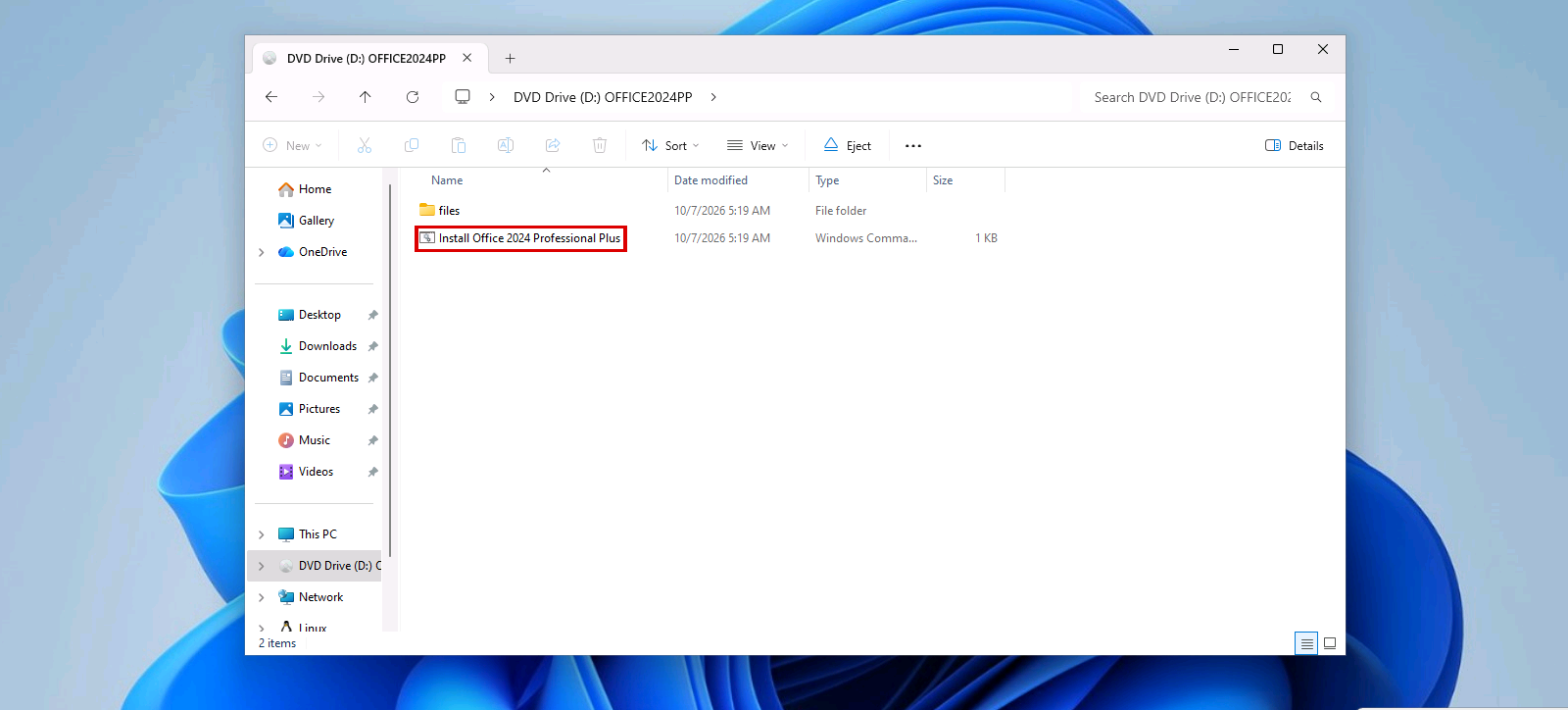
The file opens as a DVD drive. Double-click "Install Office 2024 Professional Plus" to begin the installation process.
If Windows shows the message "The publisher could not be verified", click "Run".
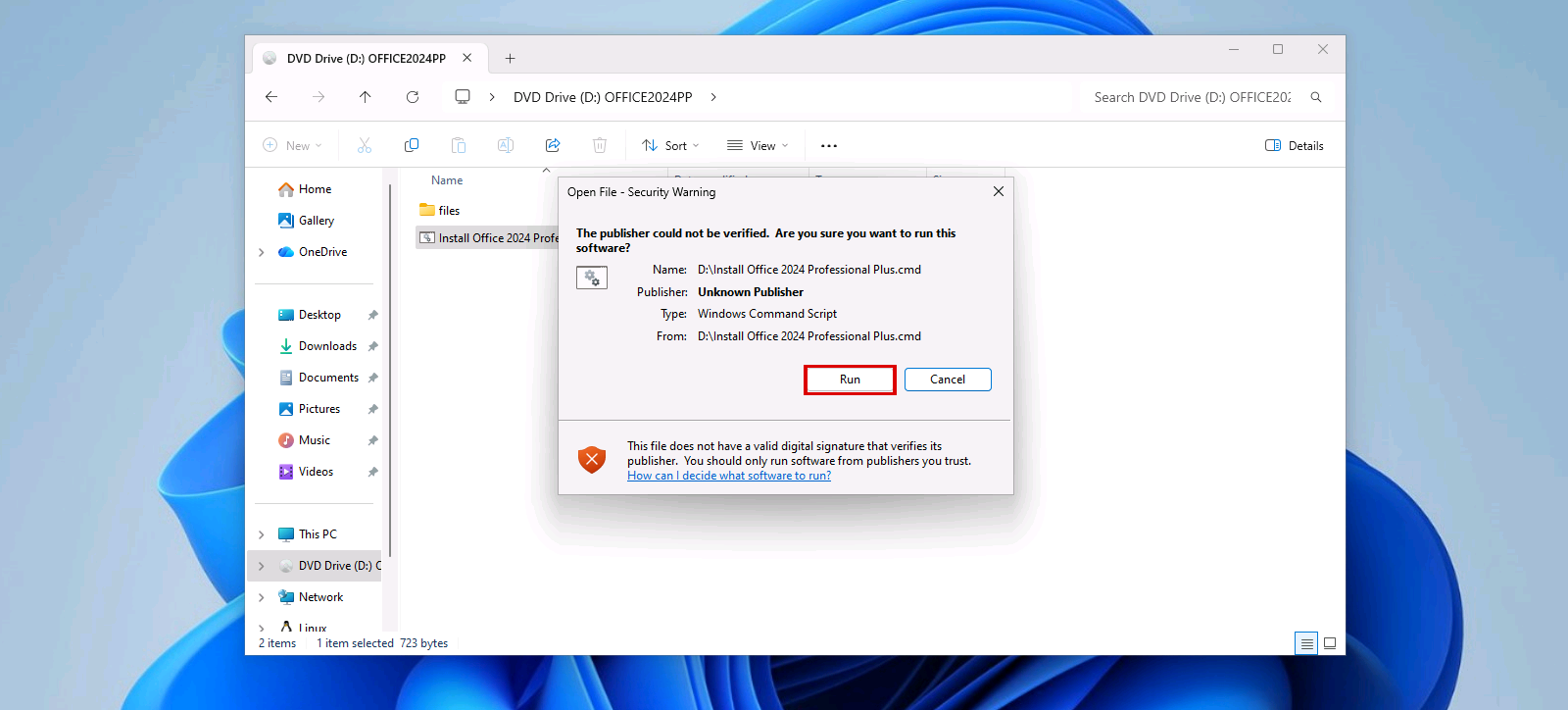
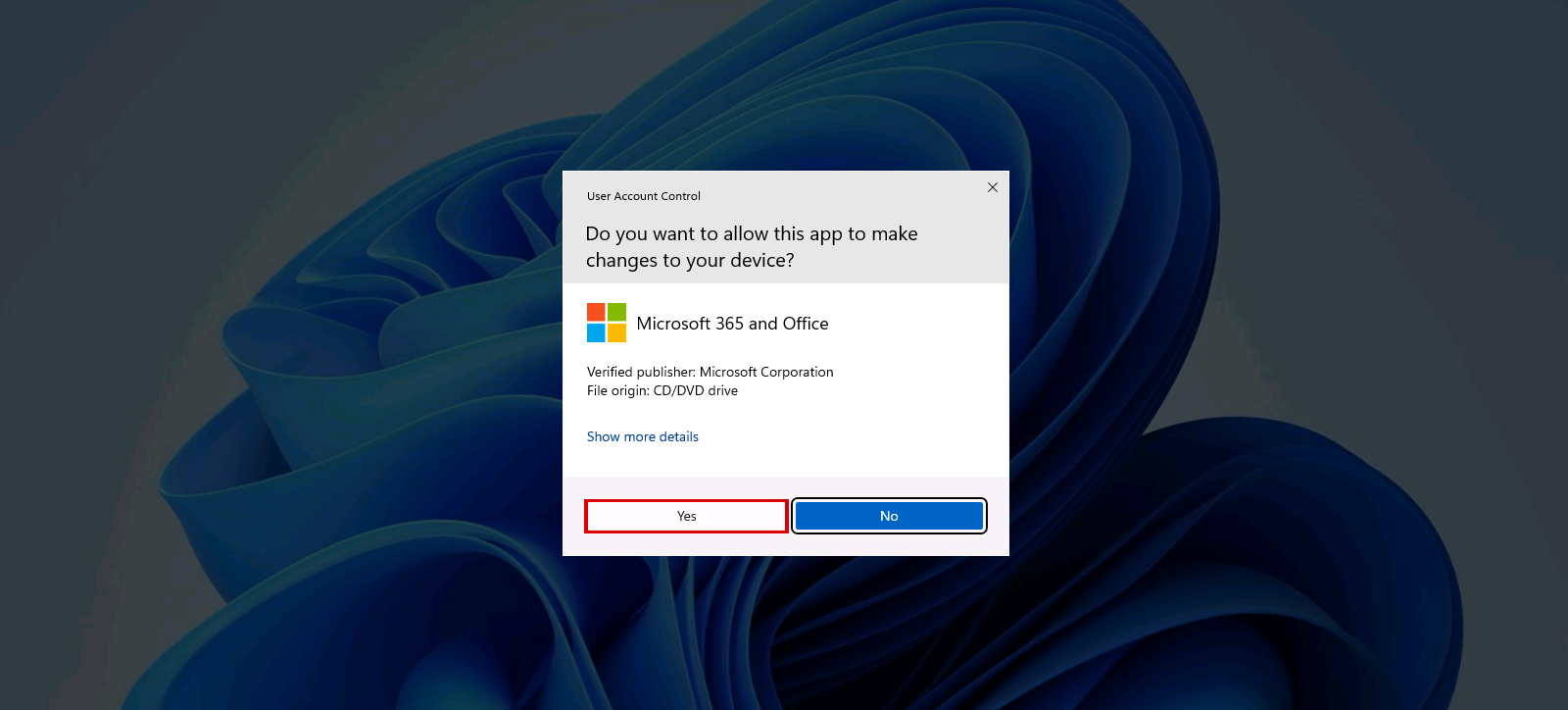
When Windows asks "Do you want to allow this app to make changes to your device?" (Verified publisher: Microsoft Corporation), click "Yes".
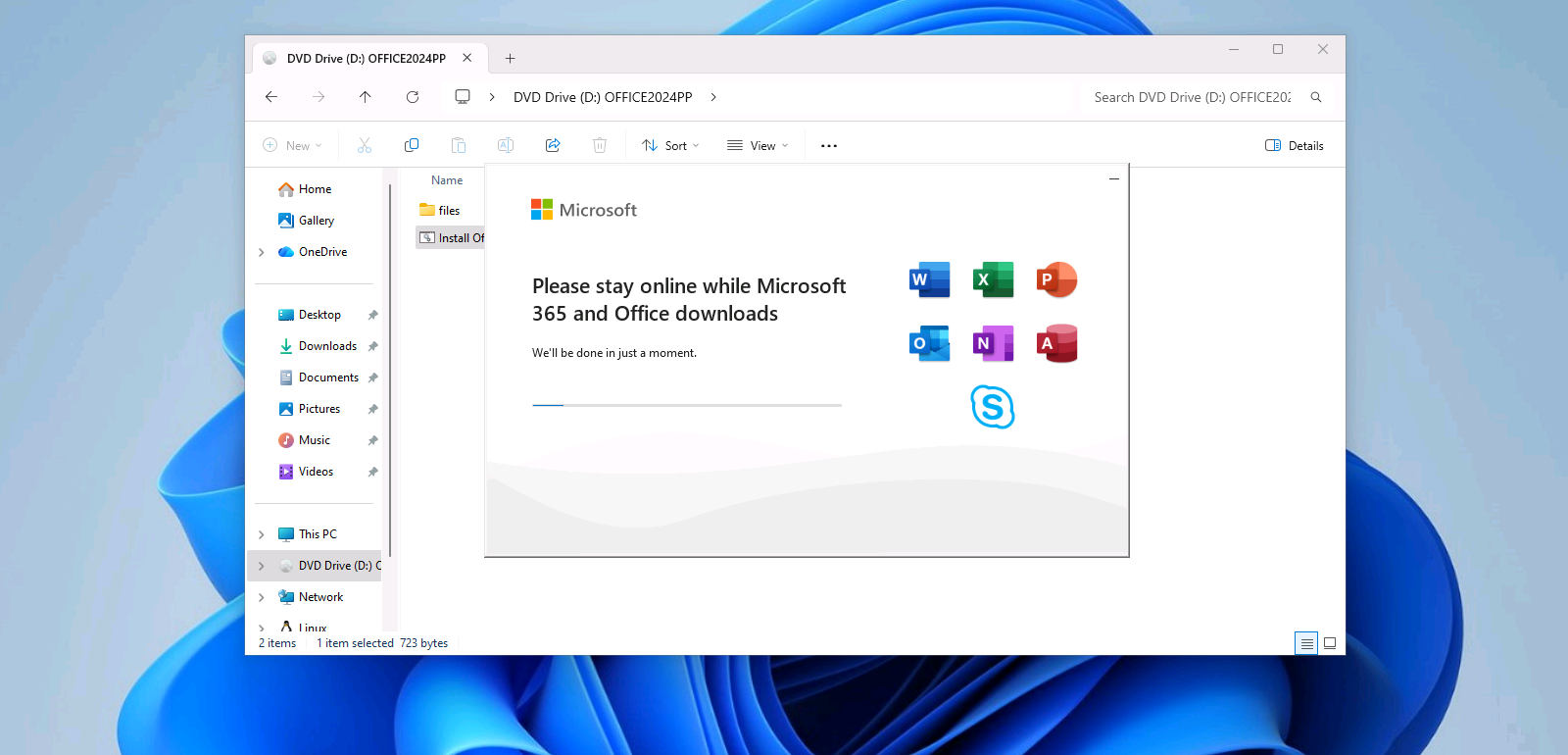
2.2 The installation of Office 2024 Professional Plus LTSC will start automatically. Please allow the process to complete uninterrupted. The duration of the installation depends on network bandwidth and system performance; typically, it is completed within 10–15 minutes.
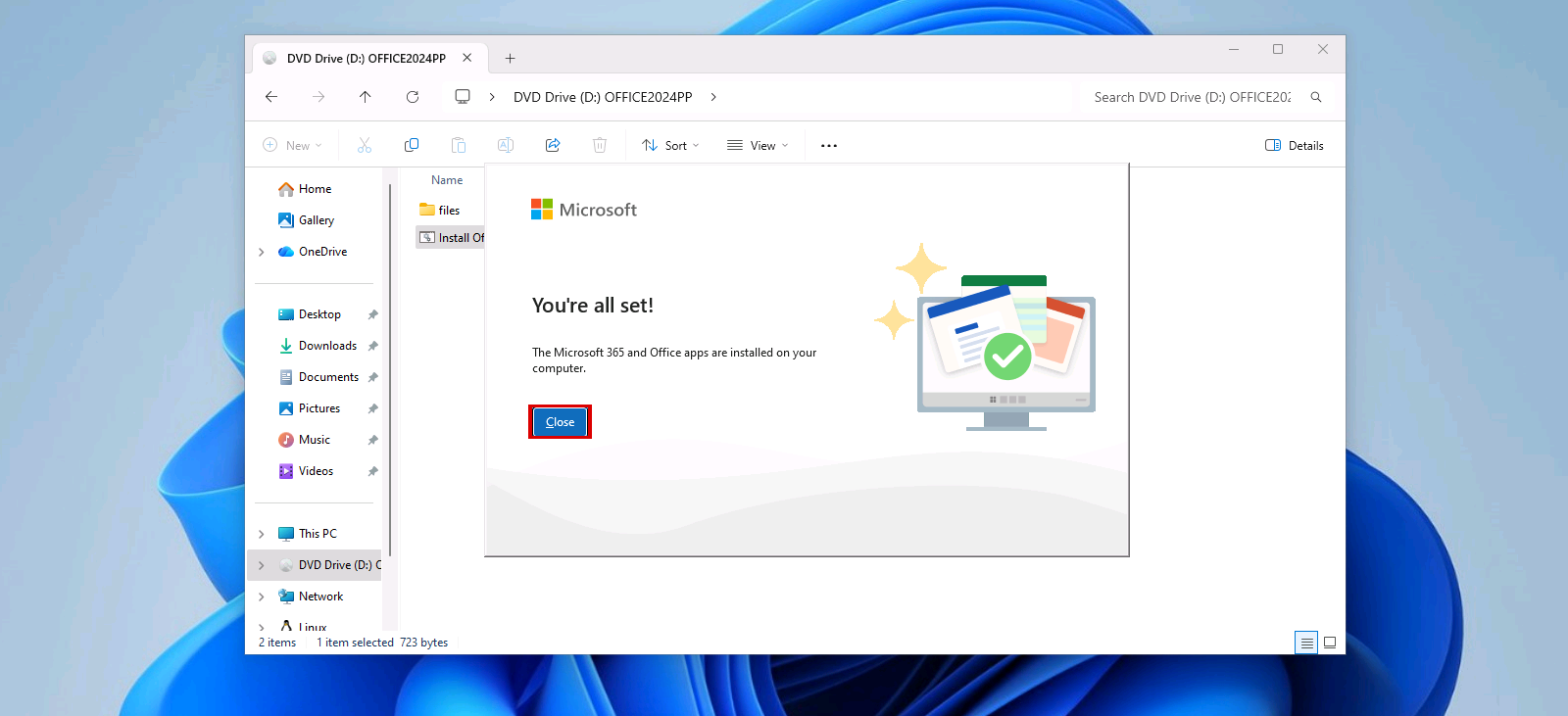
Upon successful installation, the message "You're all set!" confirms that Office 2024 Professional Plus LTSC has been fully installed. Click "Close".
2.3 Once Office 2024 Professional Plus LTSC has been installed, it must be activated. To initiate activation, launch any Office application, such as Excel.
For systems running Windows 10, open the Start menu, locate an Office 2024 LTSC application (e.g., Word), and execute it to proceed with the activation process
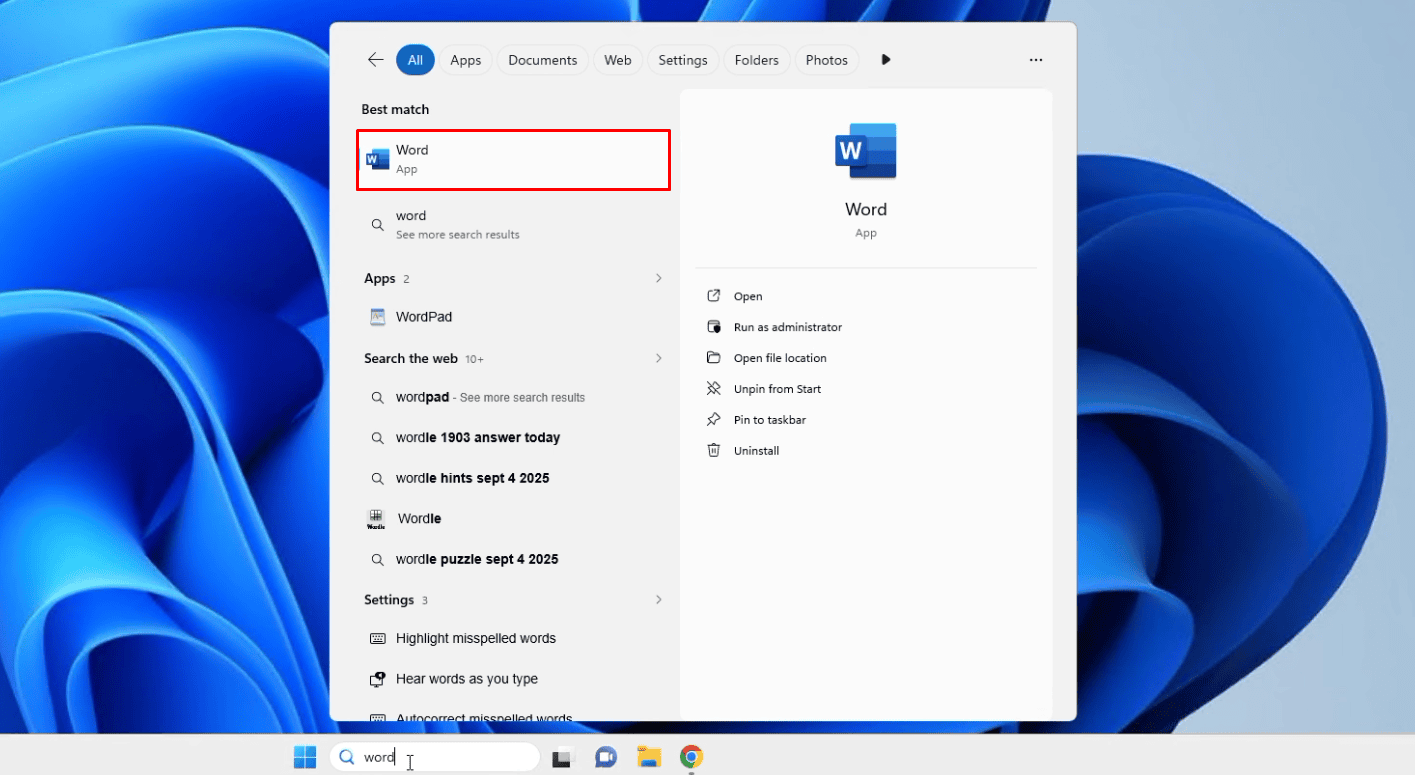
For systems running Windows 11, open the Start menu, navigate to All apps, locate Excel, and launch the application.
2.4 When opening the application for the first time, a window will be displayed requesting activation. Input your Microsoft Office 2024 license key in the provided field and click “Activate” to finalize the activation.
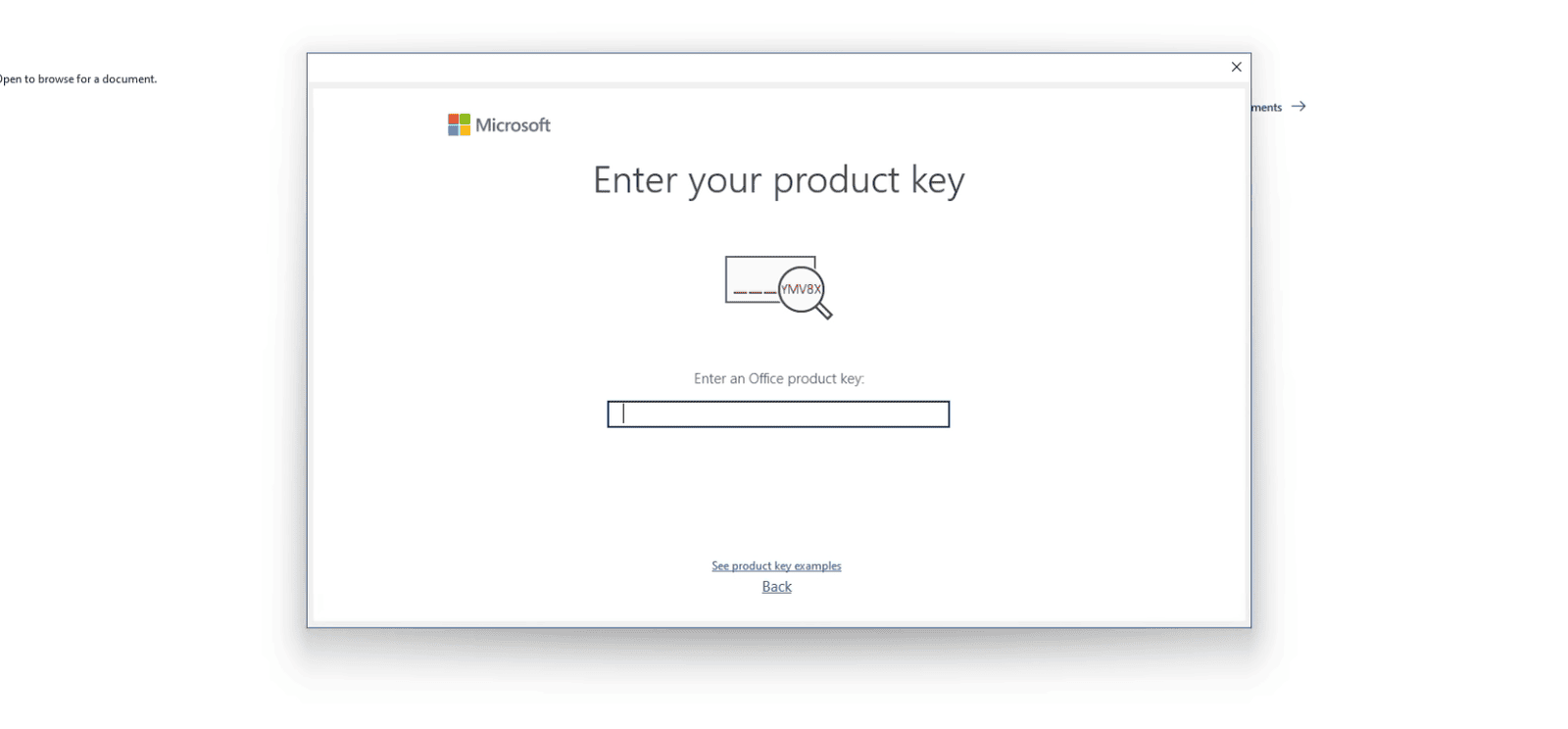
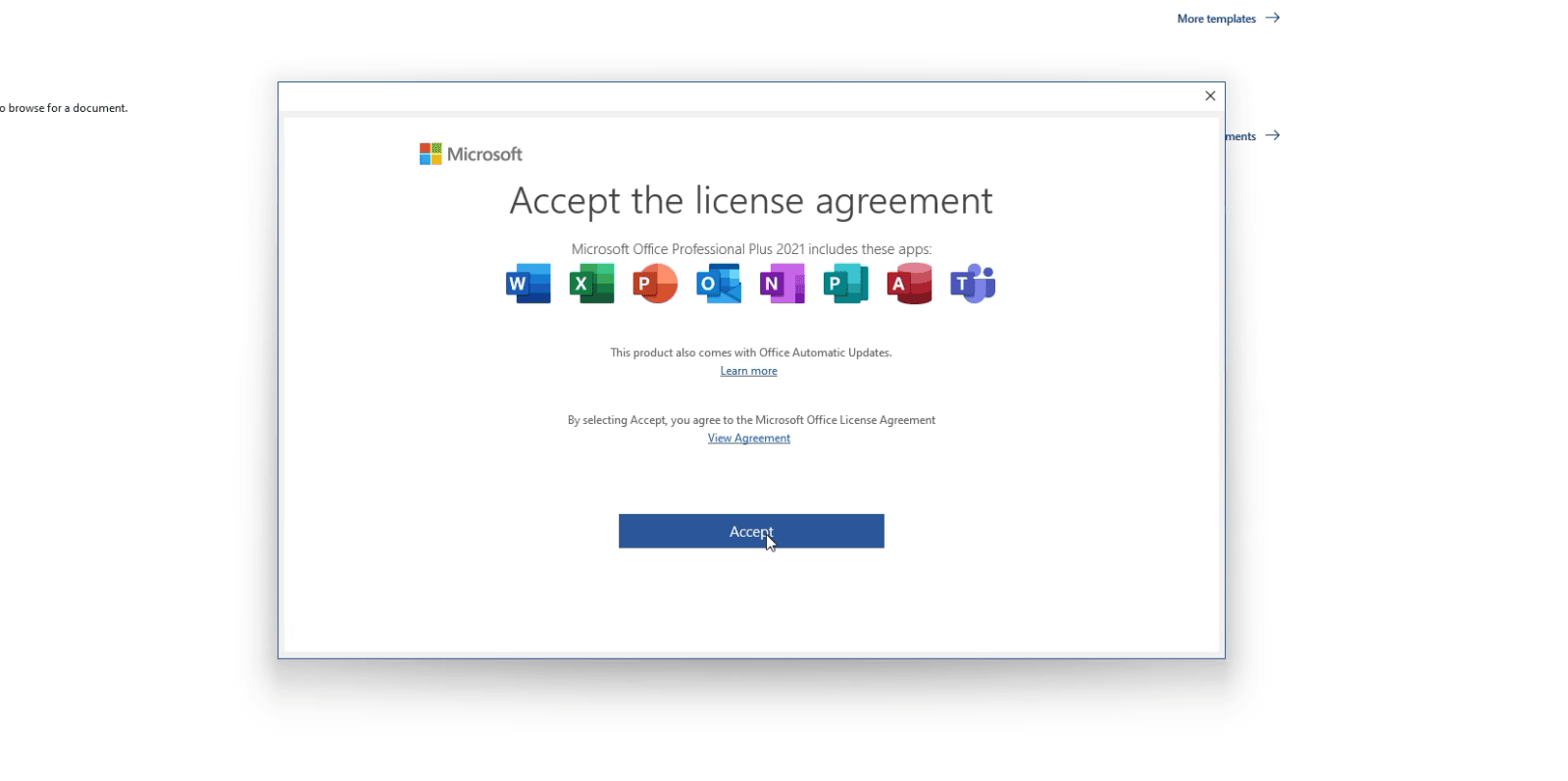
Confirm acceptance of the Microsoft Office license terms.
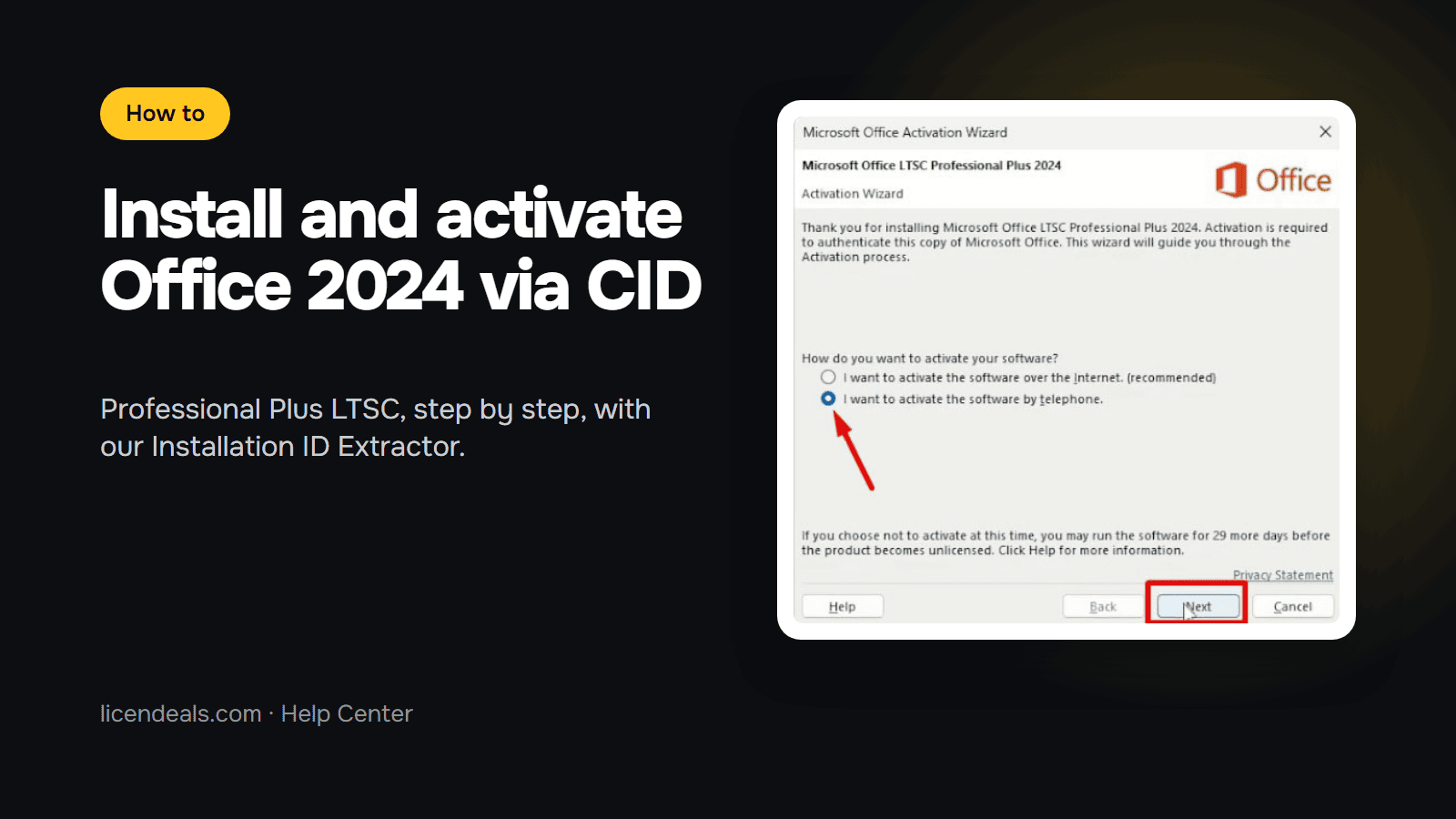
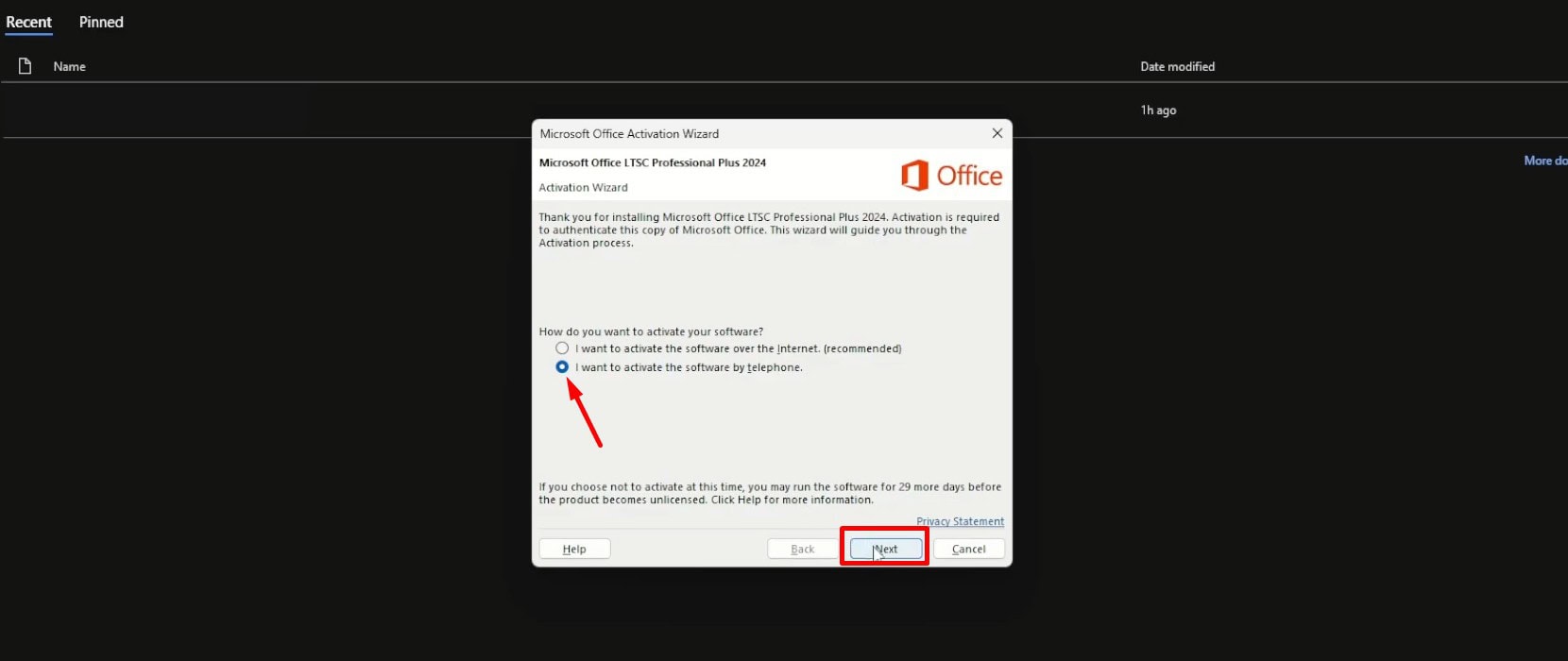
3.1 Open Word or Excel (if you have just entered your license key, close the app and open it again). The Microsoft Office Activation Wizard will appear. Select the option "I want to activate the software by telephone" and click Next. This is only the name Microsoft gives to activation with a Confirmation ID: you will not call anyone, everything is done online.
3.2 The wizard now shows your Installation ID: a 63-digit code split into 9 blocks. Leave this window open. You will come back to it in step 6.
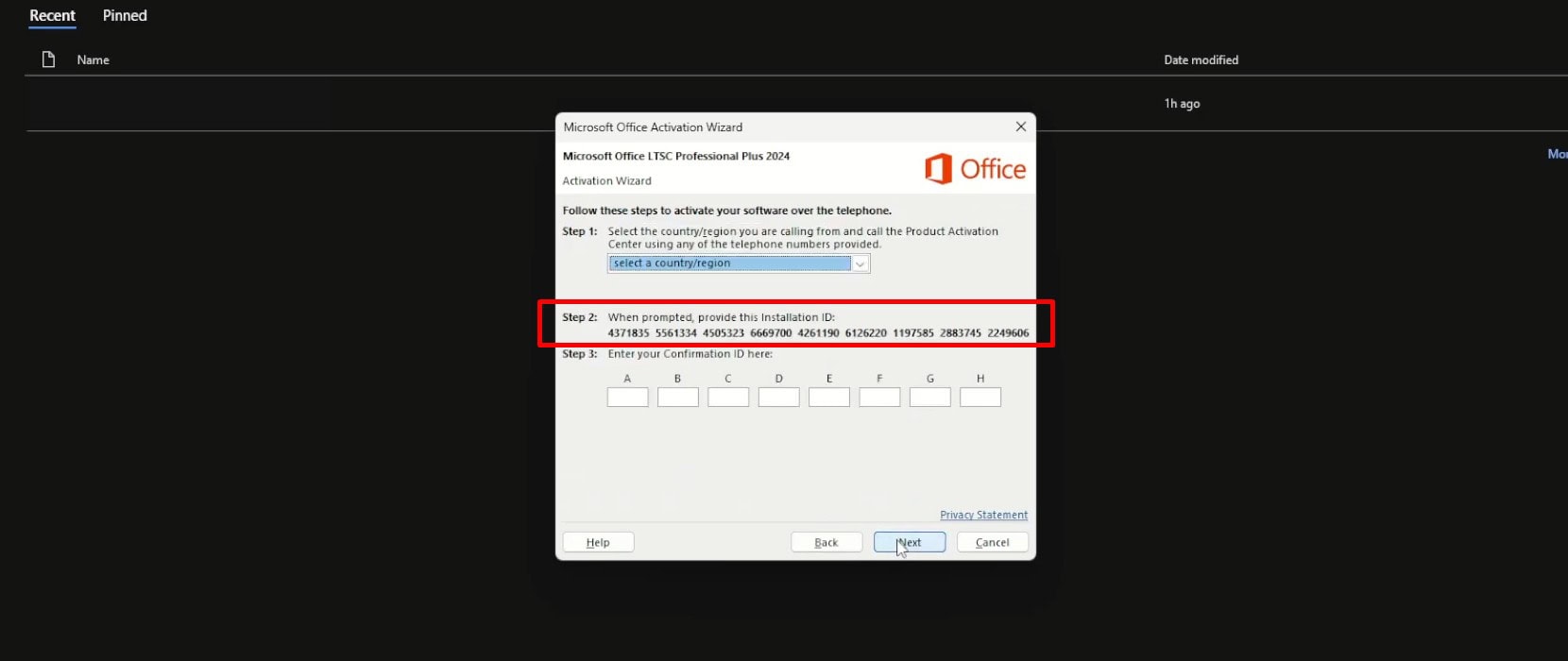
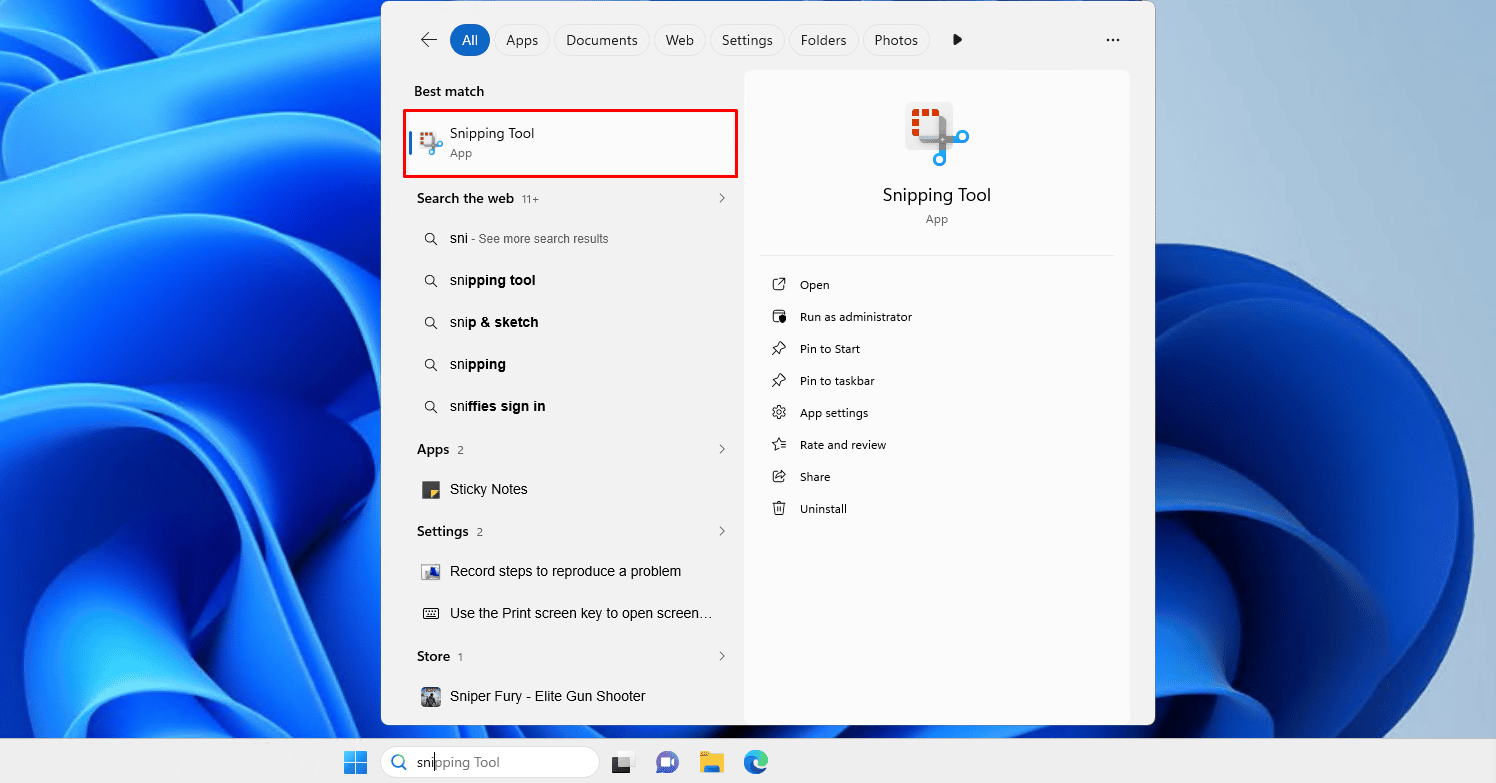
3.3 Take a picture of the 63 digits so you do not have to type them. Press Windows + Shift + S, drag a rectangle around all 9 blocks and release the mouse. Click the small notification that appears in the bottom-right corner to open the Snipping Tool, press Ctrl + S and save the picture on your Desktop (for example as installation-id.png). Make sure all 9 blocks are fully inside the picture.

Typing 63 digits by hand almost always ends in a mistake. The Licendeals Installation ID Extractor reads the digits from your picture and copies them for you.
4.1 Open the Installation ID Extractor by clicking this link. It opens in a new tab: keep the Office window open.
Open the Installation ID Extractor
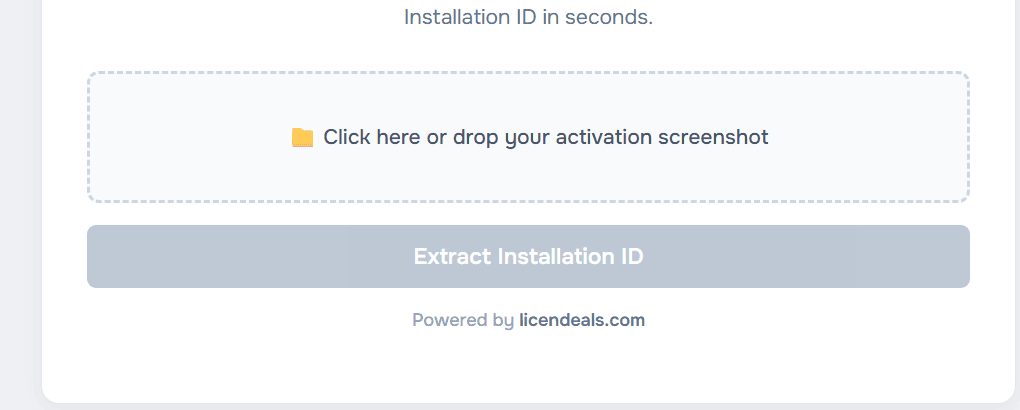
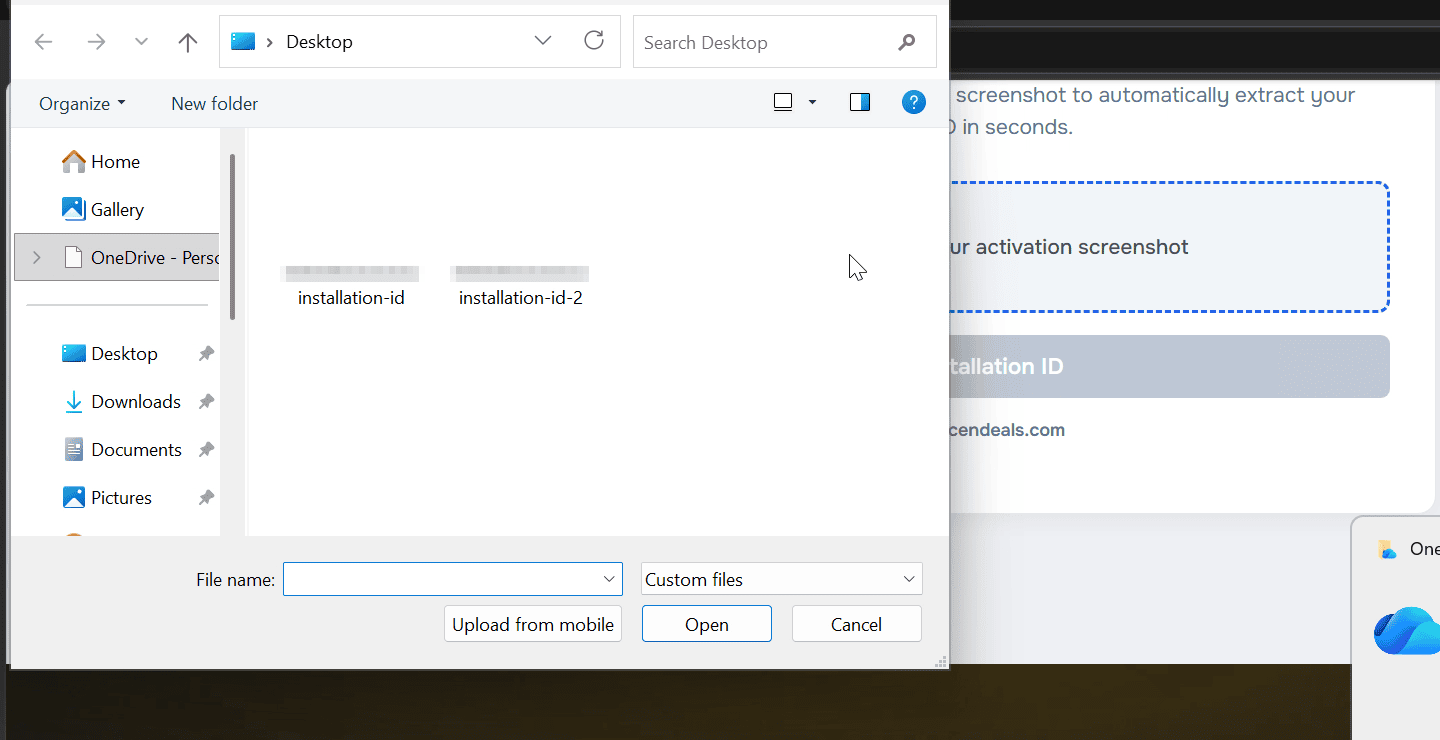
4.2 Upload your picture: click the box that says "Click here or drop your activation screenshot" and choose the file you saved in step 3.3 (or drag the file onto the box).
4.3 Click Extract Installation ID and wait a few seconds. The 9 blocks appear under "Extracted Installation ID". Compare them with the Office window: they must be identical.
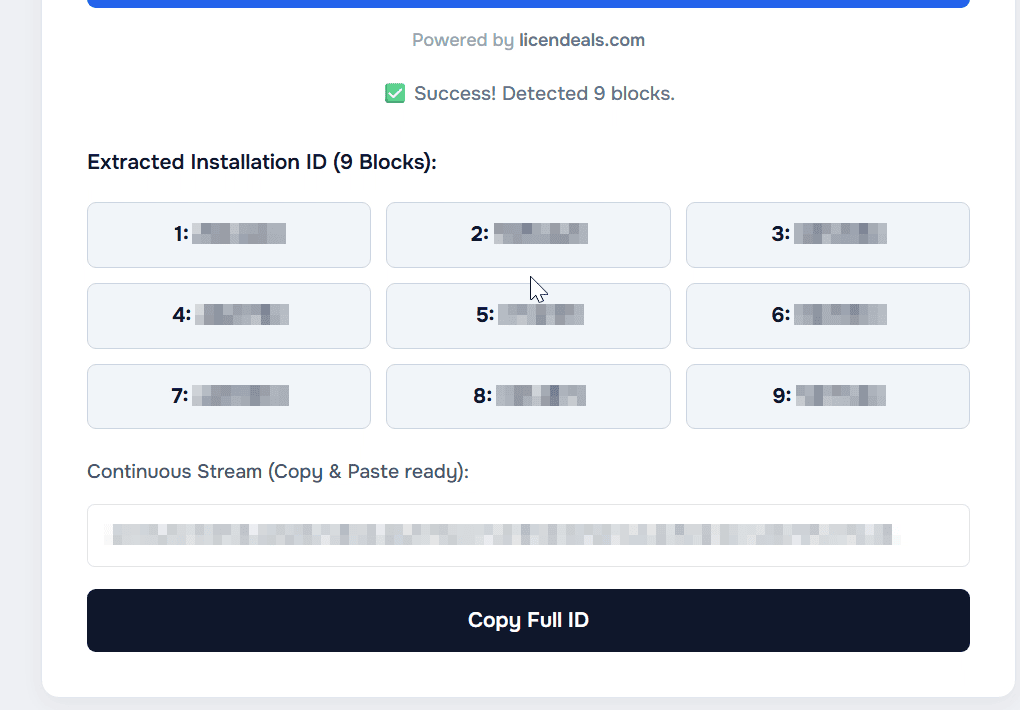
4.4 Click Copy Full ID. The 63 digits are now copied. Do not copy anything else until you paste them in step 5.6.
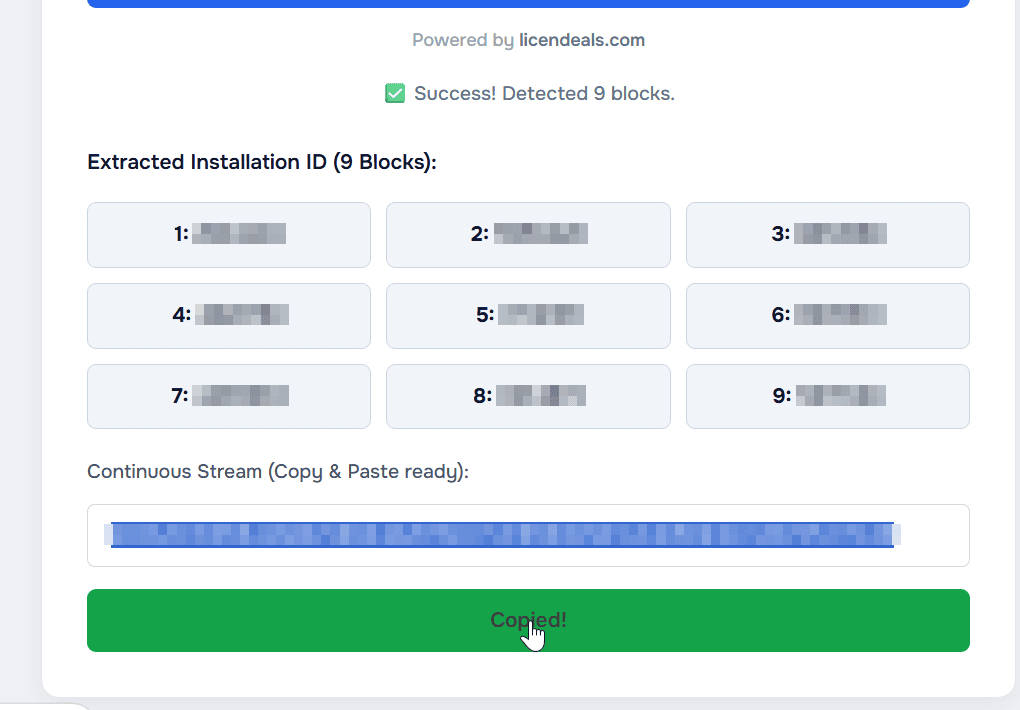
IMPORTANT: If the extractor says "Could not clearly detect all blocks. Please ensure the screenshot is clear.", take the picture again a little bigger, with nothing covering the digits, and repeat step 4.2.
5.1 Open the Microsoft activation website by clicking this link. Once the page loads, click the "Let's get started" button and complete the security verification.
Open the Microsoft activation website

5.2 Click "Proceed to sign in". You will be taken to the Microsoft sign-in page. Enter your email address and password, or use quick sign-in if you are already signed in on that device.
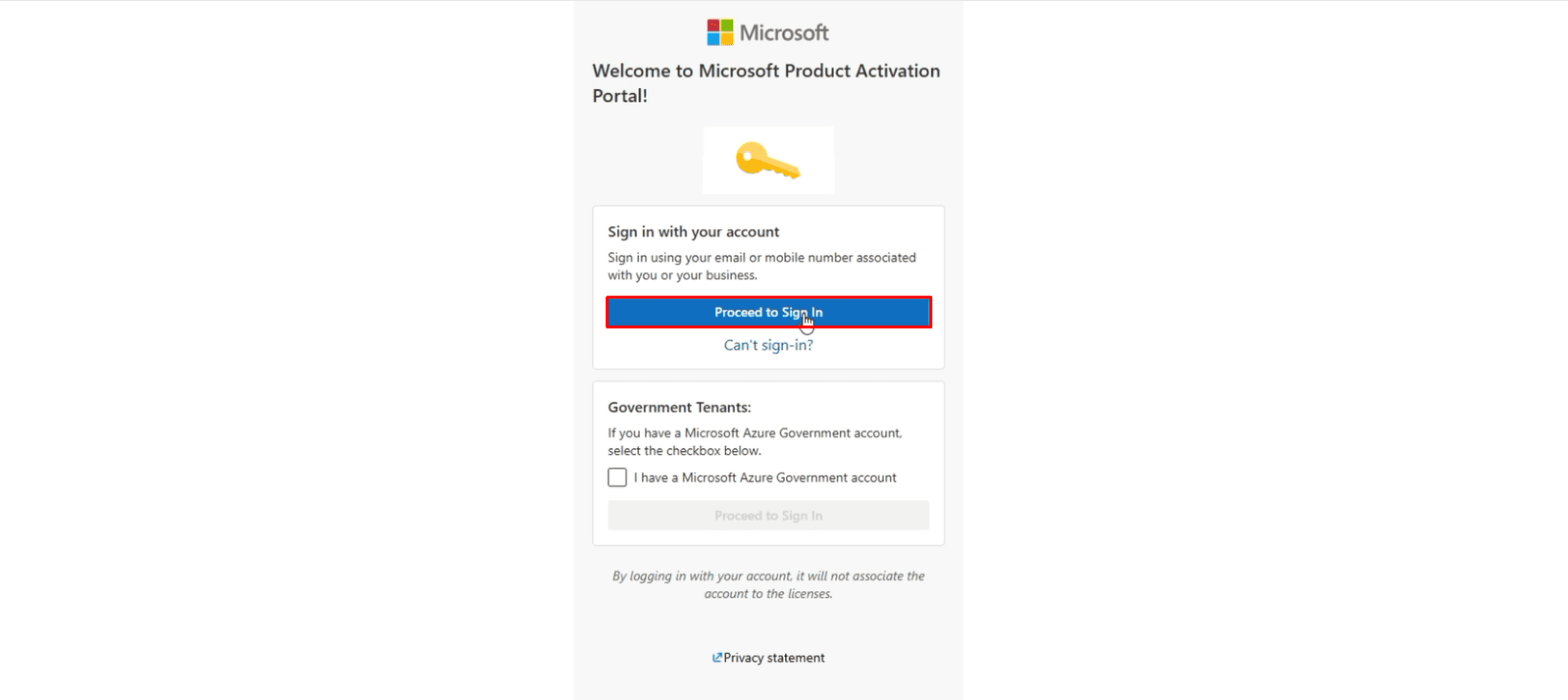
5.3 Once you are in, click the "Activate a Microsoft Product" button.

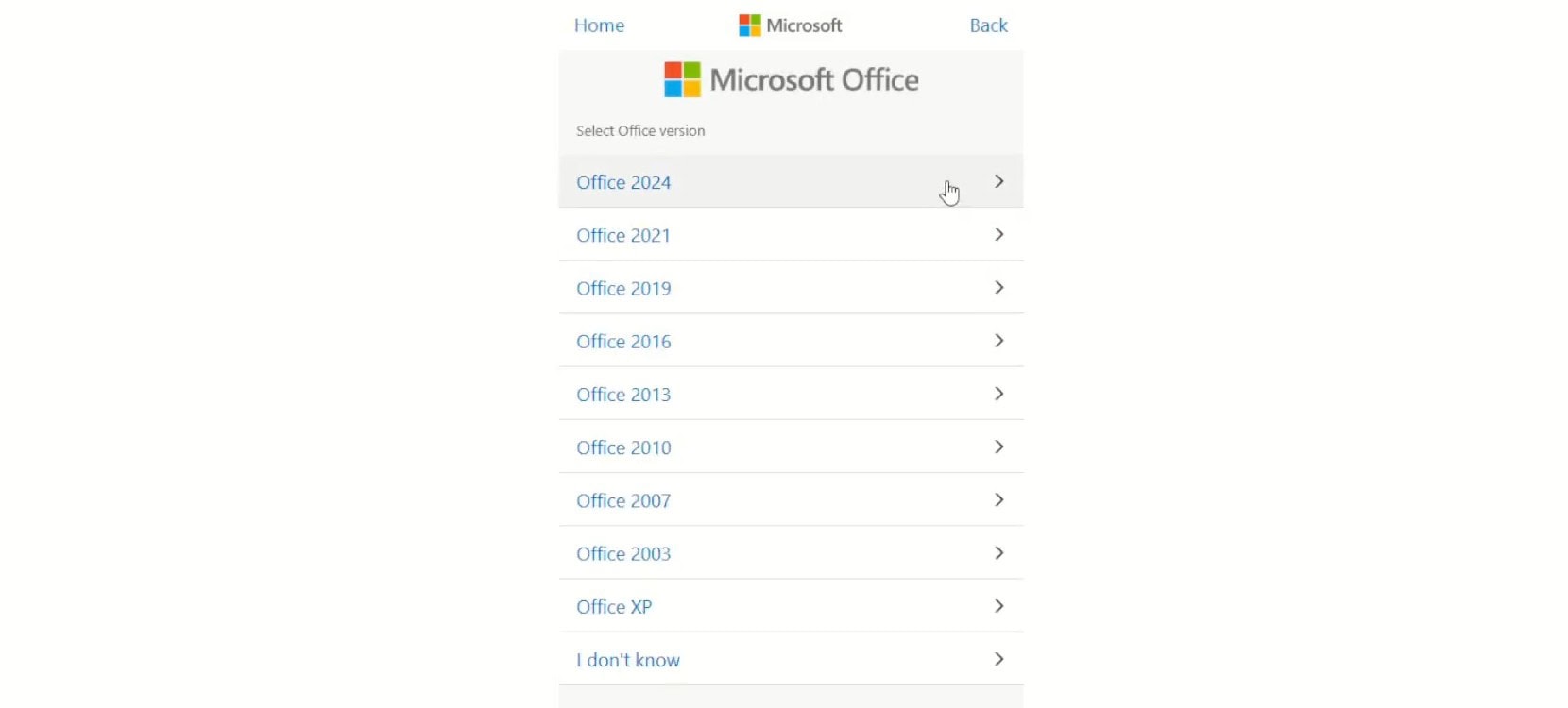
5.4 From the list of products, select "Microsoft Office".
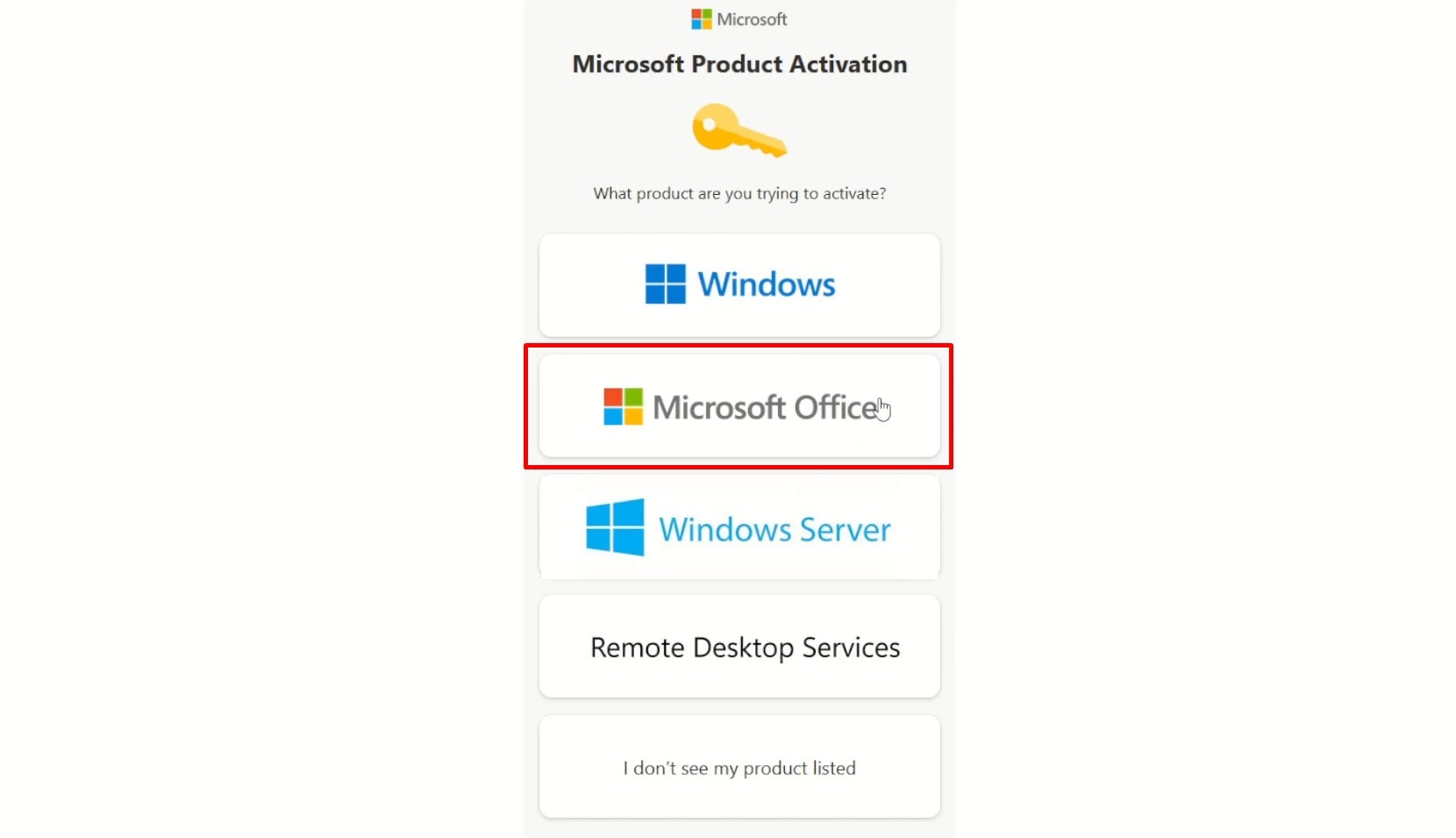
5.5 The system asks for details about your software.
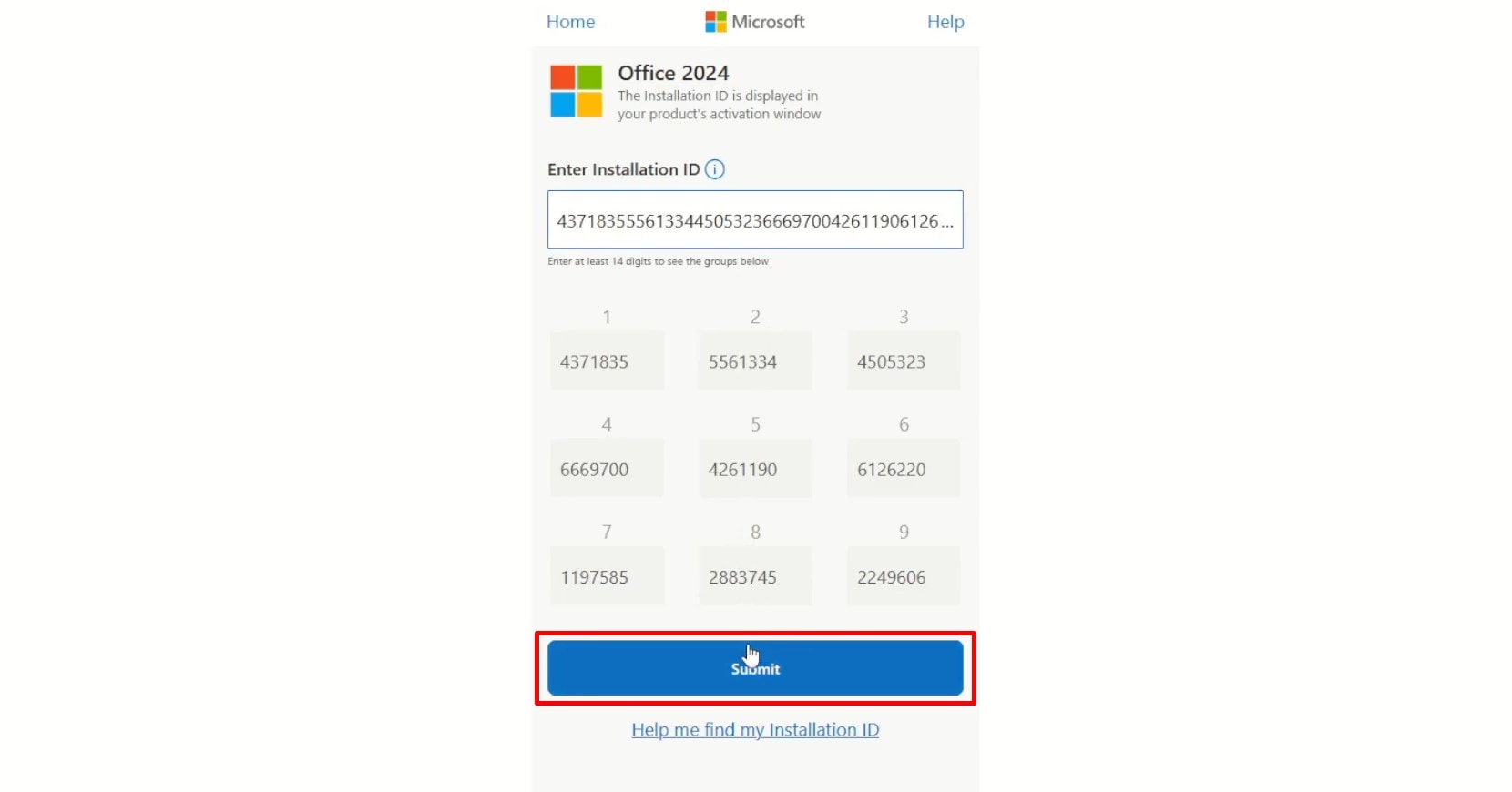
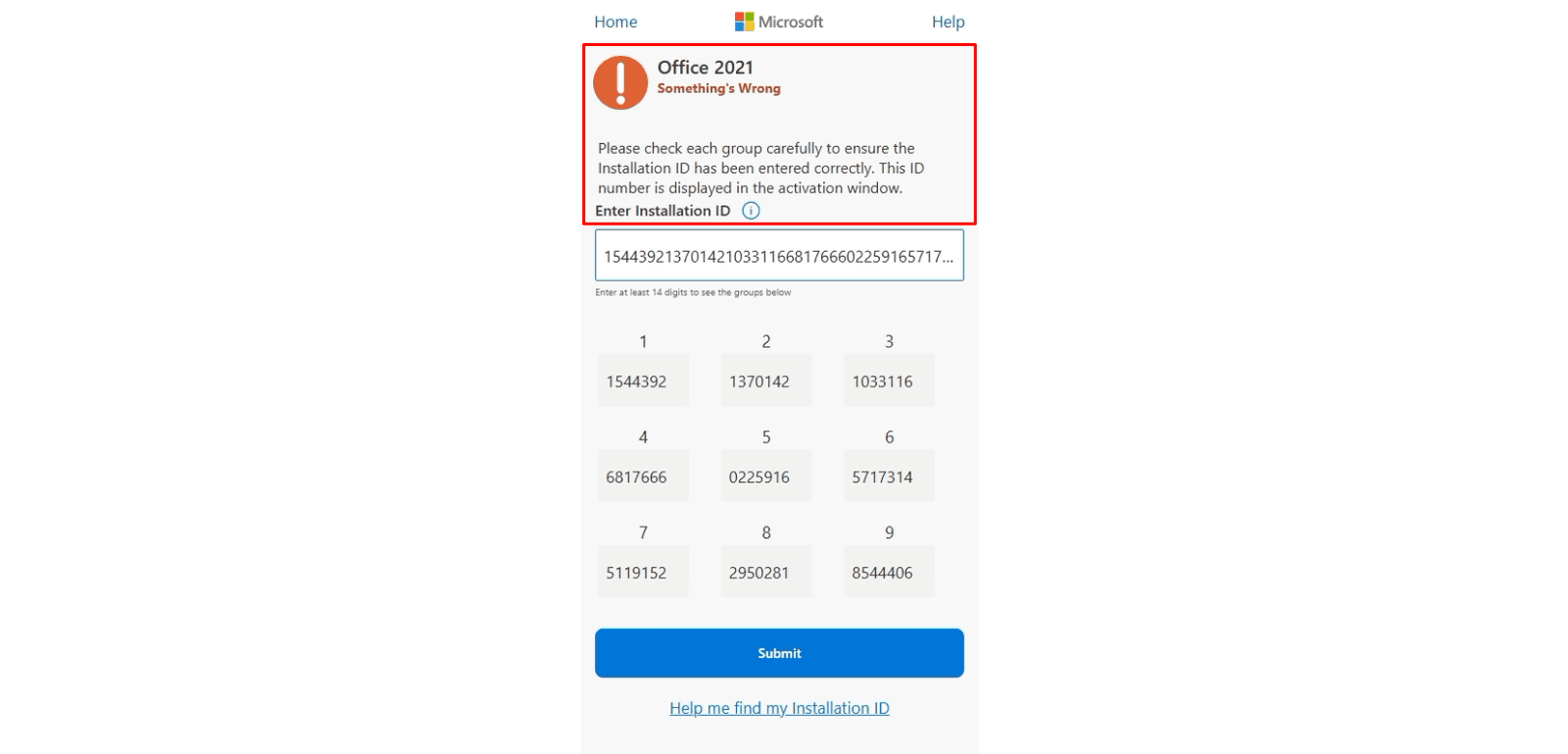
5.6 A new screen with blank fields appears. Click the first field and paste the Installation ID you copied in step 4.4 (press Ctrl + V). The website splits it into 9 groups by itself: check that they match the ones in your Office activation window, then click Submit.
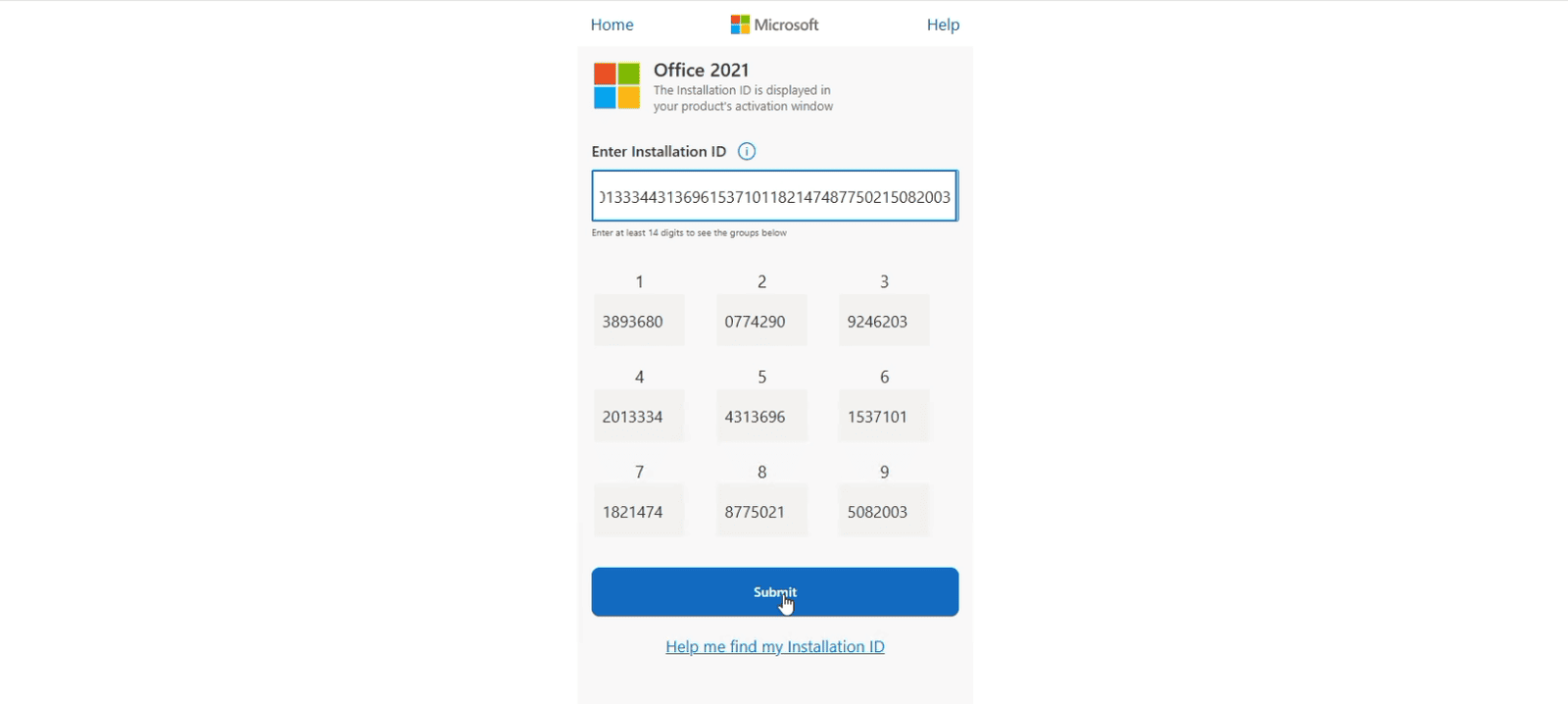
5.7 If the website asks how many computers you have installed this copy of the software on, enter the number that corresponds to your license and click Submit.

5.8 The website generates your Confirmation ID: a new code in 8 blocks (A to H). Copy it or write it down carefully, and keep this page open until the activation is finished.
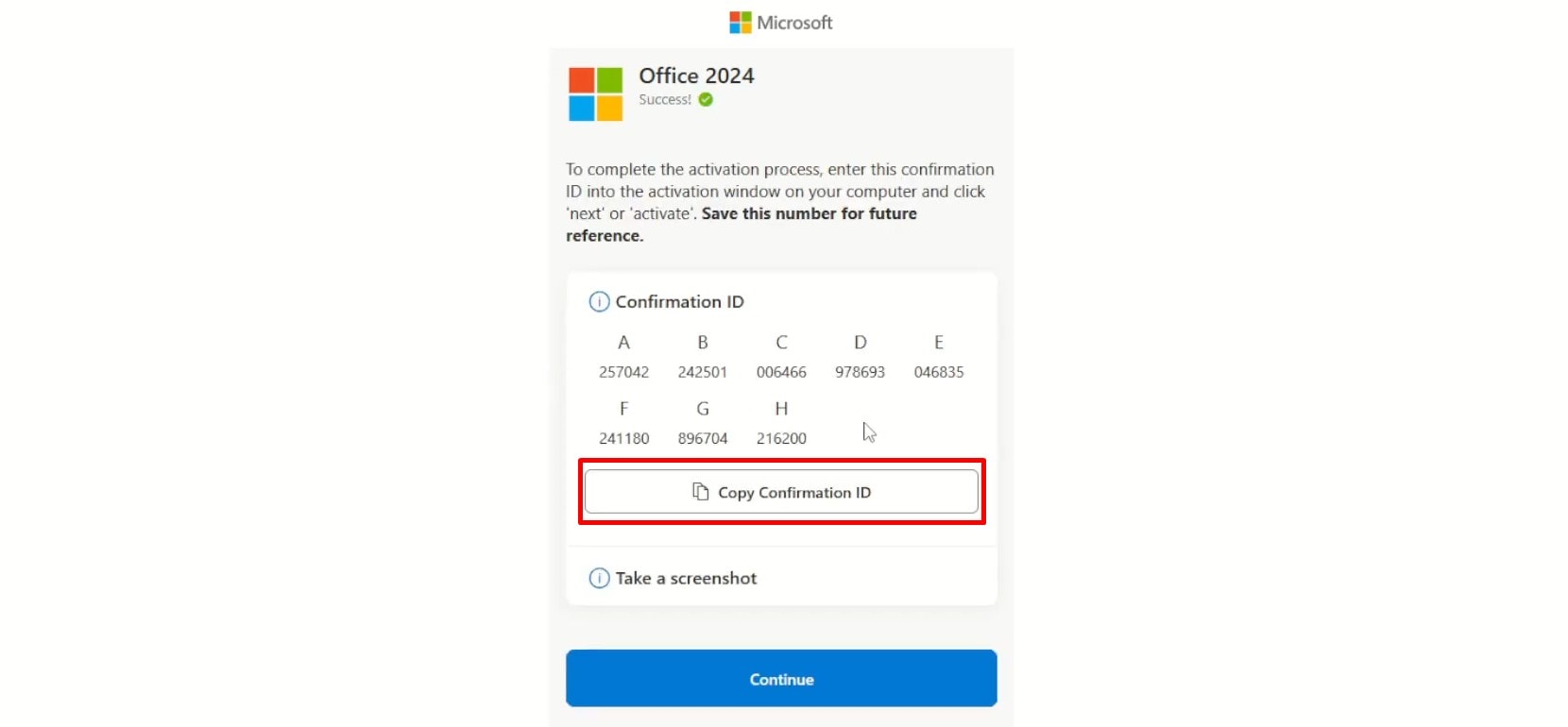
6.1 Go back to the Office activation window you left open in step 3.2, enter the Confirmation ID in the fields A to H, and click Next.
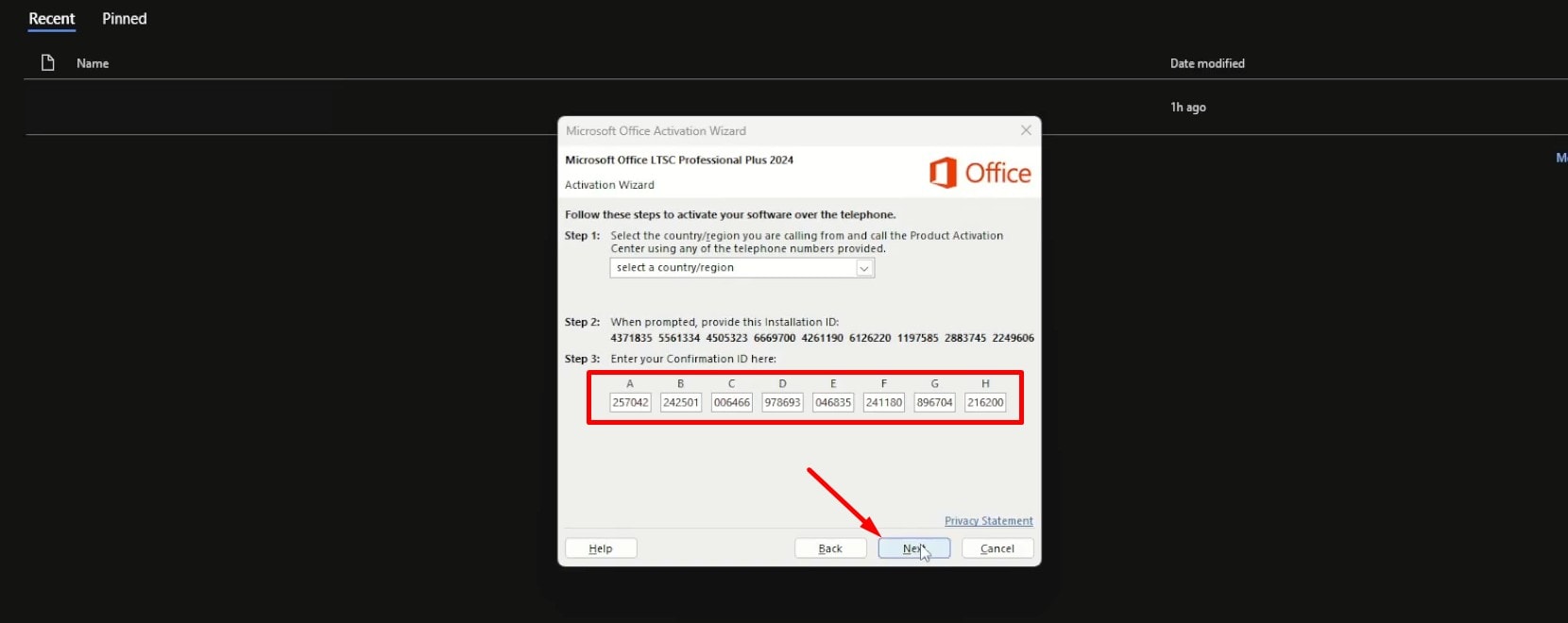
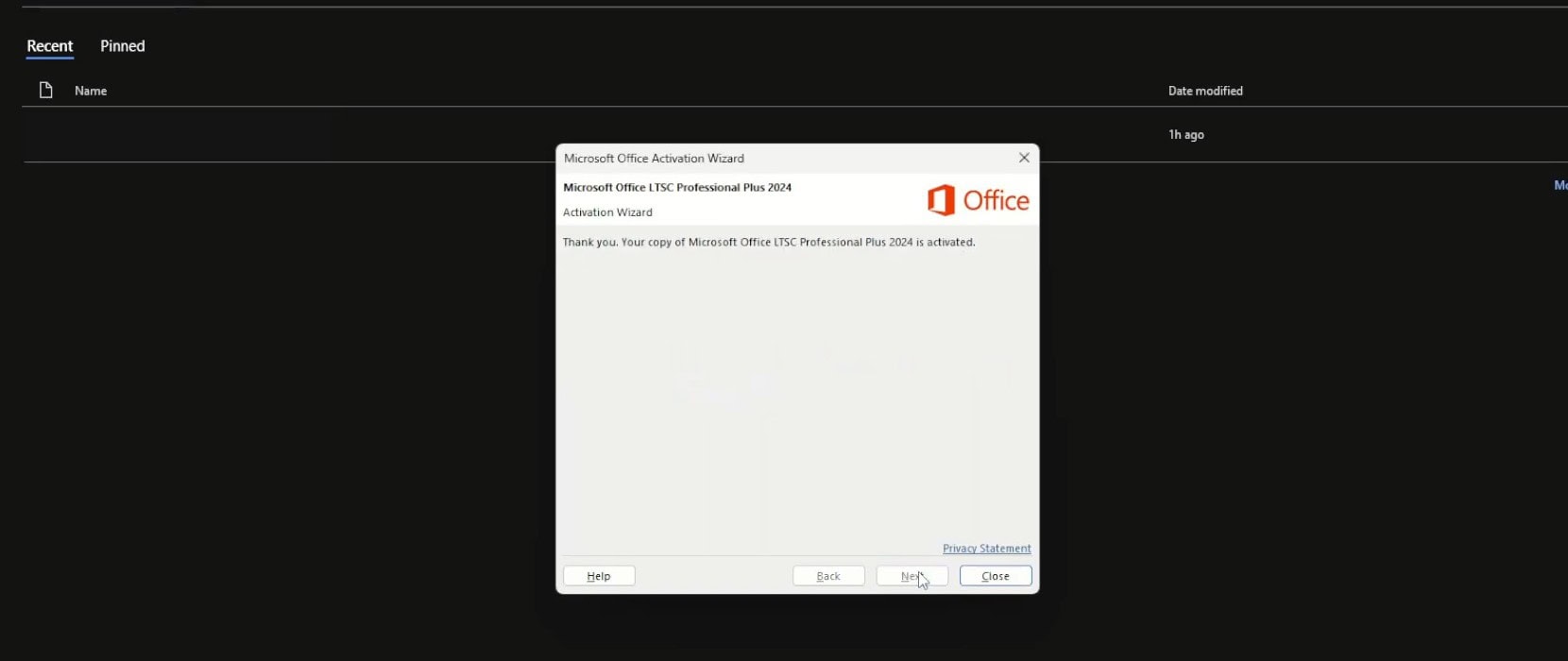
All done! You'll see a message confirming that your Office Professional Plus 2024 LTSC has been successfully activated and is now ready to use without restrictions.
IMPORTANT: If an error appears during activation, switch to another network (for example, your phone's hotspot) or use a VPN, and try again. If a license doesn't work, tell us within 24 hours of revealing it and we will replace it right away. Your statutory rights are not affected.
{n} from {l} bought
{n} bought
Someone from {l} bought
Someone bought
Just now
1 minute ago
2 minutes ago
1 hour ago
2 hours ago
1 day ago
2 days ago
Close


 Windows
 Office for PC
 Office for Mac
 Windows Server
 SQL Server
 Office Apps
 Visual Studio
