November Special Offer - 5% OFF SITEWIDE!
Use code:
Valid until Nov 30
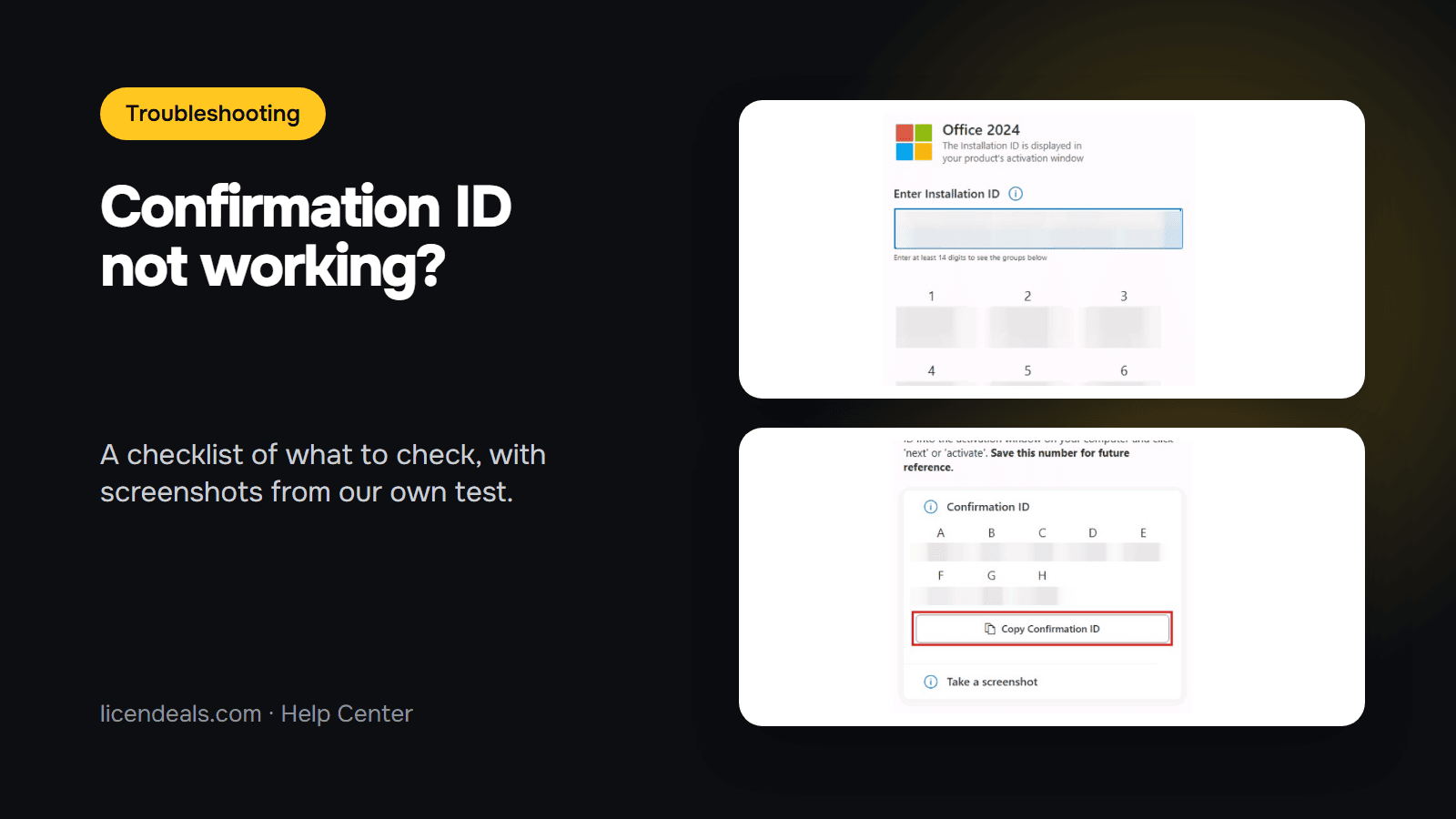
If your Confirmation ID doesn't work when you activate Office with a CID License, the cause is usually small: the wrong option in the wizard, one digit copied wrongly or a box left empty. This checklist goes through each step of the activation in order, with screenshots from our own test, so you can find where yours went wrong.
TESTED ON: our test computer, October 2026. Microsoft Office LTSC Standard 2024, activated with a Confirmation ID through Microsoft's activation portal. We blurred the codes in every screenshot. We did not make the activation fail on purpose, so this guide doesn't list error messages: it shows what the correct screens look like, so you can compare them with yours. Other Office versions can look different.
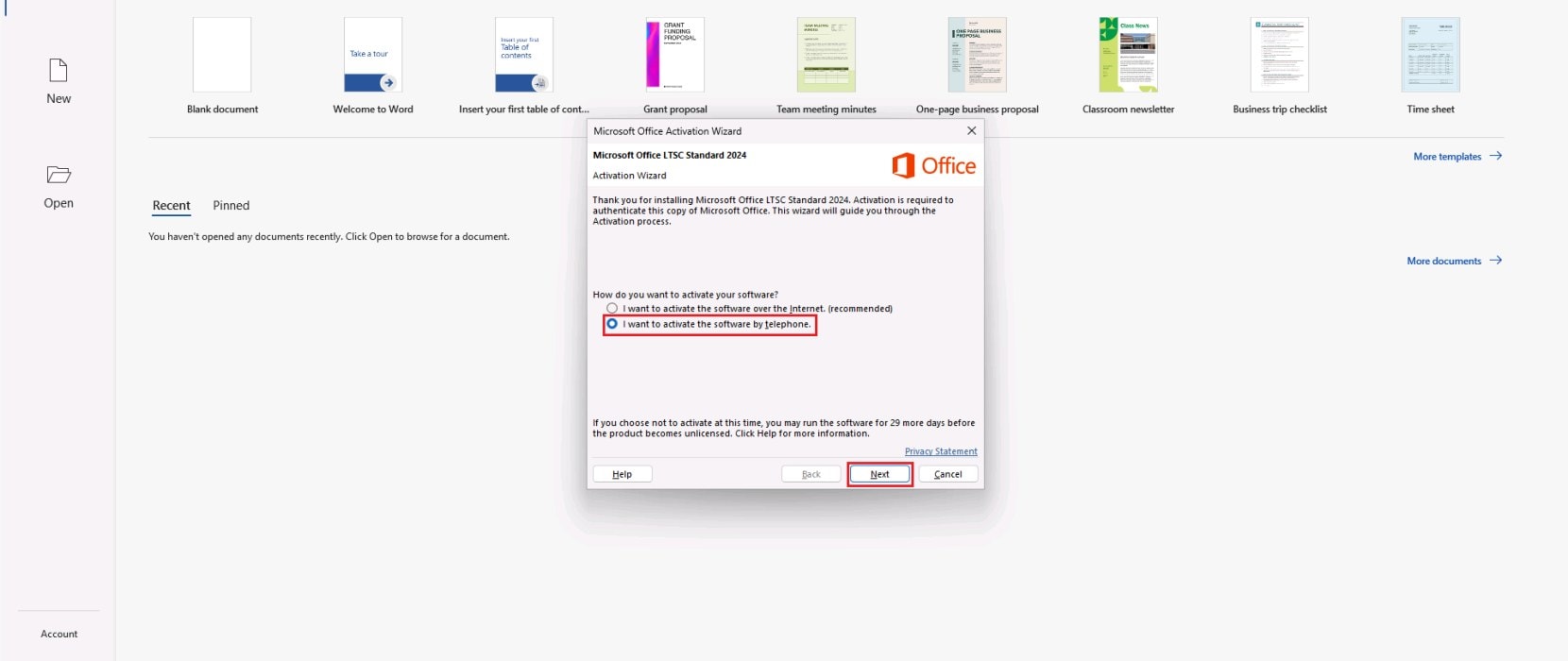
1.1 After you enter your product key, close the Office app and open it again. The Microsoft Office Activation Wizard will appear. Select the option that says "I want to activate the software by telephone" and click "Next". This is how Microsoft names activation with a Confirmation ID: you won't need to call anyone, everything is done online. If you chose another option, go back and choose this one.
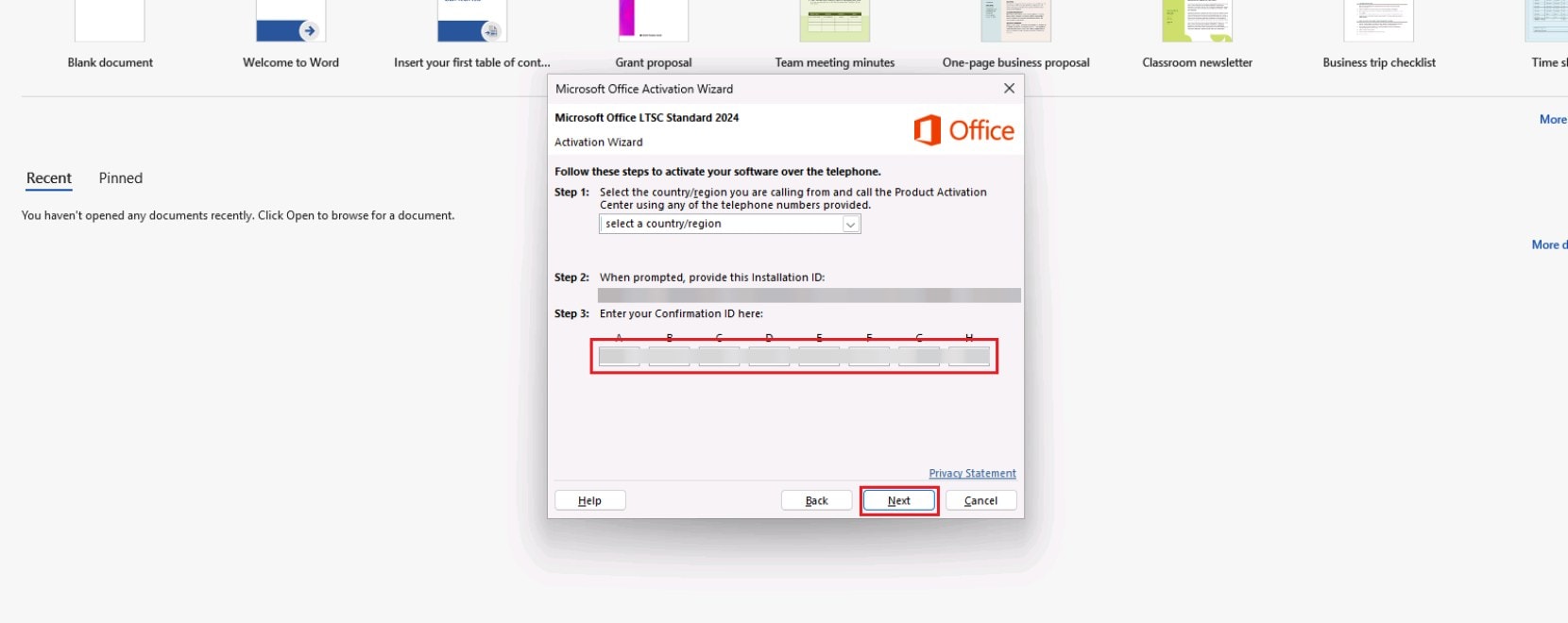
1.2 The window now shows your Installation ID under "Step 2" and the empty boxes for the Confirmation ID under "Step 3". If you see them, you are in the right place. Keep this window open while you work on the portal. Not sure what each code is? Read What Is a Confirmation ID (CID)?
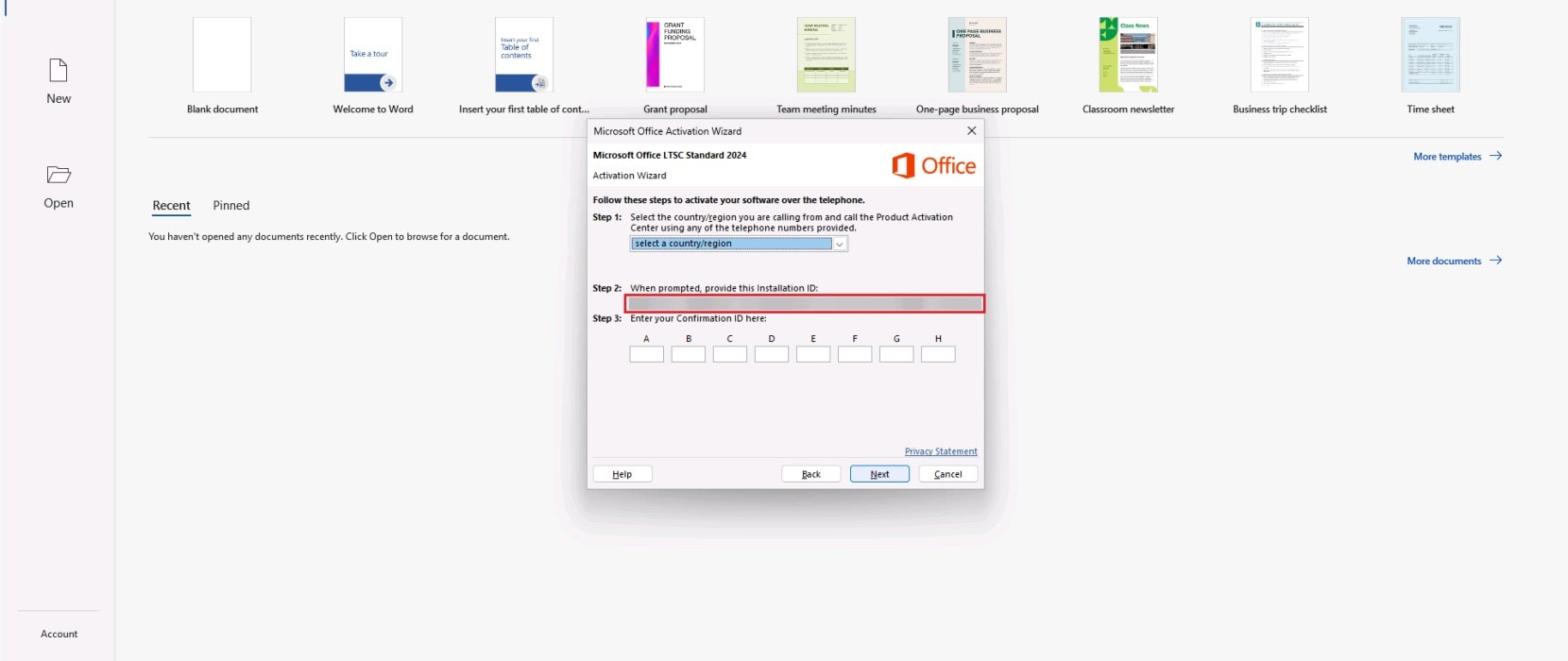
The Confirmation ID is made for one Installation ID. If the Installation ID you entered on the portal is not exactly the one on your screen, the code you get back will not match your computer.
2.1 In our test, the Installation ID had 63 digits, divided into 9 blocks. Count the digits you entered.
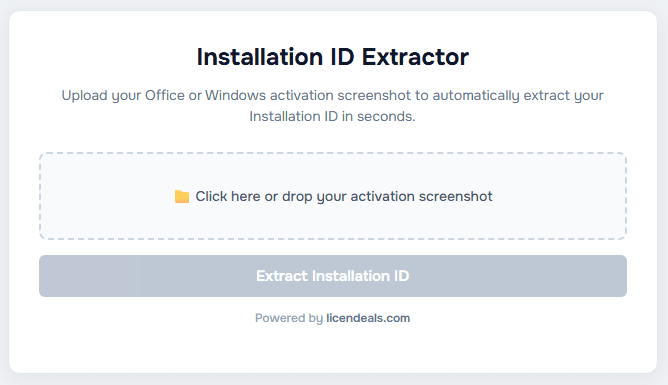
2.2 To copy the digits without mistakes, take a screenshot of the activation window and open it in our Installation ID Extractor. It reads the digits from the image and lets you copy them all at once. Then check that they match the ones in your activation window.
2.3 On Microsoft's activation portal, the code appears split into 9 groups after you enter it. Compare each group with the blocks in your activation window. The portal itself says "The Installation ID is displayed in your product's activation window".
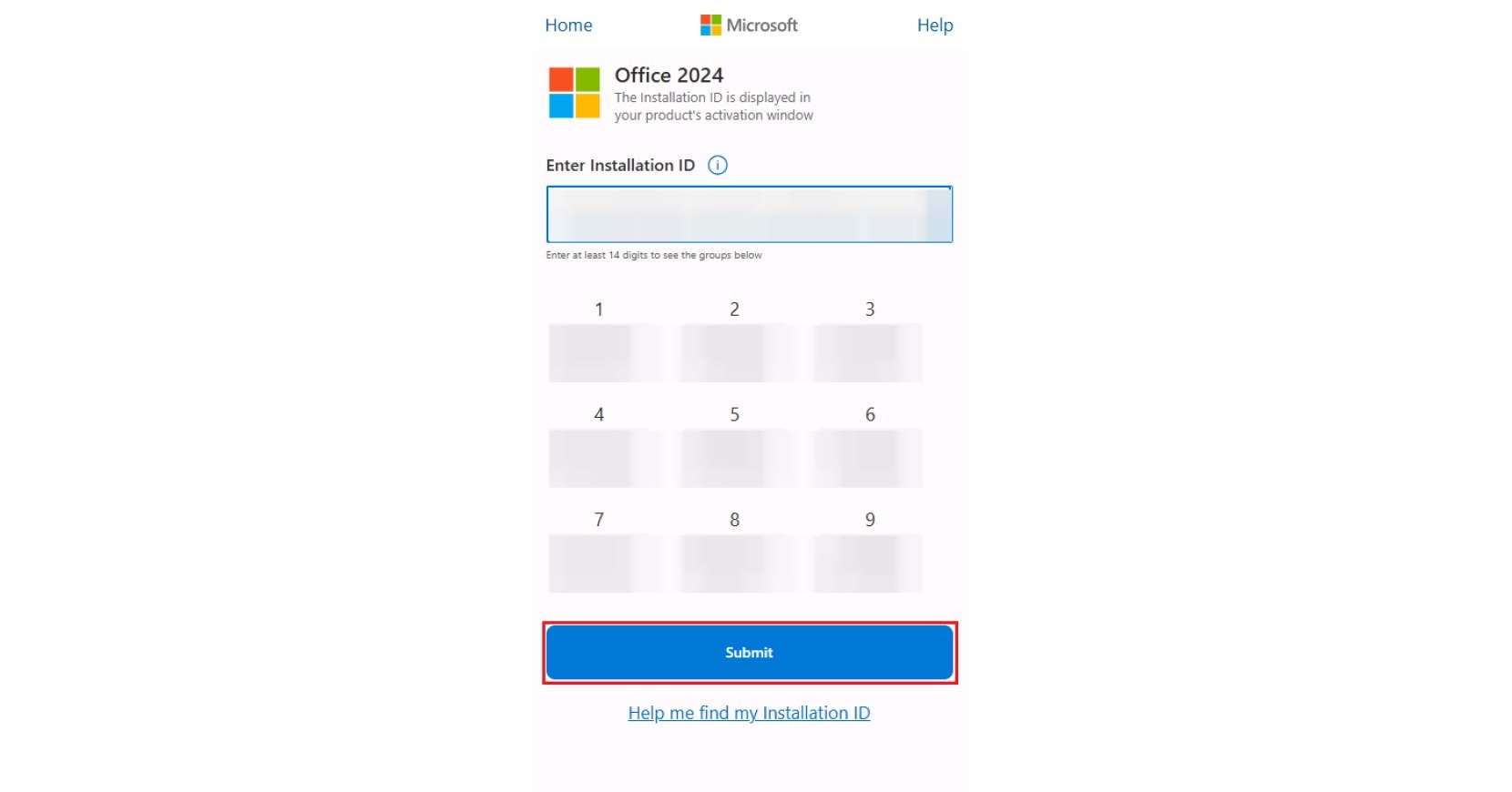
2.4 If the Installation ID on your screen is different from the one you used, start the portal step again with the one on your screen now. We did not test whether the code changes when you close and reopen the window, so don't reuse an old one.
The portal asks you to sign in to a Microsoft account first. If it asks how many computers have this copy installed, enter the number corresponding to your license. A CID License is for 1 PC. When you submit the Installation ID, the portal shows your Confirmation ID in groups A to H, with a button to copy it.
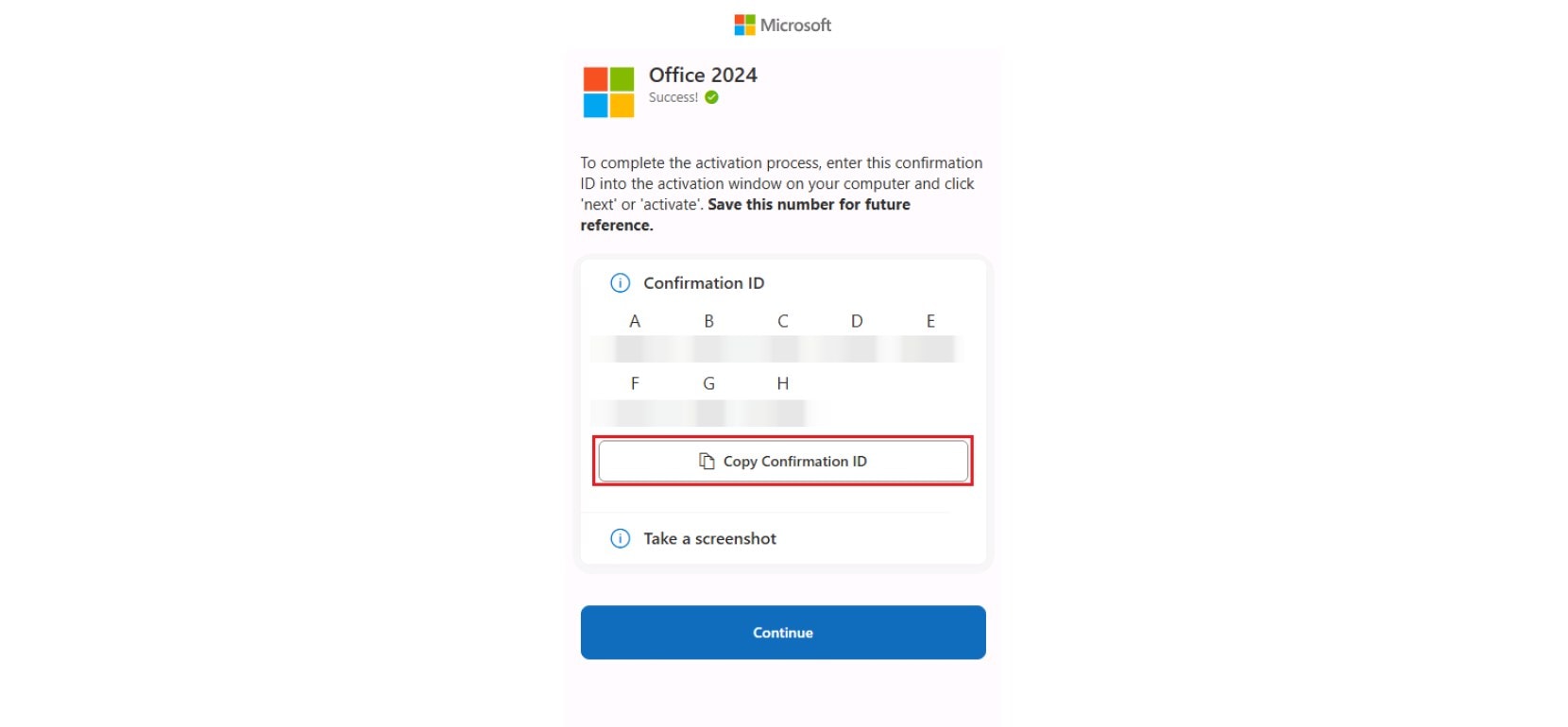
4.1 In the activation window, enter the Confirmation ID in boxes A to H and click "Next". Use the copy button of the portal, or compare each box with the group of the same letter.
4.2 Check that no box is empty and that every block is in its own letter: block A in box A, block B in box B, and so on.
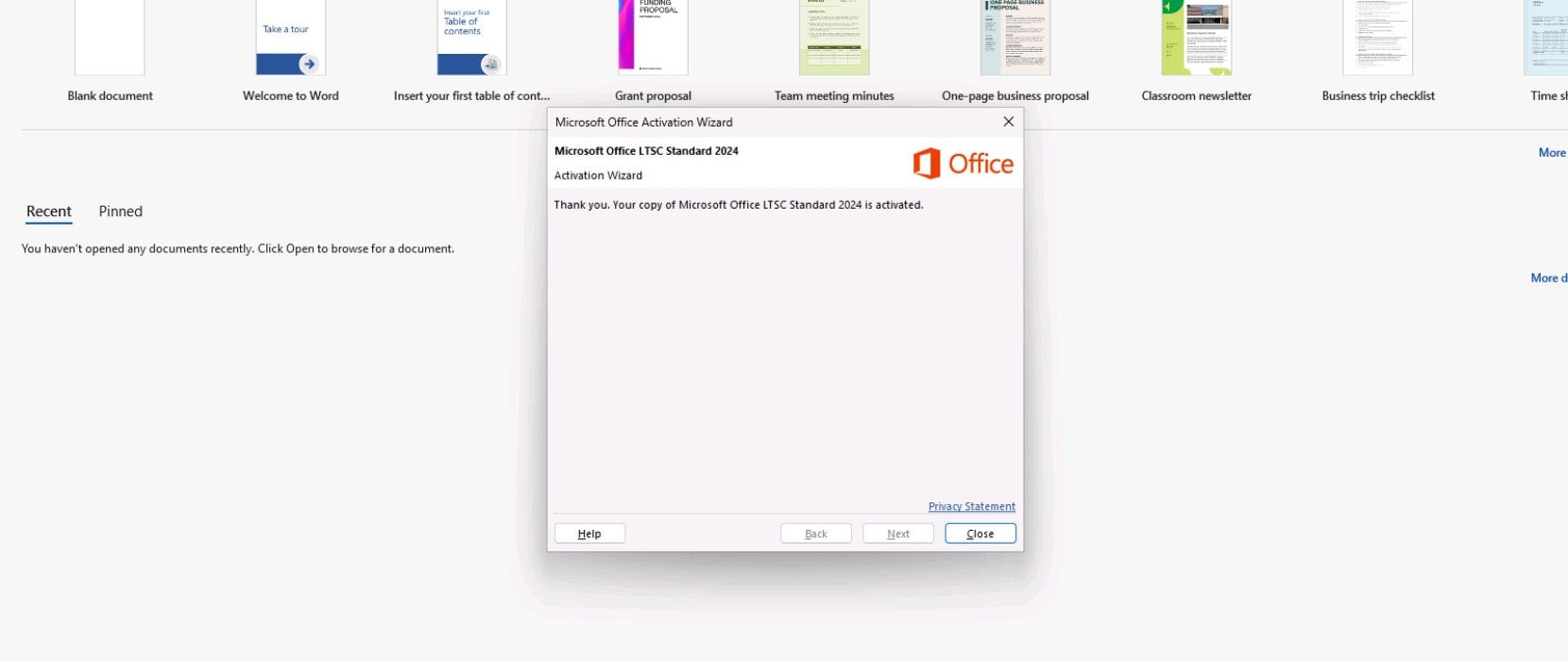
4.3 When it works, Office tells you that the activation is done.
Our test used Office 2024 Standard LTSC, and the other versions have their own screens. Follow the guide for the version you installed: Office 2024 Professional Plus LTSC, Office 2024 Standard LTSC, Office 2021 Professional Plus, Office 2019 Professional Plus or Office 2016 Professional Plus.
Each activation with a CID License can be used only once. If you uninstall or reinstall the software or the operating system, or change hardware such as the hard drive, that activation can't be used again, and our warranty doesn't cover it. So don't reinstall Office as a first reaction: go through the checks above first. The full rules are on our license types page.
If Office shows an activation error that isn't about the Confirmation ID, see our guide on "Unlicensed Product" and "Product Activation Failed".
{n} from {l} bought
{n} bought
Someone from {l} bought
Someone bought
Just now
1 minute ago
2 minutes ago
1 hour ago
2 hours ago
1 day ago
2 days ago
Close


 Windows
 Office for PC
 Office for Mac
 Windows Server
 SQL Server
 Office Apps
 Visual Studio

