November Special Offer - 5% OFF SITEWIDE!
Use code:
Valid until Nov 30
If AutoCAD shows "Quick setup needed" when you choose Enter a serial number, the program is missing a small free component from Autodesk. Recent versions need it to accept a serial number. You install it once, open AutoCAD again and continue with the activation. These are the exact steps we followed with AutoCAD 2027 on our own test computer.
This video is on YouTube (Google). Nothing loads from YouTube until you press play. By pressing play, you agree that YouTube uses cookies and receives your IP address. YouTube uses them to play the video and for its own purposes, such as counting views, security and ads. If you prefer not to, you can follow the written steps on this page instead. See our Privacy Policy and the Google Privacy Policy.
IMPORTANT: the screenshots are from our Windows 11 test computer with AutoCAD 2027 (November 21, 2026). The component and its instructions come from Autodesk's support page, linked below.
1.1 You see it after you click your user name, choose Manage License, click Change license type and select Enter a serial number. The message says: "To finish setting up, please download and install the required files."
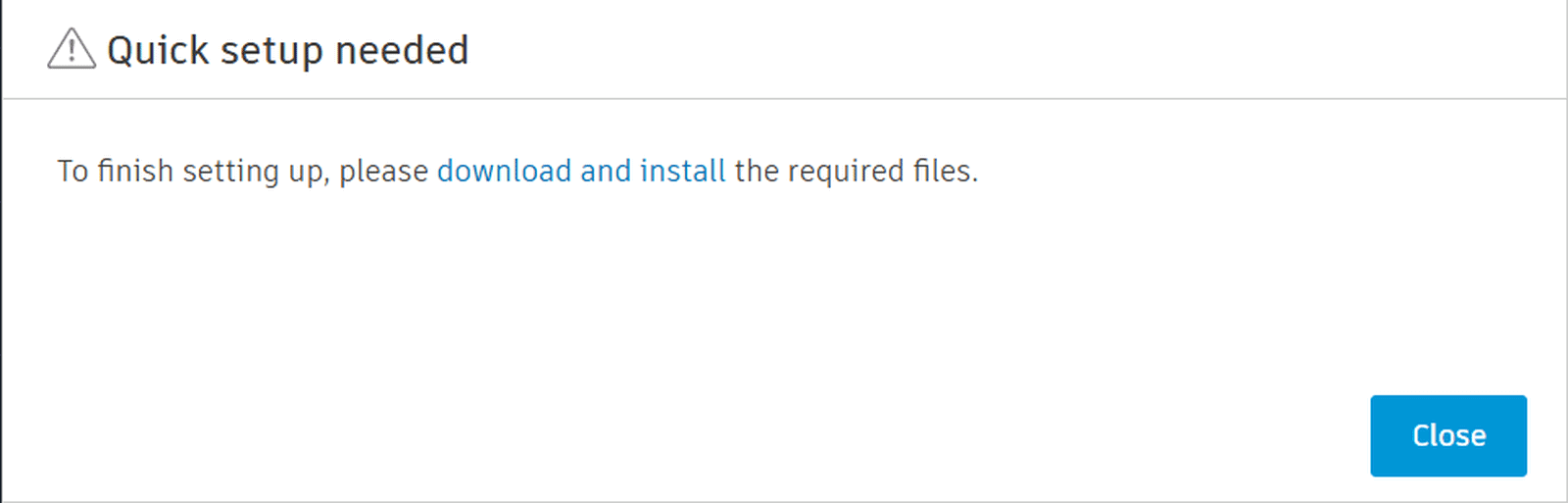
1.2 It is not an error with your serial number. Autodesk calls the missing piece the Serial Number Activation Support Feature, and AutoCAD asks for it the first time you use a serial number on that computer.
2.1 Click download and install in the message. Autodesk's support page opens: Autodesk Serial Number Activation Support Feature download.
2.2 Close AutoCAD, and download the zip file for Windows from that page.
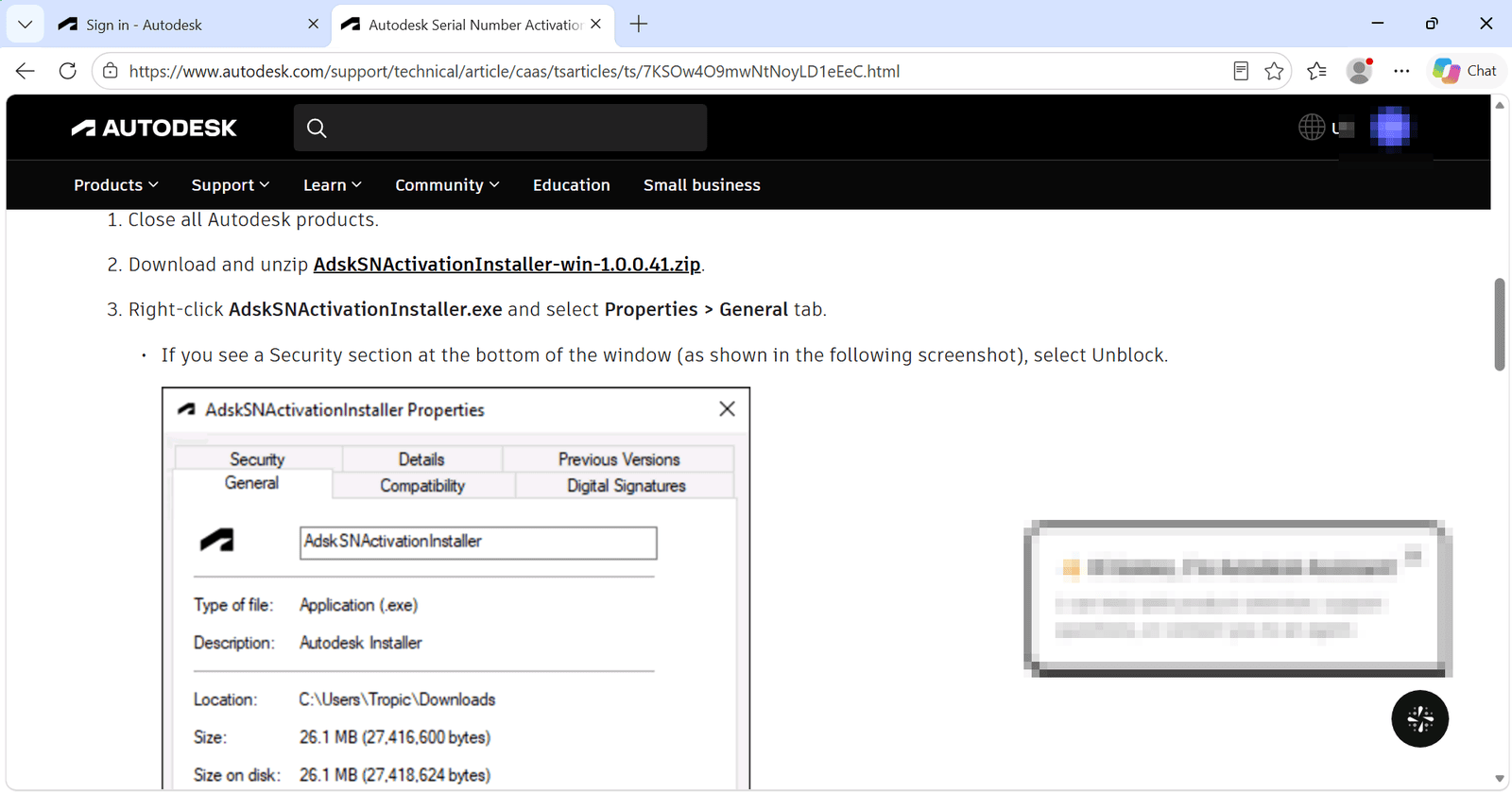
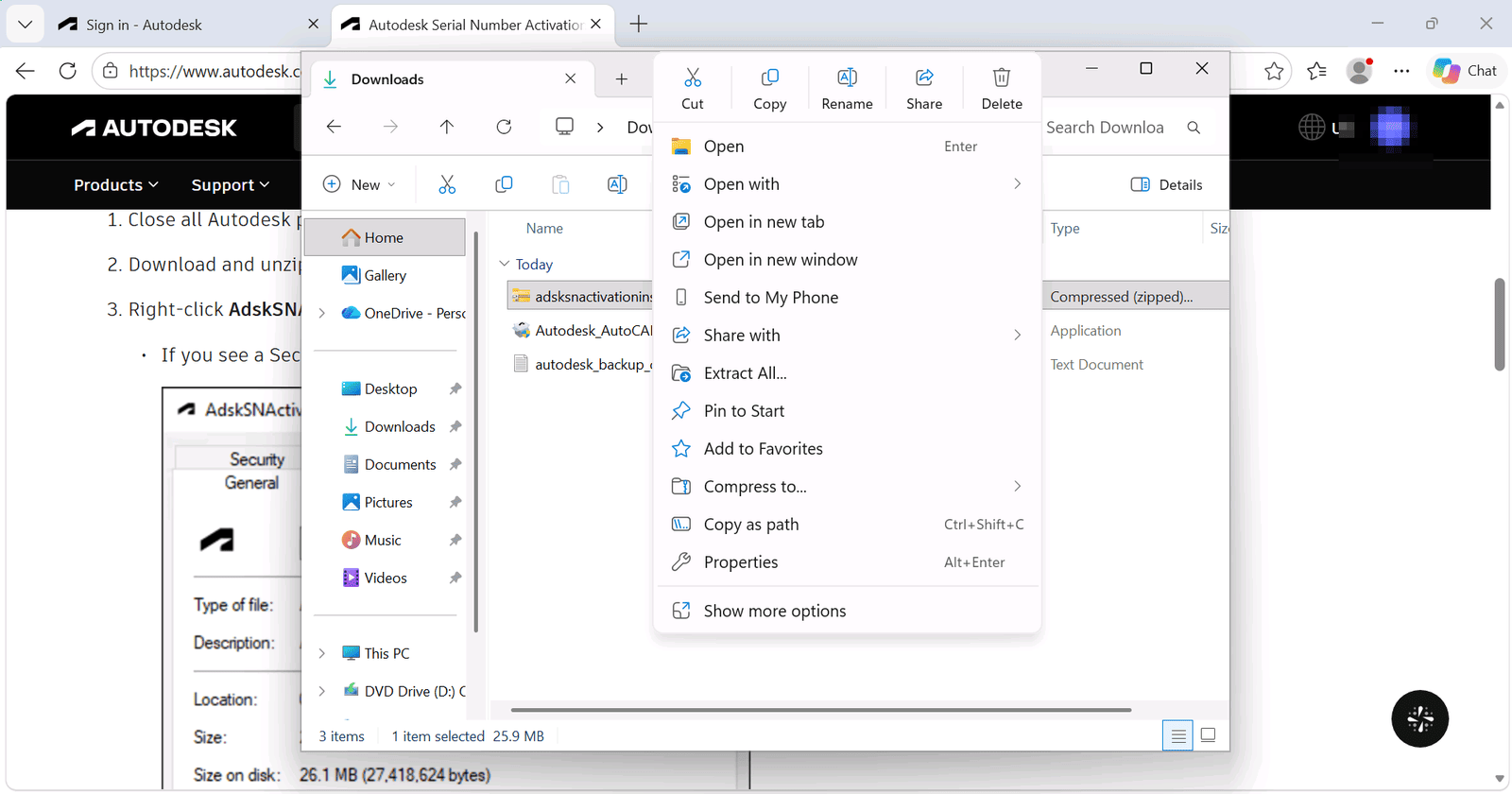
2.3 Open your Downloads folder, right-click the zip file, choose Extract All and click Extract.
3.1 Right-click AdskSNActivationInstaller and choose Properties. If you see Unblock at the bottom, tick it and click OK. Autodesk asks for this step, because Windows can block files that come from the internet.
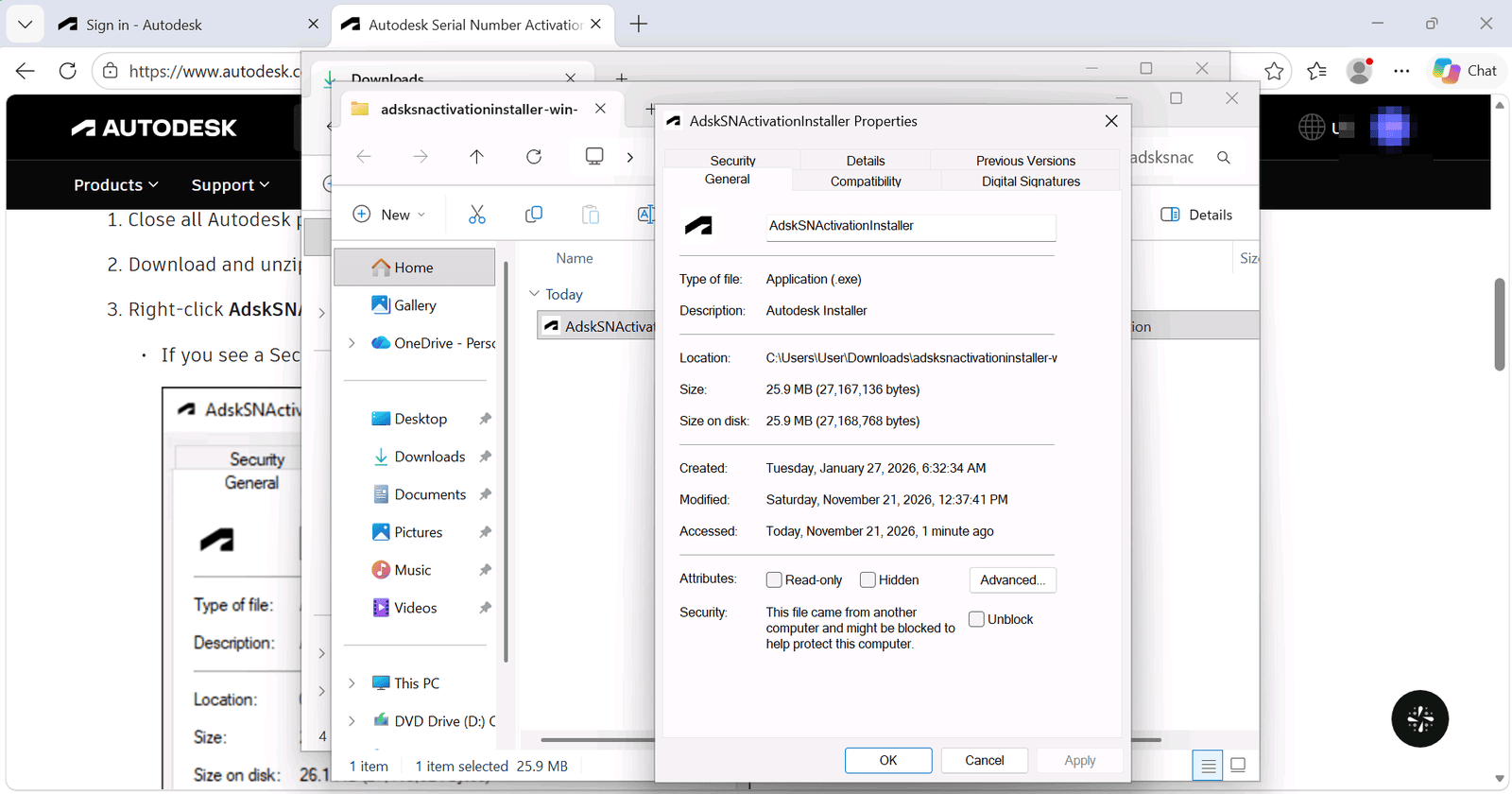
3.2 Double-click AdskSNActivationInstaller, click Yes when Windows asks for permission, and click Install.
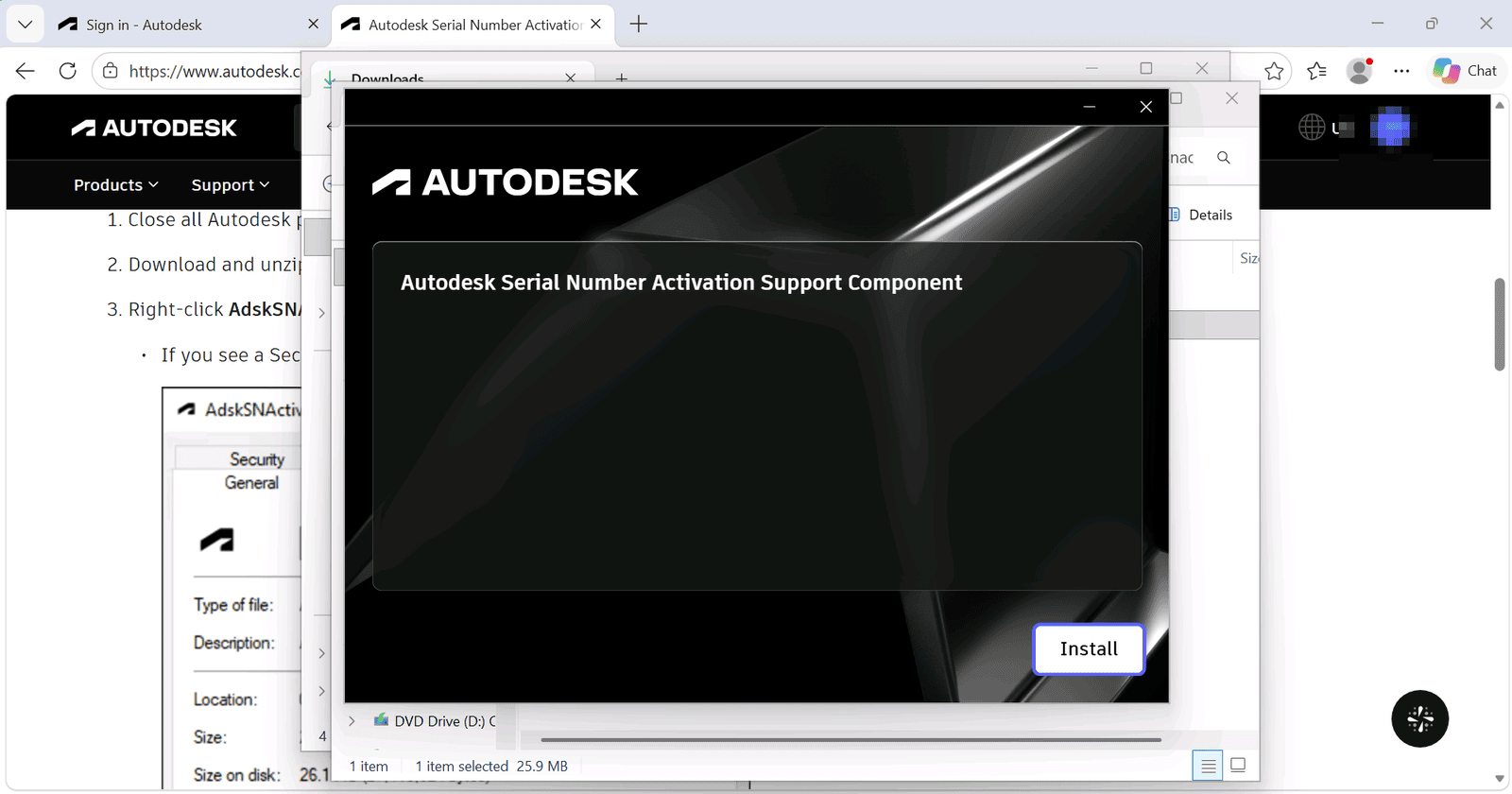
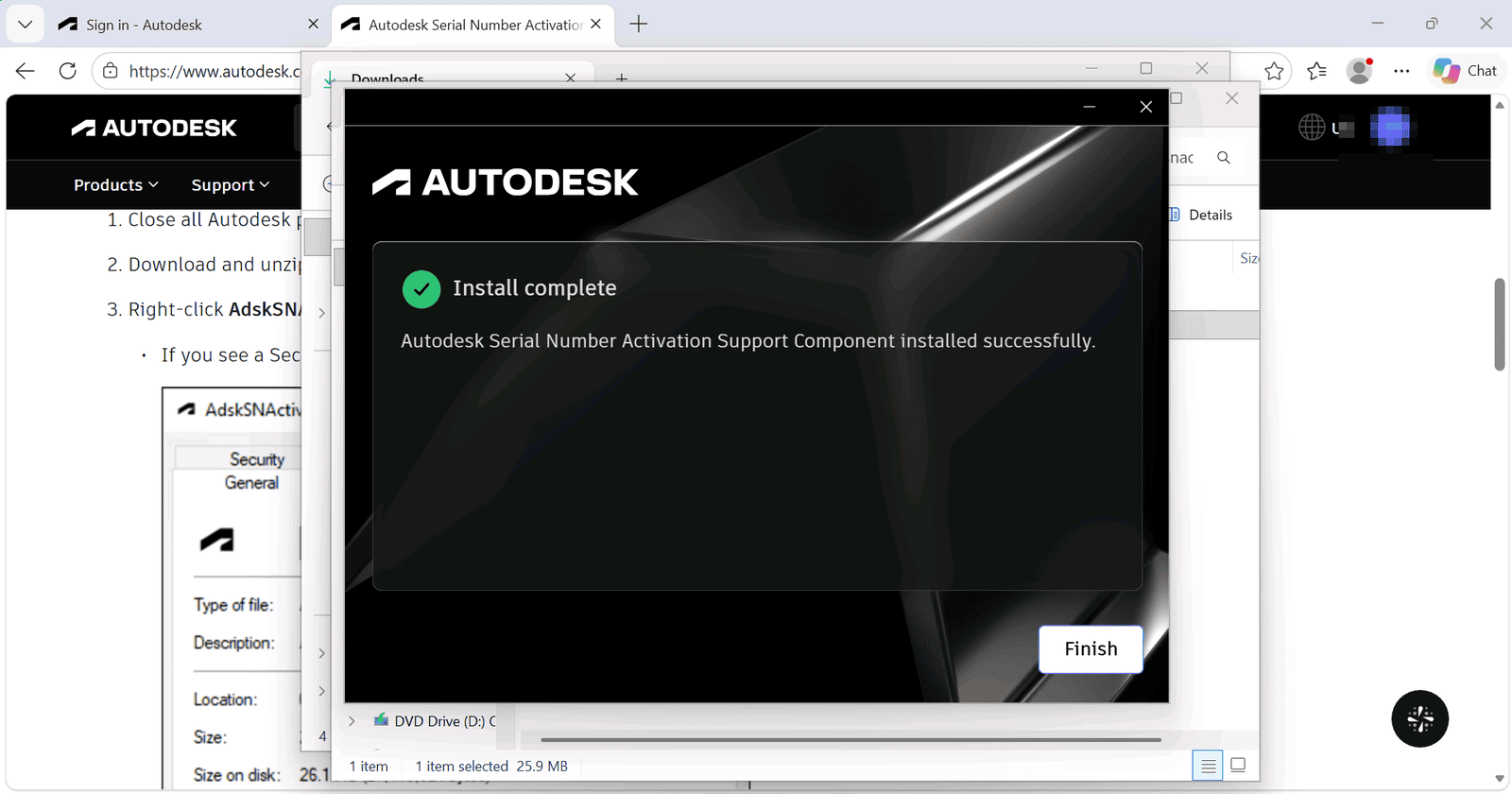
3.3 When you see Install complete, click Finish.
4.1 Open AutoCAD again. Click your user name, choose Manage License, click Change license type and select Enter a serial number. This time the message does not appear.
4.2 Click I Agree and then Activate. Enter the Serial Number from your license email. The Product Key is usually filled in already: if it matches your email, leave it as it is, and click Next.
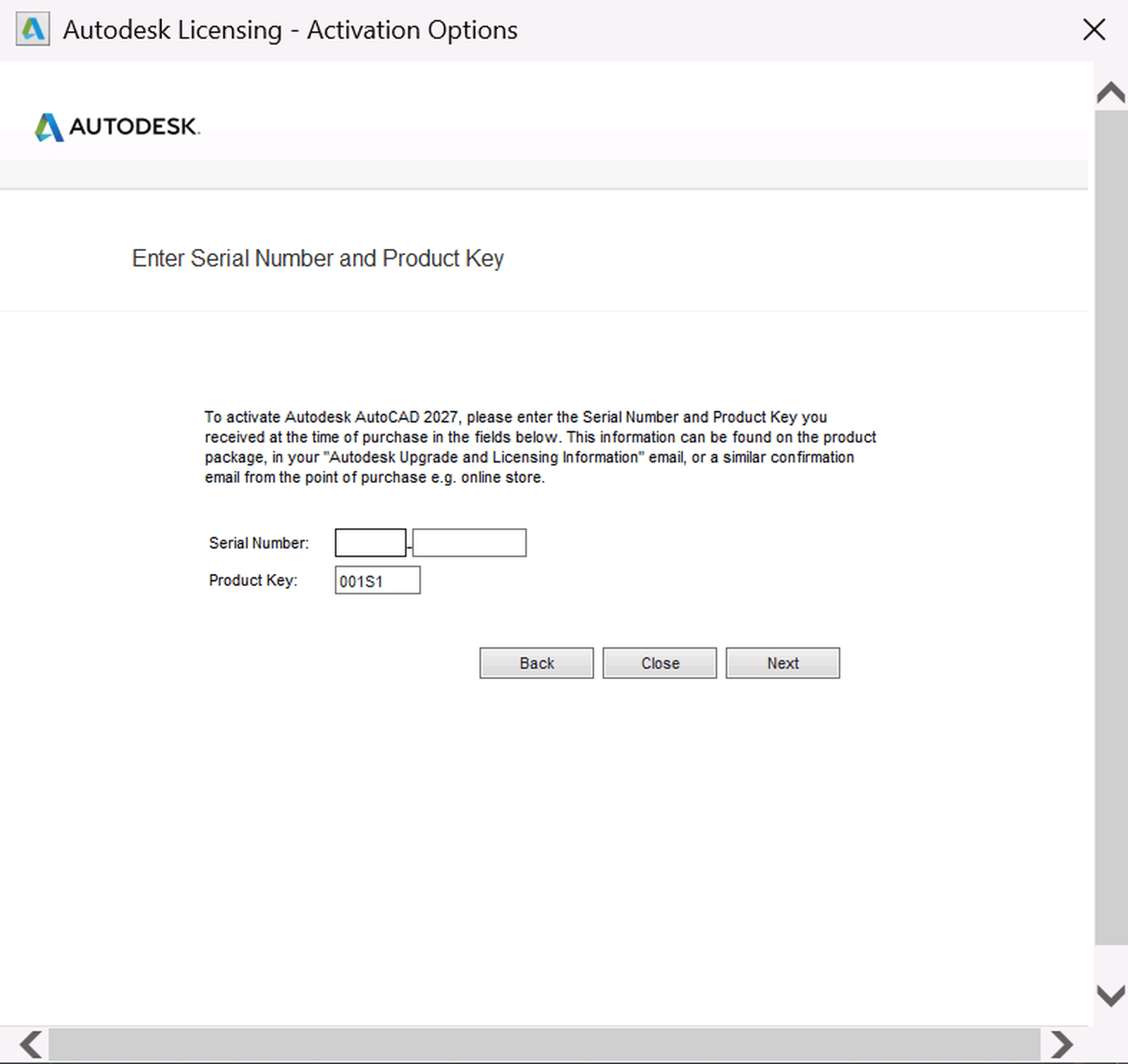
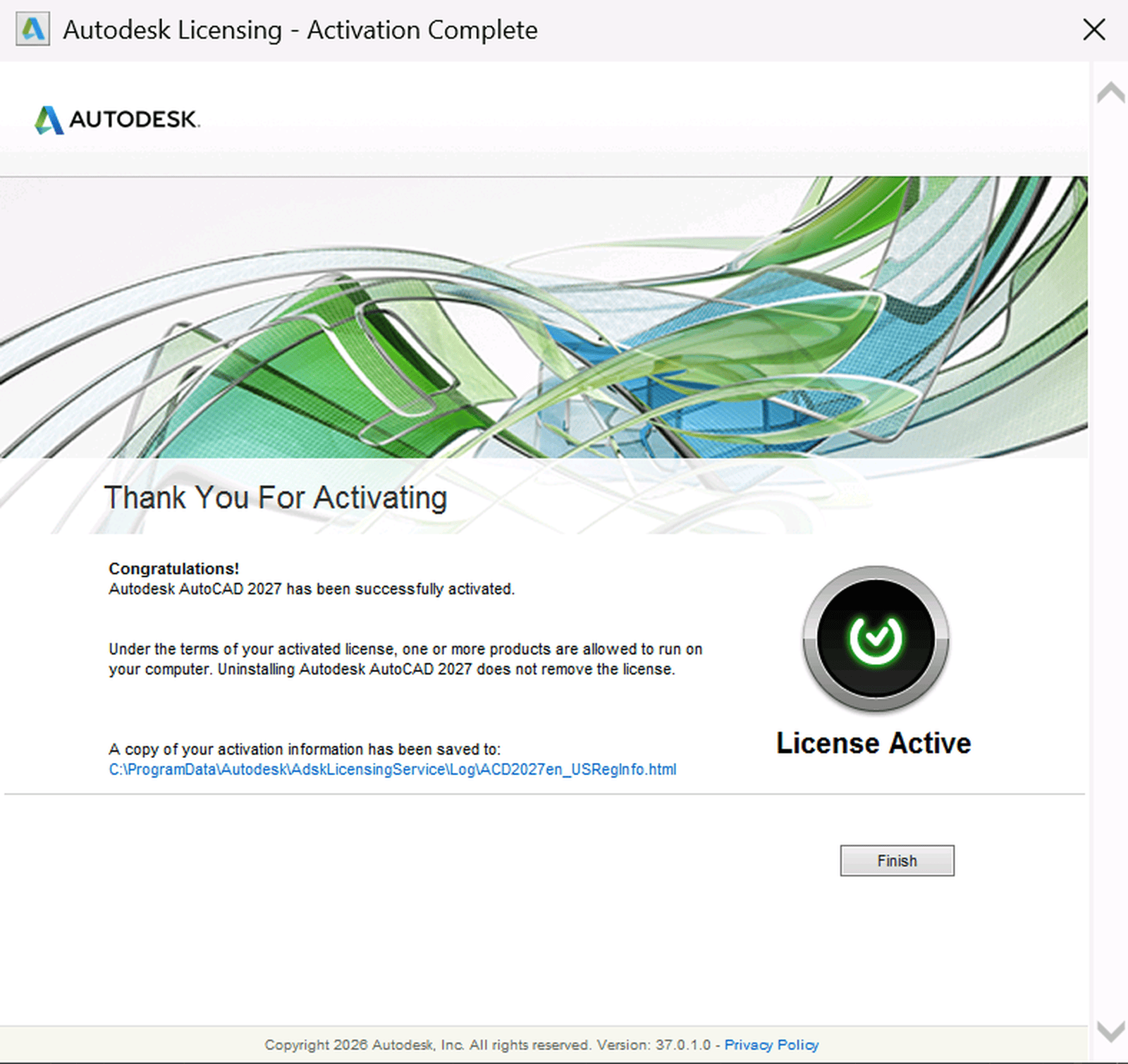
4.3 When you see Thank You For Activating and License Active, click Finish.
The full process, from the download to the activation, is in our guide How to Install and Activate Autodesk Products.
IMPORTANT: if the activation shows an error, close AutoCAD completely and try again, or switch to another network, for example your phone's hotspot. Don't use a VPN to activate it.
Still stuck? We are here 24/7. Contact us through our Online Chat or WhatsApp and we will complete the activation with you.
Sources: Autodesk Serial Number Activation Support Feature download (Autodesk Support).
{n} from {l} bought
{n} bought
Someone from {l} bought
Someone bought
Just now
1 minute ago
2 minutes ago
1 hour ago
2 hours ago
1 day ago
2 days ago
Close


 Windows
 Office for PC
 Office for Mac
 Windows Server
 SQL Server
 Office Apps
 Visual Studio

