September Special Offer - 5% OFF SITEWIDE!
Use code:
IMPORTANT: To activate any Autodesk application, you need to have the free version of the program installed on your PC. If you have problems with the installation, you can contact Autodesk support.
As soon as your payment is confirmed, we send your licence to the email address you used at checkout. Keep that message at hand, because you will need it in step 3.
Your licence is a single code split into three parts:
If you cannot find the email, check your spam folder first. You can also see your licence at any time in the License Keys section of your account.
IMPORTANT: Do not share these codes with anyone. Your licence can only be activated on the number of devices you purchased.
2.1 Go to the official Autodesk download page for your product and select the version year you purchased:
2.2 Sign in with your Autodesk account when the website asks you to, and complete the short form. The download will start automatically.
2.3 Open the downloaded file by double-clicking it. The installer extracts its contents and starts on its own.
2.4 Accept the licence agreement, then click Install. You can leave the default installation folder.
2.5 Let the process finish without interrupting it. How long it takes depends on your connection and your computer, but it is usually between 15 and 40 minutes. Restart your computer if the installer asks you to.
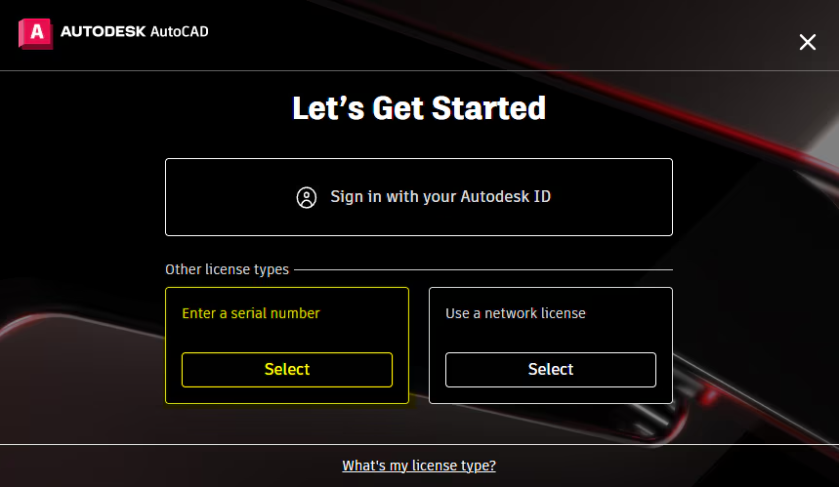
3.1 Launch the program you have just installed. The Let's Get Started screen will ask you how you want to use it.
3.2 Under Other license types, choose Enter a serial number and click Select.
IMPORTANT: Do not choose Sign in with your Autodesk ID on this screen, even though you have an Autodesk account. That option is for subscriptions bought directly from Autodesk and it will not recognise your licence. Your serial number is entered in the section below.
3.3 Click Activate and enter the codes from your licence email. The Serial Number goes in the two fields on the first line, and the Product Key in the field below.
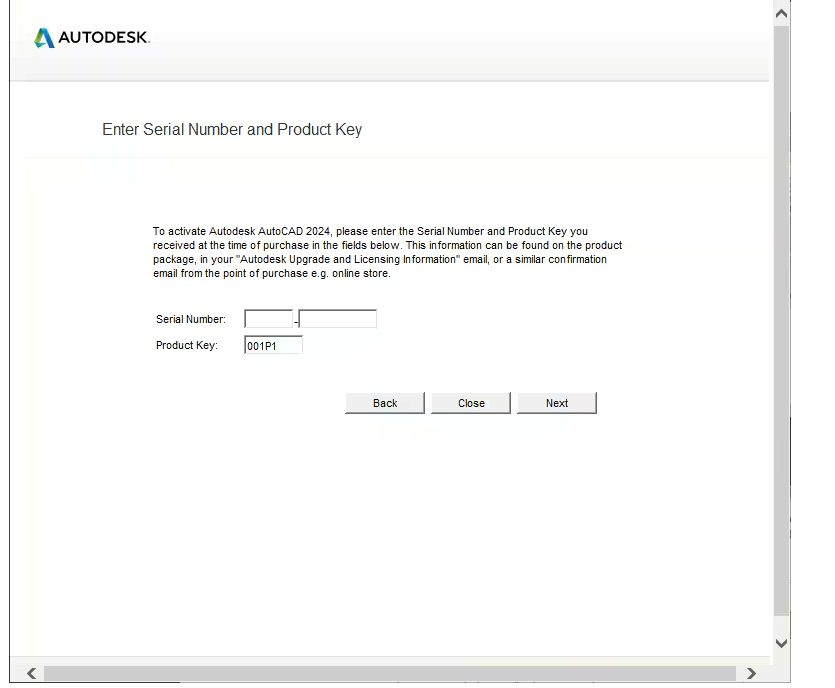
IMPORTANT: In most cases the Product Key is already filled in for you, because the installer knows which program and version you installed. If the value shown matches the one in your email, leave it exactly as it is.
3.4 Click Next and follow the instructions on screen to finish the process.
3.5 A confirmation message will let you know that your licence has been activated and that the program is ready to use.
Open the program, go to the Help menu and then to About. You will see your licence details and the date it is valid until. This is also where to look whenever you want to check how much time is left on your subscription.
IMPORTANT: If the activation window returns an error, close the program completely and try again. On some networks the process fails on the first attempt; switching networks, using your phone's hotspot or a VPN usually solves it.
IMPORTANT: If the program says the serial number is not valid, check that the version year you installed is the same one you purchased, and that you have not swapped the two parts of the Serial Number.
Still stuck? We are here 24/7. Contact us through our Online Chat or WhatsApp and we will complete the activation with you.
No account yet?
Create an Account





 Windows
 Office for PC
 Office for Mac
 Windows Server
 SQL Server
 Office Apps
 Visual Studio
