October Special Offer - 5% OFF SITEWIDE!
Use code:

IMPORTANT: Redeem your code only at redeem.adobe.com. Never enter it in the Redeem new code option of an Adobe plan you already have.
IMPORTANT: Use a personal Adobe account, never a business, team or organization account. The safest choice is a new account that has never used a promotional code.
IMPORTANT: Turn off any VPN before you sign in and redeem your code, and keep it off while you install the apps.
Your Adobe Creative Cloud plan comes as a redeem code: a code of letters and numbers that you redeem on your own Adobe account. This guide shows you how to activate Adobe Creative Cloud with that code, step by step, and how to install the apps. In 2025 Adobe renamed the All Apps plan Creative Cloud Pro, so your account may show either name. Creative Cloud Pro, formerly All Apps, gives you more than 20 apps, including Photoshop, Illustrator, Premiere Pro, After Effects, InDesign, Lightroom and Acrobat Pro.
If you do not have a code yet, you can get Adobe Creative Cloud All Apps in our store.
A few Adobe rules decide whether your code activates without problems. Check them before you reveal it:
After your payment is confirmed, your code waits in your account until you need it. You reveal it with the Get my license button, which you will find in your order email and in your account, whenever you want, even weeks later. Once revealed, it stays in the License Keys section of your account.
IMPORTANT: Reveal your code only when you are ready to follow this guide. From the moment you reveal it, you have 24 hours to activate it, and it can no longer be refunded. Activate it within those 24 hours and it is covered for the full length of your plan.
3.1 Open redeem.adobe.com in your browser, with your VPN turned off.
3.2 Adobe asks you to sign in or create an account. Select Sign in if you already have a personal Adobe account, or create a new one with your email address and a password.
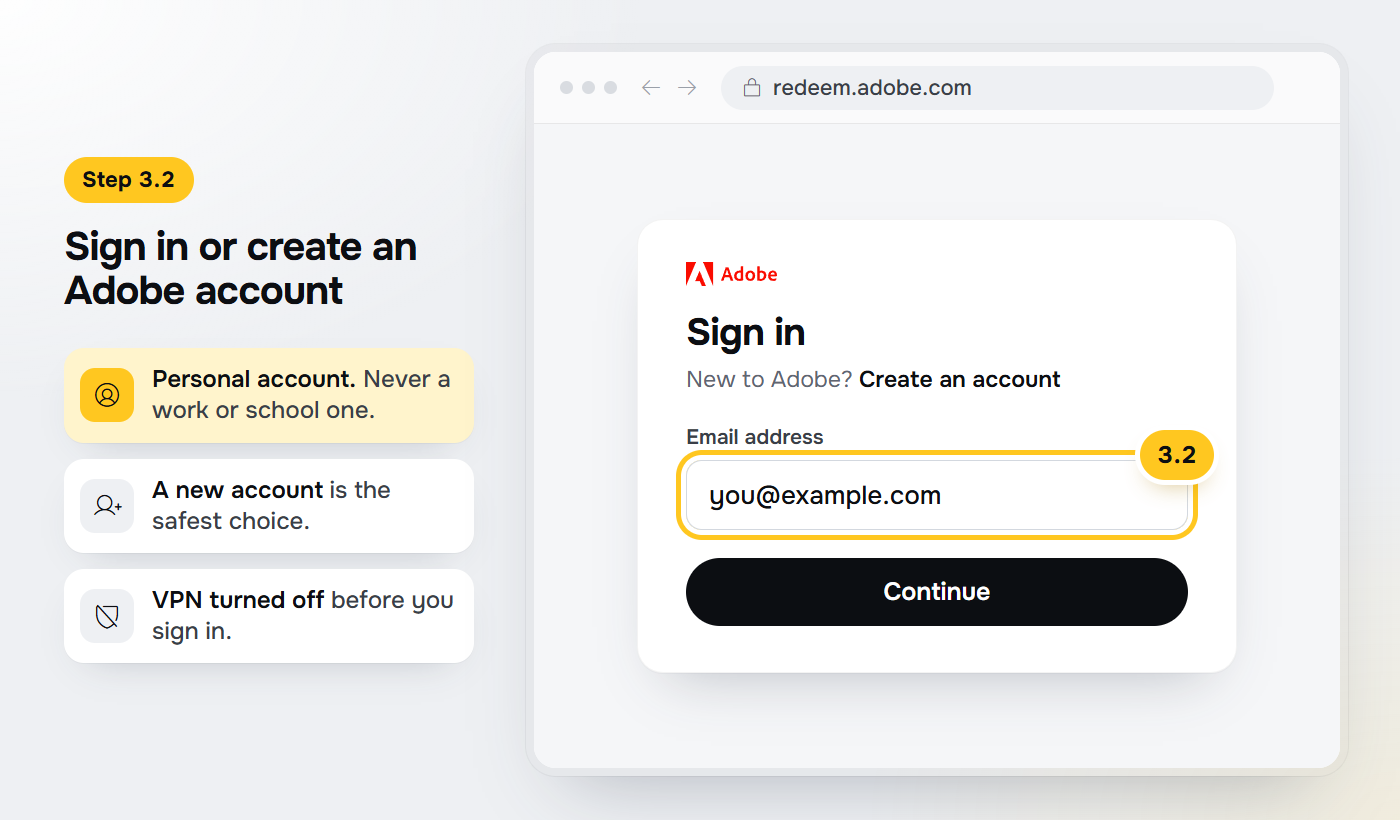
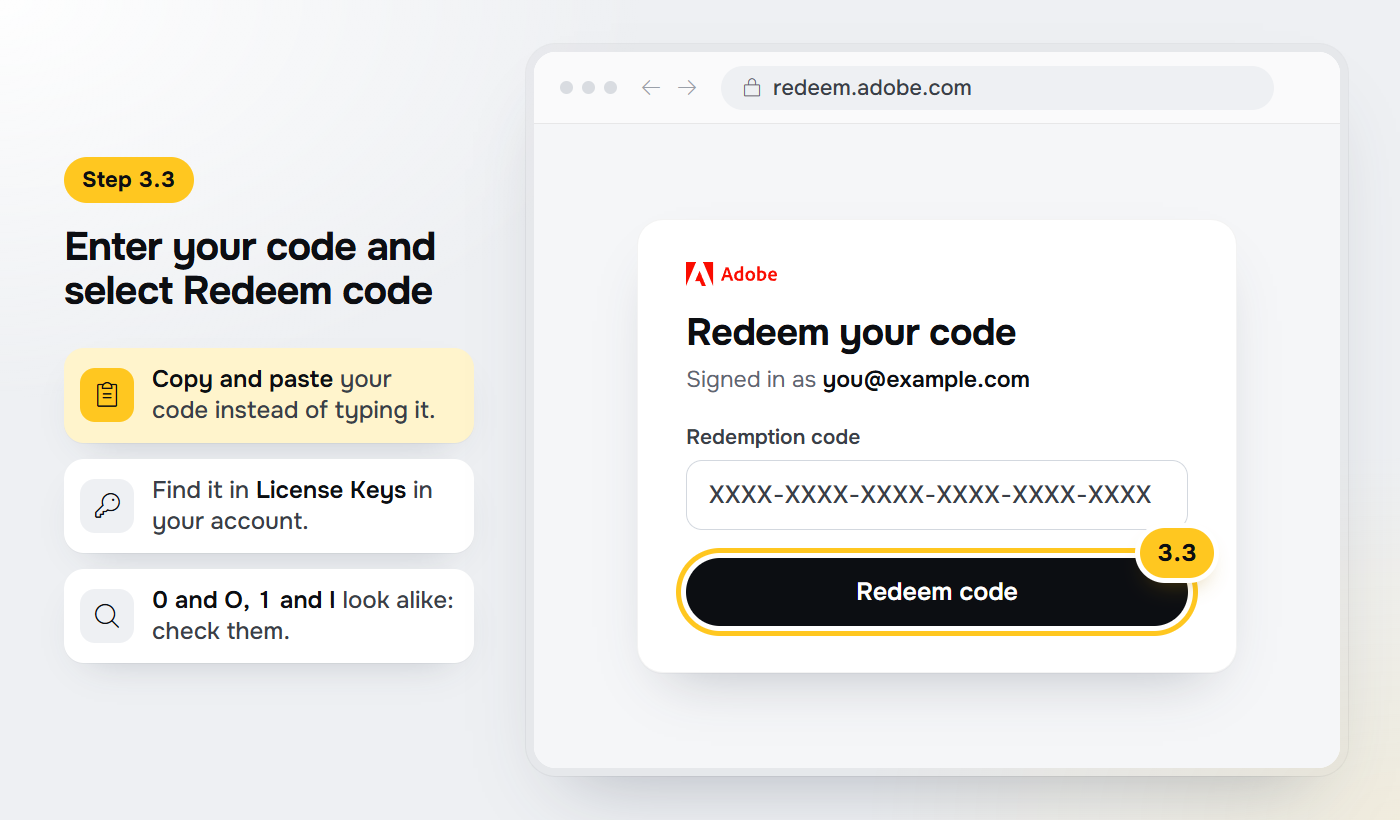
3.3 Enter your code exactly as it appears in your account and select Redeem code. Copy and paste it to avoid typing errors: codes mix letters and numbers, and it is easy to confuse 0 with O or 1 with I.
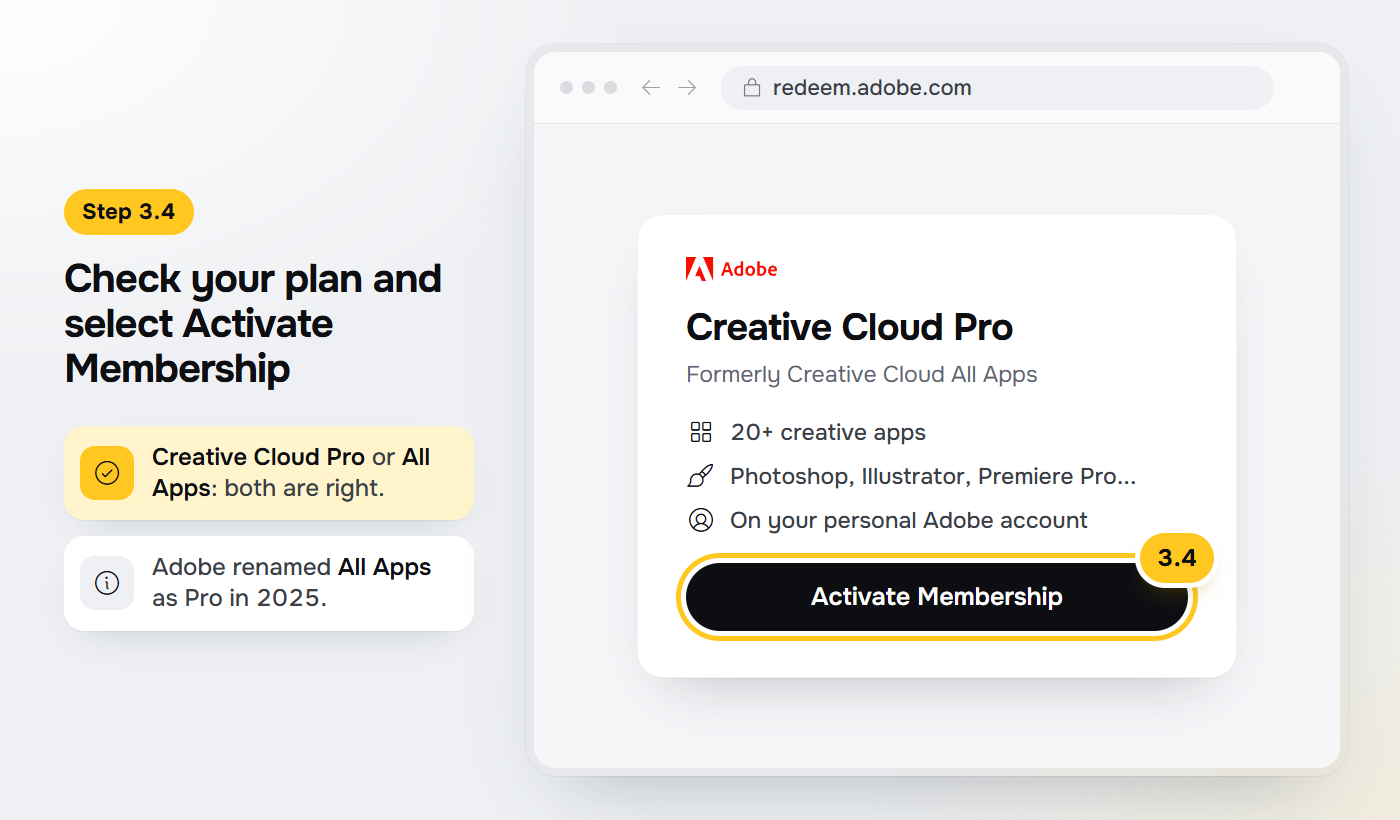
3.4 Adobe shows the plan your code contains. Check that it is Creative Cloud Pro (or Creative Cloud All Apps) and select Activate Membership.
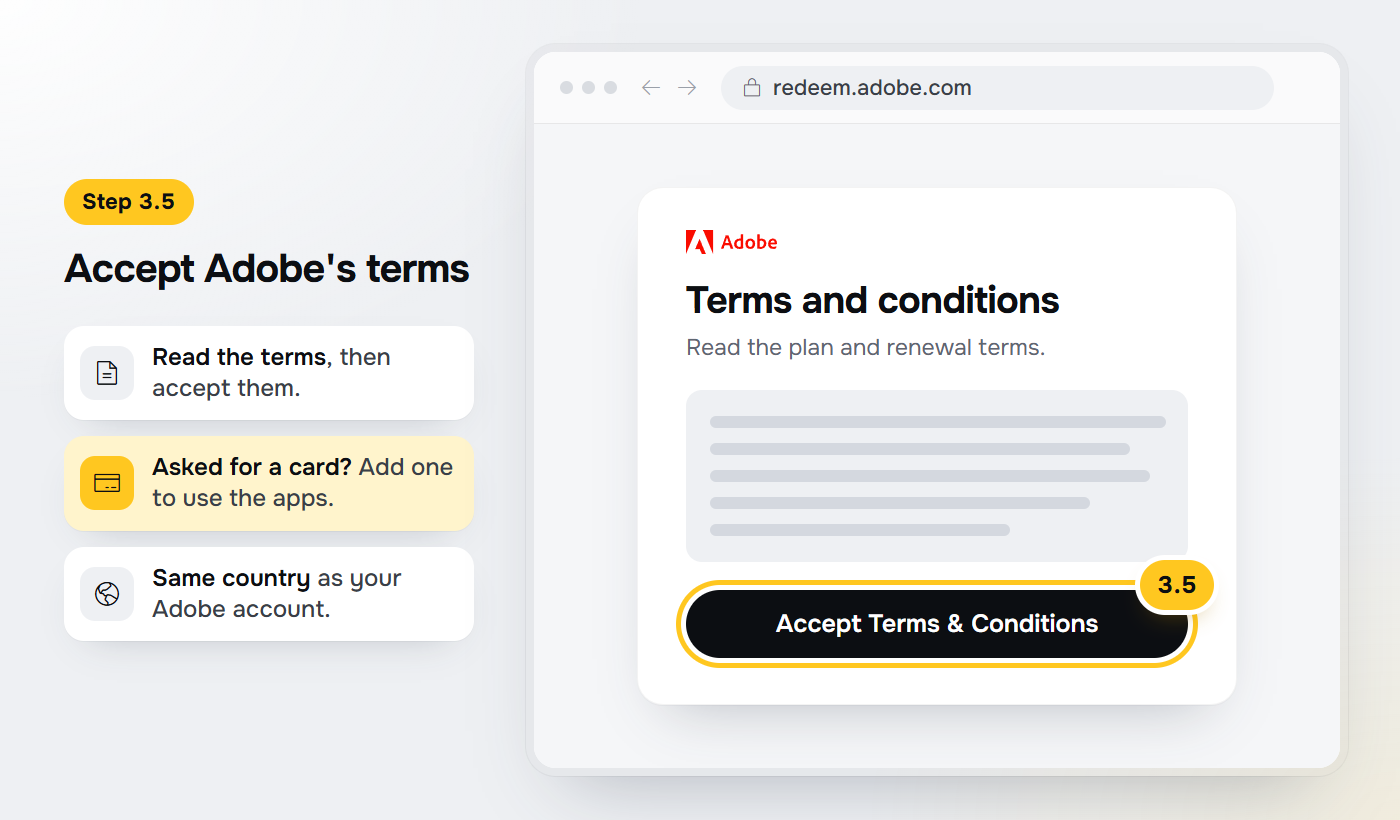
3.5 Read Adobe's terms and select Accept Terms & Conditions.
3.6 If Adobe asks you to add a payment method, add one: you need it to use the apps. It must be from the same country as your Adobe account.
IMPORTANT: A card or payment method from a different country than your Adobe account can make Adobe cancel your plan. Make sure both are from the same country, and keep your payment method active.
3.7 Adobe confirms that your plan is active. Take a screenshot of this confirmation, with the activated plan visible, and keep it: our support team may ask for it if there is ever a problem with your plan. Then select Get Started.

4.1 Go to Adobe's apps page and sign in with the same Adobe account you used to redeem your code.
4.2 Find the first app you want, for example Photoshop, and select Download. The Creative Cloud desktop app installs automatically and then installs your app.
4.3 To add more apps, open the Creative Cloud desktop app, go to the Apps tab and select Install next to each app you want.

4.4 Open your apps from the Creative Cloud desktop app. If an app asks you to sign in, use the same Adobe account.
You can see your plan at any time at account.adobe.com, under Plans and payment. It appears there as Creative Cloud Pro or Creative Cloud All Apps. Select Manage plan to see its details and dates.
If you added a payment method in step 3.6, Adobe can use it to keep your plan going when your code's term ends, so check your plan there before that date. Adobe explains how renewal works, and how to stop it, in its auto-renewal help page.
Your plan lets you sign in on up to 2 computers and use the apps on 1 of them at a time. To install it on your second computer, repeat the steps in section 4 there, with the same Adobe account.
To use it on a third computer, first sign out of Creative Cloud on one of the other two. If you no longer have that computer, go to account.adobe.com, select Plans and payment > Activated devices and choose Deactivate next to it.
Your Adobe account is just for you: Adobe does not allow sharing it with other people.
Is Creative Cloud Pro the same as Creative Cloud All Apps?
Yes. Adobe renamed the All Apps plan Creative Cloud Pro in 2025. Depending on your country, your Adobe account may still show the old name.
Can I redeem the code on my work or school Adobe account?
No. Codes only work on a personal Adobe account. Create a new personal account with your own email address.
Can I add the code to an Adobe plan I already have?
No. Codes do not add up to a plan you already have, so do not use the Redeem new code option inside an existing plan. Redeem your code at redeem.adobe.com, ideally on a new account that has never used a promotional code.
Do I need a credit card?
Adobe may ask you to add a payment method before you can use the apps. If it does, add one from the same country as your Adobe account.
Can I use a VPN?
No. Turn it off before you redeem your code. Redeem codes cannot be activated in some countries, listed in section 1.
How long is my plan covered?
If you activate your code within 24 hours of revealing it, it is covered for the full length of your plan.
What if my code does not work?
Send us the error message or a screenshot and we will replace it right away. If you haven't revealed your code yet, you can ask for a refund within 30 days of your purchase. See our delivery and refund policy.
Still stuck? We are here 24/7. Contact us through our Online Chat or WhatsApp, or write to support@licendeals.com, and we will complete the activation with you.
No account yet?
Create an Account





 Windows
 Office for PC
 Office for Mac
 Windows Server
 SQL Server
 Office Apps
 Visual Studio
