October Special Offer - 5% OFF SITEWIDE!
Use code:
Valid until Oct 31

While installing Windows 11, many users face an issue where the system shows a notification stating that installation is not possible because the device does not meet the minimum hardware requirements. In this article, we will explore in detail how to overcome this limitation and successfully install Windows 11 on your PC or laptop.
You can purchase genuine Windows 11 product keys from our catalog.
IMPORTANT: Microsoft doesn't support Windows 11 on PCs that don't meet its system requirements: these PCs may not get updates, including security updates.
You can also download the Windows 11 installation file from our catalog.

1. Insert a USB flash drive with at least 8 GB of storage into your computer.
2. Visit our catalog and download any version of Windows 11:
– Windows 11 Pro
– Windows 11 Home
– Windows 11 Enterprise
– Windows 11 Professional OEM
– Windows 11 Professional 5PC
3. After downloading the Windows 11 installation file, you need to transfer it to the USB flash drive to make it bootable. You can find detailed instructions on how to do this in our separate article.
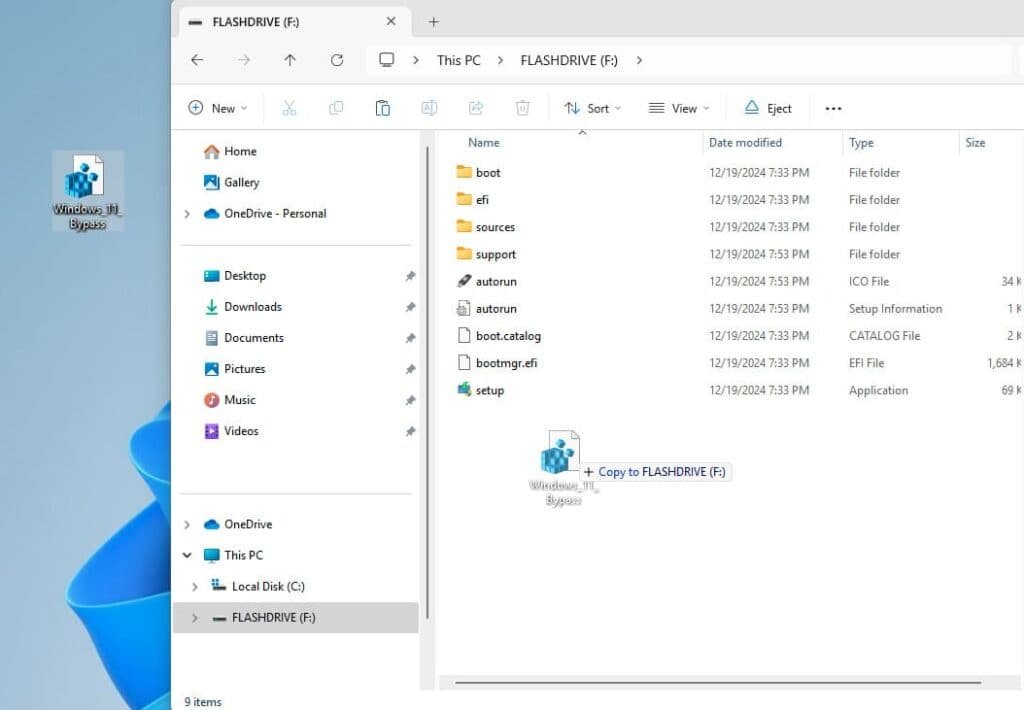
On your desktop, make sure you have a file called Windows 11 Bypass. This file enables you to skip the compatibility check during the installation process. You can download it using the following link: Windows 11 Bypass.reg.

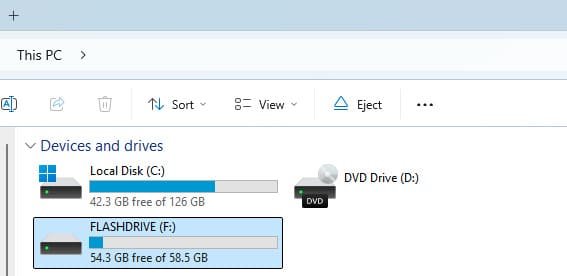
2. Launch File Explorer and navigate to the bootable USB drive you created.
3. Copy the Windows 11 Bypass file into the main (root) folder of the USB drive.
Reboot your computer without unplugging the USB flash drive.
While the system is restarting, enter the BIOS (on Dell laptops, this can typically be done by repeatedly pressing the F12 key).
In the BIOS menu, choose your bootable USB drive as the primary boot device and press Enter.
If you’re unable to access the BIOS or select the USB drive as the boot option, refer to the alternative methods explained in our other article.

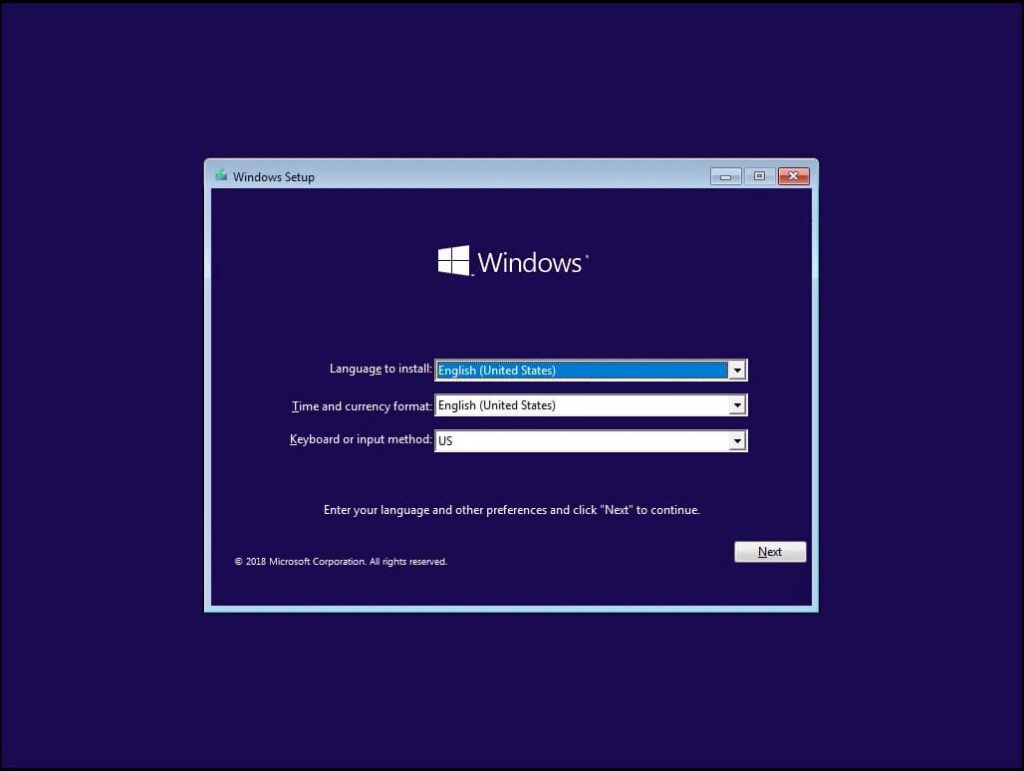
1. Once the USB drive boots, the Windows 11 setup will start automatically. Choose your preferred language and click “Next.”
2. Click on “Install.” If your device does not satisfy the minimum system requirements, a warning message will appear.
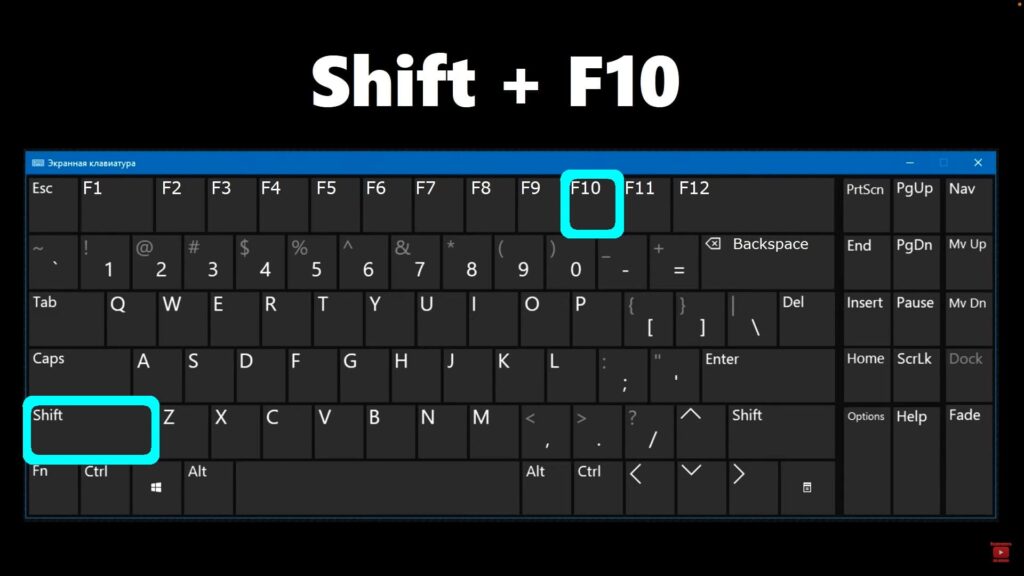
3. Before proceeding with the setup, press Shift + F10 at the same time to launch the Command Prompt.
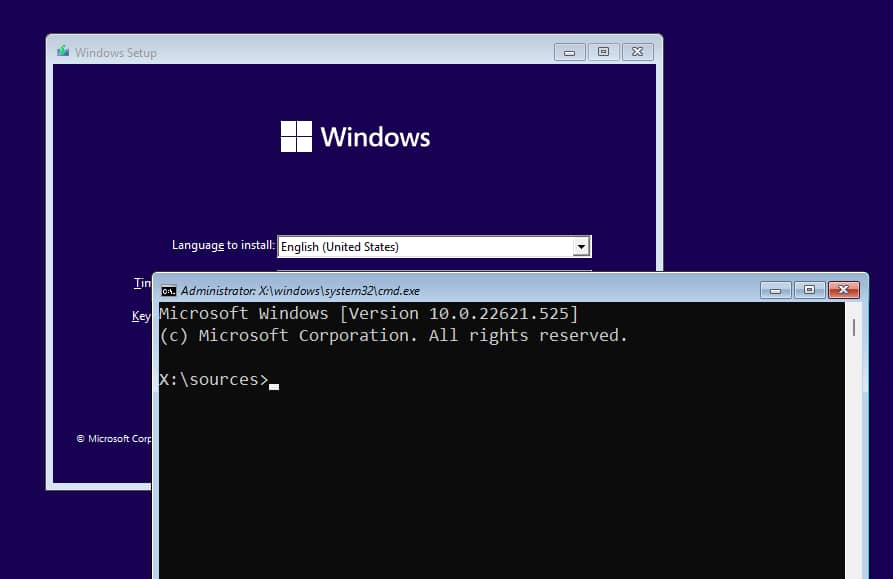
4. In the Command Prompt window, enter notepad and press Enter.
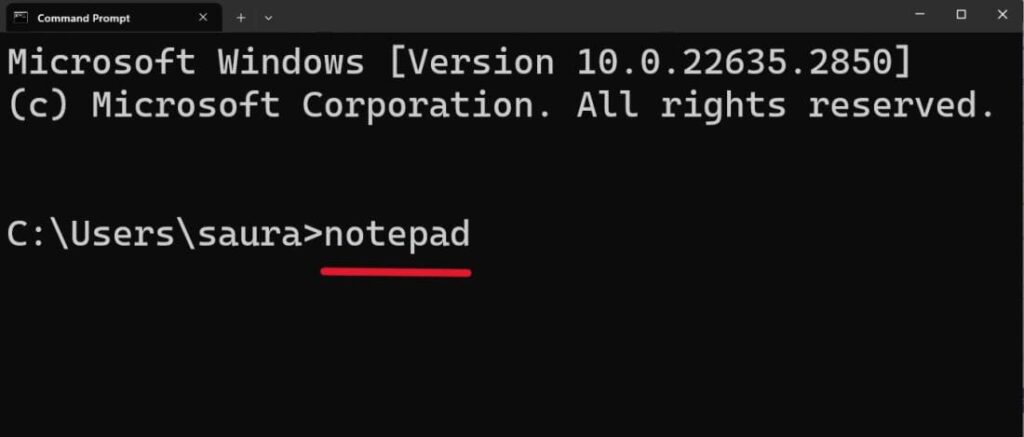
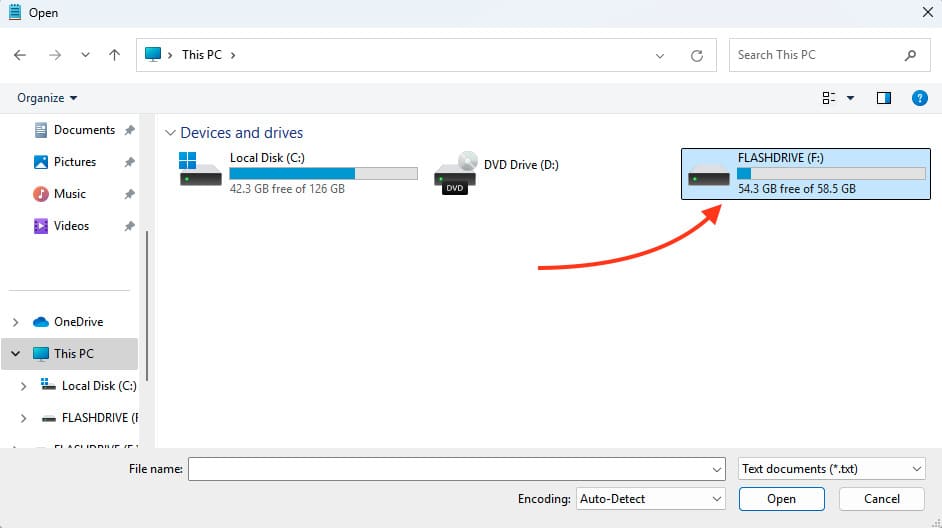
5. Inside Notepad, go to the menu and choose “File” → “Open.”

6. In the File Explorer window, locate and select your USB flash drive.
7. From the file type dropdown menu, choose “All Files,” then locate the Windows 11 Bypass file.
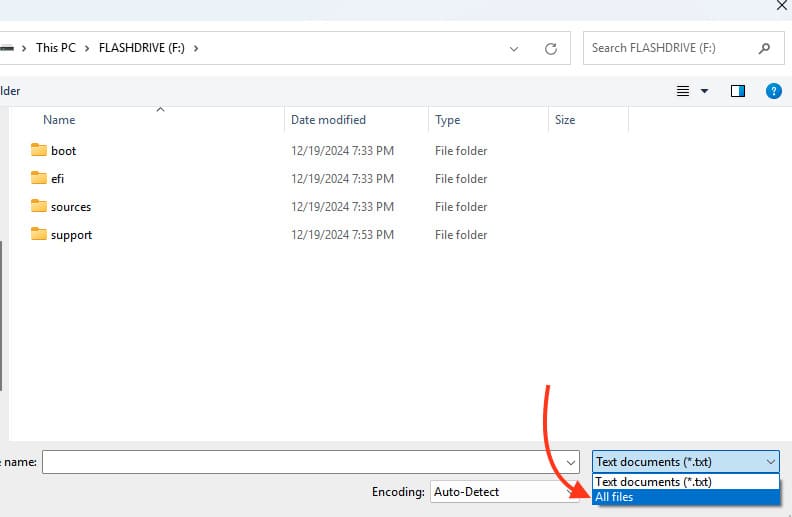
8. Right-click the file and choose “Merge” from the context menu.
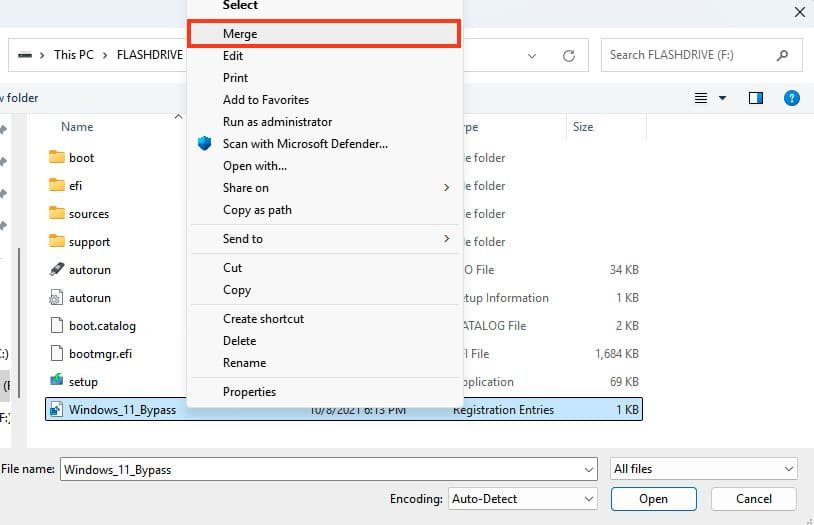
9. Approve the action by clicking “Yes,” then confirm by selecting “OK.”
10. Exit all open windows and click “Install” once more.
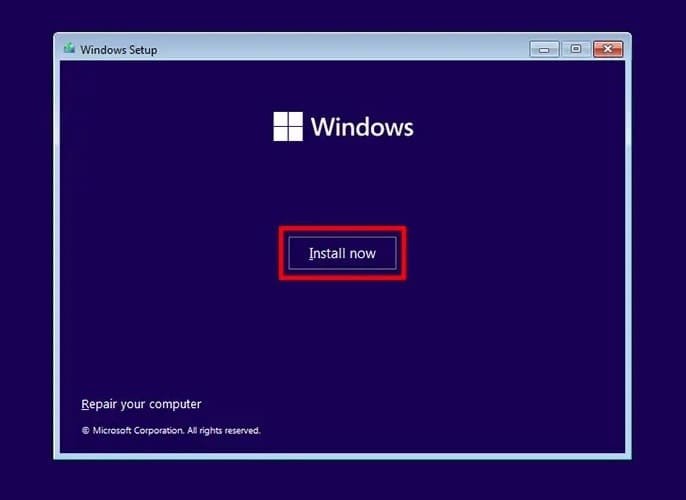
After completing the steps above, the Windows 11 installation should proceed without any problems, even if your device does not meet the minimum system requirements.
When the installation finishes, open “Settings” → “System” → “About” to verify the installed Windows version. As shown, version 22H2 has been installed successfully. You can also confirm the activation status in the “Product Key and Activation” section.

That’s it. You can now start using Windows 11 on your device.
No account yet?
Create an Account





 Windows
 Office for PC
 Office for Mac
 Windows Server
 SQL Server
 Office Apps
 Visual Studio
