September Special Offer - 5% OFF SITEWIDE!
Use code:
Note: Follow this quick and precise step-by-step guide to completely uninstall Microsoft Office from your computer, clear out residual activation files, and ensure a clean environment for a fresh installation.
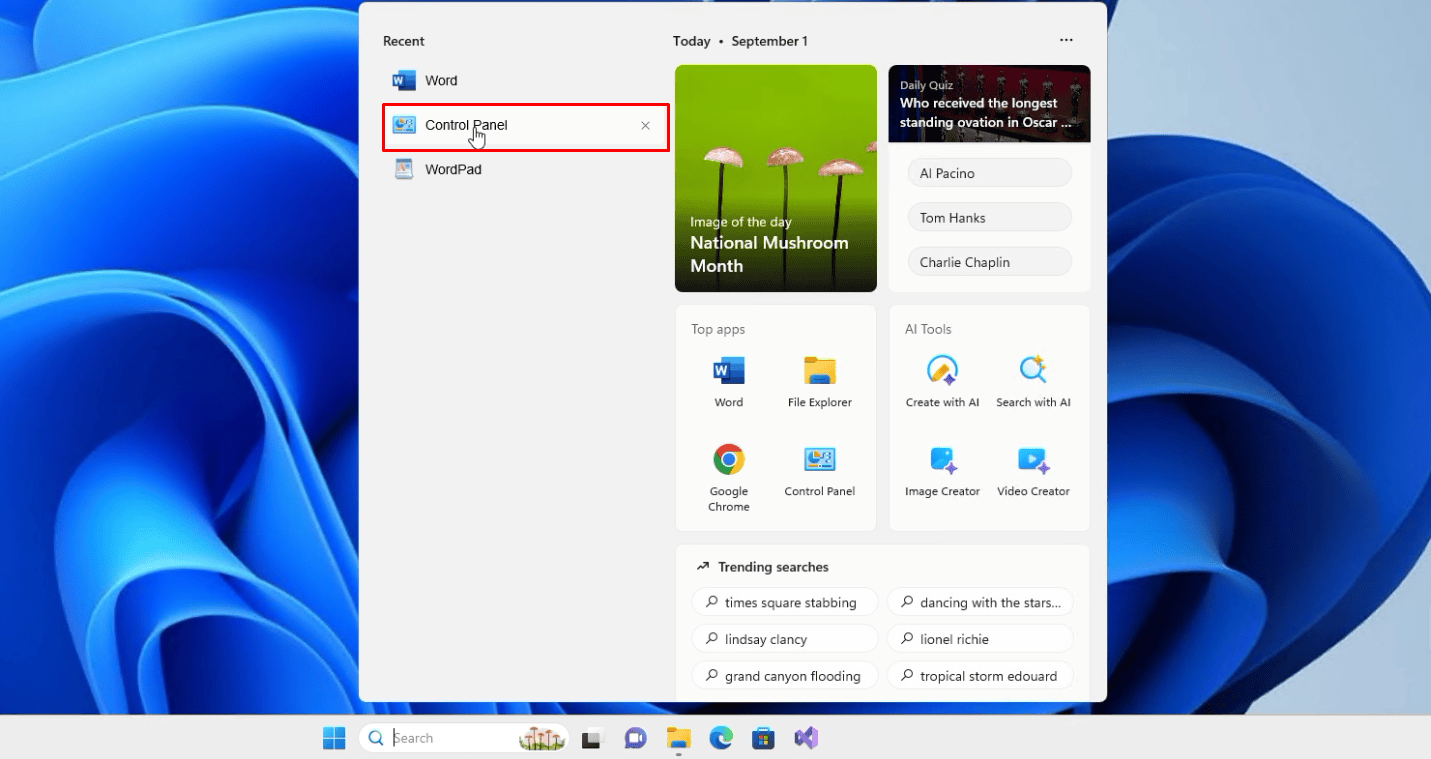
To begin the uninstallation, search for and open the Control Panel from the Windows search bar.
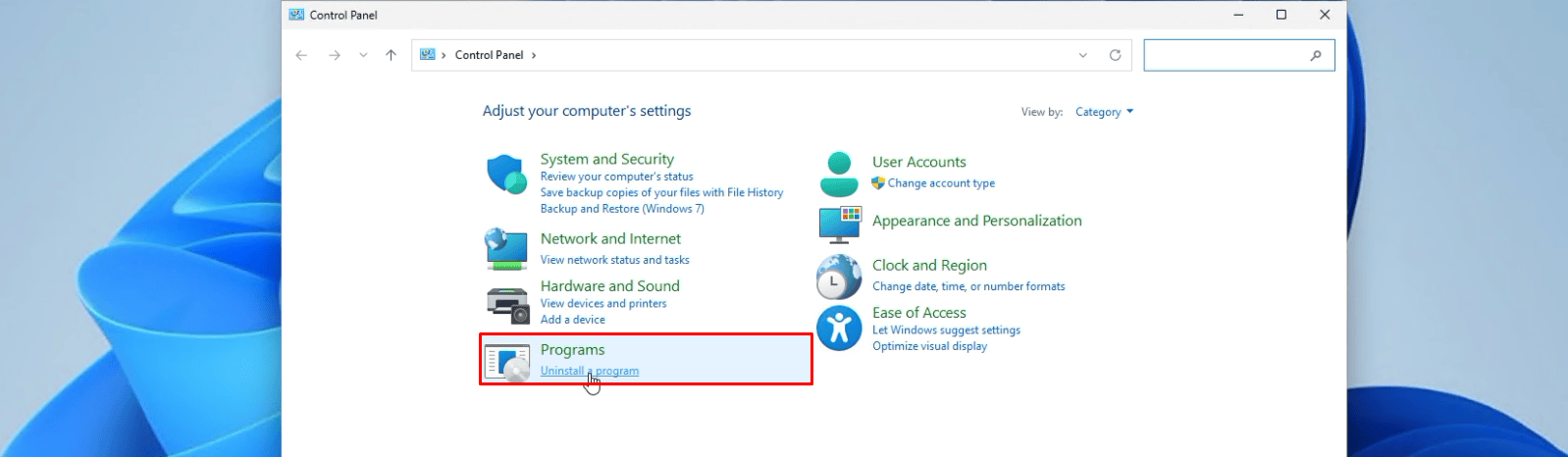
Next, click “Uninstall a program.”
Find the version of Microsoft Office you want to uninstall in the list, right-click it, and select “Uninstall.”

When prompted by the User Account Control (UAC) window asking "Do you want to allow this app to make changes to your device?", click Yes to proceed with the uninstallation.

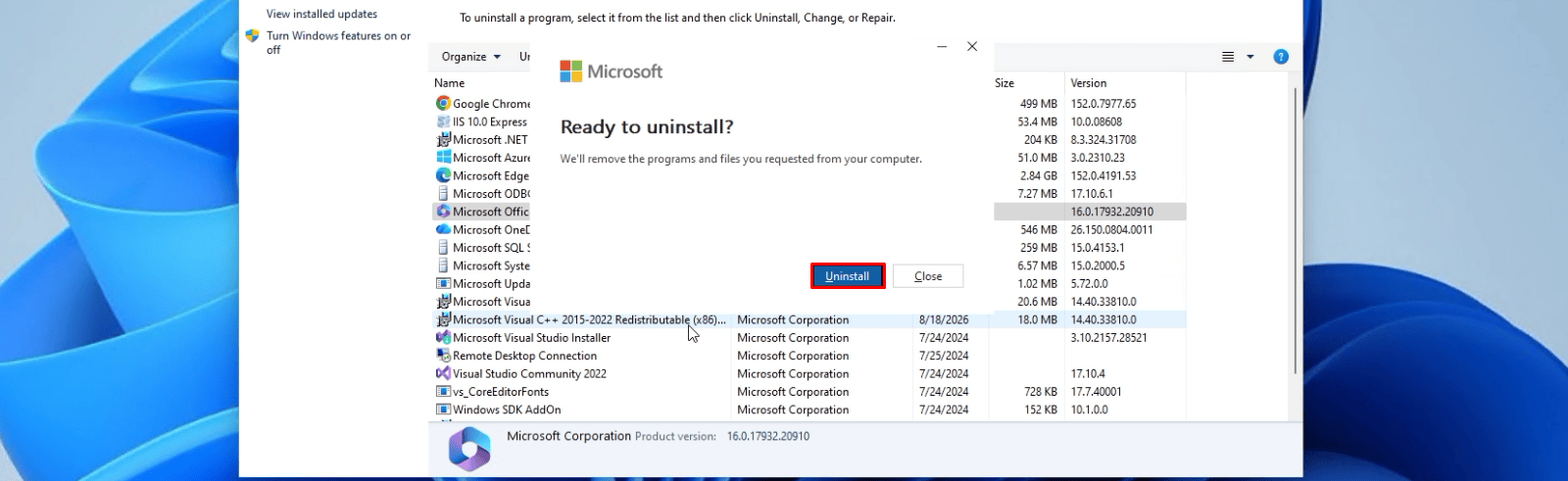
When the Microsoft Office window appears with the message "Ready to uninstall?", click the Uninstall button to begin removing the program from your computer.
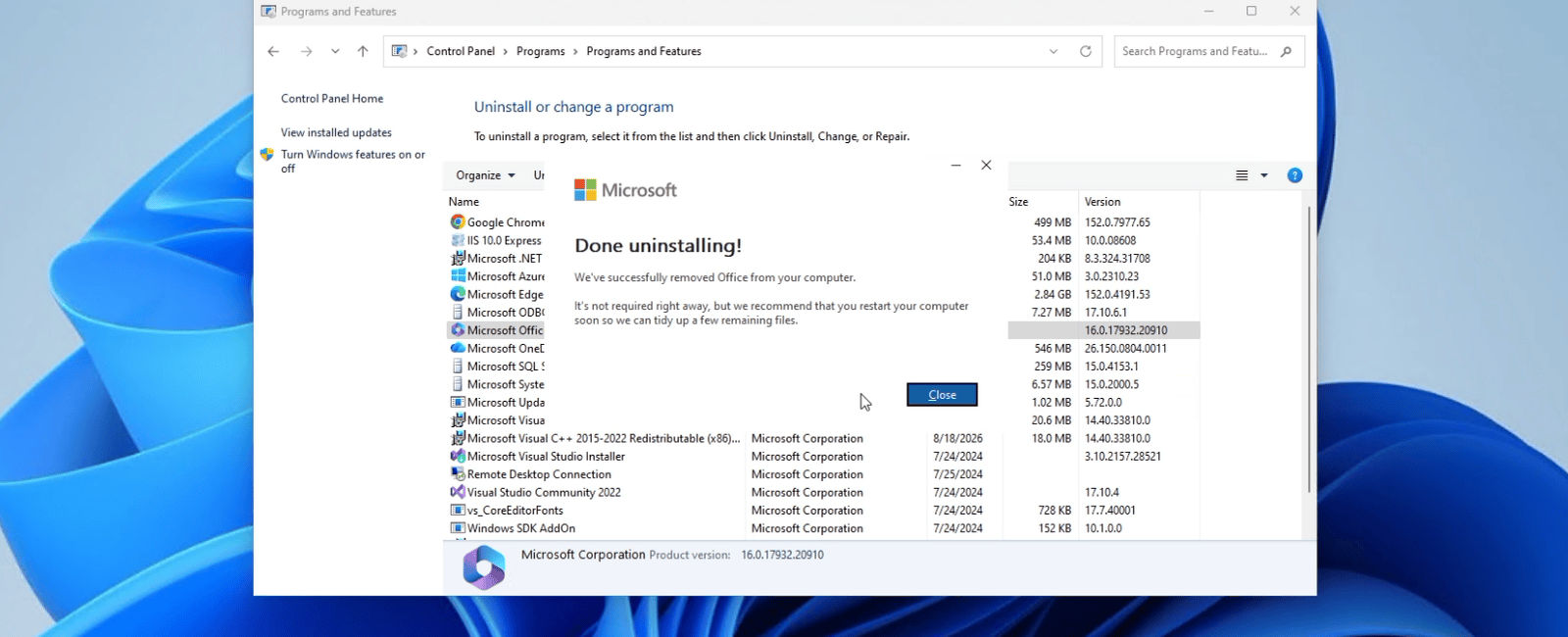
Once the window displays "Done uninstalling!", click the Close button to complete the process.
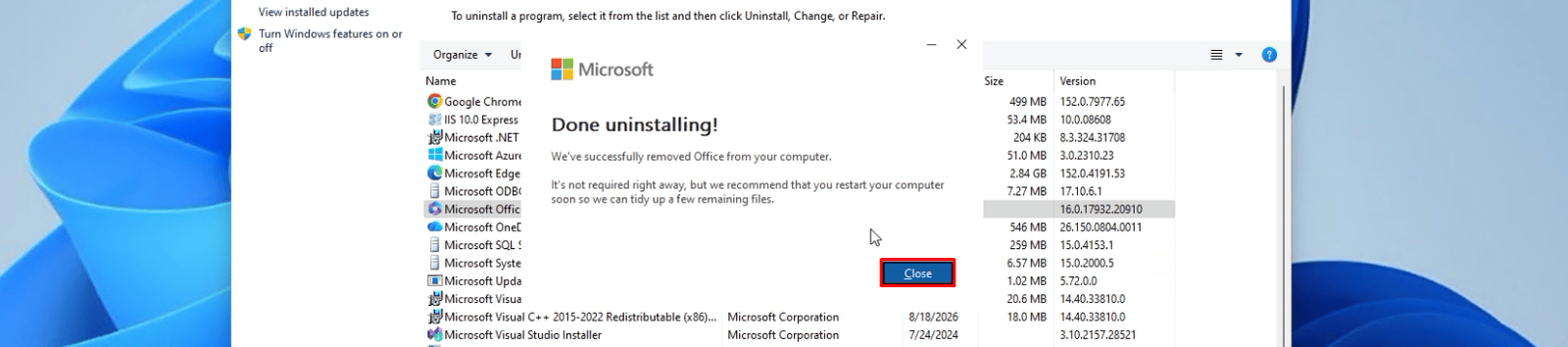
IMPORTANT: To ensure the changes take effect properly and to proceed with the installation, restart your computer once the uninstallation is complete.
No account yet?
Create an Account


 Windows
 Office for PC
 Office for Mac
 Windows Server
 SQL Server
 Office Apps
 Visual Studio
