October Special Offer - 5% OFF SITEWIDE!
Use code:
Valid until Oct 31
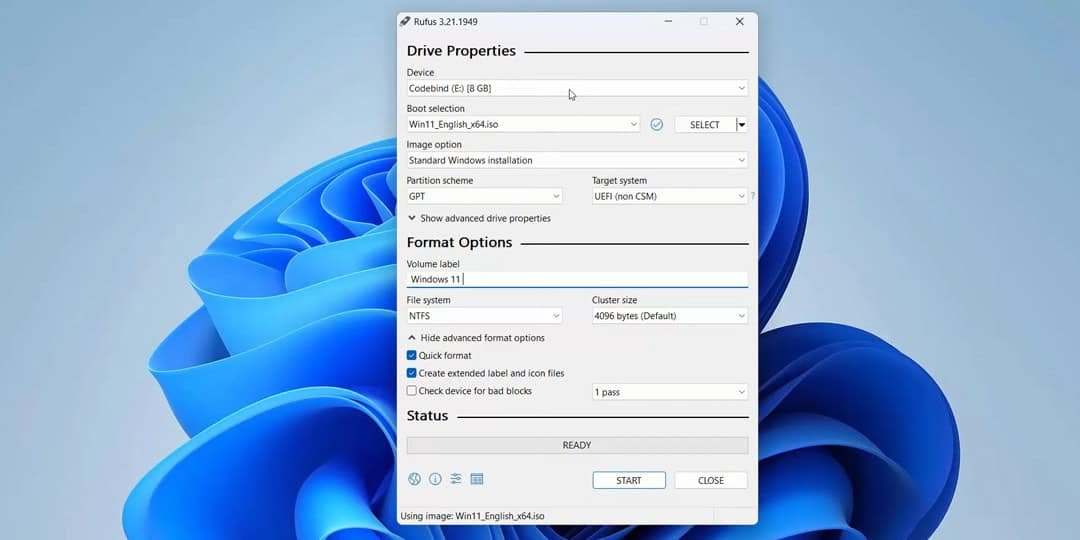
In this article, we’ll take a look at the update of the popular bootable USB creation tool, Rufus, now available in version 4.0. You’ll discover the new features and limitations introduced in this release, along with a detailed step-by-step guide on how to create a bootable USB drive for Windows 10 or Windows 11. We will also briefly discuss support for older Windows versions, such as Windows 7, and highlight important considerations when using the new functionality.
You can download Rufus directly from our server using the provided link or from the official website.
Steps to create a bootable USB drive
1. Select the device and language
First, once you launch Rufus, choose your preferred language.
– Click the globe icon and select your language — in our example, English.
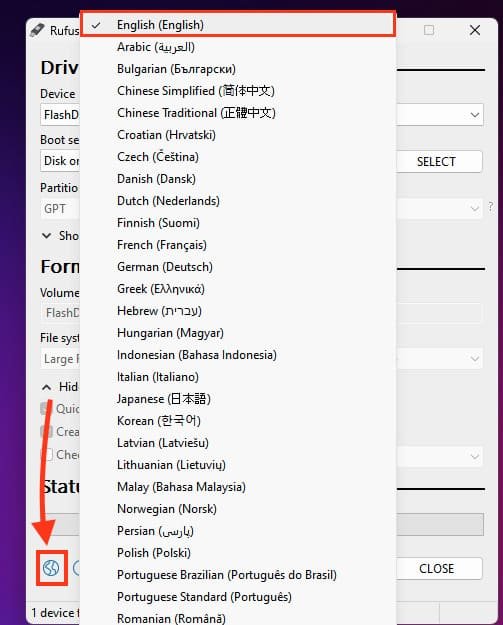
After that, choose the USB drive you want to use for creating the bootable media in the “Device” field.
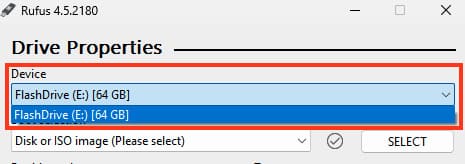
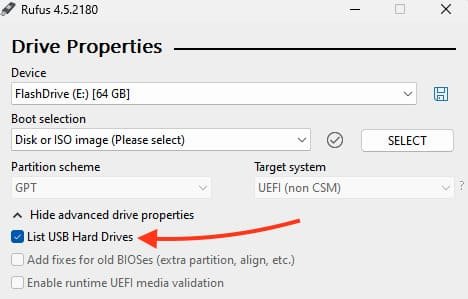
If the USB appears as a local disk, it might not be visible in the list. To resolve this issue:
– Open the “Show advanced drive properties” option.
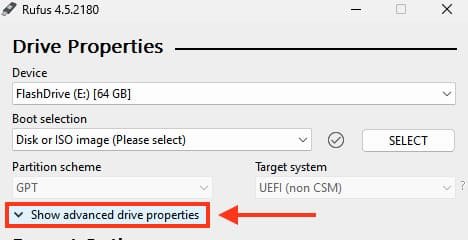
– Enable the “List USB drives” checkbox. The device should now appear in the list.
Keep in mind that all files stored on the USB drive will be permanently deleted.
2. Choose the boot option
Select the preferred boot method. In most cases, the “Disk or ISO image” option is the one you’ll use.

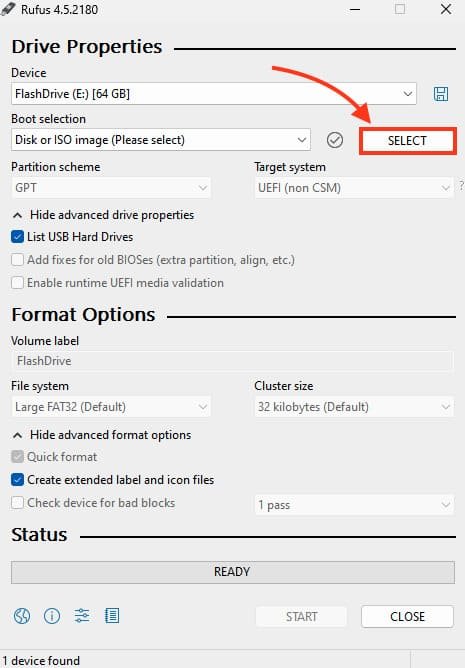
3. Choose the image
If you already have an operating system image file, click “SELECT” and pick the appropriate distribution. If not, you can download it beforehand from our catalog.

4. Select the installation mode
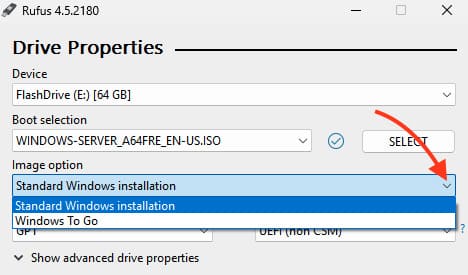
Once the image has been chosen, Rufus will present two available options:
– Select the Standard Windows installation option.
5. Configure the partition scheme and target system
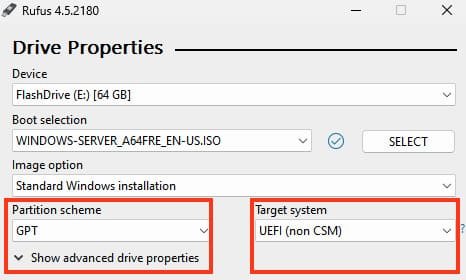
For most modern PCs, the GPT partition scheme and UEFI system type are typically recommended. In most cases, you can keep these settings at their default values.
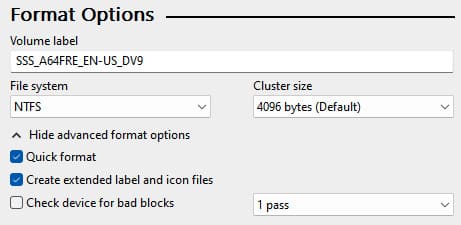
6. Assign the drive label and formatting
You can define a label for the USB drive and enable the quick format option. Use the default settings unless you have particular requirements.
7. Windows 11 compatibility settings
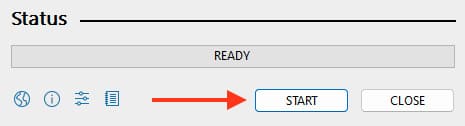
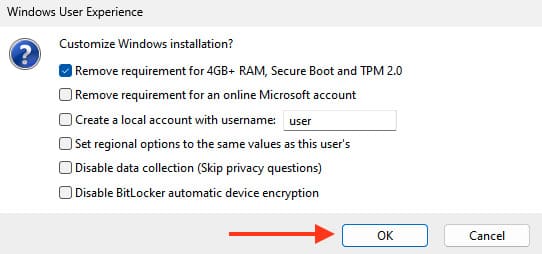
Click “START,” and if your image is for Windows 11, Rufus will provide the following options:
– Bypass the 4GB+ RAM, Secure Boot, and TPM 2.0 requirements.
– Skip the requirement for a Microsoft online account.
– Create a local user account with a chosen username.
– Apply regional settings matching the current user’s configuration.
– Turn off data collection (skip privacy prompts).
– Disable automatic BitLocker device encryption.
If your PC or laptop is older and doesn’t meet the TPM 2.0 or 4GB+ RAM requirements, you can select the first option.
Choose the options you need, then click “OK.”
8. Begin creating the USB drive
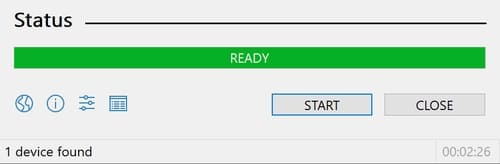
After configuring all previous settings, click “Start” or “OK.”
A final confirmation window will appear before the image is written to the USB drive—click “OK” to proceed.
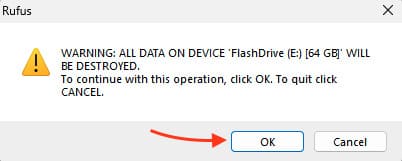
Afterwards, the writing process will begin, and once finished, Rufus will produce a bootable USB drive ready for installing or running Windows.
No account yet?
Create an Account





 Windows
 Office for PC
 Office for Mac
 Windows Server
 SQL Server
 Office Apps
 Visual Studio
