October Special Offer - 5% OFF SITEWIDE!
Use code:
Valid until Oct 31
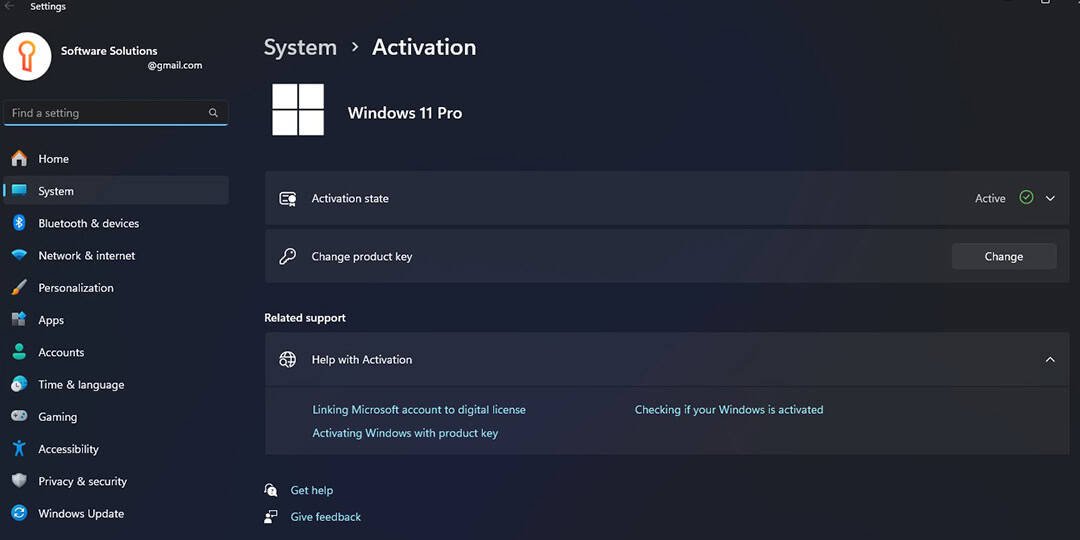
This article provides a detailed, step-by-step overview of the Windows 11 installation process. The operating system will be installed as a clean installation, using the official installation media provided by Microsoft.
1. The first step is to download the Windows 11 installation media and create a bootable USB flash drive. This can be accomplished using Microsoft’s official Media Creation Tool. Detailed instructions for creating a bootable USB drive are available in a previous article.
Alternatively, the installation image can be downloaded directly from the official Microsoft website or from our server and written to a USB flash drive using third-party utilities, such as Rufus, by following the corresponding instructions.
2. Once the bootable Windows 11 USB flash drive has been created, the system must be configured to boot from it via UEFI (BIOS). Since motherboard firmware interfaces and configurations vary by manufacturer, there is no universal procedure for this step. However, general guidance on booting from a USB device in UEFI (BIOS) mode can be found in the referenced instructions.
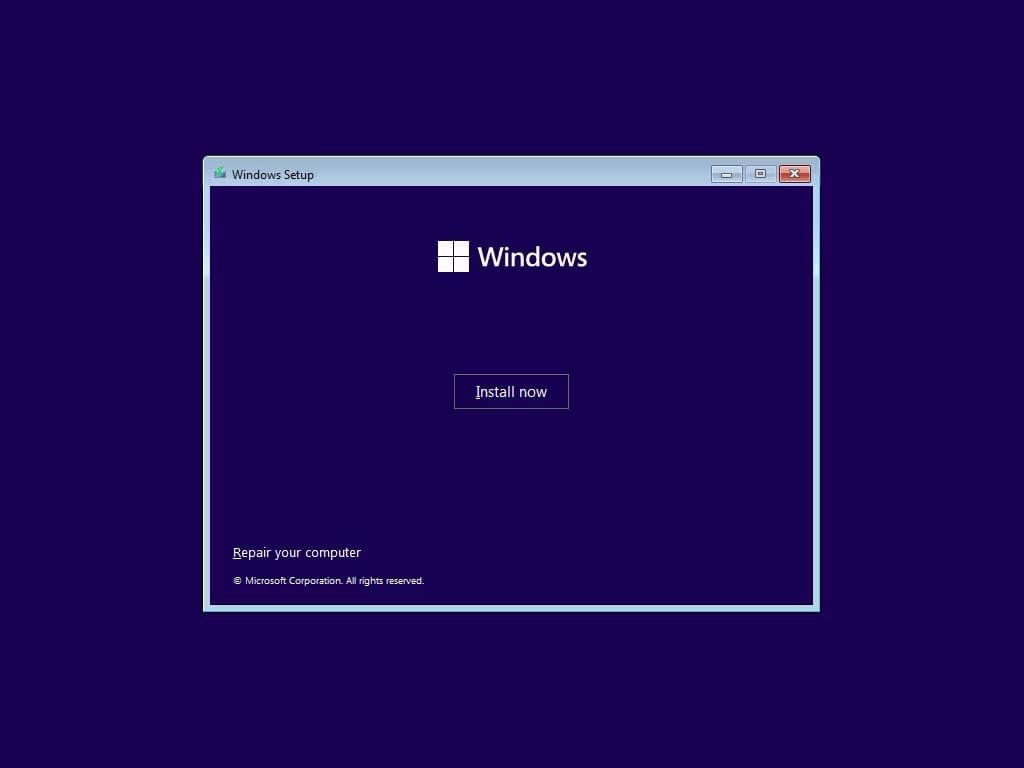
3. After successfully booting from the USB drive, proceed with the installation process. If all previous steps were completed correctly, the Windows 11 setup interface will be displayed, indicating that the installation can begin.

The default language and keyboard layout settings will be retained as English.

Click Install now and wait for the installation to start.
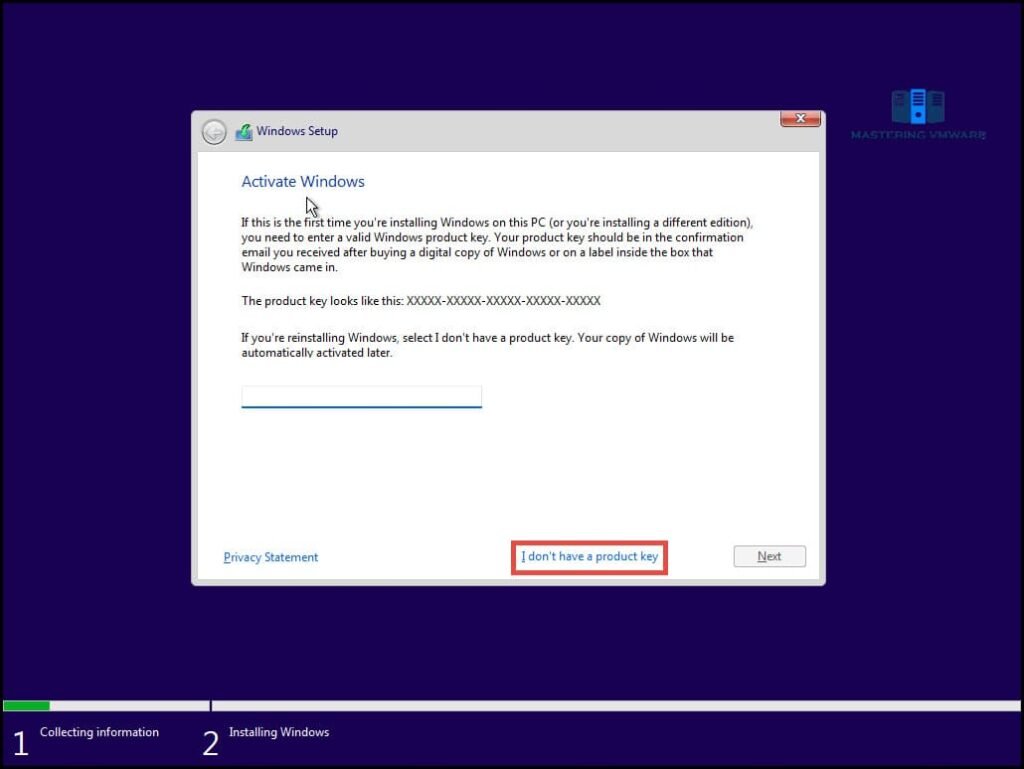
Once Windows 11 is installed, it is recommended to enter your product key and activate the system. To proceed, select the option “I don’t have a product key” in the window.
At this stage, the system prompts you to select a Windows 11 edition. In this example, Windows 11 Pro will be installed; however, any available edition may be selected, as the installation procedure remains the same.

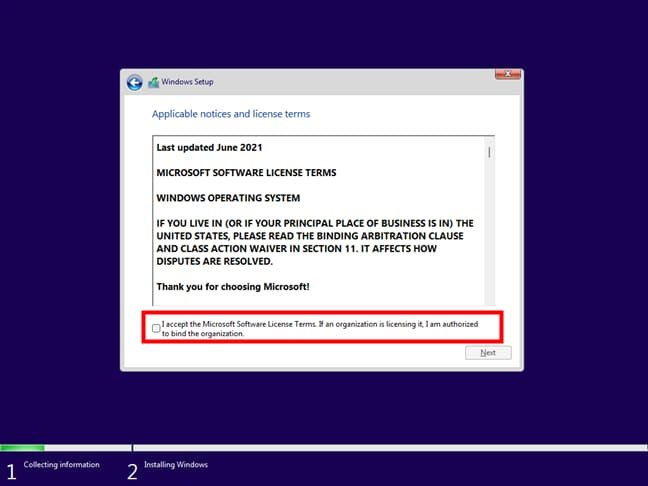
Select the checkbox to indicate acceptance of the license agreement.
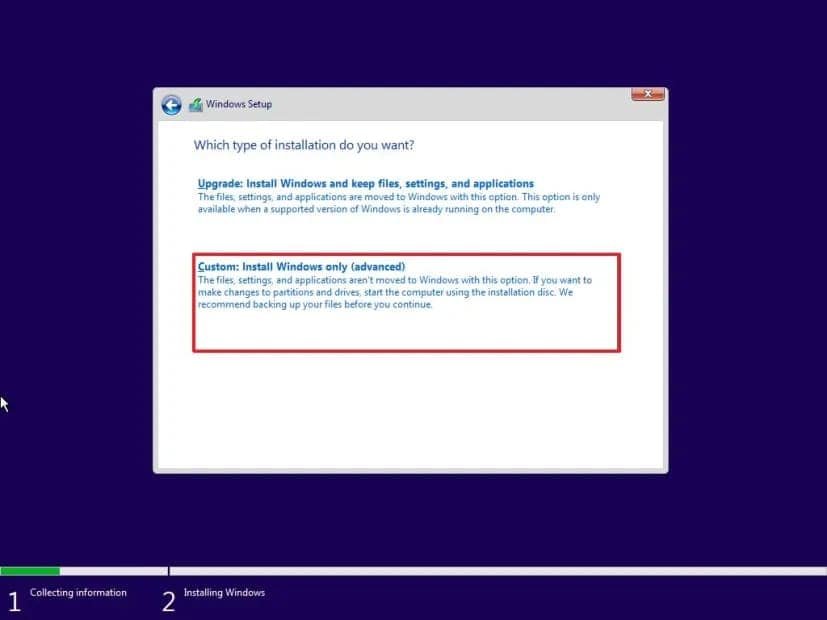
As this is a clean installation, select “Custom Installation” in the subsequent window.
In the following window, all available storage devices and their partitions will be displayed. In this example, a single hard drive is present; however, multiple drives may be listed. Select the target drive or partition for the operating system installation and click “Next.”

Next, the installation of the operating system components will commence. Allow the process to complete before proceeding.

Upon completion of the extraction and installation phases, the system will automatically restart and initiate the configuration process in preparation for the initial setup.


The Setup Wizard will prompt you to specify your region. For this example, “United States” is selected.

Next, specify the primary keyboard layout; for this example, select “US”. When prompted to configure an additional keyboard layout, choose Skip.

Next, the Setup Wizard will initiate a search for the latest updates and proceed to download them. Allow the process to complete before continuing.

After the update downloads are complete, proceed with the initial system configuration. At this stage, assign a computer name, which may be up to 15 characters in length.

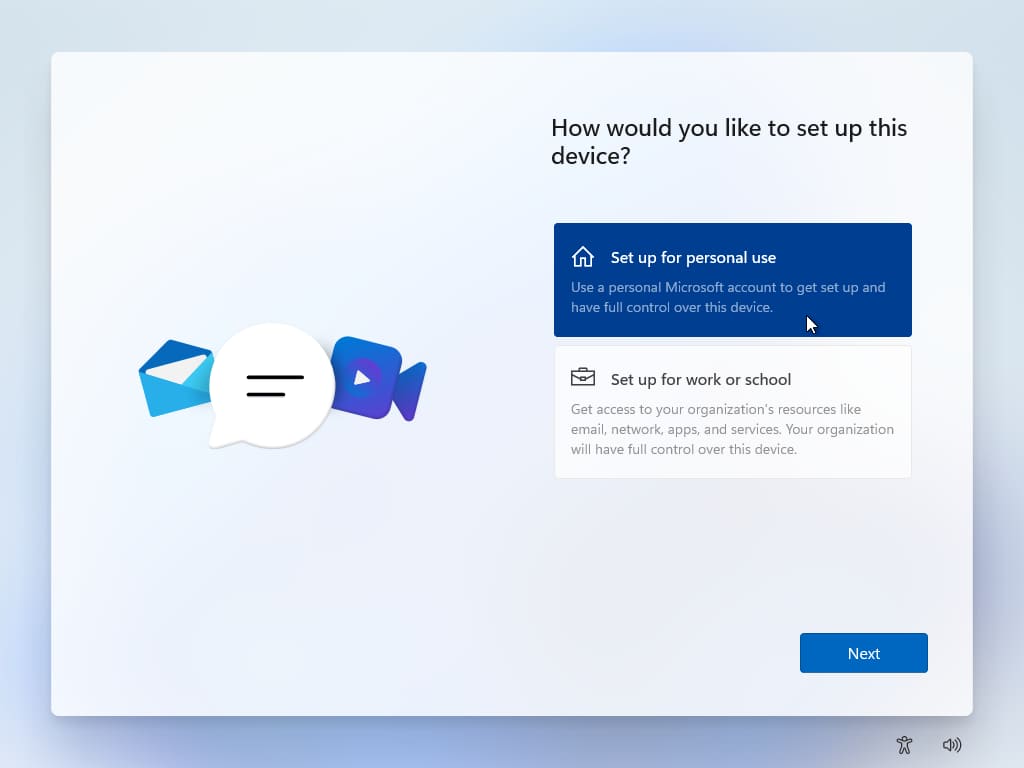
Next, specify the intended use of the device. If the computer is not part of an organizational domain or does not require domain assignment, select Configure for personal use and click Next.
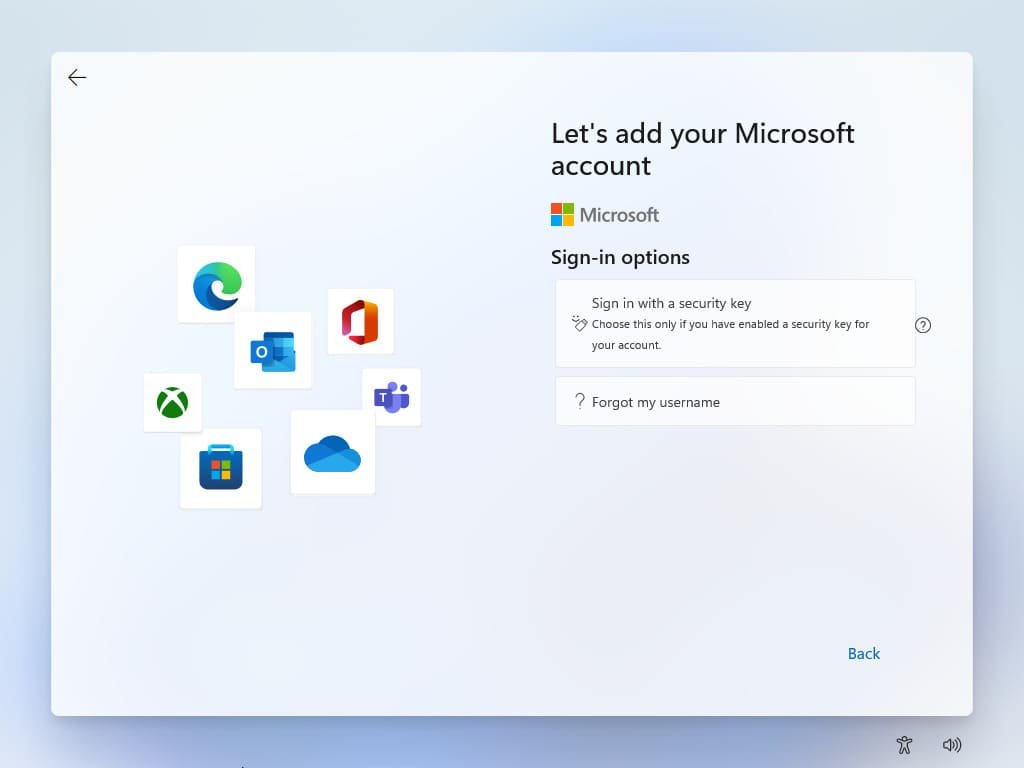
At this stage, you are required to authenticate using a Microsoft account. If no account is available, a new one can be created by following the instructions provided in the preceding documentation.
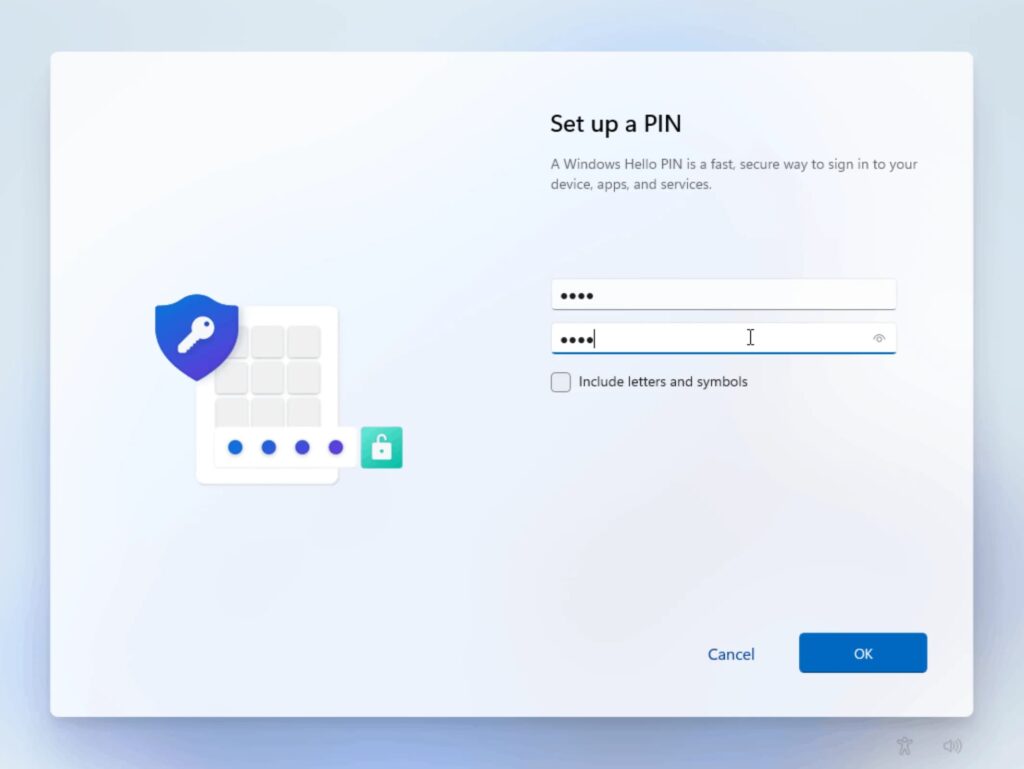
After authenticating with your Microsoft account, you will be prompted to configure a PIN for sign-in. This numeric code provides a streamlined login method, allowing access without entering the full account password.

Configure a PIN by entering the desired code twice to confirm and validate the setup.
The next step is to configure the system privacy settings. In this example, all options are disabled; however, the selection may be adjusted according to your preferences.

Next, the wizard asks you to select the items whose tasks are expected to be used on this PC. This is not a mandatory step, so it will be skipped in this example.

Next, you will be prompted to configure automatic synchronization of selected folders—specifically Desktop, Documents, and Pictures—to OneDrive. This option is optional; in this example, “Only store files on this device” is selected.

The initial system configuration is now complete. Allow the system to finalize the boot process and load the desktop environment.
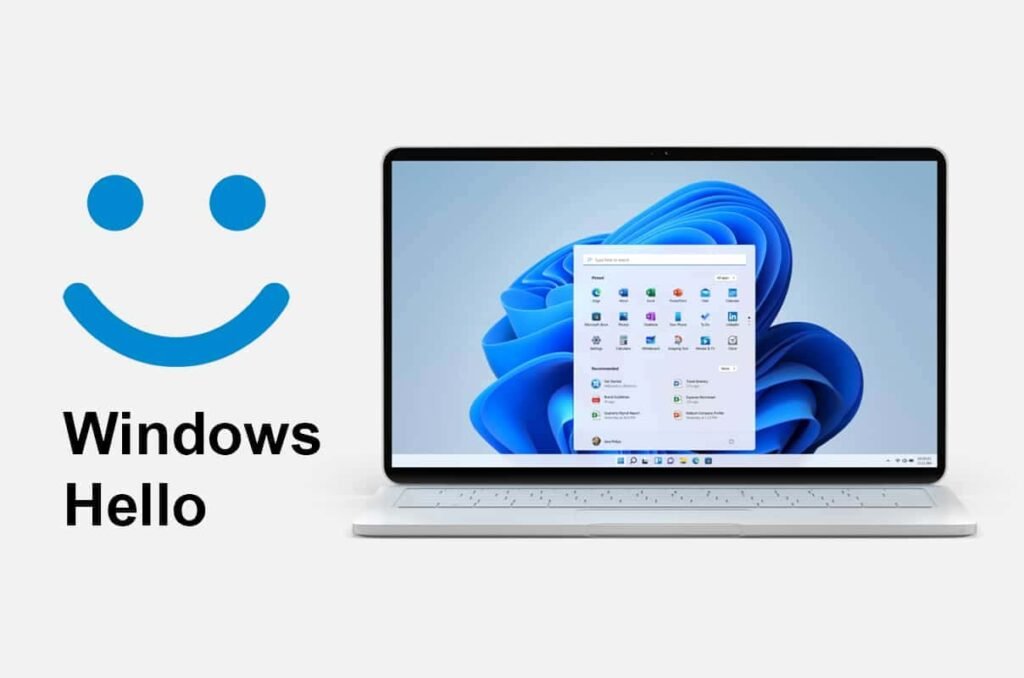
Complete! The Windows 11 desktop environment has fully loaded and is operational.

To verify your Windows 11 version, navigate to File Explorer → This PC → Advanced settings → Properties, and then select Properties from the context menu.
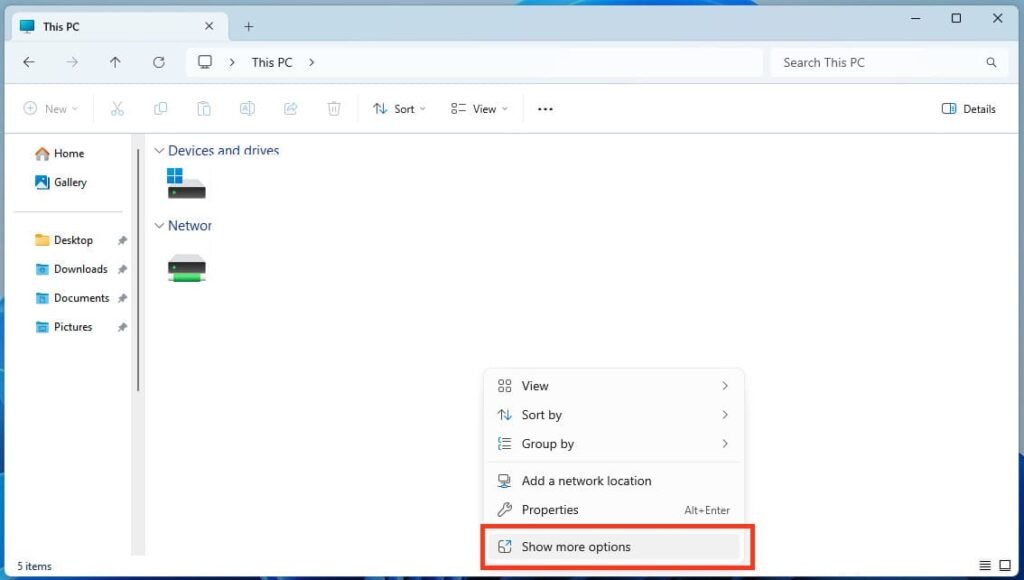
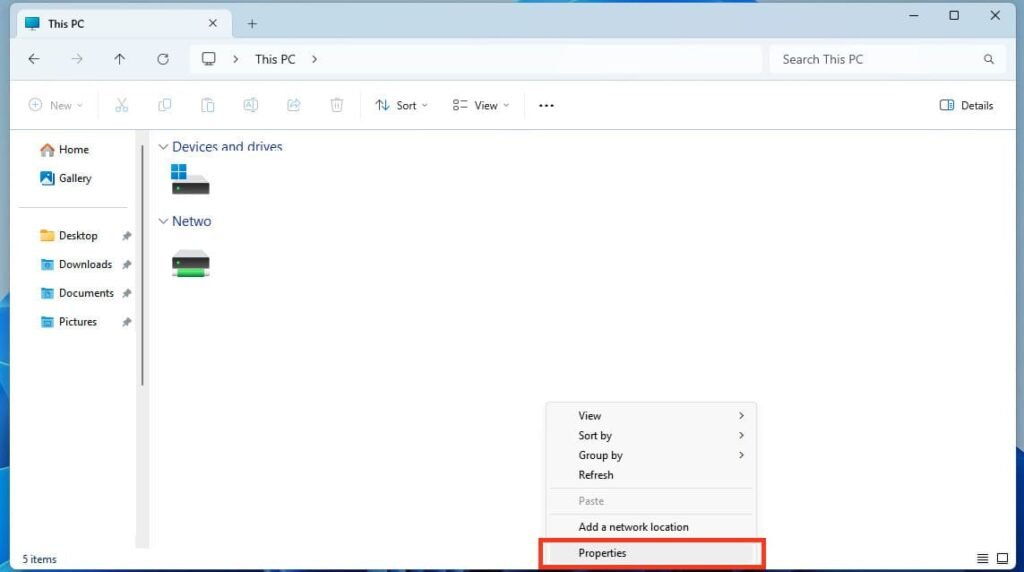
Within the System section, the installed Windows 11 edition is displayed. In this example, Windows 11 Pro has been deployed.

If the operating system was installed as a clean setup, it is likely not yet activated. Activation is required to ensure full and uninterrupted functionality. System activation status can be verified in the System menu by navigating to Product Key and Activation.

You can utilize the taskbar search functionality by entering “activation” in the query field, then select the corresponding search result to access the activation settings.
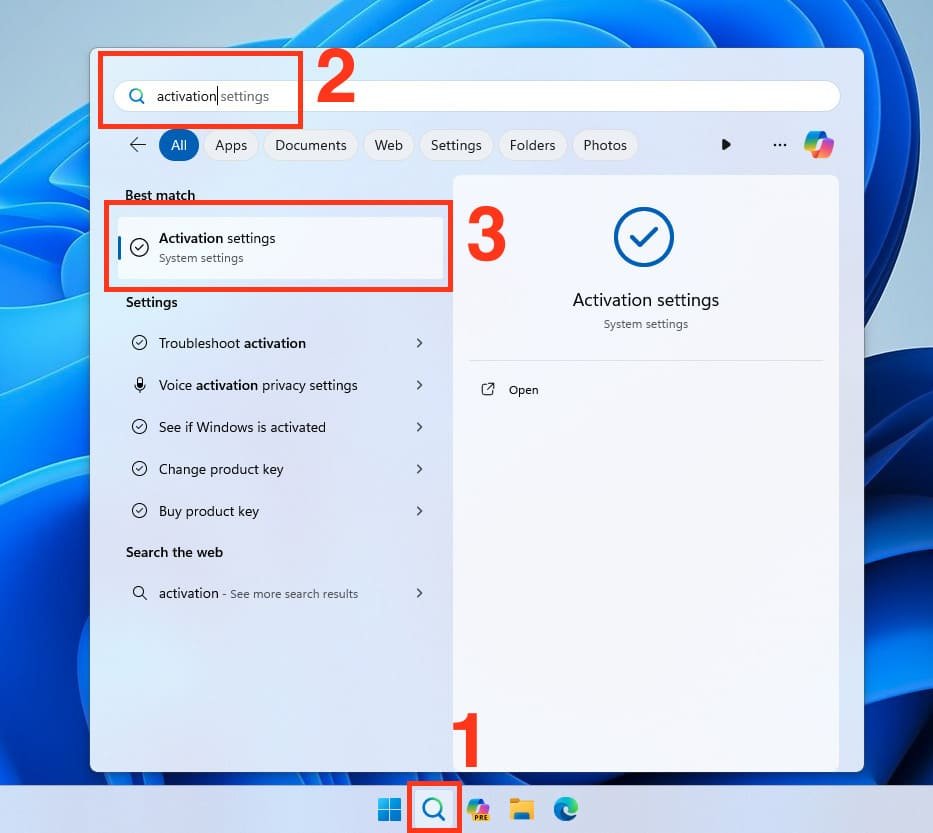
In either case, you will be directed to the System Activation menu, where the activation status of your operating system is displayed. If the system is not activated, the status will show as Inactive. Activation requires a valid product key corresponding to your installed edition.
Activation keys for various Windows 11 editions are available through our catalog. All keys are genuine and delivered instantly via email upon successful payment, with automated processing. Additionally, 24/7 warranty and technical support are provided.
If you already have a valid activation key for your Windows 11 edition, select the Change button under Change product key to enter the key and complete activation.
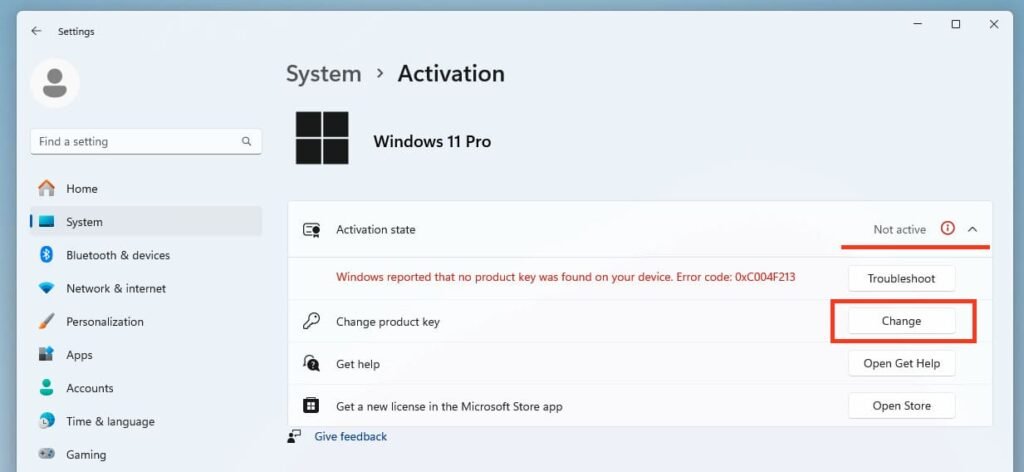
In the subsequent window, input your product key into the Key Entry field.

Next, select the Activate button to initiate the activation process.
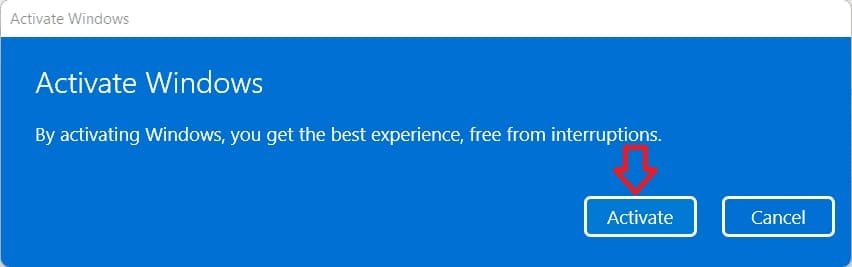
If the entered key is valid, the subsequent window will confirm that the Windows operating system has been successfully activated.
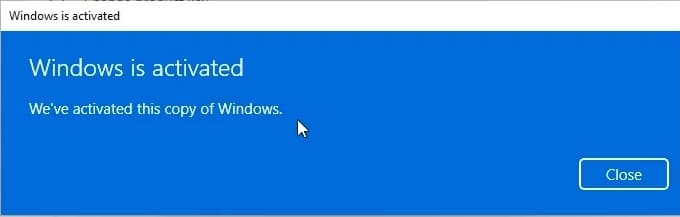
To verify activation, navigate to the Activation menu to confirm that the activation status is Active. Expanding the menu will display that the Windows operating system has been activated using a digital license and is now associated with your Microsoft account.

No account yet?
Create an Account





 Windows
 Office for PC
 Office for Mac
 Windows Server
 SQL Server
 Office Apps
 Visual Studio
