October Special Offer - 5% OFF SITEWIDE!
Use code:
Valid until Oct 31

This article provides a step-by-step guide on how to install and activate Microsoft Office 2021.
1. Obtain the official installer from Microsoft – You can download the Microsoft Office 2021 installer (ISO file) directly from Microsoft’s servers using this link.
2. Activation is required – An activation key is necessary to fully use the software. Without it, Office will run in trial mode for 3 to 30 days. After the trial period ends, editing documents will be disabled, and only viewing will remain available. A product key can be purchased from our catalog via this link. Right after your payment is confirmed, we email you a secure link to your license.
3. Install the software – Open the downloaded file by double-clicking it to view its contents. Then, to begin the installation process, simply double-click the “Setup” file.

4. The installation procedure for Microsoft Office 2021 will commence automatically. Please allow the process to complete uninterrupted. The duration of the installation depends on network bandwidth and system performance; typically, it is completed within 10–15 minutes.
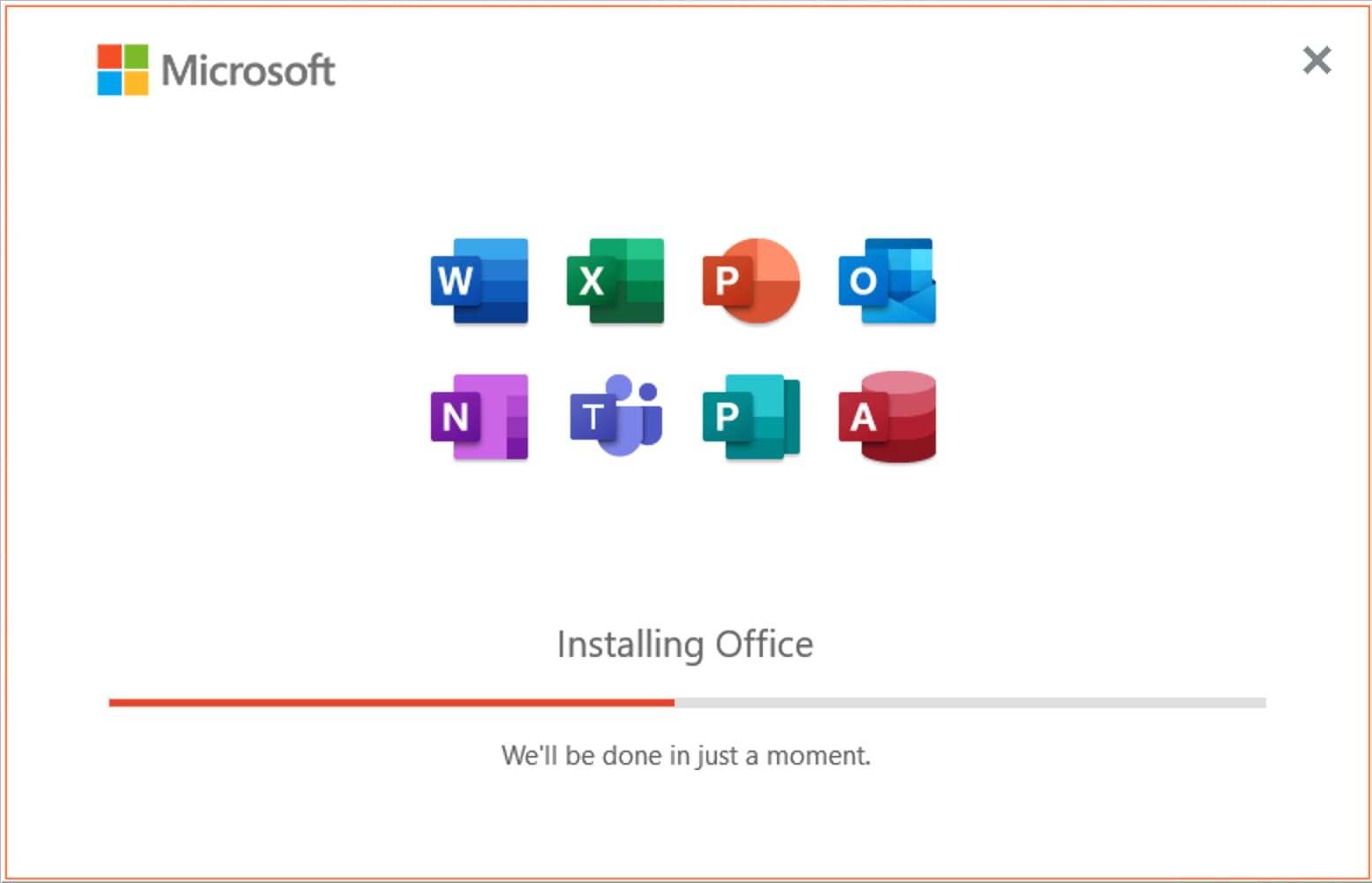
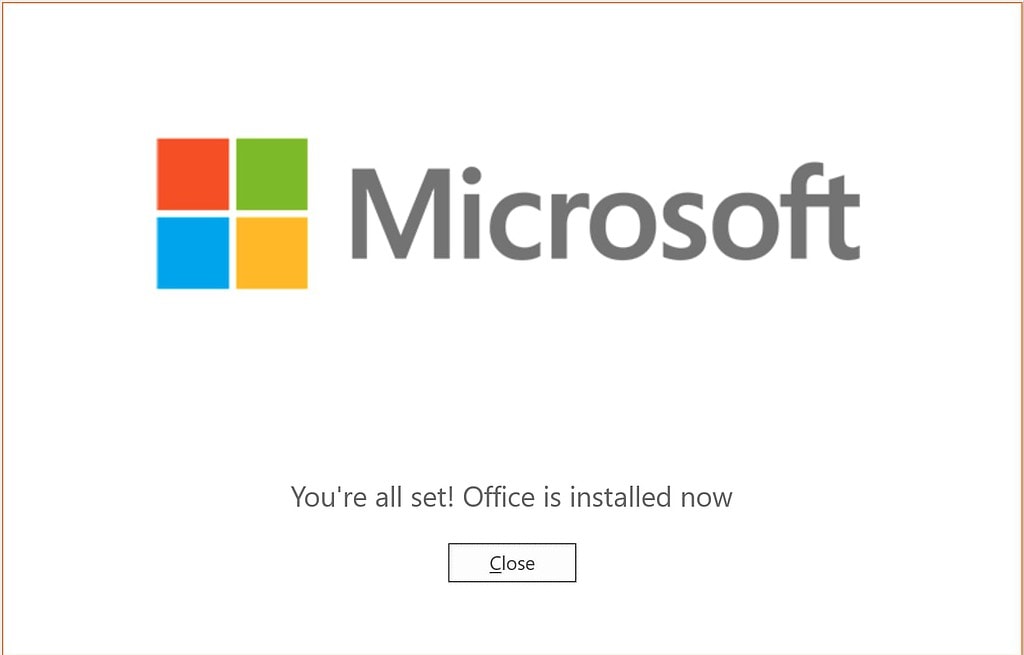
Upon successful installation, a notification window will be presented to confirm that Microsoft Office 2021 has been fully installed.
5. Once Microsoft Office 2021 has been installed, it must be activated. To initiate activation, launch any Office application, such as Excel.
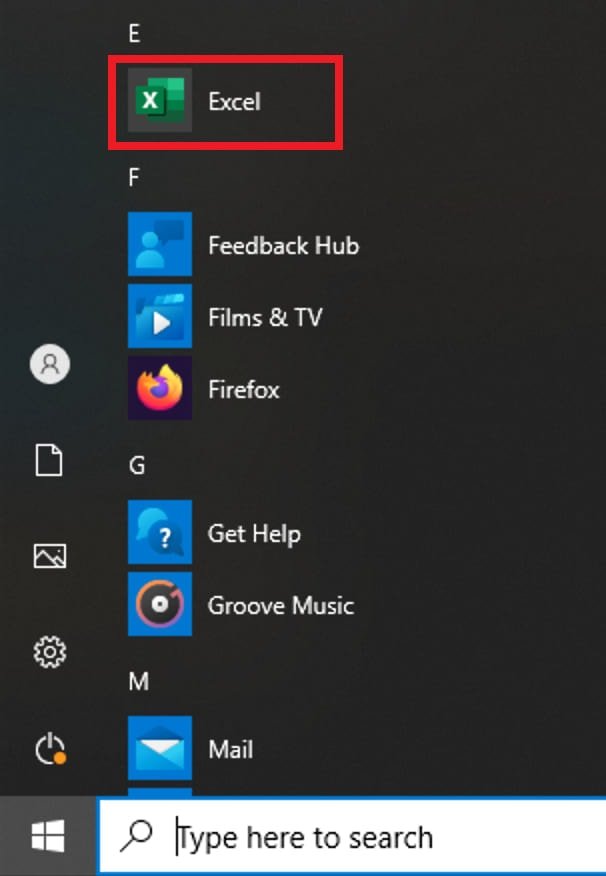
For systems running Windows 10, open the Start menu, locate an Office 2021 application (e.g., Excel), and execute it to proceed with the activation process.
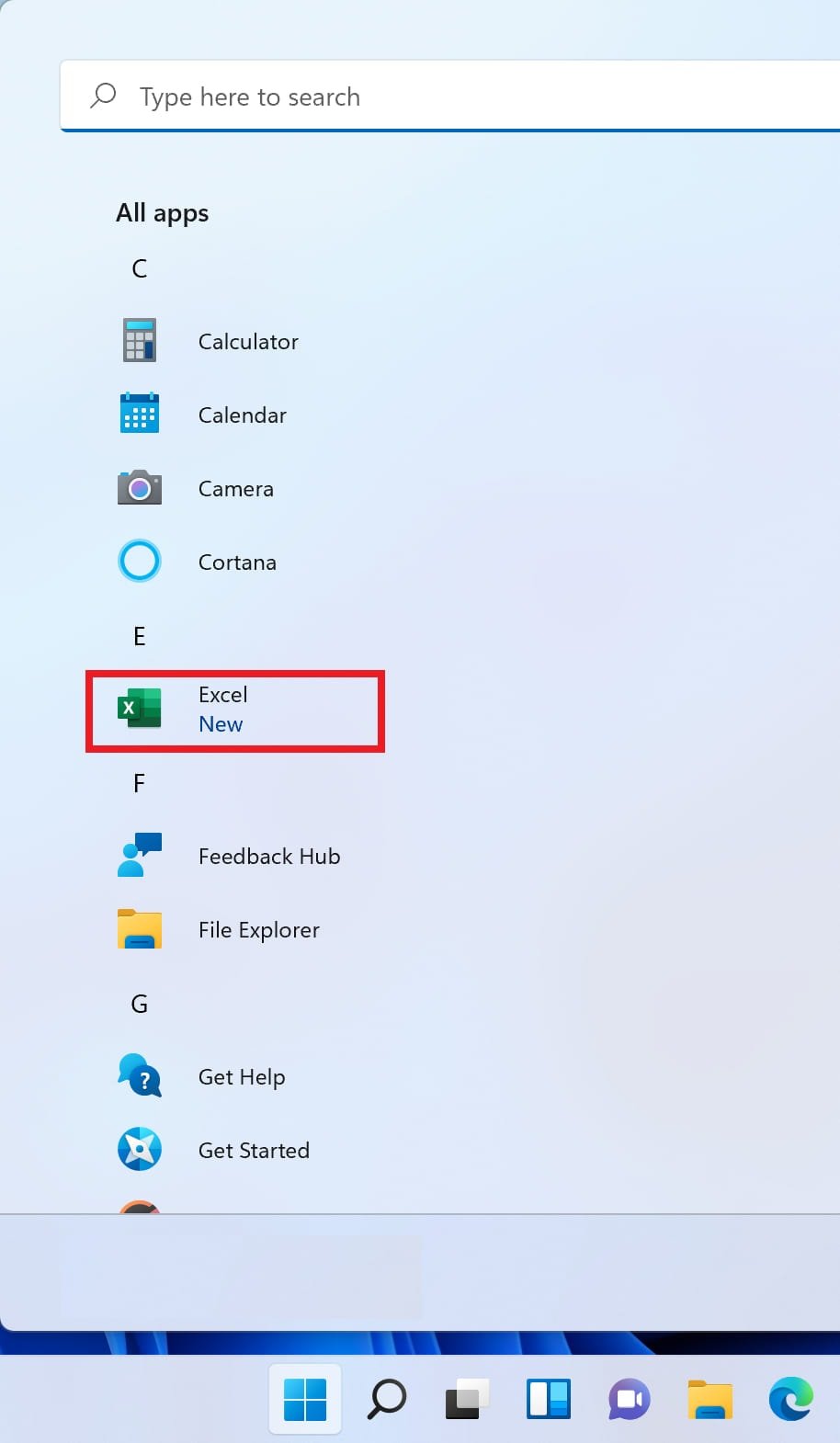
For systems running Windows 11, open the Start menu, navigate to All apps, locate Excel, and launch the application.

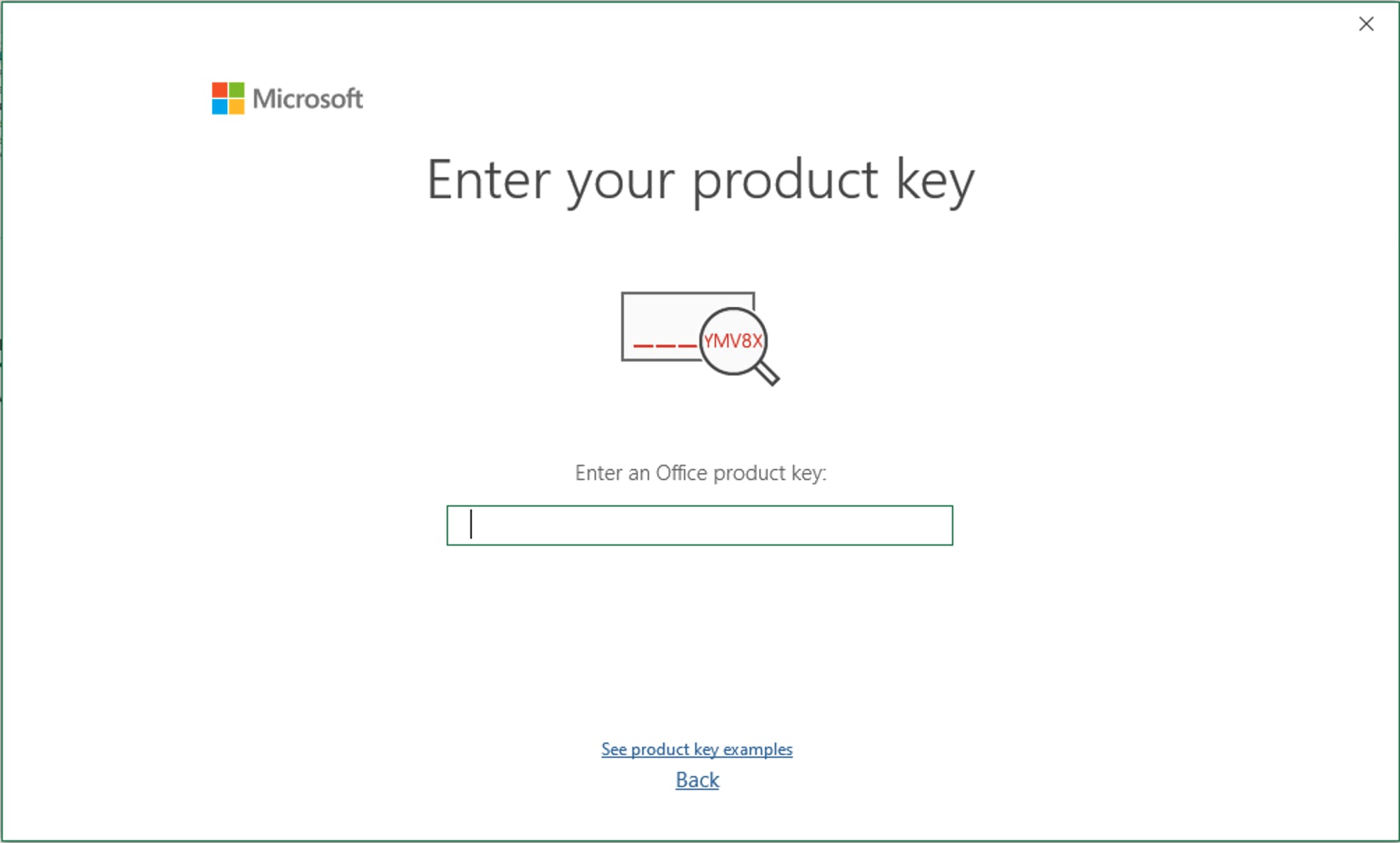
6. When opening the application for the first time, a window will be displayed requesting activation. Input your Microsoft Office 2021 license key in the provided field and click “Activate” to finalize the activation.
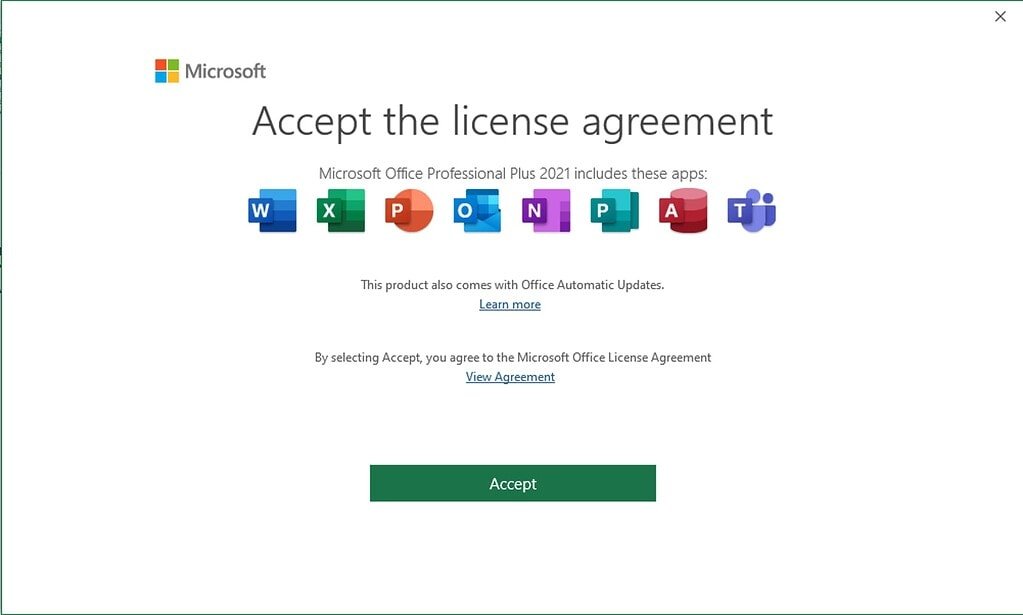
Confirm acceptance of the Microsoft Office license terms.
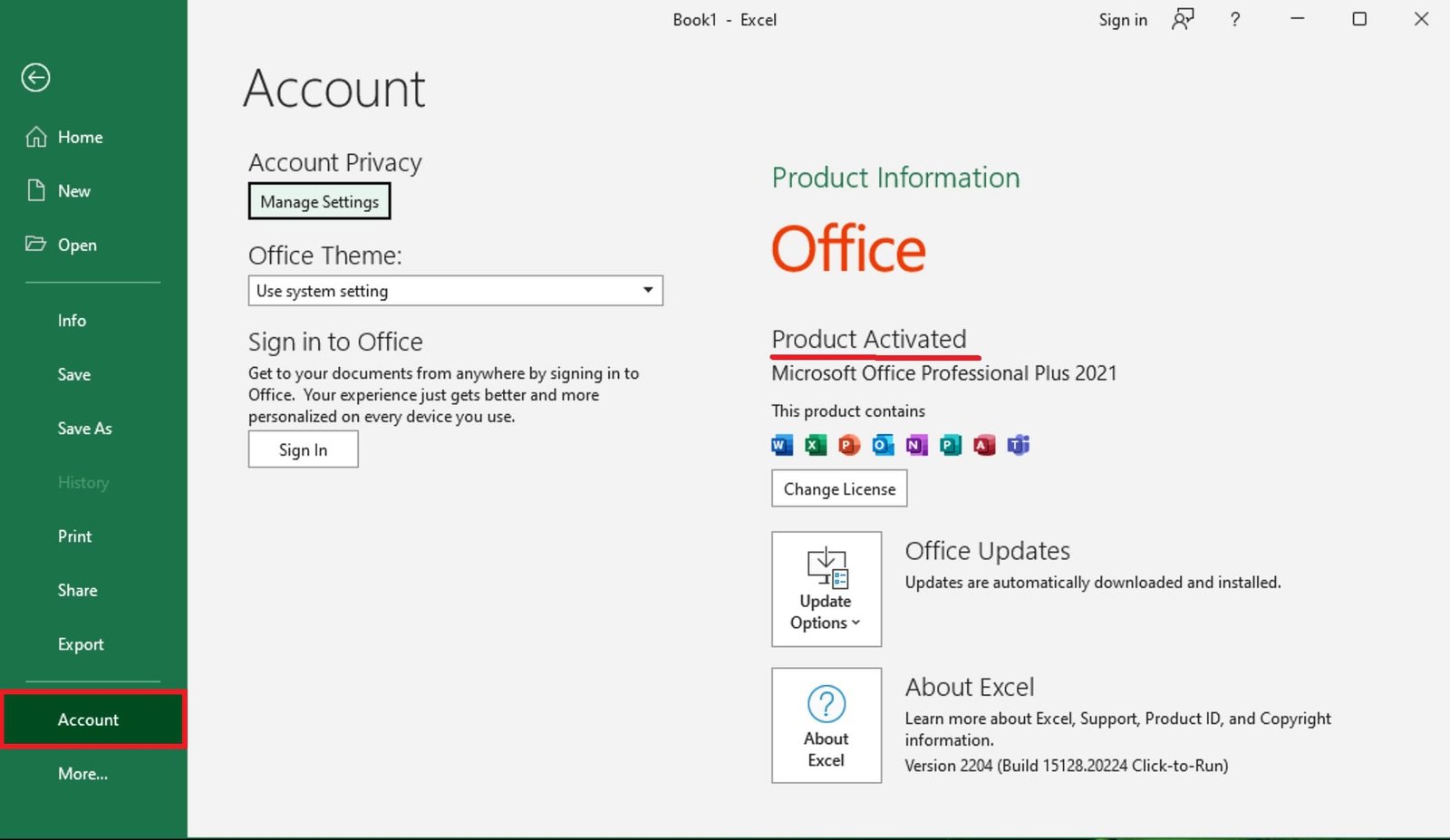
Activation successful. Check the current activation status within the “Account” settings.
The setup of Microsoft Office 2021 is finished; the application is ready for use.
No account yet?
Create an Account





 Windows
 Office for PC
 Office for Mac
 Windows Server
 SQL Server
 Office Apps
 Visual Studio
