October Special Offer - 5% OFF SITEWIDE!
Use code:
Valid until Oct 31

In this guide, we will walk you through the complete process of downloading, installing, and activating Microsoft Office 2016 Pro Plus. By following these steps, you will be able to set up the full Office suite quickly and start working efficiently.
Note: Microsoft ended support for Office 2016 on October 14, 2025: it no longer gets security updates.
– We will use the official installation package provided by Microsoft. Download the Microsoft Office 2016 Pro Plus installer using the direct link from Microsoft’s server.
– A valid product key is required to activate the software. If you do not activate it, the program will run in trial mode for 30 days. Once the trial expires, you will only be able to view documents, and editing features will be disabled.
– You can obtain a product key from our catalog. Right after your payment is confirmed, we email you a secure link to your license.
– Locate the file you downloaded and double-click it to open the installer.
– Then double-click the Setup file to begin the installation process.
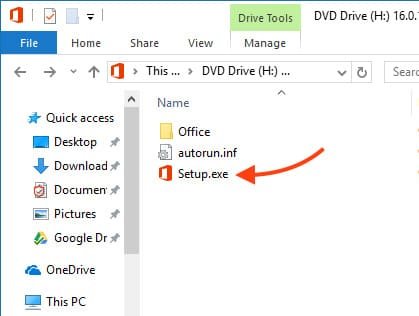
– The setup process for Microsoft Office 2016 Pro Plus will start automatically. Please wait until it is completed. The duration of the installation may vary depending on your internet connection and your computer’s performance, but it typically takes around 10–15 minutes.
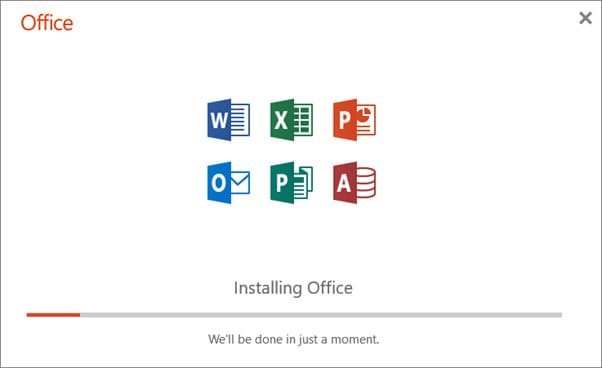
– After the installation finishes, a confirmation message will appear on your screen indicating that the process has been successfully completed.

Once the installation is finished, the next step is to activate the software. To proceed, open any Office program, such as Word.
– Click on the “Start” menu.
– Locate any application from the Office 2016 package, for example Word, and open it.

The first time you open the application, an activation window will appear with a space to input your product key.
– Type your Microsoft Office 2016 Pro Plus product key into the designated field.
– Once the key has been entered, select the “Install” button to finalize the activation process.

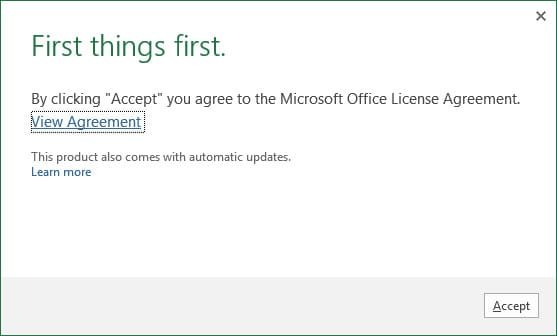
– Agree to the license terms and conditions.
– That’s it! The application should now be successfully activated. You can verify the activation status in the “Account” section. To open it, click on “File” in the upper-left corner of the document window.

– Next, navigate to the “Account” section and confirm that Office 2016 has been properly activated and is ready for use.

Installing and activating Microsoft Office 2016 Pro Plus is simple and does not demand any technical expertise. By following our detailed step-by-step guide, you can easily set up the complete Office suite needed for productive work.
No account yet?
Create an Account





 Windows
 Office for PC
 Office for Mac
 Windows Server
 SQL Server
 Office Apps
 Visual Studio
