November Special Offer - 5% OFF SITEWIDE!
Use code:
Valid until Nov 30
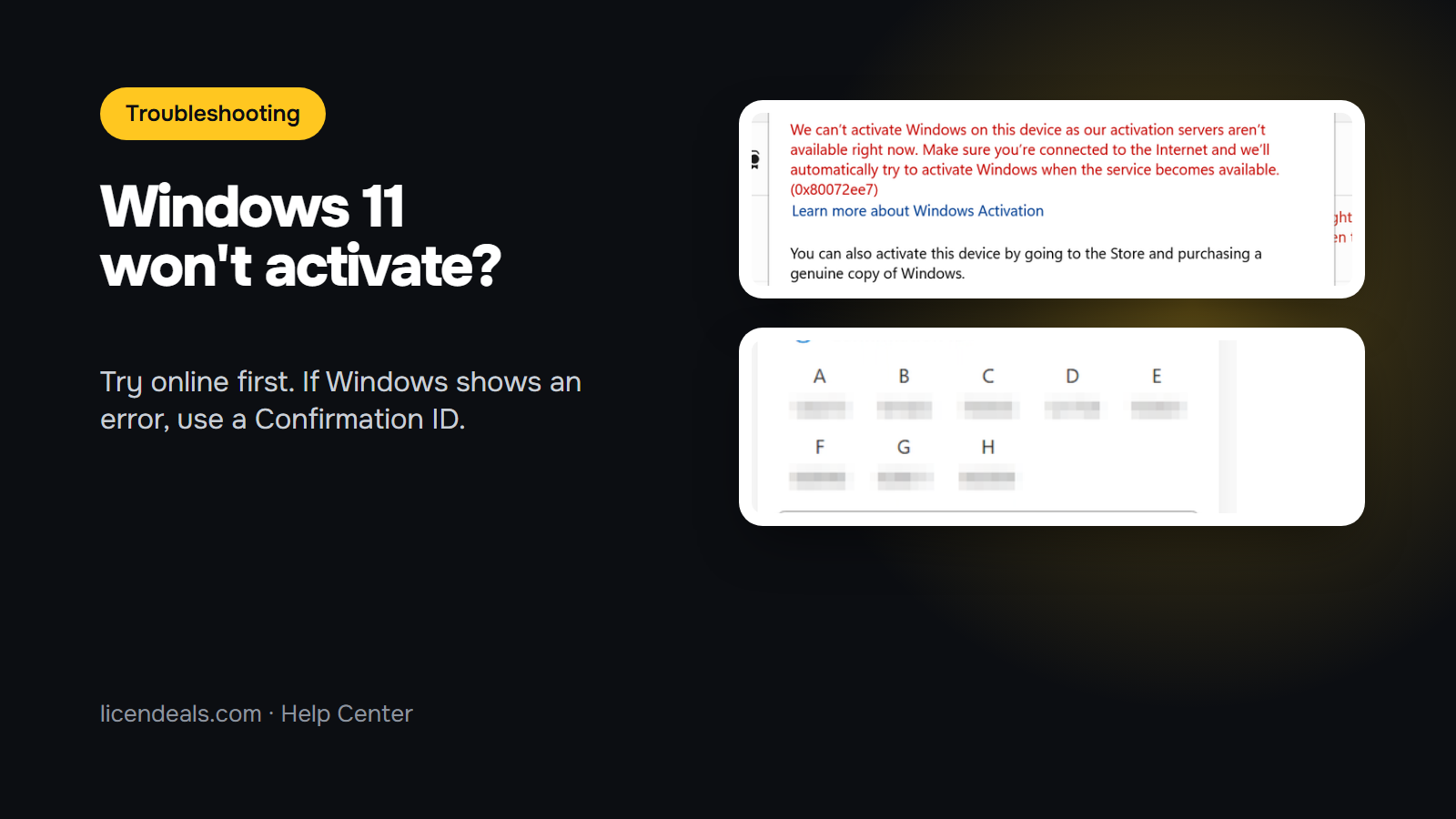
Windows 11 won't activate online? Don't worry: your license may still be fine. With a CID License, Windows 11 is activated in two possible ways. First, Windows tries to activate online when you enter the key, and many times that is all you need. Only if Windows shows an activation error do you use the second way: a Confirmation ID from Microsoft's own activation portal. This post shows when to use each one, with real screenshots.
IMPORTANT: for the Confirmation ID you only need an internet connection. Everything is done online, on Microsoft's website: you don't need to call anyone.
1.1 Go to Settings > System > Activation, click "Change" next to "Change product key", enter your license key and click "Next" and then "Activate". If Windows says "Windows is activated", you are done and you don't need the rest of this post.
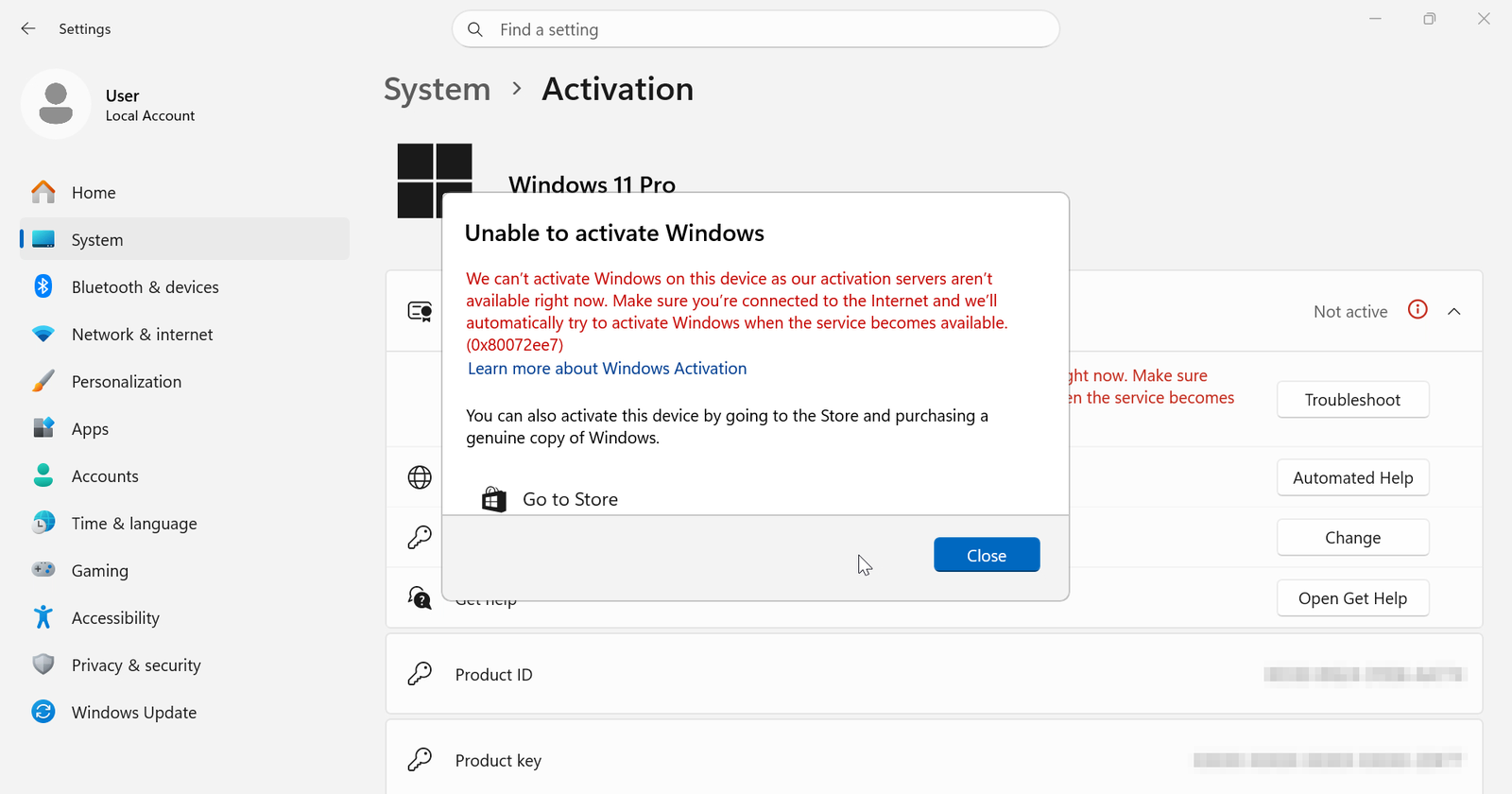
1.2 If Windows shows "Unable to activate Windows", like in the screenshot below, the online activation did not work. This is the moment to use a Confirmation ID. Click "Close".
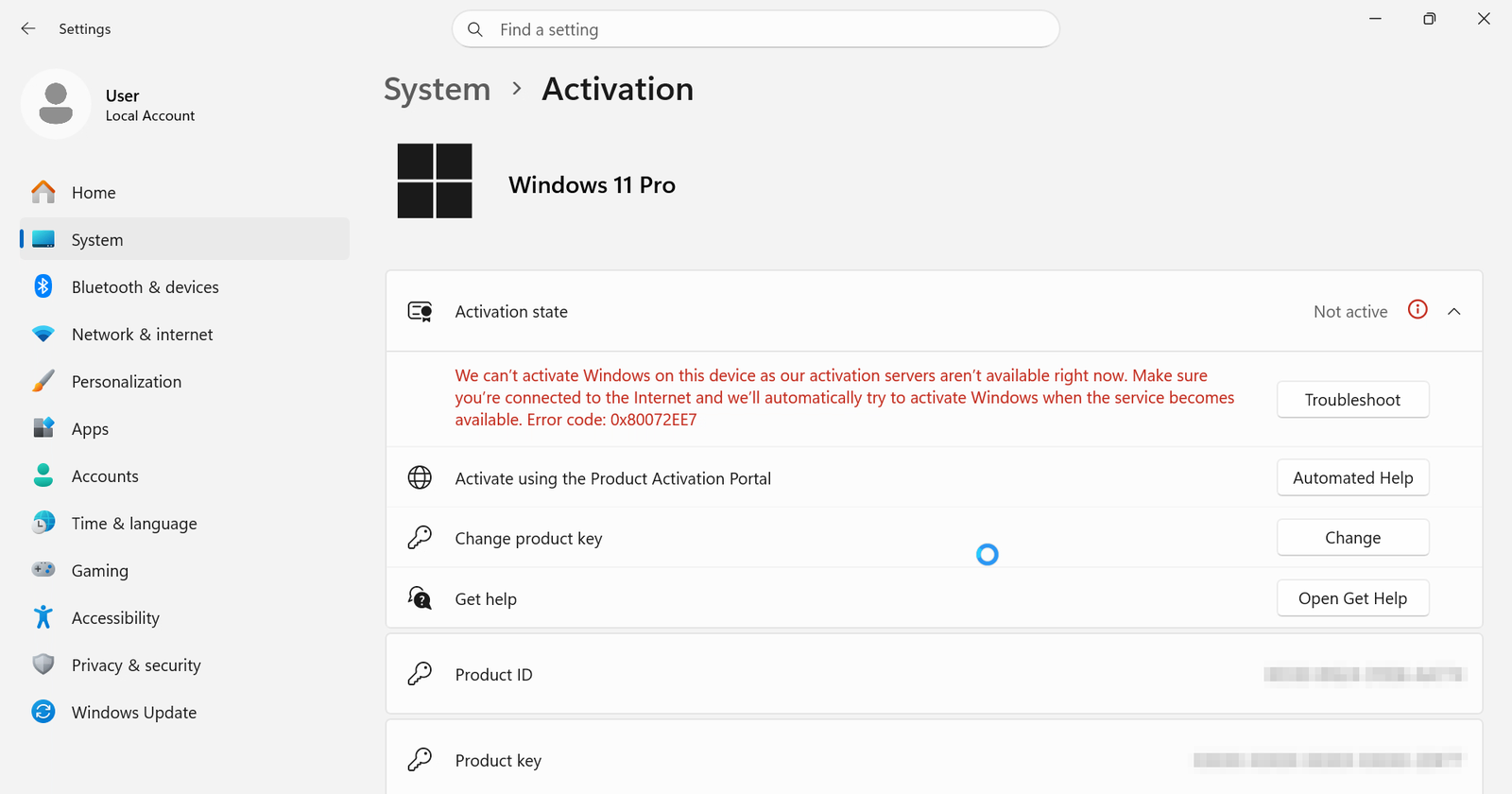
2.1 On the Activation page, click "Automated Help" next to "Activate using the Product Activation Portal".
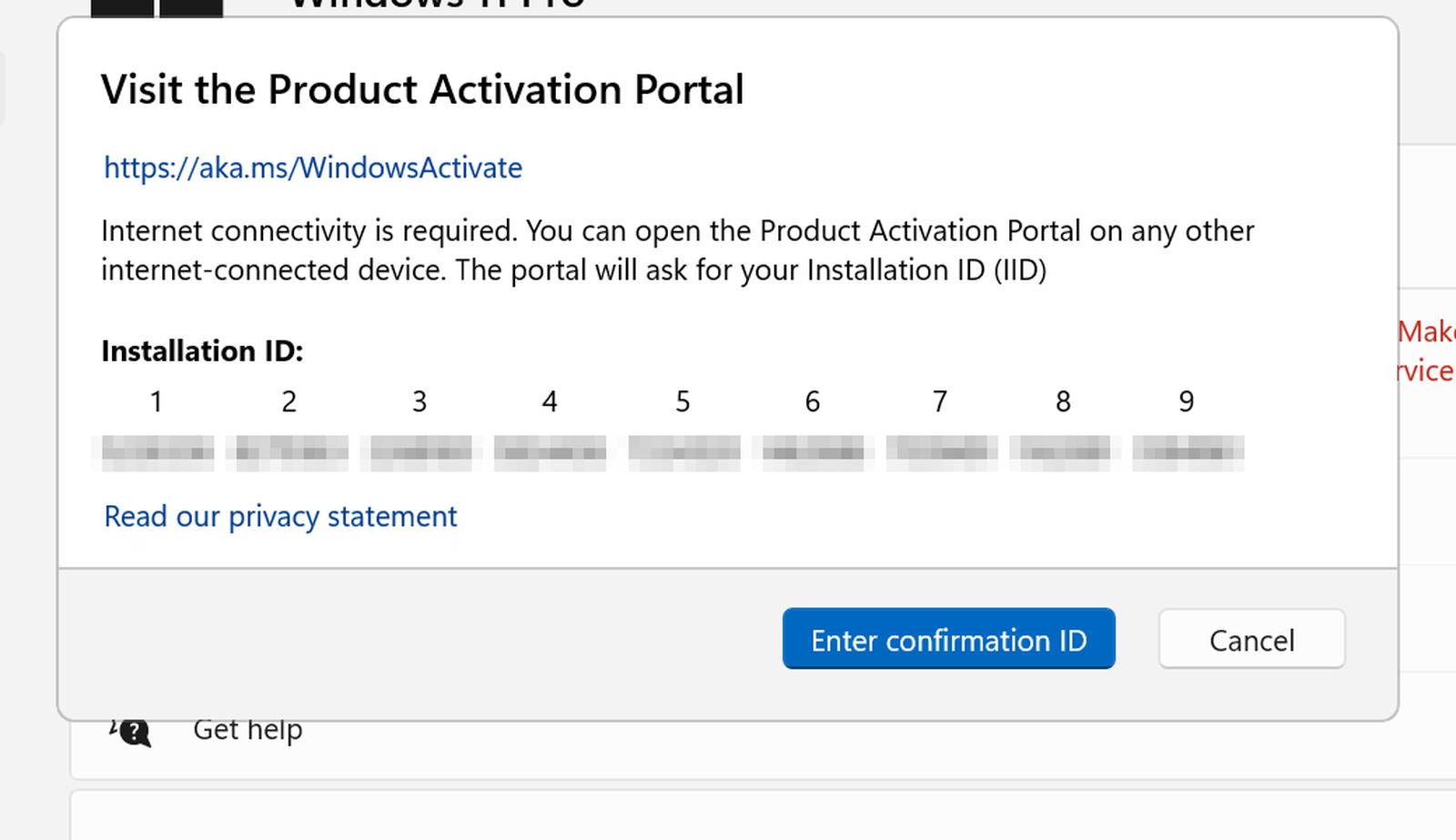
2.2 Windows shows your Installation ID, a 63-digit code in nine blocks. This is the code Microsoft needs to give you your Confirmation ID.
IMPORTANT: in the Windows 11 version we tested (build 26300), the old command slui 4 did not open this window. If it doesn't open on your computer either, use "Automated Help" as shown above.
3.1 Open Microsoft's Product Activation Portal at aka.ms/WindowsActivate, sign in with your Microsoft account, choose "Activate a Microsoft Product", then Windows and Windows 11, and enter your Installation ID. To copy the 63 digits without mistakes, use our Installation ID Extractor.
3.2 The portal shows your Confirmation ID in eight blocks, A to H. The page may say "Windows 10" at the top: that is just how Microsoft labels it, so keep going.
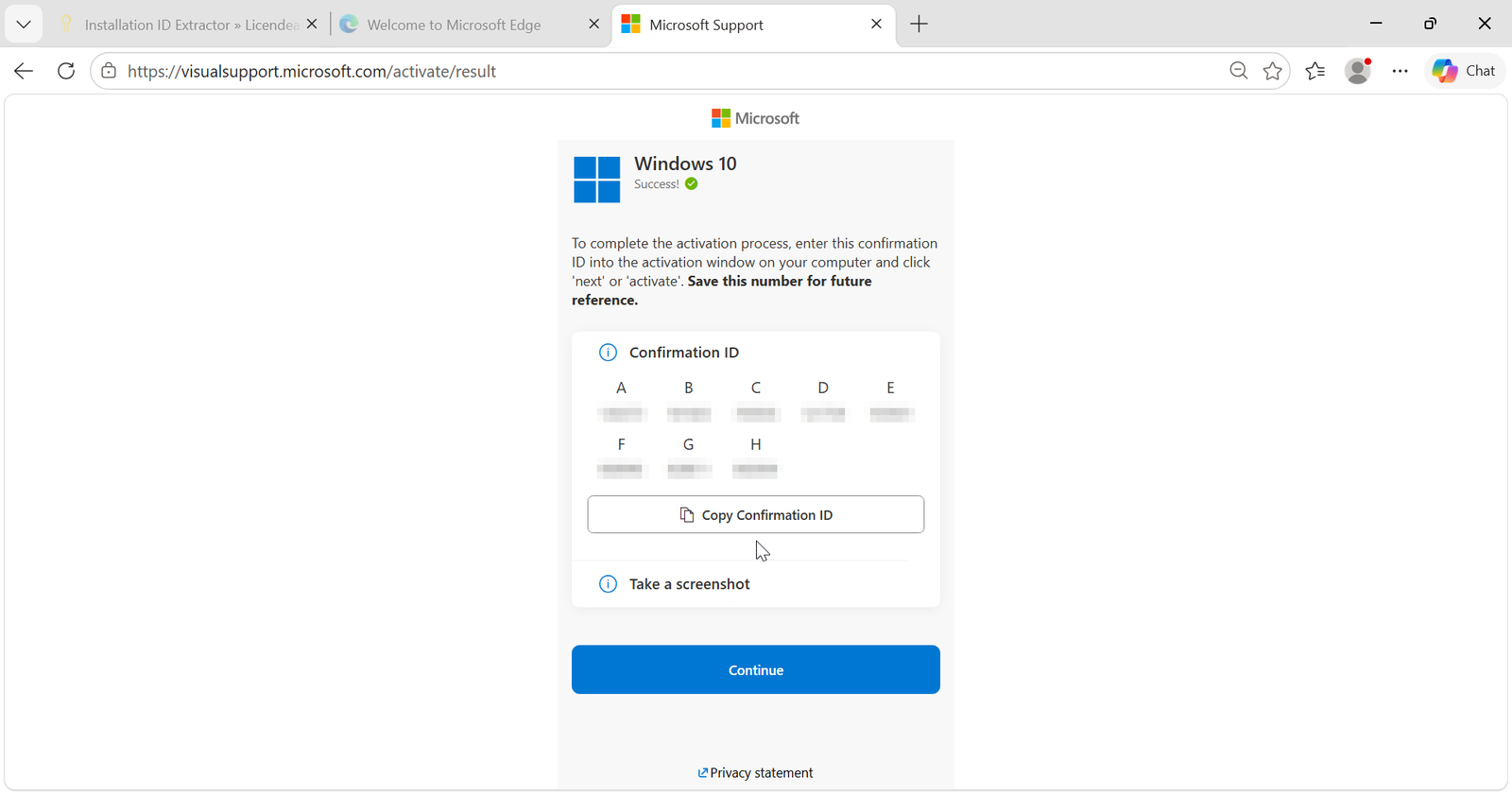
3.3 Go back to the Windows window, click "Enter confirmation ID", type each block in its box and click "Activate Windows". You will see "Windows is activated".
IMPORTANT: if an error appears during activation, switch to another network (for example, your phone's hotspot) or use a VPN, and try again.
Want every step with screenshots? Read our full guide: How to Activate Windows 11 with a Confirmation ID (CID). Don't have your license yet? Get your Windows 11 key at Licendeals, with 24/7 support.
{n} from {l} bought
{n} bought
Someone from {l} bought
Someone bought
Just now
1 minute ago
2 minutes ago
1 hour ago
2 hours ago
1 day ago
2 days ago
Close


 Windows
 Office for PC
 Office for Mac
 Windows Server
 SQL Server
 Office Apps
 Visual Studio

