November Special Offer - 5% OFF SITEWIDE!
Use code:
Valid until Nov 30
Do you have a Windows 11 CID License? A CID license is activated with a Confirmation ID from Microsoft's own activation portal. Many times your license activates online in a few seconds, and then you don't need anything else. Only if Windows shows an error do you use the Confirmation ID method. This guide shows both, step by step, with real screenshots.
IMPORTANT: For this process, you only need an internet connection. The entire procedure is carried out on Microsoft's self-service website.
IMPORTANT: Install any pending Windows updates and restart your computer before you start.
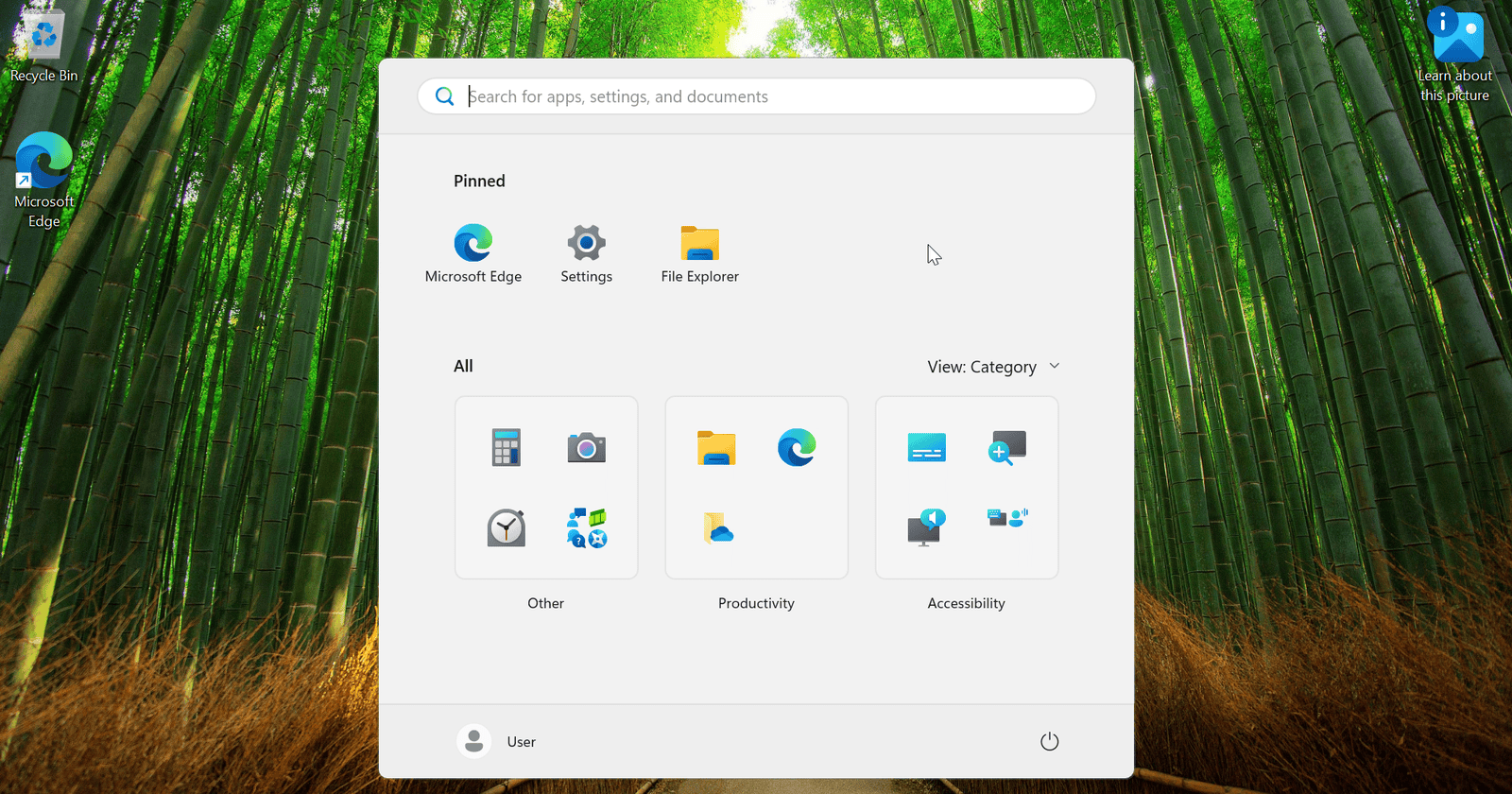
1.1 Open the Start menu and click "Settings".
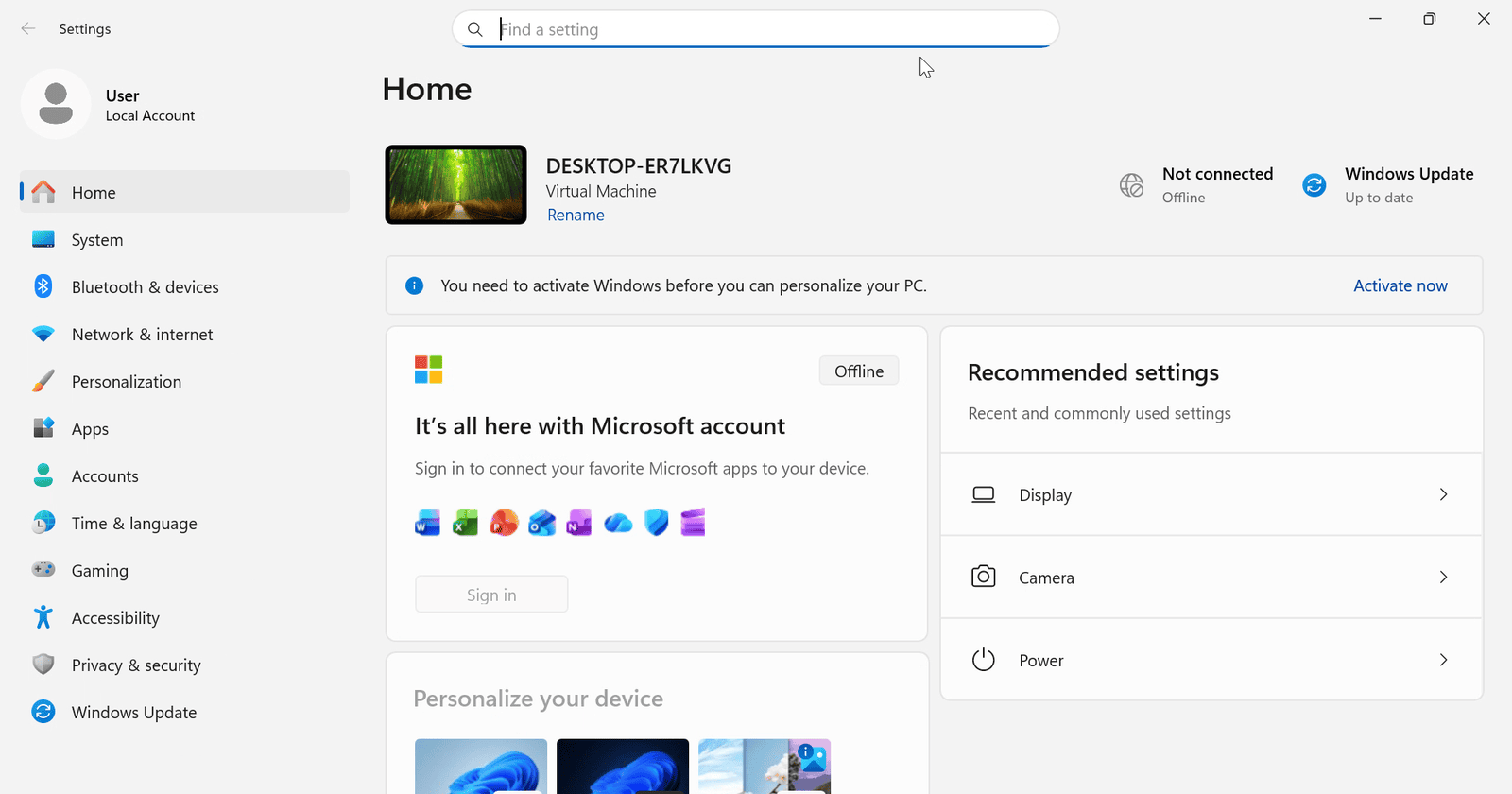
1.2 On the Settings home page, click "Activate now". It opens System > Activation, a page you can also reach from the System menu.
1.3 Click the "Change" button next to "Change product key".
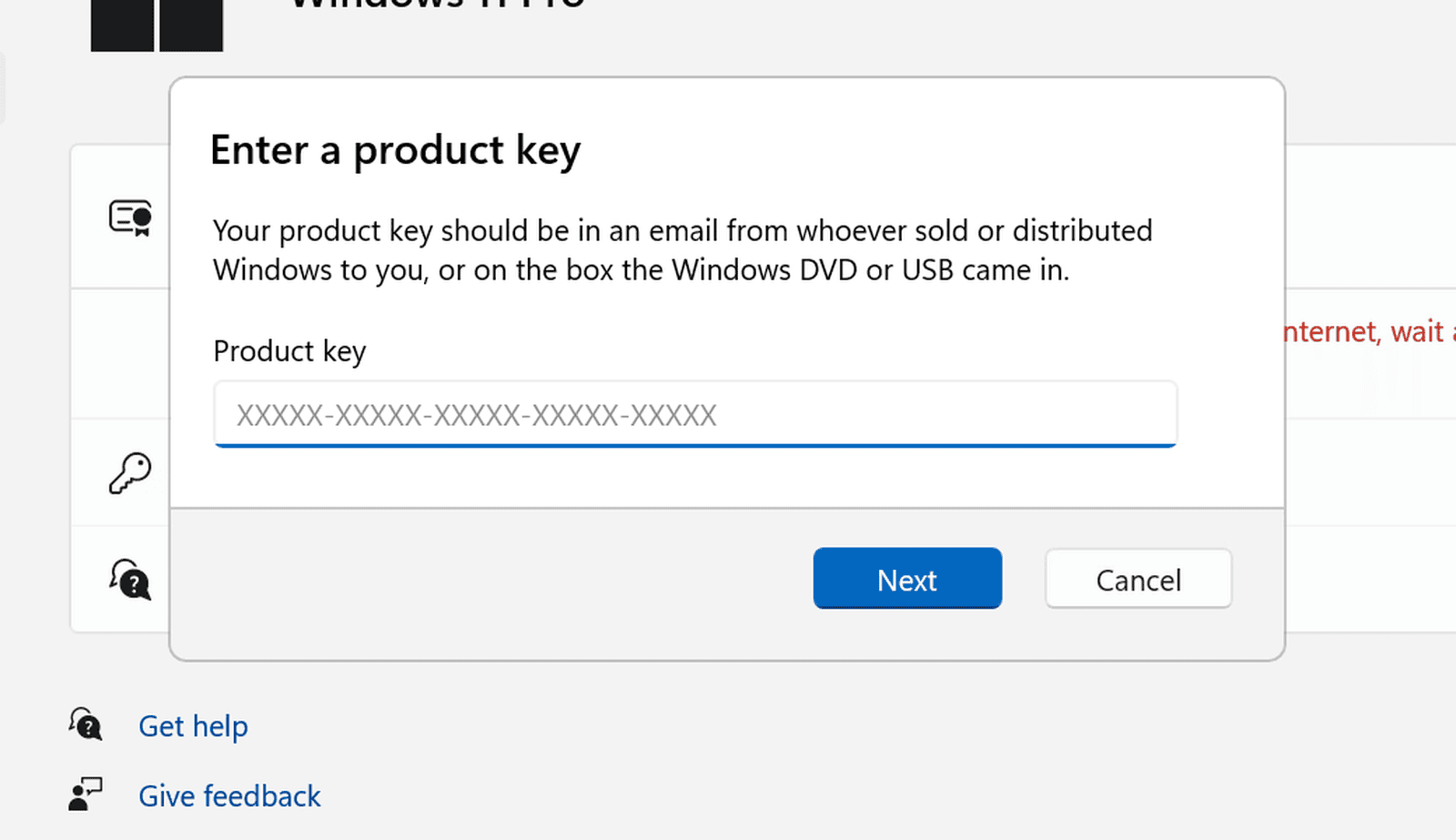
1.4 Type your Windows 11 license key in the "Enter a product key" window and click "Next".
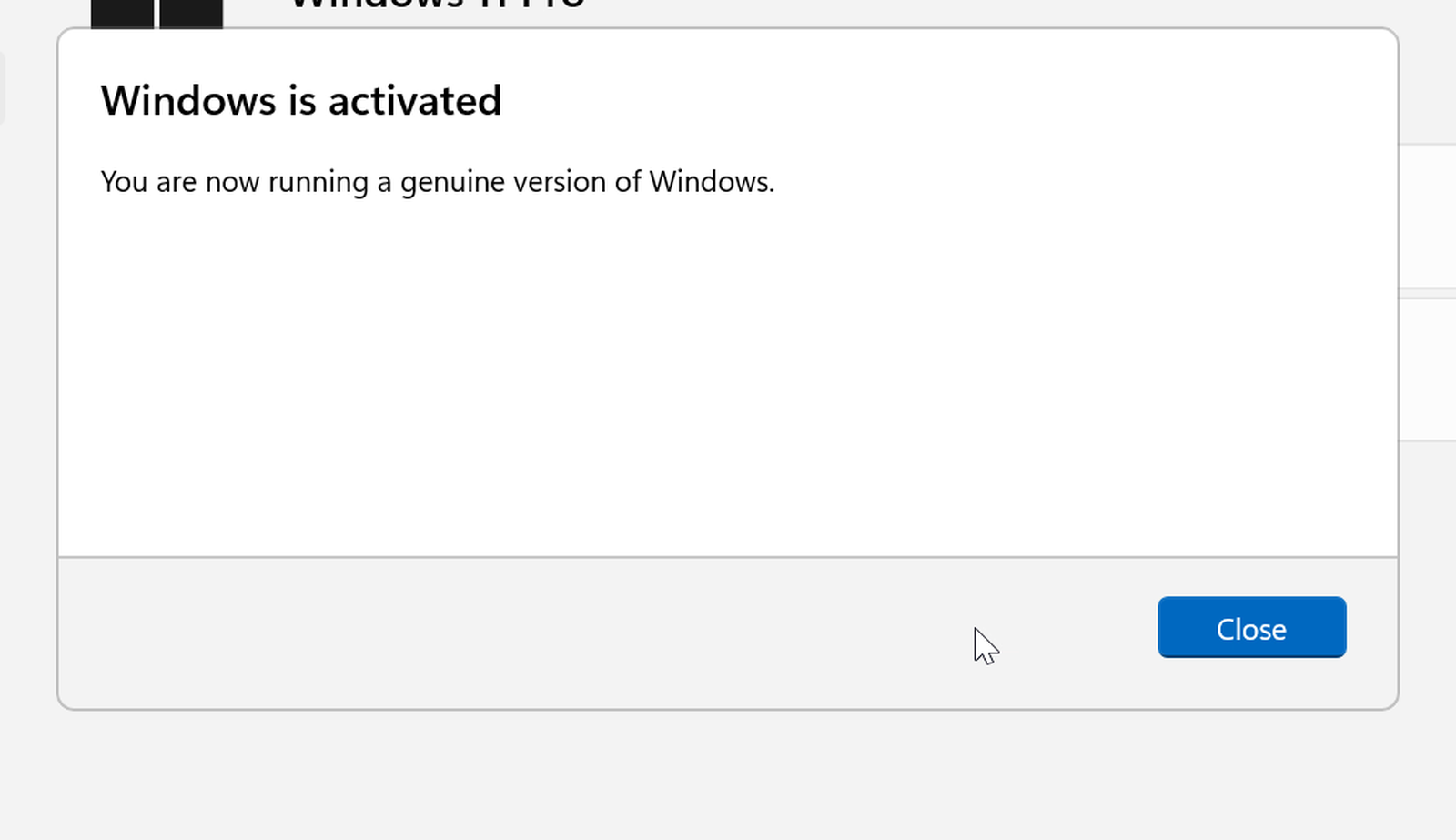
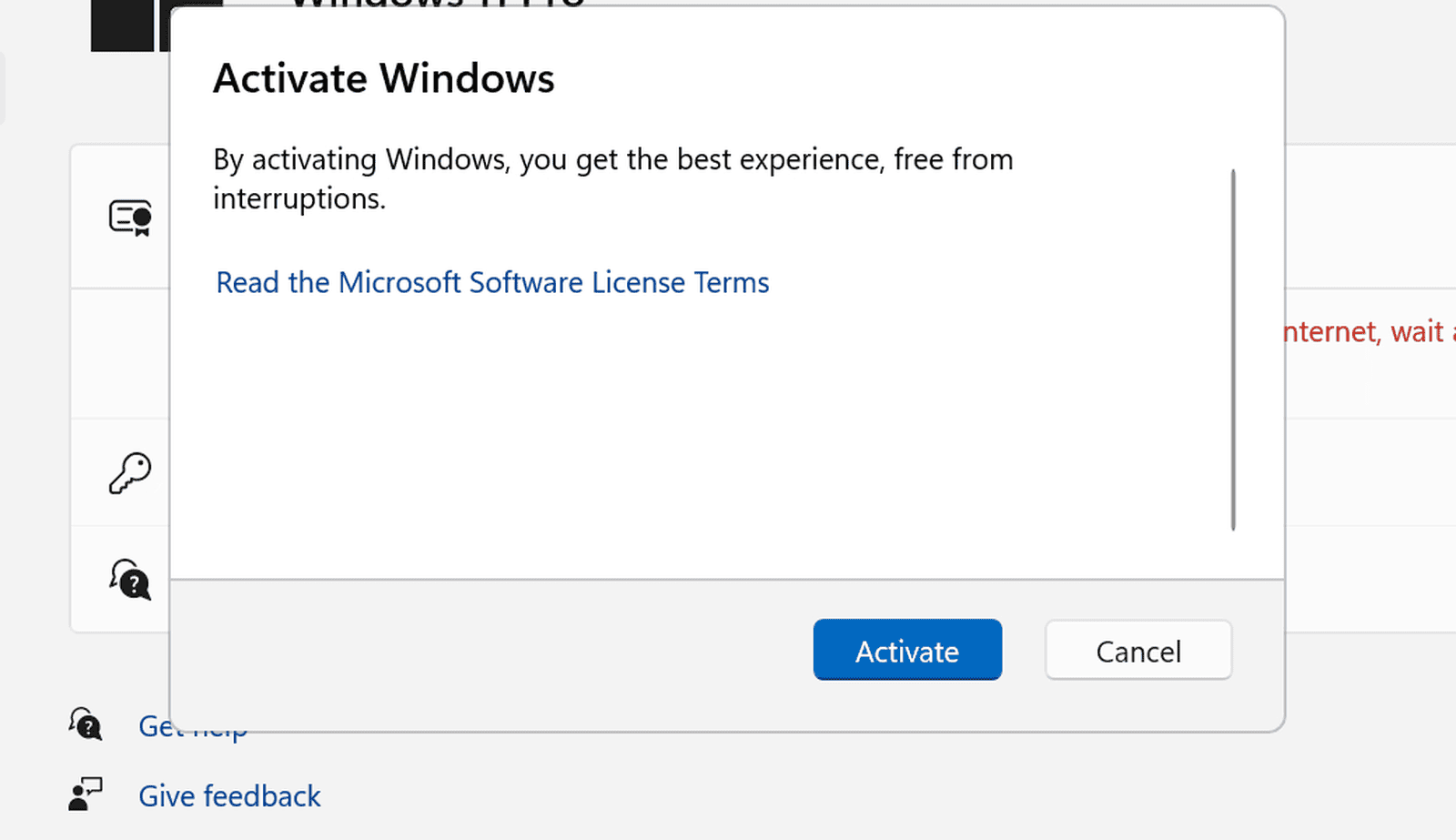
1.5 Click "Activate". Windows connects to Microsoft and tries to activate online. If it works, you will see "Windows is activated" and you are done.
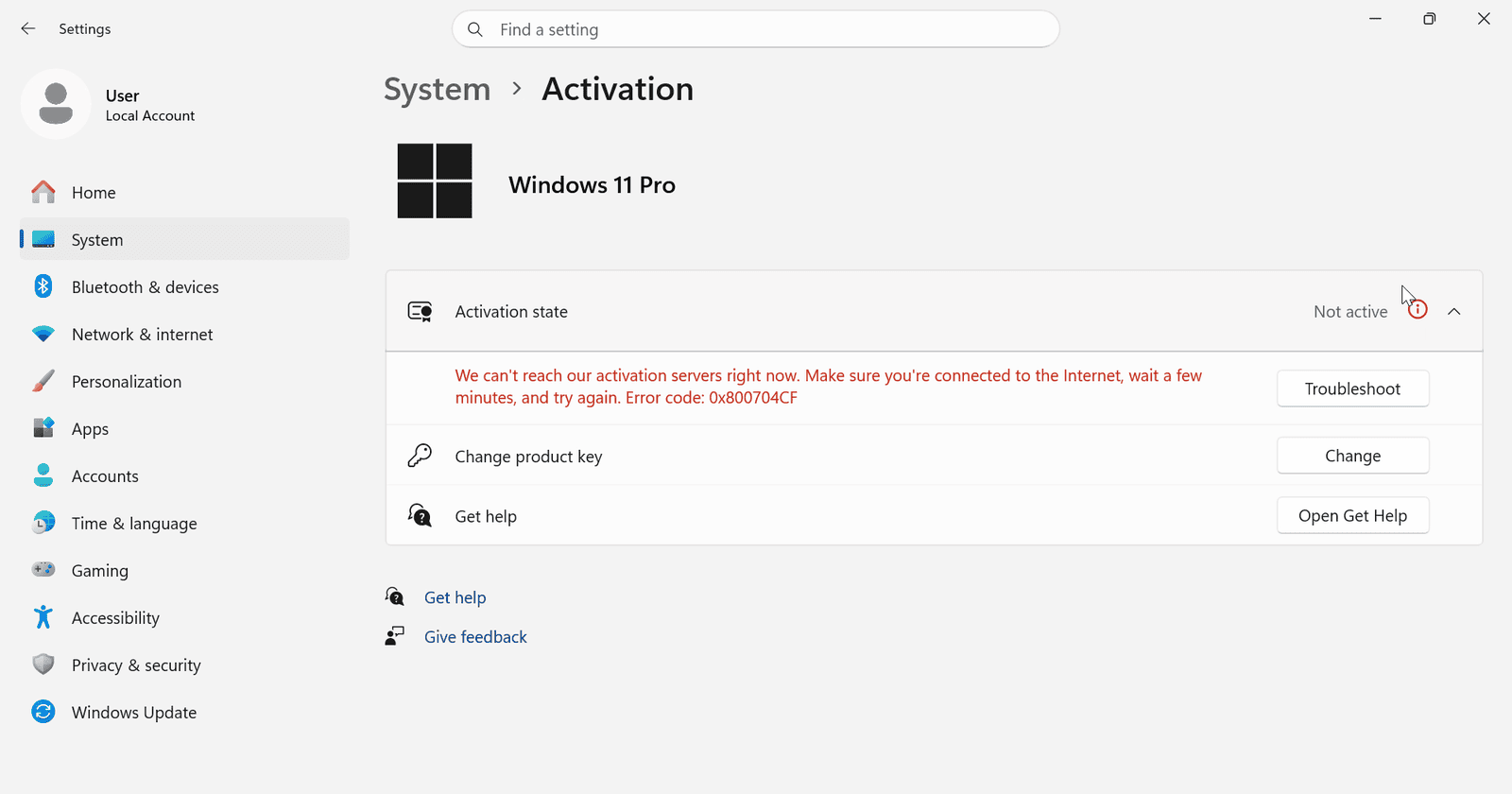
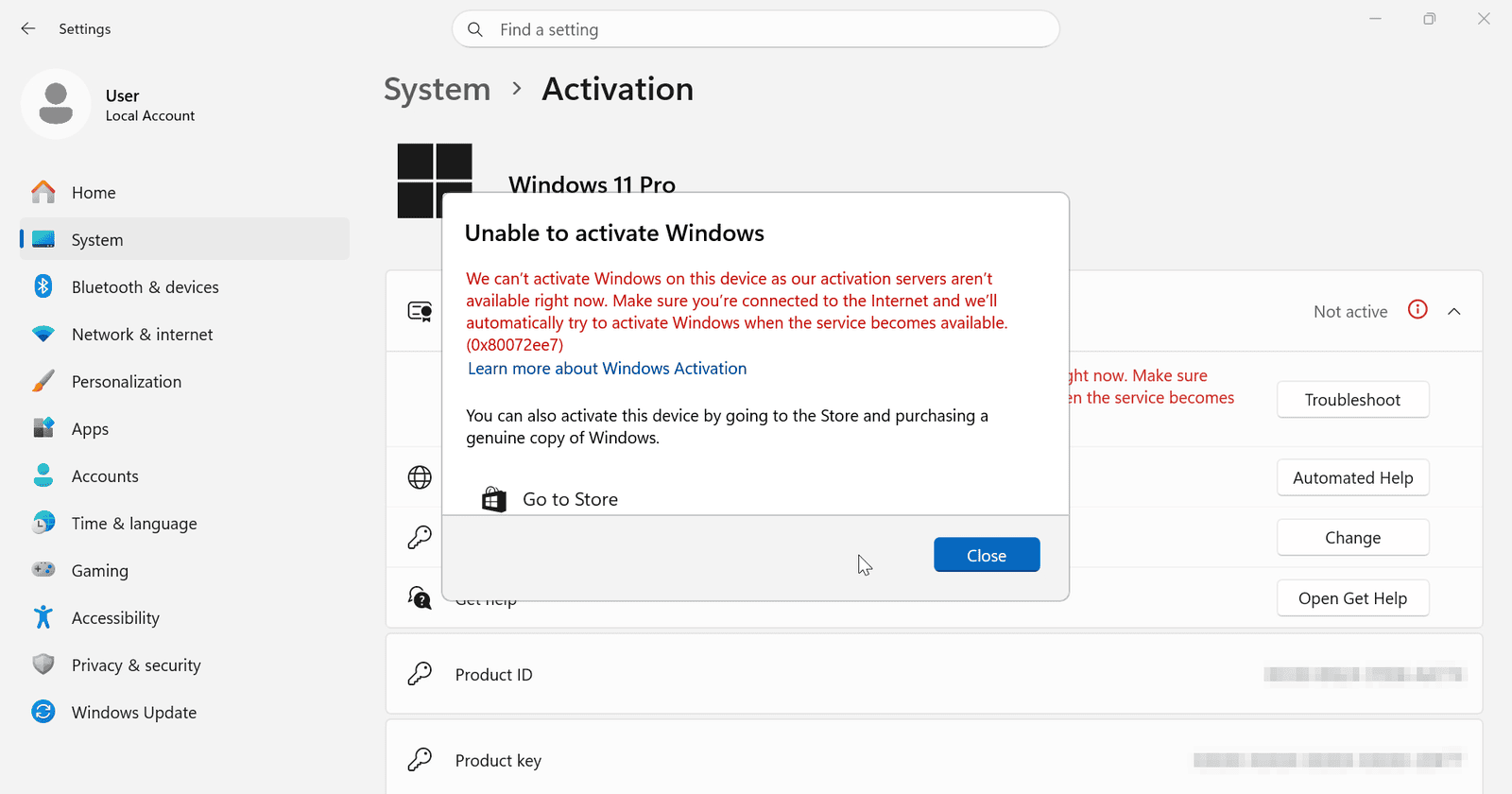
If Windows shows an activation error instead, such as the one below, don't worry. This is when you use the Confirmation ID. Click "Close" and continue with section 2.
2.1 On the Activation page, click "Automated Help", next to "Activate using the Product Activation Portal".
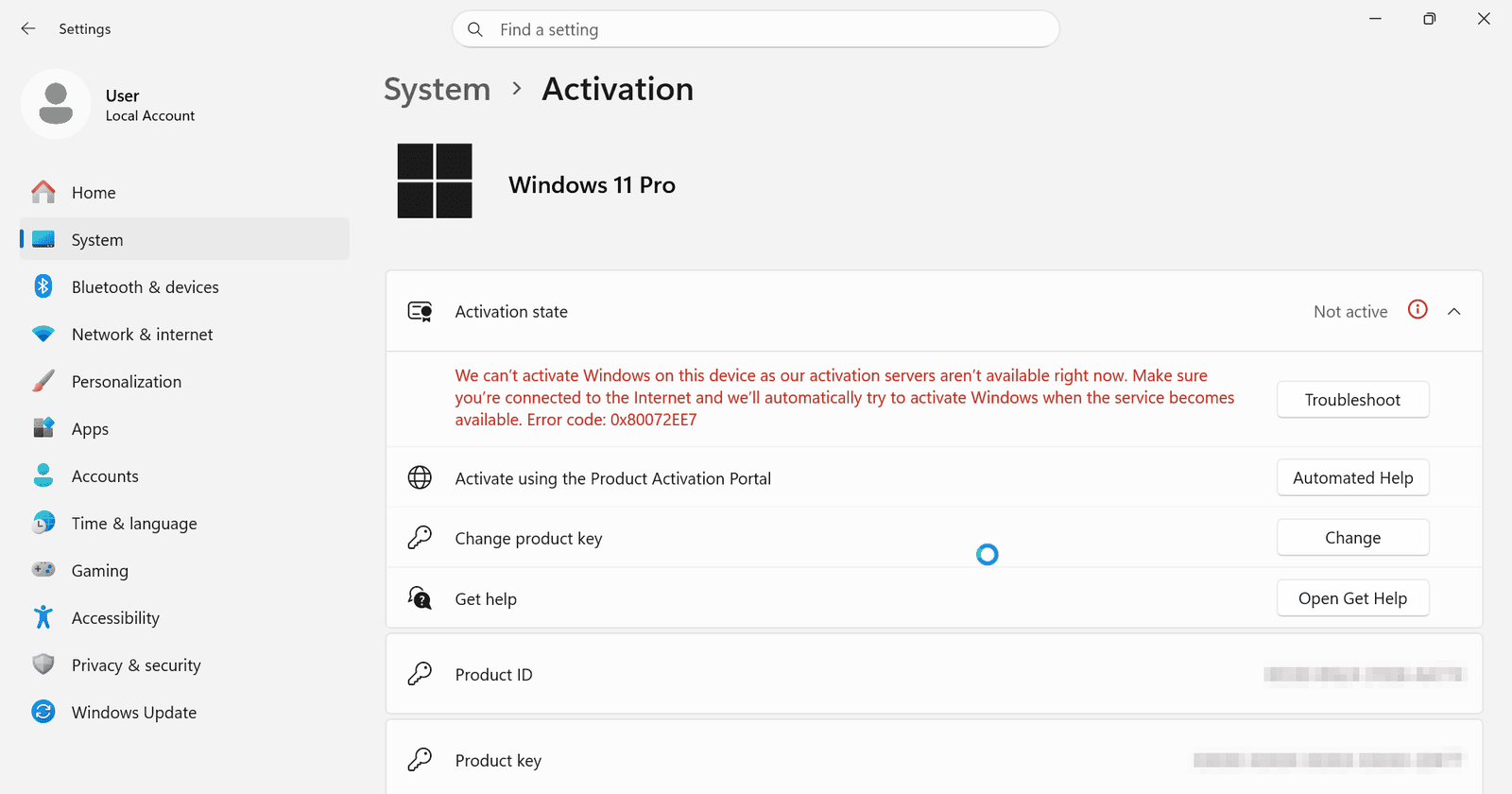
IMPORTANT: In Windows 11, the command slui 4 may not open the activation window. Use Automated Help instead.
2.2 The window "Visit the Product Activation Portal" shows your Installation ID. This is a 63-digit code, divided into nine blocks, that is essential for the activation. Keep this window open.
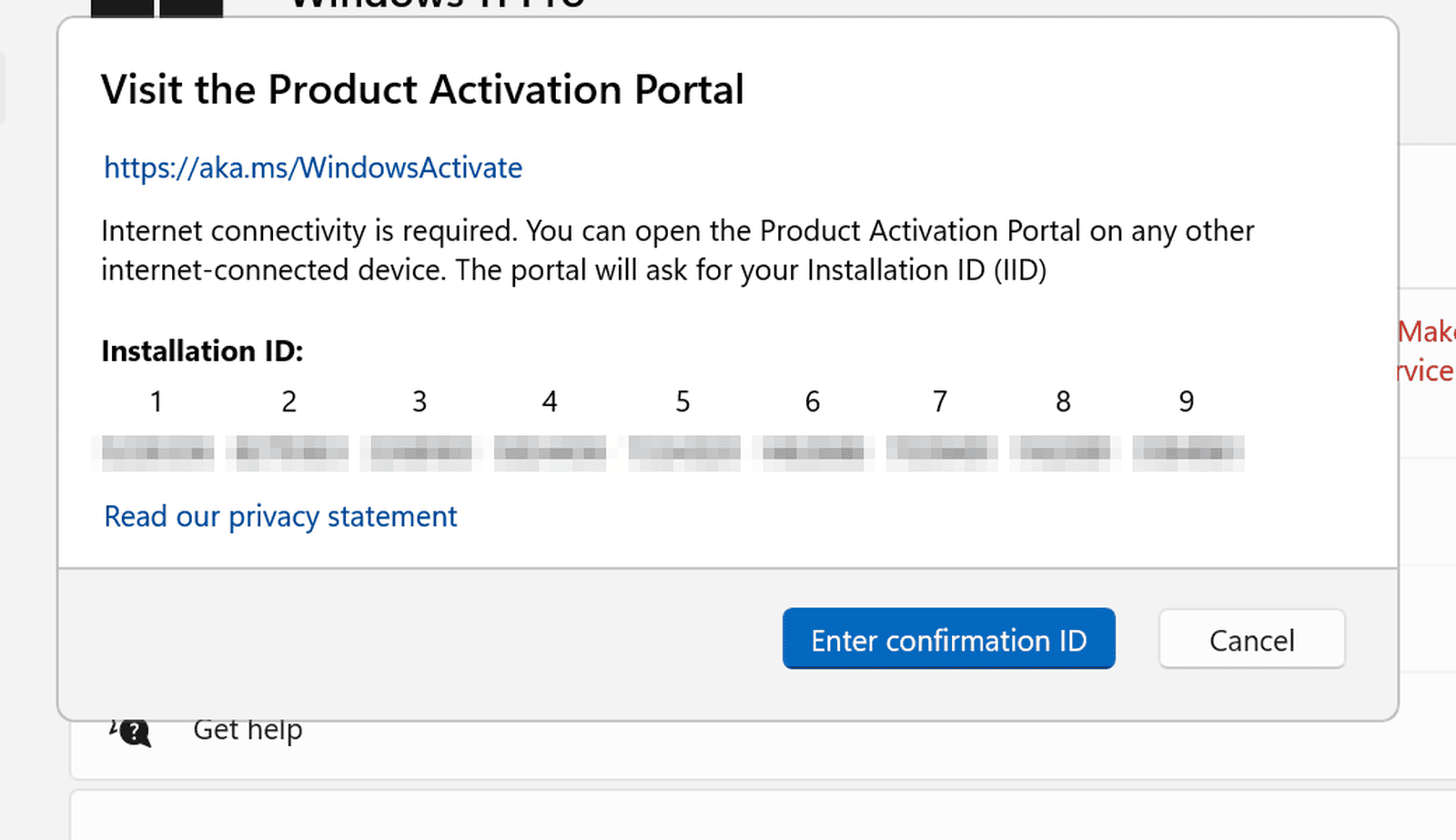
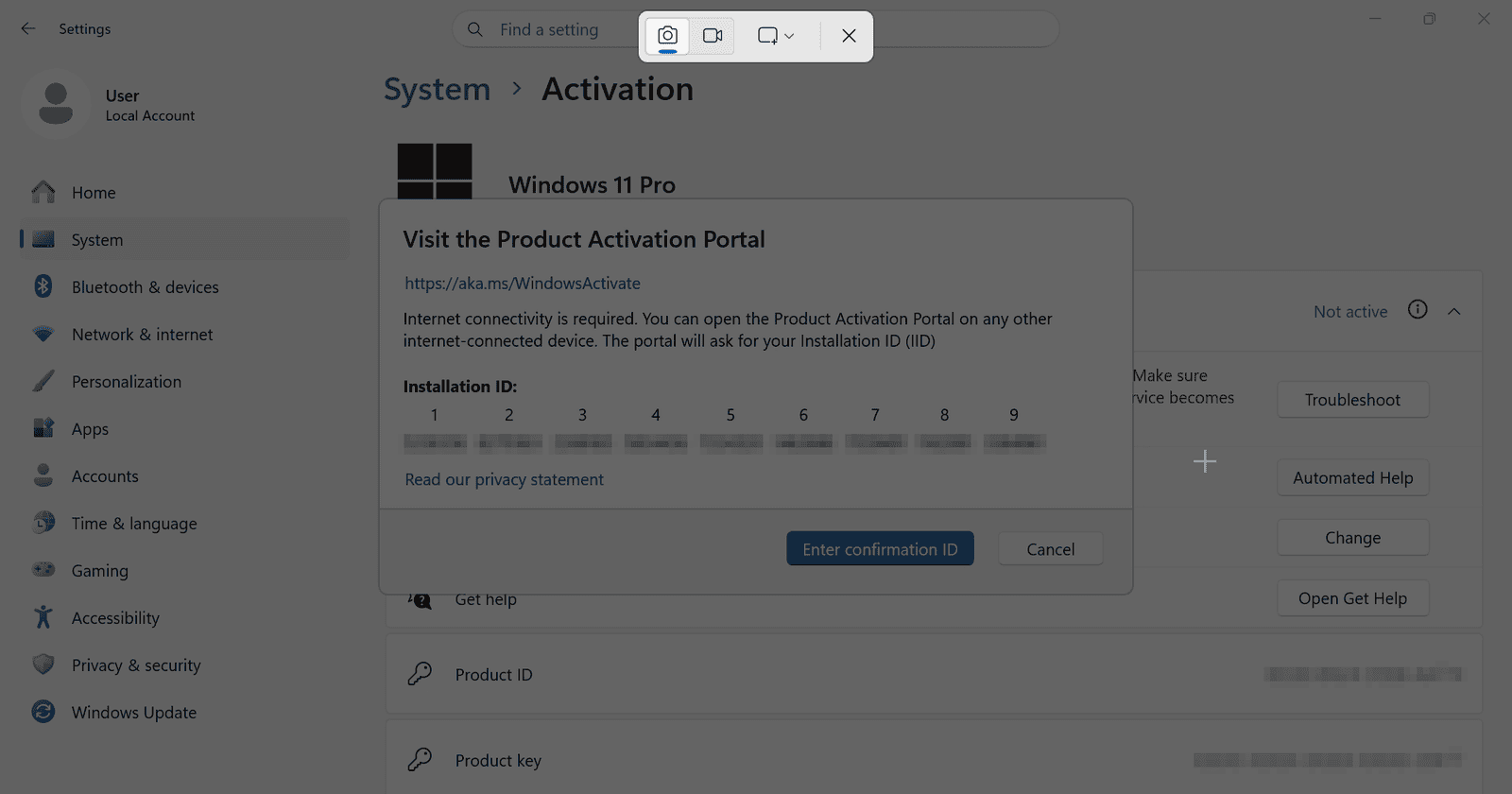
2.3 To copy the 63 digits without mistakes, take a screenshot of them with the Windows screenshot tool: press Win + Shift + S and drag a box around the Installation ID.
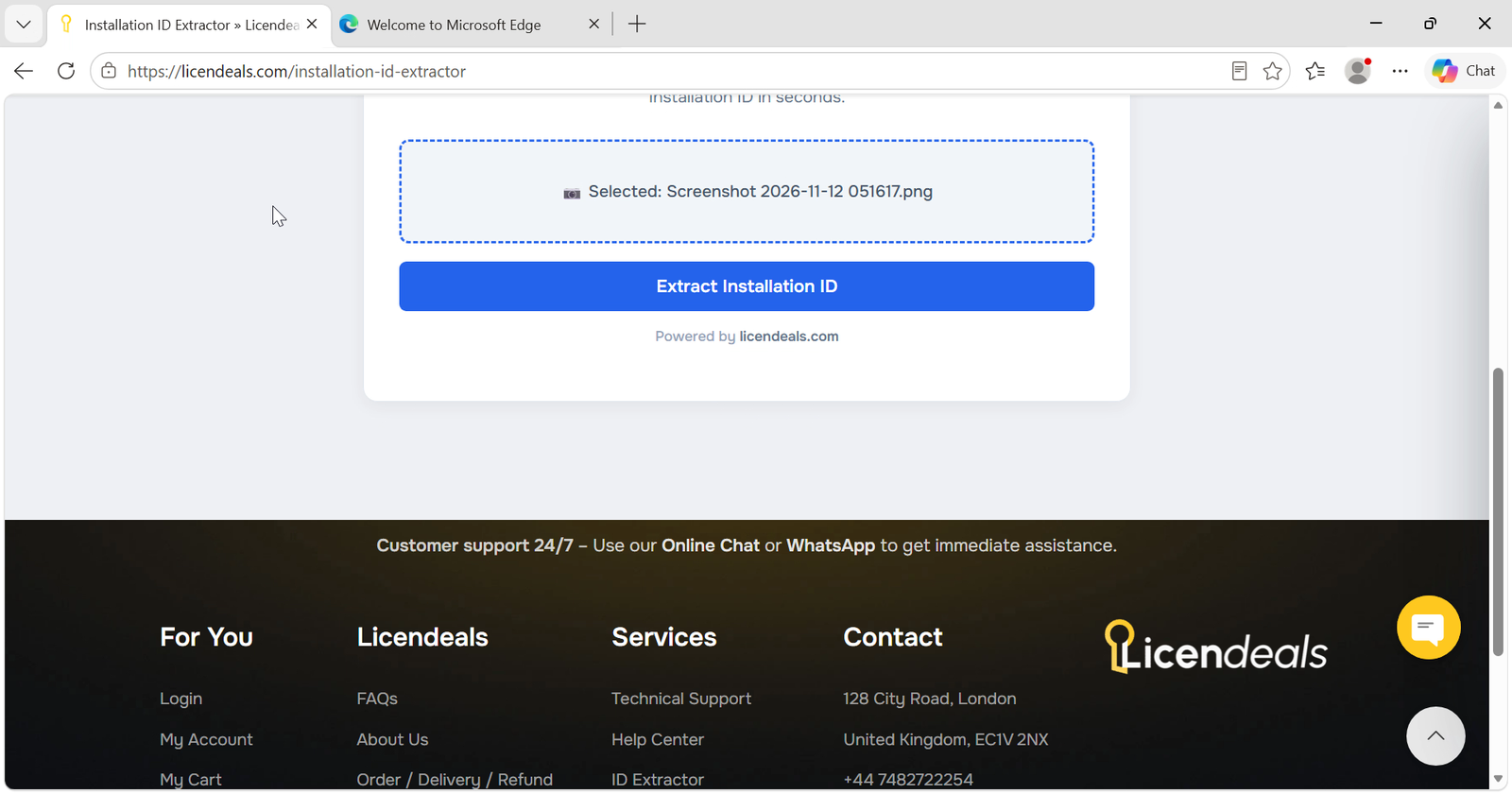
3.1 Open the Installation ID Extractor, click the box to upload your screenshot, choose the screenshot you just took and click "Extract Installation ID".
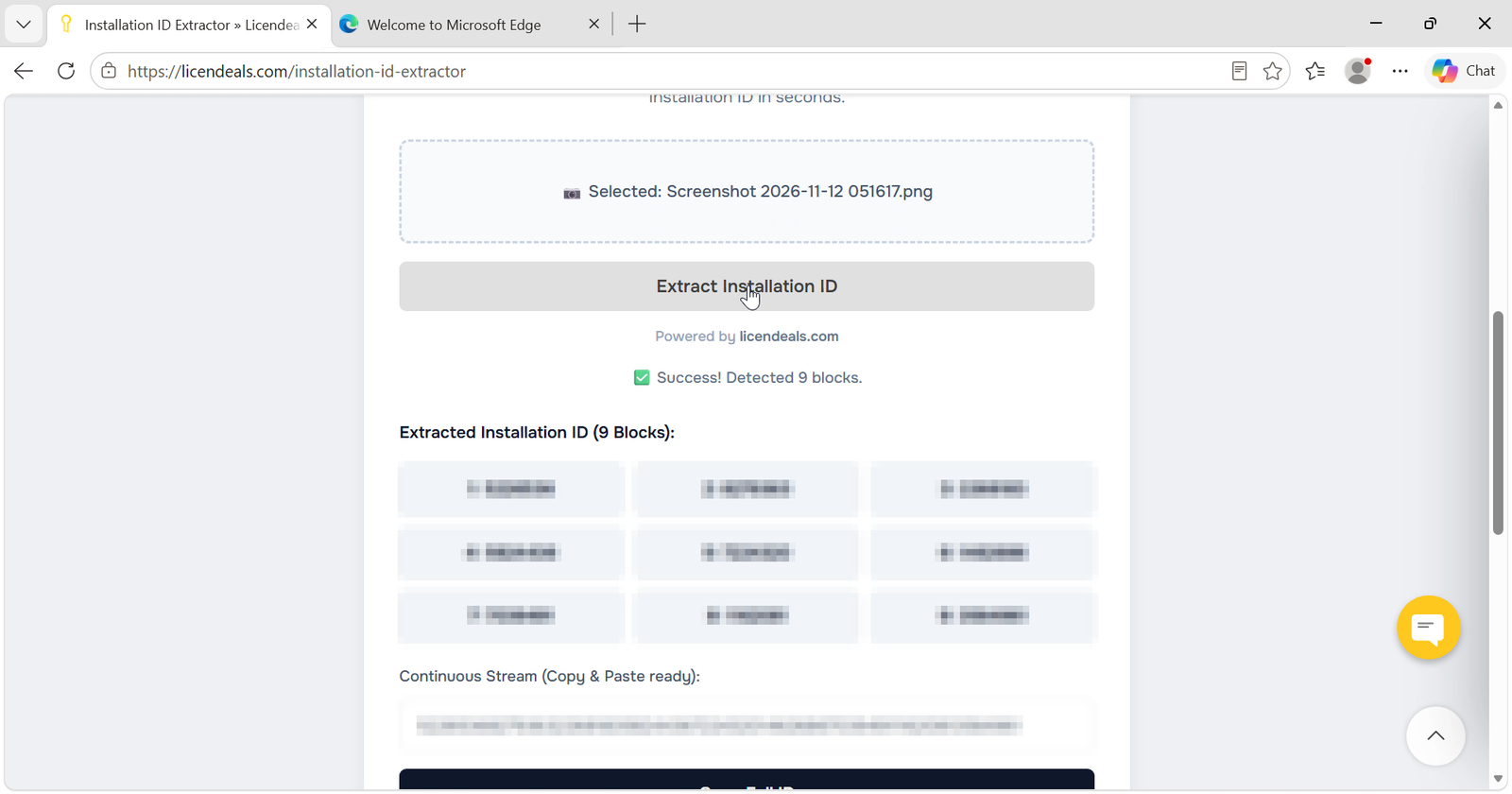
3.2 The tool shows the nine blocks of your Installation ID. Click "Copy Full ID".
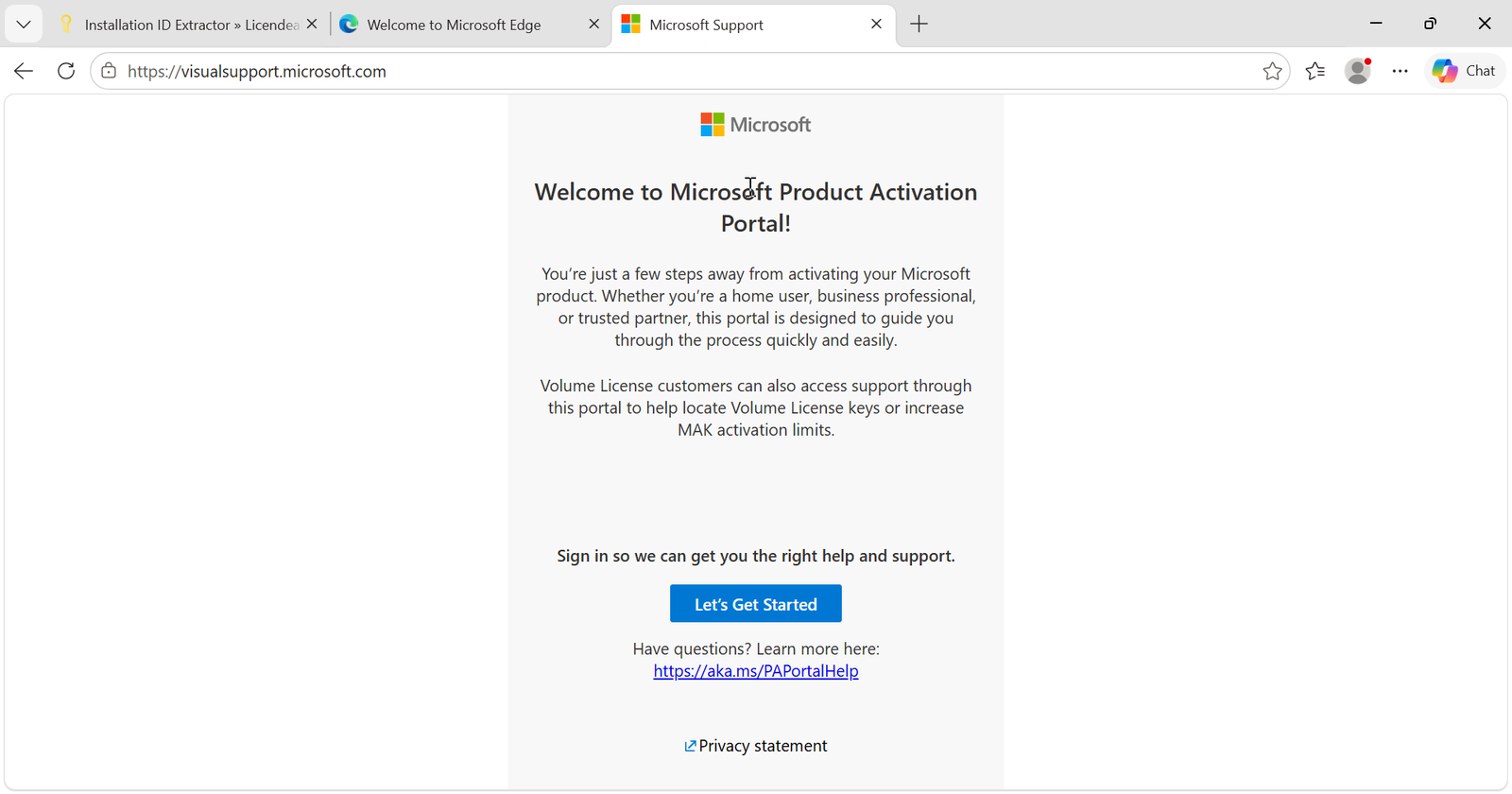
4.1 Open the Microsoft Product Activation Portal at aka.ms/WindowsActivate, the address your Windows window shows. Click "Let's get started".
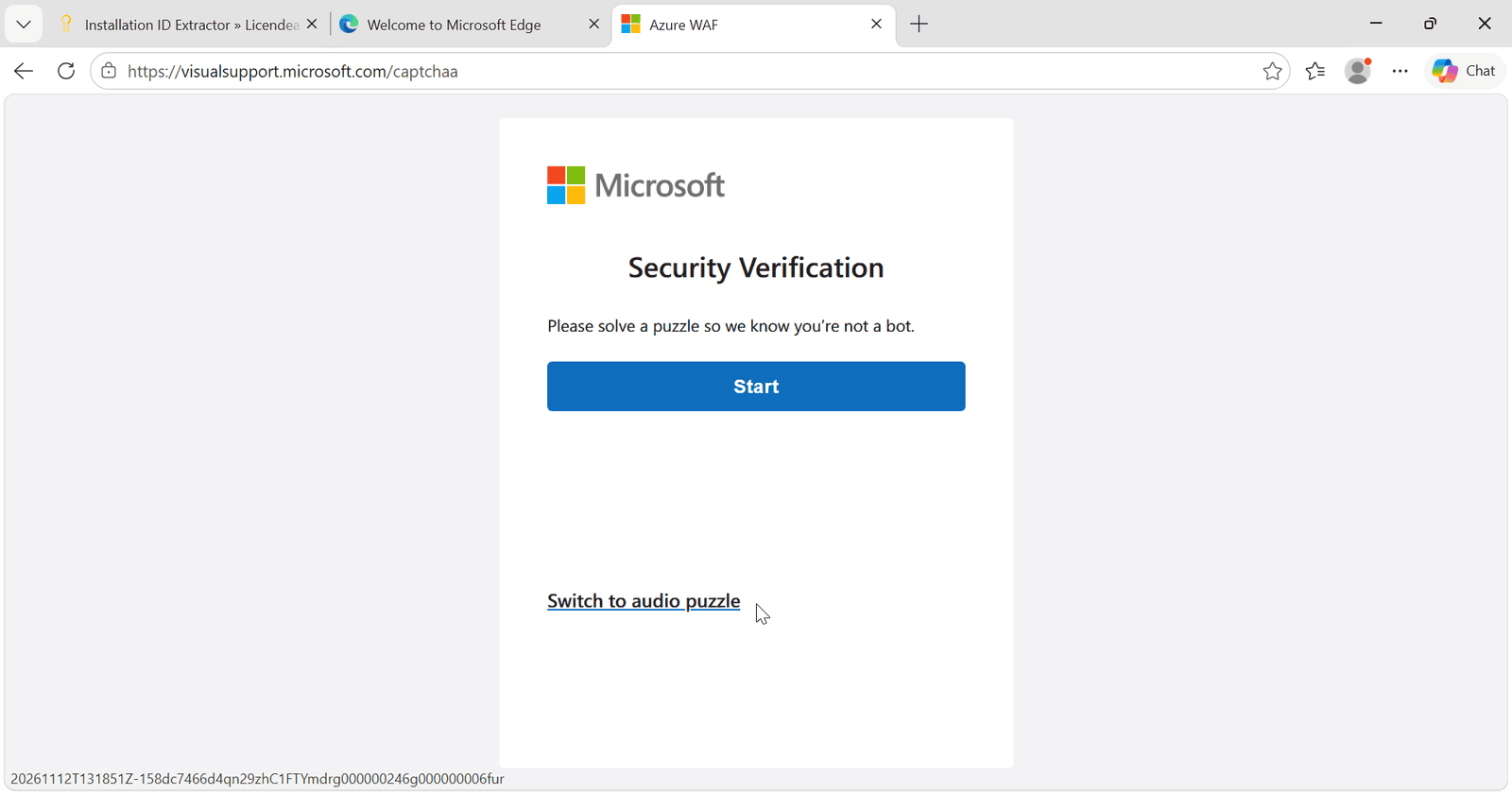
4.2 Complete the security verification (a short puzzle).
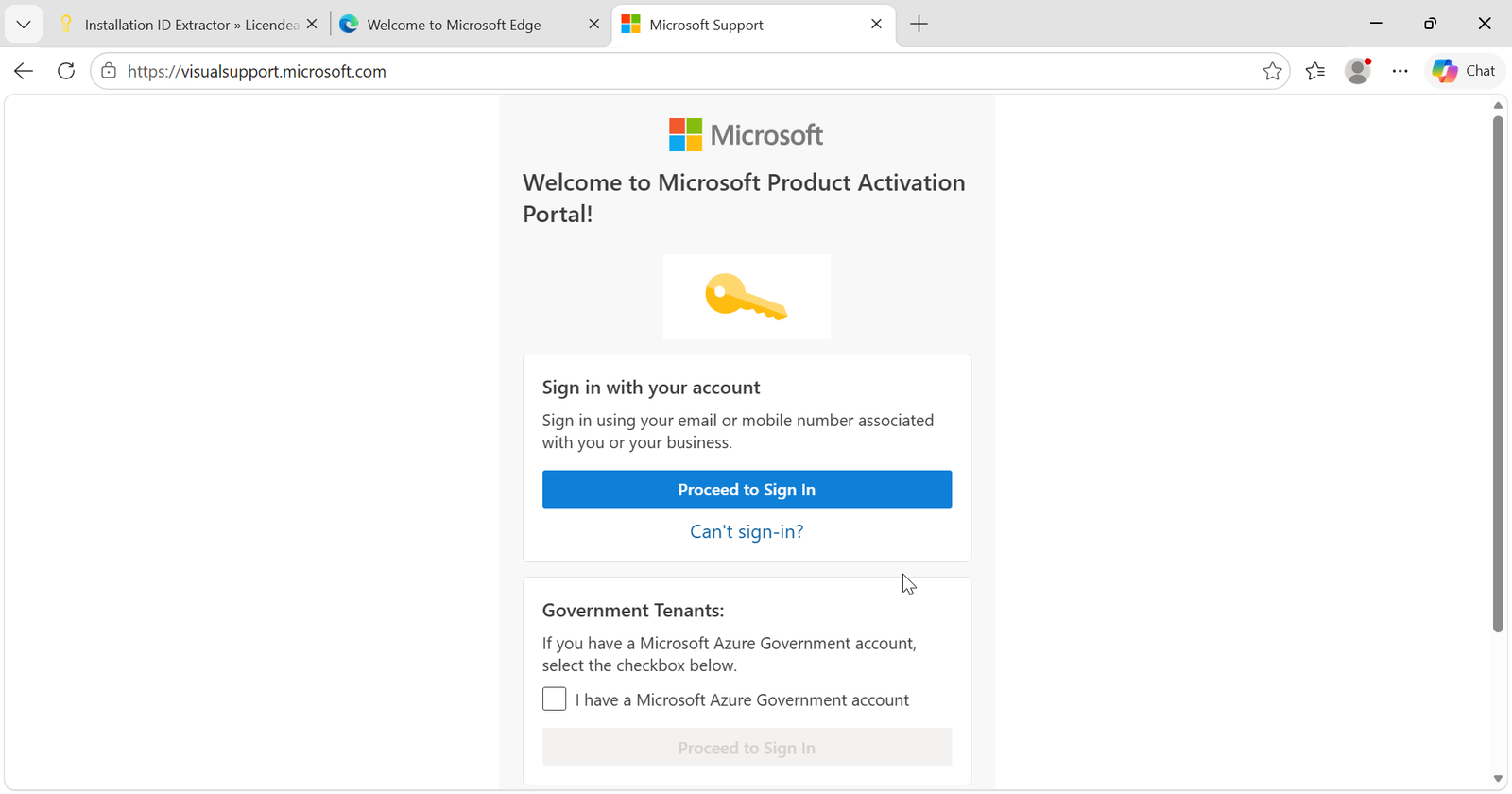
4.3 Click "Proceed to Sign In". You'll be redirected to the Microsoft sign-in page: sign in with your Microsoft account.
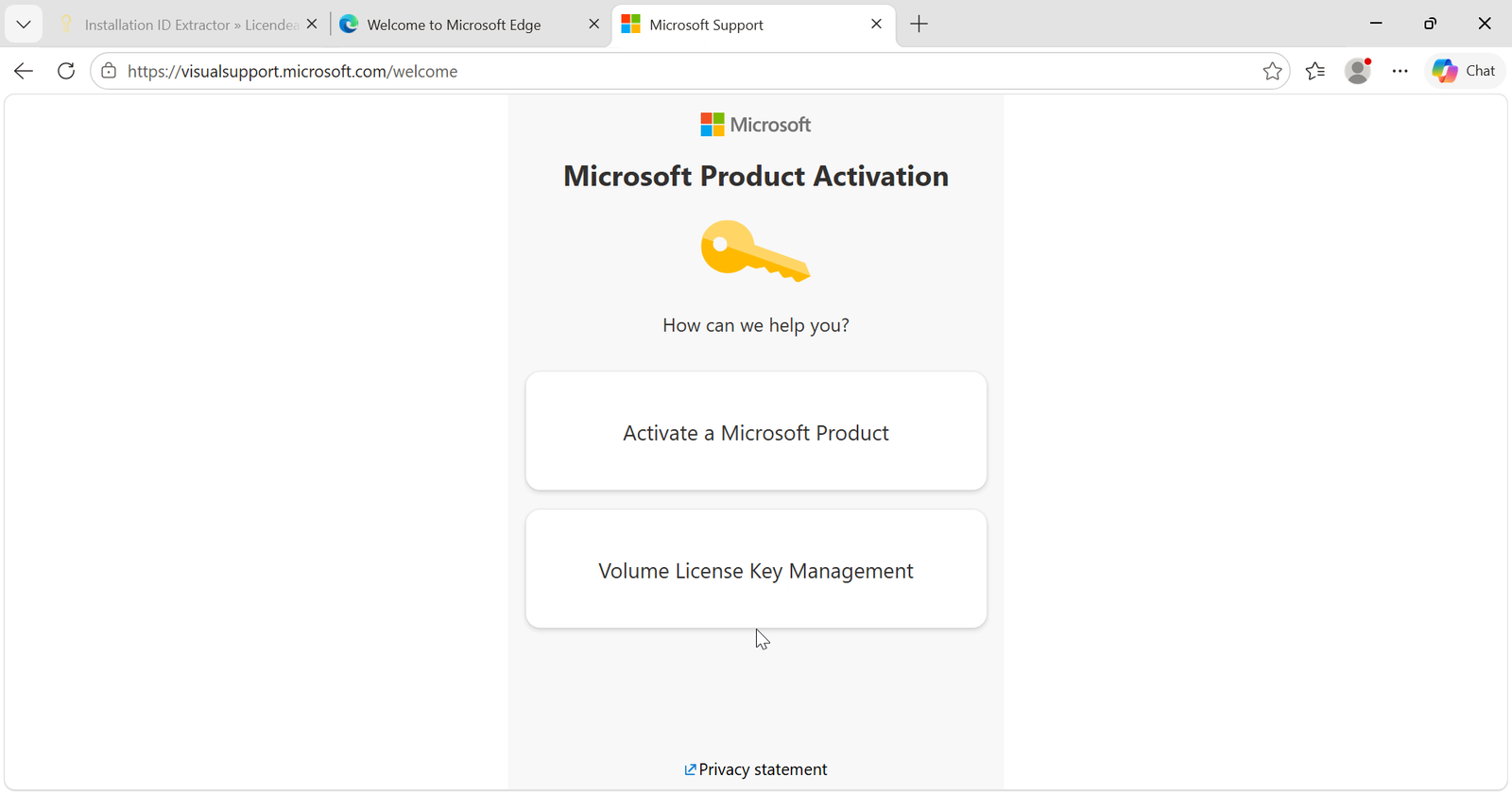
4.4 Click the "Activate a Microsoft Product" button.
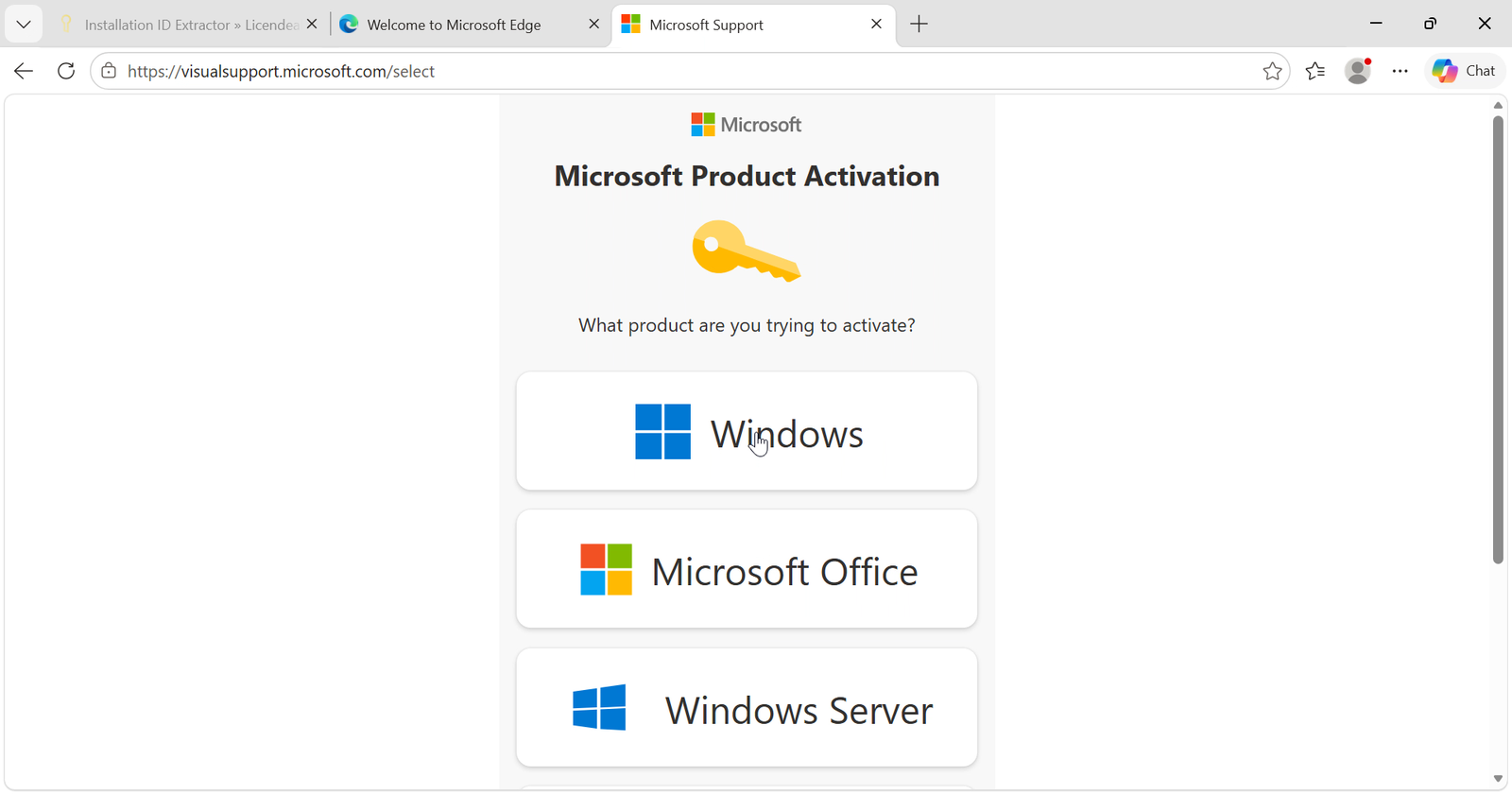
4.5 From the list of products, select "Windows".
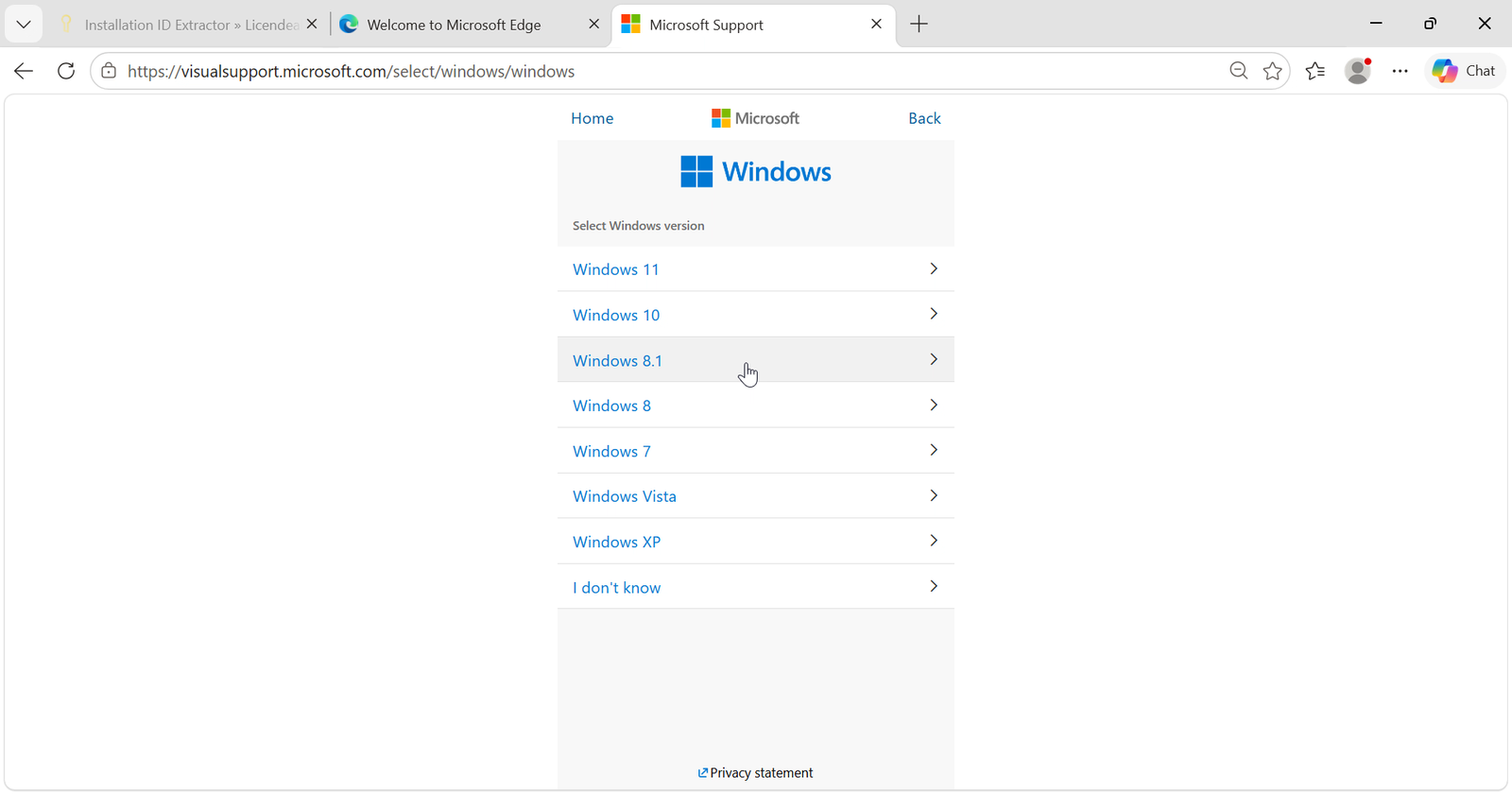
4.6 Select "Windows 11".
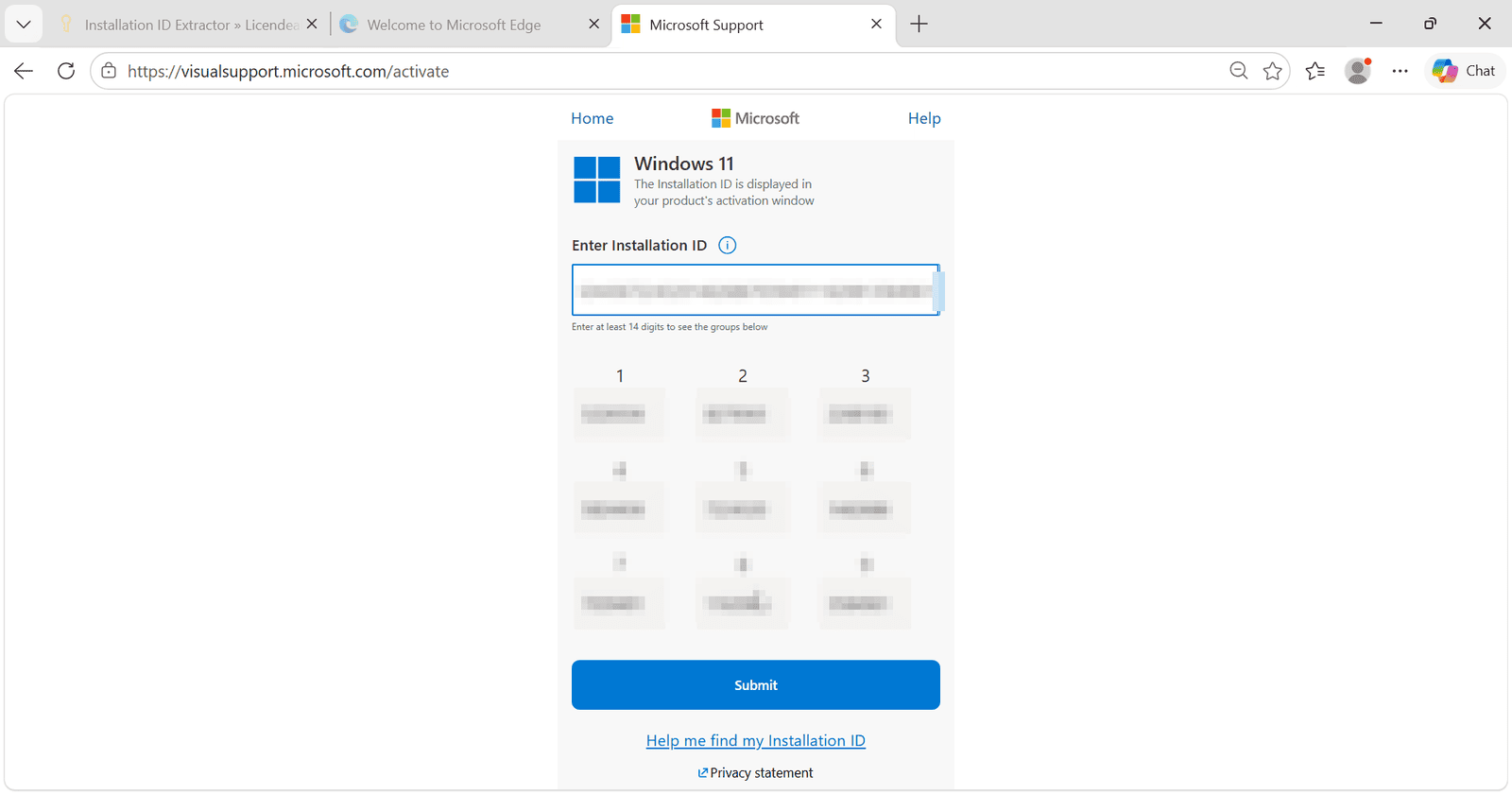
4.7 Paste the code you copied from the Installation ID Extractor in the "Enter Installation ID" field. The website splits it into nine groups by itself: check that they match the ones in your Windows window and click "Submit". If the website asks on how many computers the product is installed, enter 1.
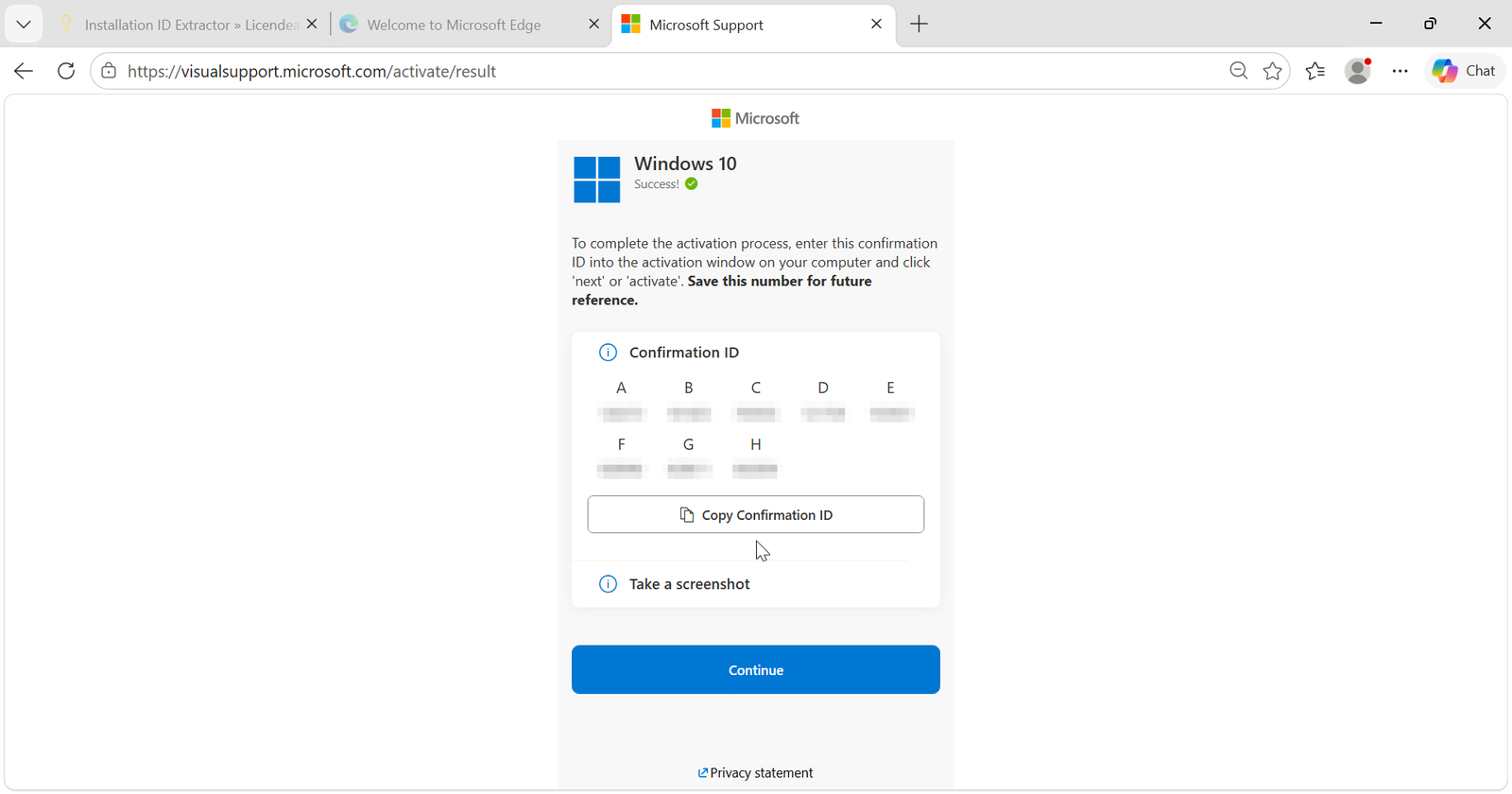
4.8 The website generates your Confirmation ID, in eight blocks (A to H). Copy it or write it down carefully. The page may say "Windows 10" at the top: that is just how Microsoft labels it, so keep going.
5.1 Go back to the Windows window you left open and click "Enter confirmation ID".
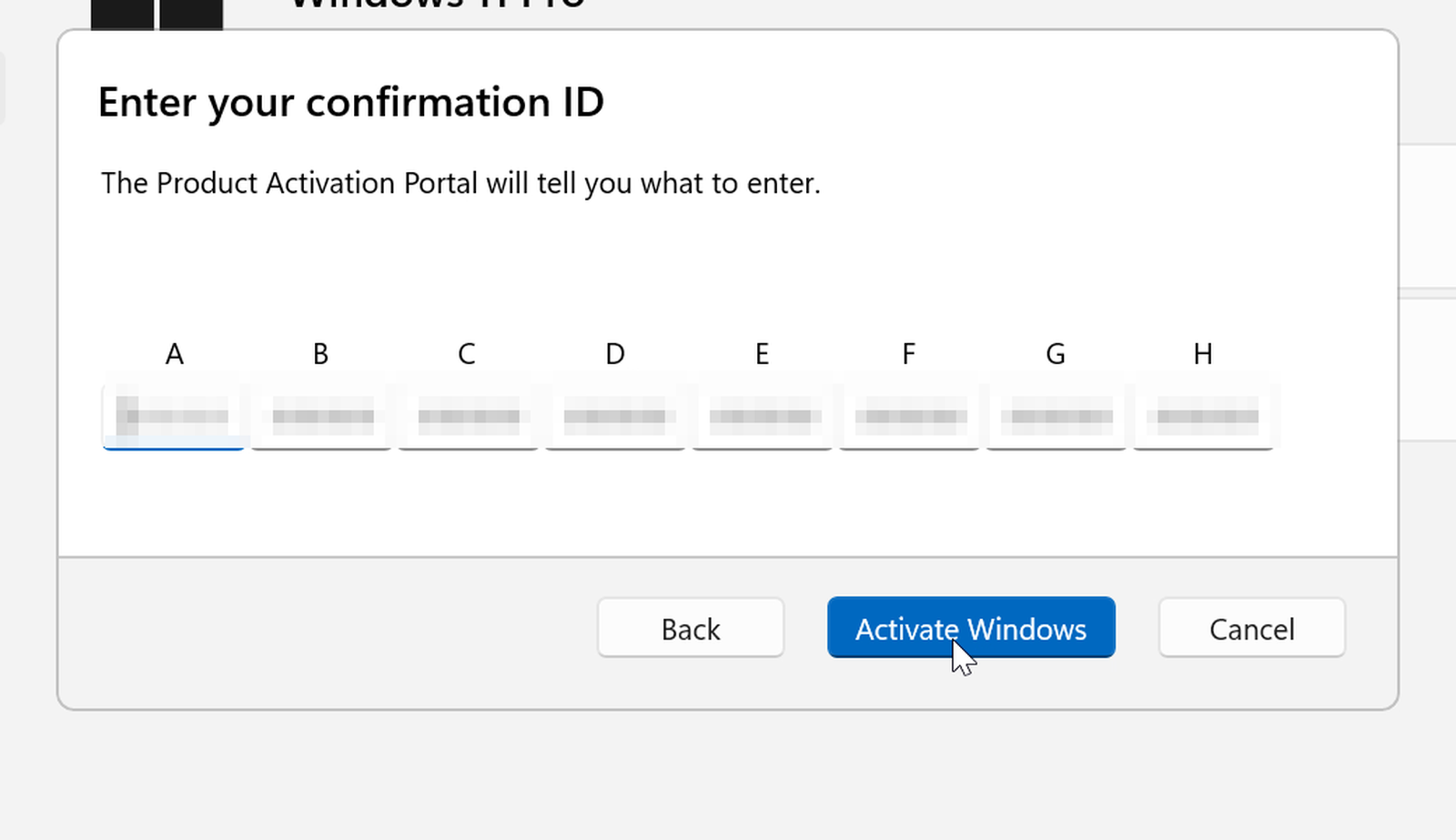
5.2 Type each of the eight blocks, A through H, in its own box. Pasting only fills the first box, so type the rest one by one. Then click "Activate Windows".
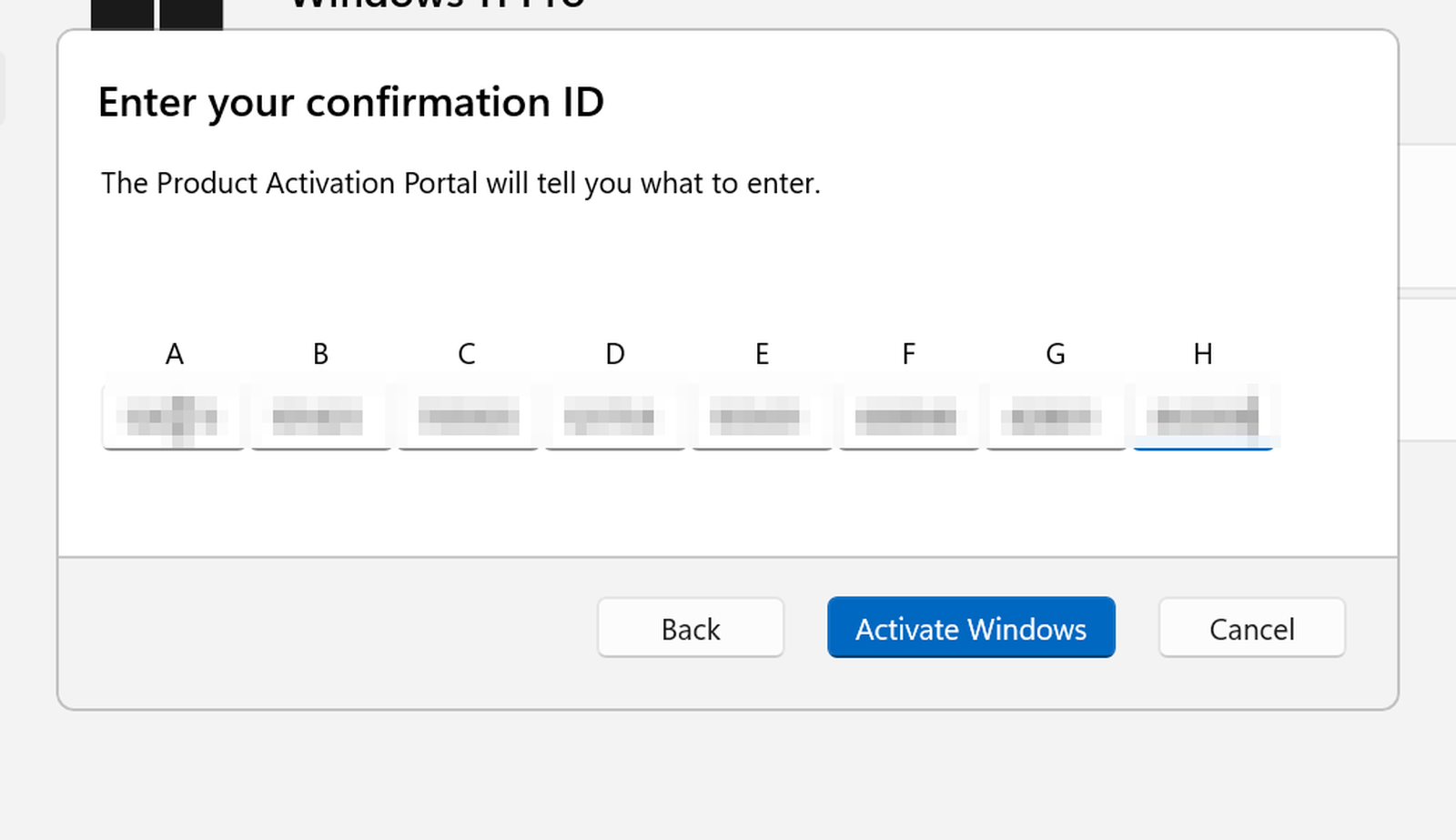
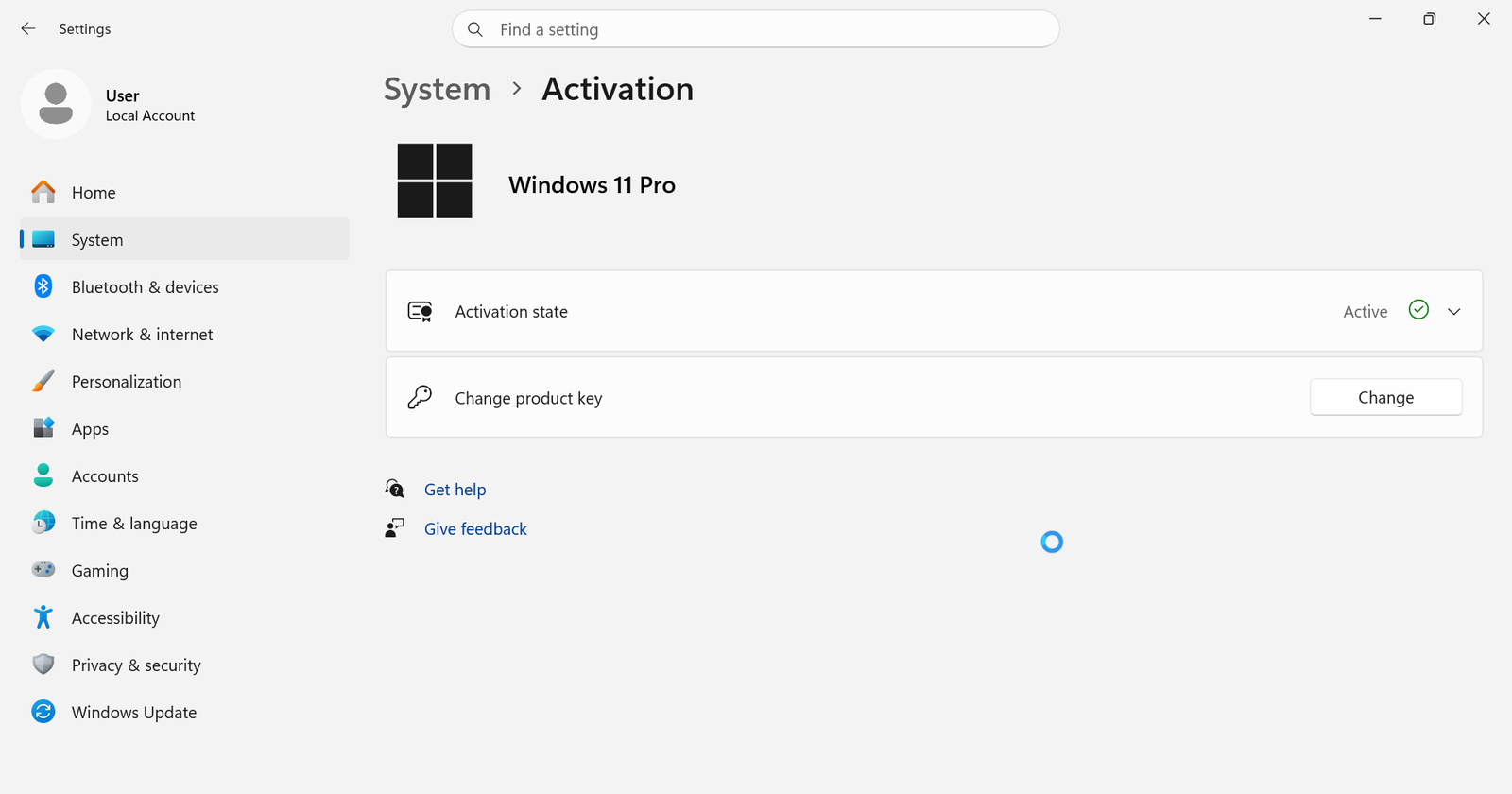
5.3 All done! Windows shows "Windows is activated". Click "Close".
On the Activation page, the activation state now says "Active".
IMPORTANT: If an error appears during activation, switch to another network (for example, your phone's hotspot) or use a VPN, and try again. If a license doesn't work, tell us within 24 hours of revealing it and we will replace it right away. Your statutory rights are not affected.
{n} from {l} bought
{n} bought
Someone from {l} bought
Someone bought
Just now
1 minute ago
2 minutes ago
1 hour ago
2 hours ago
1 day ago
2 days ago
Close


 Windows
 Office for PC
 Office for Mac
 Windows Server
 SQL Server
 Office Apps
 Visual Studio

