November Special Offer - 5% OFF SITEWIDE!
Use code:
Valid until Nov 30
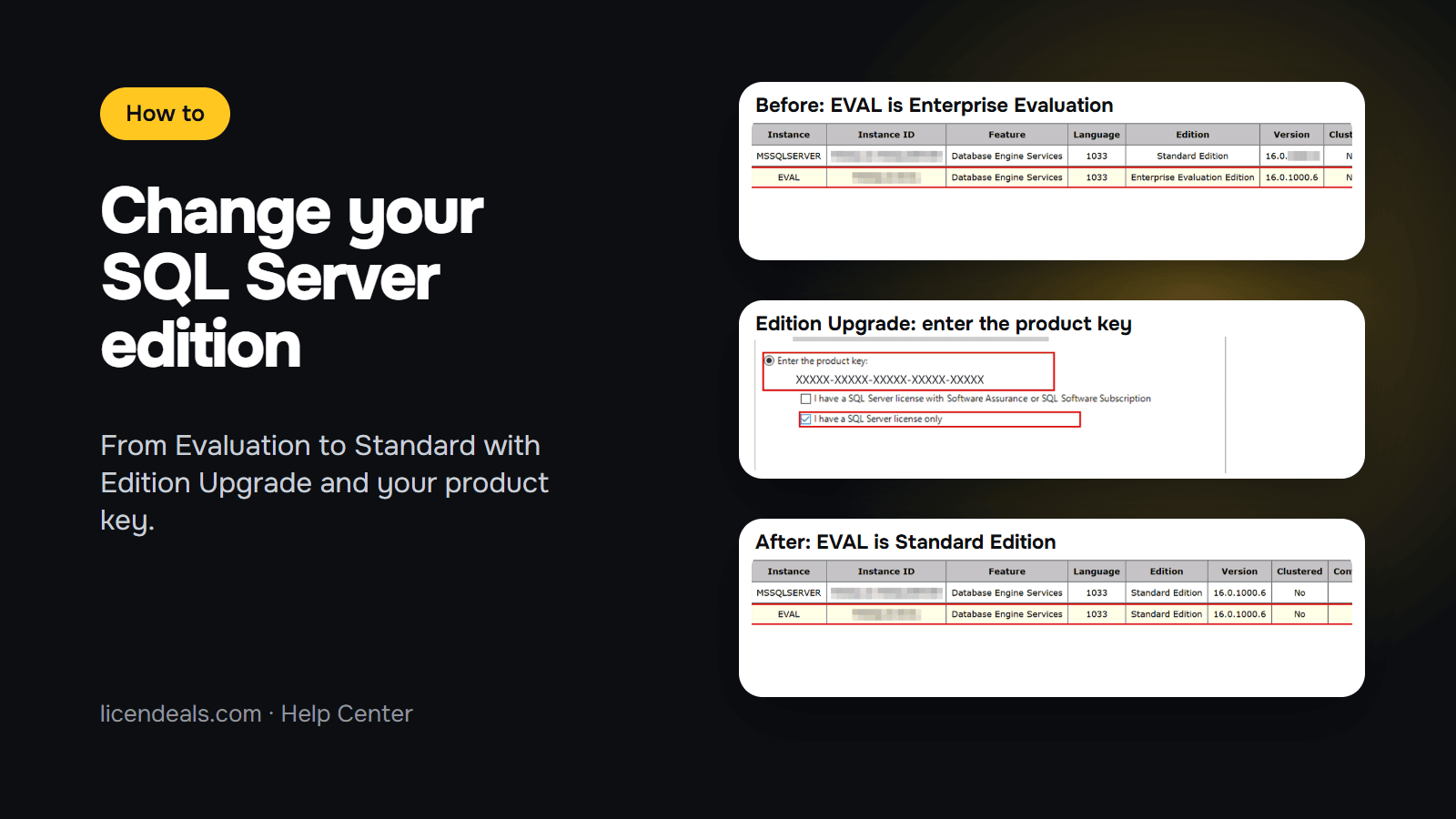
To change your SQL Server product key and move your instance to a higher edition, for example from Evaluation to Standard, you don't need to uninstall anything. SQL Server Installation Center has an Edition Upgrade wizard: you type your new product key and setup moves the instance to the edition of that key. Below are the steps with screenshots from our own Windows Server 2022 test server, where we changed a SQL Server 2022 Evaluation instance to Standard, and the video of the whole process.
This video is on YouTube (Google). Nothing loads from YouTube until you press play. By pressing play, you agree that YouTube uses cookies and receives your IP address. YouTube uses them to play the video and for its own purposes, such as counting views, security and ads. If you prefer not to, you can follow the written steps on this page instead. See our Privacy Policy and the Google Privacy Policy.
IMPORTANT: during the edition upgrade, setup restarts the SQL Server services, so the databases of that instance are offline for a moment. Do it when nobody is using them, and back up your databases first. Your product key must be for the same SQL Server version you have installed, in our example SQL Server 2022.
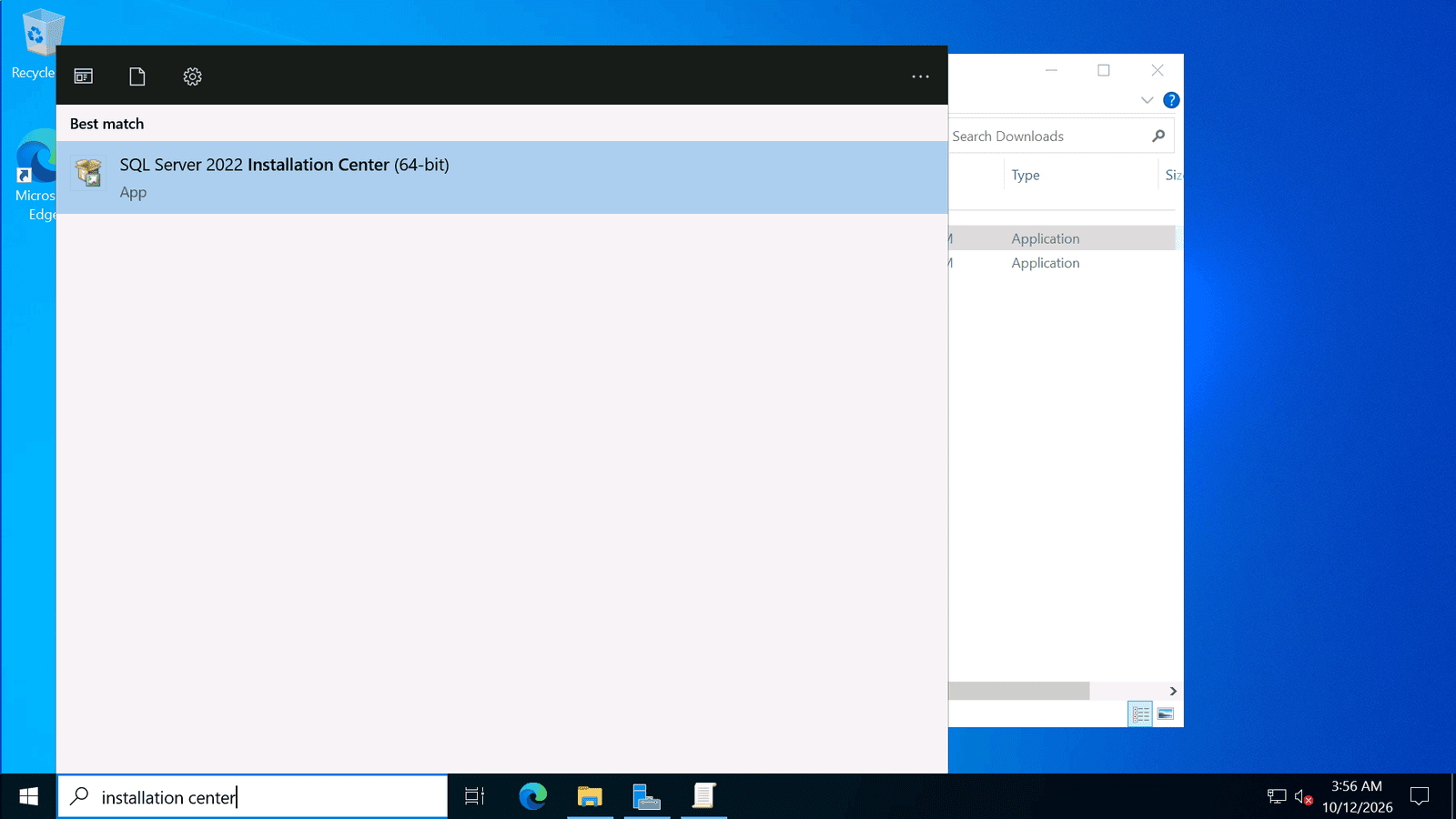
1.1 Open SQL Server Installation Center. Search for "installation center" in the Start menu and open SQL Server 2022 Installation Center (64-bit).
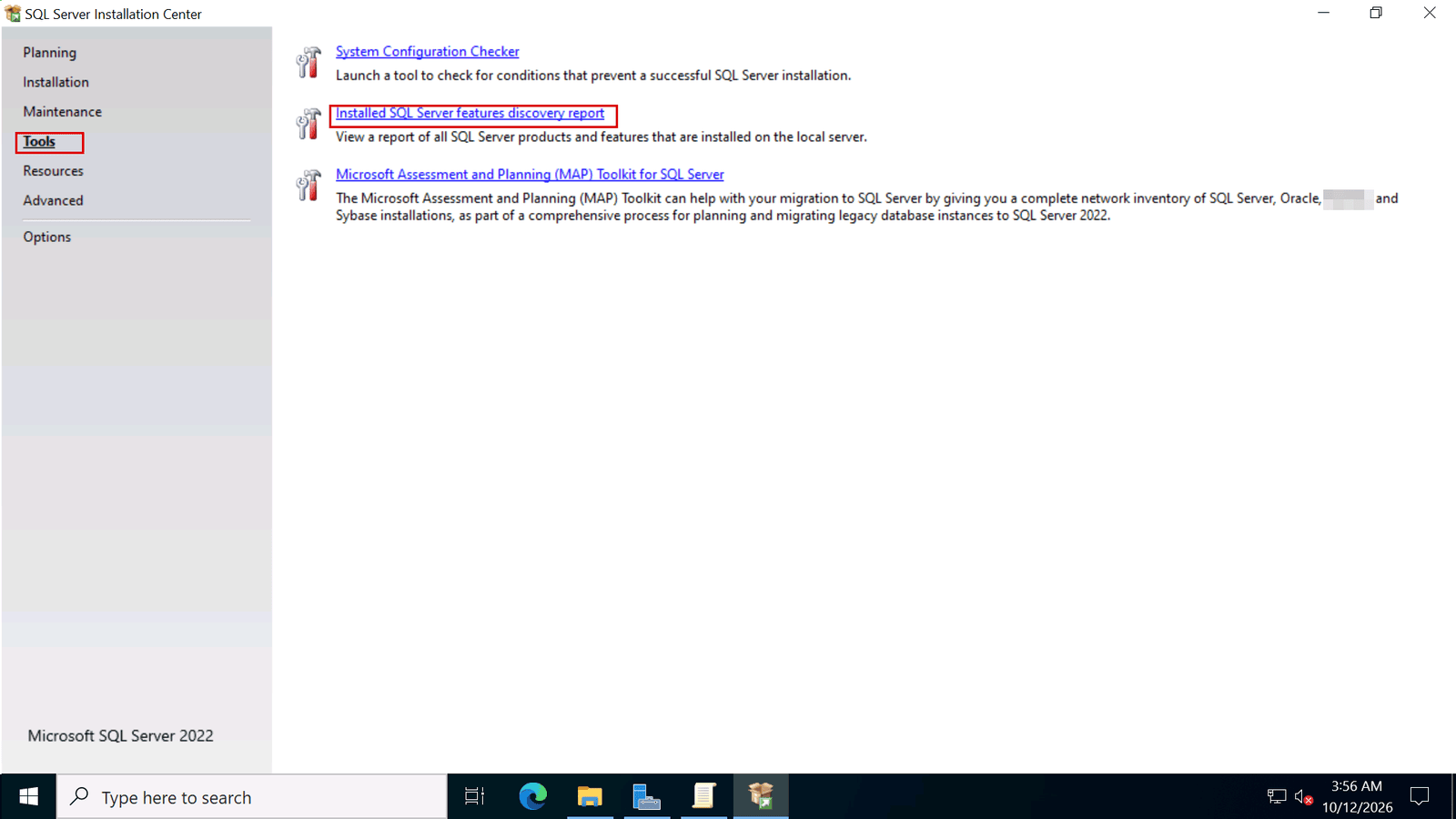
1.2 Go to Tools and click Installed SQL Server features discovery report.
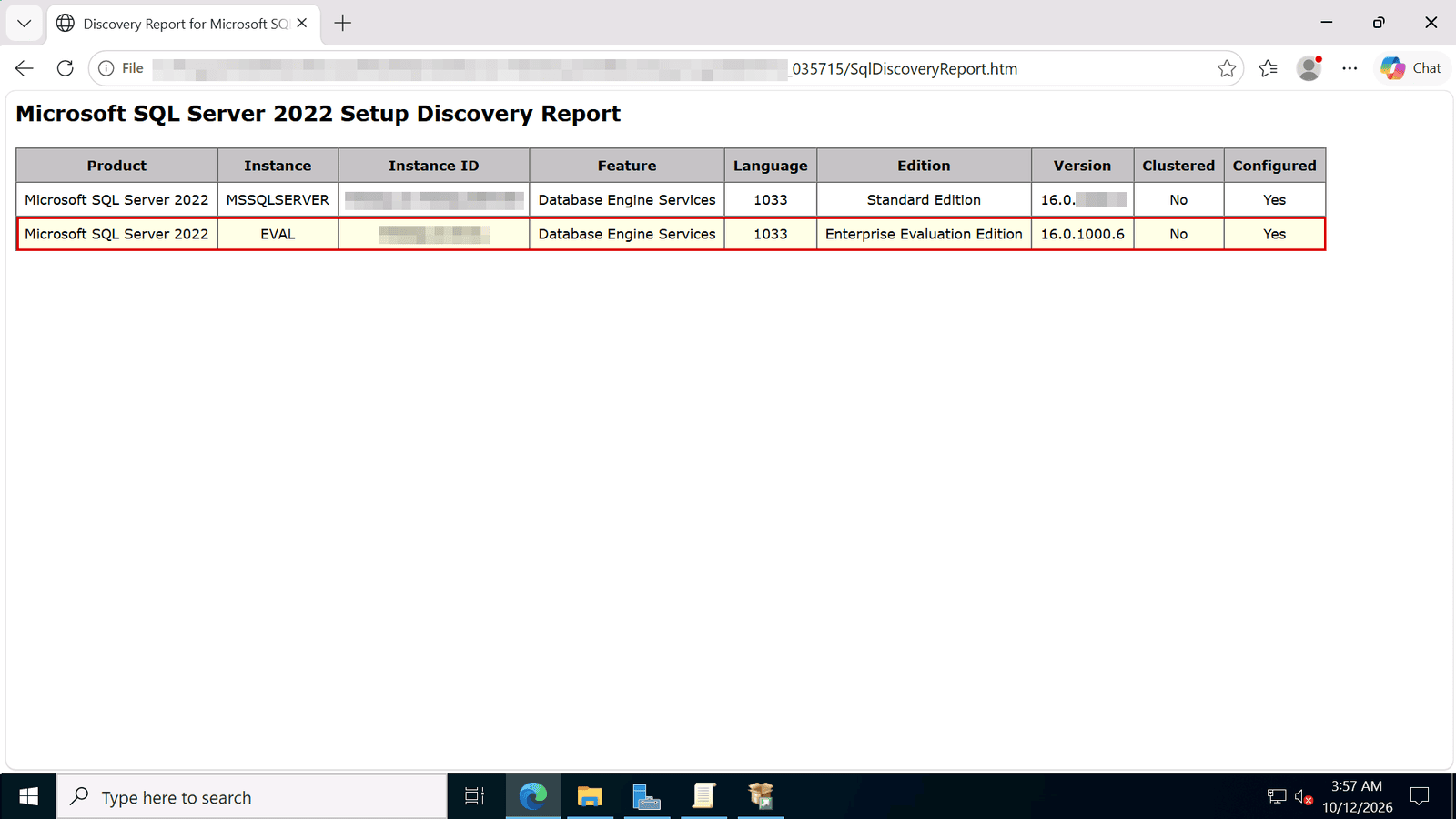
1.3 The report opens in your browser. Look at the Instance and Edition columns. On our server, the instance named EVAL runs Enterprise Evaluation Edition, the free trial edition. That is the one we are going to change.
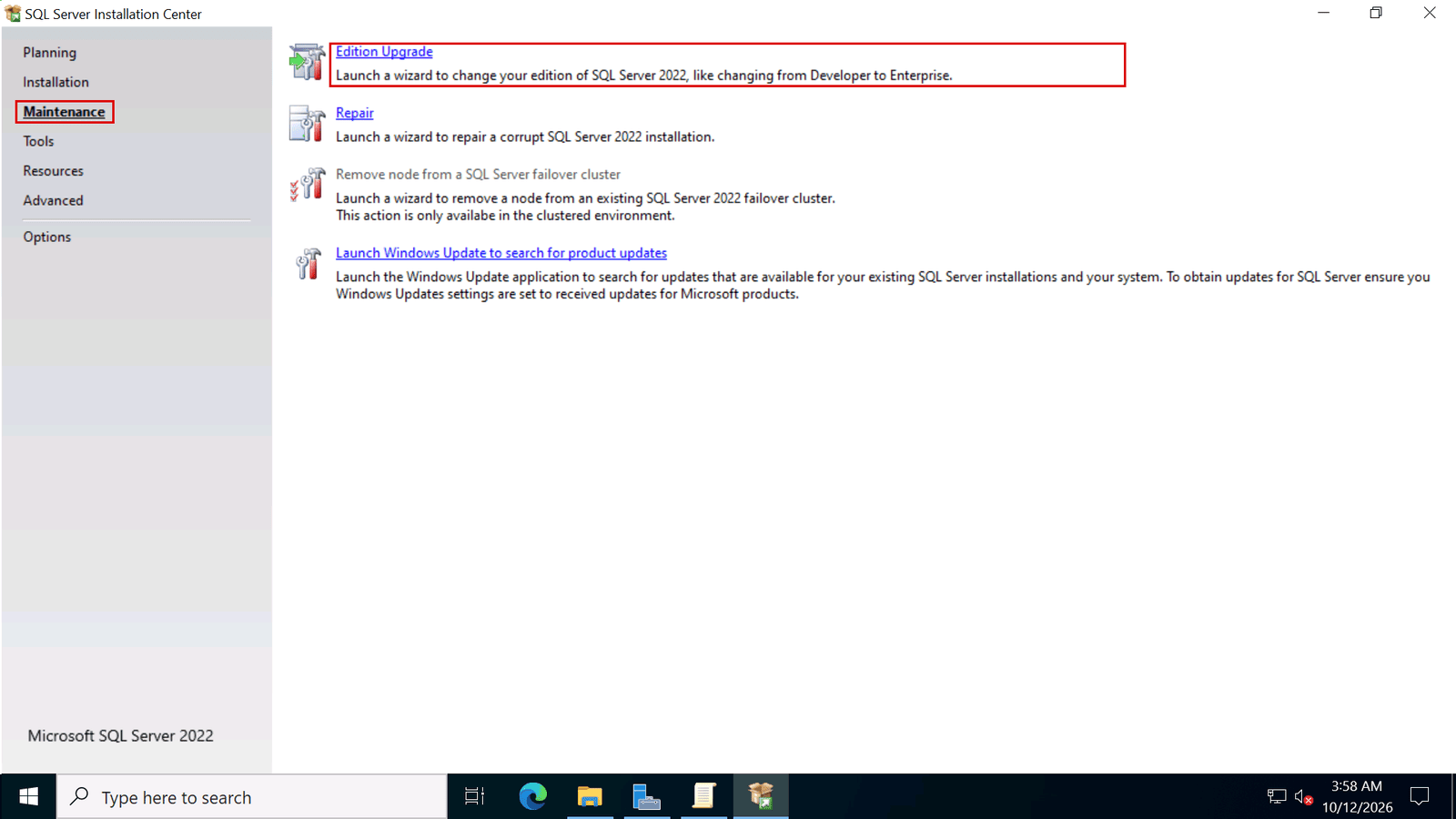
2.1 Close the report. In SQL Server Installation Center, go to Maintenance and click Edition Upgrade.
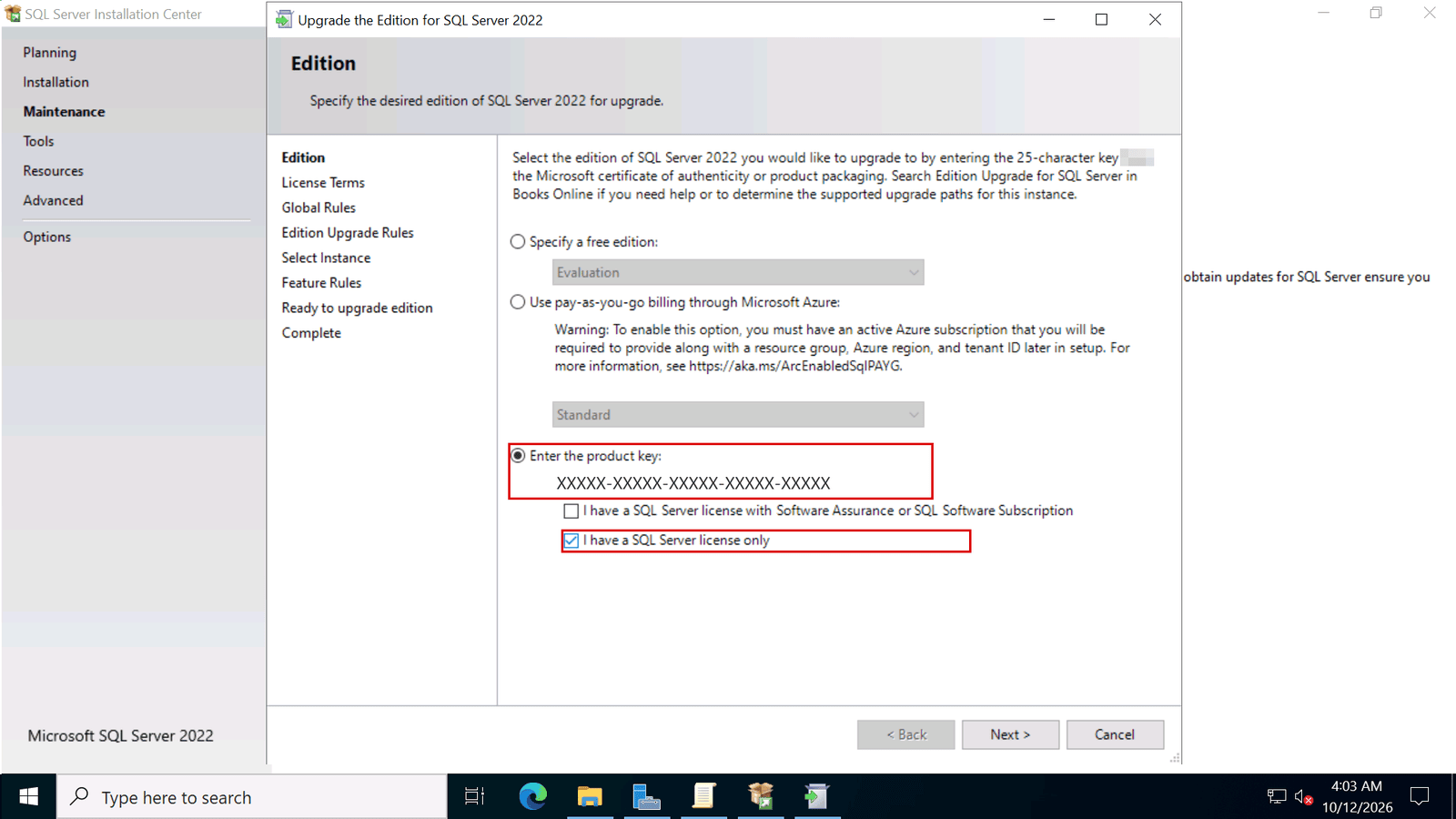
2.2 On the Edition page, choose Enter the product key and type your license key.
2.3 Select I have a SQL Server license only and click Next.
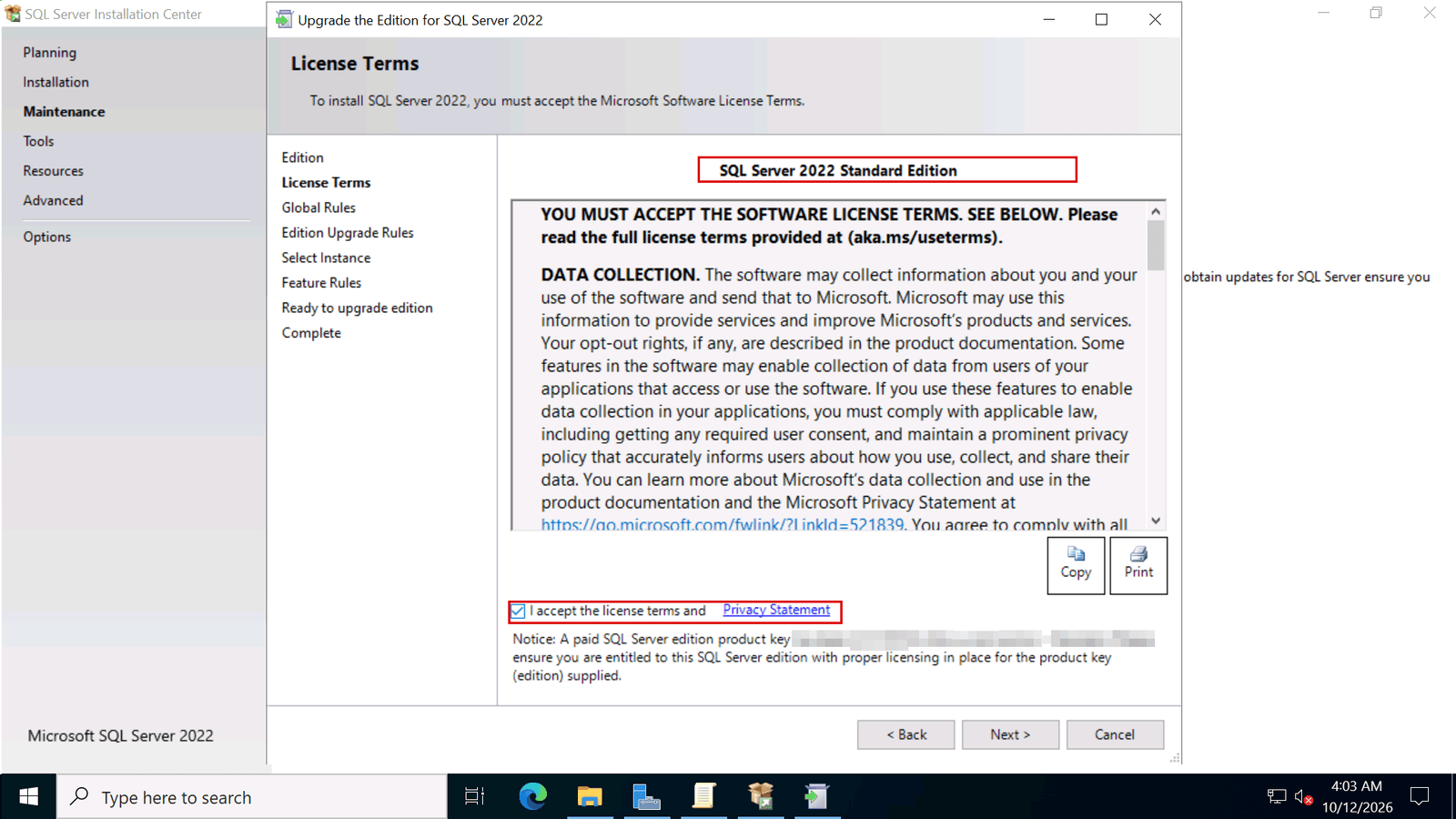
3.1 The new edition now appears at the top of the License Terms page, in our example SQL Server 2022 Standard Edition. Select I accept the license terms and Privacy Statement and click Next.
3.2 On Select Instance, choose the instance you want to change. The table below shows the edition of each instance. We chose EVAL. Click Next.
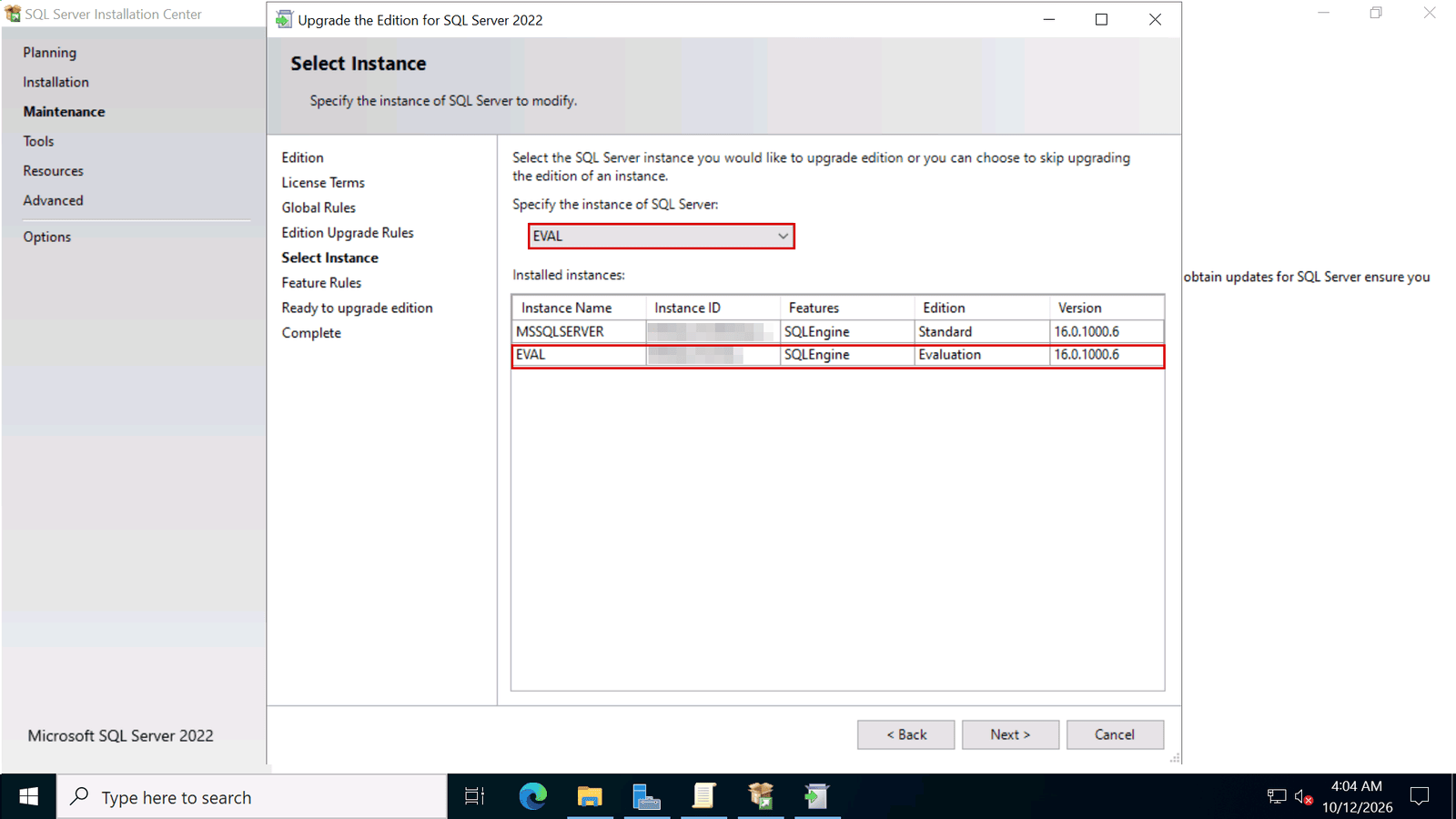
On this page you choose one instance. To change another instance, run Edition Upgrade again.
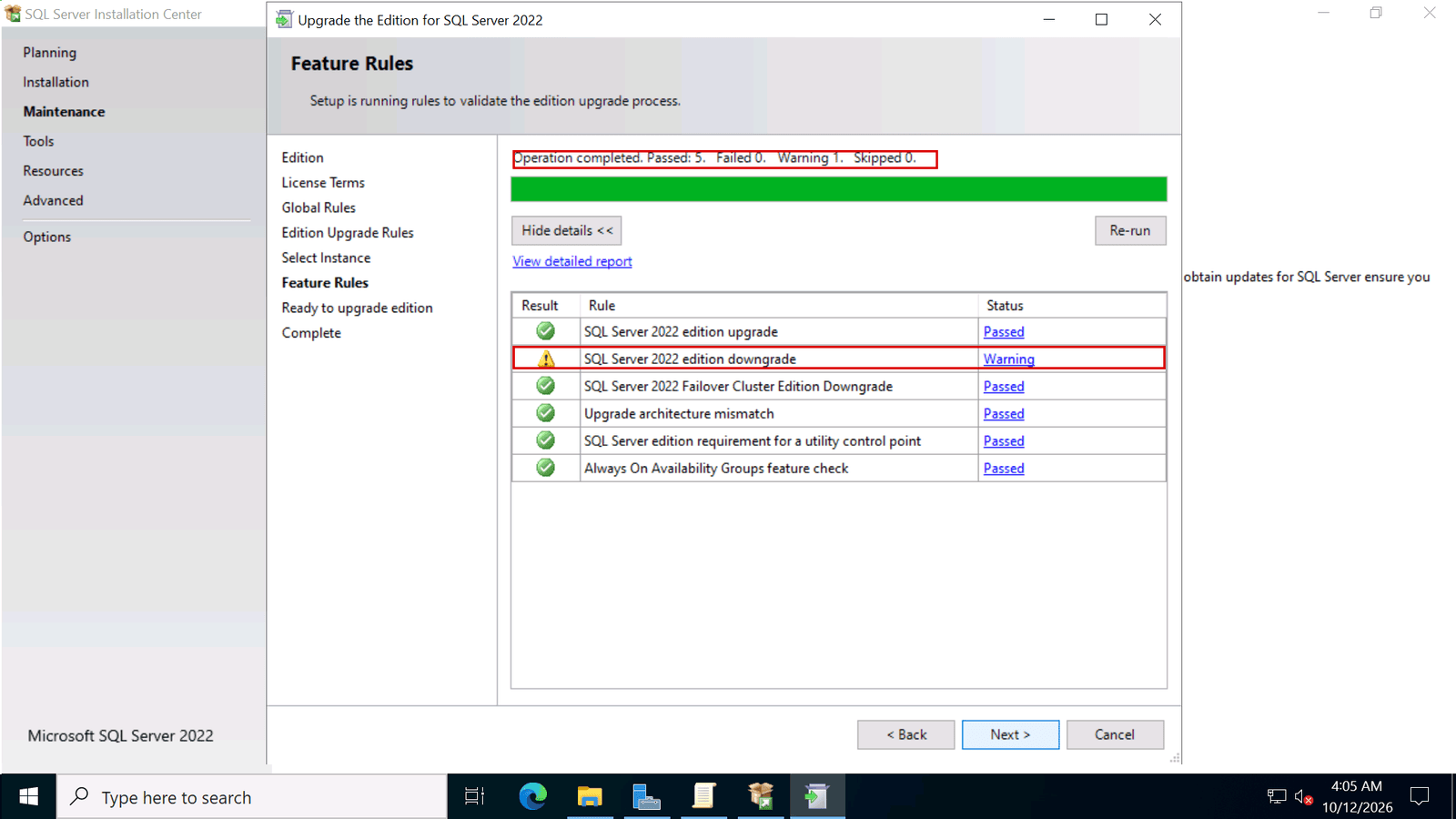
4.1 Setup checks the change on the Feature Rules page. On our server it showed one warning, SQL Server 2022 edition downgrade, because Evaluation is an Enterprise-level edition and Standard has fewer features. If you use Enterprise features, check that Standard supports them before you continue. Click Next.
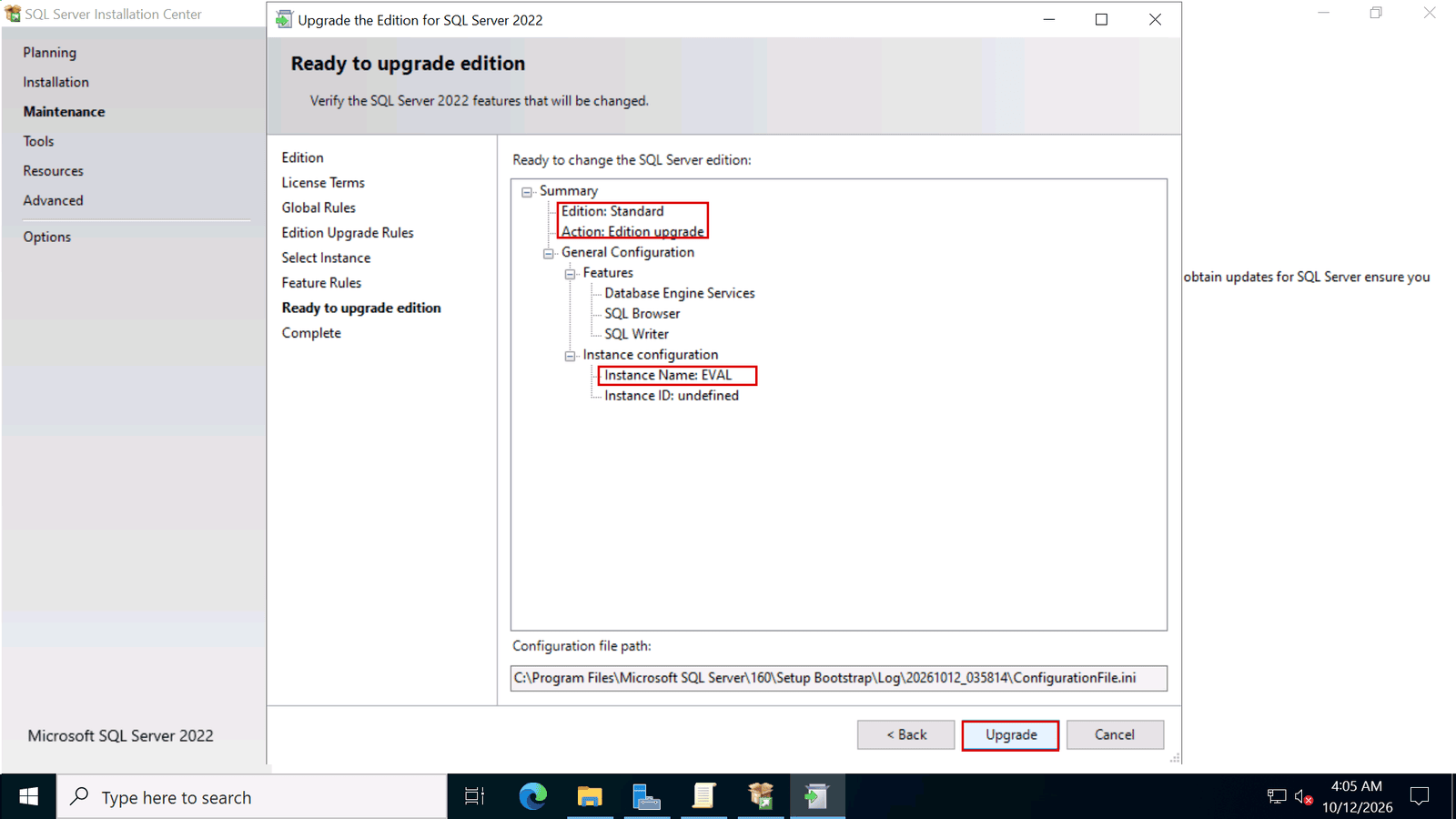
4.2 Check the summary on Ready to upgrade edition: the new edition and the instance name. Click Upgrade.
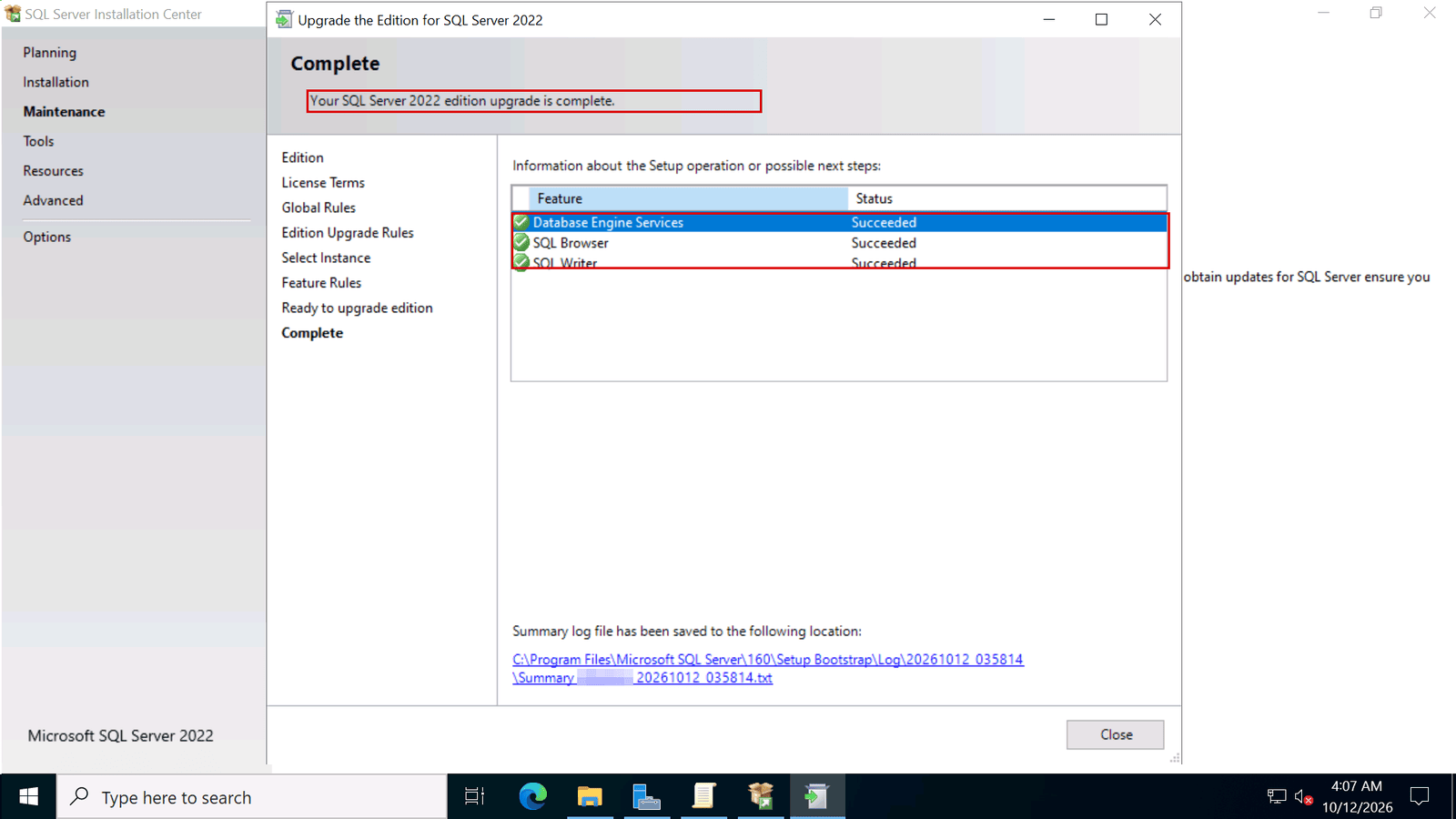
4.3 On our server the upgrade took about two minutes. When you see Your SQL Server 2022 edition upgrade is complete, click Close. If setup asks you to restart the computer, do it.
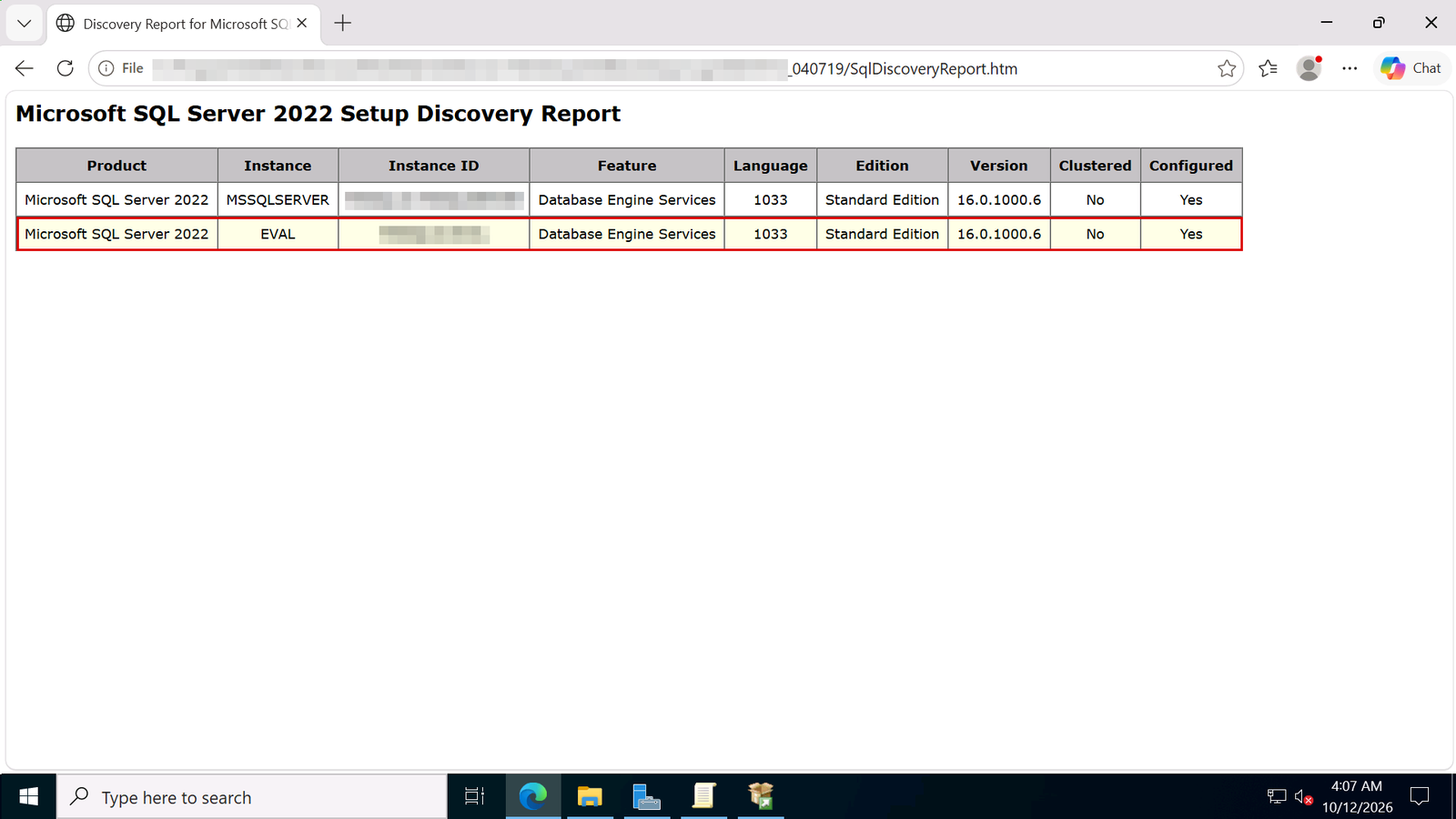
5.1 Go back to Tools and open the Installed SQL Server features discovery report again. The EVAL instance now runs Standard Edition. The edition upgrade doesn't reinstall SQL Server. You're all done.
According to Microsoft, these are the edition changes that Edition Upgrade supports in SQL Server 2022 (we leave out the Web edition):
Going down is different. To move from Enterprise to Standard, Microsoft says you must uninstall the instance completely and install it again with the new edition, after backing up all your databases. Edition Upgrade can't do it. We didn't test a downgrade on our server.
On a failover cluster there are extra limits: for example, Microsoft doesn't support moving a clustered Evaluation instance to Standard.
At Licendeals, your license stays hidden until you click Get my license. Reveal it when your server is ready and you can run Edition Upgrade right away. If a license doesn't work, tell us within 24 hours of revealing it and we will replace it right away.
{n} from {l} bought
{n} bought
Someone from {l} bought
Someone bought
Just now
1 minute ago
2 minutes ago
1 hour ago
2 hours ago
1 day ago
2 days ago
Close


 Windows
 Office for PC
 Office for Mac
 Windows Server
 SQL Server
 Office Apps
 Visual Studio

