Tips and Tricks

Windows Server 2016 End of Support: What to Do (with Windows Server and SQL Server support dates)

Windows Server 2016 end of support: extended support ends on January 12, 2027

Windows Server 2016 end of support: Microsoft's extended support for Windows Server 2016 ends on January 12, 2027. Until then it still receives security updates; after that date, it gets none. Below we explain what extended support means, what stops and what keeps working, your options, and the support end dates of Windows Server 2016, 2019, 2022 and 2025 and SQL Server 2019, 2022 and 2025, with screenshots from our store and our test server.

IMPORTANT: Microsoft can change its support dates. Check the Microsoft Lifecycle page of your product before you plan the move. We link each one in the tables below.

1. The date and what extended support means

Windows Server 2016 follows Microsoft's Fixed Lifecycle Policy. Its mainstream support ended on January 11, 2022, and its extended support ends on January 12, 2027 (dates in US Pacific Time).

During extended support, Microsoft provides security updates at no additional cost, but no new features and no non-security updates. That is the phase Windows Server 2016 is in today. This is how the date appears on our Windows Server 2016 product pages:

Good to know note on the Windows Server 2016 Standard product page: extended support ends on January 12, 2027

2. What stops and what keeps working

  • What stops: after January 12, 2027, Microsoft no longer publishes security updates for Windows Server 2016. In Microsoft's words, security updates beyond the end of support are only "available via Extended Security Update Program".
  • What keeps working: your server doesn't switch off. Windows Server 2016 keeps running and stays activated, and your roles, applications and data stay where they are.
  • The real risk: new vulnerabilities found after that date won't be fixed. Microsoft itself warns that "older products may not meet today's more demanding security requirements".

At the time of writing, Microsoft's Lifecycle page for Windows Server 2016 doesn't announce an Extended Security Updates program for it. If Microsoft announces one, it will appear there.

3. Your options

  • Stay on Windows Server 2016 until January 2027. It is still supported with security updates, so it remains a valid choice for software that requires it, or for a server you plan to replace soon. Keep it fully updated and plan the move before the date.
  • Upgrade in place. According to Microsoft, Windows Server 2016 can be upgraded in place with the installation media to Windows Server 2019, 2022 or 2025, keeping your settings, server roles, features and data.
  • Clean install or migration. Install the new version on a new server, or over the old one, and move your roles and data. Microsoft suggests this when you are moving to new hardware or want a fresh start.

Whichever you choose, Microsoft is clear about licensing: "Unlike Windows client, each Windows Server upgrade requires a separate license." So you need a product key for the new version.

4. Support end dates: Windows Server and SQL Server

These are the dates Microsoft publishes for the versions we sell, as they appear on our product pages:

Windows Server 2025, 2022, 2019 and 2016 mainstream and extended support end dates, as shown on the Licendeals Windows Server 2016 Standard product page

Windows ServerMainstream support endsExtended support ends
Windows Server 2025November 13, 2029November 14, 2034
Windows Server 2022October 13, 2026October 14, 2031
Windows Server 2019January 9, 2024January 9, 2029
Windows Server 2016January 11, 2022January 12, 2027
SQL ServerMainstream support endsExtended support ends
SQL Server 2025January 6, 2031January 6, 2036
SQL Server 2022January 11, 2028January 11, 2033
SQL Server 2019February 28, 2025January 8, 2030

Source: Microsoft Lifecycle (dates in US Pacific Time). Last reviewed: October 22, 2026.

If your server also runs SQL Server, check both dates: the support of each product ends on its own date.

5. Planning the move

  • Back up first. Microsoft's advice: always back up your system and important files before an in-place upgrade, a clean install or a migration.
  • Check your applications. Confirm that the software on the server supports the new version, and that your roles and features support an in-place upgrade.
  • Choose the edition. By default, an upgrade keeps the same edition: Standard upgrades to Standard and Datacenter to Datacenter. Microsoft describes Standard as "ideal for physical or minimally virtualized environments" and Datacenter as "ideal for highly virtualized datacenters and cloud environments".
  • Get the key for the new version. Each Windows Server edition is a RETAIL License for 1 server. Right after your payment is confirmed, we email you a secure link to your license, and your invoice comes with the order.
  • Leave time. Plan the move well before January 12, 2027, so you can test it without pressure.

This is the edition screen of Windows Server 2022 Setup on our test server:

Windows Server 2022 Setup on our test server: select the edition you want to install

For the full steps, follow our guide How to Install Windows Server 2022 and Activate It with a Product Key. Need help choosing? Read our Windows Server licensing guide.

6. RDS CALs and the new version

If you use Remote Desktop Services, remember that RDS CALs are tied to a Windows Server version. A pack works with its own Windows Server version or an earlier one, so a Windows Server 2016 pack works with Windows Server 2016, but not with a server running 2022 or 2025. When you move, you need RDS CALs for the new version.

This is a pack of Windows Server 2022 RDS Device CALs in RD Licensing Manager on our test server:
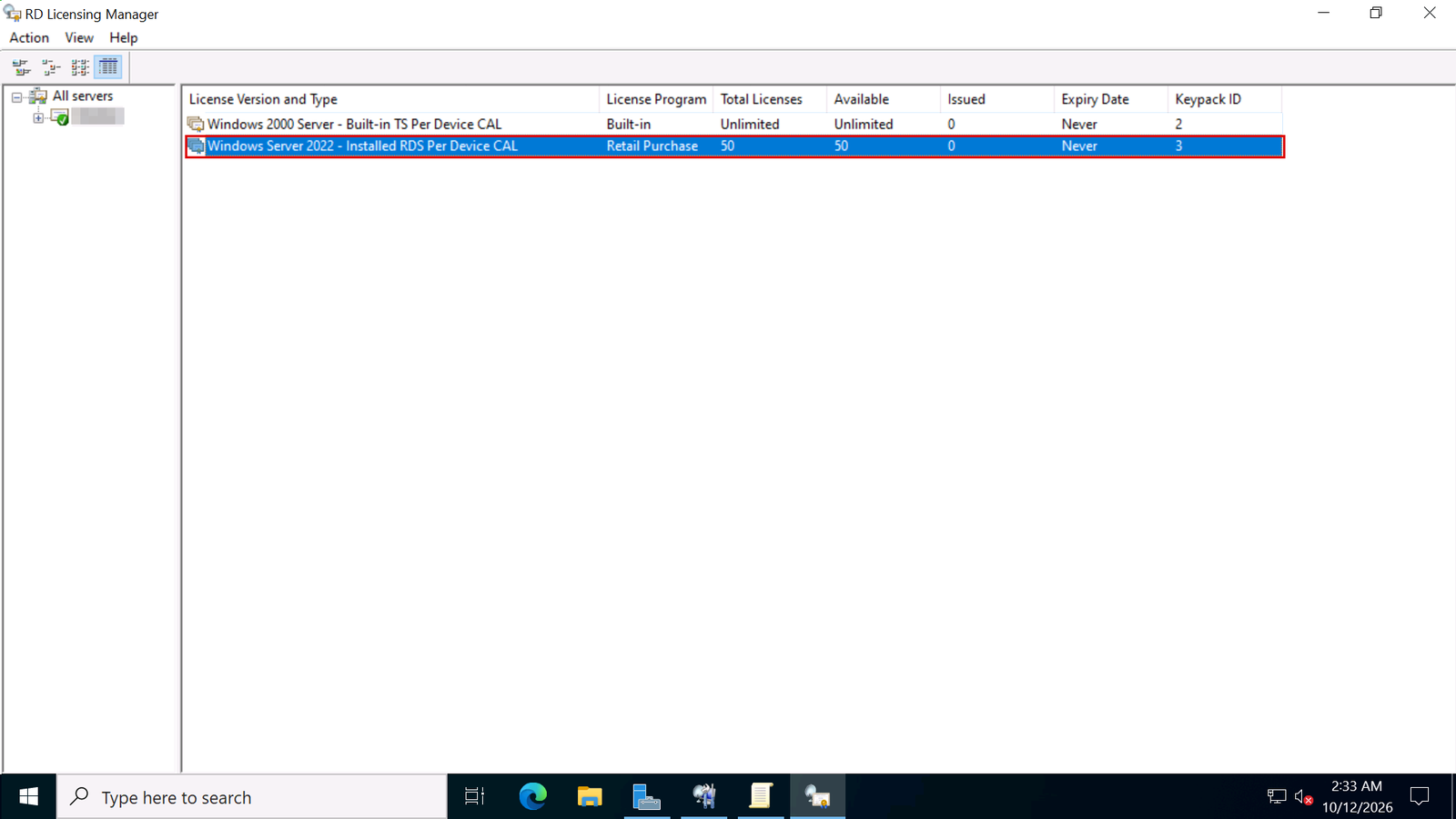
RD Licensing Manager showing Windows Server 2022 RDS Per Device CALs installed on our test server

See our guide How to Install RDS CALs on Windows Server 2022 and 2025, and the Windows Server 2022 RDS 50 User CALs and Windows Server 2025 RDS 50 User CALs.

7. Frequently asked questions

Is Windows Server 2016 end of life?

Not yet. Windows Server 2016 is in extended support until January 12, 2027, so it still receives security updates. Its mainstream support ended on January 11, 2022.

When does extended support for Windows Server 2016 end?

On January 12, 2027, according to Microsoft Lifecycle (US Pacific Time). After that date, Microsoft no longer publishes security updates for it.

Will Windows Server 2016 stop working after January 12, 2027?

No. It keeps running and stays activated, but without new security updates.

Can I upgrade Windows Server 2016 to 2022 or 2025?

Yes. According to Microsoft, Windows Server 2016 can be upgraded in place with the installation media to Windows Server 2019, 2022 or 2025. Each upgrade needs a license for the new version.

Is there an Extended Security Update program for Windows Server 2016?

At the time of writing, Microsoft's Lifecycle page for Windows Server 2016 doesn't announce one. Check that page for updates.

Can I still buy Windows Server 2016?

Yes. We sell Windows Server 2016 Standard, Datacenter and Essentials. Check that the January 12, 2027 date fits your plans before you buy.

Checked on: our store, our Windows Server 2022 test server and Microsoft's pages Windows Server 2016 lifecycle, Fixed Lifecycle Policy and Plan your Windows Server upgrade path, read on 2026-10-22. Microsoft can change its guidance; check it if something looks different on your screen.

Still stuck? Our team can help you choose the right version and edition, with 24/7 support. See Windows Server 2022 Standard, Windows Server 2025 Standard, or all Windows Server 2016 editions at Licendeals.