September Special Offer - 5% OFF SITEWIDE!
Use code:

This account lets you use Office 365 Personal or Family on your PC, Mac, tablet, or smartphone. Buy it now, and we'll instantly send an Office 365 Personal account to your email address. This account is activated when you sign in for the first time.
This Office 365 account lets you use all Office apps from anywhere. We offer an affordable price and a one-year warranty for this product.
1.1 To begin, download Office 365 by visiting login.microsoftonline.com and sign in with the details from your order email.

1.2 For security reasons, Microsoft will ask you to change it. Create a new password and save it in a safe place; lost passwords are not covered under warranty.

2.1 Once inside, go to the top-left menu, click on “More apps”.
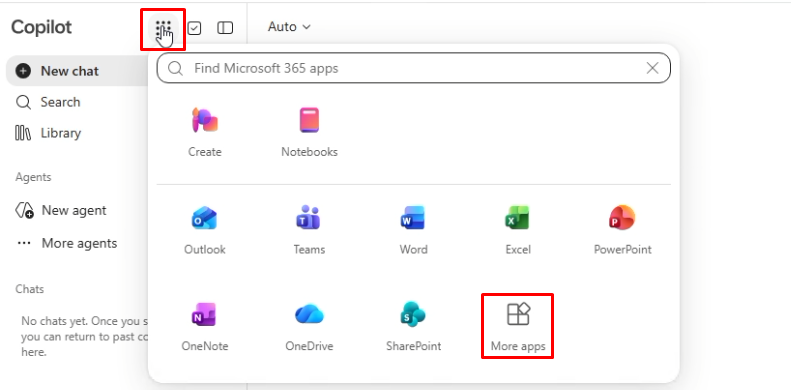
2.2 Now, close the pop-up windows and go to the top left to click on "All apps."
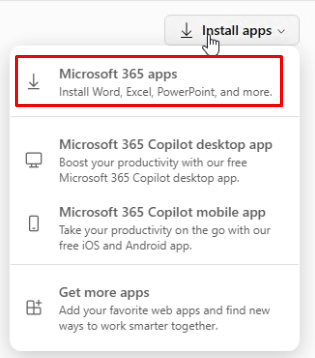
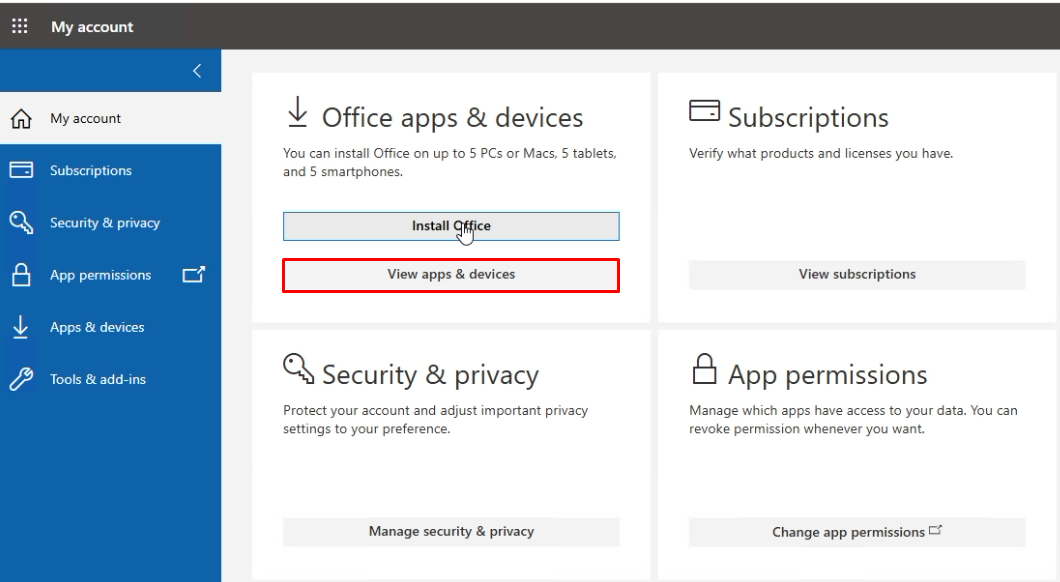
3.1 In the control panel, we recommend that you select “View apps and devices.” Choose the version you need and click “Install Office” to download the file.
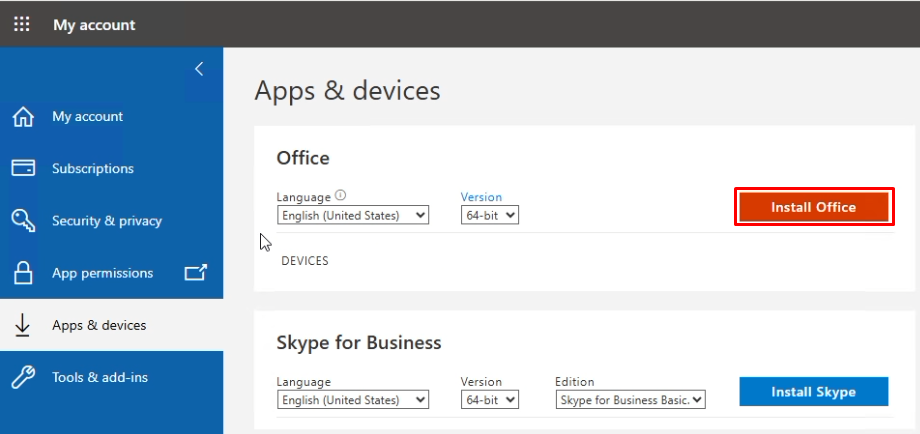
3.2 When it finishes , open the installer and follow the on-screen instructions.
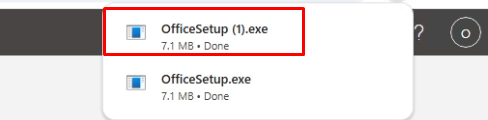
3.3 Run the file you downloaded and click “Yes” in the User Account Control window to allow the application to make changes.

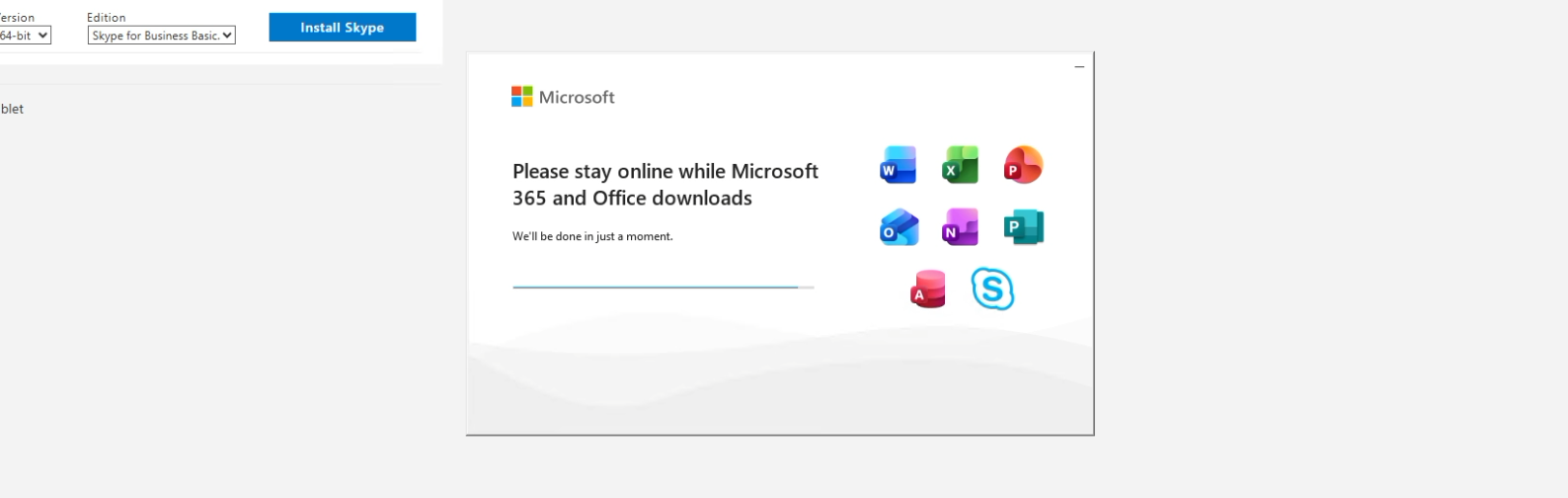
3.4 Microsoft Office 365 will begin installing, which may take a few minutes. Upon completion, a message will appear stating that you are all set, and you can click "Close".

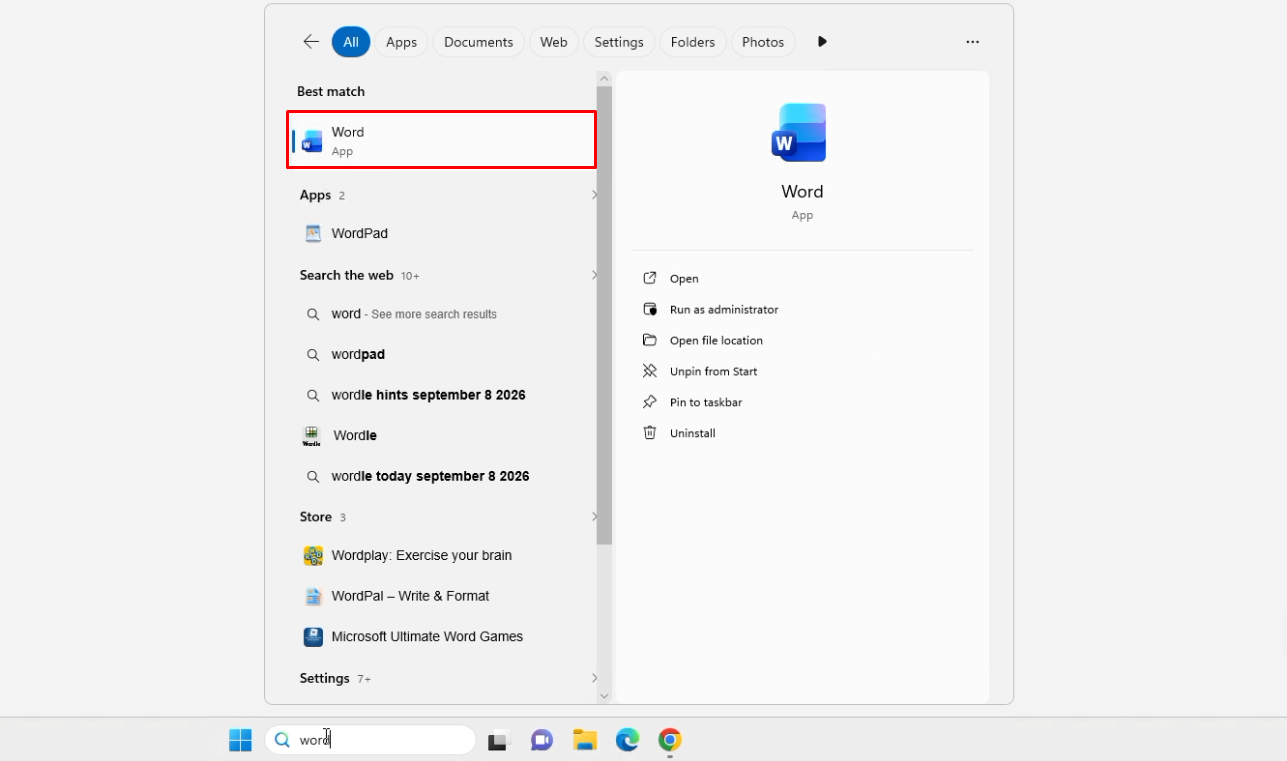
4.1 Open Microsoft Word
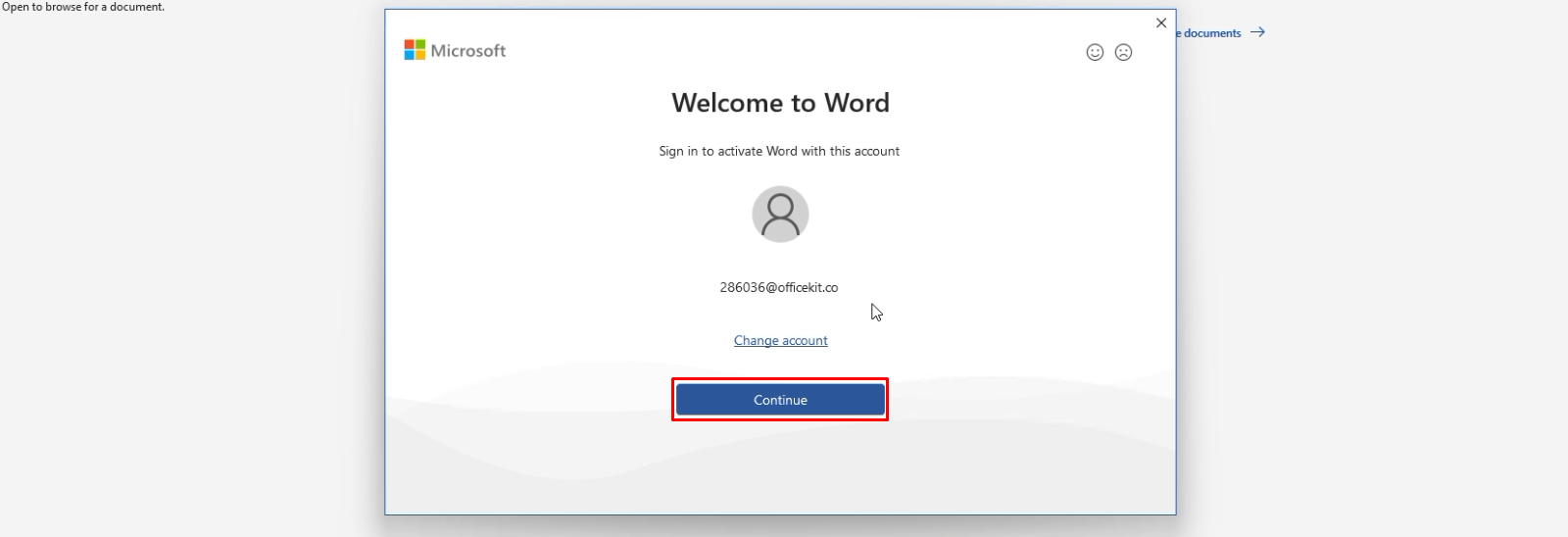
4.2 If the account you purchased appears, click “Continue”; otherwise, click “Switch Accounts.”
4.3 Sign in with your email account and your new password.

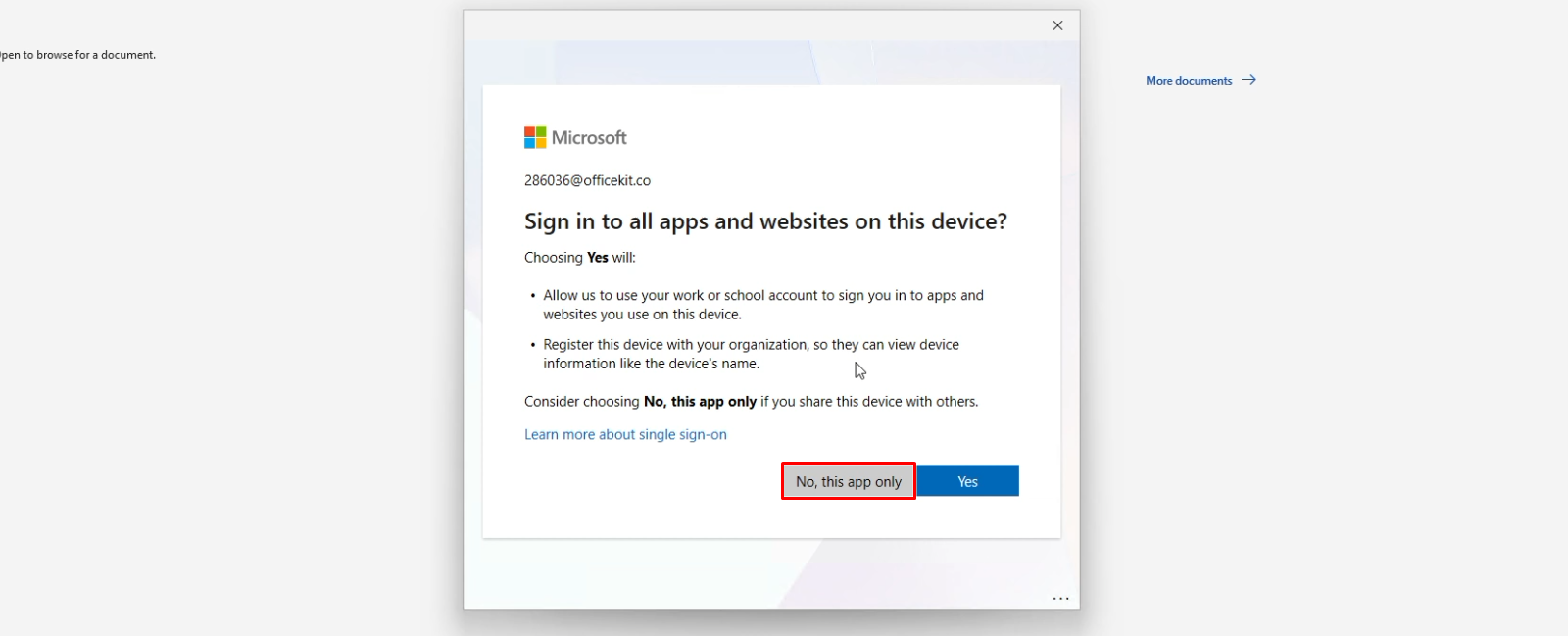
5.1 When the system asks if you want to sign in to all services on this device, select "No".
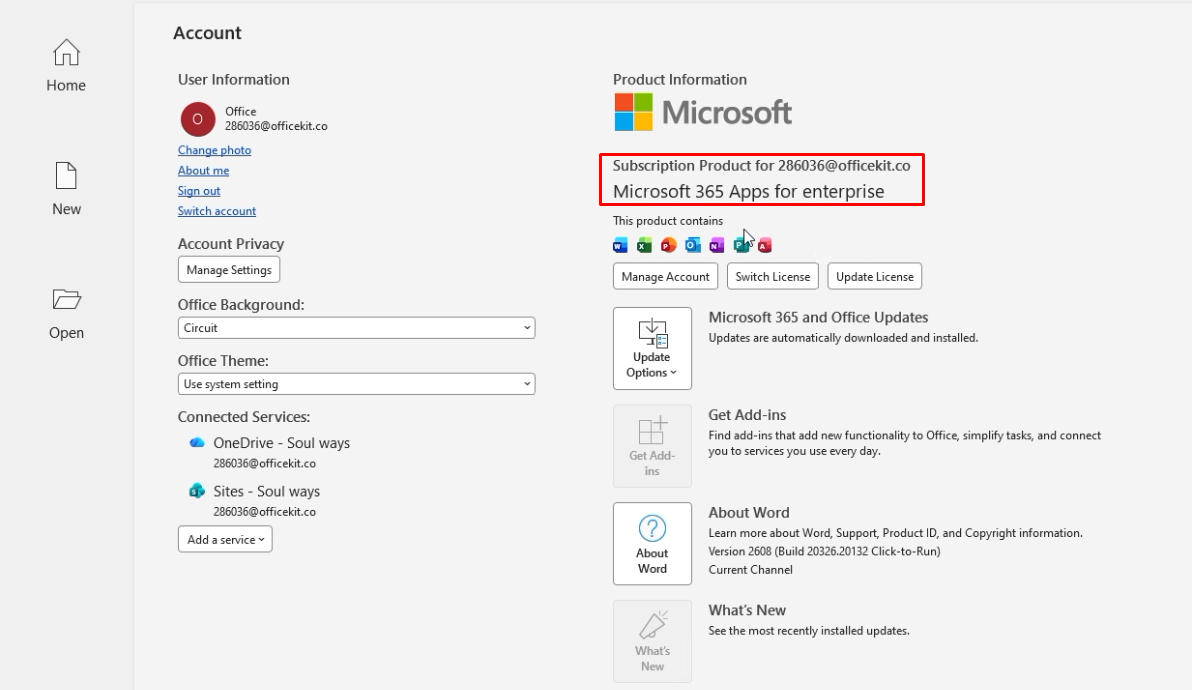
5.2 All done! You'll see a message confirming that your Office 365 has been successfully activated and is now ready to use without restrictions.
No account yet?
Create an Account


 Windows
 Office for PC
 Office for Mac
 Windows Server
 SQL Server
 Office Apps
 Visual Studio
