October Special Offer - 5% OFF SITEWIDE!
Use code:
Valid until Oct 31
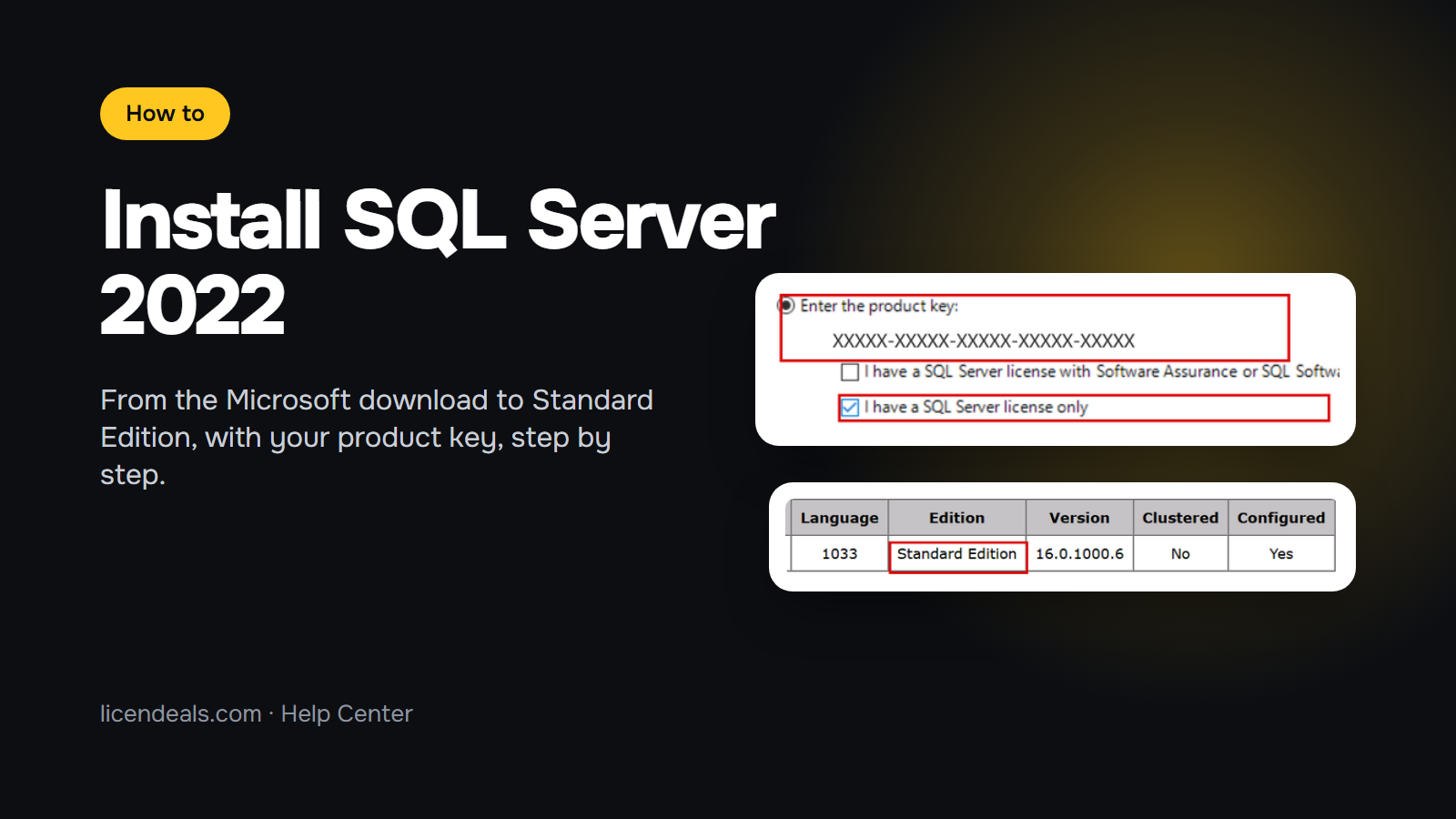
To install SQL Server 2022 Standard or Enterprise with your own license, you download the free installer from Microsoft and type your product key on the Edition page of setup. The key decides which edition gets installed, so there is no separate activation step afterwards. Below are the steps with screenshots from our own Windows Server 2022 test server, and the video of the whole installation.
This video is on YouTube (Google). Nothing loads from YouTube until you press play. By pressing play, you agree that YouTube uses cookies and receives your IP address. YouTube uses them to play the video and for its own purposes, such as counting views, security and ads. If you prefer not to, you can follow the written steps on this page instead. See our Privacy Policy and the Google Privacy Policy.
IMPORTANT: your product key must be for SQL Server 2022 and for the edition you want to install, Standard or Enterprise. A SQL Server 2019 or 2025 key, or a key for another edition, is not accepted by SQL Server 2022 setup.
1.1 Run the SQL Server 2022 installer you downloaded from Microsoft. Its file is called SQL2022-SSEI-Eval.exe. Don't worry about the word "Eval": your product key turns it into the edition you bought.
1.2 Choose Custom. It lets you enter your product key during setup.

1.3 Keep the download location and click Install. The setup files download from Microsoft. When the download finishes, SQL Server Installation Center opens.

2.1 In SQL Server Installation Center, go to Installation and click New SQL Server standalone installation or add features to an existing installation.

2.2 On the Edition page, choose Enter the product key and type your license key.
2.3 Select I have a SQL Server license only and click Next.

3.1 Setup now shows your edition at the top of the License Terms page, in our example SQL Server 2022 Standard Edition. Select I accept the license terms and Privacy Statement and click Next.

3.2 Microsoft Update is optional. Choose what you prefer and click Next.
3.3 Setup checks your server on the Install Rules page. A Windows Firewall warning is normal: it only reminds you to open the ports if other computers will connect to SQL Server. Click Next.

4.1 Azure Extension for SQL Server is selected by default. If you don't use Azure, clear it and click Next.

4.2 On Feature Selection, select the features you need. Database Engine Services is the SQL Server database itself. Click Next.

5.1 Keep the Default instance (MSSQLSERVER) and click Next. On Server Configuration, keep the default service accounts and click Next.

5.2 On Database Engine Configuration, keep Windows authentication mode. Click Add Current User to make your account an administrator of SQL Server, and click Next.

6.1 Check the summary on the Ready to Install page: it shows your edition. Click Install.

6.2 SQL Server installs. It takes a few minutes. When every feature says Succeeded, click Close.

7.1 In SQL Server Installation Center, go to Tools and click Installed SQL Server features discovery report.
7.2 The report opens in your browser. The Edition column shows the edition your key installed, in our example Standard Edition. You're all done.

At Licendeals, your license stays hidden until you click Get my license. Reveal it when your server is ready and you can install SQL Server right away. If a license doesn't work, tell us within 24 hours of revealing it and we will replace it right away.
No account yet?
Create an Account





 Windows
 Office for PC
 Office for Mac
 Windows Server
 SQL Server
 Office Apps
 Visual Studio
