October Special Offer - 5% OFF SITEWIDE!
Use code:
Valid until Oct 31
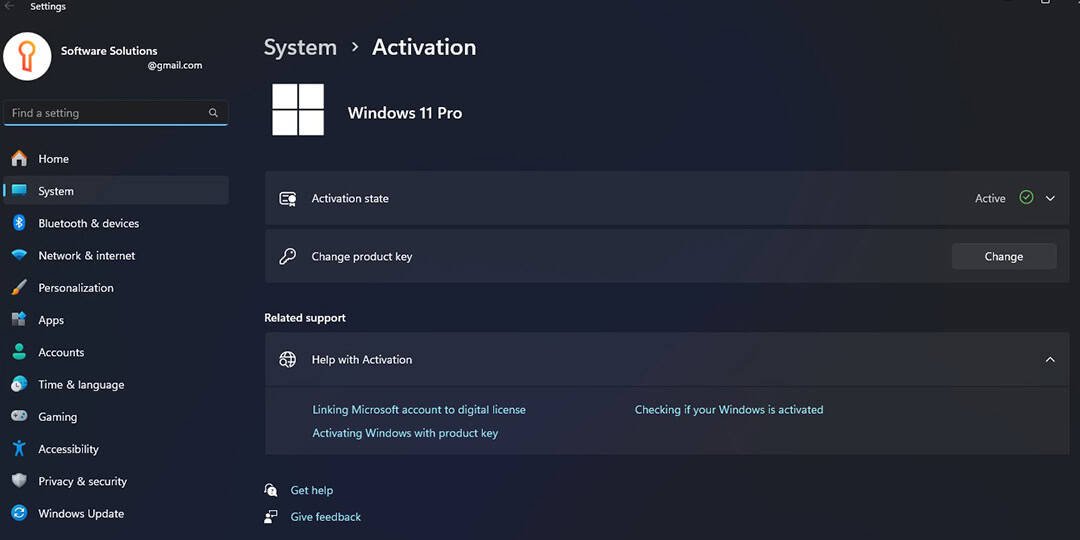
Below is a step-by-step overview of how to activate Windows 11 for any edition. The activation process in Windows 11 is straightforward.
1. To perform the activation, you must have Windows 11 installed on your system along with a valid Windows 11 product key. If you do not currently have a product key available, you may purchase an original key from our catalog. Key delivery is fully automated and occurs instantly via email upon successful payment. Product keys are perpetual and licensed for use on a single PC.
2. After confirming that you have the correct product key for your installed edition of Windows 11, you can proceed with the activation process.
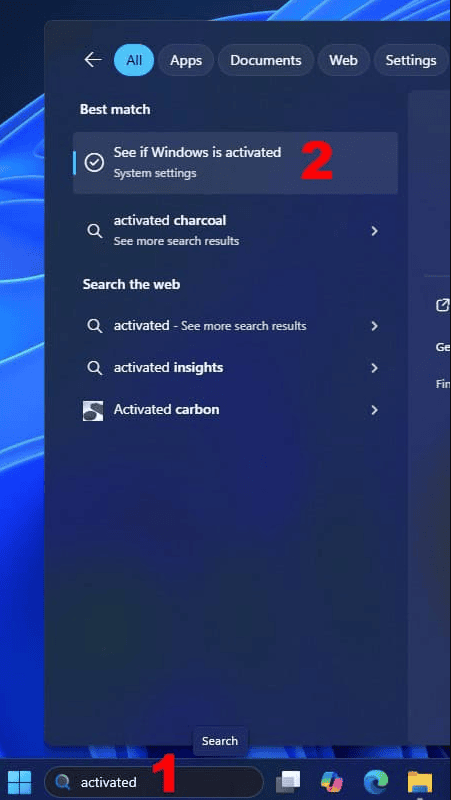
The fastest method is to use the taskbar search function: enter the term “activate” in the search field and select the corresponding result to access the activation settings.
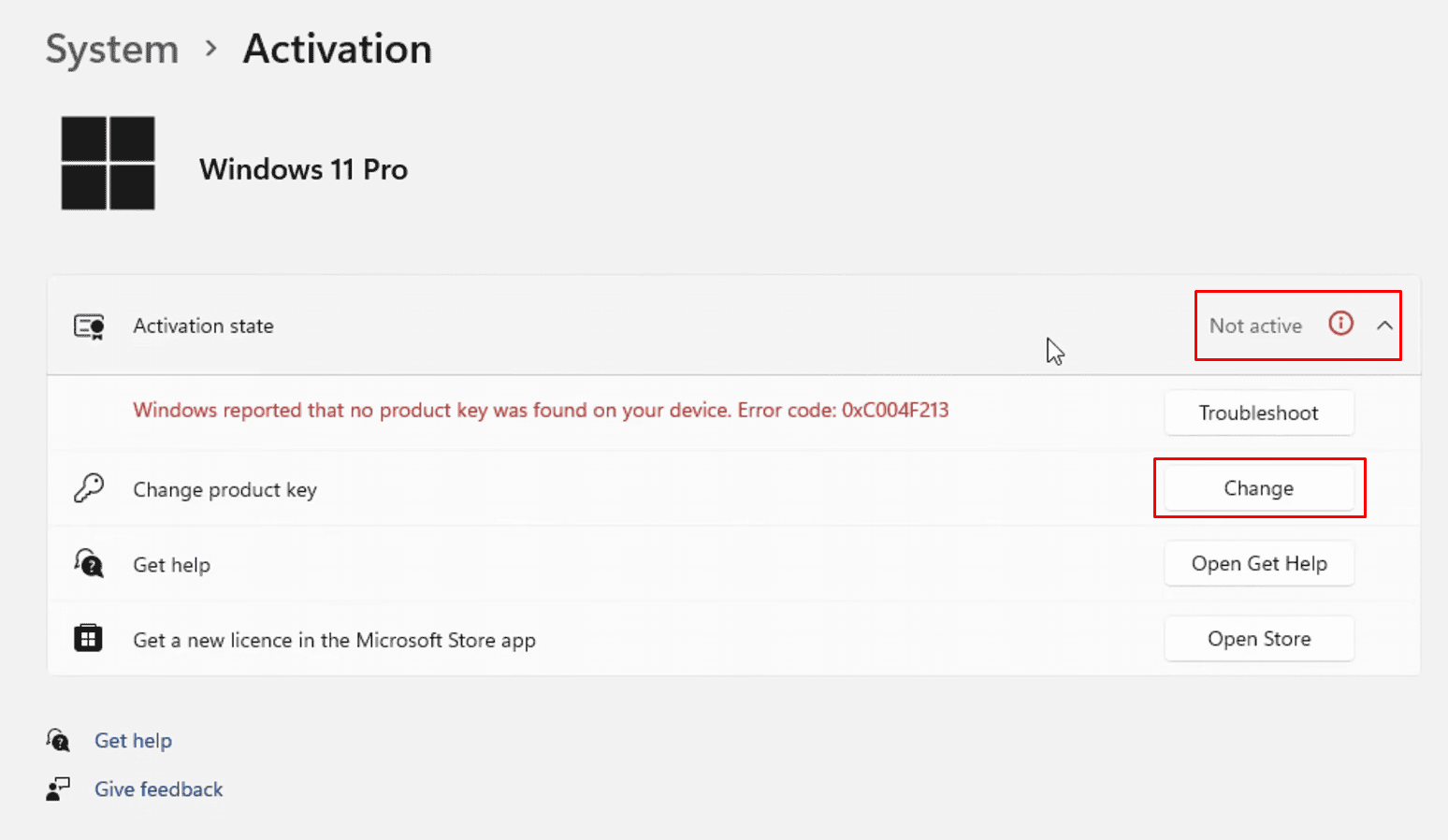
3. If Windows 11 is not currently activated, the activation status will be displayed as “Not active”. To proceed with activation, click the “Change” button.
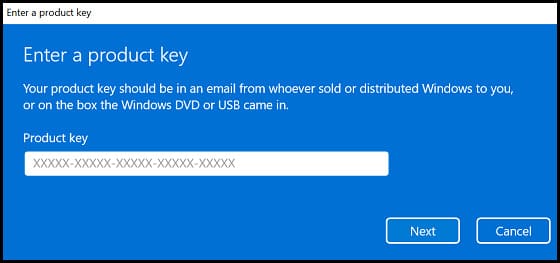
4. A dialog window will appear containing a field for product key entry. Enter the product key in the designated field and select “Next” to continue.
Select “Activate” in the subsequent window to initiate the activation process.
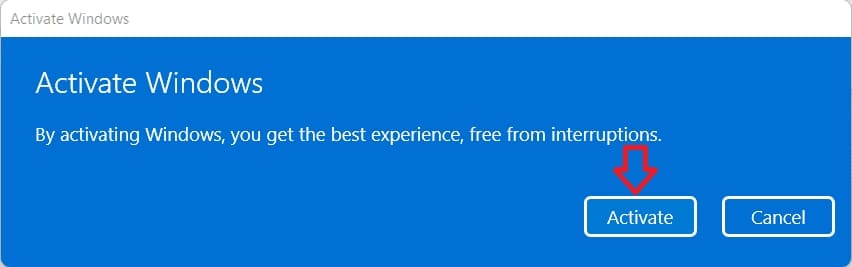
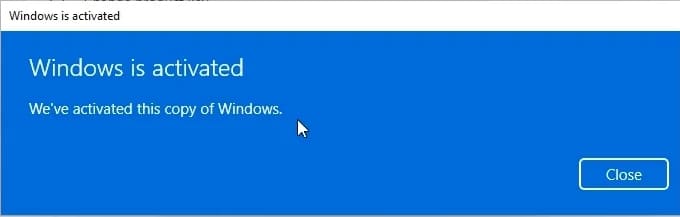
If the process completes successfully, the system will display the confirmation message “Windows is activated. We’ve activated this copy of Windows.” You may then select “Close” to exit the activation window.
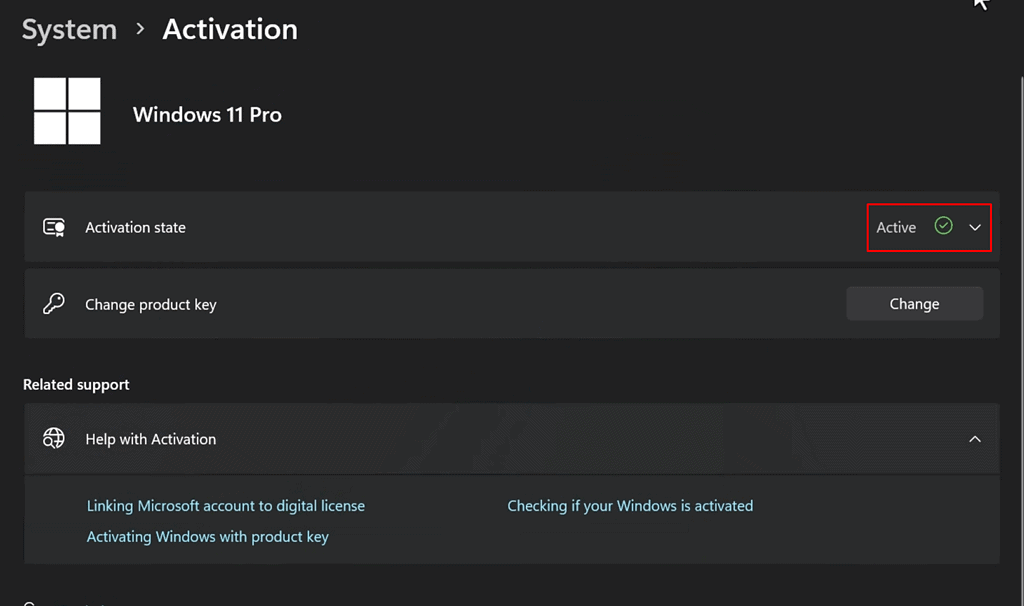
5. You may now return to the “Activation” menu to verify the activation status of Windows 11. If the activation was completed successfully, the status will be displayed as “Active.”
Do you have Windows 11 Home and a Windows 11 Pro key? Follow our guide to upgrade Windows 11 Home to Pro.
No account yet?
Create an Account





 Windows
 Office for PC
 Office for Mac
 Windows Server
 SQL Server
 Office Apps
 Visual Studio
