October Special Offer - 5% OFF SITEWIDE!
Use code:
Valid until Oct 31
This article outlines the procedure for installing Windows Server 2019 and describes the initial configuration steps to be performed immediately after deployment. For comprehensive guidance on advanced configuration of Windows Server 2019, refer to our subsequent article.
1. Begin by downloading the Windows Server 2019 installation file.
2. Once the installer has been downloaded, it must be written to a USB flash drive to create bootable installation media. Follow the provided instructions to properly generate the bootable USB device.
3. Configure the system BIOS/UEFI to boot from the USB flash drive in order to initiate the installation process. Refer to the brief guide on setting the boot priority to removable media.
A Windows Server 2019 product key is also available for purchase in our catalog.
Choose your edition: Windows Server 2019 Standard, Windows Server 2019 Datacenter or Windows Server 2019 Essentials. For Remote Desktop Services, we also offer Windows Server 2019 RDS 50 User CALs and Windows Server 2019 RDS 50 Device CALs.
4. After successfully booting from the USB drive, proceed with launching the installation process.

Select the operating system display language during setup and specify English as the preferred installation language.


Next, choose the appropriate Windows Server 2019 edition for deployment. In this guide, the Standard edition will be used; however, you may alternatively select another edition, such as Datacenter, as the installation workflow remains essentially the same across versions.
Ensure that the option including “Desktop Experience” is selected. If this option is not chosen, the operating system will be installed in Server Core mode, without a graphical user interface, and administration will be limited to command-line tools.

Review and accept the applicable license agreement to proceed with the installation process.

Next, choose the “Custom” installation option, as this deployment is being performed as a clean installation from the beginning.
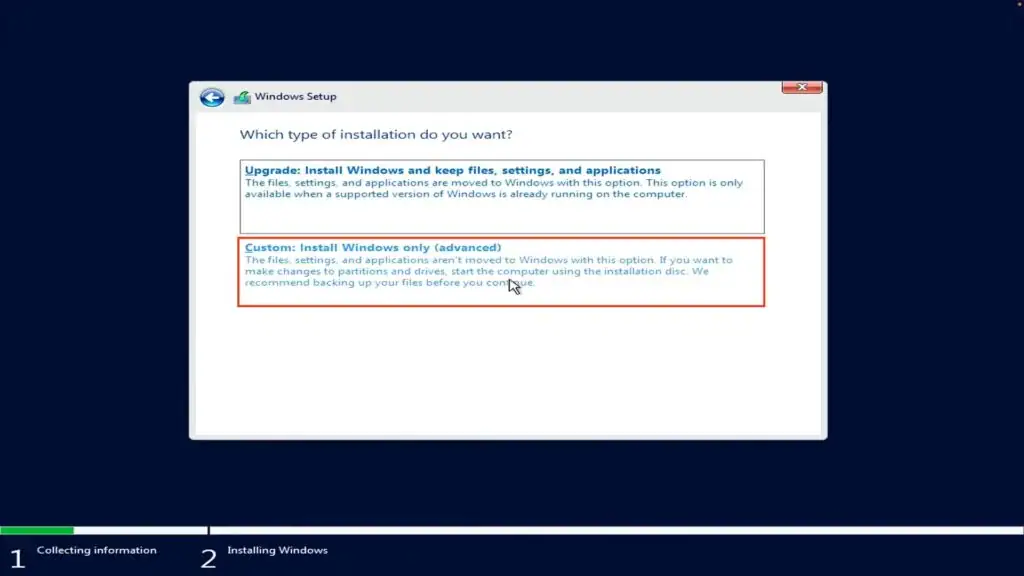
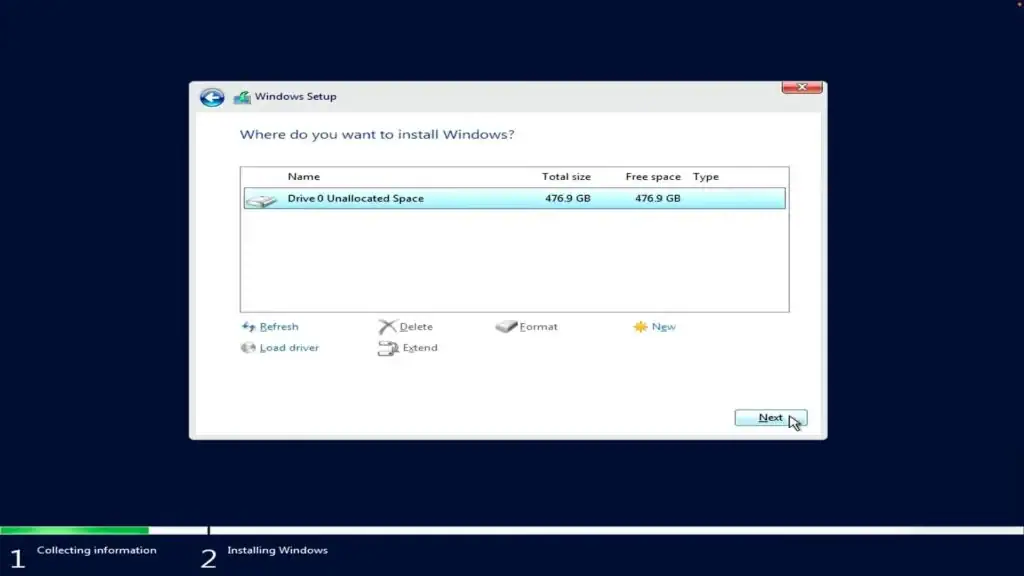
You will then be presented with a disk selection menu to specify the target drive for the operating system installation. In this example, only a single disk is available, though your system may include multiple drives. Choose the desired disk for installation and proceed by clicking “Next.”
The installation procedure will now commence. Allow the process to run until it completes successfully.
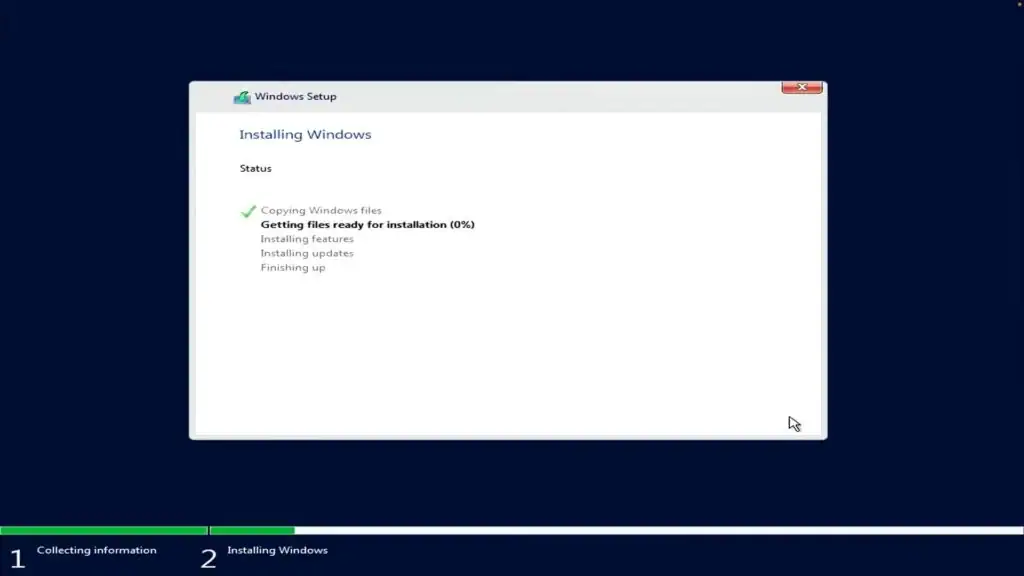
The system may automatically reboot multiple times throughout the installation process.
Once the installation is finalized, you will be prompted to create a password for the administrator account. It is recommended to use a strong password containing both alphabetic and numeric characters.
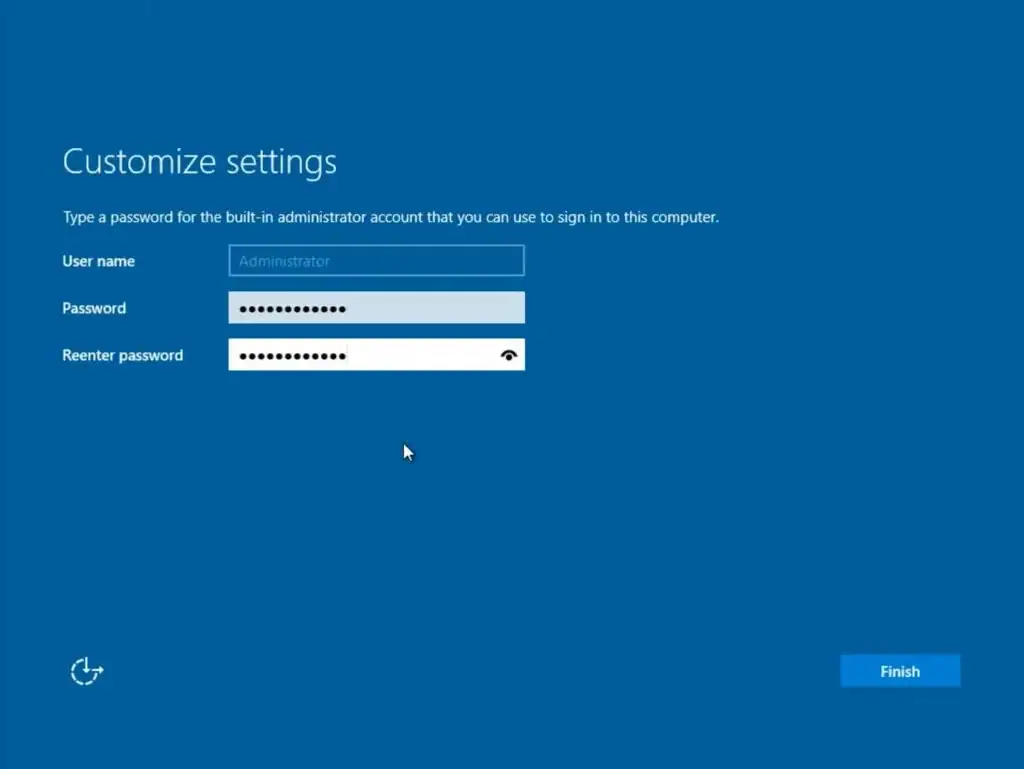

Next, sign in to the system using the administrator credentials.

5. Once the installation is complete, continue with the initial system setup. The first tasks after installation include activating the operating system and applying all available updates. Begin with activation by navigating to System Properties → Windows Activation → Activate Windows, then enter your product key. If you installed the evaluation version, convert it with your key as Microsoft explains in Convert Windows Server editions and license types. If you do not have a key yet, you can buy a Windows Server 2019 product key in our store, and we deliver it by email.
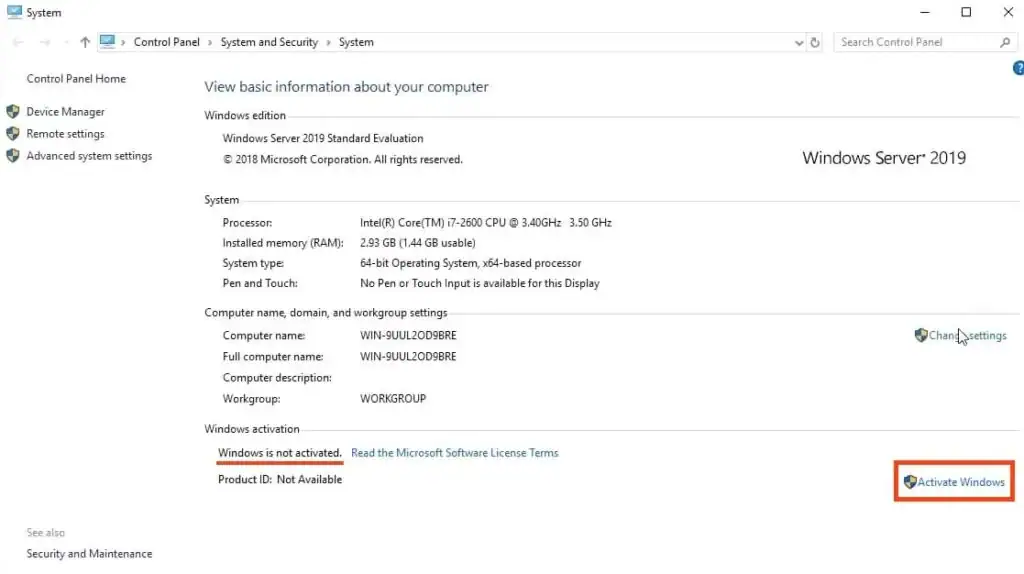
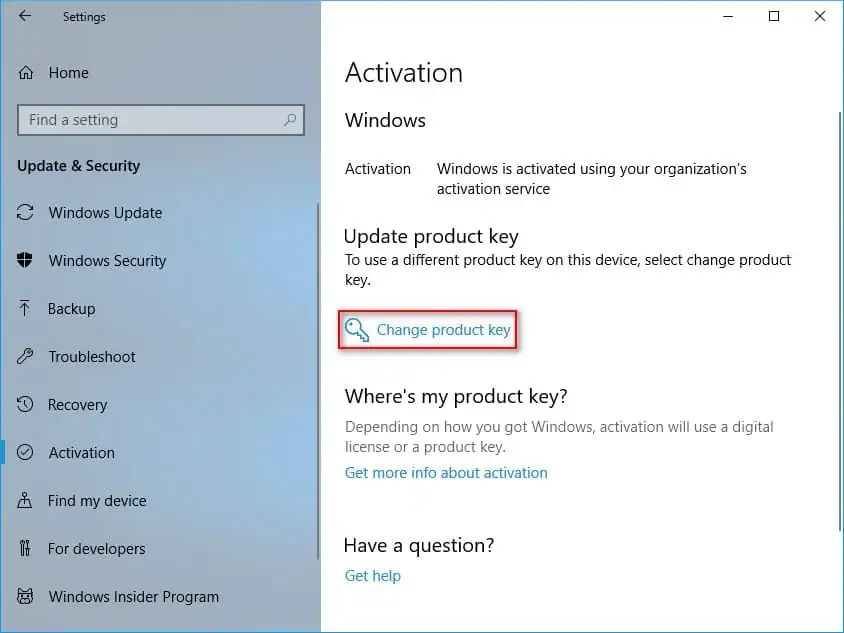


After completing activation, return to System Properties to confirm that the system is fully activated. Once verified, proceed to download and install the latest available updates.


Select the “Check for updates” option to initiate the system update process.

Download and apply all available updates. Once the installation of updates is complete, a system restart will be required.

This completes the installation and initial configuration of the system. For a comprehensive guide on advanced Windows Server 2019 setup and configuration, please refer to our next article.
No account yet?
Create an Account





 Windows
 Office for PC
 Office for Mac
 Windows Server
 SQL Server
 Office Apps
 Visual Studio
