Windows Server 2022 vs 2025: Which Version Should You Buy?
Windows Server 2022 vs 2025: both are current Long-Term Servicing Channel releases, and the right one is the version your applications support. Windows Server 2025 is newer and has the longer support: extended support until November 14, 2034, against October 14, 2031 for Windows Server 2022. Below we compare what is new in each version, their support end dates, application compatibility, the in-place upgrade from 2022 to 2025 and the one rule that catches many buyers: the version of your RDS CALs.
IMPORTANT: the Windows Server keys in our shop are RETAIL Licenses. Each key activates the version and edition named on its product page, on 1 server. A Windows Server 2022 key does not activate Windows Server 2025, and the other way around.
1. The short answer
- Choose Windows Server 2025 for a new server when your software supports it. It has the longest support from Microsoft and the newest features.
- Choose Windows Server 2022 when your application vendor supports 2022 but not yet 2025, or when you are adding a server to an environment that already runs 2022.
- If you are not sure, ask your software vendor which Windows Server versions they support. That answer decides.
Both versions follow Microsoft's Fixed Lifecycle Policy, with mainstream support first and extended support after. See Windows Server 2025 Standard and Windows Server 2022 Standard.
2. What is new in each version
These are the headline features, as Microsoft describes them on Microsoft Learn.
Windows Server 2022 is, in Microsoft's words, built on the foundation of Windows Server 2019 and brings innovations on three themes: security, Azure hybrid integration and management, and the application platform. For example:
- Secured-core server: support for certified hardware that adds protection against firmware and boot attacks.
- TLS 1.3 enabled by default: HTTPS and TLS 1.3 are on by default, and the DNS client supports DNS-over-HTTPS.
- SMB AES-256 encryption: stronger encryption for file sharing.
- Azure Arc and containers: easier connection of your servers to Azure, and smaller Windows container images.
Windows Server 2025 builds on 2022. Microsoft highlights:
- Upgrade up to four versions at a time: you can upgrade directly to 2025 from Windows Server 2012 R2 and later.
- Credential Guard enabled by default on devices that meet the requirements.
- Hotpatch: apply security updates without restarting, for machines connected to Azure Arc. Microsoft lists this one as a preview feature, so check its current status.
- SMB compression with LZ4 and workgroup clusters for Hyper-V.
Most of these features matter to administrators who manage many servers. For a single server that runs your application, the support dates and your software's compatibility usually weigh more.
3. Support end dates
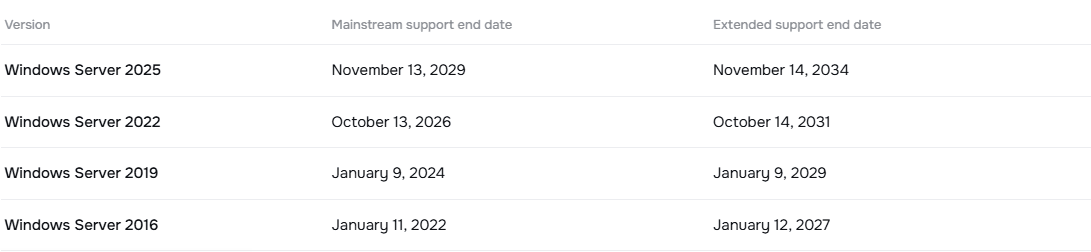
Microsoft publishes security updates until the extended support end date, so check it against your plans. These are the dates shown on our product pages, from Microsoft Lifecycle:
![]()
- Windows Server 2025: mainstream support until November 13, 2029 and extended support until November 14, 2034.
- Windows Server 2022: mainstream support ended on October 13, 2026, and extended support continues until October 14, 2031.
If you want the longest runway, 2025 gives you about three more years of extended support than 2022. Dates are in US Pacific Time.
4. Application compatibility
The newest version is not always the right one. Before you buy:
- Check your software vendor. Accounting, ERP, databases and industry applications publish the Windows Server versions they support. Windows Server 2022 has been out since 2021, so more vendors list it.
- Check your hardware. Microsoft publishes the minimum requirements for each version. Our product pages list them too: the processor for Windows Server 2025 must support SSE4.2 and POPCNT, which the 2022 page does not list.
- Check your other servers. A mixed environment works, but your RDS CALs and license servers must match the rules in section 6.
If your vendor supports both versions, choose 2025 for the longer support.
5. Upgrading from 2022 to 2025
You can move a Windows Server 2022 machine to 2025 without reinstalling. Microsoft's upgrade page says an in-place upgrade "installs a newer version of Windows Server over the existing one, keeping your settings, server roles, features, and data". The supported paths include Windows Server 2022 to 2025, with installation media and with Windows Update.
- Back up first. Microsoft says to always back up your system and important files before an in-place upgrade.
- The edition stays the same. By default an upgrade keeps the existing edition: Standard upgrades to Standard and Datacenter to Datacenter.
- You need a license for the new version. Microsoft says: "Unlike Windows client, each Windows Server upgrade requires a separate license." A Windows Server 2022 key does not activate 2025, so you need a key for the 2025 edition.
- Not every role upgrades. Check Microsoft's role and feature matrix for yours.
If you only need to change the edition inside the same version, for example from Standard to Datacenter, that is a different process: read Windows Server Standard vs Datacenter vs Essentials.
6. The RDS CAL rule
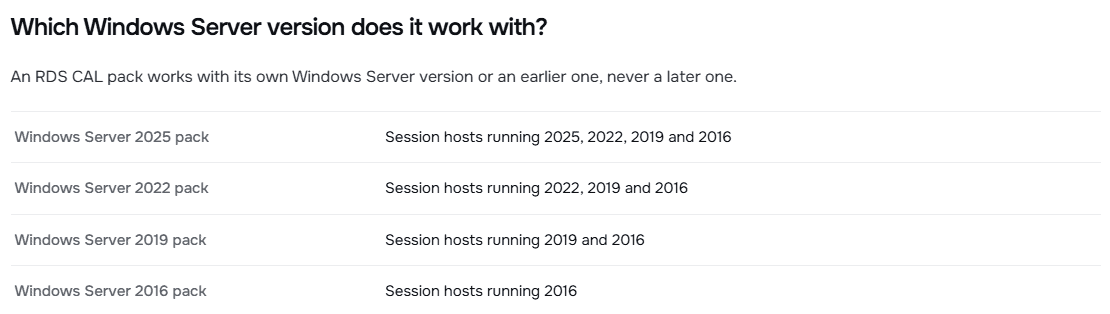
If you use Remote Desktop Services, the version of your RDS CALs matters. Microsoft's rule: you can't use RDS CALs for earlier versions to access later versions of Windows Server, but you can use later versions of RDS CALs to access earlier versions.
Microsoft's own example: RDS CALs for Windows Server 2022 work with a session host running Windows Server 2022 or earlier, but not with a session host running Windows Server 2025. This is the table on our Windows Server 2025 RDS 50 User CALs product page:
![]()
In practice:
- If you plan to upgrade a session host to 2025, buy the 2025 CAL pack.
- A 2025 pack also works with 2022, 2019 and 2016 session hosts, so it covers a mixed environment.
- The Remote Desktop Licensing server must run the same Windows Server version as the CALs, or a later one.
See Windows Server 2025 RDS 50 User CALs and Windows Server 2022 RDS 50 User CALs, and read RDS User CALs vs Device CALs to choose the type.
For the full picture of editions, versions, cores and CALs, read our Windows Server Licensing Guide. If your current server is Windows Server 2016, also read Windows Server 2016 End of Support: What to Do.
7. Frequently asked questions
No. Mainstream support ended on October 13, 2026, but extended support continues until October 14, 2031, with security updates from Microsoft.
Yes. Microsoft lists 2022 to 2025 as a supported in-place upgrade path, with installation media and with Windows Update. You need a license for the new version, and Microsoft recommends backing up first.
The one your applications support. If you have no constraint, the newest version gives you the longest support from Microsoft.
No. Each key activates the version and edition named on its product page.
No. RDS CALs for an earlier version can't be used with a later version of Windows Server. You need the 2025 RDS CAL pack for a 2025 session host.
Mainstream support ends on November 13, 2029 and extended support on November 14, 2034.
Checked on: our store and Microsoft's pages What's New in Windows Server 2022, What's new in Windows Server 2025, Plan Your Windows Server Upgrade Path, License Remote Desktop Services with Client Access Licenses and Microsoft Lifecycle, read on 2026-10-26. Microsoft can change its guidance; check it if something looks different on your screen.
Still stuck? Our team can help you choose between Windows Server 2022 and 2025, with 24/7 support. Browse all Windows Server license keys at Licendeals.