October Special Offer - 5% OFF SITEWIDE!
Use code:
Valid until Oct 31
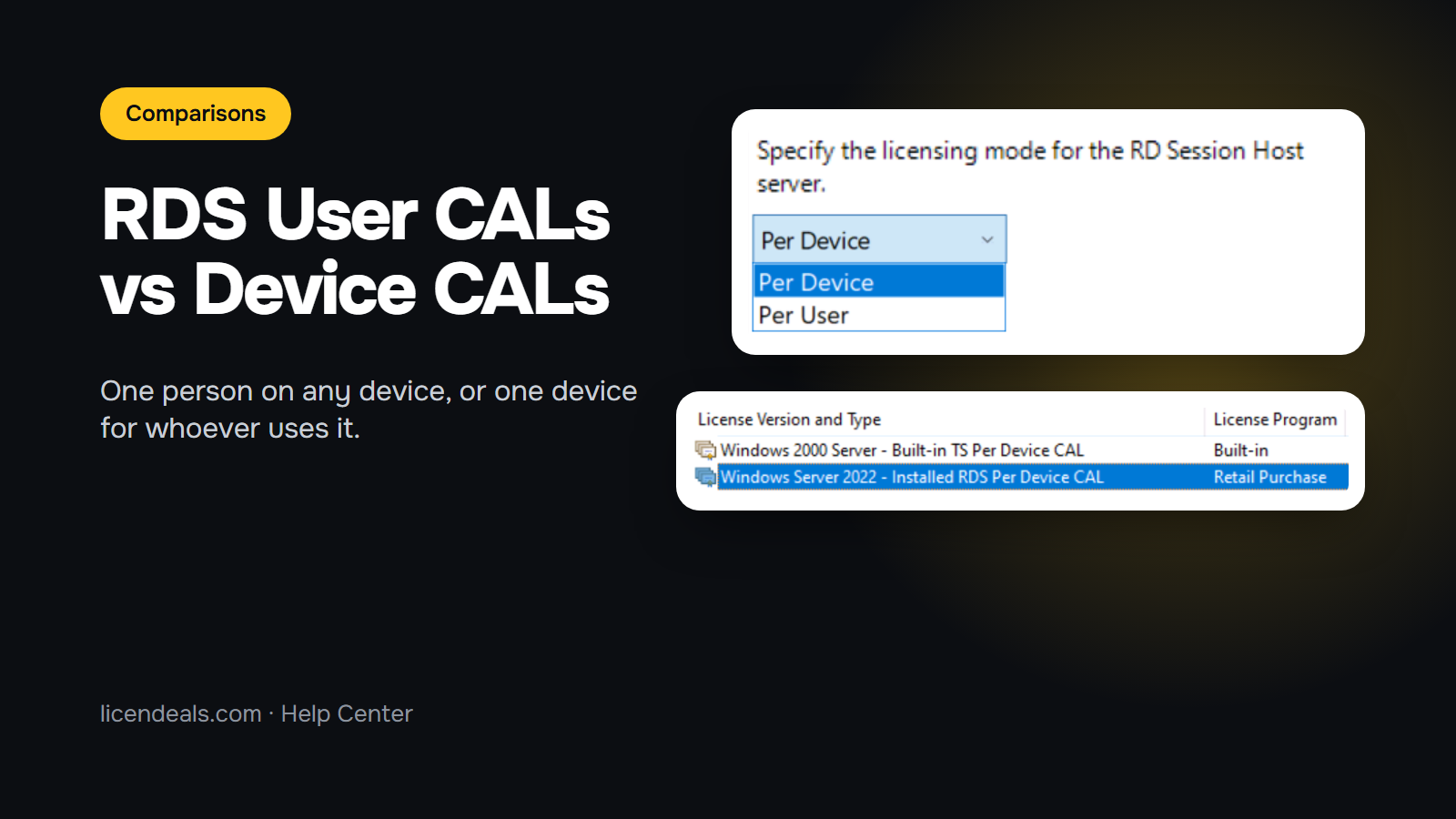
RDS User CALs vs Device CALs, in one line: a User CAL covers one person on any device, and a Device CAL covers one device, whoever uses it. Below we explain how each one works, which one fits your setup, how many packs you need and which Windows Server versions they work with, with screenshots from our own Windows Server 2022 test server.
IMPORTANT: RDS CALs are separate products from Windows Server. Microsoft's licensing terms say which users and devices need an RDS CAL: check them for your setup. Every rule in this article comes from Microsoft's own guidance, linked at the end.
An RDS CAL (Remote Desktop Services client access license) lets a person or a device connect to a Remote Desktop session host running Windows Server. The CALs are installed on a Remote Desktop license server, which issues them to the users or devices that connect.
At Licendeals, RDS CALs are sold in packs of 50, as User CALs or Device CALs, for Windows Server 2025, 2022, 2019 and 2016. The Windows Server license for the server itself is a separate product: see our Windows Server license keys.
With a User CAL, each person can connect to the session host from any number of devices: an office PC, a laptop at home and a tablet all count as one person.
With a Device CAL, each computer or terminal that connects needs its own CAL, no matter how many people use it.
This is the Remote Desktop Licensing Manager on our test server after installing a pack of 50 Windows Server 2022 Device CALs. The "Windows 2000 Server - Built-in TS Per Device CAL" line is there by default, and the installed pack shows 50 licenses available:

Microsoft gives two examples, and our product pages use the same ones:

A quick way to decide: count the people who will connect and the devices they will connect from. If you have fewer people than devices, User CALs usually work out better. If you have fewer devices than people, Device CALs usually do.
The type you buy must match the licensing mode set on your session host. In Windows Server it is the policy "Set the Remote Desktop licensing mode", with two options, Per Device and Per User. This is that setting on our test server, with Microsoft's own explanation on the right:

Each pack covers 50 users (User CALs) or 50 devices (Device CALs).
Buying several packs? Request a quote and our team will prepare it for you.
Microsoft's rule: an RDS CAL works with a session host running its own Windows Server version or an earlier one, never a later one. For example, Windows Server 2022 RDS CALs work with a Windows Server 2022 session host or earlier, but not with Windows Server 2025.
If you plan to move to a newer Windows Server soon, CALs for the newer version also cover the older one.
RDS CALs are installed on a Remote Desktop license server, not on each computer. According to Microsoft, the license server must run the same Windows Server version as the CALs or a later one. For example, Windows Server 2022 RDS CALs can be installed on a license server running Windows Server 2022 or 2025, but not on Windows Server 2019.
Microsoft also gives a grace period of 120 days during which no license server is required. After that, users or devices need a valid RDS CAL from a license server to sign in to a remote session.
We email you a secure link to your license, with your invoice. To install the pack, open the Remote Desktop Licensing Manager on your license server, right-click the server and choose Install Licenses. In our test, the license program was Retail Purchase and the wizard asked for the license code. Then set the licensing mode on your session host to the same type: Per User or Per Device.
Choose your pack:
Our license types page explains how each type of license works.
No account yet?
Create an Account





 Windows
 Office for PC
 Office for Mac
 Windows Server
 SQL Server
 Office Apps
 Visual Studio
