October Special Offer - 5% OFF SITEWIDE!
Use code:
Valid until Oct 31
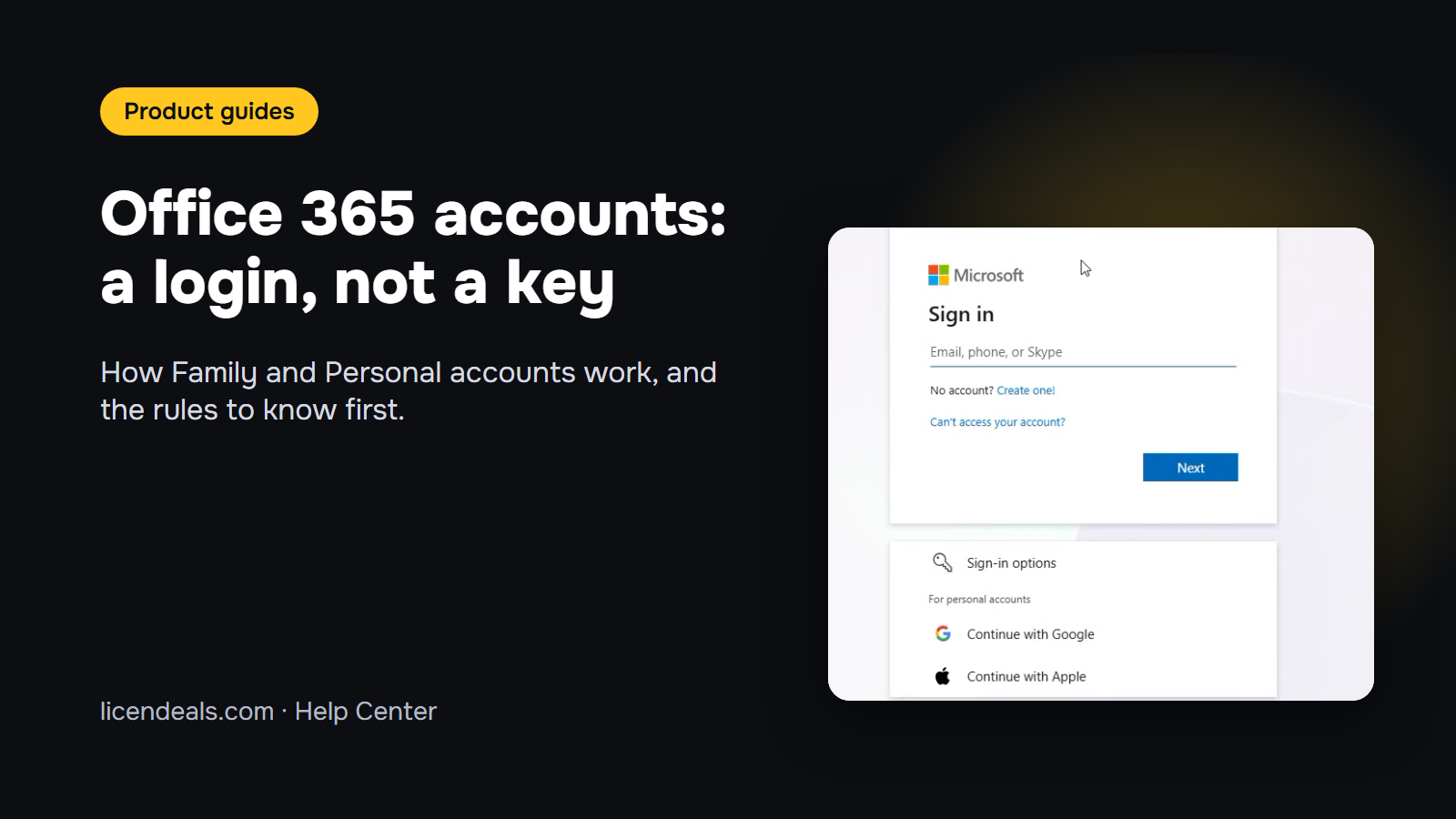
Thinking about an Office 365 Family account or an Office 365 Personal account, but not sure what you actually get? The short answer: you get a login, not a key. Instead of a 25-character product key, you receive an email address and a password for an account that already has the subscription. You sign in, and the Office apps work on your devices for the length of the plan. This guide explains how these accounts work, the difference between Personal and Family, and the rules to know before you buy.
IMPORTANT: Change the password after you sign in and keep it in a safe place. If you forget it, there is no way to access or recover the account.
IMPORTANT: The email address of the account can't be changed. You use the email we send you for as long as the plan lasts.
Most Office products we sell come with a product key that you type into Office. An Office 365 account works differently: the subscription is already inside the account, so there is nothing to type into Office. On our license types page, this is the ACCOUNT License.
Microsoft now calls these apps Microsoft 365, so that is the name you will see on the sign-in page and in the installer. It is the same subscription.
Both accounts include the same Office apps and a 1-year subscription. The difference is the number of devices.
The Family account is still one account, with one email and one password, that you can use on up to 5 devices. You don't get a separate account for each person.
3.1 Right after your payment is confirmed, we email you a secure link to your account. You can also find it in your account on our website.
3.2 Click Get my license when you are ready to use it. You see the email and the password of your Office 365 account. Get your account details whenever you want. Once you have them, sign in within 24 hours.
3.3 Go to office.com, click Sign in and type the email you received.

3.4 The first time you sign in, Microsoft asks you to update your password. Type the password you received, then your new password twice. Write the new password down somewhere safe before you continue.
3.5 Click Install apps and then Microsoft 365 apps. Run the file you downloaded on the computer where you want to use Office: Microsoft gives you the Windows or the Mac installer.
3.6 Open Word and sign in with the same email and your new password. Our guide on how to install and activate Office 365 on Windows shows each screen.
4.1 The password can't be recovered. Nobody can reset it for you, not even us. Save it in a password manager or write it down and keep it in a safe place.
4.2 The email address can't be changed. The account comes with its own email address. You can't replace it with your personal email.
4.3 Keep a copy of your important files. The account includes 1 TB of OneDrive storage, but we recommend that you also save your important files outside OneDrive, for example on your computer or an external drive.
4.4 The plan lasts 1 year. The apps stay up to date for the full length of your plan.
4.5 Warranty and refunds. Your account is covered for the full length of your plan, when you sign in within 24 hours of getting your account details. Refunds: within 30 days of your purchase, as long as you haven't revealed your account details. Your statutory rights are not affected.
5.1 On the device you no longer want to use, open Word, go to File > Account and click Sign out. Microsoft explains that once you sign out, the apps on that device let you view files but not create or edit them.
5.2 On the new device, install the apps from office.com and sign in with the same email and password, as in section 3.
5.3 Keep the number of devices within your plan: 1 with the Personal account, 5 with the Family account.
No account yet?
Create an Account





 Windows
 Office for PC
 Office for Mac
 Windows Server
 SQL Server
 Office Apps
 Visual Studio
