Black Friday: 10% OFF
Use code:
Valid until Nov 30
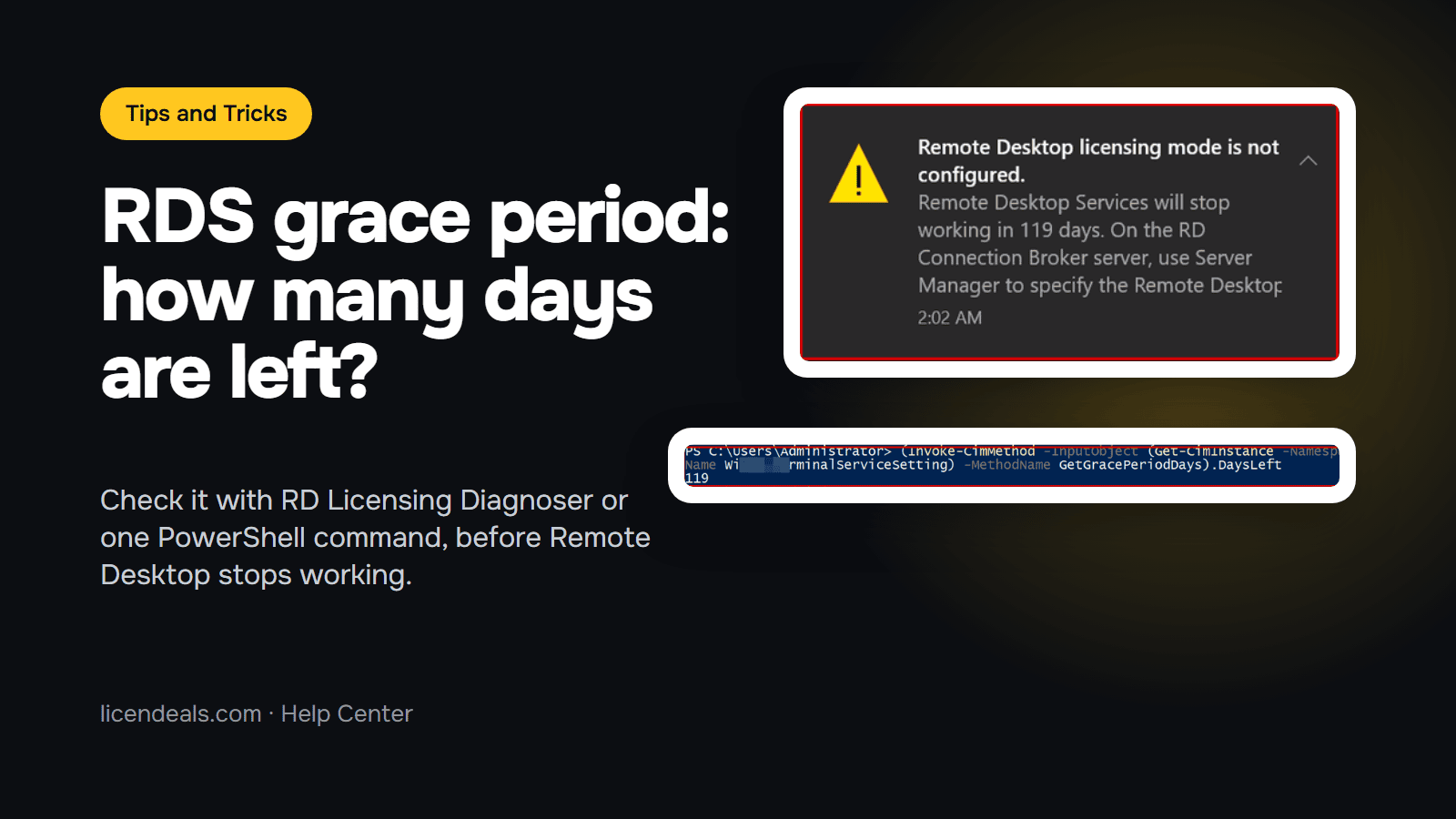
Want to know how many RDS grace period days are left on your server? Windows Server lets people connect to a Remote Desktop Session Host for a limited time before it needs RDS CALs from a license server. According to Microsoft, this grace period lasts 120 days. Below are three ways to see the days left, from the Windows notification to one PowerShell command, with screenshots from our own Windows Server 2022 test server, and what to do before the counter reaches zero.
IMPORTANT: the grace period is only a countdown. When it ends, the session host needs a license server with RDS CALs installed, or Remote Desktop connections can stop working. Check the days left as soon as you install the Remote Desktop Session Host role, so you have time to set up your licenses.
If the licensing mode is not configured yet, Windows Server shows a notification after you sign in. Open the notification center at the bottom right of the taskbar. On our test server it said "Remote Desktop licensing mode is not configured" and "Remote Desktop Services will stop working in 119 days".
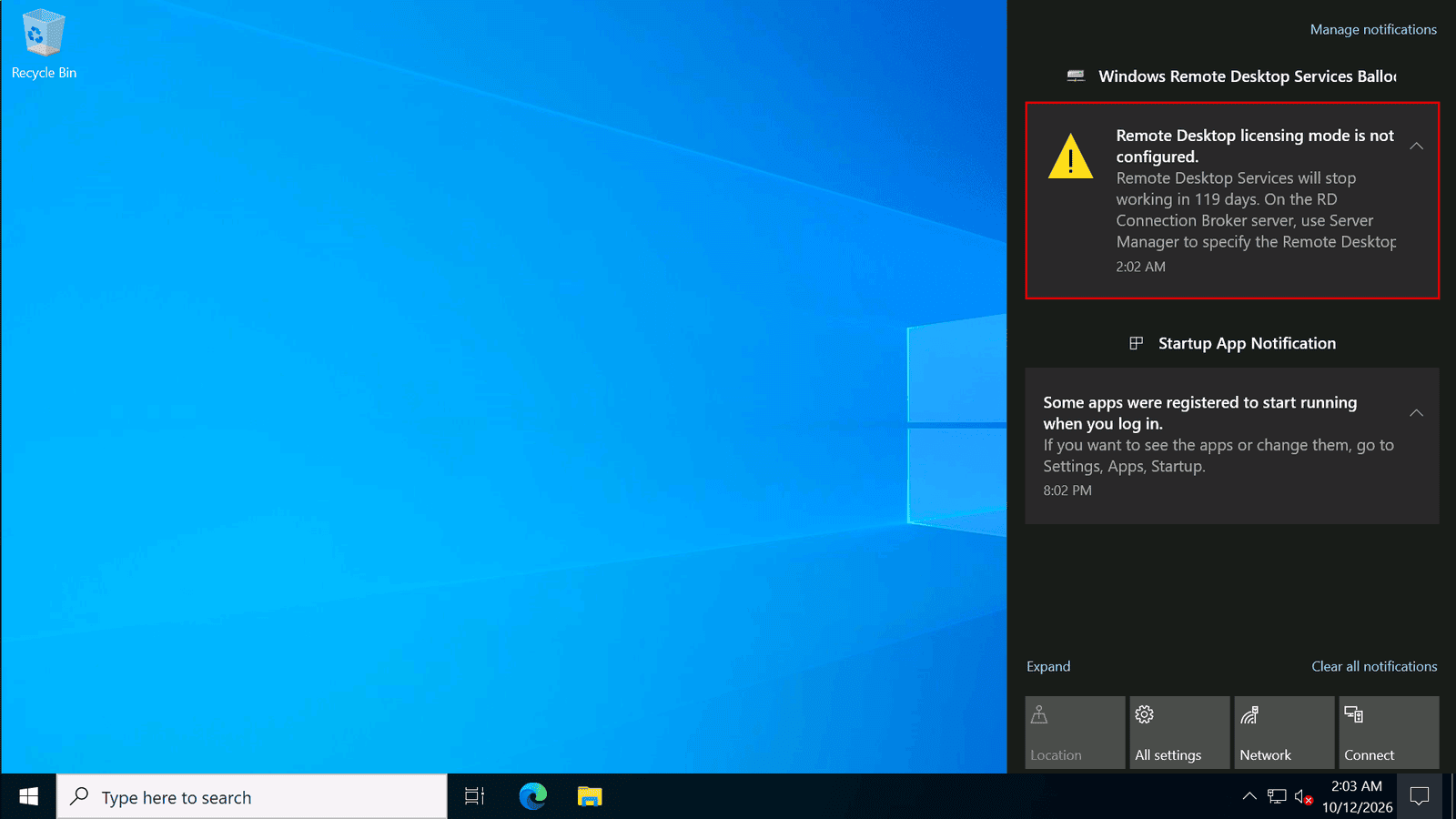
On our test server the notification appeared while the licensing mode was not configured, so don't rely on it alone. The next two ways show the current state at any time.
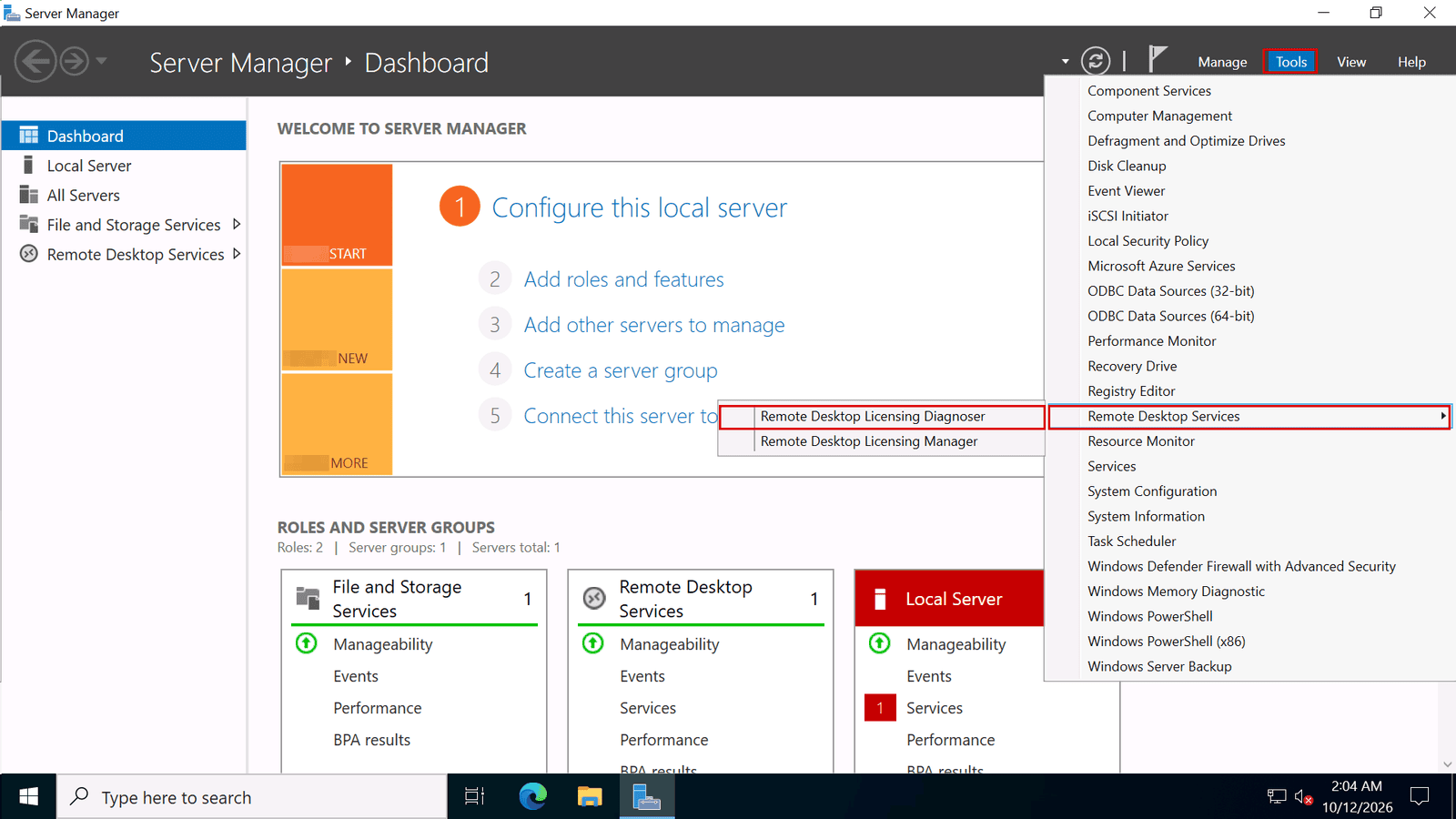
2.1 Open Server Manager, click Tools, then Remote Desktop Services and RD Licensing Diagnoser.
2.2 Look at the list of warnings. If the session host is still in its grace period without a license server, the Diagnoser says so: "The Remote Desktop Session Host server is within its grace period, but the RD Session Host server has not been configured with any license server". Select the warning to see the suggested resolution at the bottom.
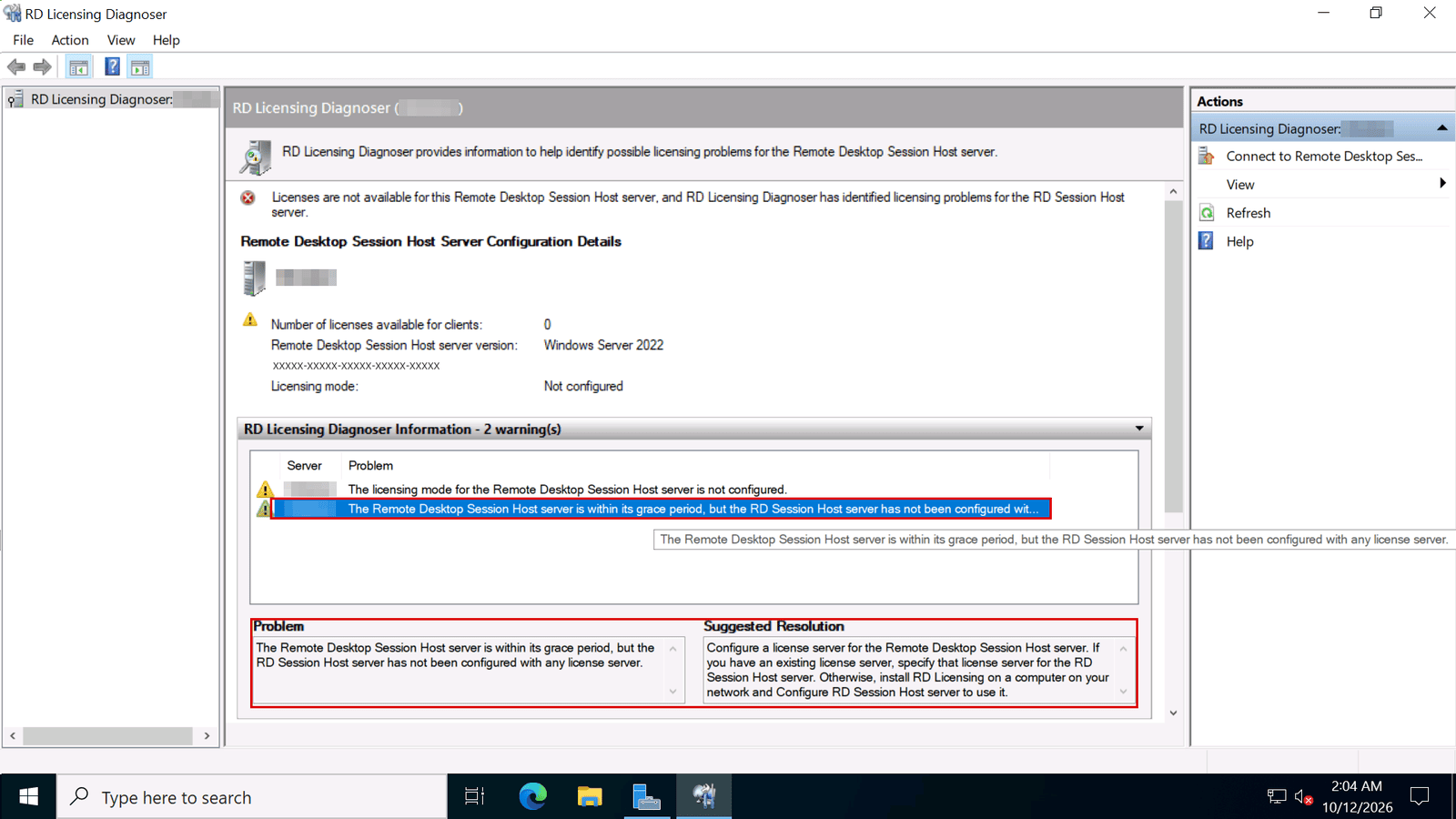
The Diagnoser tells you that you are in the grace period and what is missing, but not the exact number of days. For that, use PowerShell.
3.1 Search for PowerShell, right-click Windows PowerShell and choose Run as administrator.
3.2 Type this command (one line) and press Enter:
(Invoke-CimMethod -InputObject (Get-CimInstance -Namespace root/cimv2/TerminalServices -ClassName Win32_TerminalServiceSetting) -MethodName GetGracePeriodDays).DaysLeft
3.3 The result is the number of days left. On our test server it returned 119, the same number as the notification.
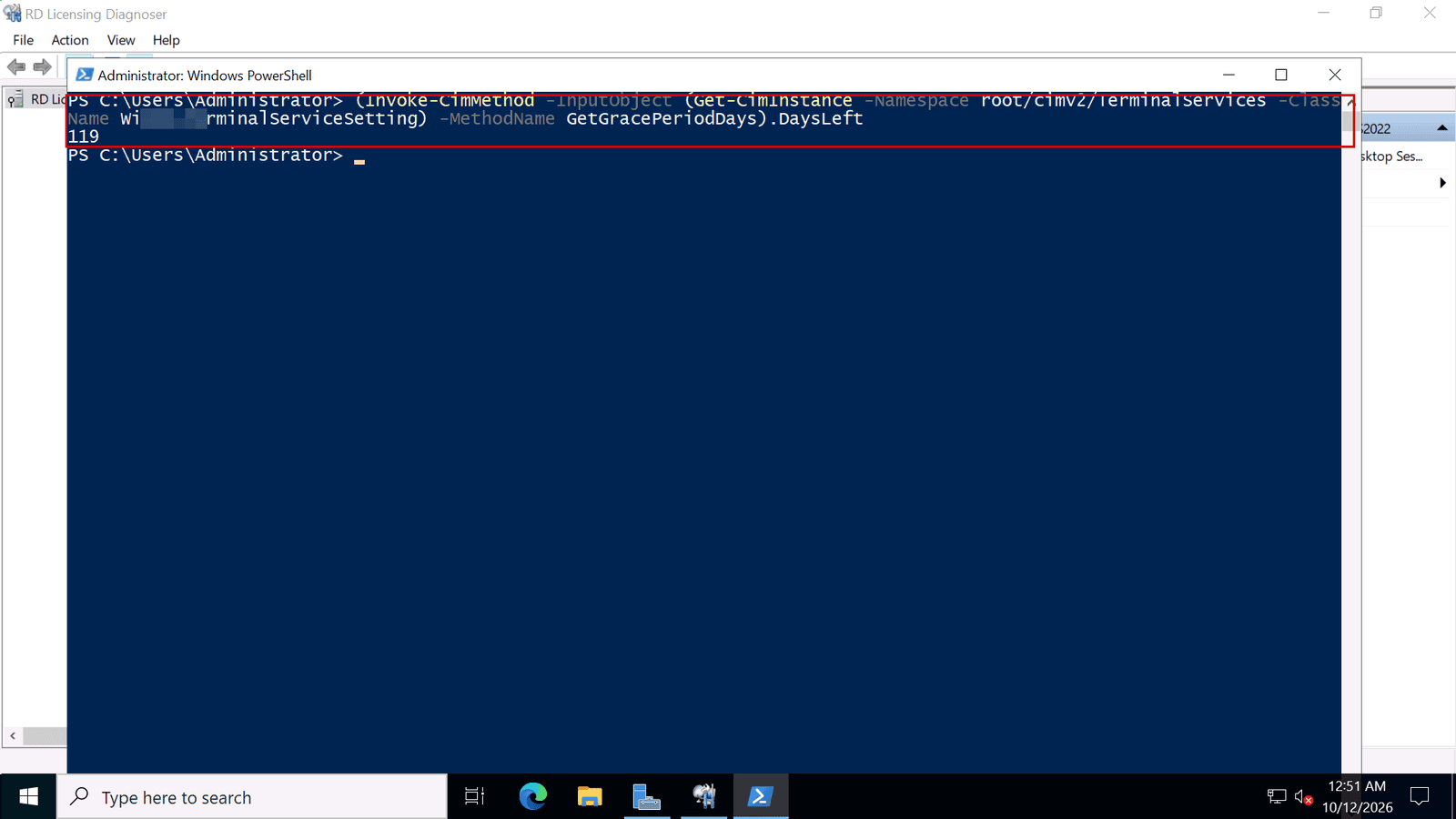
The command uses GetGracePeriodDays, a method that Microsoft documents for the Win32_TerminalServiceSetting class: it returns the days left in the Remote Desktop Services licensing grace period, and according to Microsoft, 0 means the grace period is over.
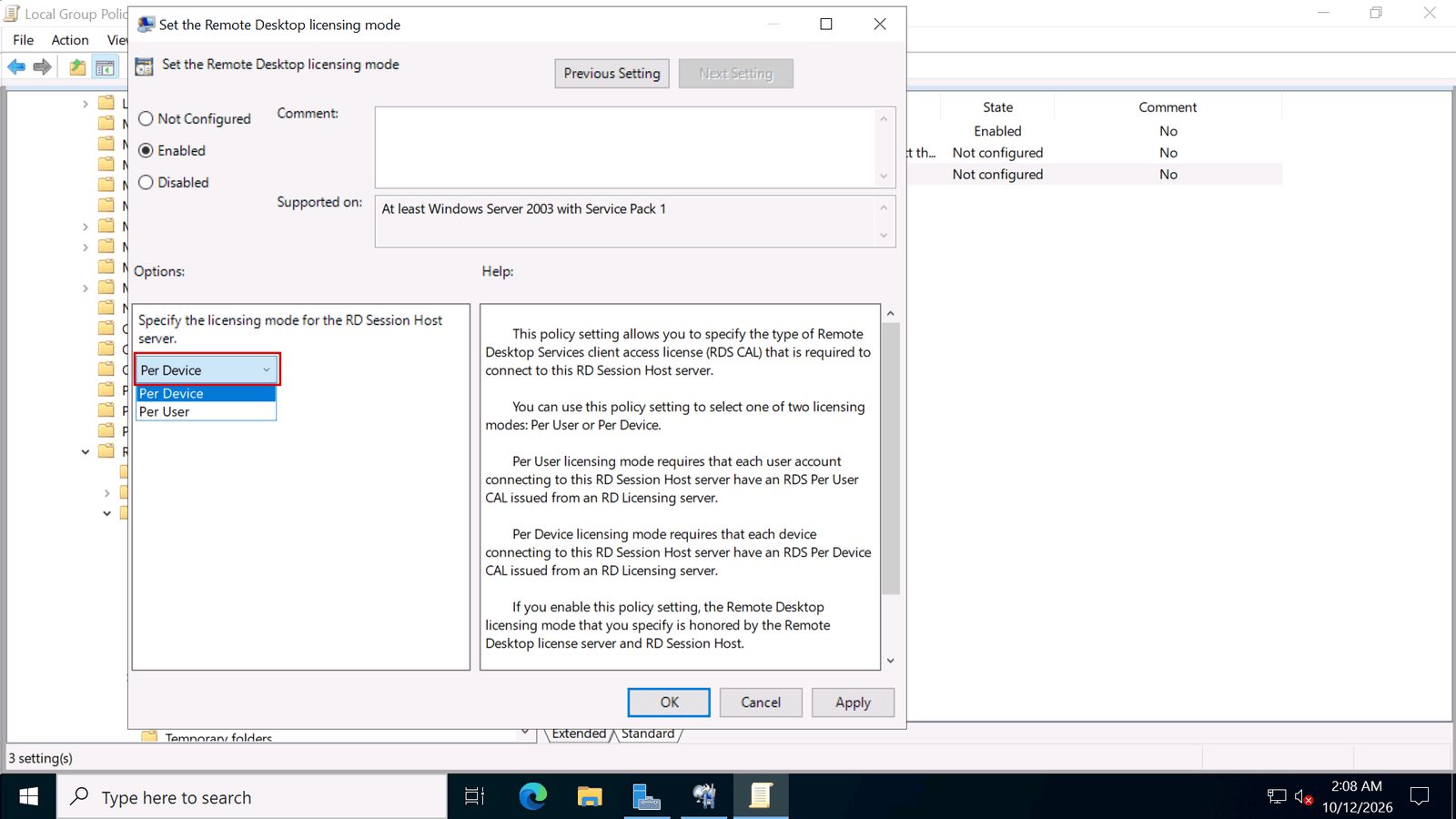
The days left are a deadline to license the server properly. These are the steps, each one covered with screenshots in our guide How to Install RDS CALs on Windows Server 2022 and 2025:
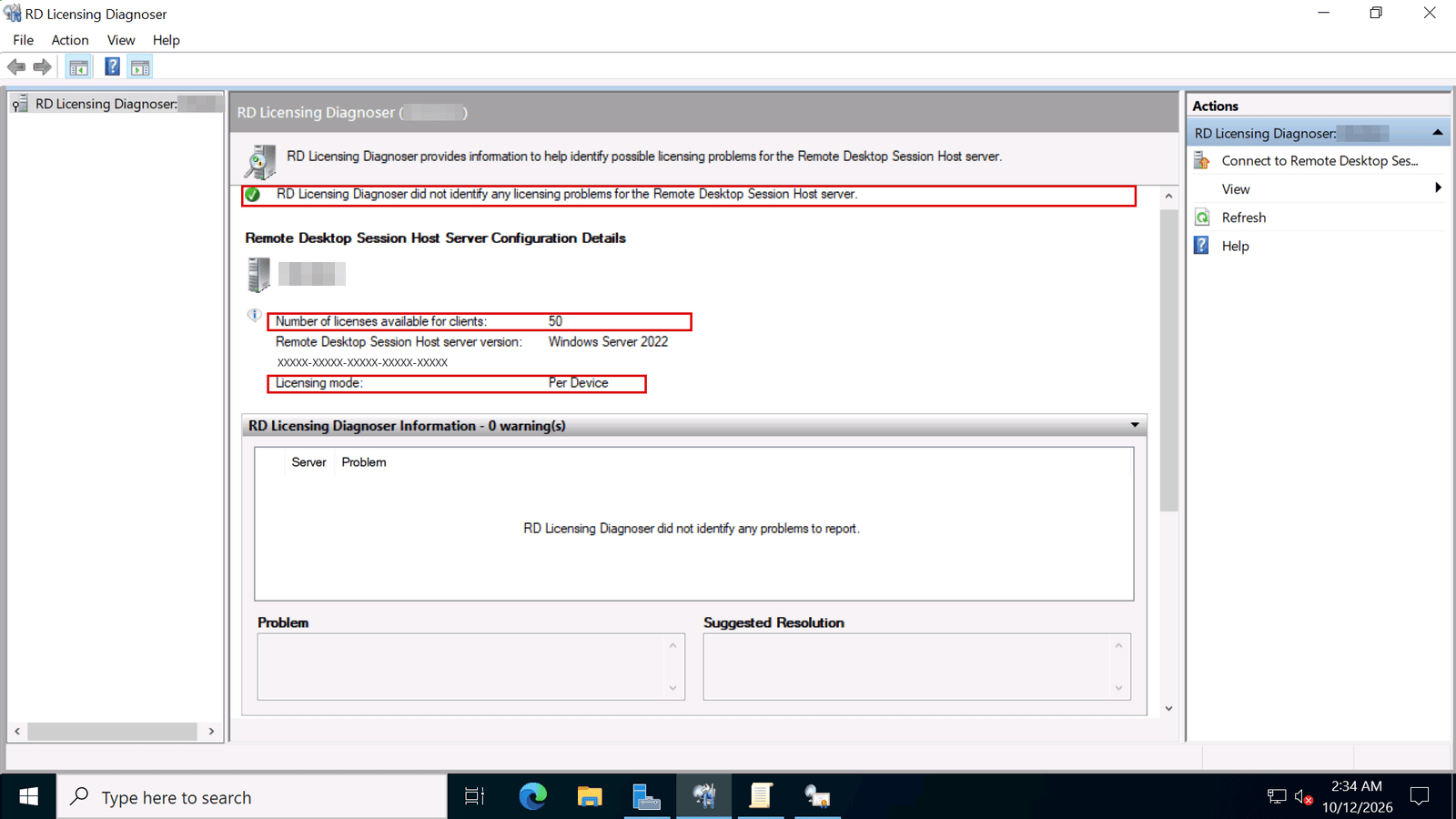
When everything is in place, RD Licensing Diagnoser shows no licensing problems. On our test server, with 50 Per Device CALs installed, it found none.
Not sure whether you need User CALs or Device CALs? Read Windows Server RDS CALs: User CALs vs Device CALs or our explainer What Is an RDS CAL?. If the grace period has already ended and you see a license server error, follow Fix: No Remote Desktop License Servers Available.
Our RDS CALs come in packs of 50, as User CALs or Device CALs, for Windows Server 2016, 2019, 2022 and 2025. The license type is CAL. Your license code stays hidden until you click Get my license, so reveal it when your license server is ready and you can install the CALs right away. If a license doesn't work, tell us within 24 hours of revealing it and we will replace it right away.
{n} from {l} bought
{n} bought
Someone from {l} bought
Someone bought
Just now
1 minute ago
2 minutes ago
1 hour ago
2 hours ago
1 day ago
2 days ago
Close


 Windows
 Office for PC
 Office for Mac
 Windows Server
 SQL Server
 Office Apps
 Visual Studio


