November Special Offer - 5% OFF SITEWIDE!
Use code:
Valid until Nov 30
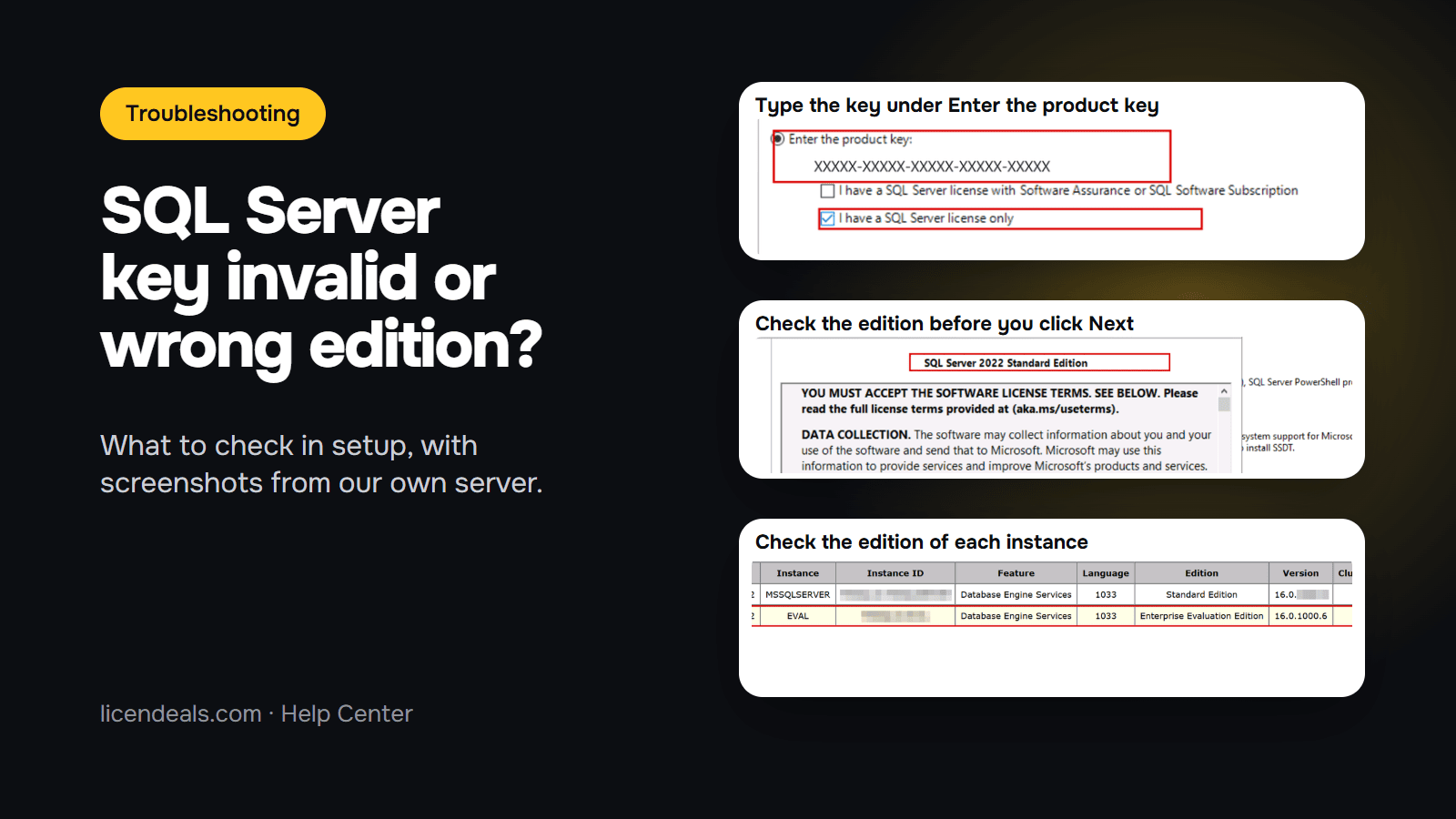
Is your SQL Server product key invalid in setup, or did setup install a different edition than the one you paid for? These are the first things we would check: that the key is for the same SQL Server version as the setup, that it is typed in the right place, and whether the instance is already installed and needs Edition Upgrade instead of a new installation. Below is what to check, with screenshots from our own Windows Server 2022 test server running SQL Server 2022 setup (October 2026). We didn't trigger the invalid key message on purpose, so this post doesn't show it.
IMPORTANT: in our test, the product key decided the edition. After we typed a SQL Server 2022 Standard key, setup showed SQL Server 2022 Standard Edition on the next page. Always check that edition before you click Next.
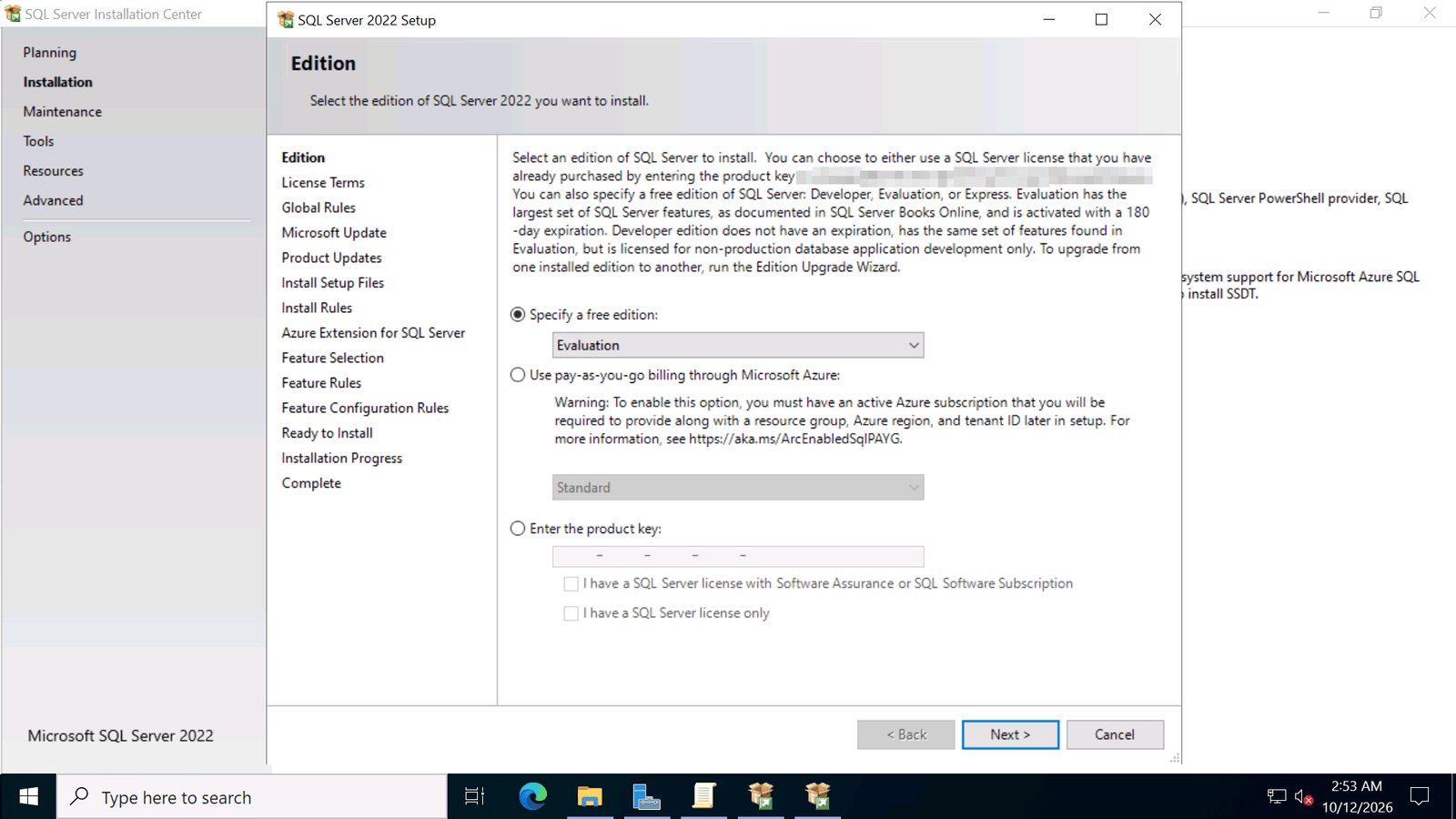
1.1 On the Edition page of SQL Server 2022 setup you see three options. Specify a free edition installs Developer, Evaluation or Express without a key. According to the text on this page, Evaluation is activated with a 180-day expiration. If you choose it by mistake, your server runs a trial, not your paid license.
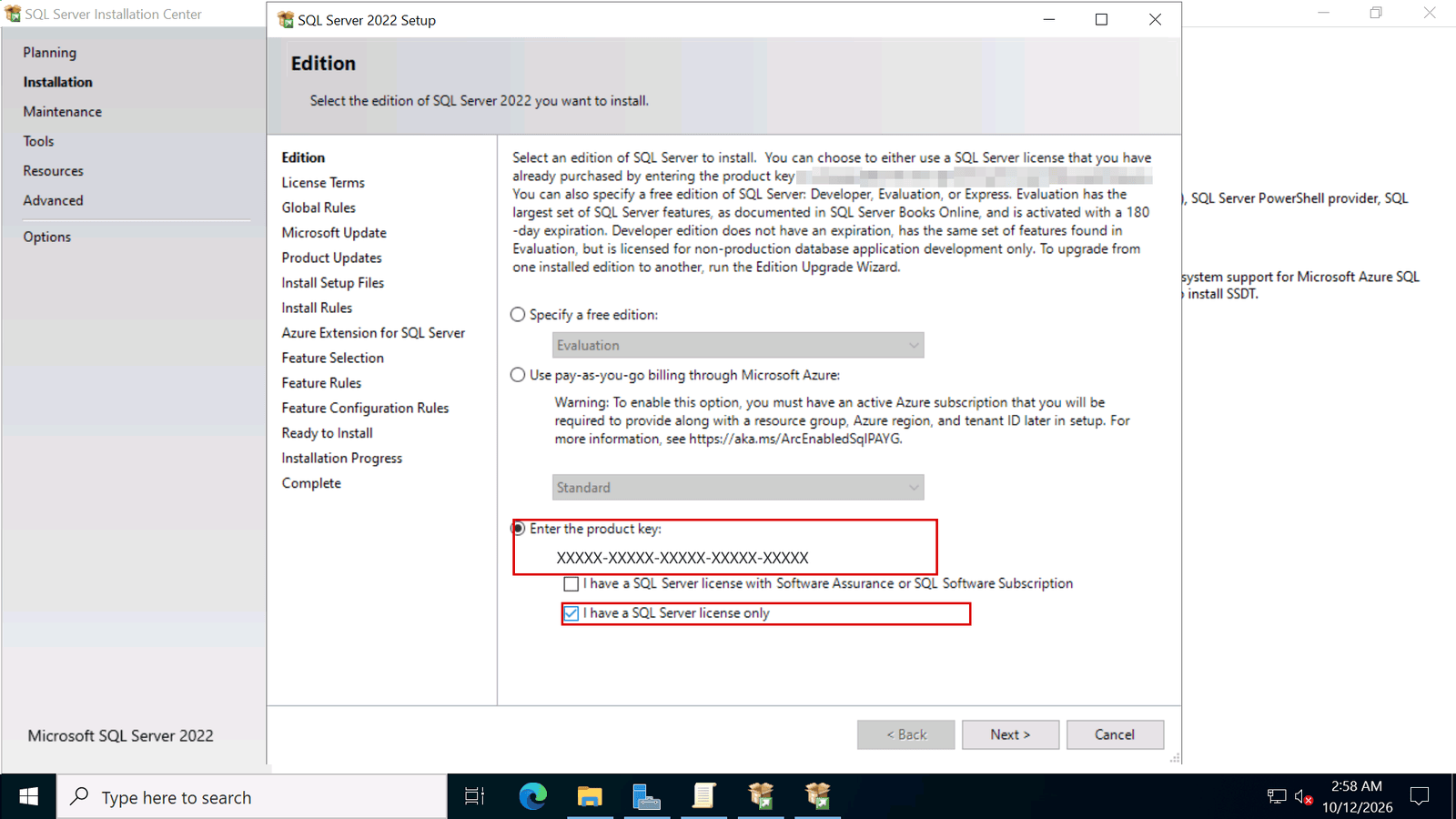
1.2 To use your license, select Enter the product key and type your key in the box below it.
1.3 On our server we also checked I have a SQL Server license only, then clicked Next.
Check that the setup you run is the same SQL Server version as your license. The window title shows which setup you are running, for example SQL Server 2022 Setup.
3.1 After you click Next, the edition of your key appears at the top of the License Terms page. On our server it was SQL Server 2022 Standard Edition.
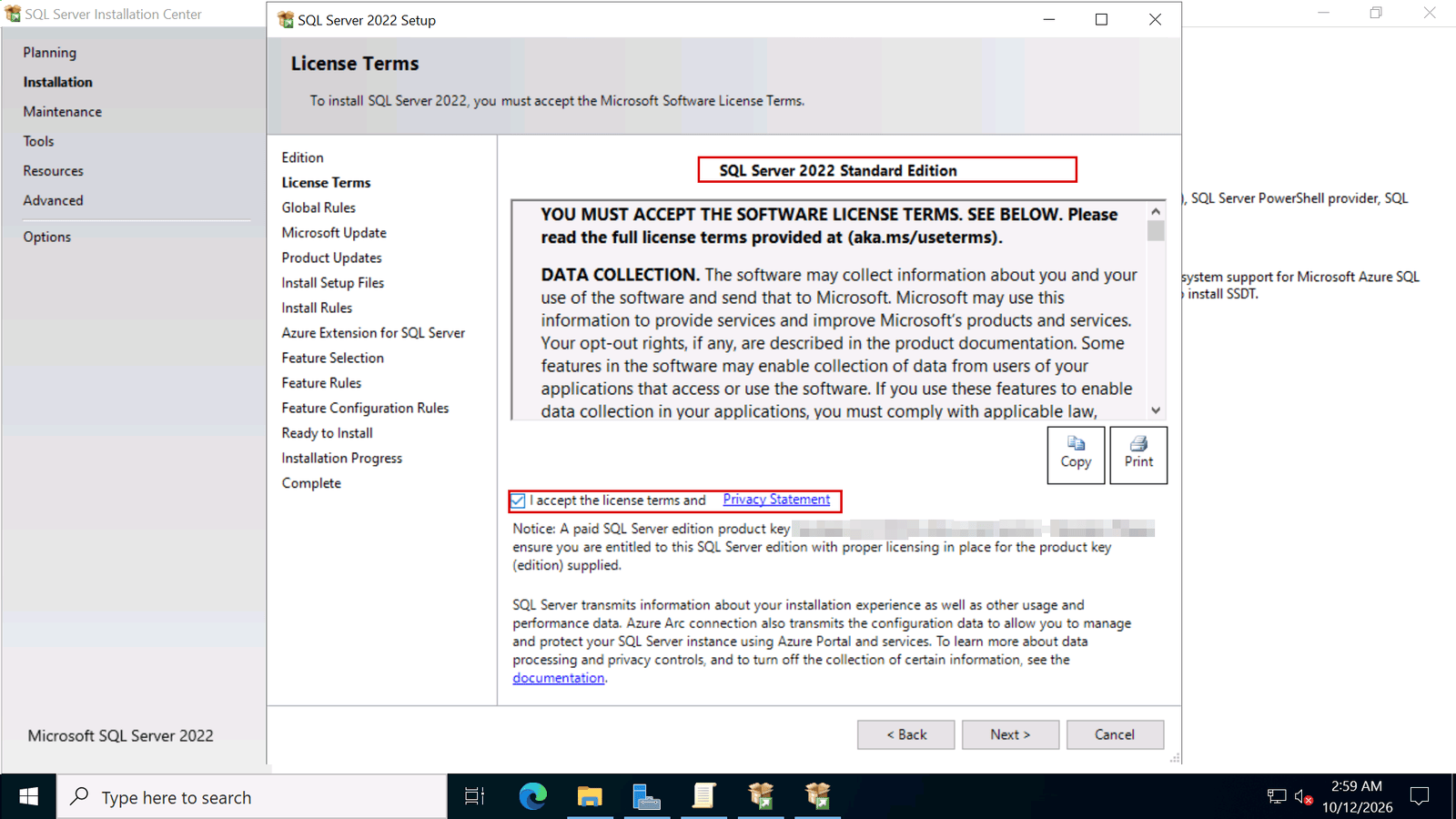
3.2 If this is not the edition you expected, click Back and check the key on your license page. The note under the terms reminds you to make sure you are entitled to the edition of the key you enter.
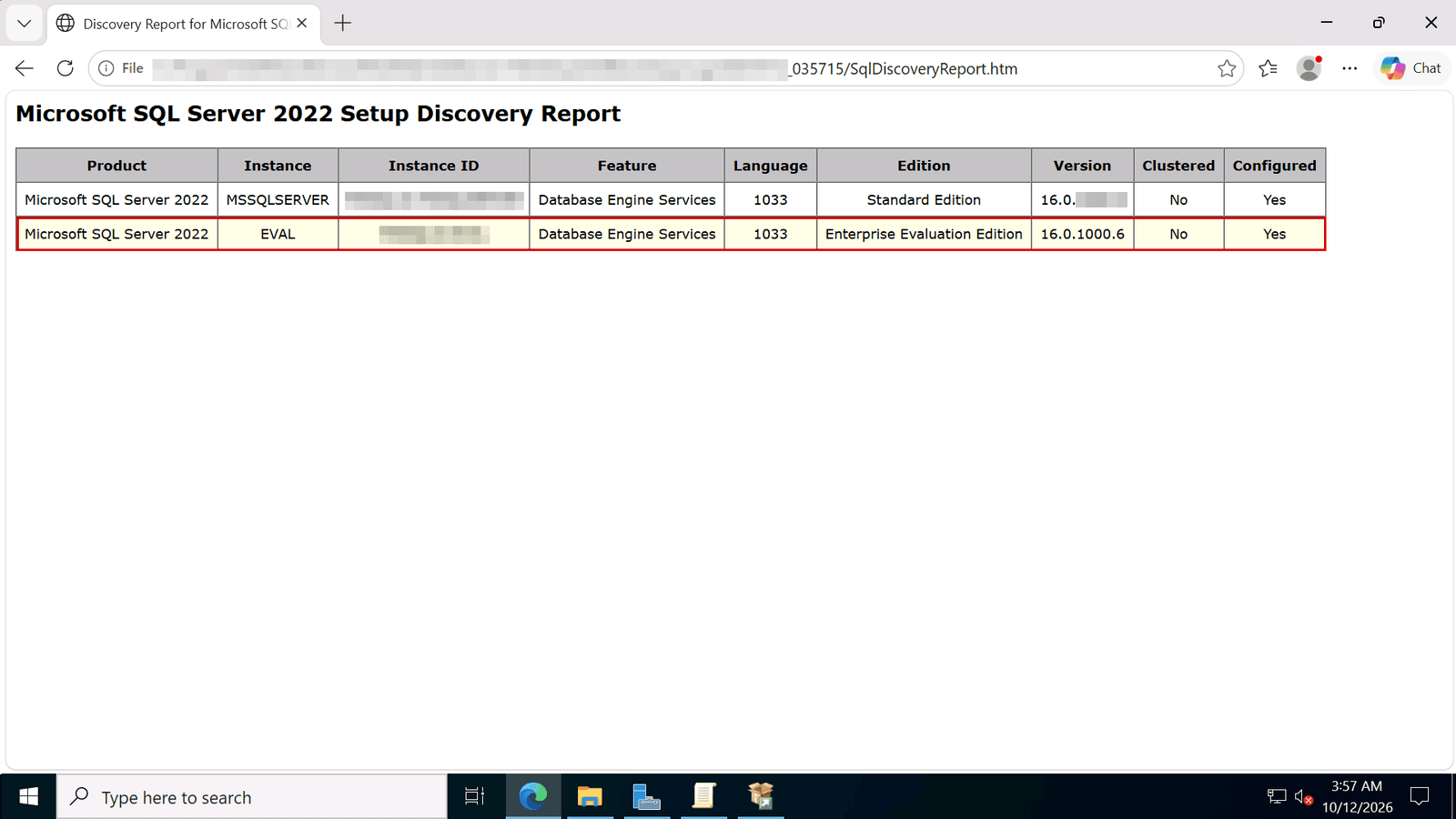
3.3 Already installed? Open SQL Server Installation Center, go to Tools and run Installed SQL Server features discovery report. The Edition column shows the edition of each instance. On our server, MSSQLSERVER runs Standard Edition and EVAL runs Enterprise Evaluation Edition, the free trial.
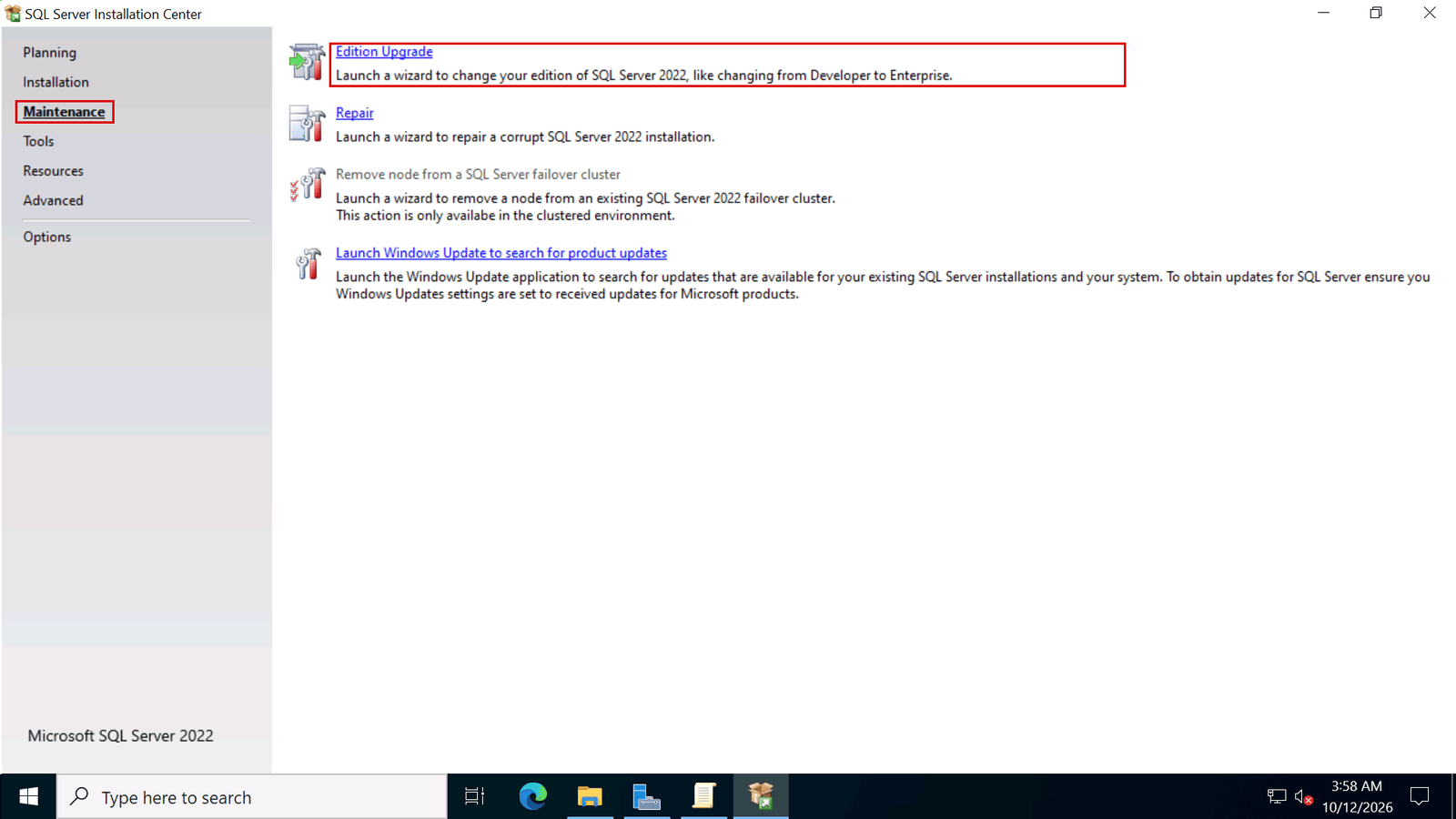
4.1 You don't need to install SQL Server again to move up to your paid edition. In SQL Server Installation Center, go to Maintenance and click Edition Upgrade, then enter your product key. The text of the Edition page of setup says the same: to move from one installed edition to another, run the Edition Upgrade wizard.
4.2 According to Microsoft, these are the edition changes that SQL Server 2022 supports (we leave out the Web edition):
4.3 Going down from a paid Enterprise instance to Standard is different. Microsoft says you must completely uninstall the instance and install it again. Back up your databases first. We didn't test this on our server.
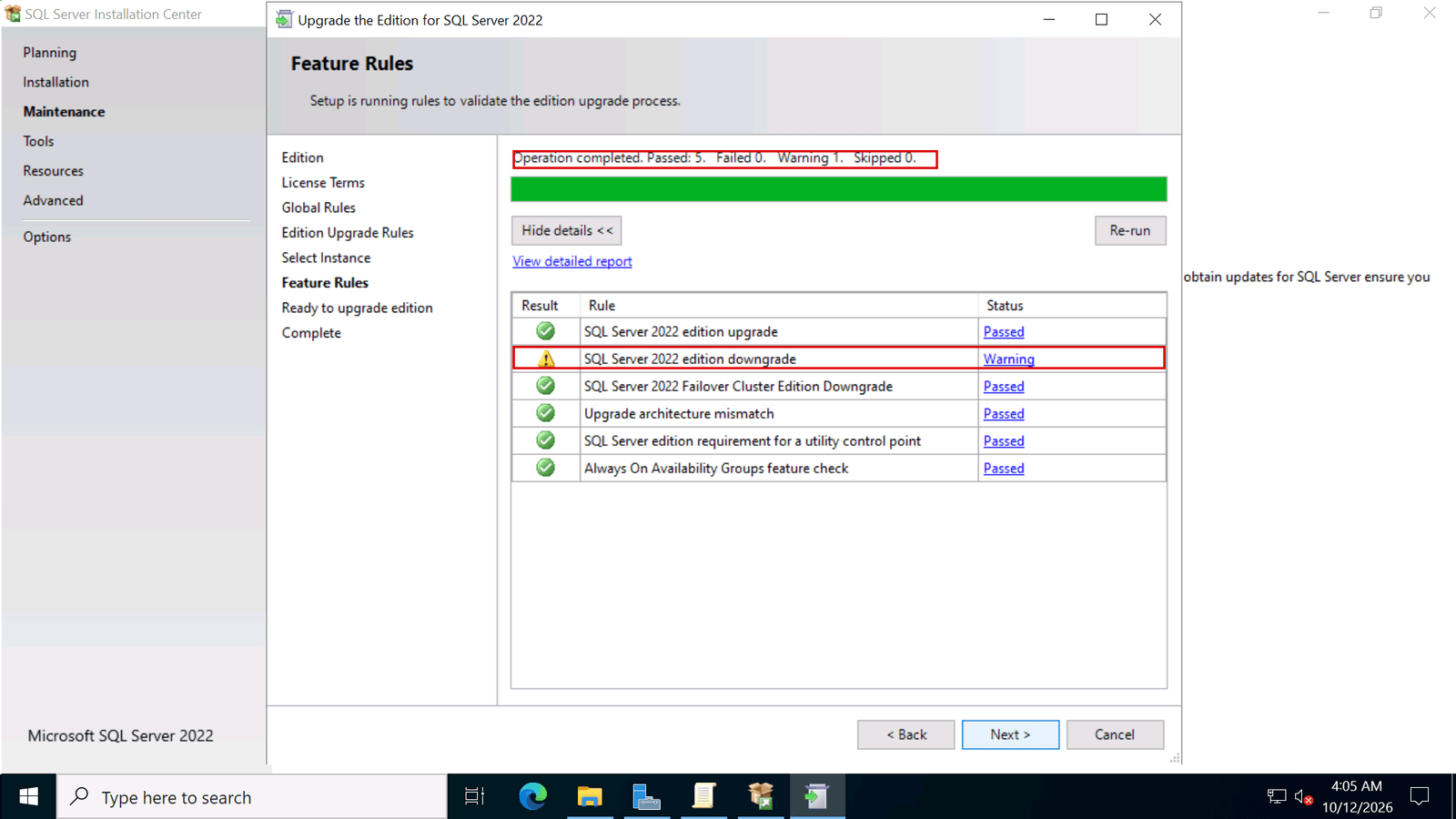
4.4 When we moved our Evaluation instance to Standard, the Feature Rules page showed one warning, SQL Server 2022 edition downgrade (the instance was Enterprise Evaluation Edition and the key was Standard). It was a warning, not a failure: we clicked Next and the upgrade finished. If you use Enterprise features, check that Standard supports them before you continue. Our step-by-step guide is How to Change Your SQL Server Edition or Product Key.
Microsoft lists these, and we didn't run into them on our server:
A paste is safer than typing by hand: copy the key from your license page and paste it into the box, without spaces before or after. If you type it by hand, check each group of characters against your license page before you click Next.
At Licendeals, your license stays hidden until you click Get my license. Reveal it when your server is ready and you can enter it in setup right away. If a license doesn't work, tell us within 24 hours of revealing it and we will replace it right away.
{n} from {l} bought
{n} bought
Someone from {l} bought
Someone bought
Just now
1 minute ago
2 minutes ago
1 hour ago
2 hours ago
1 day ago
2 days ago
Close


 Windows
 Office for PC
 Office for Mac
 Windows Server
 SQL Server
 Office Apps
 Visual Studio

