November Special Offer - 5% OFF SITEWIDE!
Use code:
Valid until Nov 30
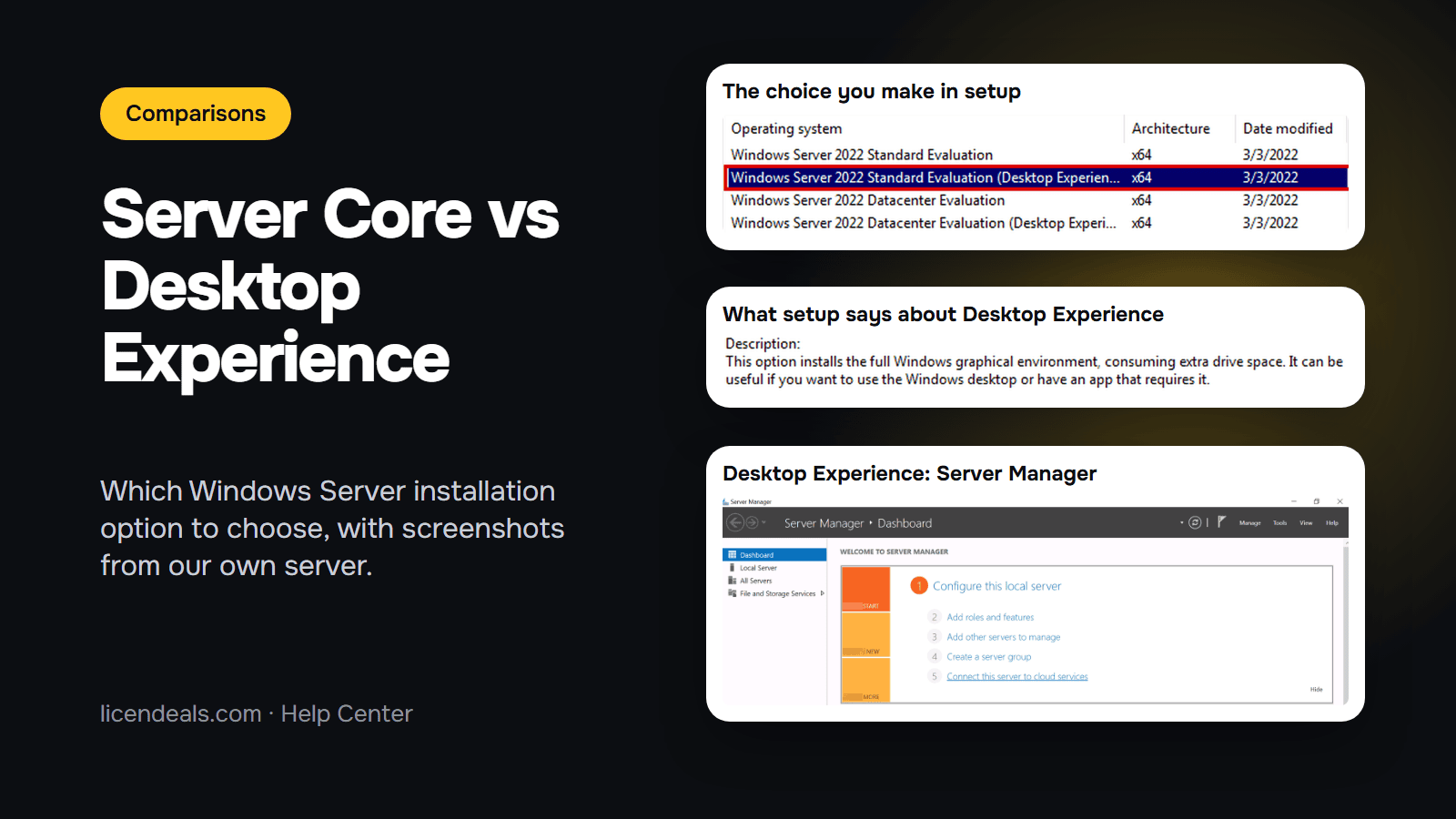
Server Core vs Desktop Experience: these are the two ways to install Windows Server Standard or Datacenter, and you choose one in the setup wizard before the first file is copied. Server Core has no desktop and you manage it from the command line or from another computer. Desktop Experience installs the familiar Windows graphical interface. Below we explain what Microsoft says about each option, show where you choose it in setup with screenshots from our own Windows Server 2022 test server, and cover the rule that matters most: you can't switch later without reinstalling.
IMPORTANT: decide before you install. According to Microsoft, you can't convert between Server Core and Server with Desktop Experience after installation, and you need a clean installation if you later decide to use the other option. This post covers Windows Server Standard and Datacenter from what Microsoft's current documentation says. In our own tests we used Desktop Experience on Windows Server 2022, and we have no screenshots of Server Core.
The Standard and Datacenter keys in our shop are RETAIL Licenses. The choice between Core and Desktop Experience is about how you install, not which edition you buy. See Windows Server Standard vs Datacenter vs Essentials to choose the edition.
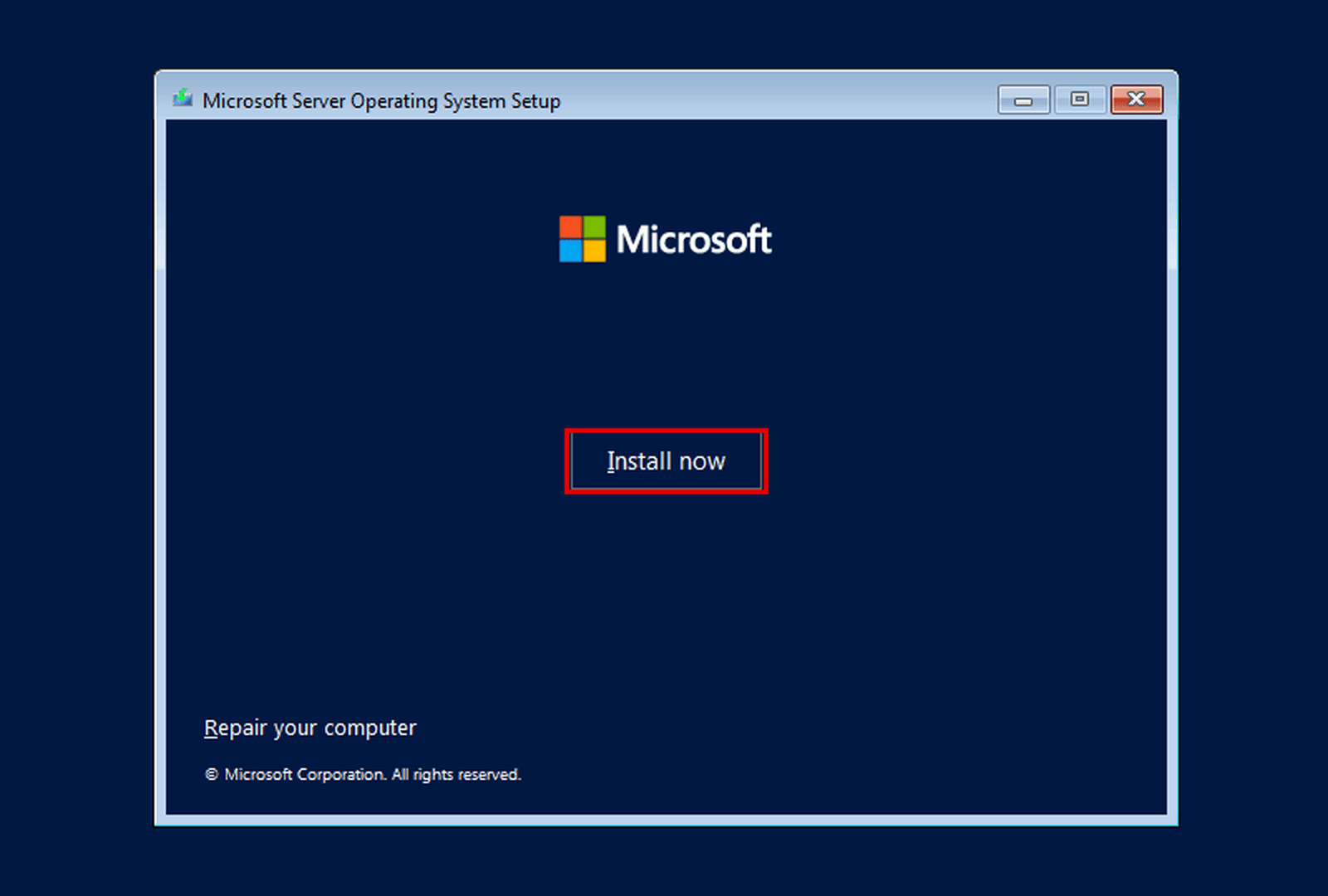
2.1 Start your server from the installation media and click Install now.
2.2 The next page is Select the operating system you want to install. On our Windows Server 2022 evaluation media it lists four options: Standard Evaluation, Standard Evaluation (Desktop Experience), Datacenter Evaluation and Datacenter Evaluation (Desktop Experience). With the Desktop Experience option selected, the installer shows this description: "This option installs the full Windows graphical environment, consuming extra drive space."
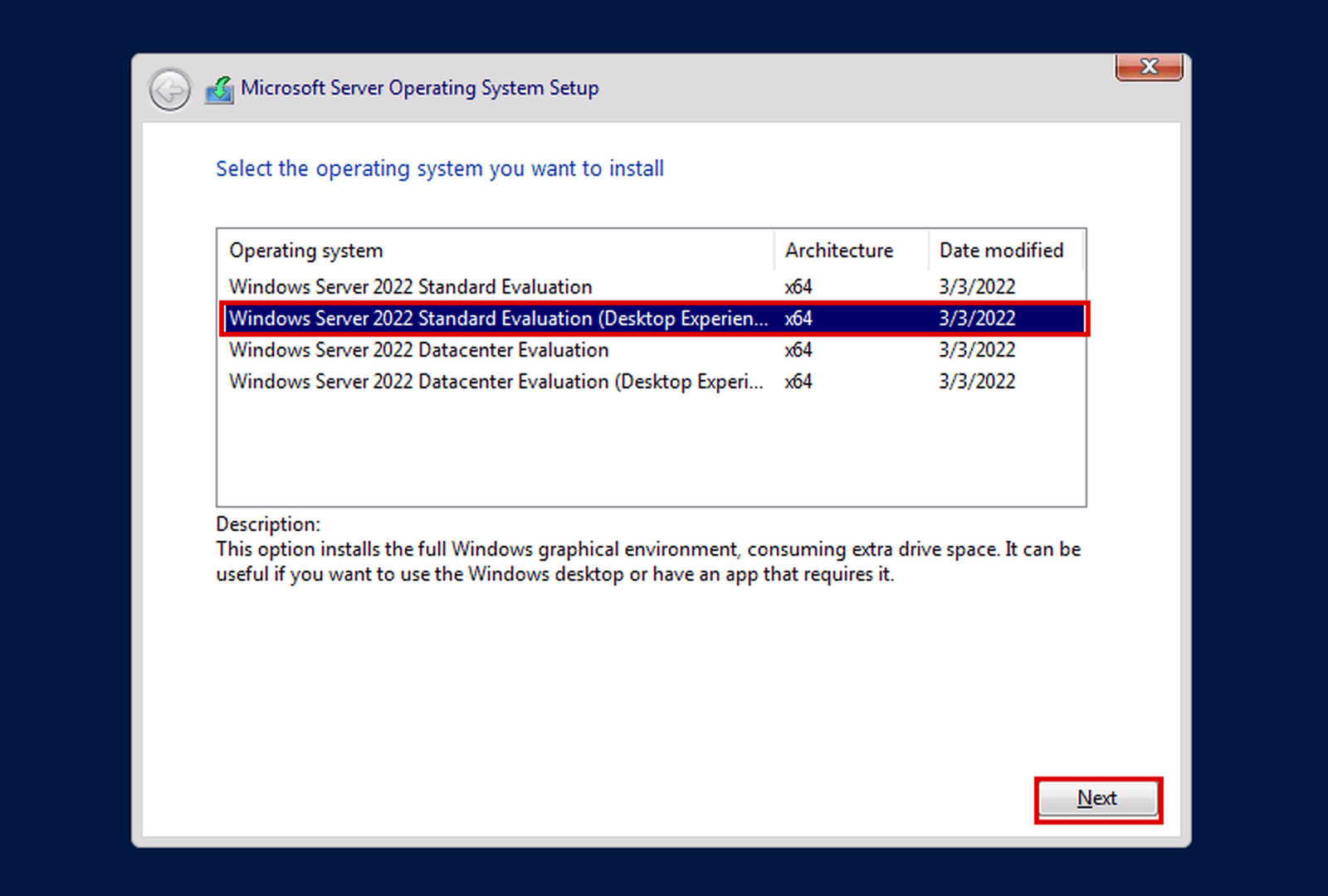
2.3 According to Microsoft, in this list the editions without "Desktop Experience" in the name are the Server Core options. That is the whole difference on this page: in the setup wizard list, a Standard entry is Server Core, and a Standard entry with Desktop Experience is the full graphical version.
3.1 Microsoft describes Server Core as a minimal installation option, available when you deploy the Standard or Datacenter edition of Windows Server. It has a smaller disk footprint and, because of a smaller code base, a smaller attack surface.
3.2 There is no desktop in Server Core, by design. Microsoft says you manage it remotely through the command line, PowerShell, a graphical tool such as Remote Server Administration Tools (RSAT) or Windows Admin Center, or locally with the Server Configuration tool (SConfig).
3.3 Microsoft also lists other differences from Desktop Experience: Server Core has no accessibility tools, no out-of-box experience for setting it up, no audio support, and push notification services are not installed.
3.4 Some roles and features are not in Server Core. Microsoft's list includes Fax Server and Network Policy and Access Services. Before you choose Core, search that list for the role your application needs (link at the end of this post).
4.1 According to Microsoft, Server with Desktop Experience installs the standard graphical user interface and all tools, including client experience features. All roles and features are available.
4.2 This is what we used in all our tests. After setup, Server Manager opens with its Dashboard, from where you add roles and features with the mouse. This screenshot is from our Windows Server 2022 test server with Desktop Experience.
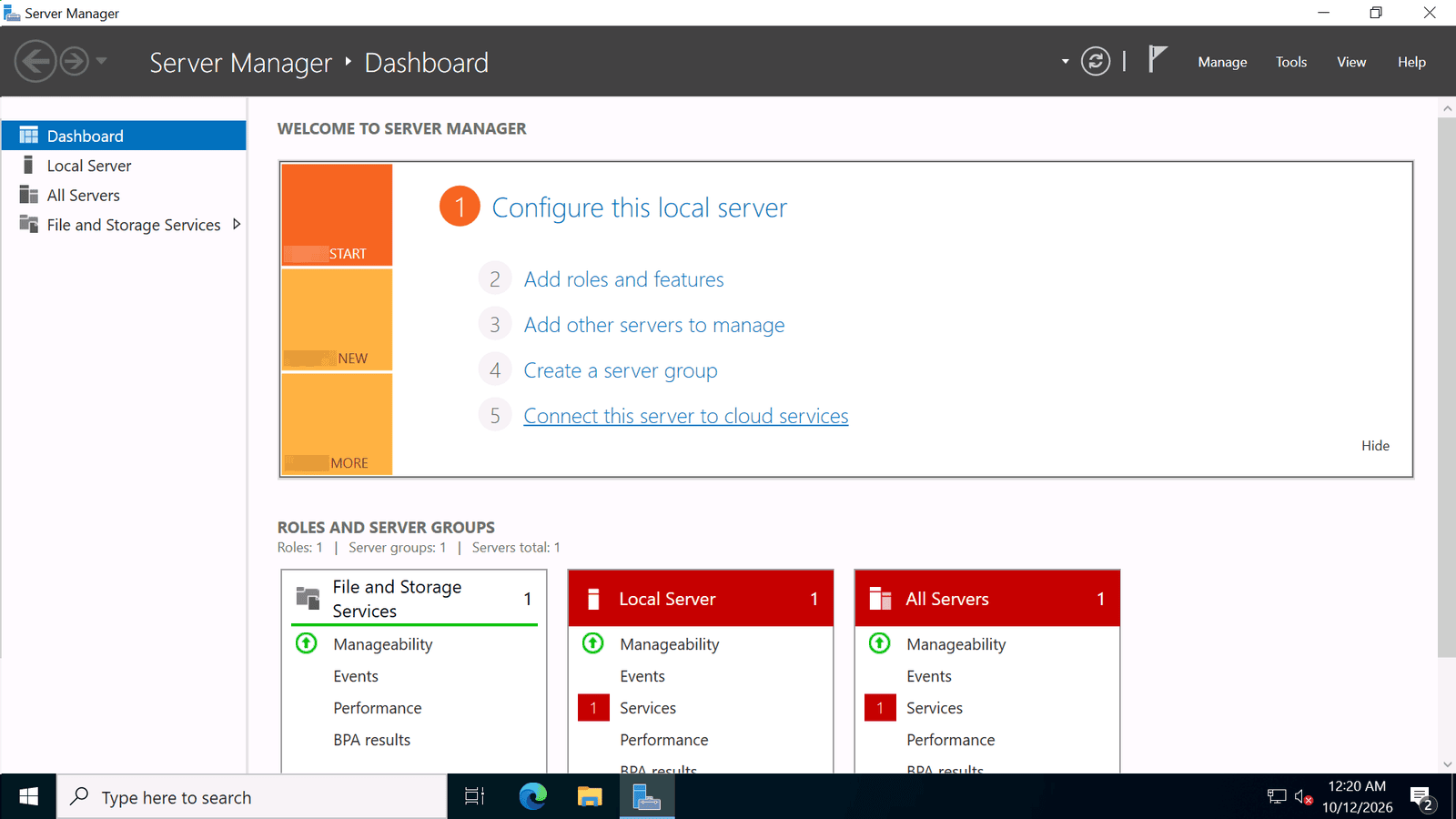
4.3 Microsoft's table of tools that run locally shows what you gain: Server Manager, the Microsoft Management Console, Event Viewer, Control Panel, Windows Explorer and the taskbar are listed as available on Desktop Experience and not available on Server Core. Command Prompt, PowerShell, Task Manager and Registry Editor are available on both. Microsoft notes that, in most cases, you can run the "not available" tools remotely from a Windows client computer or from Windows Admin Center.
The cost is a larger installation: Microsoft says Desktop Experience has a larger disk space requirement and no reduction of the attack surface, and its page on Server Core says it installs many services and components that you often don't need for a particular usage scenario.
This table summarizes Microsoft's comparison of the two install options:
| Server Core | Server with Desktop Experience | |
|---|---|---|
| User interface | Minimal, command line driven (PowerShell, SConfig, cmd) | Standard Windows graphical interface |
| Disk space | Smaller requirement | Larger requirement |
| Install roles on the server itself | PowerShell | Server Manager or PowerShell |
| Roles and features | Some are not available | All are available, including those for application compatibility |
| Remote management | Yes: Windows Admin Center, RSAT, Server Manager or PowerShell | Yes: the same tools |
| Attack surface | Greatly reduced | No reduction |
| Microsoft Management Console | Not installed; can be added with the App Compatibility Feature on Demand | Installed |
6.1 Microsoft says: "Unlike some previous releases of Windows Server, you can't convert between Server Core and Server with Desktop Experience after installation." If you change your mind, you need a clean installation, which means setting up the server again and moving your roles and data.
6.2 It also applies to upgrades. According to Microsoft, switching from a Server Core installation to a Server with Desktop Experience installation, or the other way round, during an in-place upgrade isn't supported.
6.3 Evaluation versions. If you install an evaluation first and convert it with your product key, the same rule applies. Microsoft says that since Windows Server 2016 you can't convert Desktop Experience evaluation versions to Core retail versions. It also says that the Standard Core evaluation can only be converted to Datacenter Core, not to Standard Core.
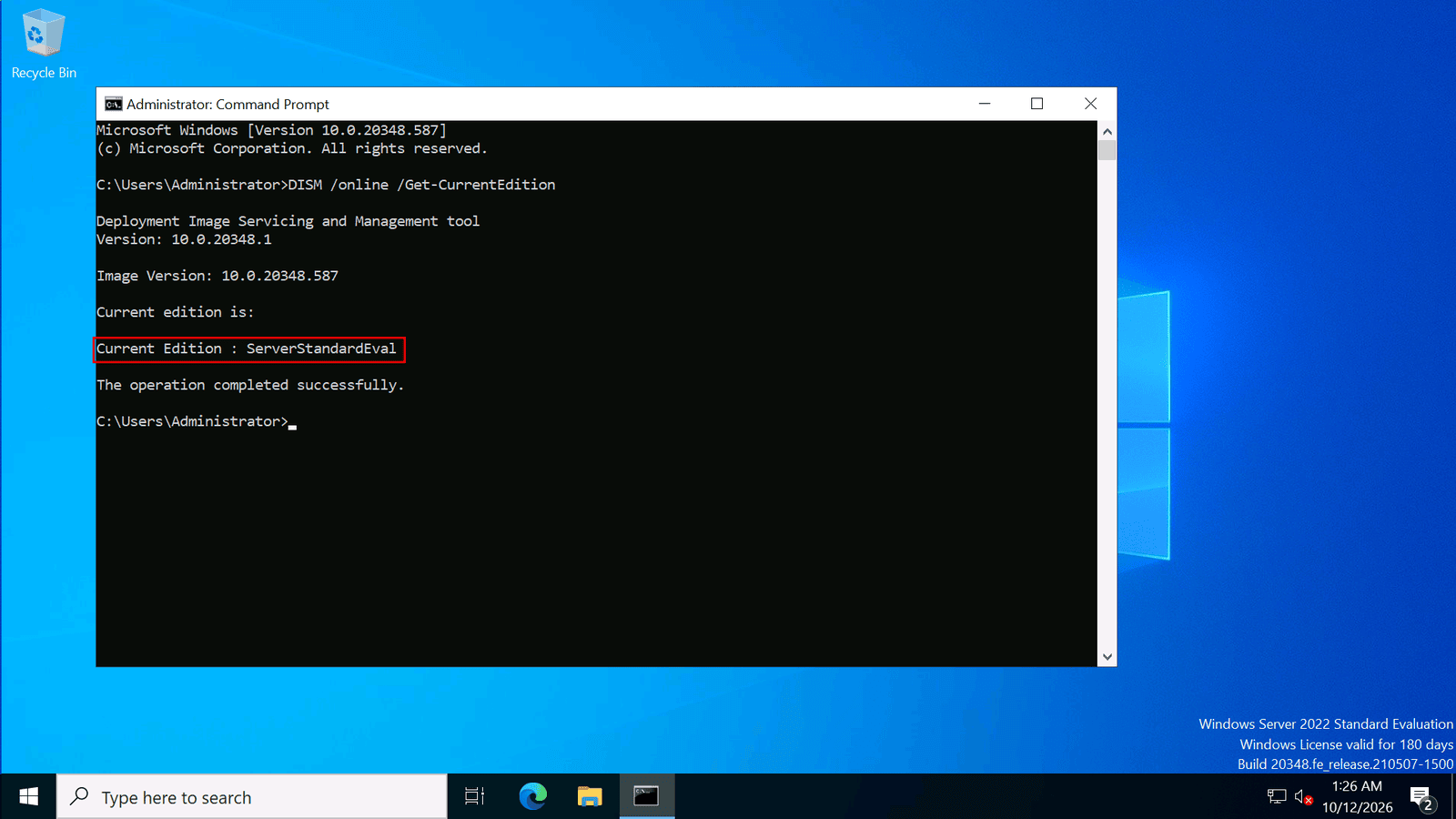
6.4 Before converting, Microsoft says to run DISM /online /Get-TargetEditions to see which versions you can convert to. If the version you want isn't listed, you need a fresh install of that version. On our test server, DISM /online /Get-CurrentEdition returned ServerStandardEval for our Standard Evaluation (Desktop Experience). The full step-by-step conversion is in How to Convert Windows Server Evaluation to a Full License.
7.1 Microsoft offers the Application Compatibility Feature on Demand, an optional package available starting with Windows Server 2019. It adds a subset of Desktop Experience components to Server Core, such as Event Viewer, Disk Management, Performance Monitor, File Explorer and the Microsoft Management Console.
7.2 According to Microsoft, it can only be added to Server Core installations, not to servers with Desktop Experience. If you do an in-place upgrade to a newer version of Windows Server, it doesn't remain in place and you install it again.
7.3 Microsoft's page describes it from Windows Server 2019 on. We didn't test it, and we can't tell you from Microsoft's page whether Windows Server 2016 has an equivalent.
{n} from {l} bought
{n} bought
Someone from {l} bought
Someone bought
Just now
1 minute ago
2 minutes ago
1 hour ago
2 hours ago
1 day ago
2 days ago
Close


 Windows
 Office for PC
 Office for Mac
 Windows Server
 SQL Server
 Office Apps
 Visual Studio

