October Special Offer - 5% OFF SITEWIDE!
Use code:
Valid until Oct 31
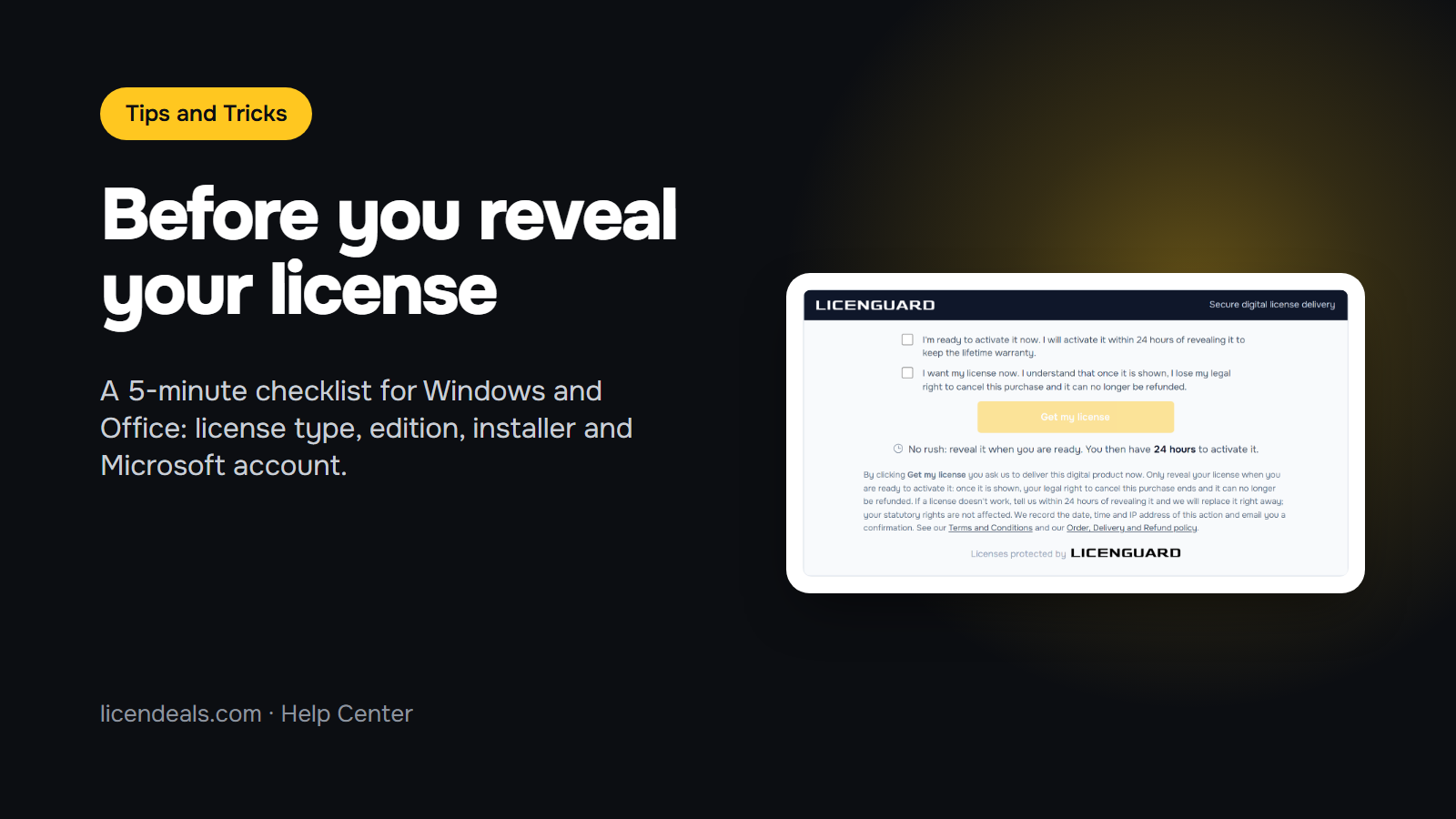
You bought a license and the email with your secure link is waiting. Before you click Get my license, take five minutes to go through this Windows activation checklist. It works for Office too. Revealing the key starts your activation period, so the best moment to reveal it is when your computer, your installer and your Microsoft account are ready. Here is what to check first, with real screenshots of the license page you will see.
IMPORTANT: Only reveal your license when you are ready to activate it: once revealed, it can no longer be refunded, except where the law of your country requires it.
IMPORTANT: There is no rush. Your license is waiting for you on your license page, whether you reveal it the same day or months later.
Every order email has a secure link to your license page. Before you reveal anything, the page shows the product, its license type and two boxes to tick. This is exactly what you see:
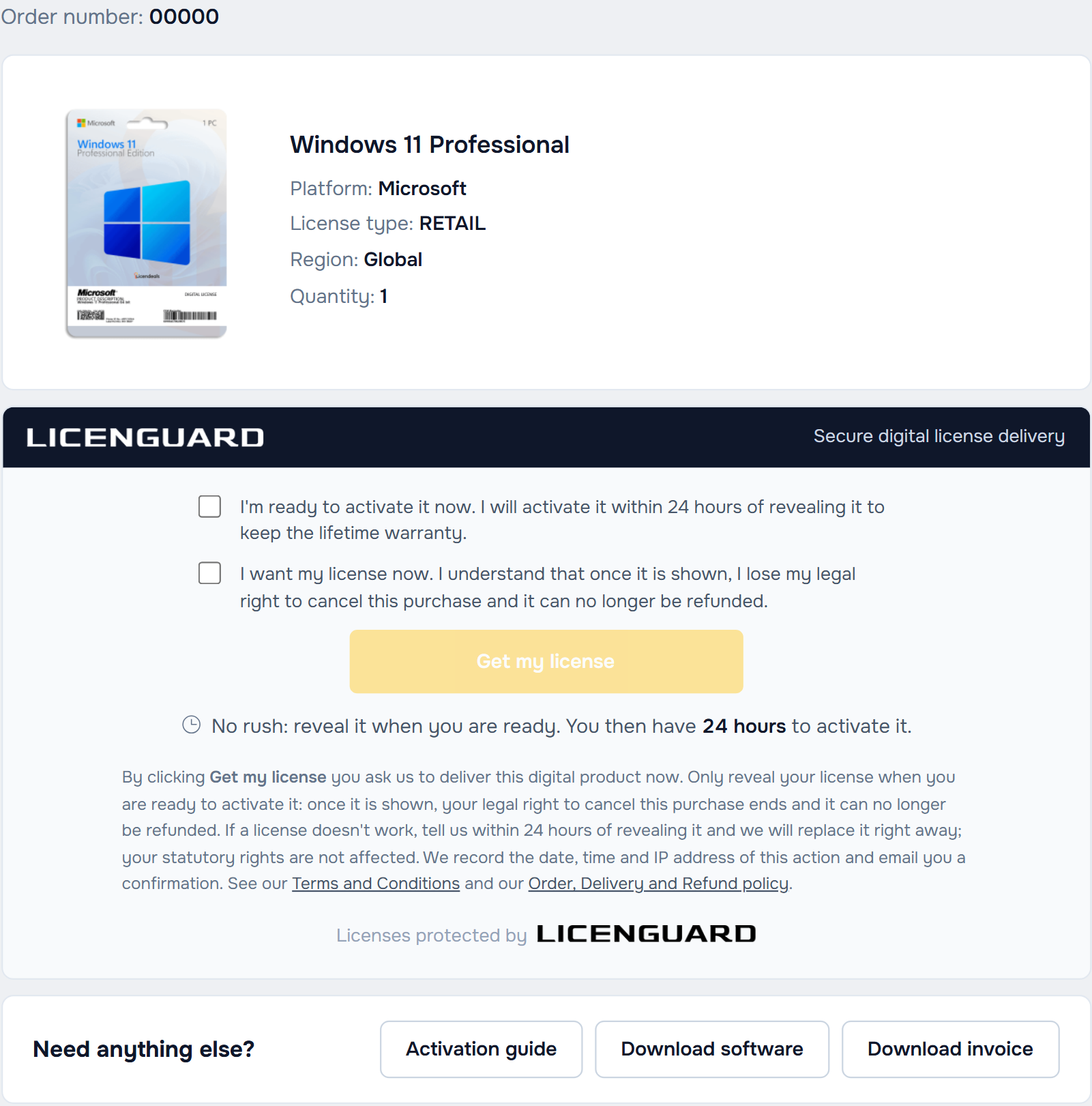
That is why the checklist below comes first. Each check takes a minute or two.
2.1 Check the license type. Look at License type on your license page: RETAIL, OEM, CID, BIND, MAK Volume, ACCOUNT or SUBSCRIPTION. Each one activates in a different way. Our license types page explains how each one works and what you need for it.
2.2 Check your Windows edition. Microsoft says that your Windows edition must match your license, or Windows will not activate. Open Start > Settings > System > Activation and read the name at the top. In this screenshot from our test computer, it says Windows 11 Home:

If you bought Windows 11 Professional and your computer runs Home, follow our guide on how to upgrade Windows 11 Home to Pro before you reveal the key. For Office, check that the computer meets the system requirements on the product page.
2.3 Get the installer and the guide ready. Your license page has an Activation guide button and a Download software button, and you can use both before you reveal the key. Download and install the software first, and keep the guide open in another tab:

2.4 Use a stable internet connection. Windows and Office activate online after you enter the key. Use a connection that doesn't drop, not a weak public Wi-Fi.
2.5 For a BIND License, have your Microsoft account ready. You redeem the key once with your Microsoft account, and that adds the license to that account. Microsoft asks you to sign in later with the same account you used to redeem it. Decide which account will keep Office before you reveal the key: once redeemed, the license stays in that account and can't be moved to another one.
Bonus: use the computer you will keep. With RETAIL Licenses, CID Licenses and MAK Volume Licenses, each activation can be used only once: reinstalling or changing hardware uses up that activation, and our warranty doesn't cover it. If you plan to reset Windows, format the disk or change hardware, do it before you activate, not after. BIND Licenses can be reinstalled or moved to a new device at any time.
If your order has 2 or more licenses of the same product, your license page lets you choose how many to reveal now. Only reveal as many as you will activate within 24 hours. Each reveal is a separate delivery: only the licenses you reveal at that moment are affected, they get their own 24 hours, and the rest can still be refunded within 30 days of your purchase (except BIND Licenses).
MAK Volume Licenses have 30 days instead of 24 hours. From the moment you reveal the key, you have 30 days to use all its activations or, if it doesn't work, to tell us. Your license page shows the 30 days before you reveal the key:

Plan the computers you will activate before you reveal a MAK Volume License, and we recommend that someone from IT activates it.
If a license doesn't work, tell us within 24 hours of revealing it and we will replace it right away. Write to us from your order with the error message or a screenshot, and keep the activation window open. Your statutory rights are not affected.
No account yet?
Create an Account





 Windows
 Office for PC
 Office for Mac
 Windows Server
 SQL Server
 Office Apps
 Visual Studio
