November Special Offer - 5% OFF SITEWIDE!
Use code:
Valid until Nov 30
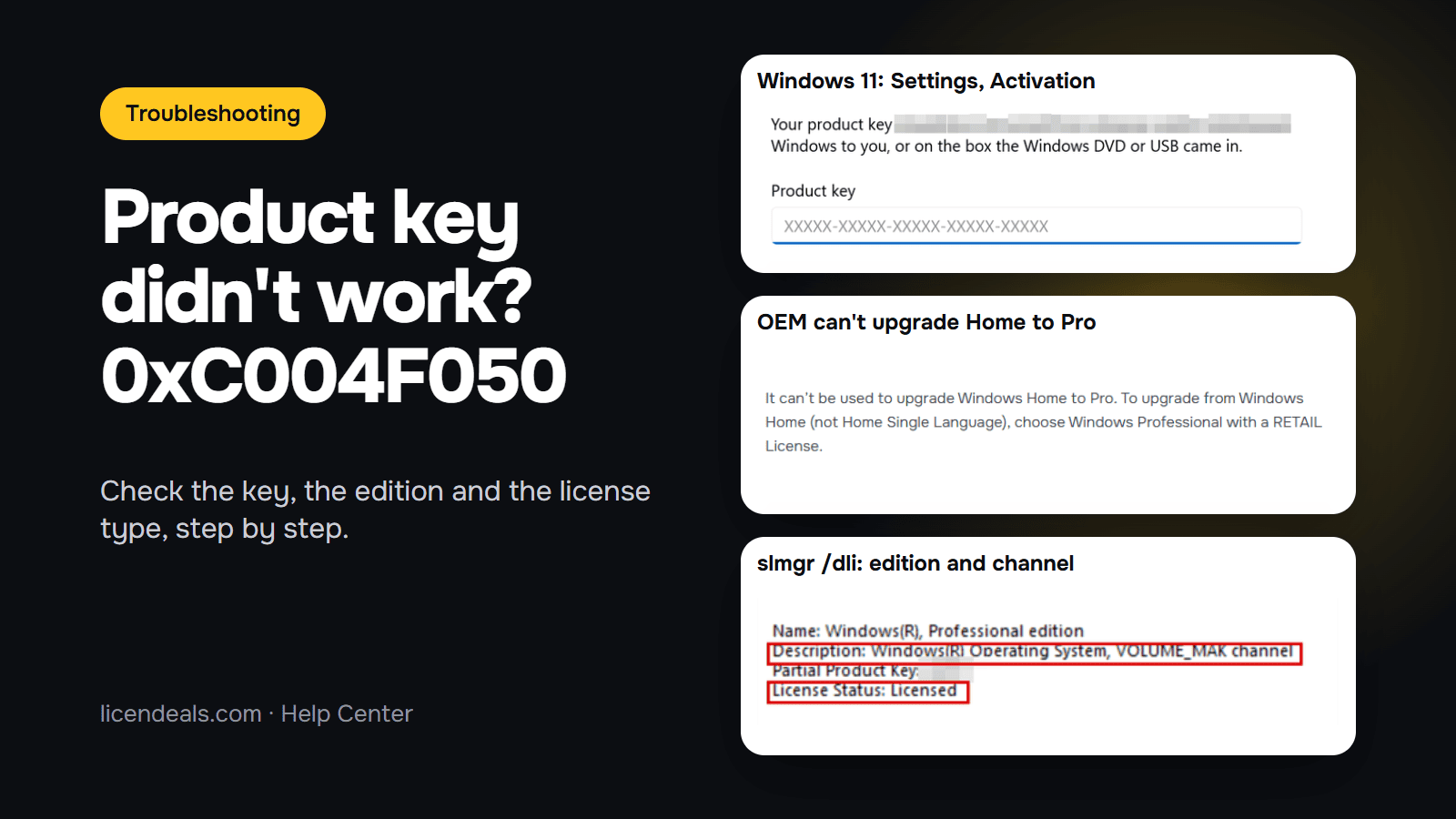
If your Windows product key didn't work and Windows shows error 0xC004F050, the key you entered can't be used to activate that copy of Windows. Microsoft gives that as the reason for this code. In practice it is often a typing mistake or a key for another edition, such as a Professional key on Windows Home. This guide shows how to check each one in order, with screenshots from our own Windows 11 Pro test computer.
IMPORTANT: we don't have a screenshot of the 0xC004F050 message itself, because we did not make an activation fail on purpose. The screenshots are from our Windows 11 Pro test computer (October 12, 2026) and show the screens you will use for the checks. The causes and fixes for this code come from Microsoft's pages, listed at the end.
1.1 Look at the code in the message. Microsoft lists 0xC004F050 as an error about the product key: "You entered a product key that can't be used to activate Windows."
1.2 If your code is a different one, the key may not be the problem. For example, on our test computer, error 0x80072ee7 said that the activation servers weren't available and asked us to make sure we were connected to the internet. That is a connection problem, not a key problem.
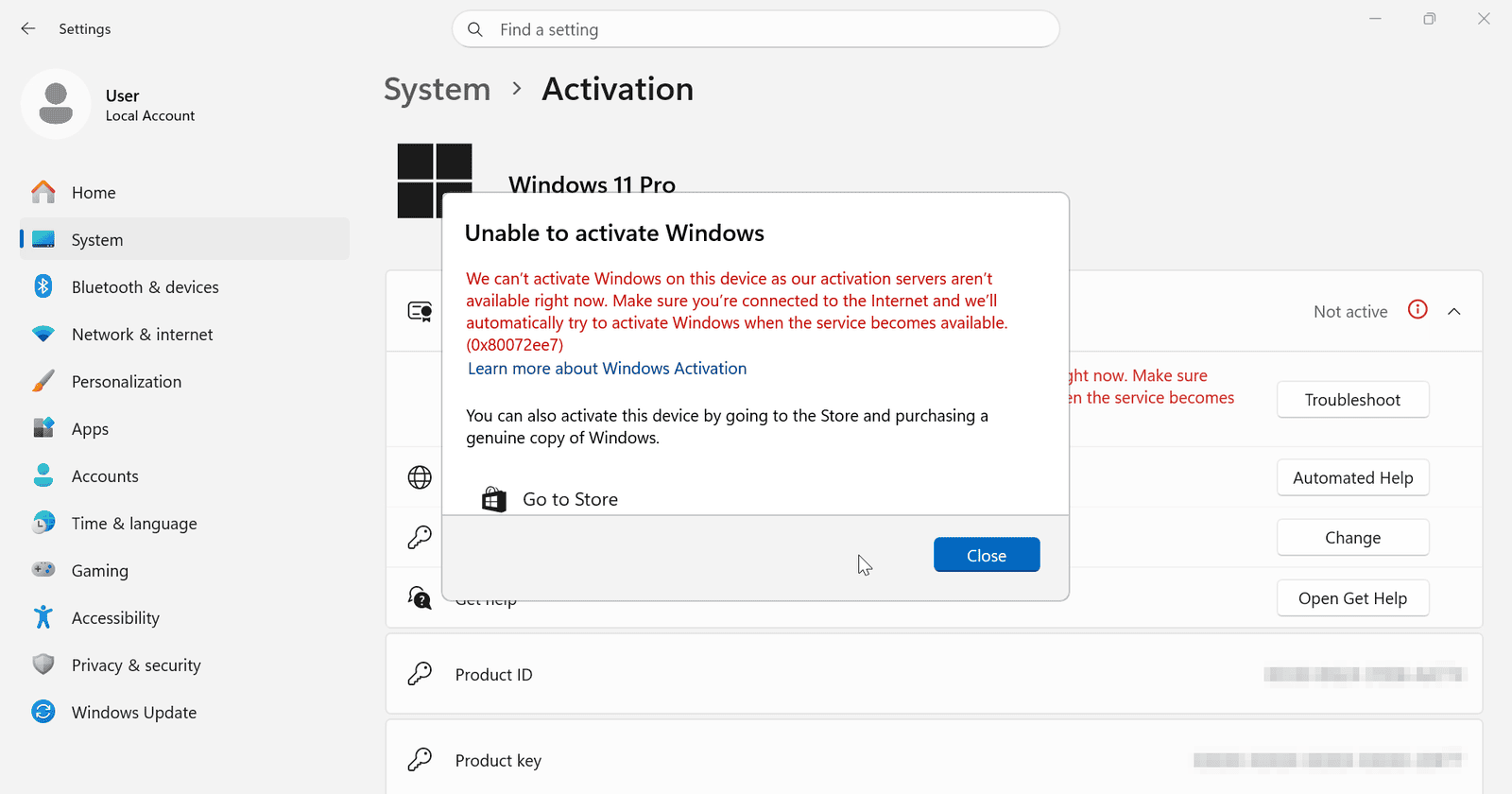
1.3 If Windows 11 can't activate online for another reason, see Windows 11 Won't Activate Online? Use a Confirmation ID. If your code is 0xC004F050, keep reading.
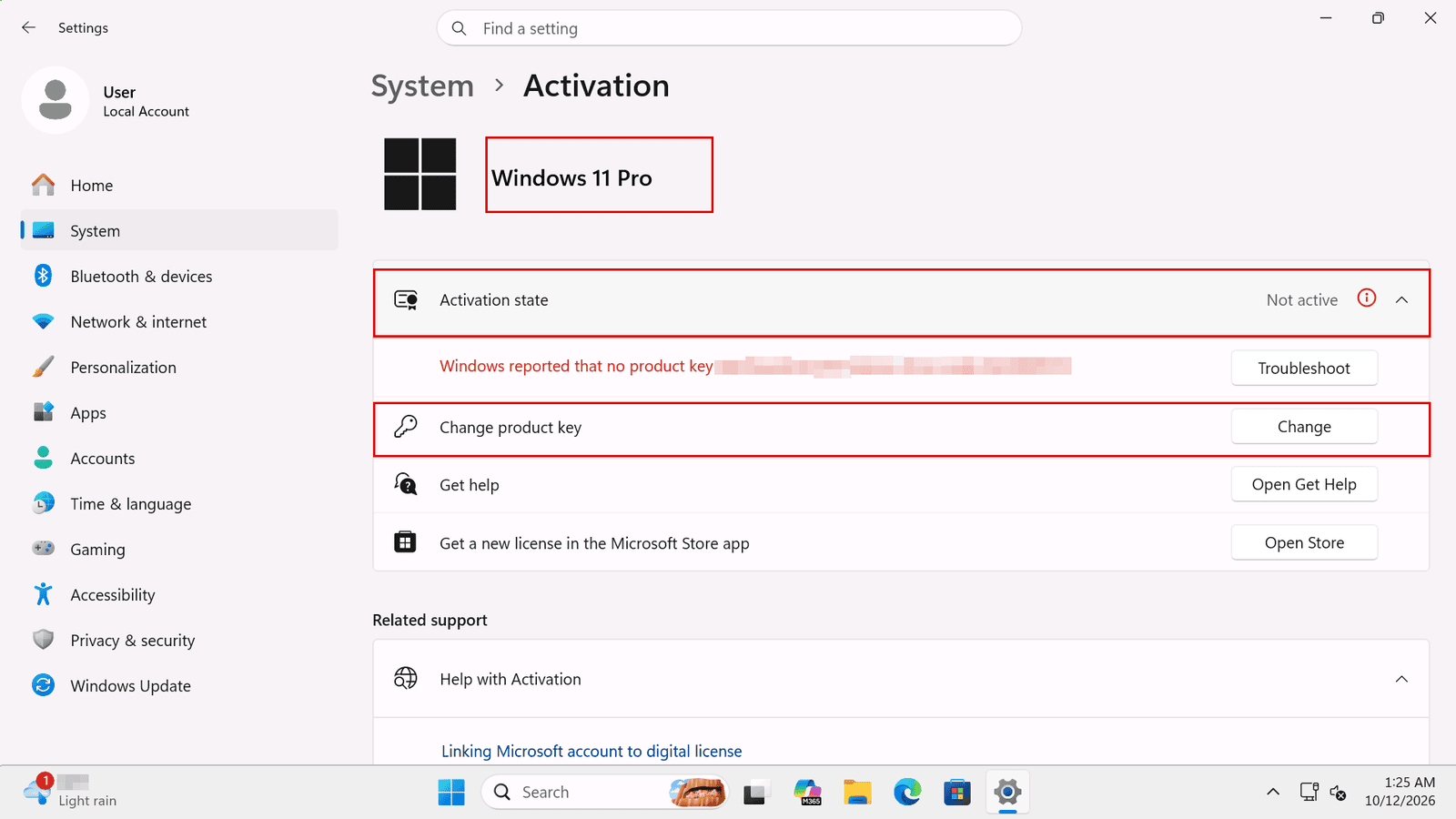
2.1 Open Settings, go to System, then Activation. Next to Change product key, click Change.
2.2 In the Enter a product key window, type or paste the key. Microsoft says a product key is a 25-character code, written as five groups of five characters (XXXXX-XXXXX-XXXXX-XXXXX-XXXXX), as the empty box in the window shows. Copy it from your license page and paste it without spaces before or after it, then click Next.
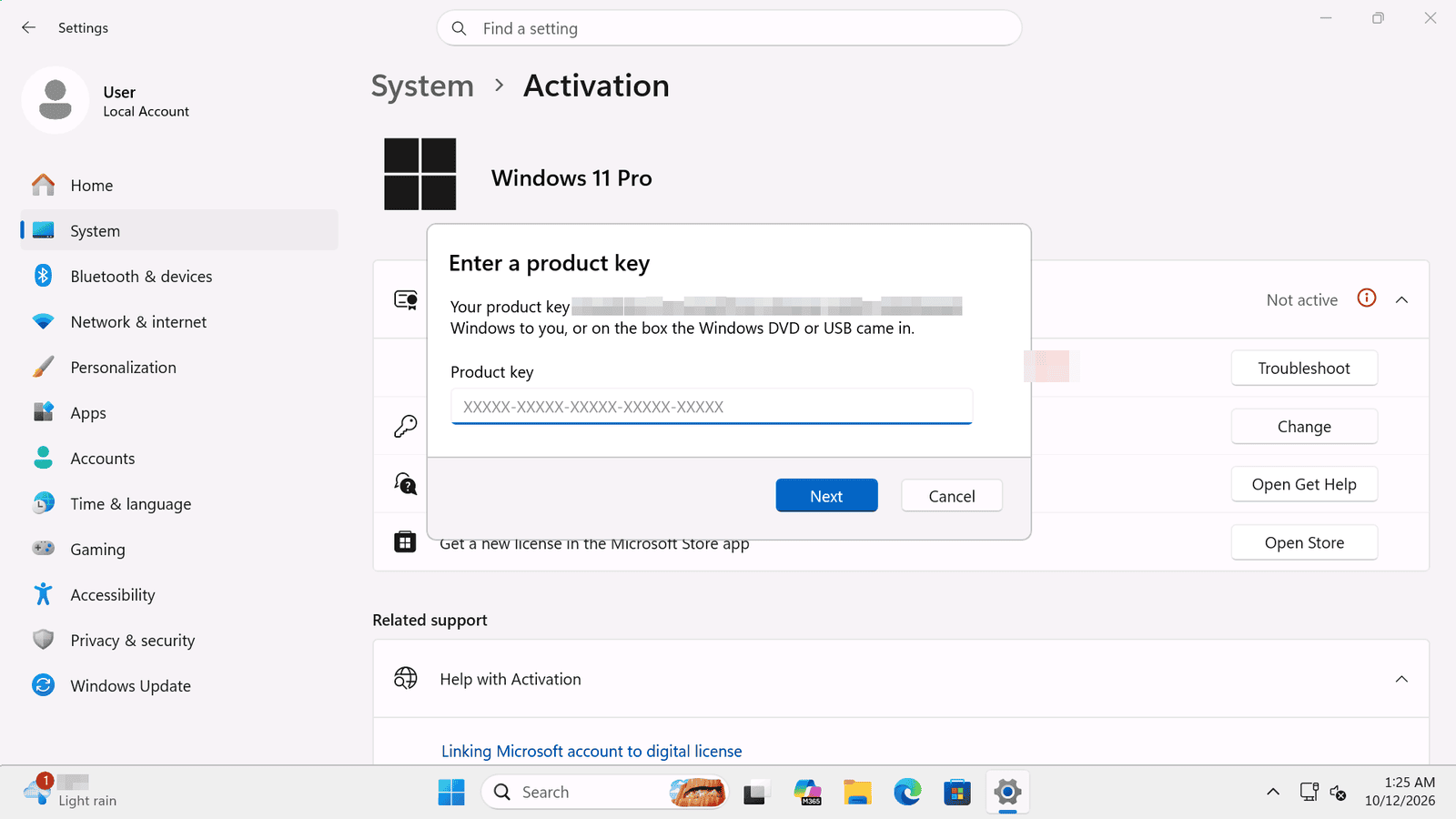
2.3 If you typed the key by hand, compare it character by character with the one on your license page. If you are not sure that you entered it correctly, enter it again.
Microsoft says: "If your license doesn't match the Windows edition that you bought or are entitled to, Windows will not activate." So the key must be for the edition you have installed.
3.1 On the Activation page, the edition appears under the Windows logo. On our test computer it said Windows 11 Pro, with the activation state Not active.
3.2 You can also check it in Command Prompt: open Command Prompt and run slmgr /dli and look at the Name line. On our test computer it said Windows(R), Professional edition. That computer used a MAK Volume License, so its Description line shows the VOLUME_MAK channel; with another license type that line will be different. Click OK to close the window. For more on reading this window, see How to Check Your Windows Activation Status and License Type.
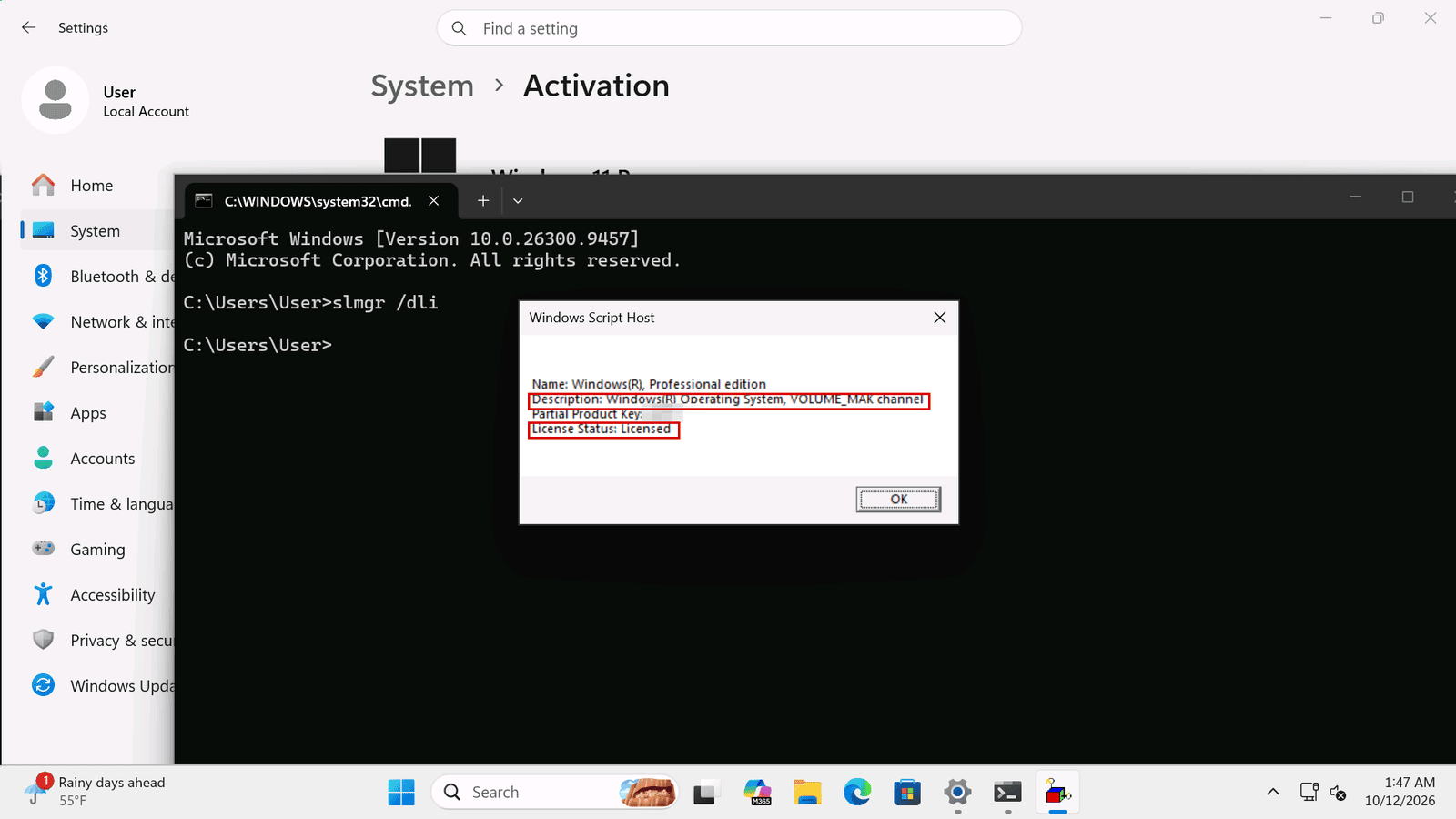
3.3 Compare the edition with the one on your key: Windows 11 Home is not Windows 11 Pro, and Windows 10 is not Windows 11. If they are different, you have found the problem.
Microsoft says you'll need a valid product key to install and activate Windows 11 Pro on a device that had Windows 11 Home installed. In that case, follow our guide How to Upgrade Windows 11 Home to Pro (Step by Step) instead of entering the key on the Home activation page.
Here the type of license matters. At Licendeals, an OEM License can't be used to upgrade Windows Home to Pro. For that upgrade (from Windows Home, not Home Single Language), our license types page says to choose Windows Professional with a RETAIL License.
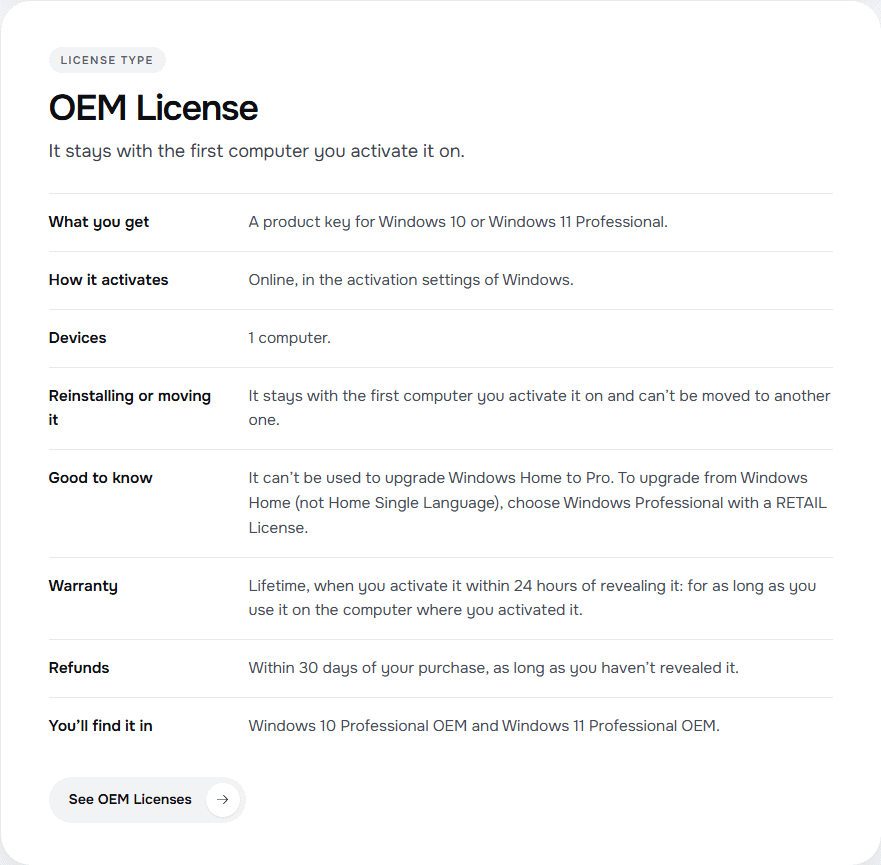
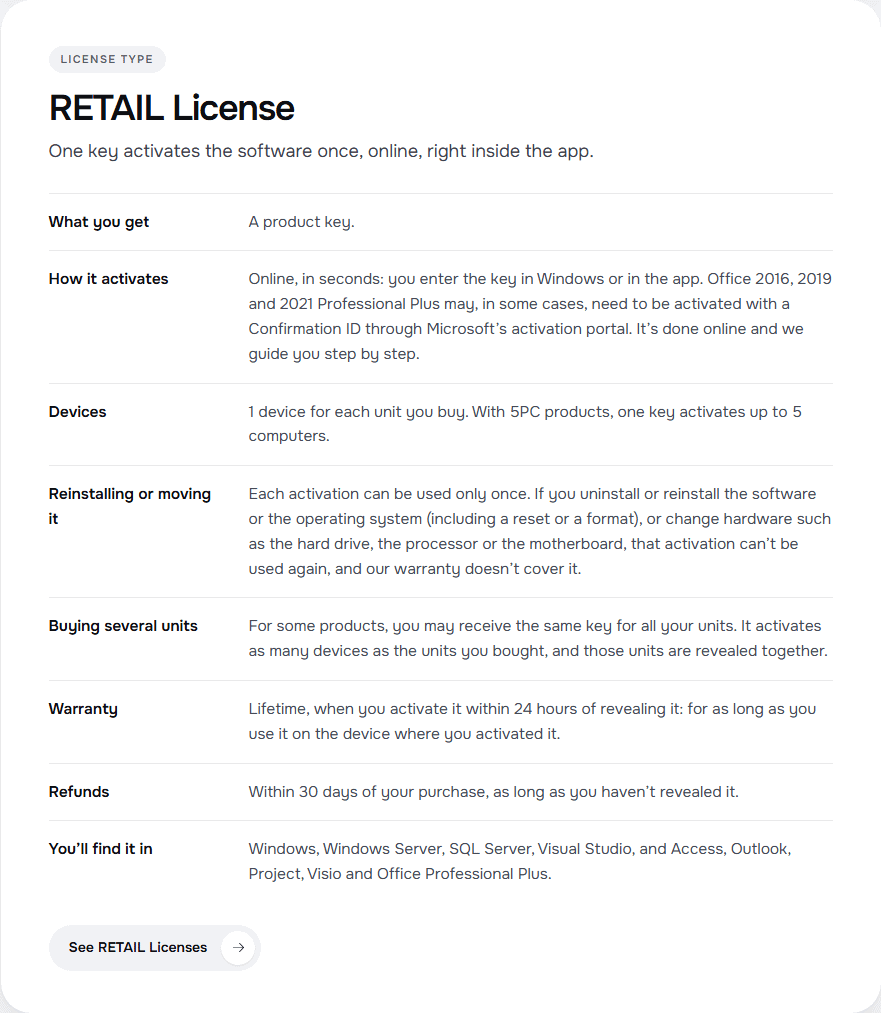
Not sure which type you have? Compare them in OEM vs RETAIL vs BIND vs CID: Which License Should You Buy?, and see Windows 11 Home vs Pro: Is the Upgrade Worth It? if you are choosing an edition. If your key is a MAK Volume License, follow How to Activate Windows 11 Pro with a MAK Volume License.
For the steps with a Windows 10 key, see How to Activate Windows 10 with a Product Key (Step by Step).
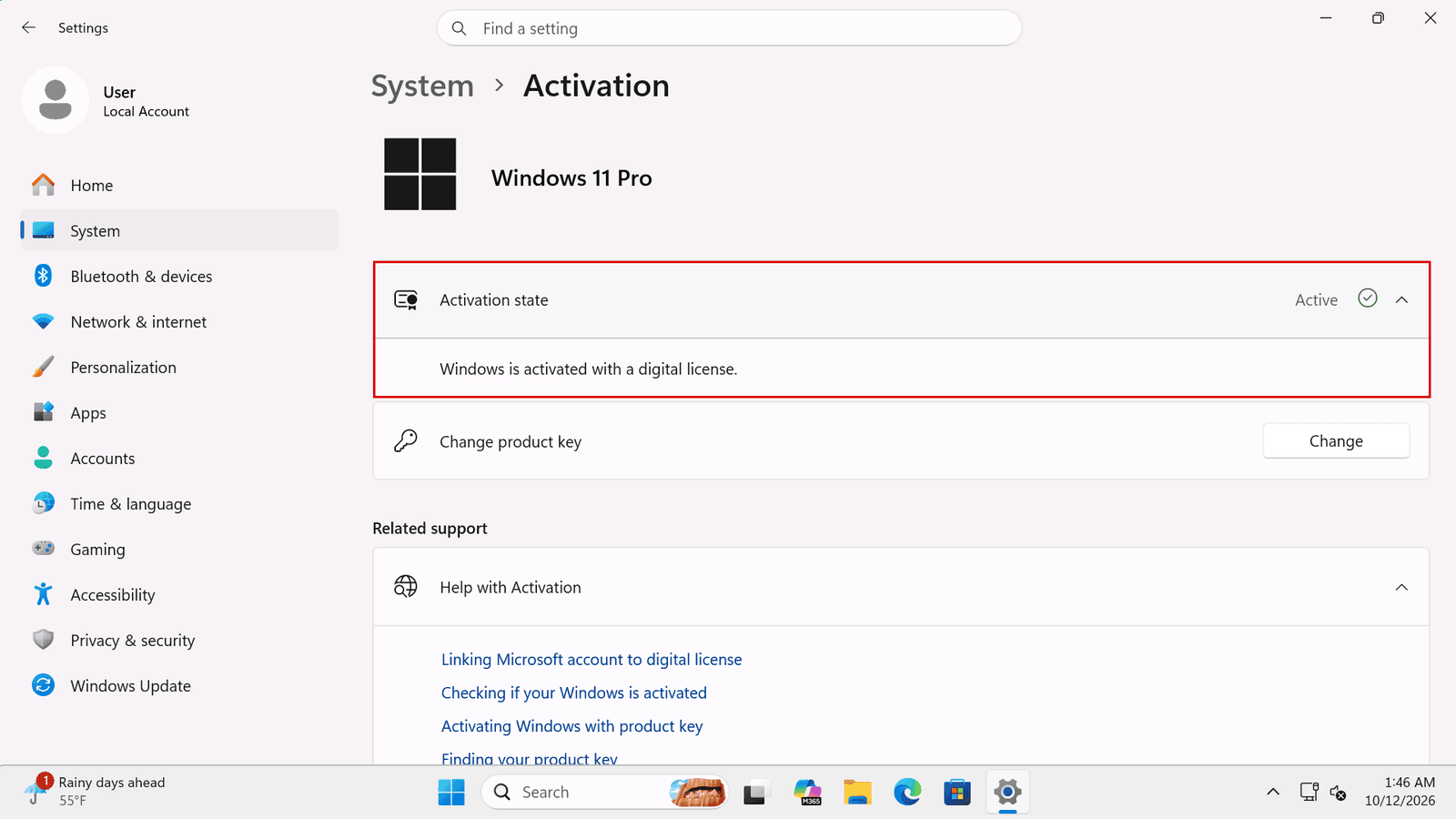
When the key works, the activation state on the Activation page says Active. This is what it looked like on our test computer.
If you bought the license from us: if a license doesn't work, tell us within 24 hours of revealing it and we will replace it right away. MAK Volume Licenses have 30 days instead of 24 hours. Your statutory rights are not affected. Tell us the error code or send a screenshot, and your order number. The full rules are on our warranty page. Before you ask for a new key, avoid the common mistakes in 7 Mistakes That Make Windows or Office Activation Fail (and How to Avoid Them), and see the rules of each type on our license types page.
{n} from {l} bought
{n} bought
Someone from {l} bought
Someone bought
Just now
1 minute ago
2 minutes ago
1 hour ago
2 hours ago
1 day ago
2 days ago
Close


 Windows
 Office for PC
 Office for Mac
 Windows Server
 SQL Server
 Office Apps
 Visual Studio

